Get Started with SenseCAP T2000 Tracker
This chapter shows you how to quickly set up your SenseCAP T2000 Tracker with the SenseCraft App.
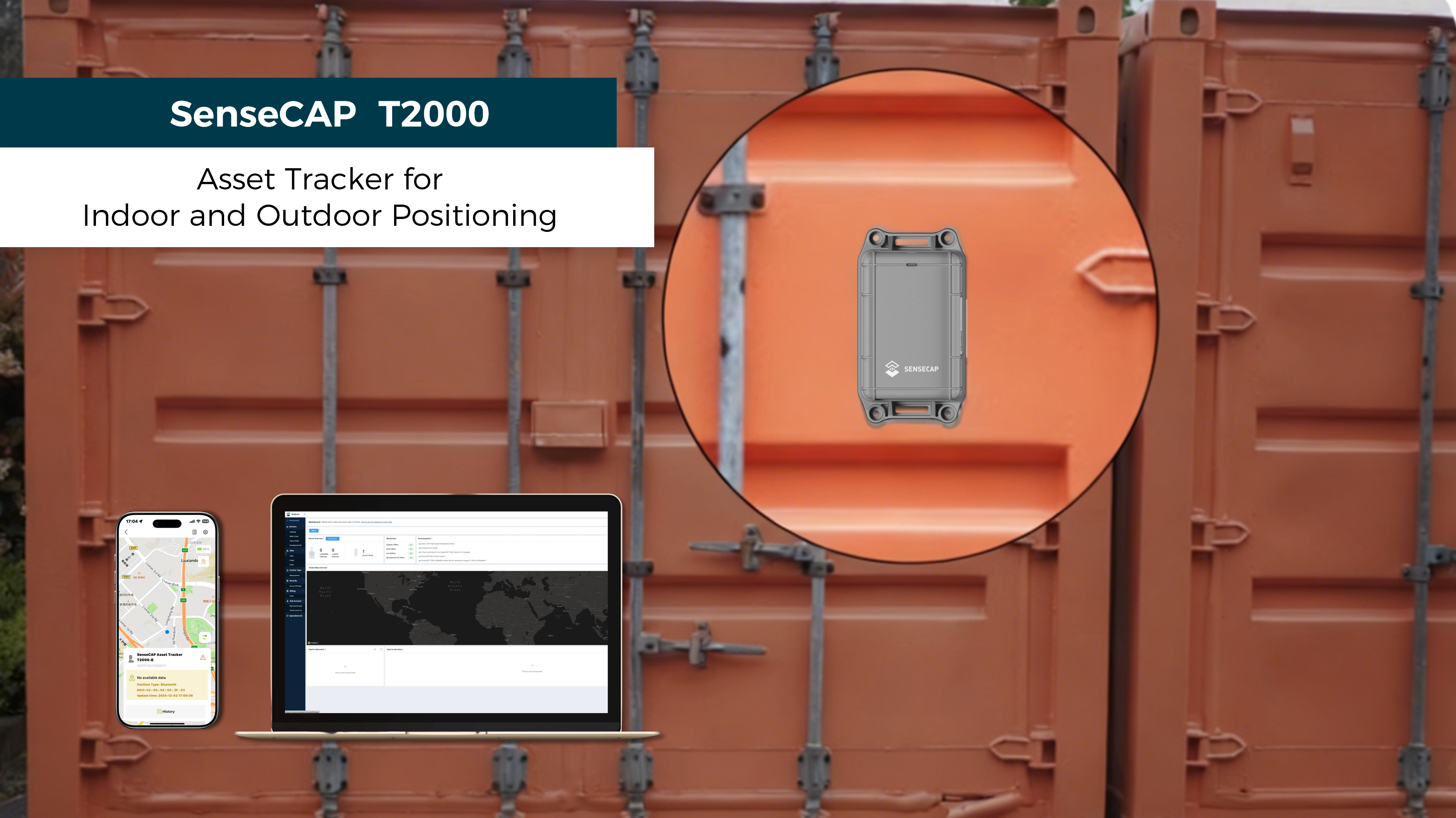
Please ensure you have coverage from a LoRaWAN network, such as Helium, TTN or other LoRaWAN networks. Without LoRaWAN networks, the device cannot send data to the cloud. The easiest way to use the trackers is with the SenseCAP LoRaWAN Gateway and the SenseCraft app.
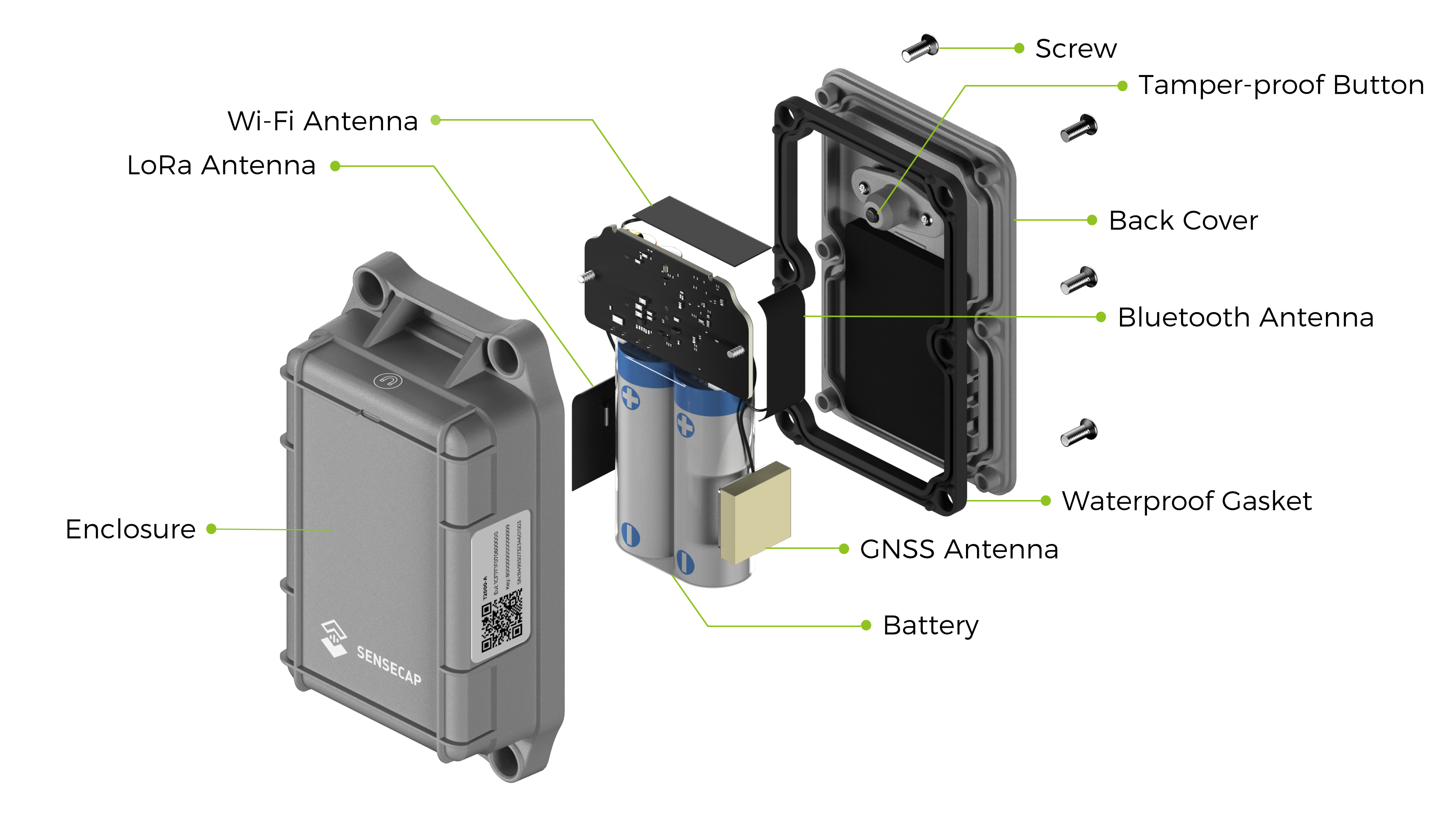
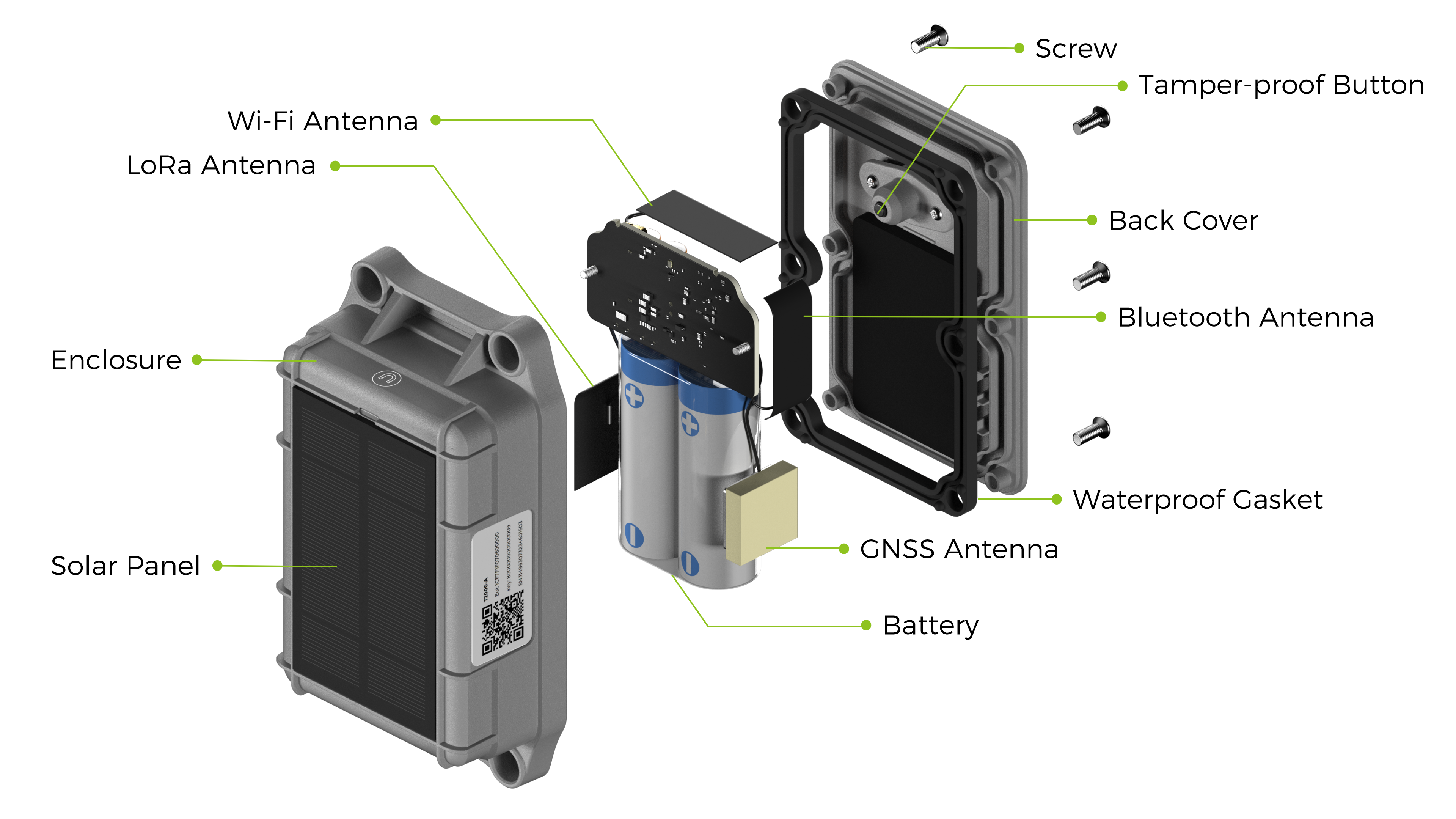
Hardware Overview
Operating Environment
SenseCAP T2000 Tracker is designed to operate reliably within a specific temperature range to ensure stable performance and battery safety. Please make sure the device is used and charged within these temperature ranges to avoid performance degradation or battery issues.
| Parameter | T2000-A / T2000-B | T2000-C with Solar Panel |
|---|---|---|
| Operating Temperature | -40 °C ~ 85 °C | -20 °C ~ 60 °C |
| Charging Temperature | / | 0 °C ~ 45 °C |
Device Functions
Work Mode
To apply to different scenarios, there are several different working modes on the SenseCAP T2000 tracker, which you can choose according to your needs.
| Work Mode | Description | Scene |
|---|---|---|
| Standby Mode |
| If you need to locate the device for a long time and the device can run for a long time before being charged, the cloud platform can issue a location request command to locate the device. |
| Periodic Mode | Set an interval at which the device periodically uploads location, 3-axis accelerometer data, and battery info. | Recommended for most scenarios
|
| Event Mode | Adjust the upload interval based on the 3-axis accelerometer sensors, including motion events, motionless timeout, and shock events. The device will upload location, 3-axis accelerometer data and battery info whenever an event is triggered. | It is recommended when you need to monitor the movement status of the tracking object. |
Sensor Function
The SenseCAP T2000 Tracker is equipped with 3-Axis Accelerometer.
- You can choose to enable or disable the sensor in the SenseCraft App (disabled by default).
- You can configure the corresponding thresholds for the 3-axis accelerometer based on your application needs, motion/motionless event and shock event are triggered.
Data Cache
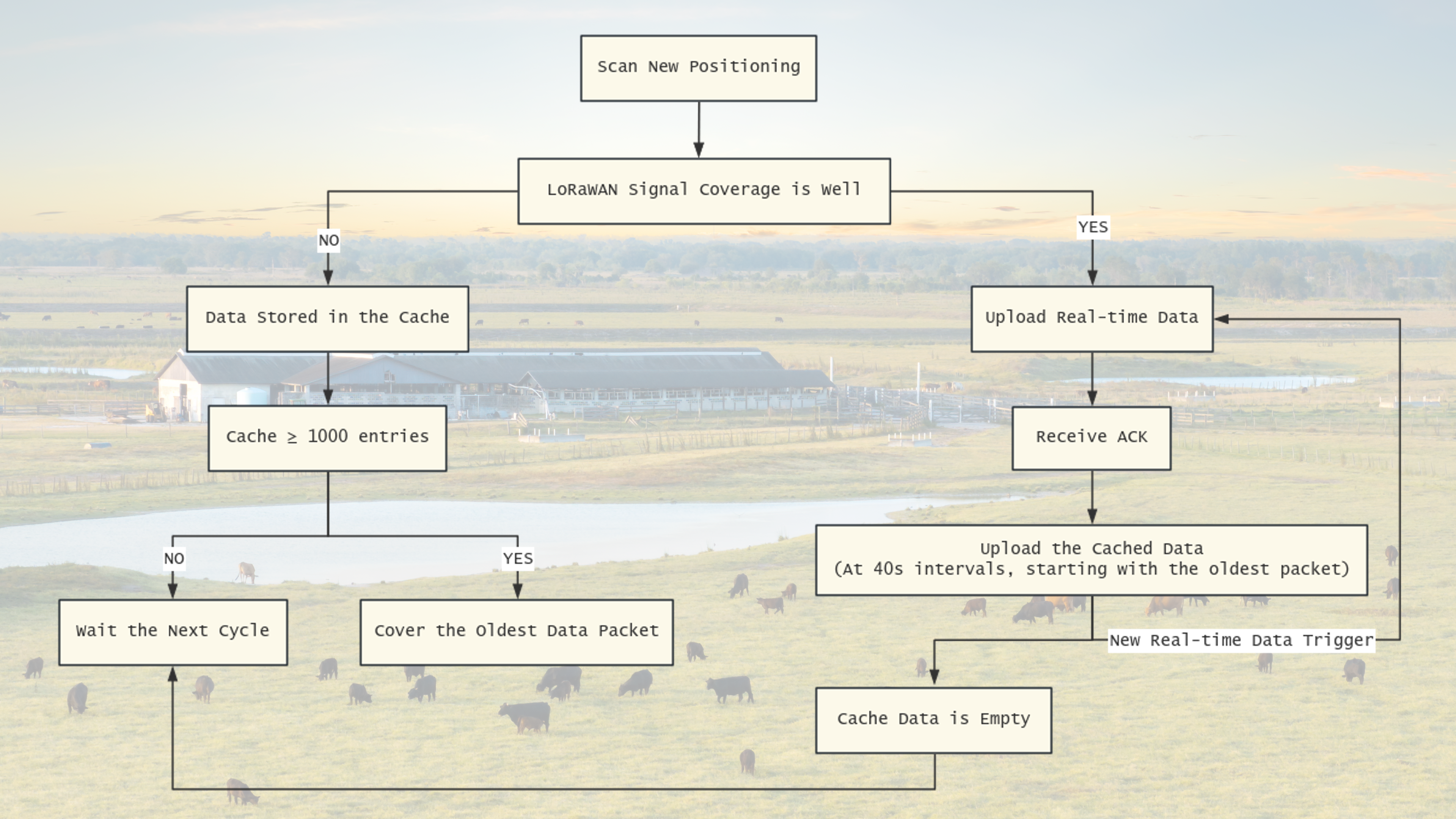
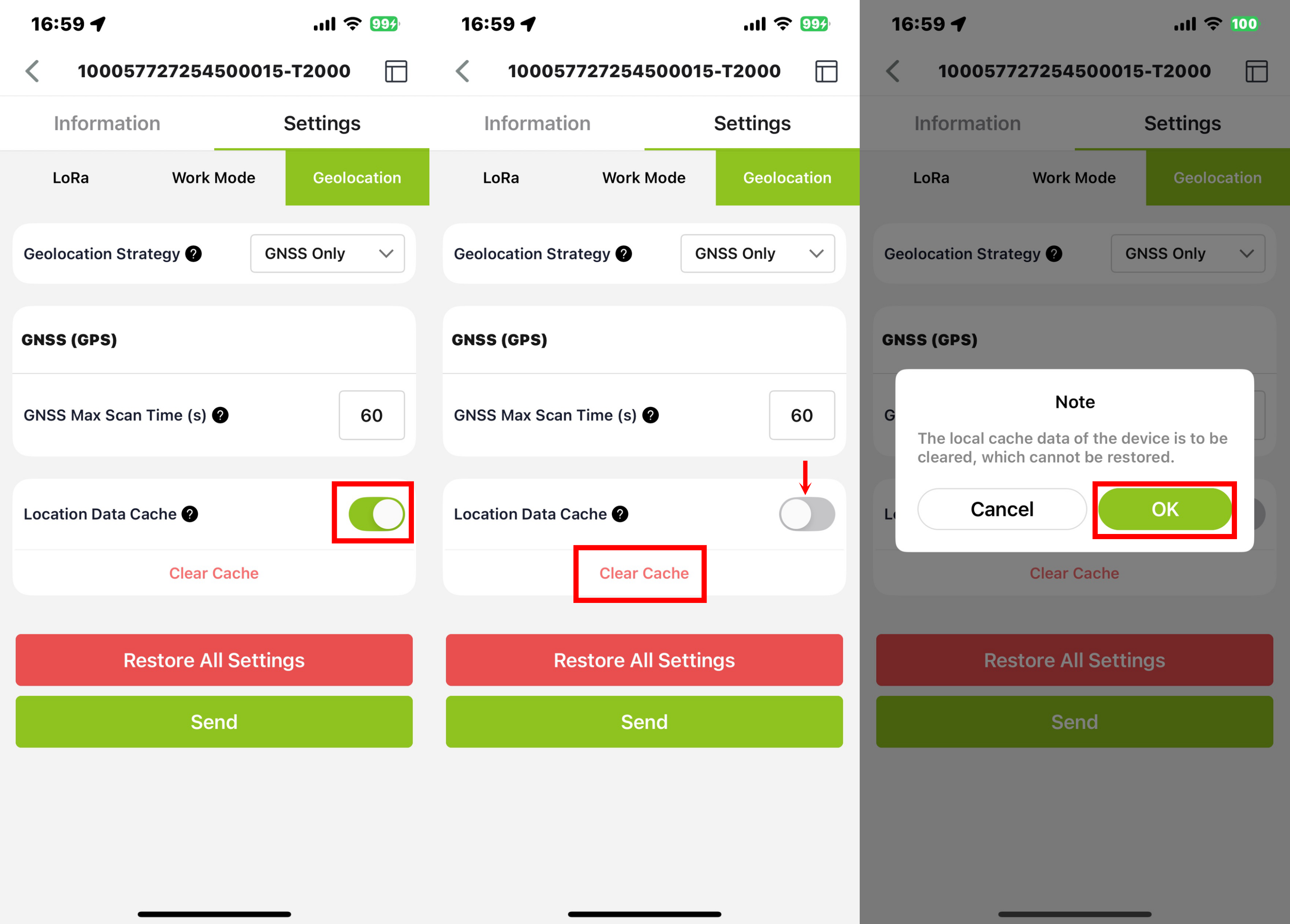
The device can cache data, which can be enabled through Bluetooth configuration by opening Location Data Cache. The device uploads confirmation packets. When the LoRaWAN signal coverage is weak or there is no network coverage, the device cannot receive an ACK when uploading data. In this case, the data will be saved and entered the next cycle. When the device successfully uploads data at some point, it will send offline data.
The device uploads the real-time location data first. Once the platform returns an ACK for that uplink, the tracker begins uploading the cached data stored locally, starting from the oldest entries to avoid overwriting newer data.
The cache-uplink interval has been set to 40s. Cached data will be sent continuously at this interval until either a new real-time location uplink is triggered or the platform stops returning ACKs during the process.
The maximum number of data that can be cached is 1000 records.
Click the Clear Cache button will clear all cached data.
Button Function
Magnetic Attachment Instructions
| Status | Operation |
|---|---|
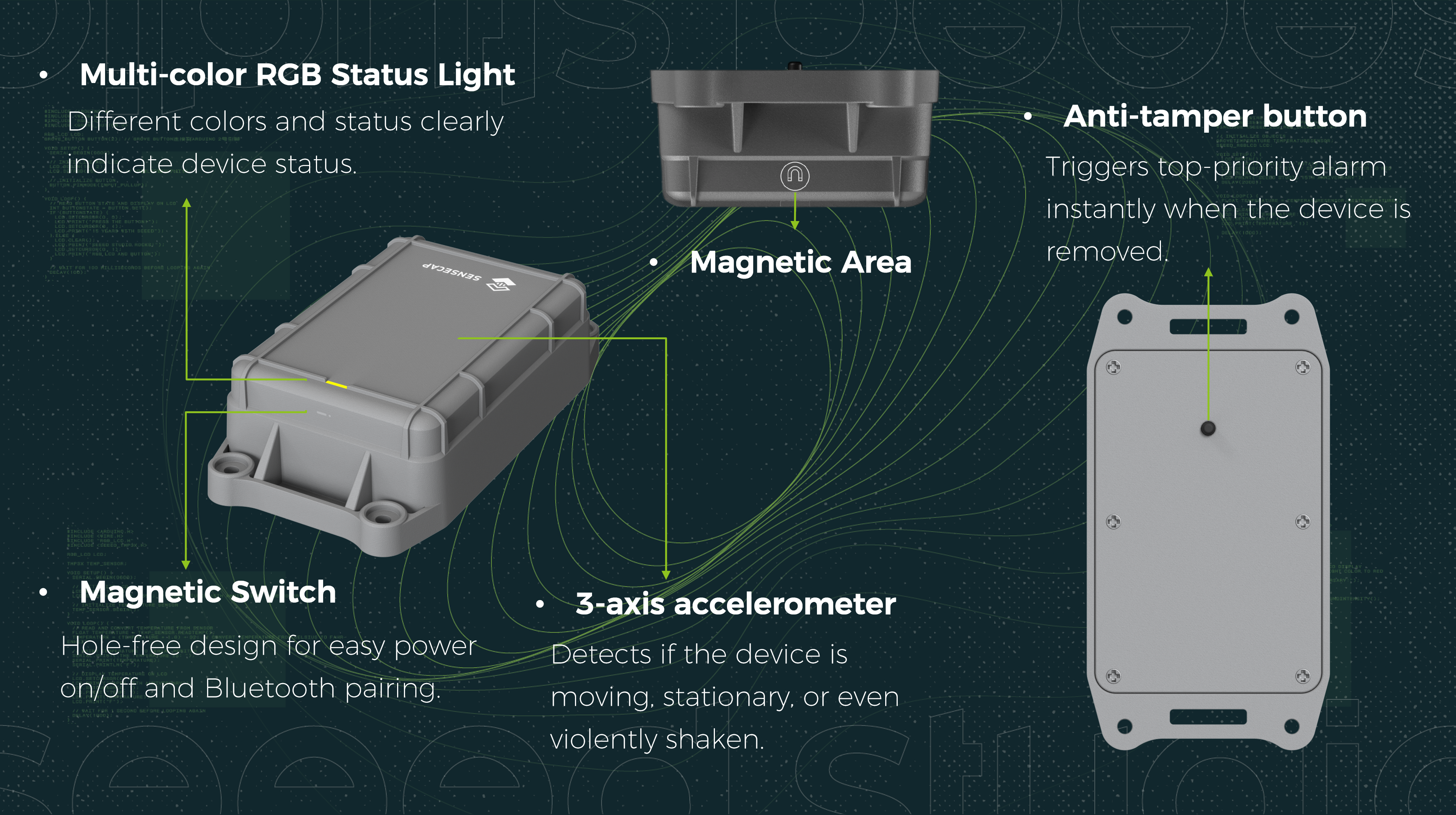
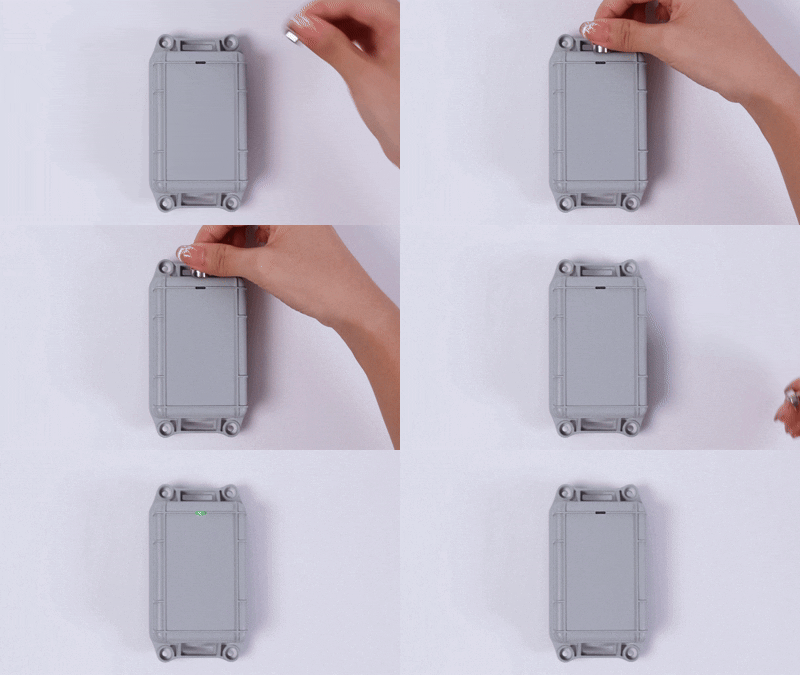
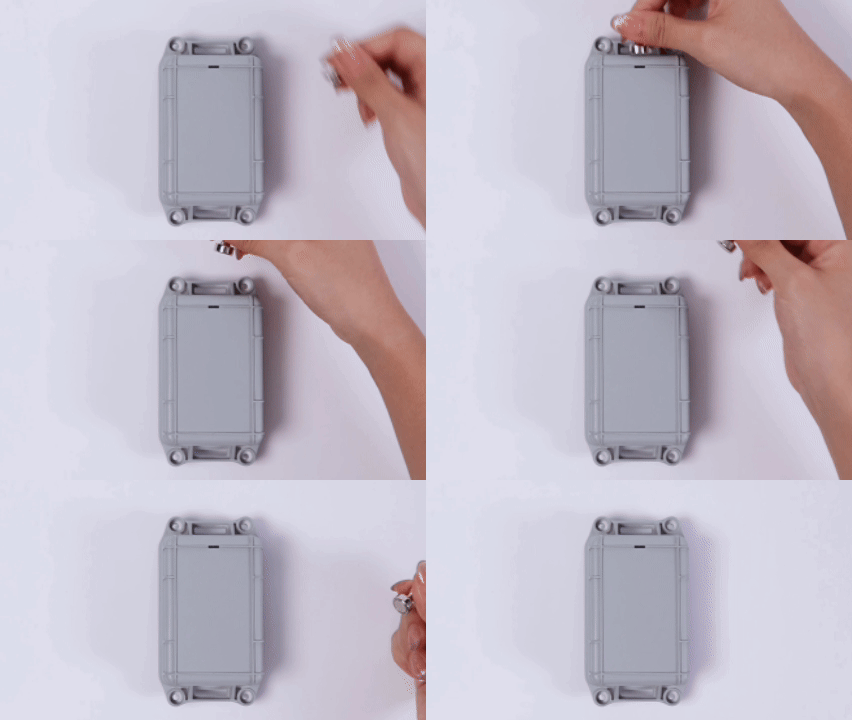
| Power On | Bring the magnet close to the sensor area and tap 4 times quickly. Power on succeeds when the green light turns on. |
| Power Off | Bring the magnet close to the sensor area and tap 4 times quickly. Power off succeeds when the green light turns on. |
| Bluetooth On | Bring the magnet close to the sensor area and tap 2 times quickly. Bluetooth scanning is enabled when the blue light flashes. |
| Bluetooth Off | Bring the magnet close to the sensor area and tap 2 times quickly. |
LED Status Indicator
| Status | LED Color | Indicator Pattern |
|---|---|---|
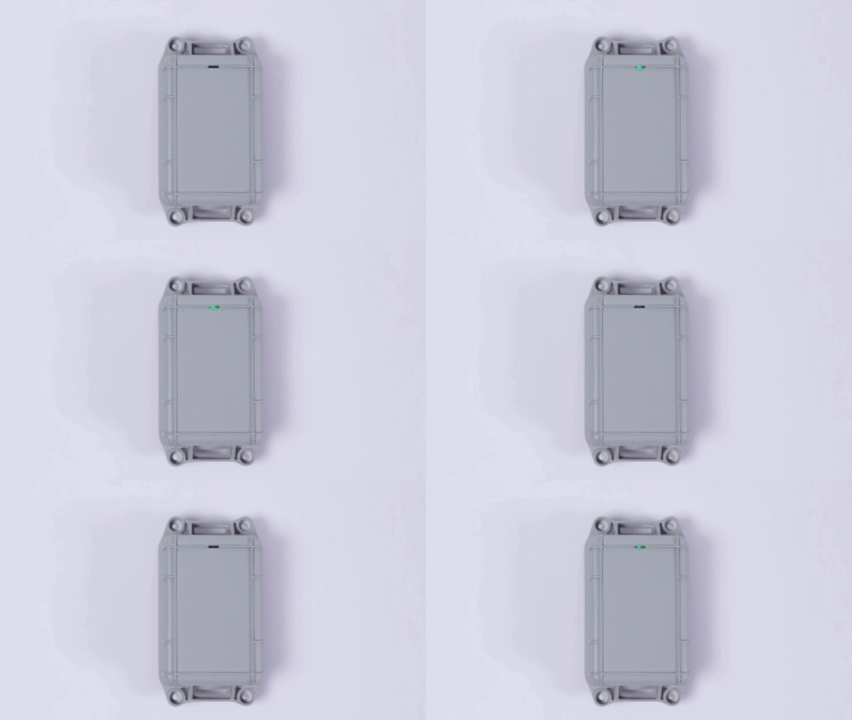
| Power ON | Green | Steady on for 1s |
| Power OFF | Green | Steady on for 1s |
| Joining Network | Green | Breathing light |
| Join Success | Green | Fast flash 5 times |
| Join Fail | Red | Fast flash 5 times |
| Bluetooth Search | Blue | Continuous slow flash |
| Bluetooth Connected | Blue | Steady on |
| Tamper Alarm | Red | Continuous fast flash |
| Firmware Updating | Green | Continuous slow flash |
| Enter DFU Mode | Green | Steady on |
- It's recommended to power off the device if it's not in use.
- When first turned on, it is recommended to test it outdoors, as the GPS needs to update the time via satellite.
- Please make sure the frequency band matches your gateway frequency.
Get Started
Connect to SenseCraft App
- Step 1: Download SenseCraft App
SenseCraft App is used to config LoRa parameters, interval, bind devices to your account and check device basic information.
- For iOS, please search for “SenseCraft” in the App Store and download it.
- For Android, please search for “SenseCraft” in the Google Store and download it.
- Step 2: Add Device
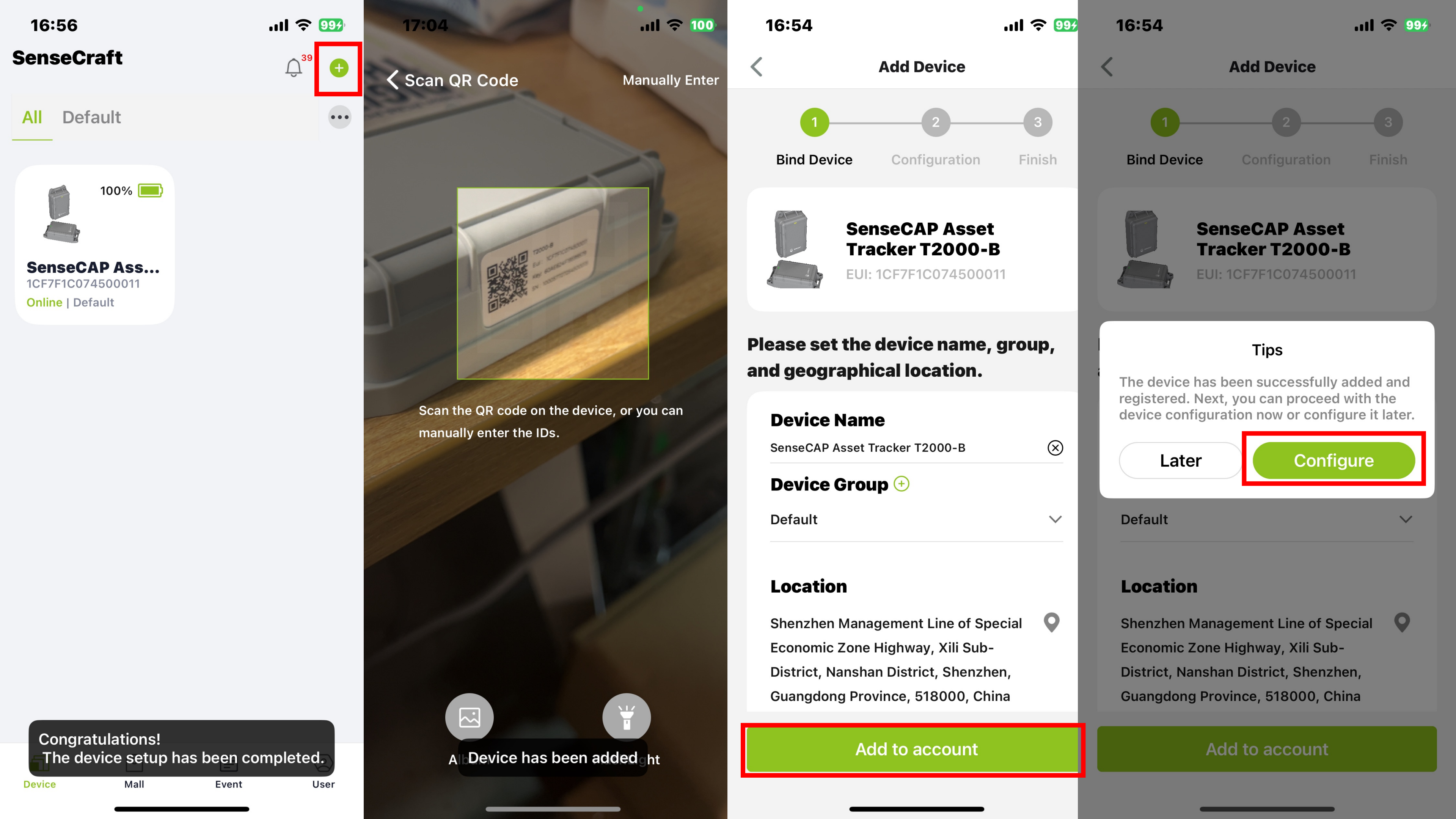
Login to the SenseCraft APP. Click '+' tab on the top right, then scan the QR code on the device label. Click 'Add to account' then you can 'Configure' the device.
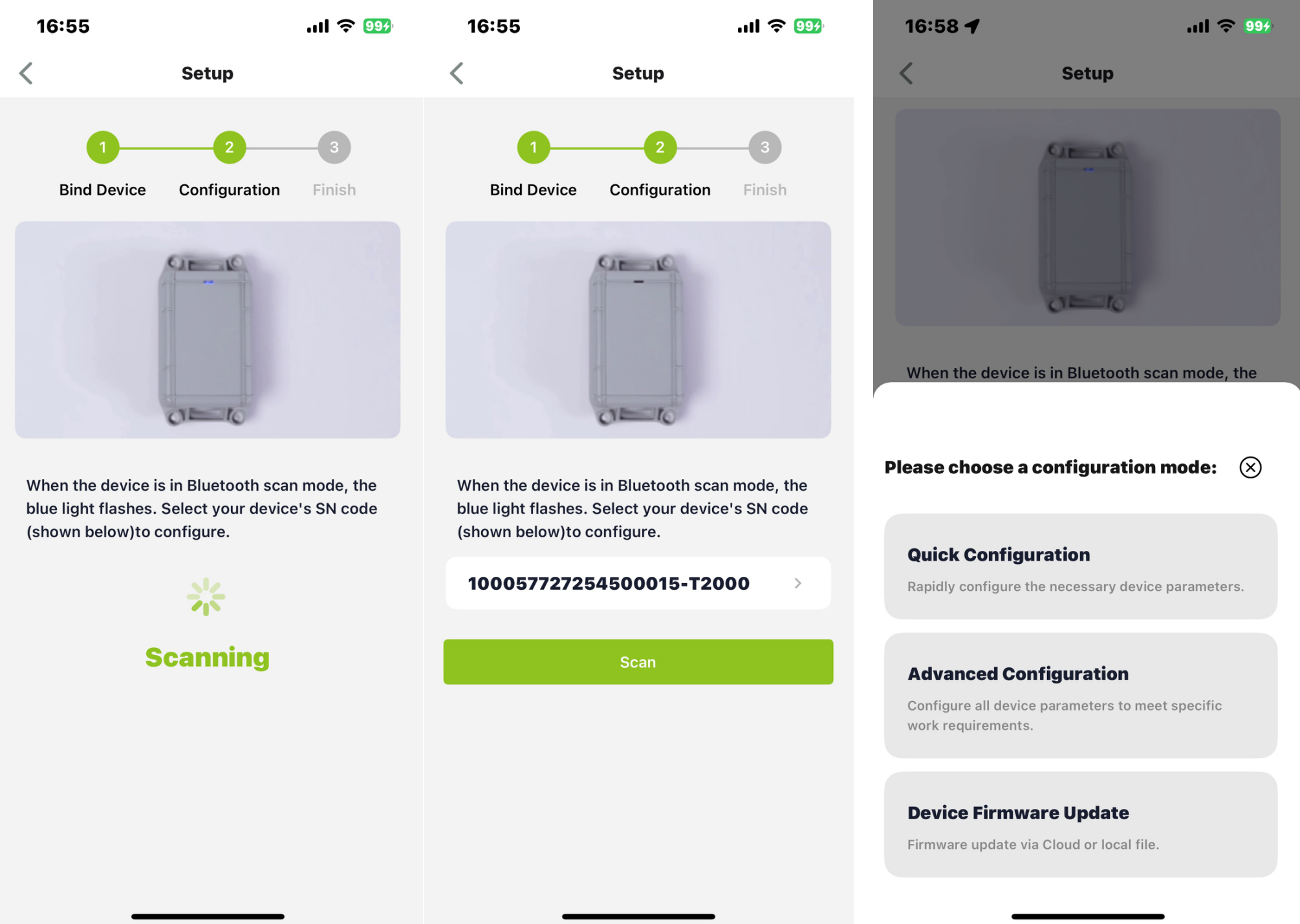
Bring the magnet close to the sensor area and tap 4 times quickly to turn it on, then tracker will enter the Bluetooth pairing automatically (if the tracker has powered on, tap 2 times quickly to manually enter Bluetooth pairing), and select device by SN.
There are 2 configuration modes:
- Quick Configuration: For quick start, you can select quick config the basic parameters
- Advanced Configuration: To set more parameters please check the following steps.
Quick Configuration
For Quick Configuration, you only need to setup the following parameters:
- Frequency:it should be same as your gateway.
- Uplink interval: The uplink interval of Periodic Mode (default mode), you can set other mode via “Device Bluetooth Configuration” on “User” page.
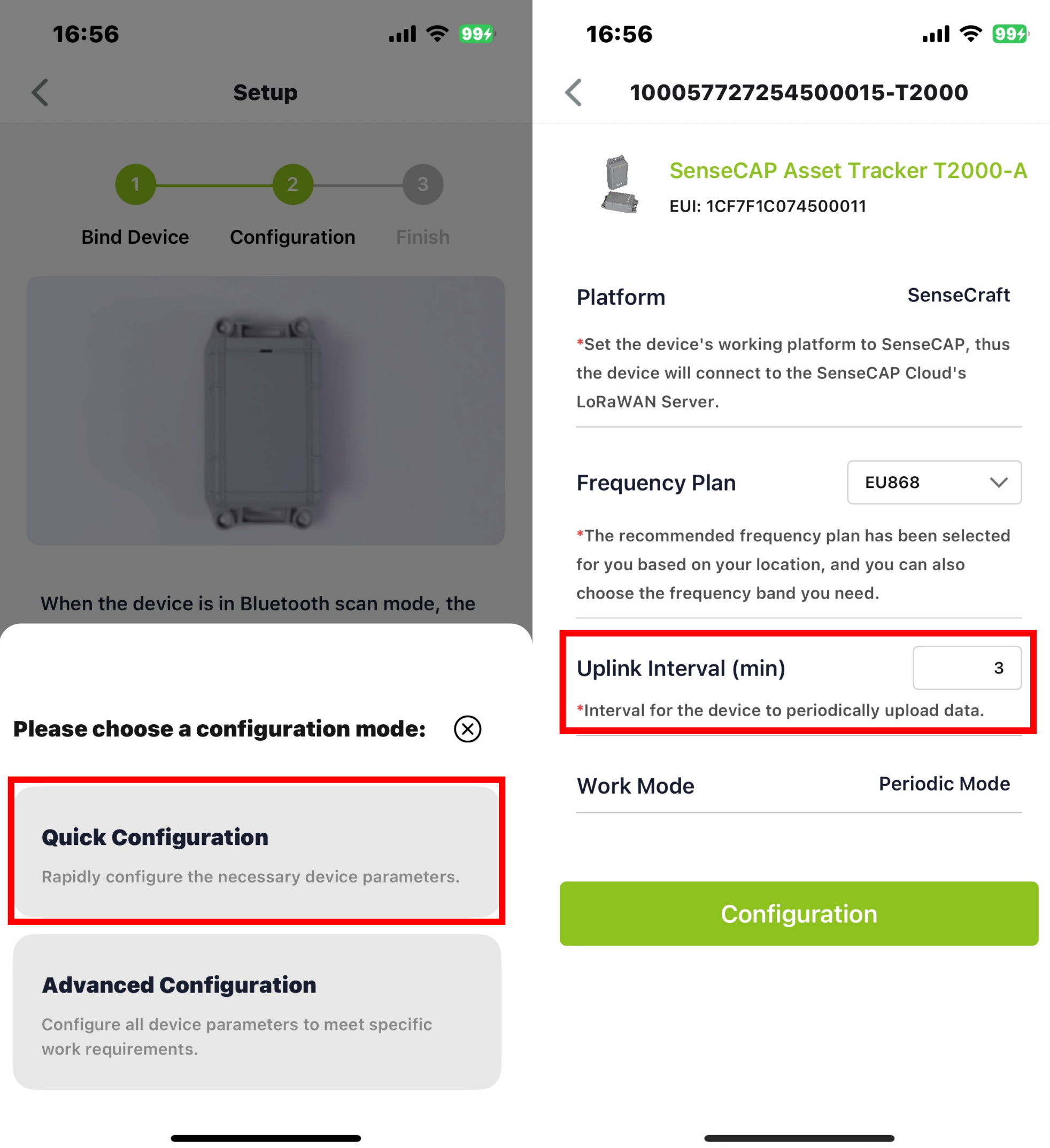
Tracker will try to join LoRaWAN network after exiting the Bluetooth pairing mode, the green breathing light flashes when trying to join the network, and flashes 5 times quickly if the network is successfully joined.
Advanced Configuration
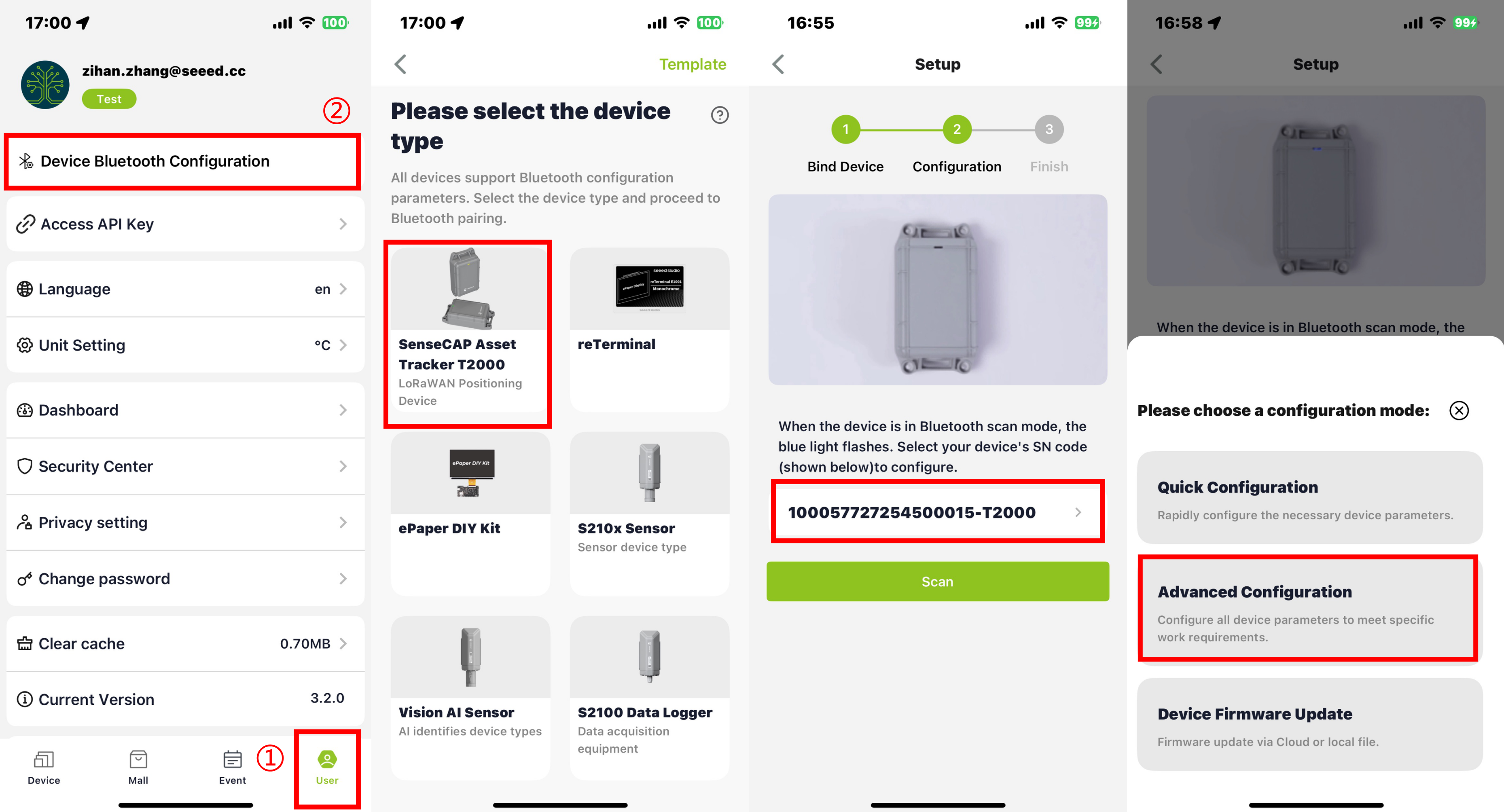
- Open the APP and click
Device Bluetooth Configurationin theUserpage. Then selectSenseCAP Asset Tracker T2000to enterSetupto config the tracker. - Follow the steps above to enter the Bluetooth pairing mode.
- Select the device by S/N (S/N is on the label of the device) and choose
Advanced Configuration. Then, the basic information of the tracker will be displayed after entering.
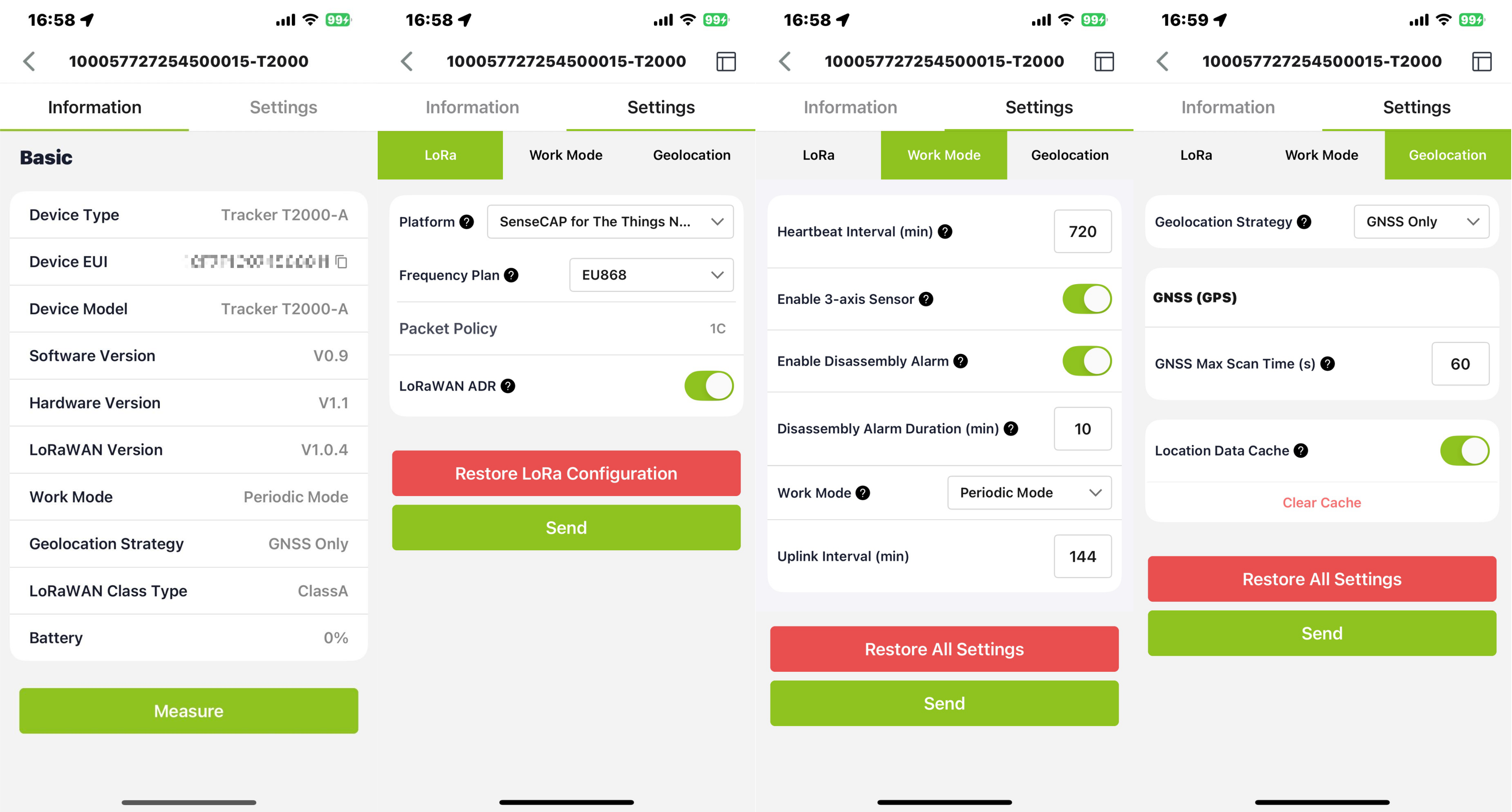
There are four configuration pages in total.
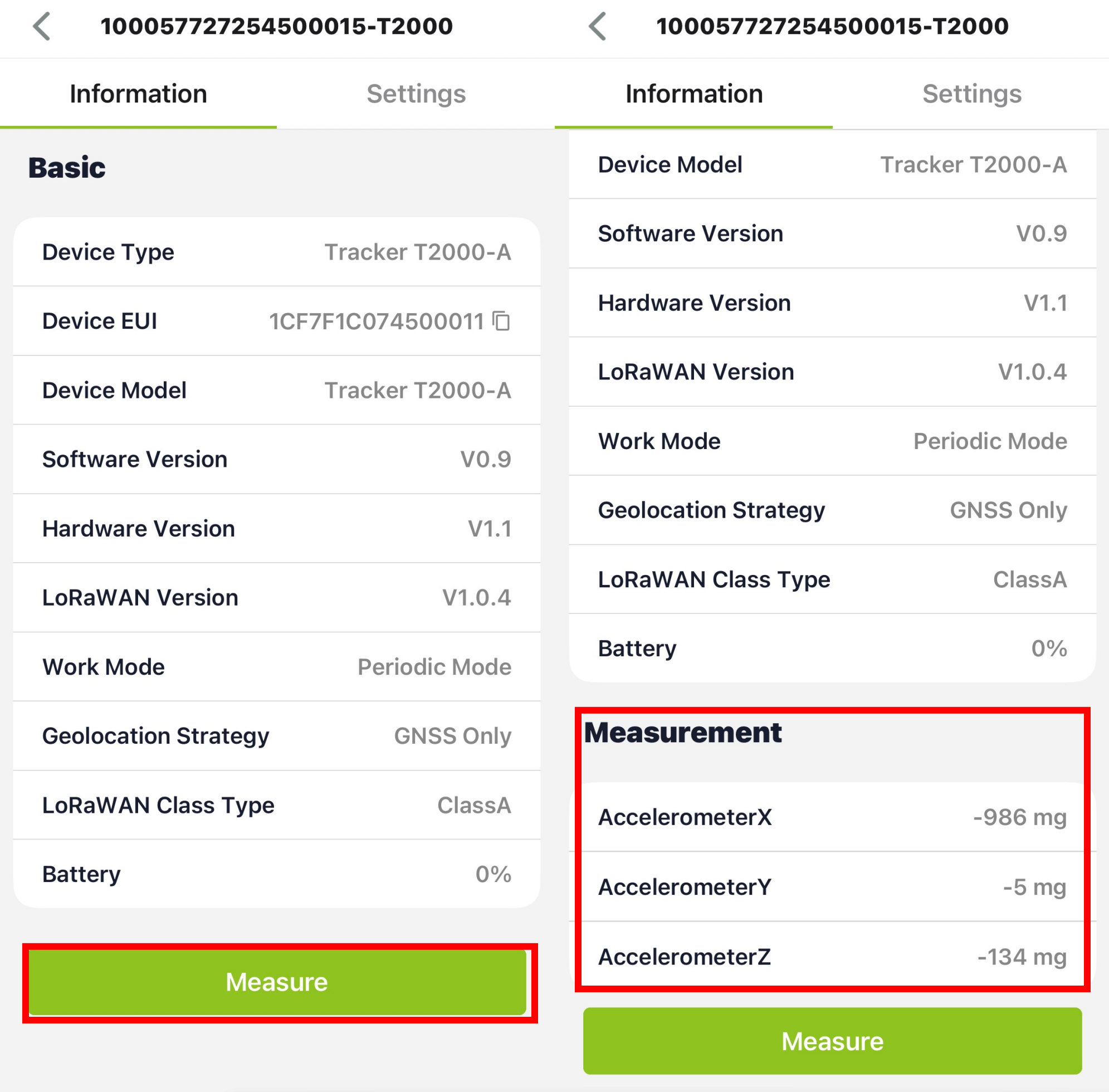
Click the Measure in the Information - Basic page, then you will get the sensor values:
- 3-Axis Accelerometer (X / Y / Z Values)
- The device reports acceleration values along the X, Y and Z axes. These readings help users understand the device’s posture, movement or vibration status during operation or installation.
- Tamper Button Status
- Pressed: the device is securely installed
- Not Pressed: the device is not fully mounted or has been removed
LoRa Parameters Setup
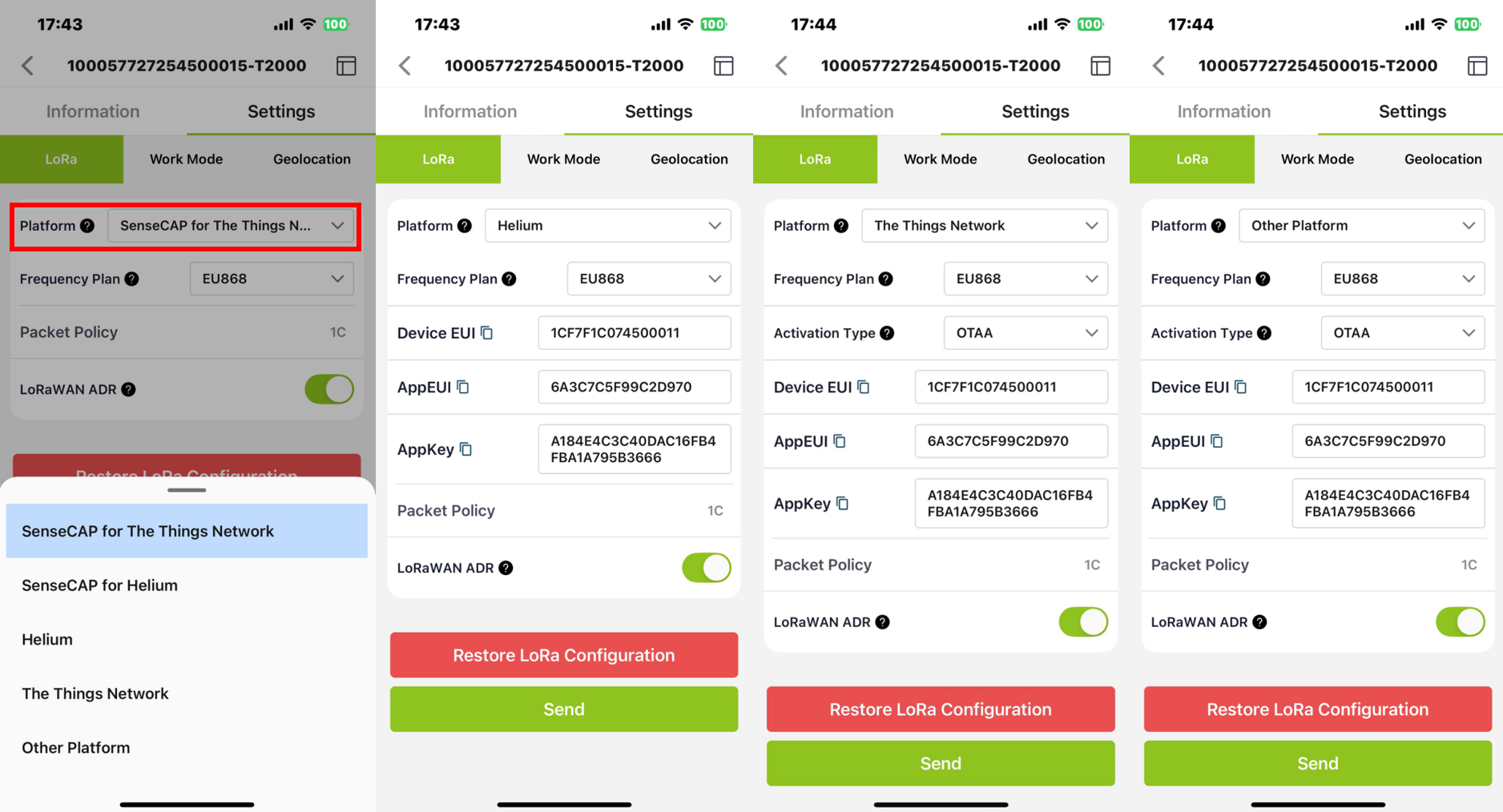
Platform
Platform | Description |
| SenseCAP for The Things Network | Default platform.
It must be used with SenseCAP Gateway. SenseCAP builds a proprietary TTN server that enables sensors to be used out of the box when paired with an SenseCAP gateway. SenseCAP Outdoor Gateway SenseCAP Indoor Gateway |
| SenseCAP for Helium | When there is the Helium network coverage, data can upload via Helium. Devices run on a private Helium console of SenseCAP. Users do not need to create devices on Helium console, out of the box with SenseCraft App and Portal. Helium Coverage |
| Helium | Connect device to your public Helium console |
| The Things Network | Connect device to your TTN(TTS) server |
| Other Platform | Other LoRaWAN Network Server |
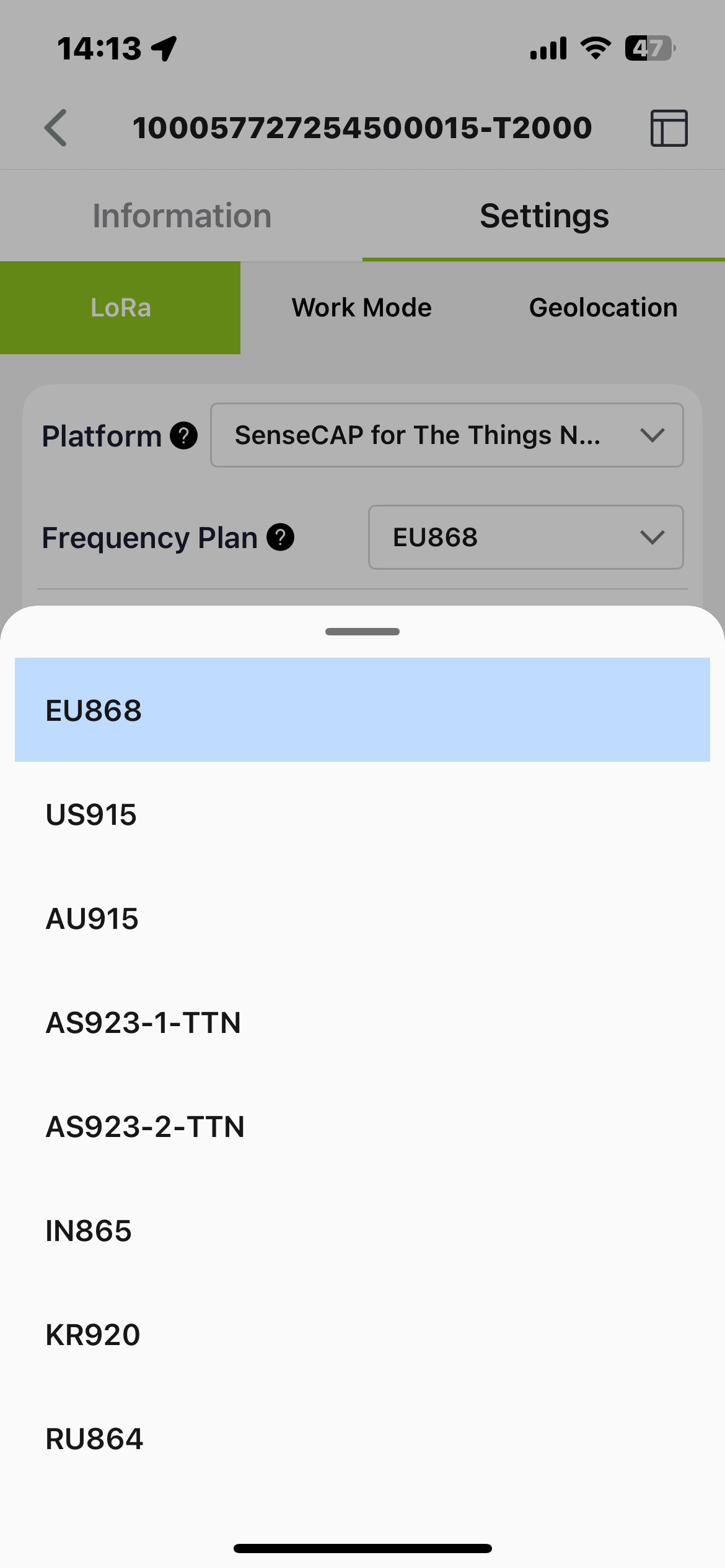
Frequency Plan
Trackers are manufactured to support universal frequency plan from 863MHz~928MHz. Every single device can support 8 frequency plans, including EU868, US915, AU915, AS923-1-TTN, AS923-2-TTN, IN865, KR920 and RU864.
Parameters | Description | |
| Frequency Plan | EU868 / US915 / AU915 / KR920 / IN865 / AS923-1 / AS923-2 / RU864 | Default EU868 |
| Packet Policy | 1C | LoRaWAN use confirm packet |
| LoRaWAN ADR | Default open | LoRaWAN parameters, default open is recommended |
| Restore LoRa Configuration | When “Platform” switches back to SenseCAP from another platform, LoRa parameters (EUI/App EUI/ App Key etc.) need to be restored | You can use this function when you need to restore LoRa parameters to factory defaults |
Different countries and LoRaWAN network servers use different frequency plans.
For Helium network, please refer to: Helium-frequency-plans
For The Things Network, please refer to:TTN-frequency-plans
If you are unsure which frequency band is required in your area, please consult our technical support team or refer to RP002-1.0.0 LoRaWAN® Regional Parameters for detailed regional frequency information.
Activation Type
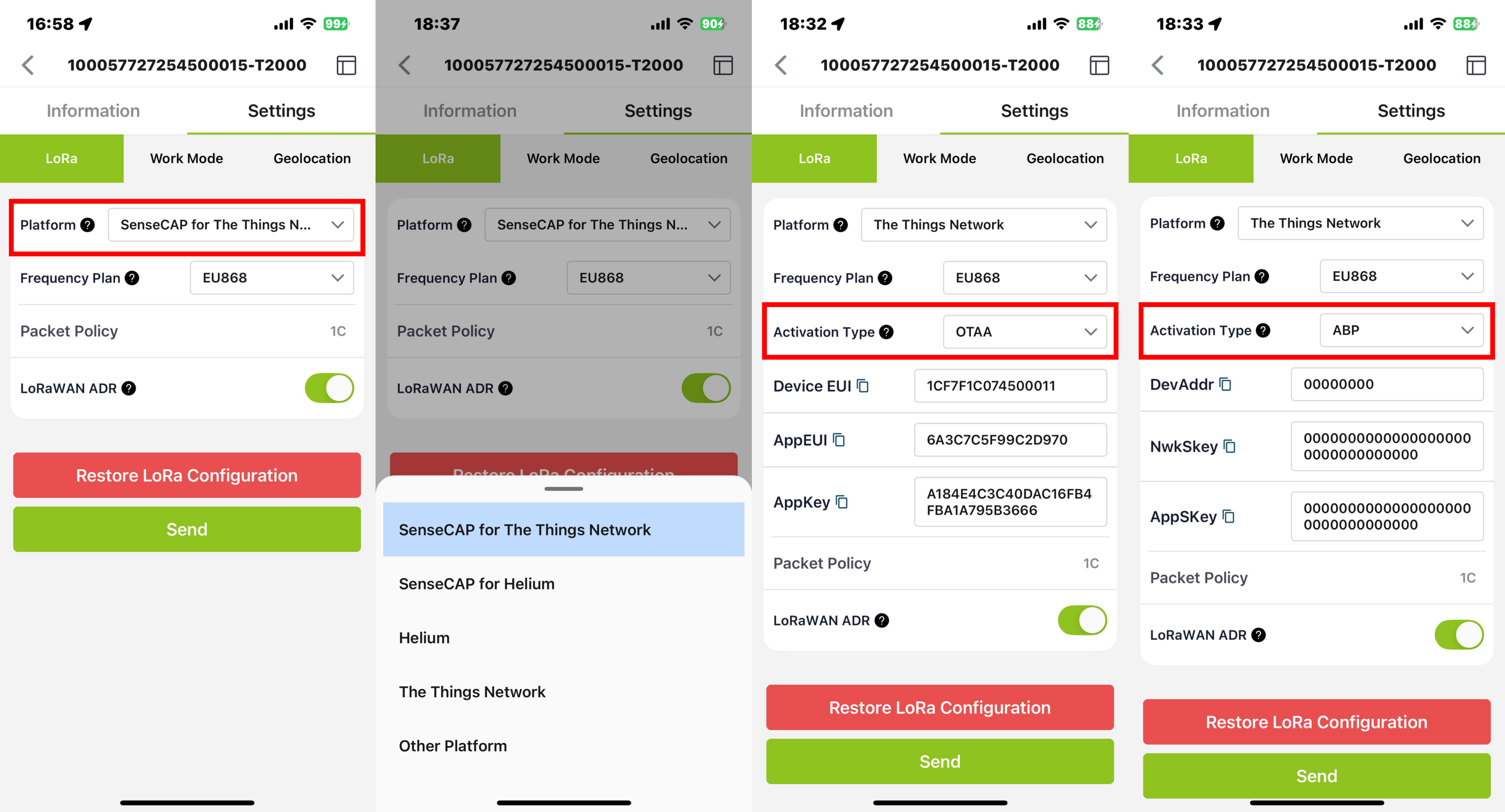
The sensor supports two network access modes, OTAA by default.
| Parameter | Description |
|---|---|
| OTAA (default) | Over The Air Activation, it joins the network through Device EUI, App EUI, and App Key. |
| ABP | Activation By Personalization, it joins the network through DevAddr, NwkSkey, and AppSkey. |
The device uses OTAA to join the LoRaWAN network by default. So, it can set the device EUI, App EUI and App Key.
| Parameter | Type |
|---|---|
| Device EUI | 16, hexadecimal from 0 ~ F |
| App EUI | 16, hexadecimal from 0 ~ F |
| App Key | 32, hexadecimal from 0 ~ F |
When using the SenseCAP platform, the EUI, APP EUI and APP Key are fixed and are the same as the sensor label.
When the sensor is selected to be used with a public platform such as Helium or TTN, the EUI will not change, and the sensor will generate a new fixed App EUI and App Key for network access.
To obtain EUI information in batches, please contact our sales team.
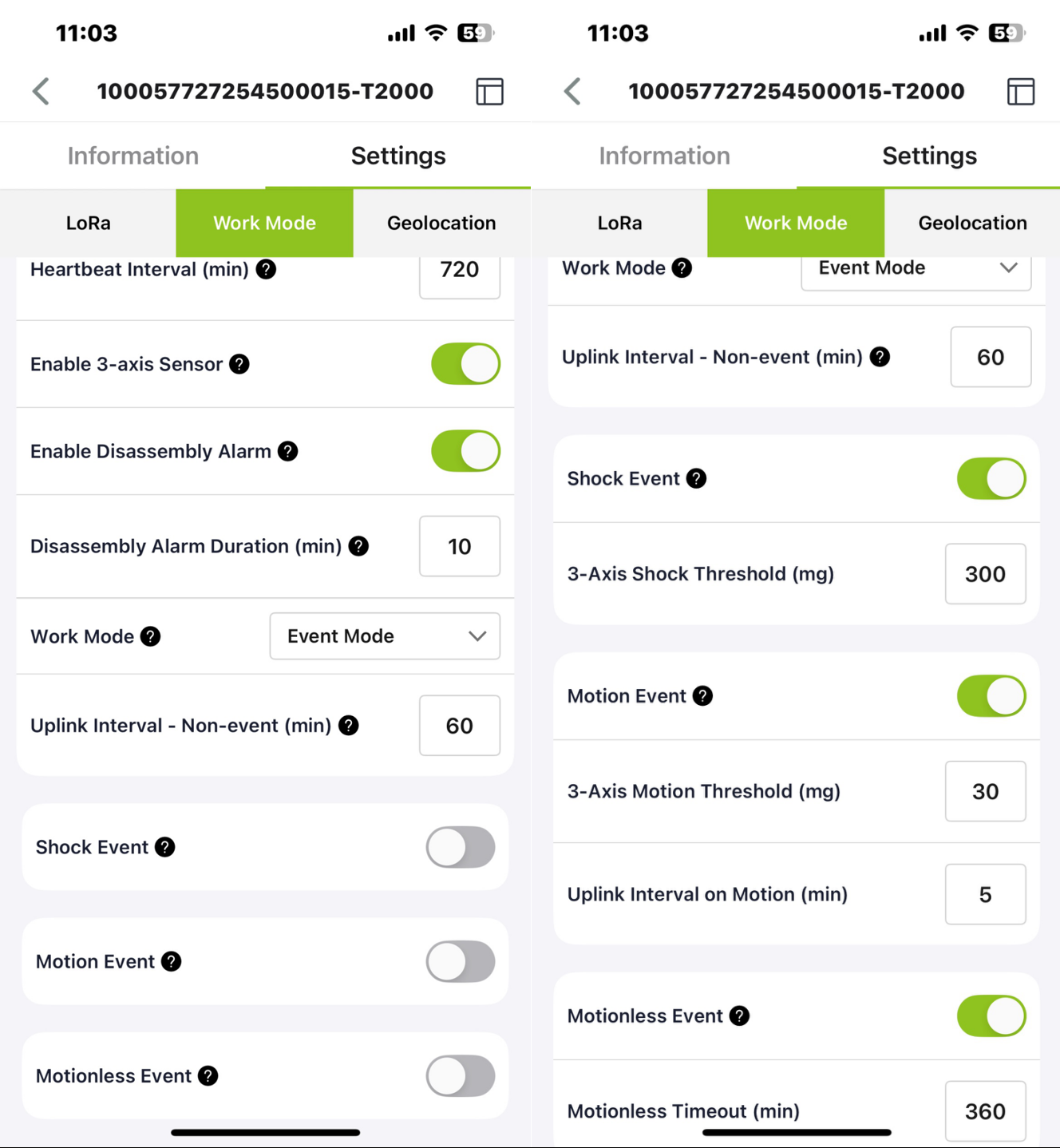
Work Mode Setup
Please setup the work mode according to your needs.
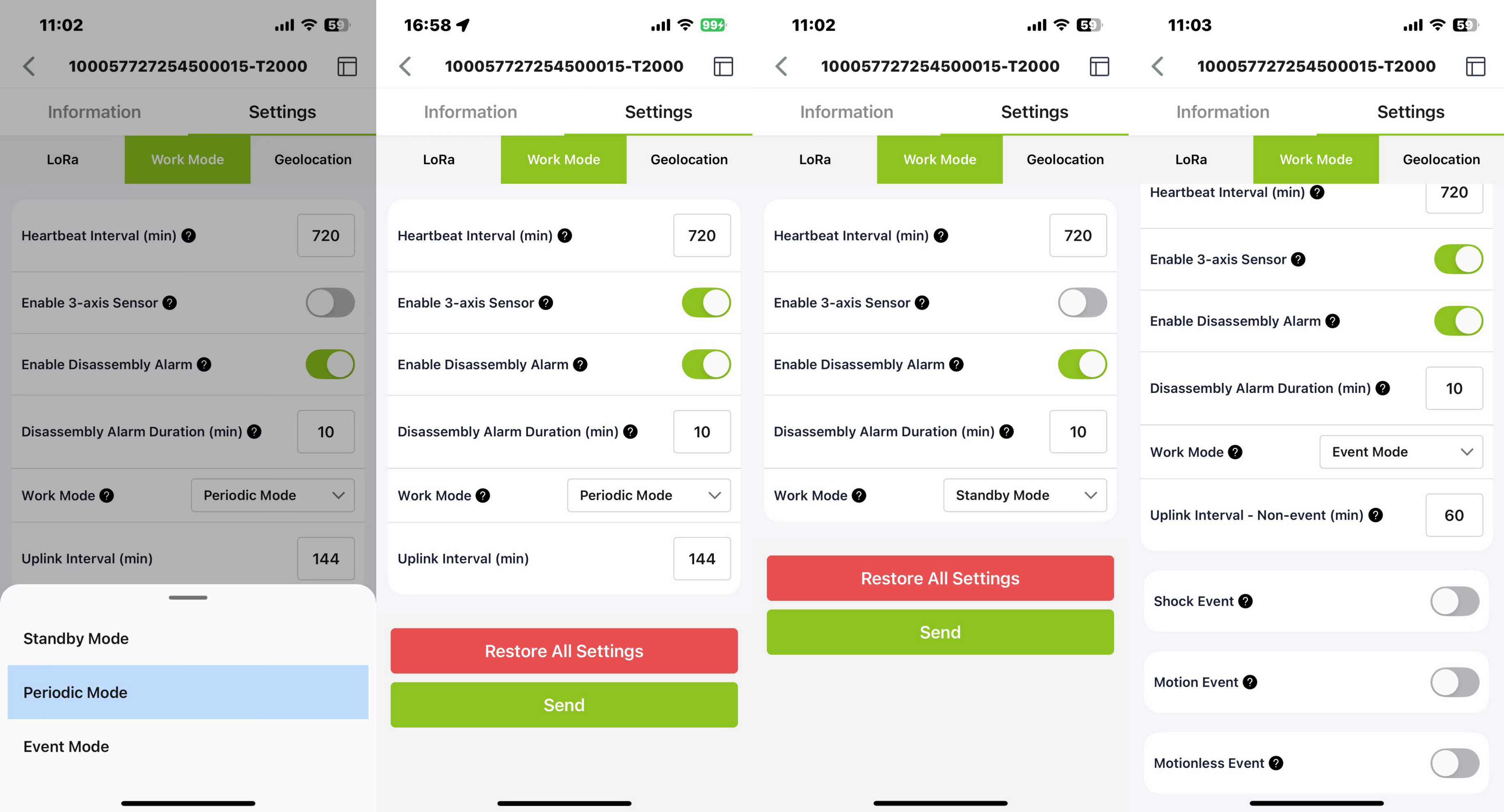
| Parameters | Description | Default / Note |
|---|---|---|
| Heartbeat Interval | When no data is uploaded by the device within the heartbeat interval, a heartbeat packet will be triggered. This packet only contains battery information. | Default 720 minutes. |
| Enable 3-axis Sensor | If this switch is turned on, 3-axis sensor will be collected and uploaded, but it will increase power consumption. | Off by default. |
| Enable Disassembly Alarm | If this switch is turned on, the device activates an alarm when the device is removed after installation. | Enabled by default. |
| Disassembly Alarm Duration(min) | This parameter specifies how long the device keeps reporting after a Disassembly Alarm is triggered, sending one real-time position packet with the alarm event every minute. | This setting is only visible when Enable Disassembly Alarm is turned on. Default 3 minutes. |
| Work Mode | Standby Mode | Uploads heartbeat packets (battery level only) based on the heartbeat interval. |
| Periodic Mode | Location and sensor data are uploaded according to the uplink interval. | |
| Event Mode | Set threshold trigger conditions based on measured values such as movement and shock, and adjust the uplink interval when no event is triggered. | |
| Uplink Interval (min) | Periodic Mode | Periodically locates and uploads data. Default 60 minutes. Higher frequency increases power consumption. |
| Restore All Settings | Restore all configuration parameters to factory settings, including LoRa, Work Mode, and Geolocation. | |
For Event Mode, there are three events:
| Event Mode | Description | |
|---|---|---|
| Uplink Interval – Non-event (min) | This is the upload interval when no events are triggered. | Default 60 minutes. Range: 1~10080 min. |
| Shock Event | When the shock event is enabled, the shock of the tracker will trigger a data report, including the shock event, location, and sensor data. | Off by default. |
| 3-Axis Motion Threshold (mg) | Default is 300. When the acceleration exceeds 300mg, the shock event is triggered. | |
| Motion Event | When the acceleration exceeds the set value, the device starts to move, and when there is no movement for 2 minutes, the device movement stops. Set the upload interval according to the start movement and stop movement. | Off by default. |
| 3-Axis Motion Threshold (mg) | Default is 30. When the acceleration exceeds 30mg, determine that the device is in motion, when it is 2 minutes below this value, determine that the device is in motionless. | |
| Uplink Interval on Motion(min) | Set the upload interval for the current state when the device is in motion. | |
| Motionless Event | When the device is stationary in a location for more than a certain amount of time, a stationary timeout event is triggered. | |
| Motionless Timeout(min) | Default is 360 minutes. | |
Geolocation Mode Setup
The tracker supports positioning via GNSS, Wi-Fi (Only T2000-B support), and Bluetooth.
- GNSS: The longitude and latitude can be directly obtained through GPS and other satellite positioning, then upload data via LoRa.
- Wi-Fi: Passive scanning, uploads the scanned 5 MAC addresses via LoRa.
- BLE: Uploads the scanned 5 MAC addresses of Beacon via LoRa.
| Geolocation Strategy | Description | |
|---|---|---|
| Geolocation Strategy | GNSS Only | Default use GNSS. Only GNSS is used for position. |
| Wi-Fi Only | Only Wi-Fi scans are used for position. | |
| Bluetooth Only | Only Bluetooth scans are used for position. | |
| GNSS + Wi-Fi | Use GNSS before Wi-Fi. If GNSS fails, then use Wi-Fi in one geolocation cycle. | |
| GNSS + Bluetooth | Use GNSS before Bluetooth. If GNSS fails, then use Bluetooth in one geolocation cycle. | |
| Wi-Fi + GNSS | Use Wi-Fi before GNSS. If Wi-Fi fails, then use GNSS in one geolocation cycle. | |
| Bluetooth + GNSS | Use Bluetooth before GNSS. If Bluetooth fails, then use GNSS in one geolocation cycle. | |
| Bluetooth + Wi-Fi | Use Bluetooth before Wi-Fi. If Bluetooth fails, then use Wi-Fi in one geolocation cycle. | |
| Bluetooth + Wi-Fi + GNSS | Use Bluetooth, Wi-Fi and GNSS for positioning in turn (switch to the next type of positioning after one type of positioning fails). | |
| GNSS Max Scan Time(s) | The maximum time to spend waiting for the GNSS to get a coarse position fix. | Default is 60s. It is not recommended to modify, the longer of the time, the bigger of power consumption. |
| iBeacon Scan Timeout(s) | Under Bluetooth positioning, the maximum time for the device to scan surrounding Bluetooth beacons to obtain a coarse position fix. | Default is 3s. Range 1~10s. |
| Group UUID (Hex) | It allows the tracker to only scan and report Bluetooth beacons whose UUIDs match the specified pattern, helping filter out irrelevant beacons. | Set UUID Filter, up to 16 bytes. For example, if set as '01 02 03 04' it will filter beacons with the pattern '01 02 03 04 xx xx ...' |
| Location Data Cache | When it can't upload data via LoRa, the data is saved locally(up to 1000 records) and uploaded when the LoRa coverage is recovered. | Off by default. |
| Clear Cache | Clear all historical cache data. | |
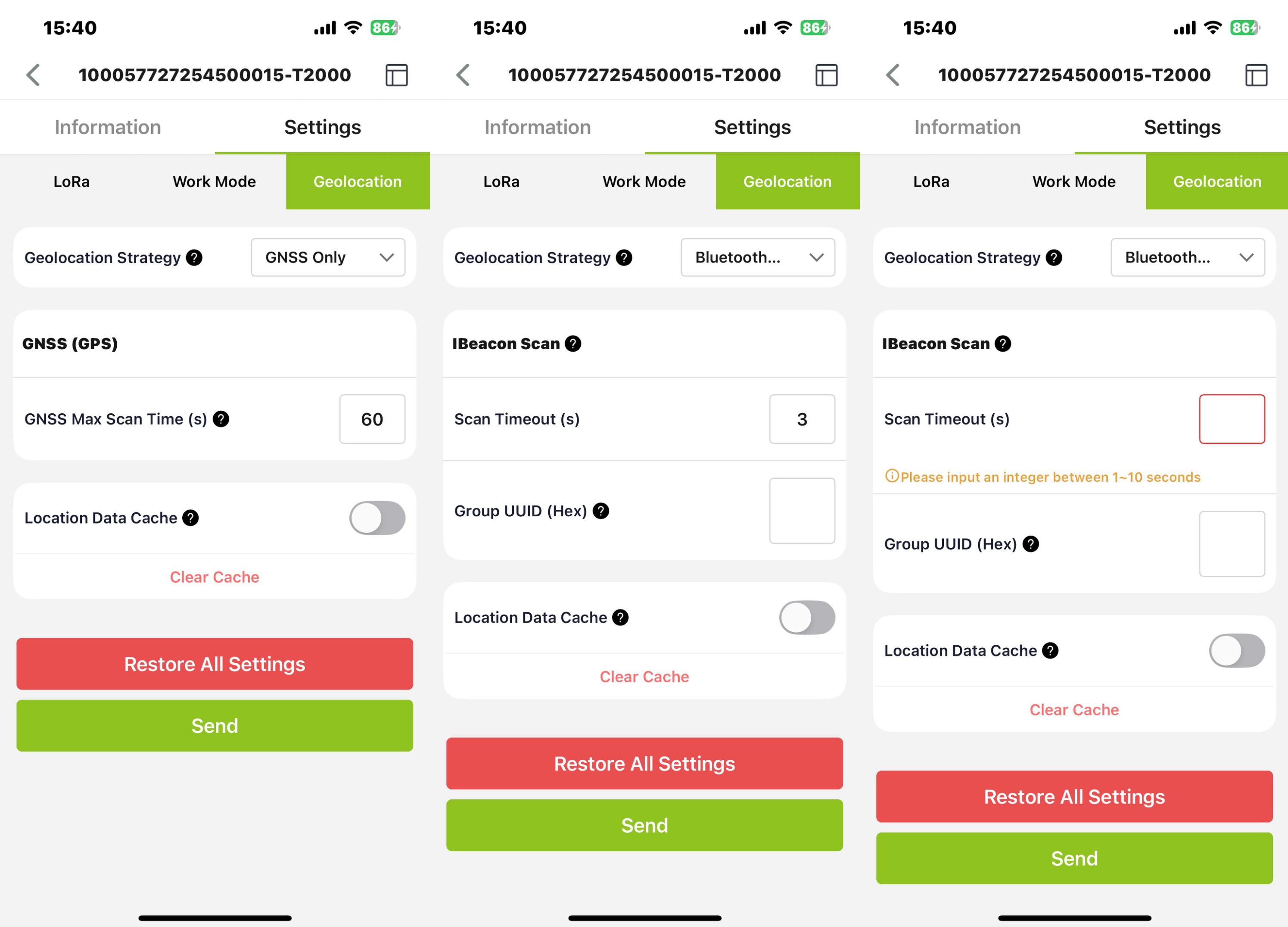
After all parameters are configured, click “Send”. If no parameter needs to be modified, exit Bluetooth configuration, and return to the home page. At this point, the device initiates a LoRa network access request.

Device Data View
SenseCraft App
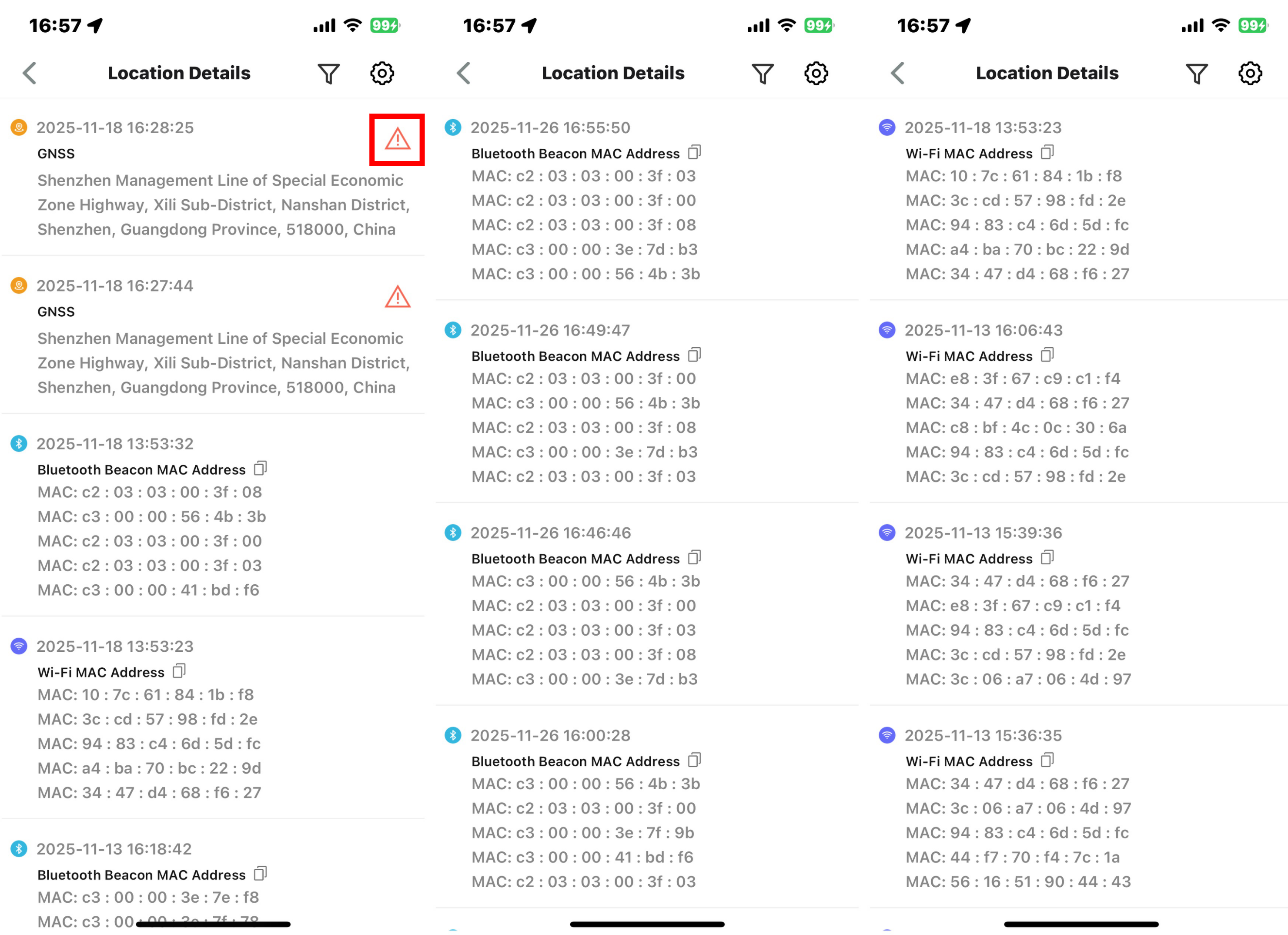
Check the Location on the APP. After binding the device, enter the device page and click the button in the upper right corner to view the historical location data of the device. Click on the filter to choose to view location data under positioning modes such as 'All/GNSS/BLE/Wi-Fi'.
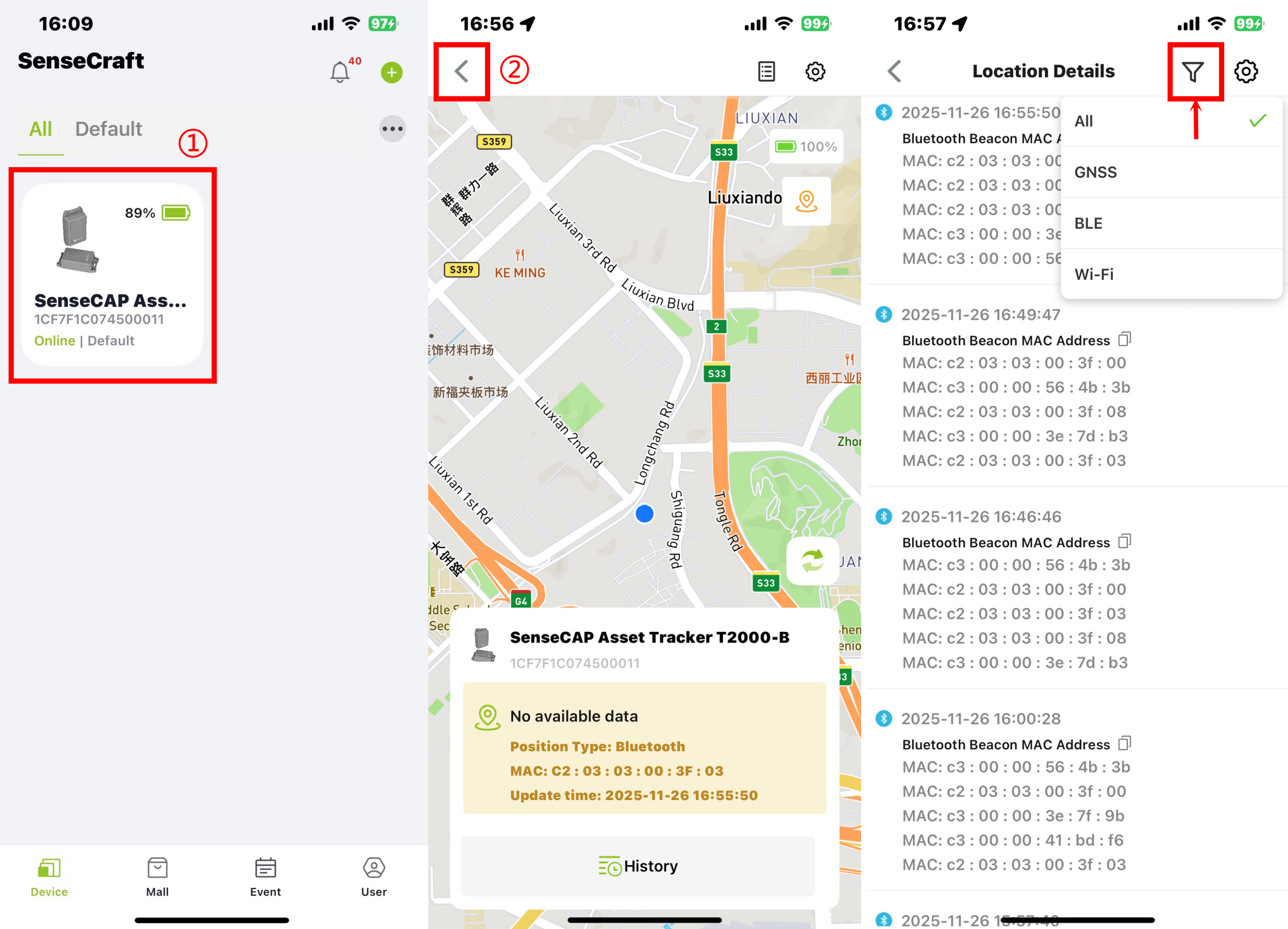
Click History, you can view all historical positioning data for a selected date.
Click the positioning icon in the upper-right corner to view all Positioning Abnormal records. When GNSS, Wi-Fi or Bluetooth scanning times out, the related event will be shown on this page.
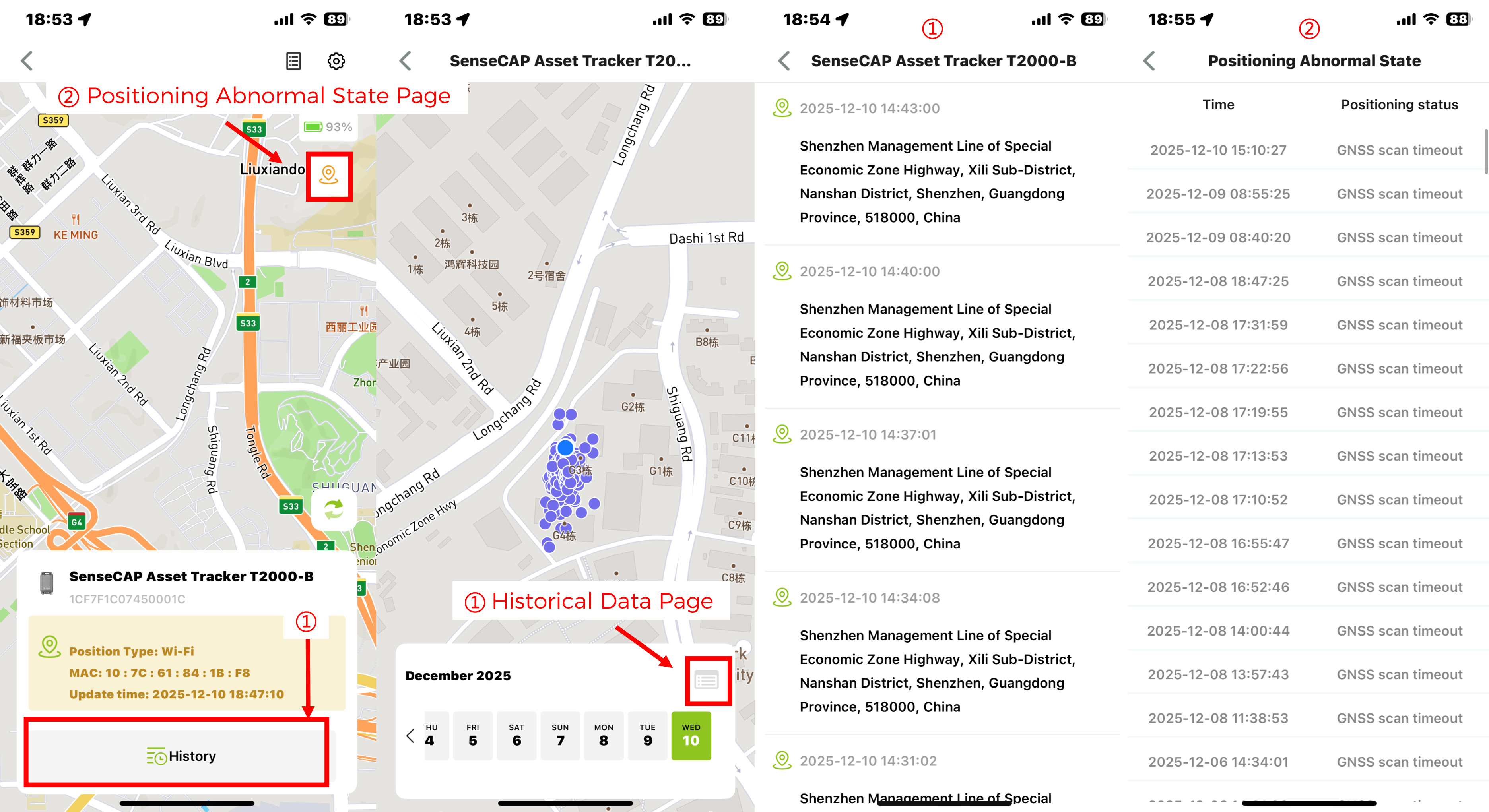
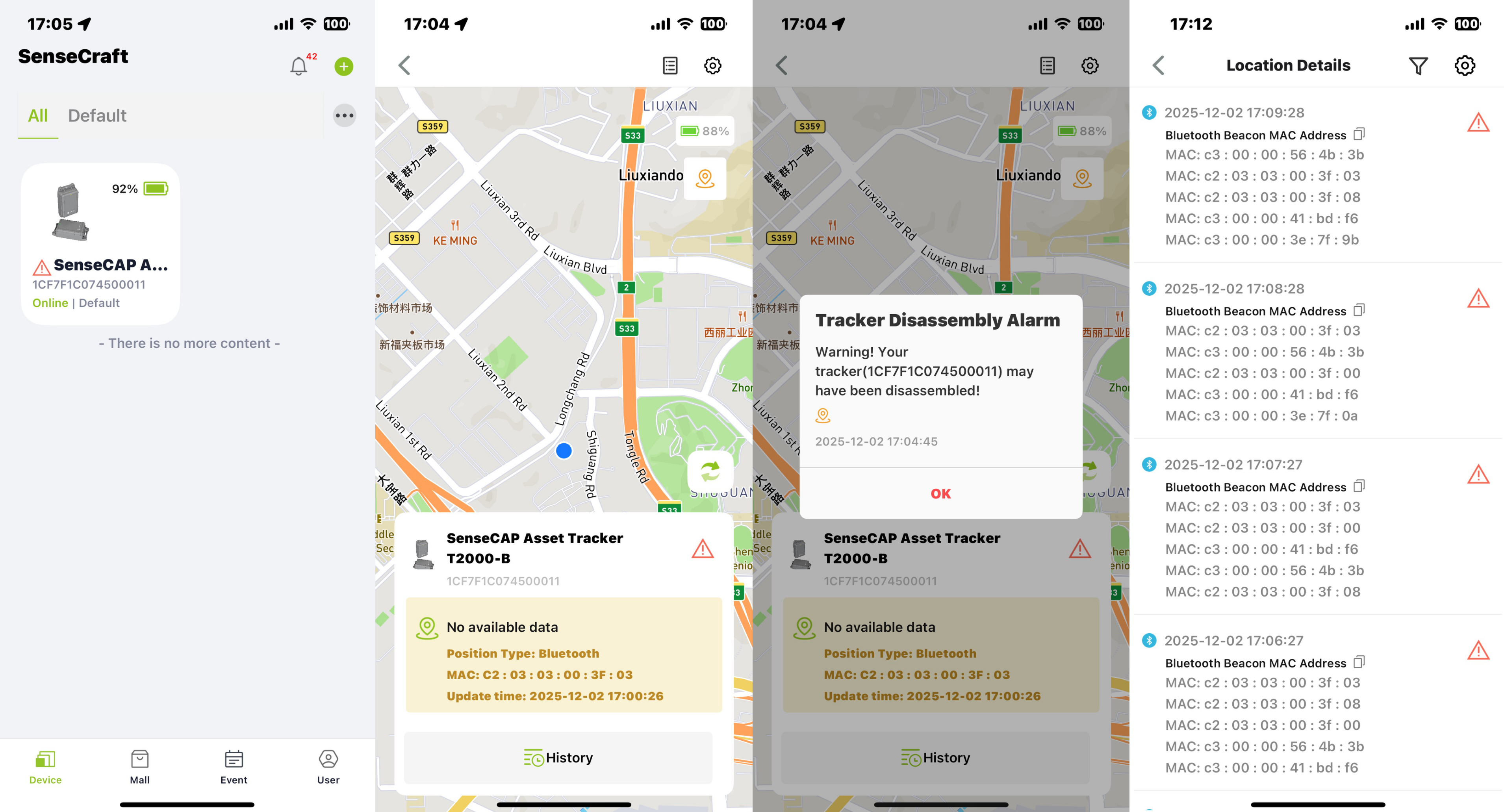
If the device triggers a Disassembly Alarm, a red alarm icon will be displayed next to each data packet during the triggering period.
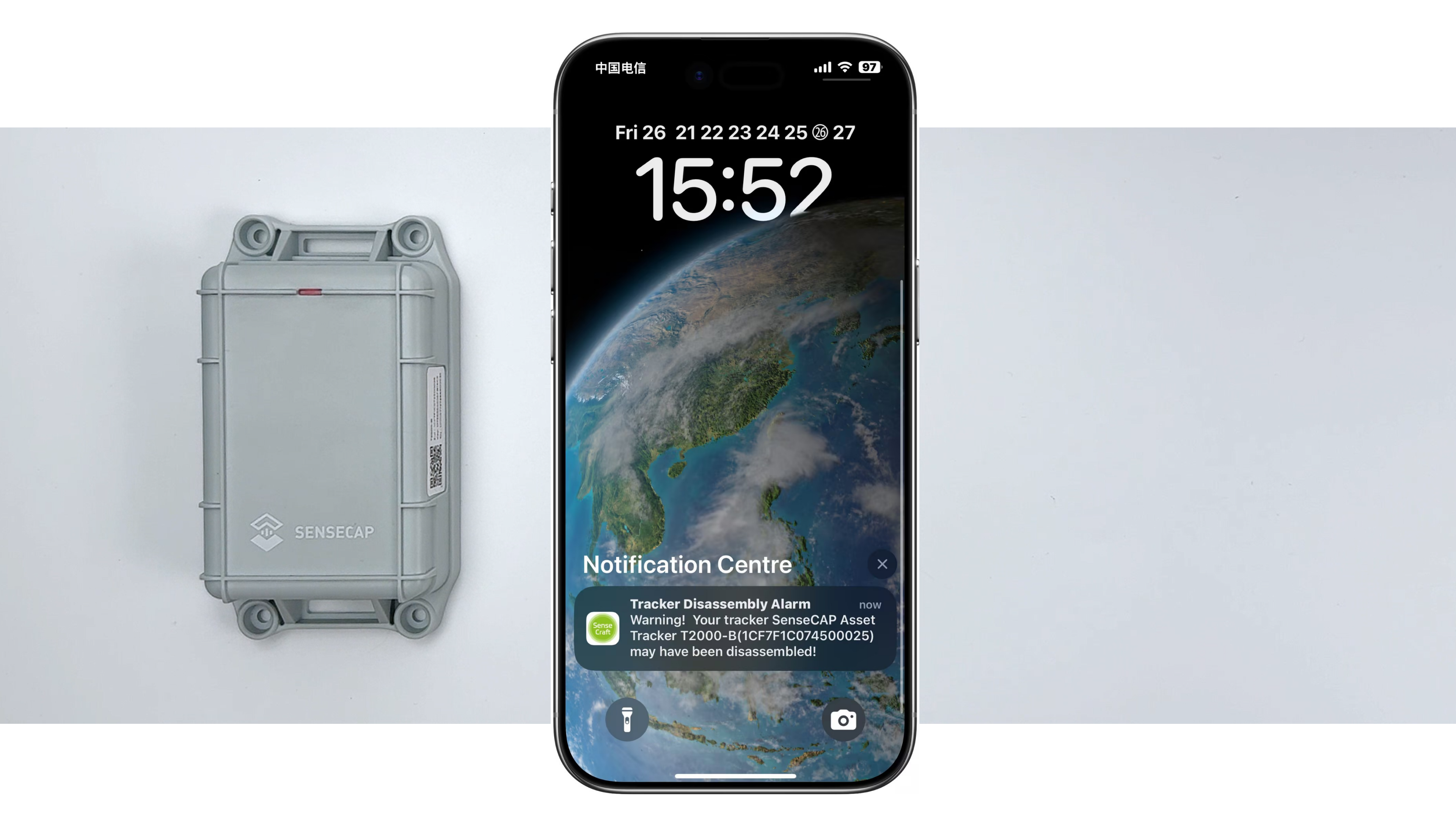
When the disassembly alarm is trggered, a alarm notification message would be sent to your phone. Also, the disassembly alarm will appear on both the Device and Details pages in the APP, along with a notification window, which helps users quickly check the device's status.
SenseCAP Portal
The main function of the SenseCAP Portal is to manage SenseCAP devices and store data. It is built on Azure, a secure and reliable cloud service from Microsoft. Users can apply for an account and bind all devices to this account. The SenseCAP Portal provides a web portal and API. The web portal includes Dashboard, Device Management, Data Management, and Access Key Management. The API is open to users for further development.
- Dashboard: Including Device Overview, Announcement, Scene Data, and Data Chart, etc.
- Device Management: Manage SenseCAP devices.
- Data Management: Manage data, including Data Table and Graph section, providing methods to search for data.
- Subaccount System: Register subaccounts with different permissions.
- Access Key Management: Manage Access Key (to access API service), including Key Create, Key Update, and Key Check.

Device Data View
Log in SenseCAP Portal
If you have created an account through the APP, you can log in directly.
-
Select register account, enter email information, and click "register", the registered email will be sent to the user's mailbox
-
Open the "SenseCAP…"Email, click the jump link, fill in the relevant information, and complete the registration
-
Return to the login interface and complete the login
Check SenseCAP Portal User Guide for more details.


SenseCAP API
SenseCAP API is for users to manage IoT devices and data. It includes 3 types of API methods: HTTP protocol, MQTT protocol, and Websocket protocol.
- With HTTP API, users can manage LoRa devices, to get raw data or historical data.
- With MQTT API, users can subscribe to the sensor's real-time measurement data through the MQTT protocol.
- With Websocket API, users can get real-time measurement data of sensors through Websocket protocol.
Please check API User Guide for more details.

Tech Support & Product Discussion
Thank you for choosing our products! We are here to provide you with different support to ensure that your experience with our products is as smooth as possible. We offer several communication channels to cater to different preferences and needs.