Soil moisture monitoring alarm system
In this wiki, we will show you how to unitize the Wio Terminal to link Grove - Wio-E5 and Grove - Soil Moisture Sensor which are in the kit, connecting them to Azure IoT Central platforms, to build a real-time backyard potting monitor and watering-reminder, for a glimpse of Internet of Things.
Upgradable to Industrial Sensors
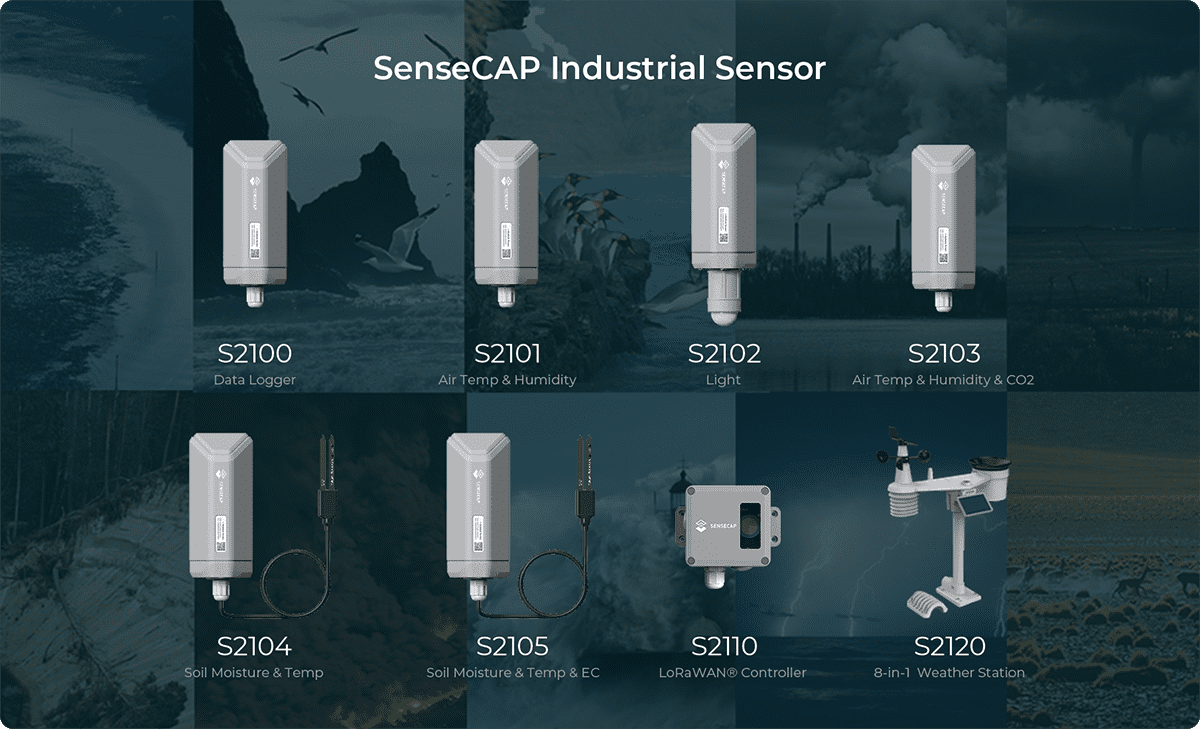
With the SenseCAP S2110 controller and S2100 data logger, you can easily turn the Grove into a LoRaWAN® sensor. Seeed not only helps you with prototyping but also offers you the possibility to expand your project with the SenseCAP series of robust industrial sensors.
The IP66 housing, Bluetooth configuration, compatibility with the global LoRaWAN® network, built-in 19 Ah battery, and powerful support from APP make the SenseCAP S210x the best choice for industrial applications. The series includes sensors for soil moisture, air temperature and humidity, light intensity, CO2, EC, and an 8-in-1 weather station. Try the latest SenseCAP S210x for your next successful industrial project.


Prerequisites
Before everything starts, we should meet the following prerequisites:
Materials Required
 |  | 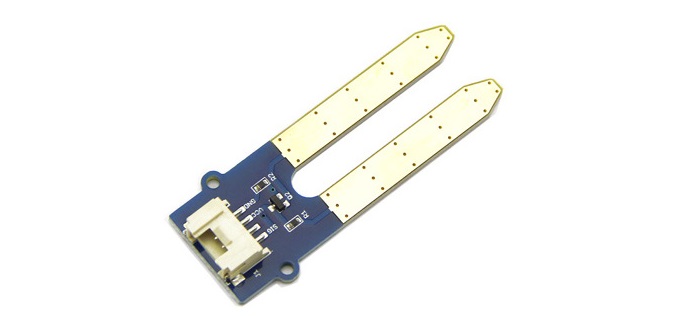 |
| Wio Terminal | Grove - Wio-E5 | Grove Soil Moisture Sensor |
Software
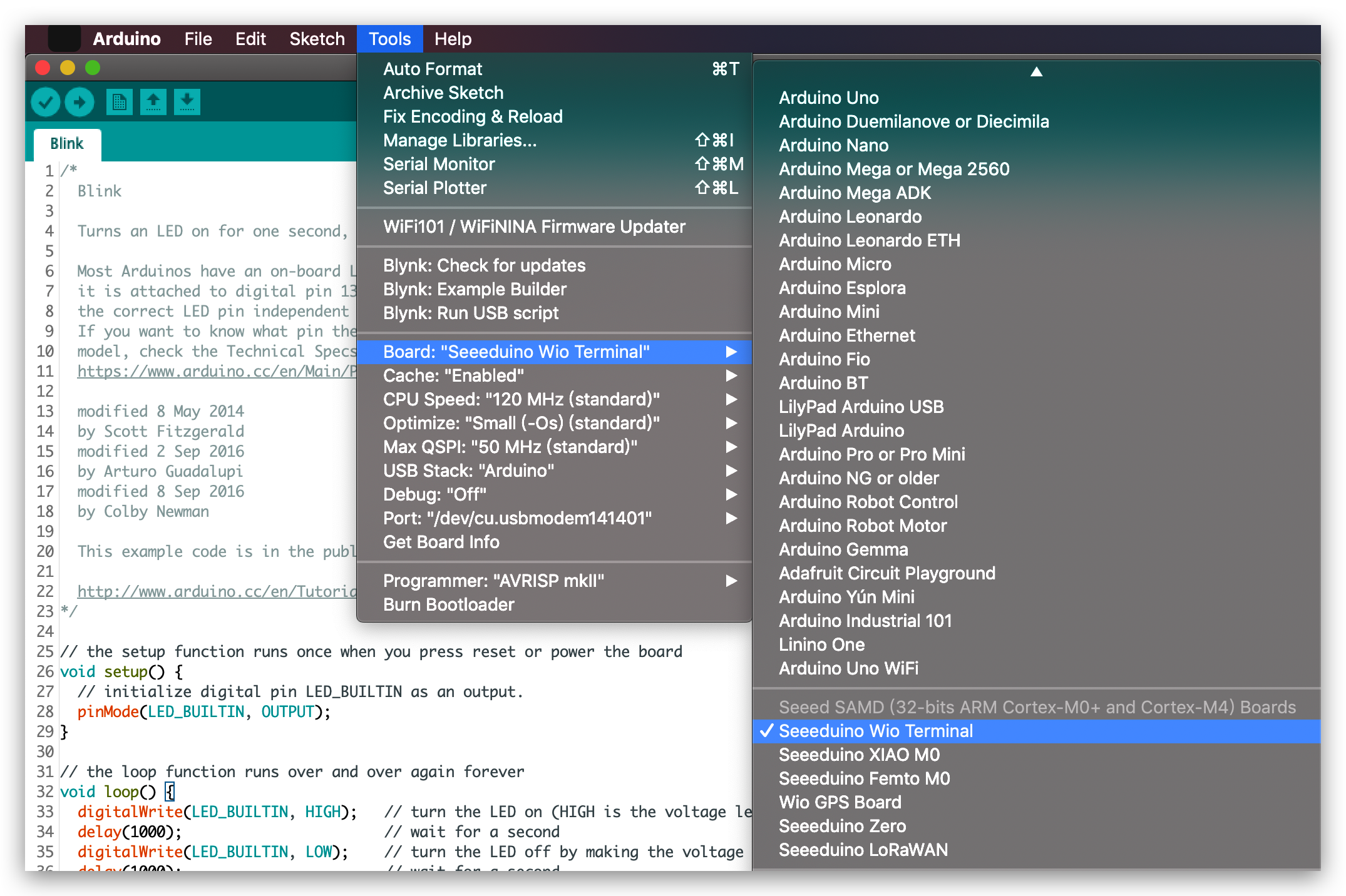
We will upload programming to Wio Terminal through Arduino. If this is your first time using Arduino with Wio Terminal, we highly recommend you to refer to Getting Started with Wio Terminal.
Others
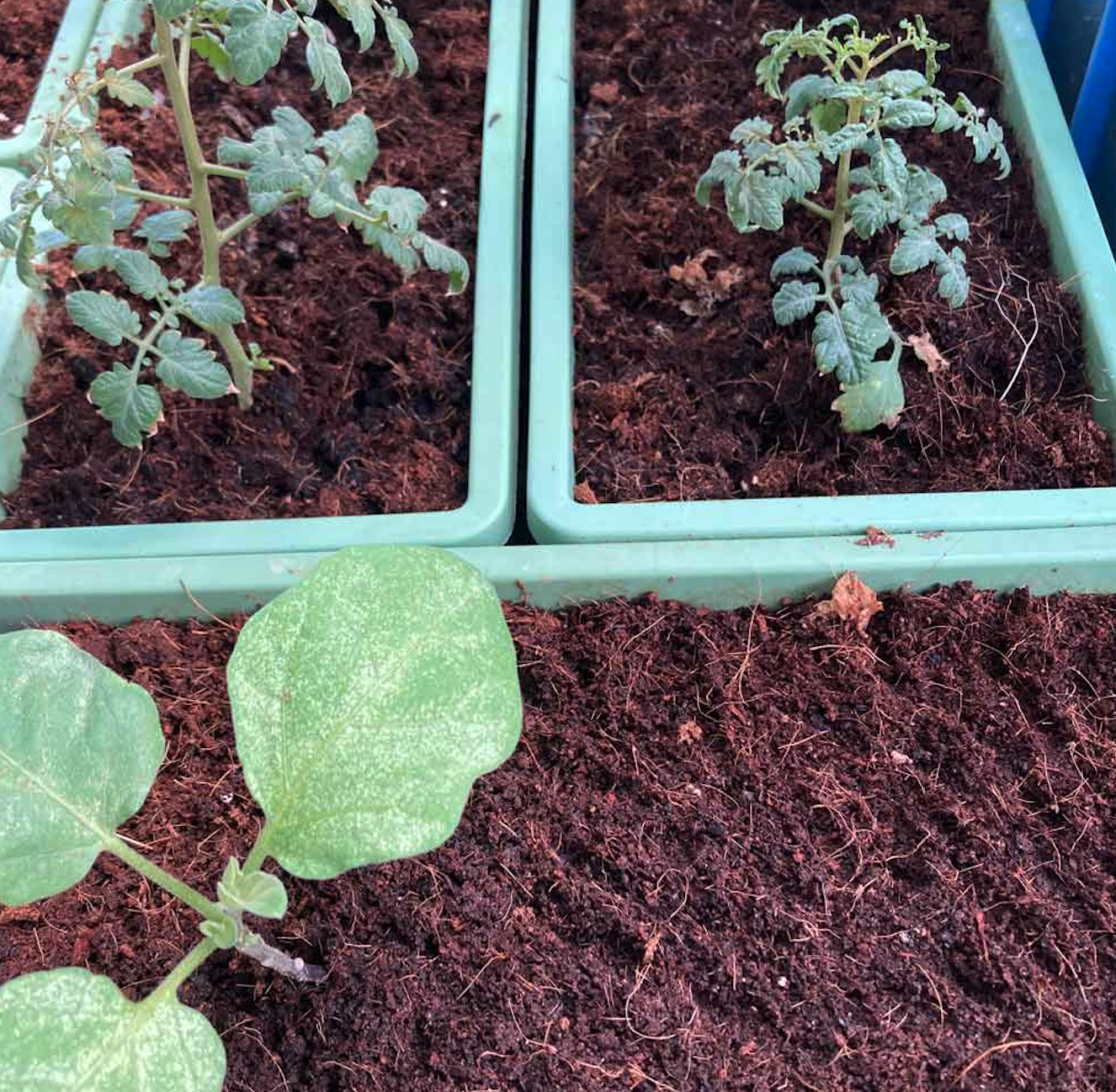
- Potting
In this kickstart demo, we are using a soil moisture sensor. Therefore a potting with deep enough soil will be the best.
Azure IoT Registration for Notice
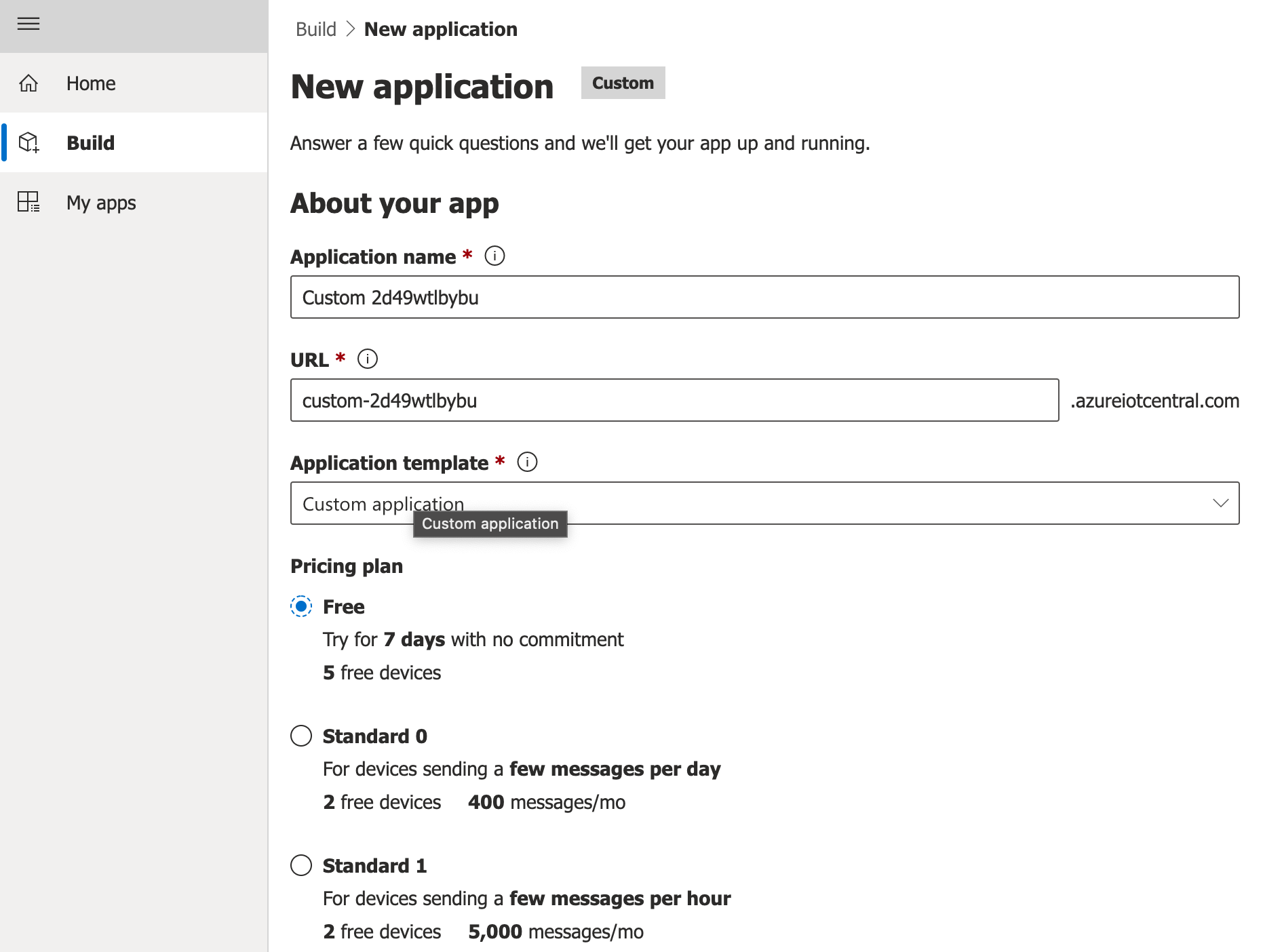
Azure IoT Central is a managed service hosted in the cloud that acts as a central message hub for communication between an IoT application and its attached devices.
Soil Moisture Monitor Getting Started
In this quick demo we only require a simple LoRa® connection witn Grove - Soil Moisture Sensor, for the puporse of auto soil moisture monitor and alert.
Equipment Initiation
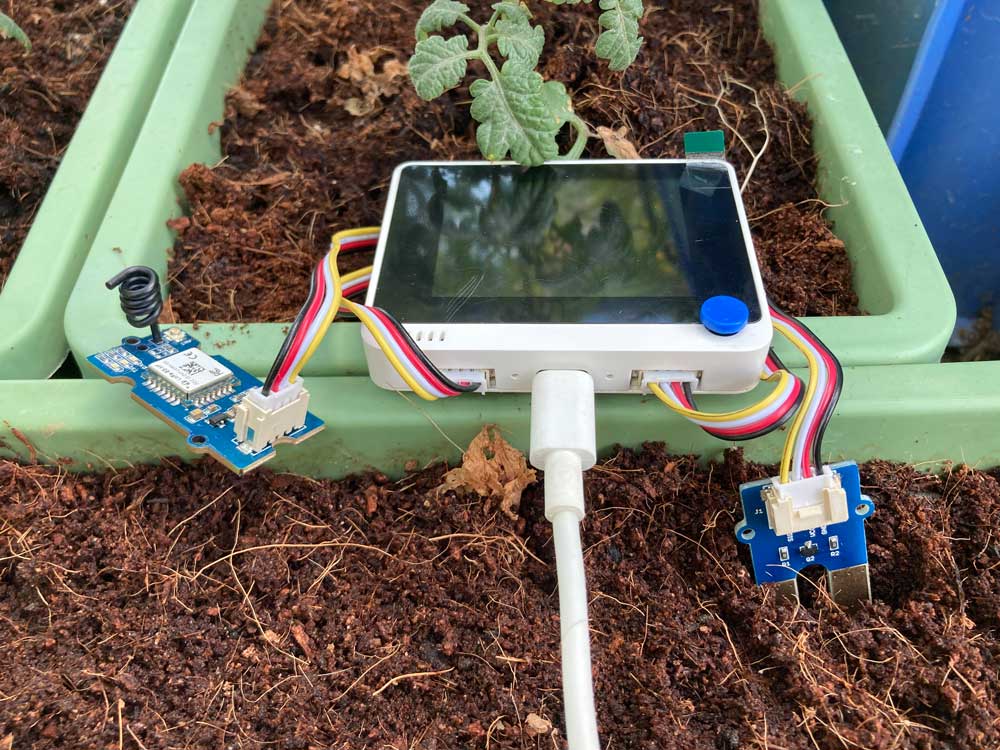
- Step 1. Use Grove cable to link everything together where the Grove - Soil Moisture Sensor on the right of the Wio Terminal and Grove - Wio-E5 is on the left.
The position where the Grove - Wio-E5 is will make a difference to the uploaded code.
- Step 2. Connect a PC and the Wio Terminal with a Type-C cable.
Integrate Azure IoT Platform
We can integrate another platform Azure IoT to present and manage our data, even do some actions.
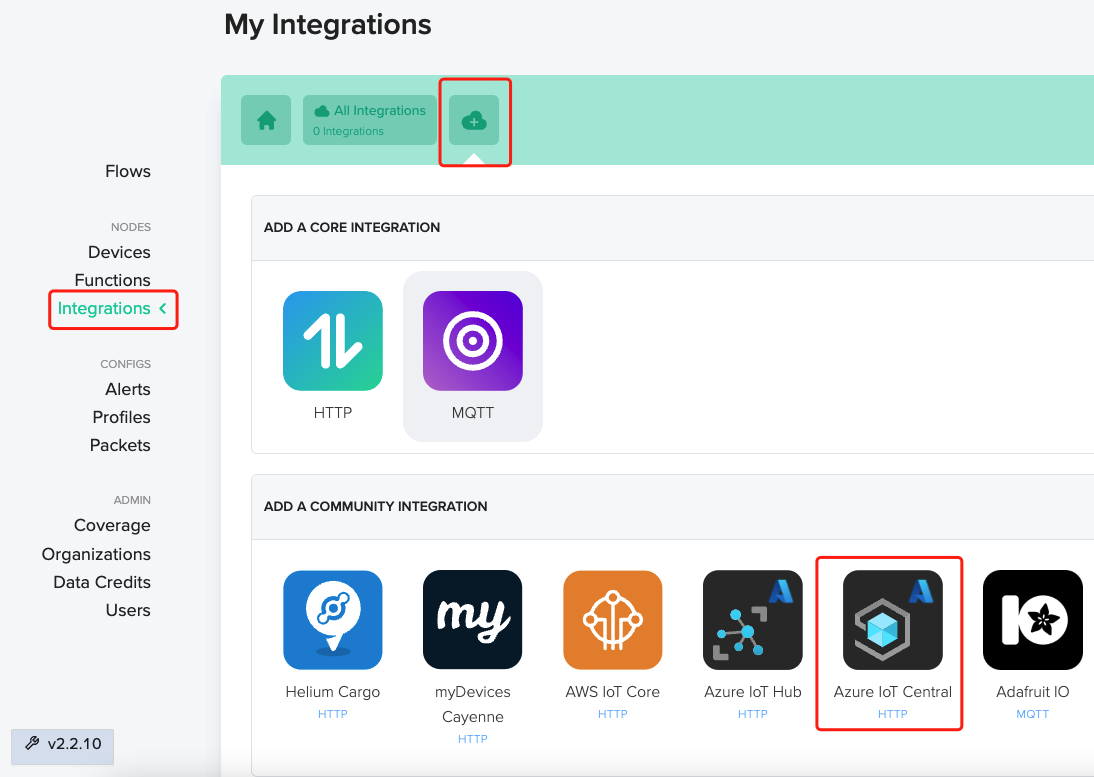
- Step 1. Open the platform page first, click "Integrations" on the left colmon of the page, and select "Azure IoT Central".
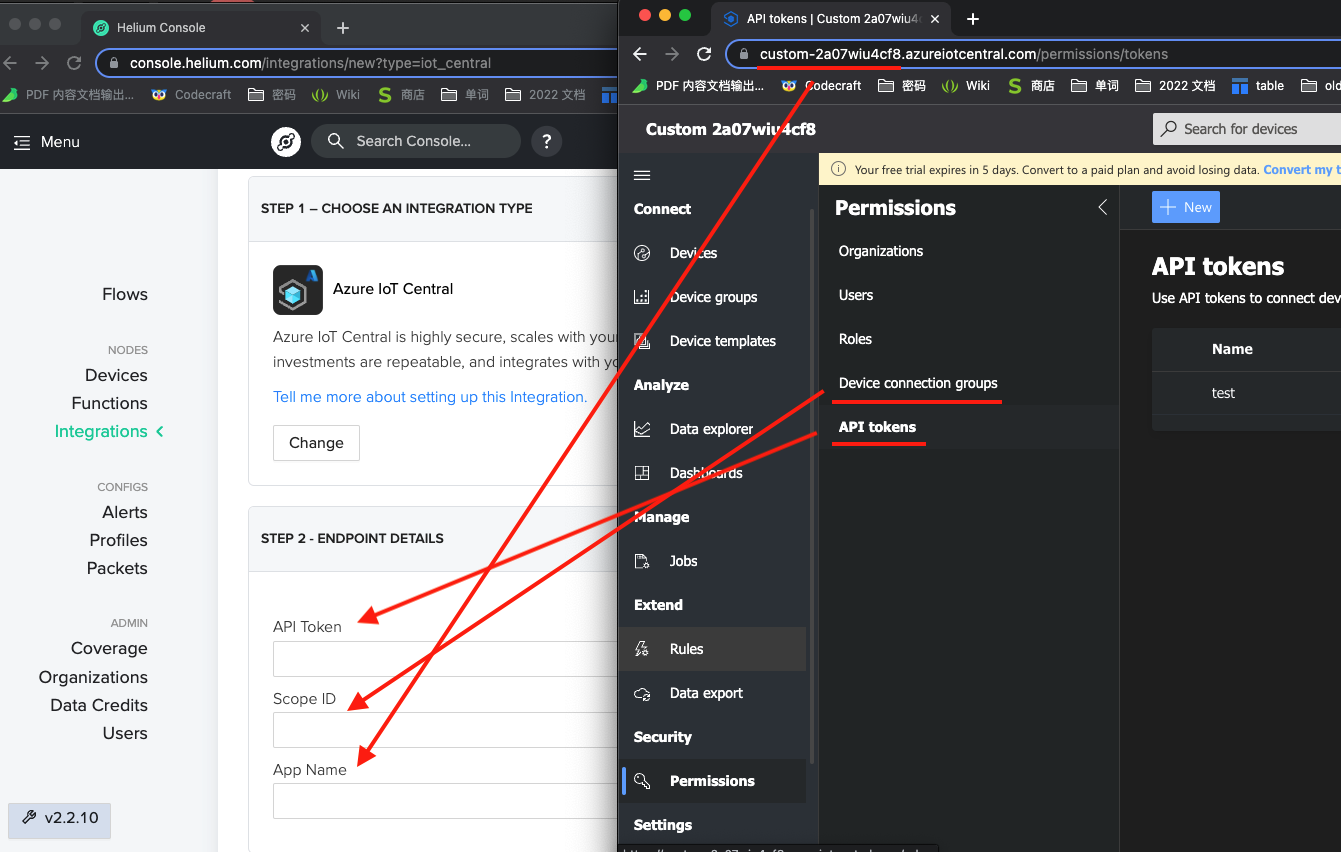
- Step 2. Create a new application on the Azure IoT Central . And then integrate the Azure IoT Central in the platform by filling the required information below:
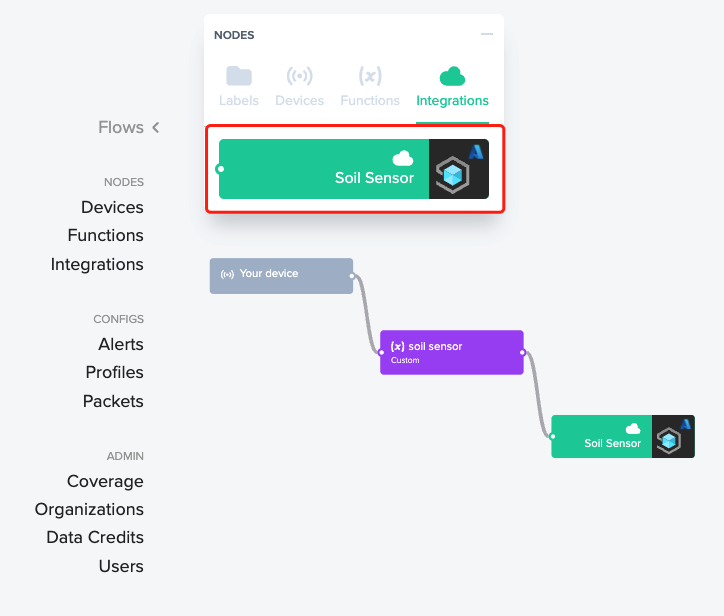
- Step 3. Click the "Flows" on the left colmon of our page, drag the block of the Azure IoT Central and link it after the customized function, the order should be like:
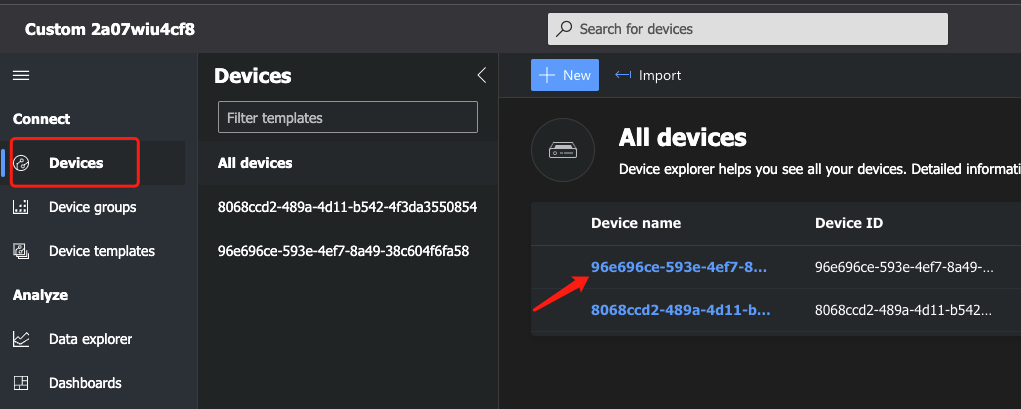
- Step 4. Move to the "Azure IoT Central" page and select the "Devices" on the left. We can see a device named after some ramdon numbers pop up.
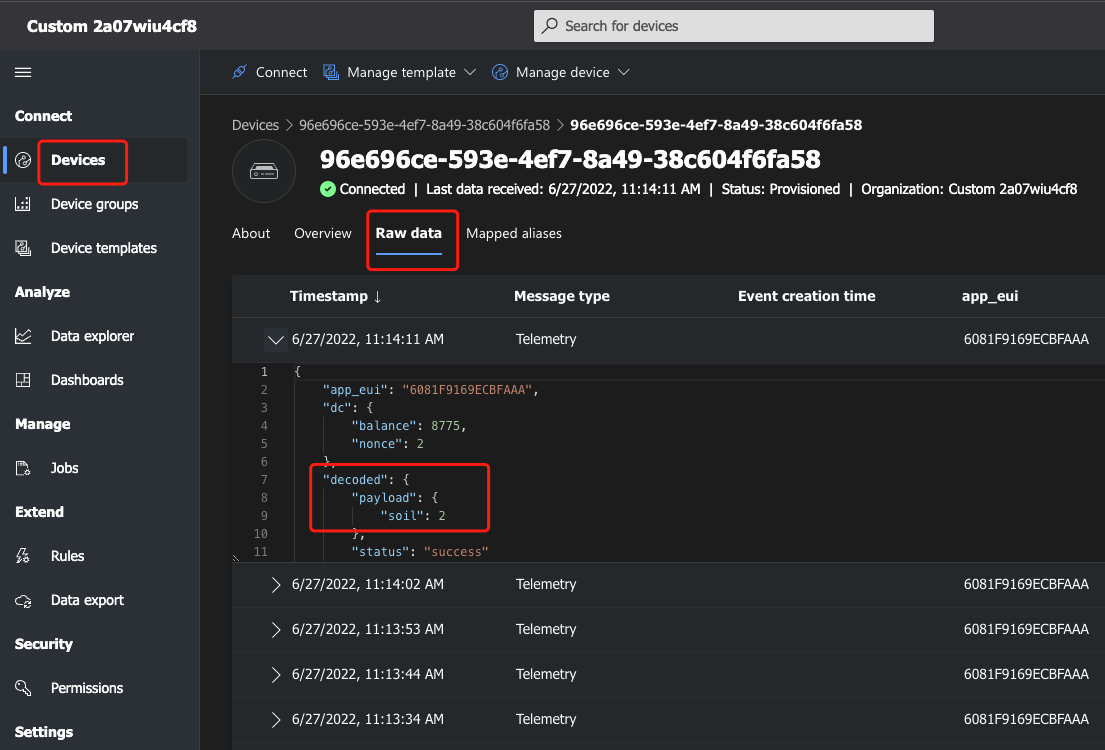
- Step 5. Select the device and check the "Raw data" information like the figure below shows. The information contains all the data, including the decoded data:
We have our continous data displaying, but is it possible to display them in a sketch and maybe do some actions with the data?
Further Function in Azure IoT Central
We can manage all the data from the platform and choose the ones that we care about to build an auto email alert based on it.
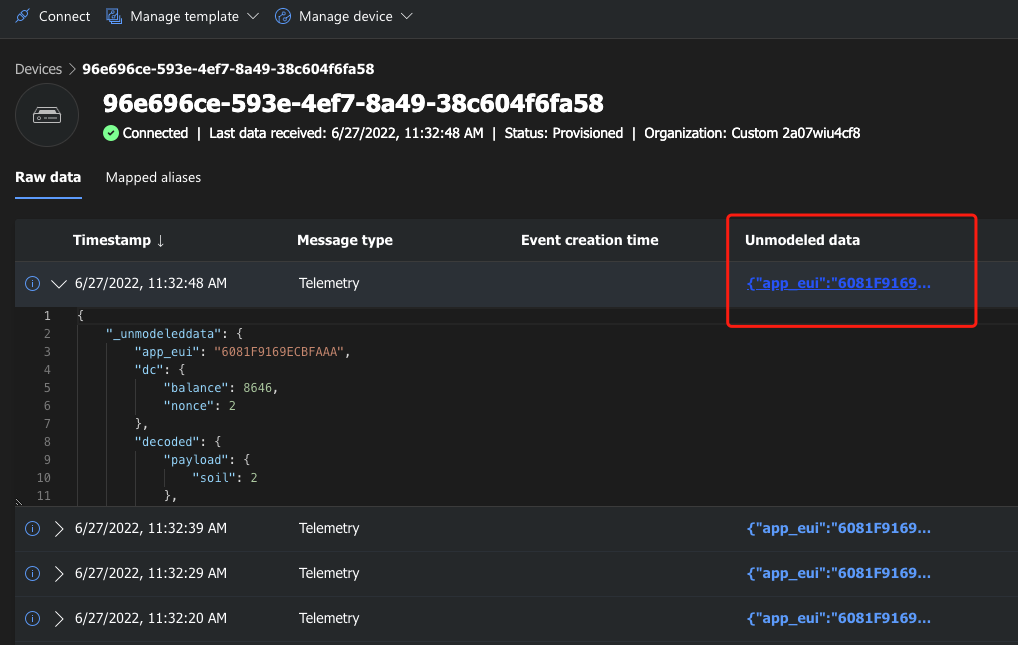
- Step 1. Click the "Unformated data" on the "Devices" page and create an auto device template.
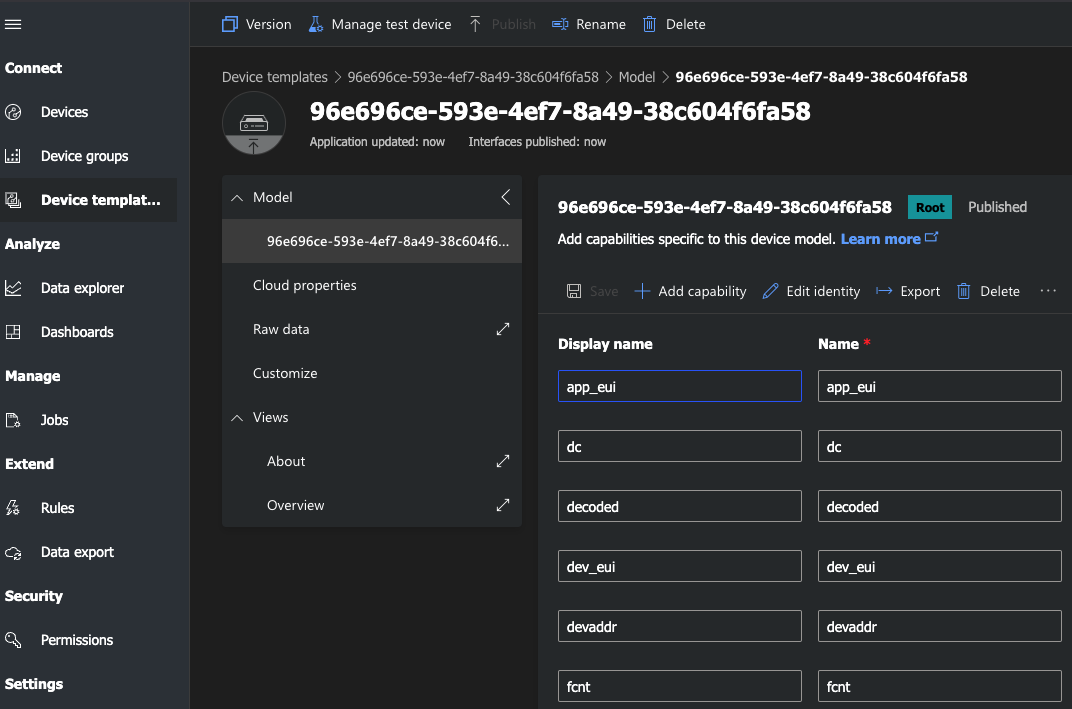
- Step 2. Move to the "Device template" and we can see the template includes and make the same type data to be sperately stored in each block:
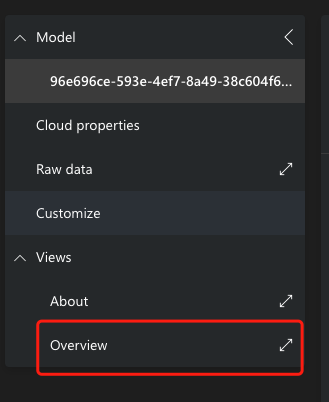
- Step 3. Select the "Overview" and we can see that there has been automatically created some sketches that show the data value.
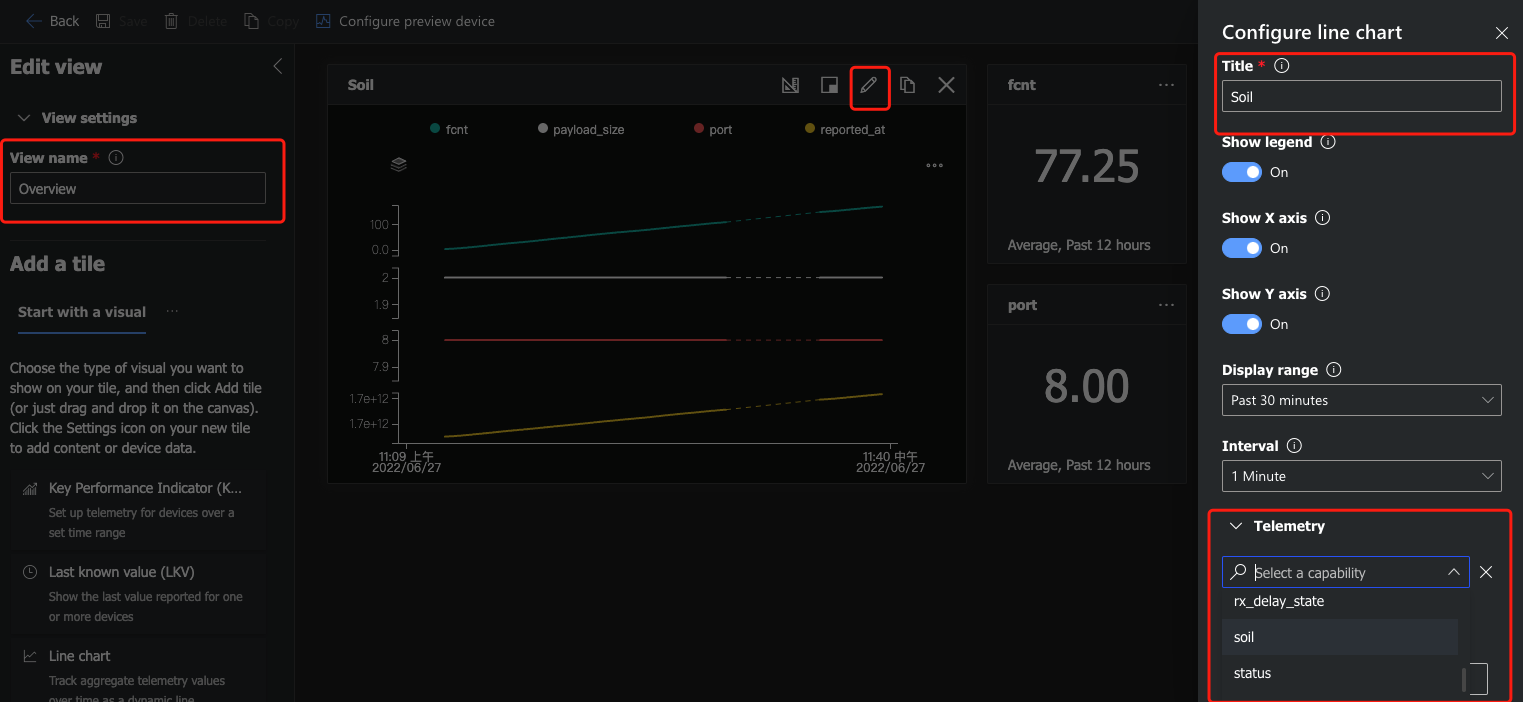
Change the soil moisture data we want to display and rename the sketch.
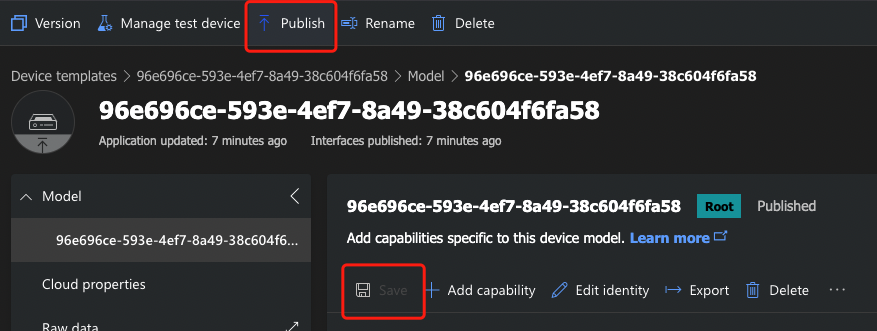
Remember to click "Save" and then click "Pubilsh" to save the template after we finished:
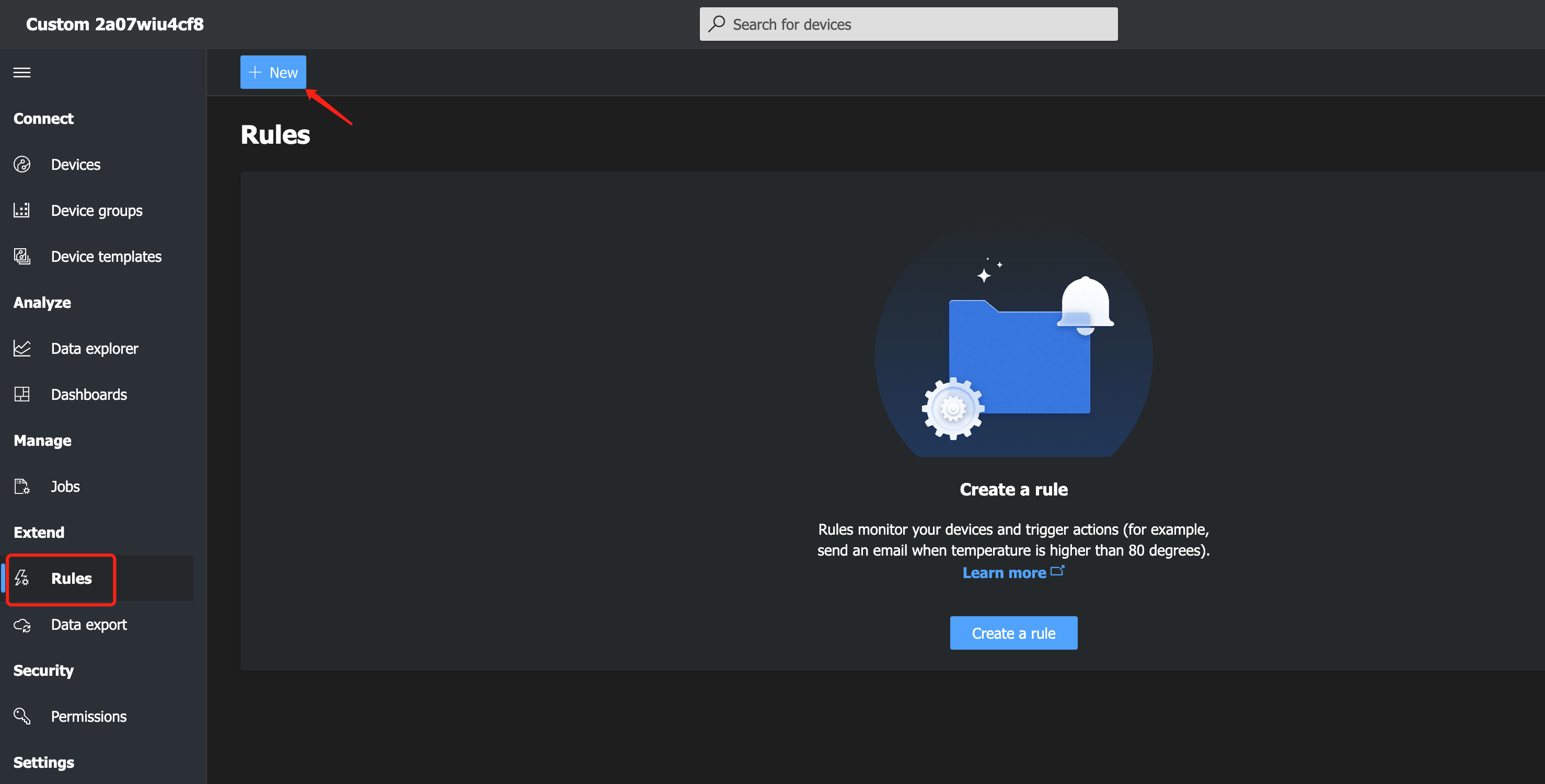
- Step 4. Move to the "Rules" on the left and create a new one.
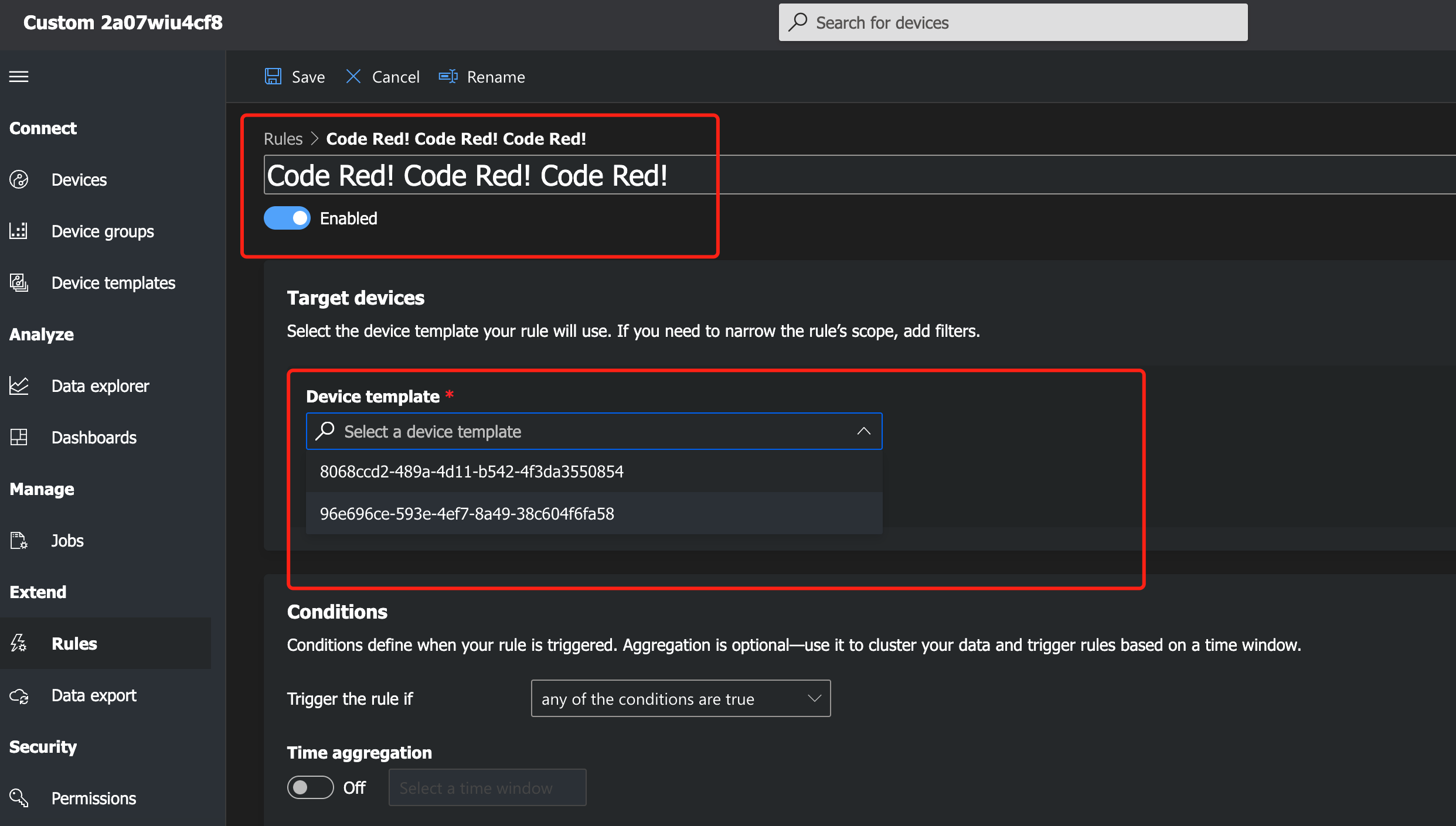
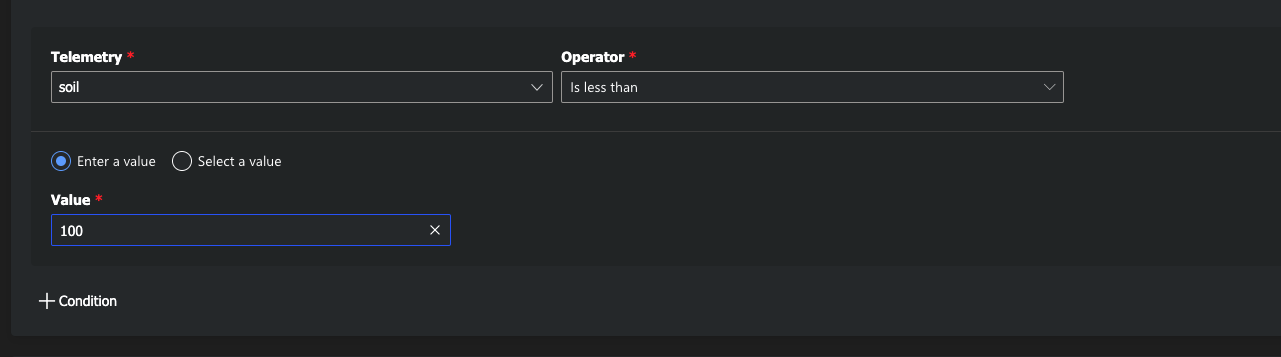
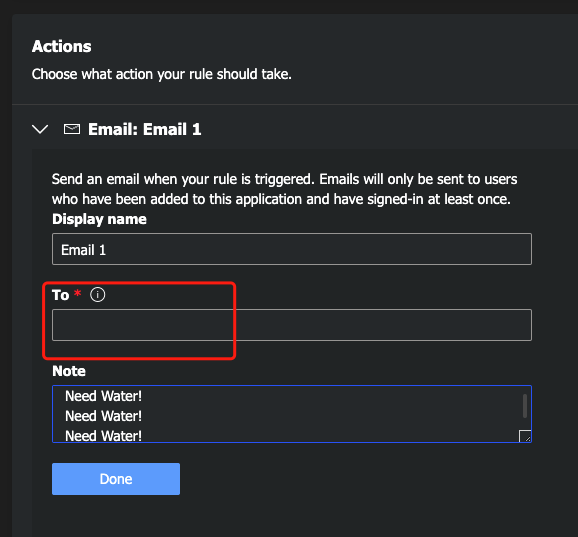
- Step 5. Fill the information below to create a auto email alert:
The device template(usually the default):
Set up the type of the data and the value we want:
Fill the email that is registered in the Azure IoT Central and the note we want to send:
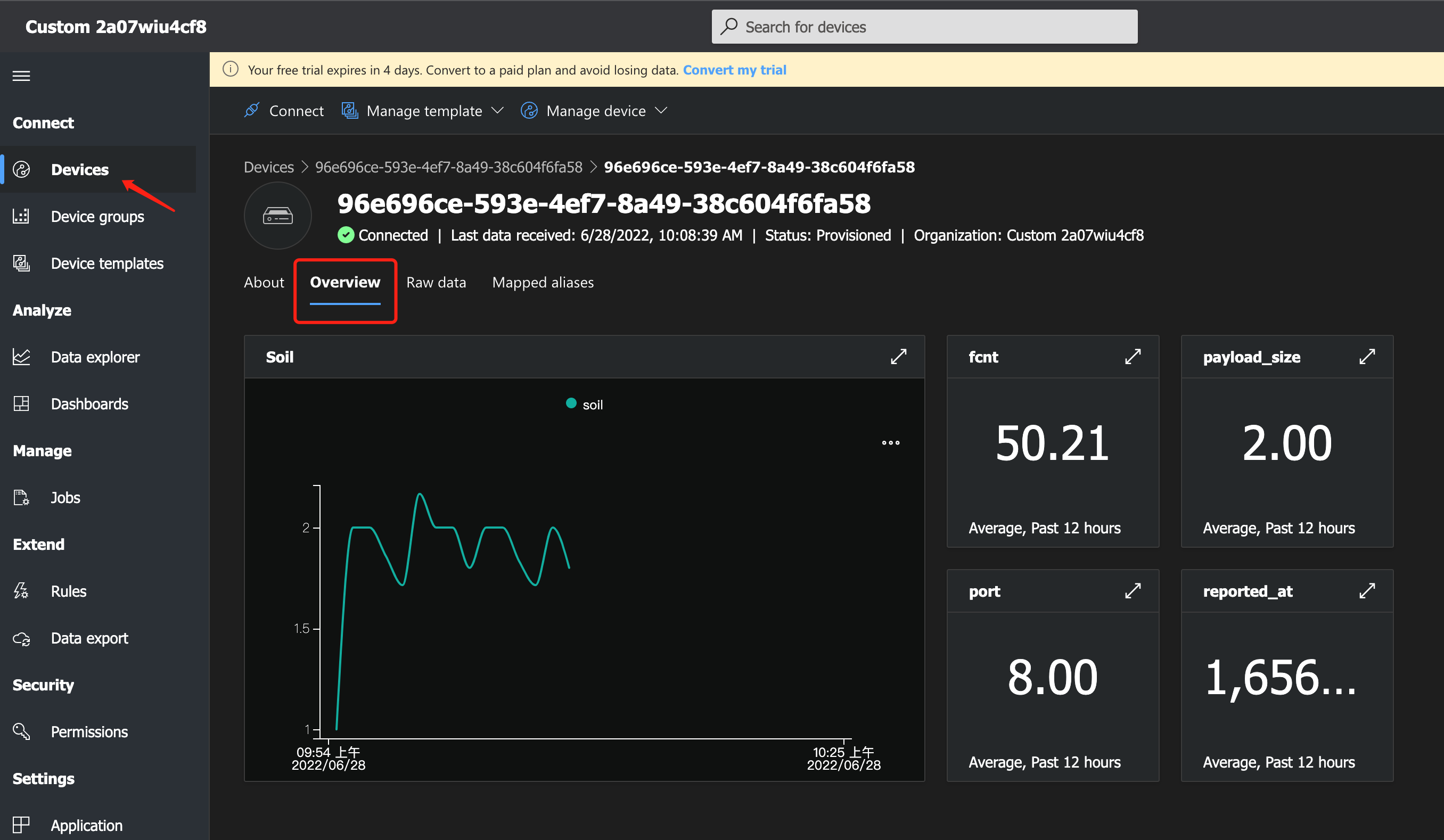
Result
- Move back to the "Devices" on the left and select the device, we can see the data have been displayed in a sketch.
- Meanwhile, if the value we set has reached the threshold, there will be continous emails we set up before will be sent to the email.
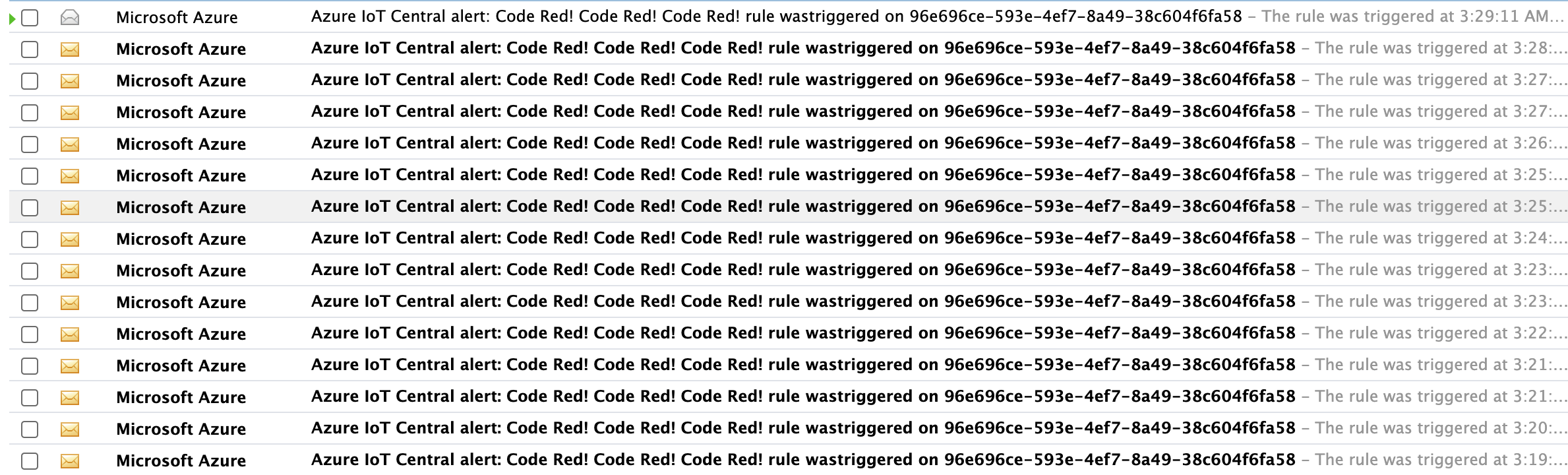
The contents of the email are like:
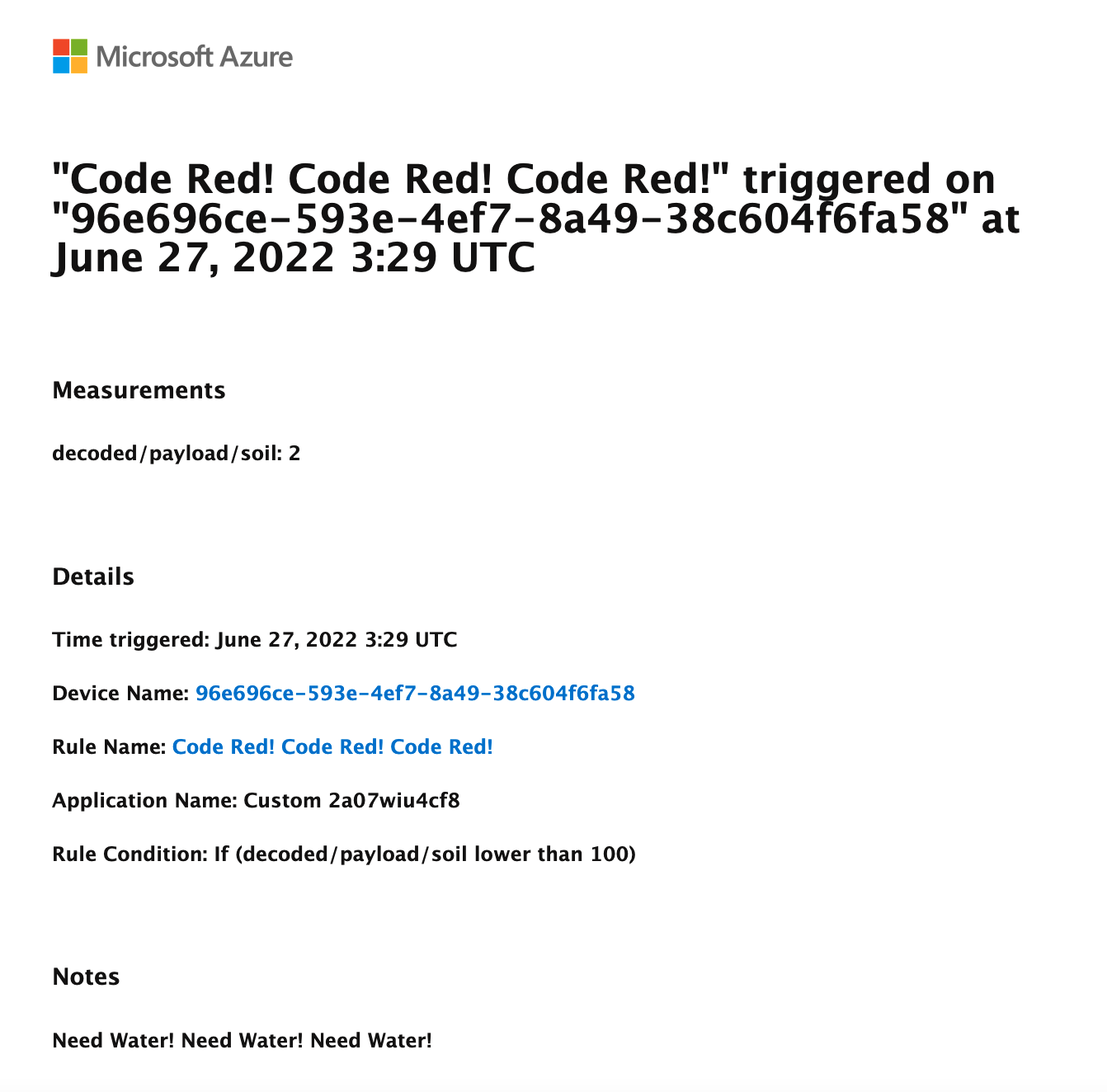
Remember to water the potting!
Thanks!
Tech Support & Product Discussion
Thank you for choosing our products! We are here to provide you with different support to ensure that your experience with our products is as smooth as possible. We offer several communication channels to cater to different preferences and needs.
Upgradable to Industrial Sensors
With the SenseCAP S2110 controller and S2100 data logger, you can easily turn the Grove into a LoRaWAN® sensor. Seeed not only helps you with prototyping but also offers you the possibility to expand your project with the SenseCAP series of robust industrial sensors.
The IP66 housing, Bluetooth configuration, compatibility with the global LoRaWAN® network, built-in 19 Ah battery, and powerful support from APP make the SenseCAP S210x the best choice for industrial applications. The series includes sensors for soil moisture, air temperature and humidity, light intensity, CO2, EC, and an 8-in-1 weather station. Try the latest SenseCAP S210x for your next successful industrial project.
Statement
- The LoRa® Mark is a trademark of Semtech Corporation or its subsidiaries.
- LoRaWAN® is a mark used under license from the LoRa Alliance®.