AI Parking Management Demo with reCamera
Introduction
Parking availability is a common requirement in scenarios such as commercial parking lots, residential garages, industrial parks, and campus parking management, where operators and users want to quickly understand which bays are occupied or available.
This project provides an out-of-the-box demo that focuses on the following application capabilities:
- Parking Slot Detection: Detects the occupancy status of each parking bay in the camera view.
- Anti-shake / Stabilization: Reduces visual jitter and short-term detection fluctuations to make results more stable.
- Counting & Summary: Automatically summarizes the current parking status, such as the number of available slots.
- On-screen Visualization: Displays the detection results and slot status directly on the preview interface for quick verification and demonstration.
Hardware Preparation
To run this parking management demo, only one reCamera device is required.
All reCamera variants are supported.
You can choose any version of reCamera based on your deployment needs:
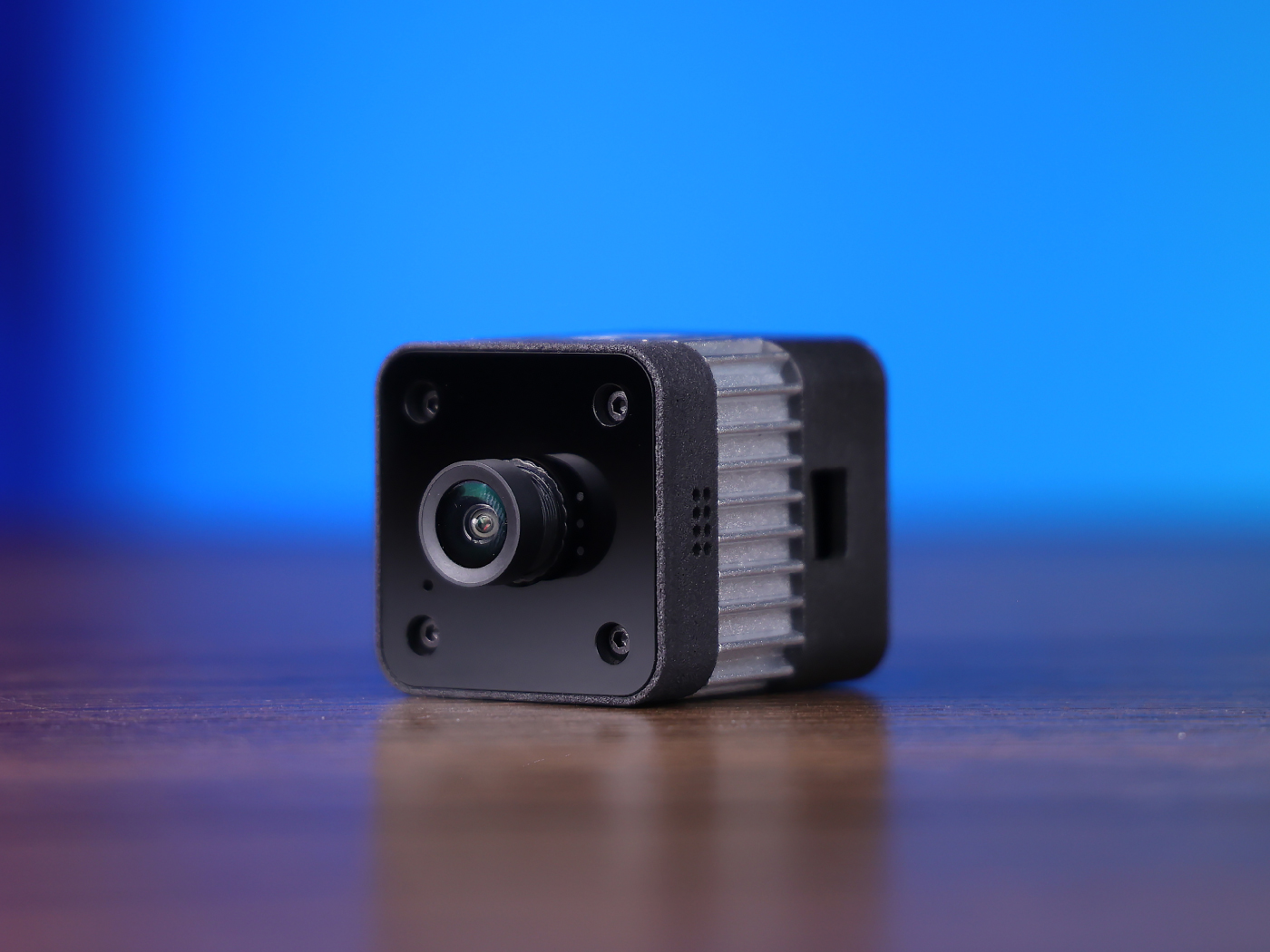
- reCamera 2002 Series (Wi-Fi)
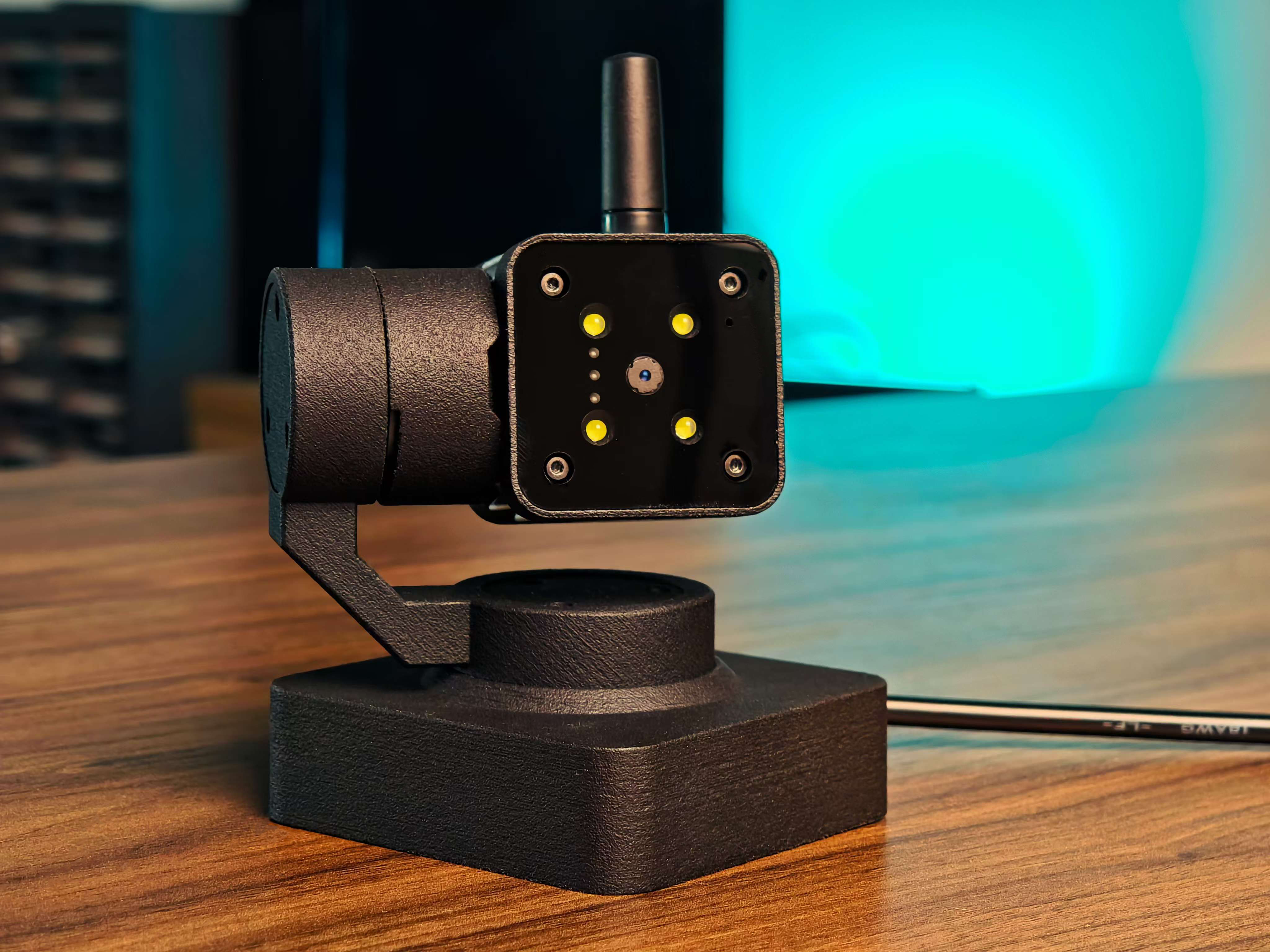
- reCamera Gimbal (Pan-Tilt)
- reCamera HQ PoE (Ethernet + PoE)
Note:
The PoE version does not support Wi-Fi and must be connected to the same local network via a PoE-enabled switch.
| reCamera 2002 Series | reCamera Gimbal | reCamera HQ PoE |
|---|---|---|
 |  |  |
Setup Demo
Step 1: Configure reCamera
First, please follow the official getting started guide to complete the basic configuration of reCamera: reCamera Basic Configuration
After completing the initial setup, make sure that the device is powered on and connected to the network correctly.
Then, access the reCamera management interface and enter the Node-RED workflow page.
If you can successfully access the Node-RED workflow interface as shown below, it means the configuration has been completed successfully.

Step 2: Download and Upload the Workflow File
This demo provides a pre-configured workflow file, in which all required nodes and connections have already been set up.
You do not need to manually create or configure any Node-RED nodes.
Please download the workflow file from our SenseCraft AI platform, and then import it directly into reCamera. For Sensecraft AI tutorial, please refer to the link Access SenseCraft AI reCamera Dashboards.
After importing the workflow:
- All detection, visualization, and data processing nodes will be ready to use.
- No additional parameter configuration is required.
- The demo can be launched immediately after deployment.
Once the workflow is successfully uploaded and deployed, reCamera will automatically start running the parking slot monitoring demo in the background. This workflow is designed as an end-to-end parking slot monitoring pipeline, running entirely on reCamera. The high-level logic is as follows:
-
Video Input
The camera continuously captures video frames and sends them to the AI inference node. -
AI Detection
The detection model identifies parking-related objects and outputs bounding boxes with class labels (free/car) and confidence scores. -
Slot Association & Stabilization
- Detected boxes are matched across frames using IoU (Intersection over Union).
- Each slot enters a stable state only after being consistently detected for a fixed number of frames.
- Short-term misses are tolerated to prevent false state changes.
-
Slot Pool Management
- Each parking slot is stored in a slot pool with its position, state history, and stability counter.
- Slots that disappear for too long are automatically removed.
-
Visualization Layer
- Bounding boxes, center markers, labels, and status panels are rendered as SVG overlays.
- The visualization updates in real time via WebSocket.
-
Automatic Background Execution
Once deployed, the workflow runs automatically in the background without manual triggering.
Detection results are illustrated below:
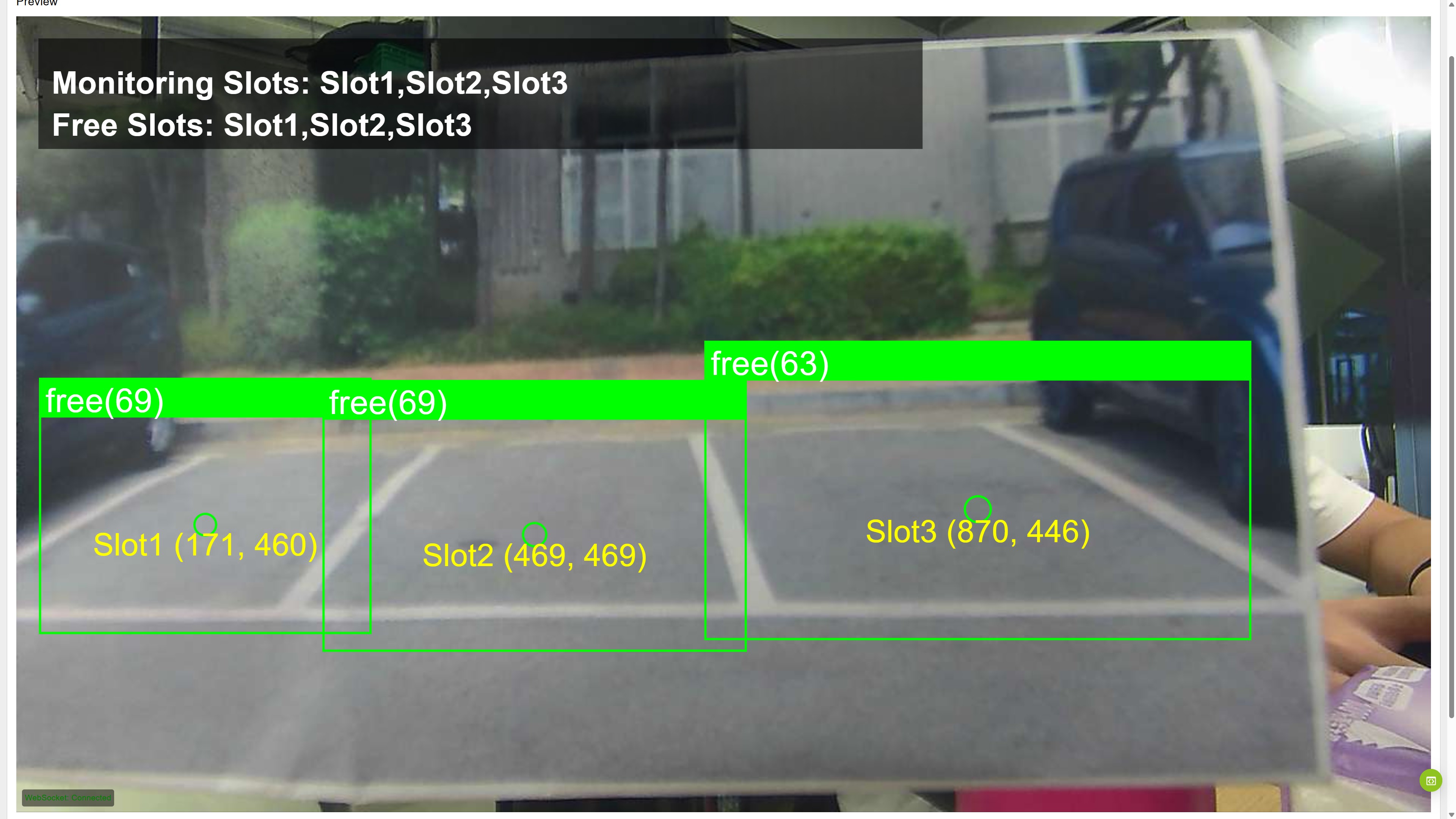
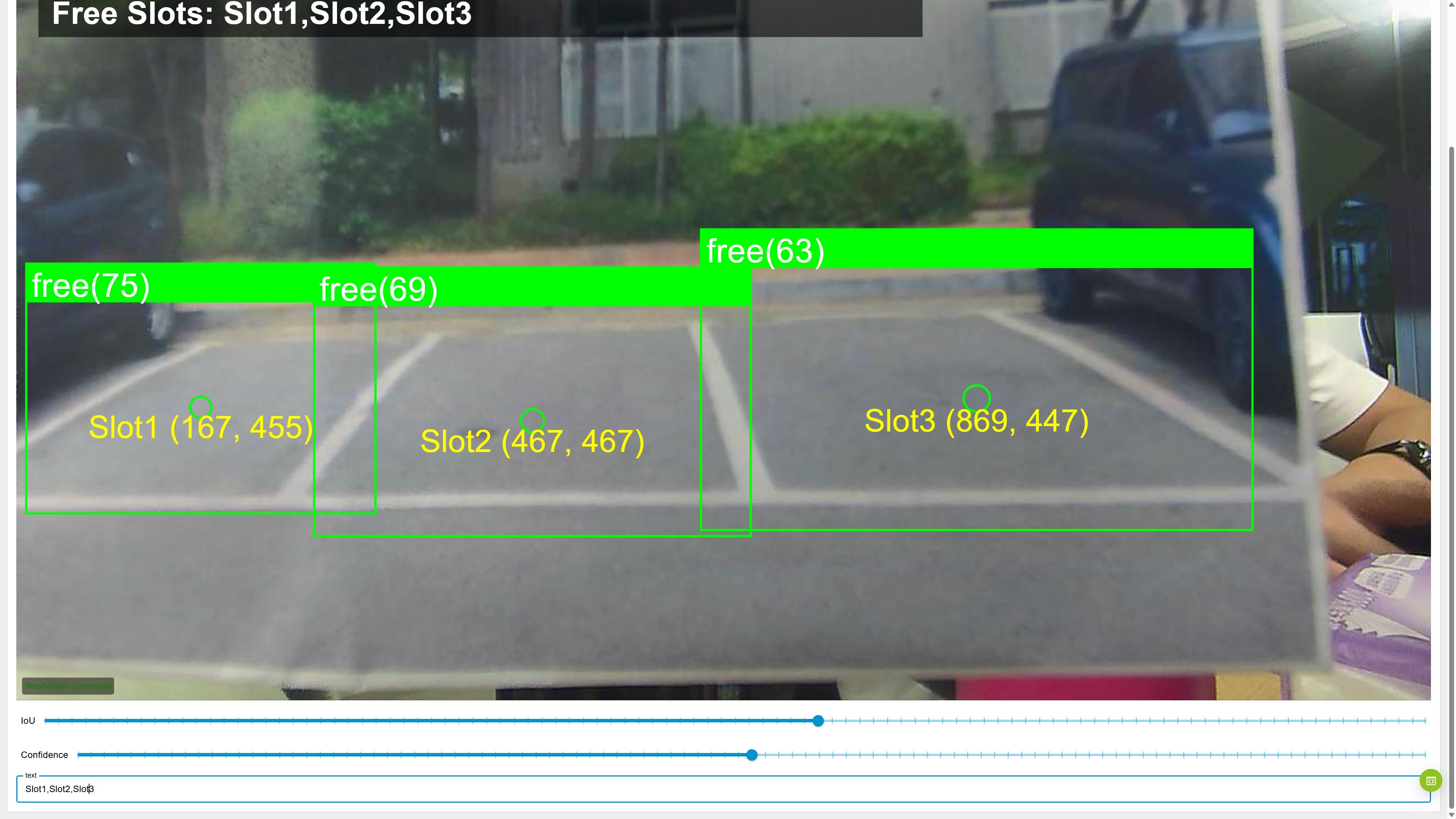
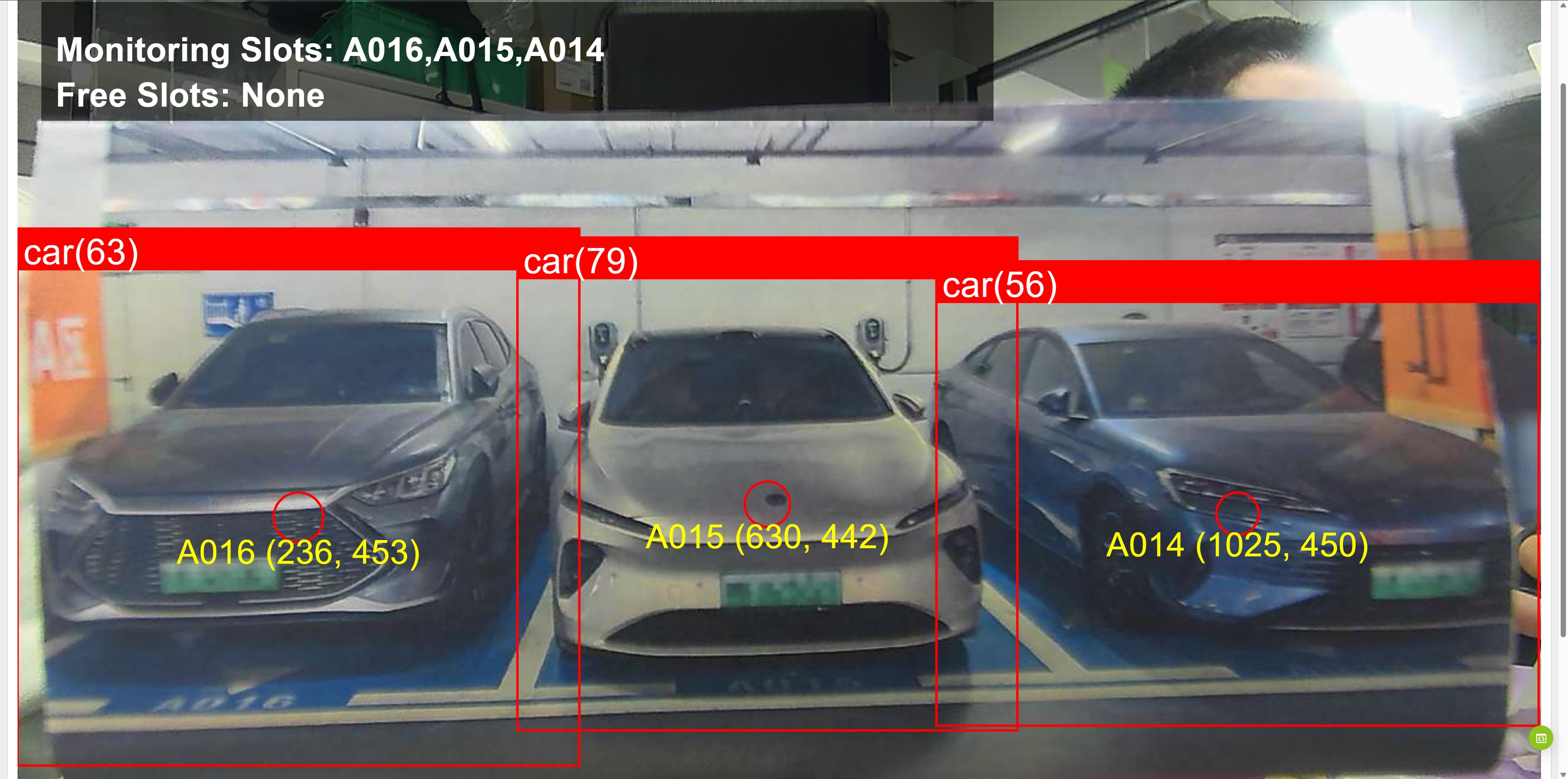
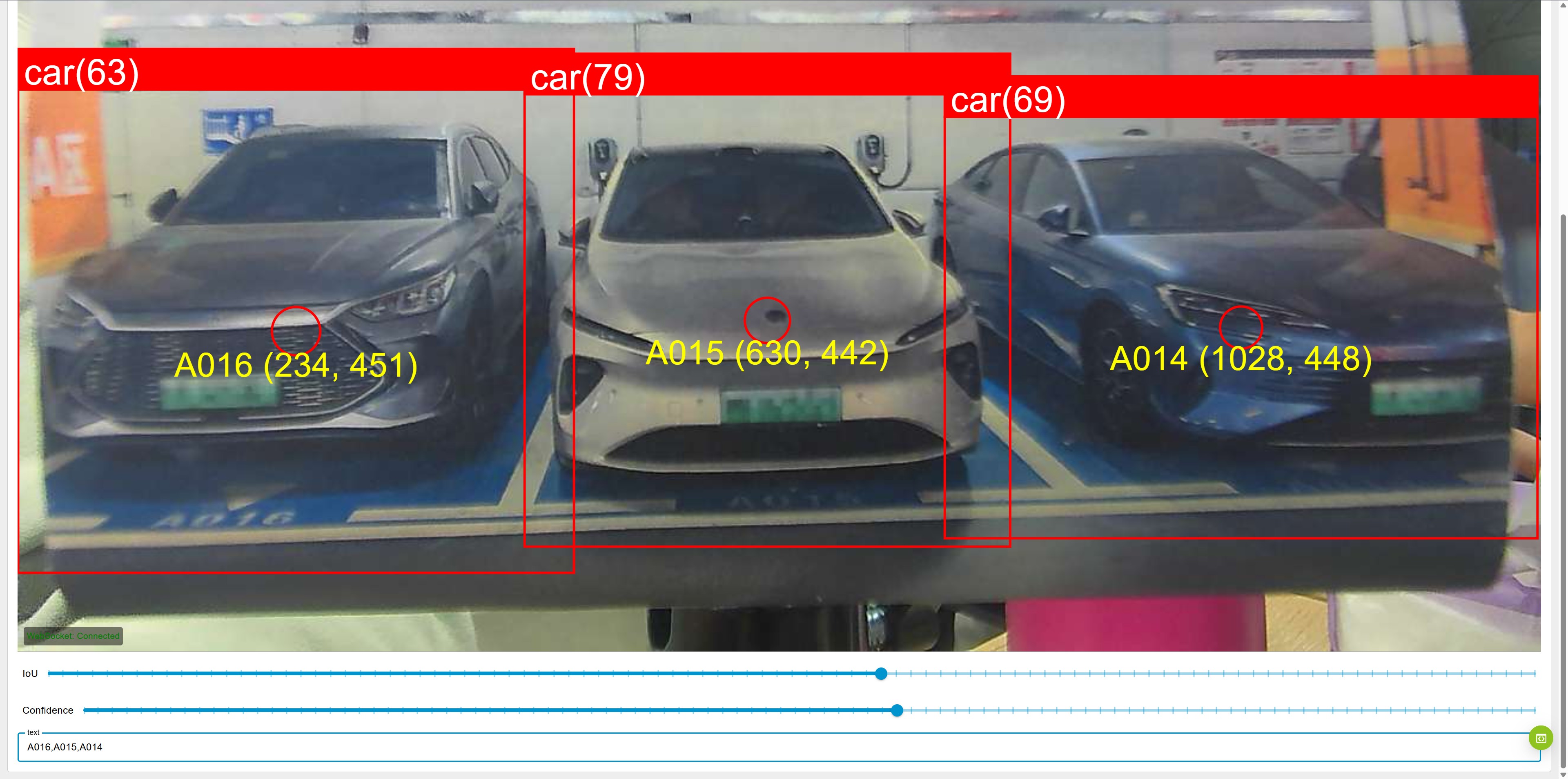
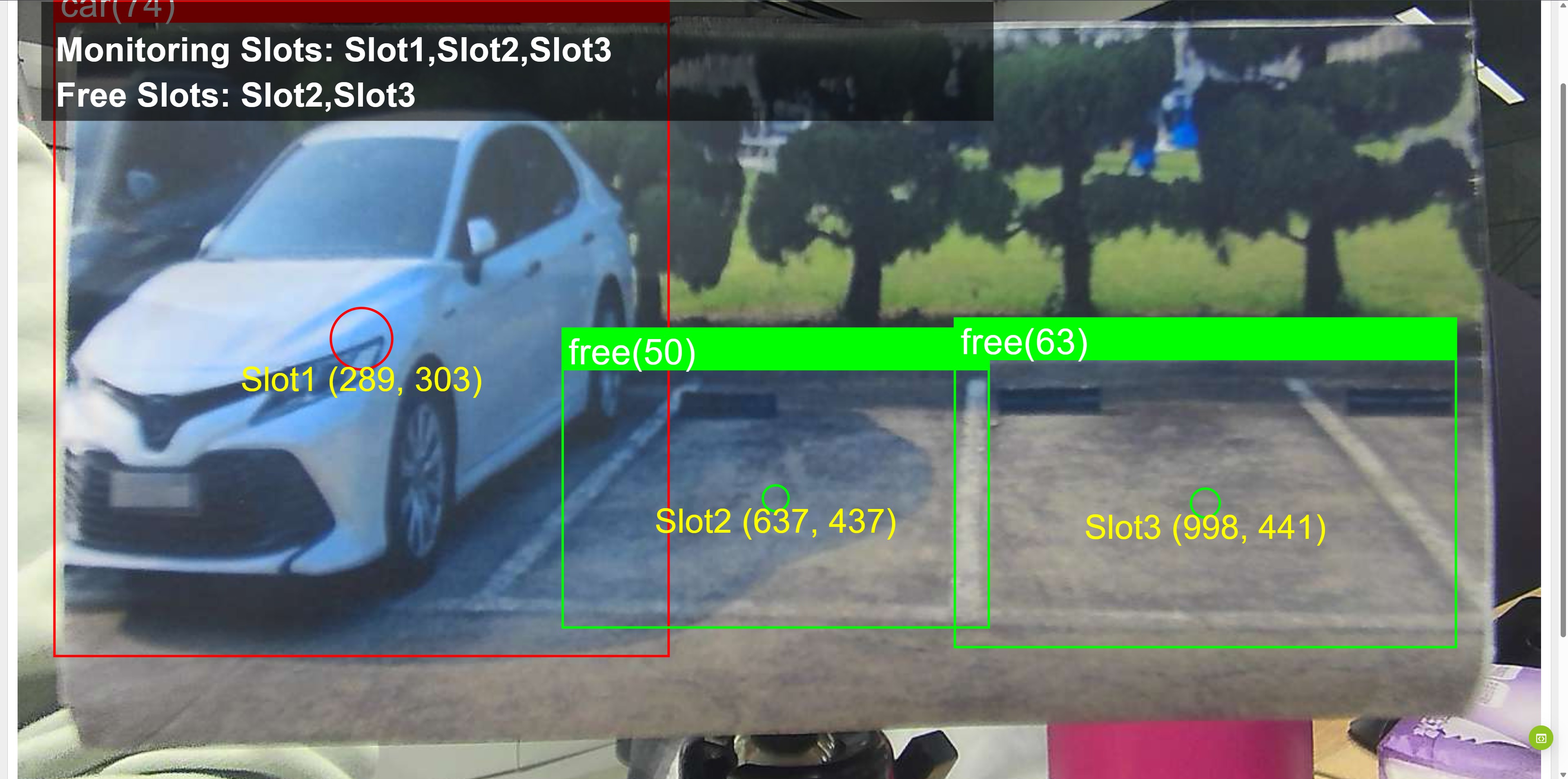
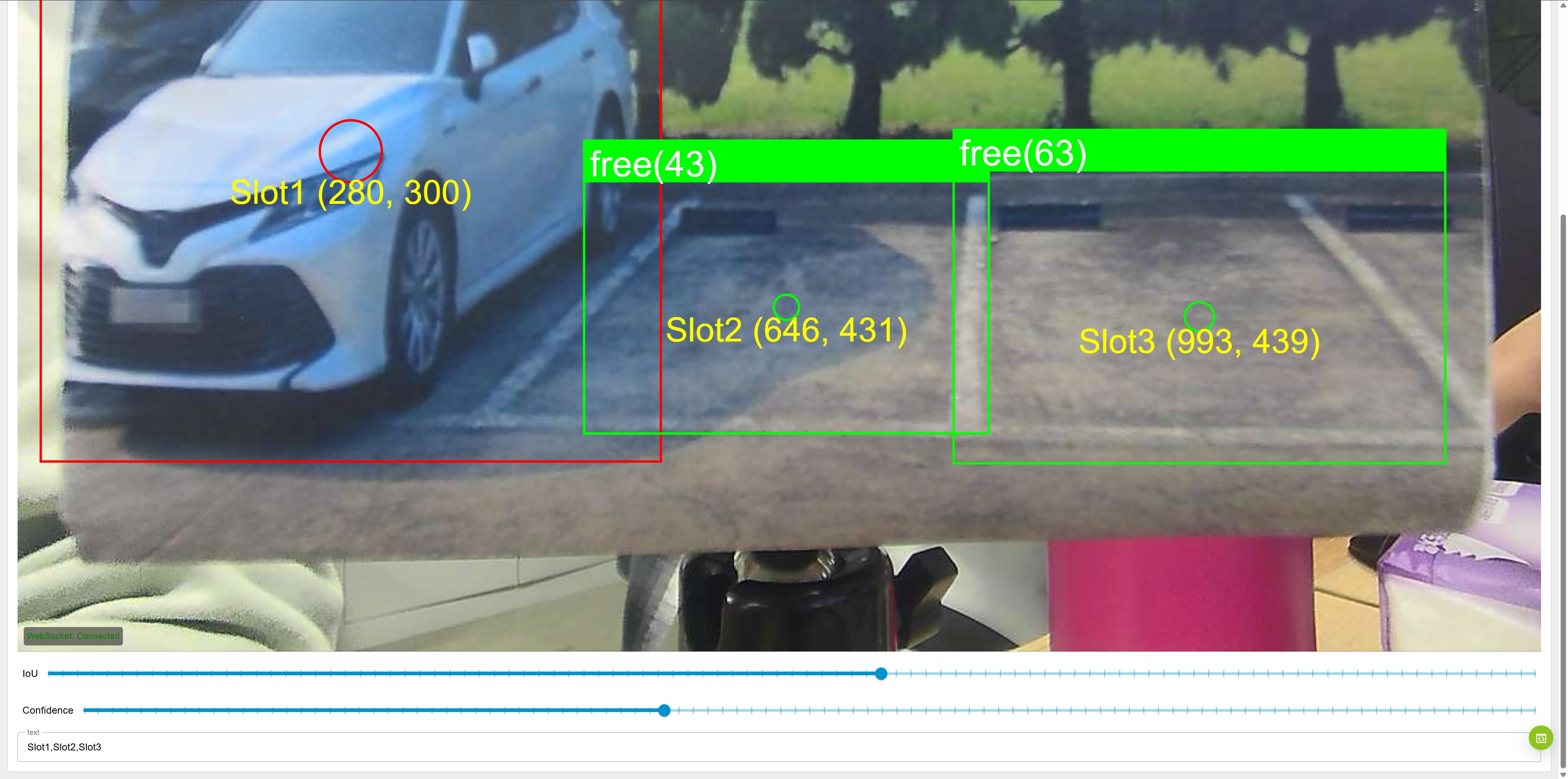
From the displayed results, you can observe the following elements:
-
Bounding Boxes
Each parking slot is associated with a detected region. The system classifies each region as eitherfreeorcarbased on the AI model output. -
Center Marker (Circle)
A circle is drawn at the center of each stable parking slot.- Green circle indicates a free slot
- Red circle indicates an occupied slot
-
Slot Labels and Coordinates
Each slot is labeled (e.g.,Slot1,Slot2,Slot3) along with its center coordinates(x, y).
These labels are mapped from the slot name list you provide via Node-RED. -
Status Panel (Top-Left Corner)
The overlay panel summarizes the overall status:- Monitoring Slots: All slots currently being tracked
- Free Slots: Slots that are confirmed as free after multi-frame validation
The system uses a multi-frame stabilization mechanism to avoid flickering results caused by temporary occlusion, lighting changes, or detection noise.
The current parking slot detection logic is specifically designed for three adjacent parking slots arranged side by side. In this demo, reCamera is installed in front of the parking spaces, facing the vehicles directly, rather than using a top-down (bird’s-eye) view.
As a result, slot association, center point positioning, and stability logic are optimized for a front-view perspective. If you plan to use an overhead camera or a different parking layout, the slot mapping and detection logic may need to be adjusted accordingly.
Tech Support & Product Discussion
Thank you for choosing our products! If you need guidance on specific customization goals or want to extend the workflow further, feel free to reach out. We are here to provide you with different support to ensure that your experience with our products is as smooth as possible. We offer several communication channels to cater to different preferences and needs.