Control Multiple Reachy Mini Robots with a Fleet Dance Console on Jetson
Introduction
This wiki shows how to build a multi-robot dance demo with Reachy Mini and Jetson devices.
In this project, each Jetson runs a local Reachy Mini dance service in Docker, exposing both a Web UI and a REST API. A separate laptop-based Fleet Control dashboard can then discover multiple Jetson IPs on the same LAN and broadcast the same dance commands to all connected Reachy Mini robots at the same time.
The final result is a demo where you can:
- run one Reachy Mini per Jetson device
- open a central browser dashboard on your laptop
- add multiple Jetson IP addresses dynamically
- start or stop the dance for all robots together
- change BPM, dance style, and energy for the whole fleet
- trigger accent and center actions on all robots at once
This project contains two layers:
reachy_bpm_dancer: the single-robot service that runs on every Jetsonreachy_fleet_control: the central fleet dashboard that runs on the laptop
Table of Contents
- Hardware Preparation
- System Architecture
- Prepare Each Jetson for Reachy Mini
- Deploy the Dockerized Reachy Mini Dance Service
- Run the Fleet Control Dashboard on the Laptop
- Control Multiple Reachy Mini Robots
- REST API Reference
- Troubleshooting
- References
Hardware Preparation
Device List
- 1 x Windows laptop or control PC on the same LAN
- 1 or more Jetson devices
- 1 Reachy Mini connected to each Jetson over USB
- 1 network router or switch for LAN access
This workflow is suitable for Jetson-based edge devices, including Seeed reComputer Jetson series devices, as long as the target system can run Docker and access the Reachy Mini over USB serial.
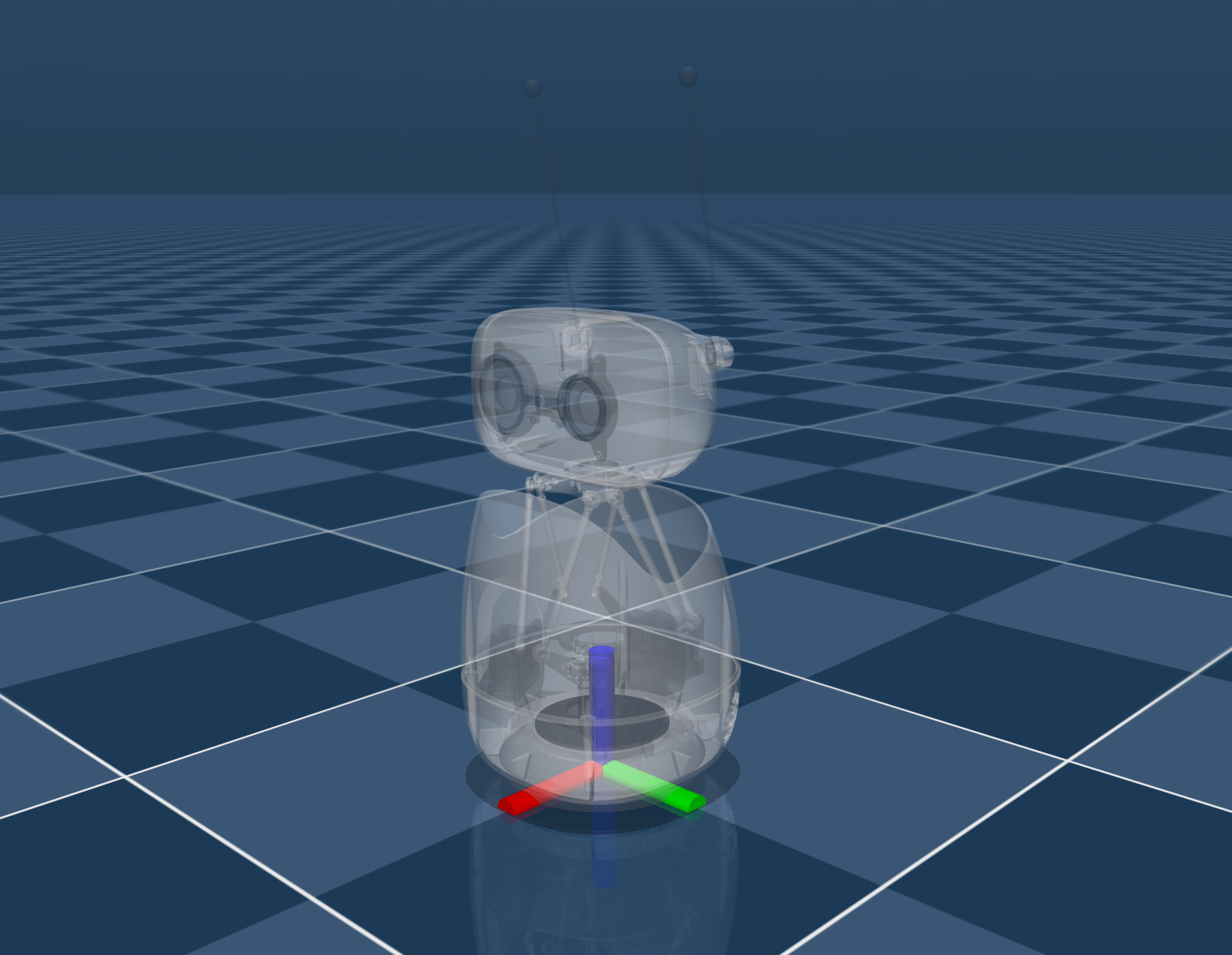
| reComputer Mini J501 Kit | Reachy Mini Lite |
|---|---|
 |  |
Wiring and Connection
For each robot node:
- connect Reachy Mini to the Jetson through USB
- power on the Jetson
- make sure the laptop and all Jetson devices are on the same LAN
Power-On Checklist
On each Jetson, verify that the Reachy Mini serial device is visible:
ls /dev/ttyACM*
If you can see a device such as /dev/ttyACM0, the hardware link is ready.
System Architecture
This demo uses a hub-and-spoke design:
- every Jetson hosts one Reachy Mini dance container
- every container exposes the local robot Web UI and REST API on port
8042 - the laptop runs a Fleet Control web application on port
8060 - the laptop polls all Jetson APIs and fans out the same control commands to all online robots
The Jetson-side service is designed for low-latency symbolic motion control. It uses a lightweight set_target() loop and does not depend on microphone or camera input.
Suggested network layout:
Laptop (Fleet Control, port 8060)
    |- Jetson A -> Reachy Mini A -> http://<jetson-a-ip>:8042
    |- Jetson B -> Reachy Mini B -> http://<jetson-b-ip>:8042
    |- Jetson C -> Reachy Mini C -> http://<jetson-c-ip>:8042
Prepare Each Jetson for Reachy Mini
Run the following steps on every Jetson that will control a Reachy Mini.
sudo apt update
sudo apt install -y nvidia-container curl
curl https://get.docker.com | sh && sudo systemctl --now enable docker
sudo nvidia-ctk runtime configure --runtime=docker
sudo systemctl restart docker
sudo usermod -aG docker $USER
newgrp docker
sudo apt install -y jq
sudo jq '. + {"default-runtime": "nvidia"}' /etc/docker/daemon.json | \
  sudo tee /etc/docker/daemon.json.tmp && \
  sudo mv /etc/docker/daemon.json.tmp /etc/docker/daemon.json
sudo systemctl daemon-reload && sudo systemctl restart docker
Deploy the Dockerized Reachy Mini Dance Service
Download and run the docker image
Download the docekr image from here.
If you received a packaged image such as reachy-bpm-dancer_20260323_linux-arm64.tar.gz:
docker load -i reachy-bpm-dancer_20260323_linux-arm64.tar.gz

docker run -d \
  --name reachy-bpm-dancer \
  --restart unless-stopped \
  -p 8042:8042 \
  -p 8000:8000 \
  --device /dev/ttyACM0:/dev/ttyACM0 \
  -e REACHY_SERIAL_PORT=/dev/ttyACM0 \
  reachy-bpm-dancer:20260323-arm64
Verify the Jetson-Side Service
Open the local single-robot UI:
http://<jetson-ip>:8042/
Open the API docs:
http://<jetson-ip>:8042/docs
Check the robot status from terminal:
curl http://127.0.0.1:8042/api/status
Start the robot dancing:
curl -X POST http://127.0.0.1:8042/api/dance/start \
  -H "Content-Type: application/json" \
  -d '{"bpm":124,"style":"anthem","energy":1.15}'
Stop the robot:
curl -X POST http://127.0.0.1:8042/api/dance/stop
The Jetson-side service exposes:
- Web UI on port
8042 - REST API on port
8042 - Reachy Mini daemon on port
8000
Run the Fleet Control Dashboard on the Laptop
The Fleet Control dashboard runs separately on your laptop and lets you manage all Jetson nodes from one browser.
Prepare the Local Python Environment
On the laptop:
git clone https://github.com/yuyoujiang/reachy_fleet_control
cd reachy_fleet_control
python -m venv .venv
.\.venv\Scripts\python -m pip install -e .
This demonstration uses Windows. If your PC runs a different operating system, please use the corresponding commands to install the environment.
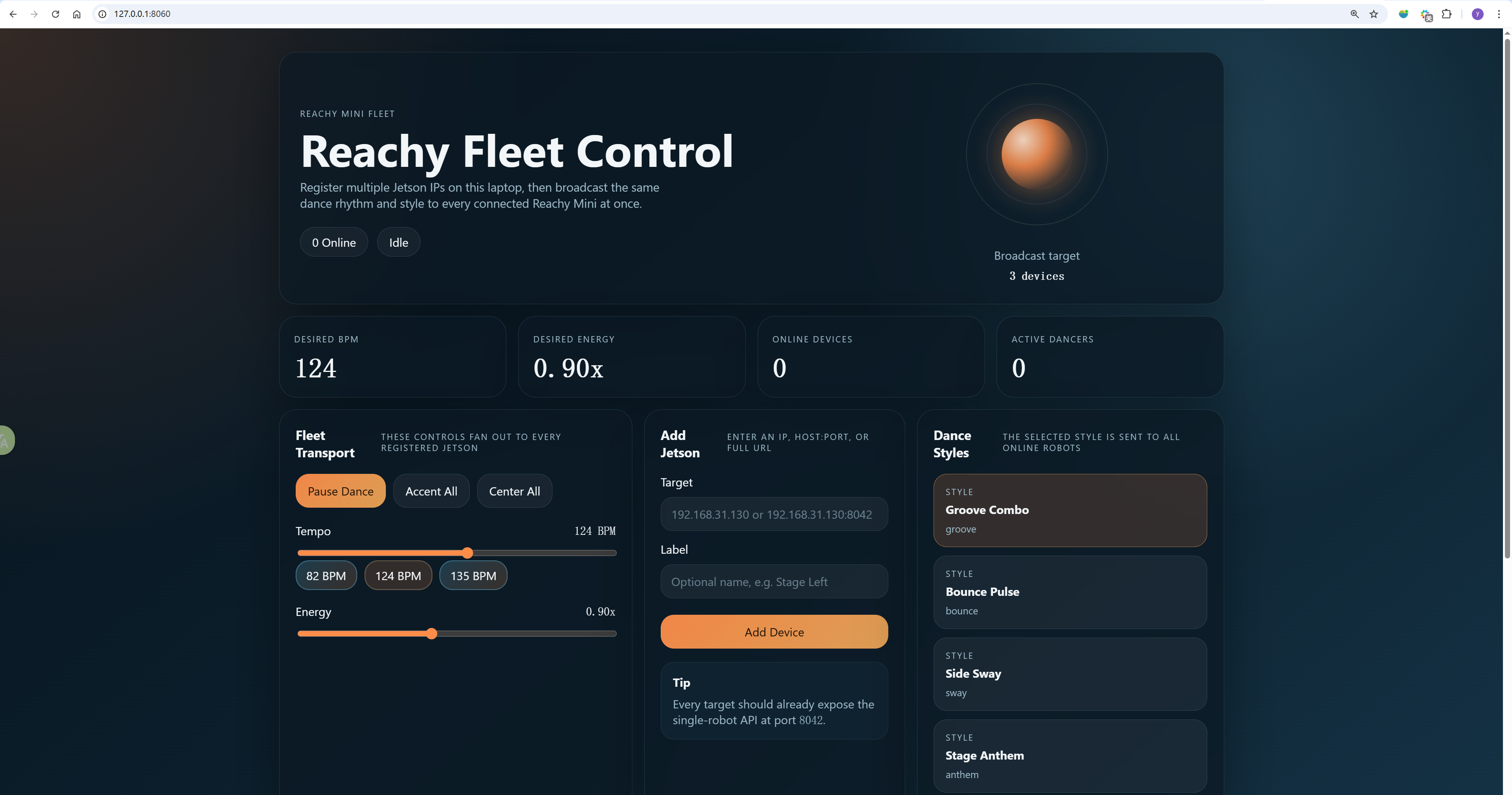
Start the Fleet Control Web UI
.\.venv\Scripts\python -m uvicorn reachy_fleet_control.main:app --host 0.0.0.0 --port 8060
Then open:
http://127.0.0.1:8060/
Or access it from another device on the LAN:
http://<laptop-ip>:8060/
Fleet Dashboard Features
The dashboard supports:
- adding Jetson IPs,
host:port, or full URLs - removing offline or unused Jetson nodes
- monitoring online status and latency per robot
- broadcasting dance commands to every registered Reachy Mini
- keeping the device list in a local state file
The device list is stored locally on Windows at:
C:\Users\<username>\.reachy_fleet_control\fleet_state.json
Control Multiple Reachy Mini Robots
Once both layers are running, the multi-robot workflow is straightforward.
Step 1. Add Jetson Devices
In the Fleet Control page:
- enter a Jetson IP such as
192.168.1.130 - optionally add a label
- click Add Device
Repeat the same step for every Jetson on the LAN.
Step 2. Check Online Status
Each device card will show:
- endpoint
- label
- online or offline state
- current BPM
- beat count
- latency
If a device is offline, the dashboard will keep it in the list and continue polling until it comes back.
Step 3. Broadcast a Dance Command
Use the shared controls to update all robots at once:
- Start Dance
- Pause Dance
- Accent All
- Center All
- BPM presets:
82,124,135 - style selection:
groove,bounce,sway,anthem - energy slider
Step 4. Observe the Fleet
When the broadcast succeeds:
- all online Reachy Mini robots switch to the same desired BPM
- the selected style is applied to all robots
- the active device count updates in the dashboard
- each Jetson continues generating motion locally, so small network jitter does not stop the dance loop
Effect Demonstration
REST API Reference
This project exposes two API layers.
Jetson-Side Single-Robot API
Base URL:
http://<jetson-ip>:8042
Available endpoints:
GET /apiGET /api/statusGET /api/stylesGET /api/presetsPOST /api/settingsPOST /api/dance/startPOST /api/dance/stopPOST /api/dance/accentPOST /api/dance/center
Example:
curl -X POST http://<jetson-ip>:8042/api/dance/start \
  -H "Content-Type: application/json" \
  -d '{"bpm":135,"style":"anthem","energy":1.2}'
Laptop-Side Fleet API
Base URL:
http://<laptop-ip>:8060
Available endpoints:
GET /apiGET /api/fleet/statusPOST /api/fleet/devicesDELETE /api/fleet/devices?endpoint=<host:port>POST /api/fleet/settingsPOST /api/fleet/dance/startPOST /api/fleet/dance/stopPOST /api/fleet/dance/accentPOST /api/fleet/dance/center
Add a Jetson device:
Invoke-RestMethod `
  -Uri "http://127.0.0.1:8060/api/fleet/devices" `
  -Method Post `
  -ContentType "application/json" `
  -Body '{"target":"192.168.1.130","label":"Stage Left"}'
Start all robots:
Invoke-RestMethod `
  -Uri "http://127.0.0.1:8060/api/fleet/dance/start" `
  -Method Post `
  -ContentType "application/json" `
  -Body '{"bpm":124,"style":"anthem","energy":1.15}'
Stop all robots:
Invoke-RestMethod `
  -Uri "http://127.0.0.1:8060/api/fleet/dance/stop" `
  -Method Post
Troubleshooting
Reachy Mini Is Not Detected on the Jetson
Check that the USB serial node exists:
ls /dev/ttyACM*
If needed, update the Docker device mapping and REACHY_SERIAL_PORT value.
Port 8042 or 8060 Is Already in Use
Stop the old process or choose a different port before starting the service again.
The Fleet Dashboard Shows a Device as Offline
Check the following:
- the laptop and Jetson are on the same LAN
- the Jetson service is running
- the Jetson firewall does not block port
8042 - the IP address entered in the dashboard is correct
The Robot Does Not Move but the API Responds
Check container logs on the Jetson:
docker compose logs -f
Also confirm that:
- Reachy Mini is connected to the Jetson
- the serial device path matches the container setting
- the robot is not held by another process
References
Tech Support & Product Discussion
Thank you for choosing our products! We are here to provide you with different support to ensure that your experience with our products is as smooth as possible. We offer several communication channels to cater to different preferences and needs.