使用 MCP 扩展人脸识别功能
概述
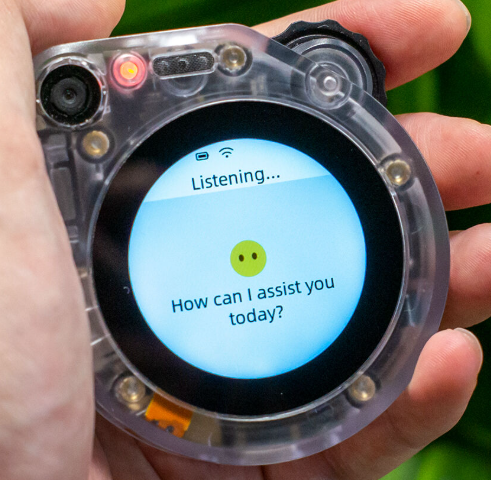
本指南介绍如何使用 SenseCAP Watcher(小智) 与 reComputer Raspberry Pi 系统 部署人脸识别工作流程。Watcher 捕获图像并将其发送到 reComputer,使用内部 MCP 工具对本地数据库进行人脸匹配。
硬件准备
| SenseCAP Watcher for XiaoZhi | reComputer AI R2130-12 |
|---|---|
 |  |
前提条件
按照本指南安装 reComputer Raspberry Pi 系统:reComputer R2000 系列入门指南
执行结果

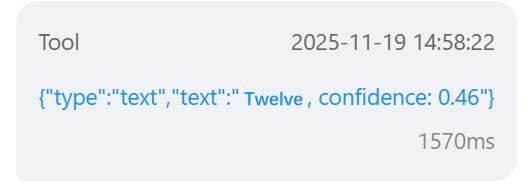
源代码仓库:
部署过程
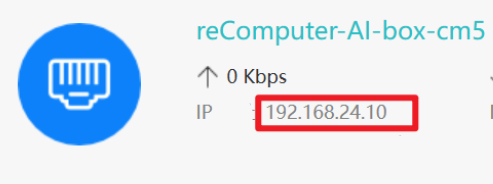
步骤 1. 记录 reComputer 的 IP 地址
-
将 reComputer 连接到您的网络,如路由器
-
获取其 IP 地址,此处使用的示例 IP:192.168.24.10
步骤 2. 将固件刷入 Watcher
-
使用 Type-C 线缆通过底部端口将 PC 连接到 Watcher
-
打开 ESP-IDF 5.5 CMD(版本 5.5.1)并导航到合适的文件夹
-
克隆 Watcher 固件仓库
git clone -b face_rec_api --single-branch https://github.com/suharvest/xiaozhi-esp32.git
cd xiaozhi-esp32
- 找到与 reComputer 通信的代码部分
- 文件位置:main/boards/sensecap-watcher/sscma_camera.cc(第 769 行)
std::string face_rec_url = "http://192.168.10.131.80001/recognize"
-
将 IP 地址更改为您的 reComputer 的实际 IP
std::string face_rec_url = <Your_reComputer_actual_IP>- 示例

-
编译并刷入固件
idf.py set-target esp32s3
idf.py menuconfig    # Select SenseCAP Watcher board
idf.py build flash
步骤 3. SSH 连接到 reComputer 并准备环境
- 通过 SSH 连接(根据需要替换用户名和 IP)
ssh <Your_reComputer's username>@<Your_reComputer's host IP>
# For example : ssh [email protected]
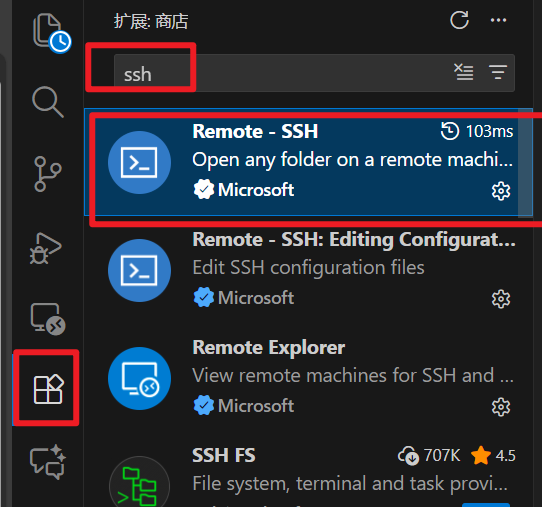
我们建议在 VS Code 中使用 Remote - SSH 扩展来连接您的 reComputer。
- 对于中国大陆用户,你可以先用此脚本来配置你的镜像源,以提升你的下载速度
curl -sSL https://linuxmirrors.cn/main.sh -o gnu_linux_mirror.sh
sudo bash gnu_linux_mirror.sh
- 安装 Docker 并设置 docker 用户
curl -sSL https://linuxmirrors.cn/docker.sh -o install_docker.sh
sudo bash install_docker.sh
bash <(curl -sSL https://linuxmirrors.cn/docker.sh)

sudo groupadd docker
sudo usermod -aG docker $USER
- 更新系统软件
sudo apt update && sudo apt full-upgrade
sudo rpi-eeprom-update
- 安装 uv
curl -LsSf https://astral.sh/uv/install.sh | sh
步骤 4. 克隆 API 并更新依赖项
git clone https://github.com/suharvest/face_rec_api.git
cd face_rec_api/
uv sync
- 安装 DKMS、HailoRT,添加配置并重启
sudo apt-get install dkms
sudo dpkg --install hailort-4.21.0/hailort_4.21.0_arm64.deb hailort-4.21.0/hailort-pcie-driver_4.21.0_all.deb
echo "options hailo_pci force_desc_page_size=4096" | sudo tee /etc/modprobe.d/hailo_pci.conf
- 检查 HailoRT 状态
sudo reboot
hailortcli scan
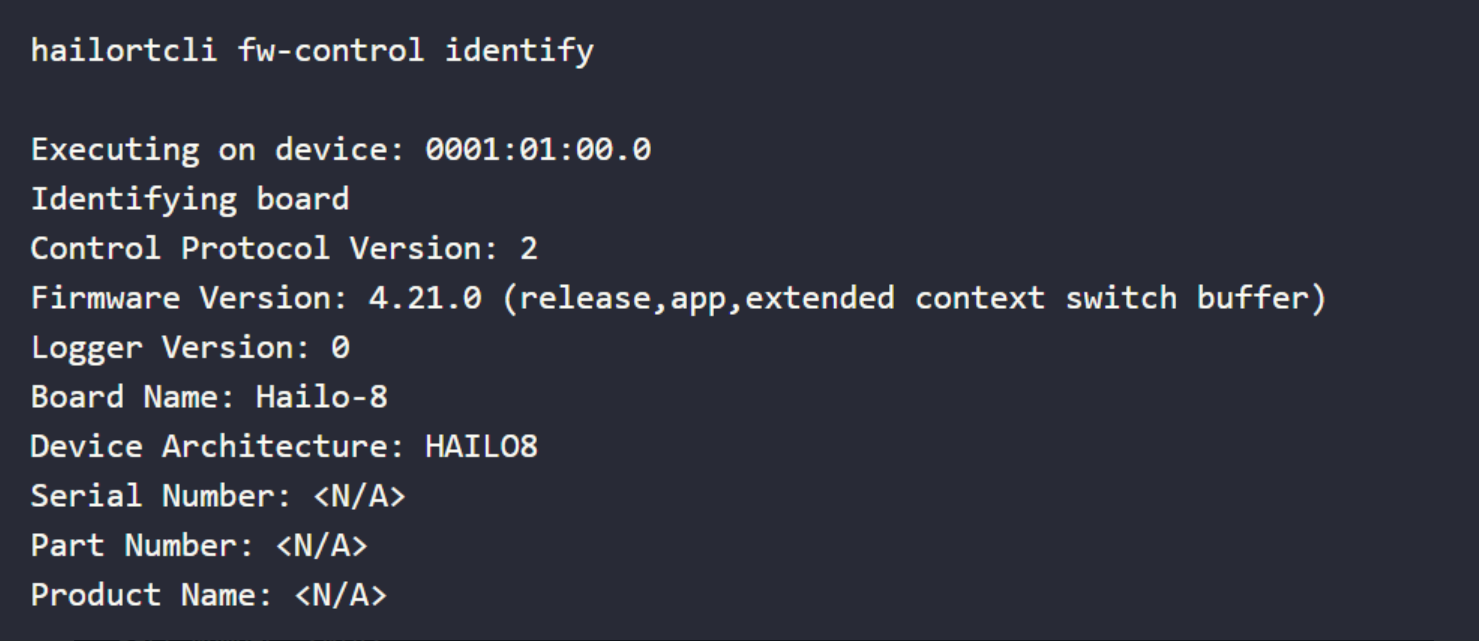
hailortcli fw-control identify
- 如果您看到类似以下的信息,说明您的驱动程序已成功安装
步骤 5. 添加照片并启动人脸识别服务
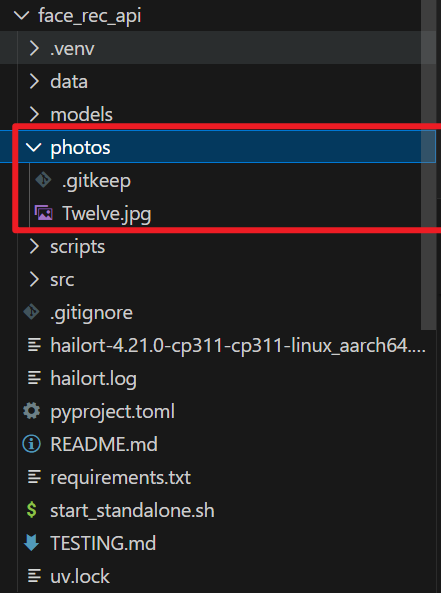
- 将照片放置在 photos/ 文件夹中
- 生成嵌入向量
uv run scripts/batch_process.py

- 赋予执行权限并启动服务
chmod +x start_standalone.sh
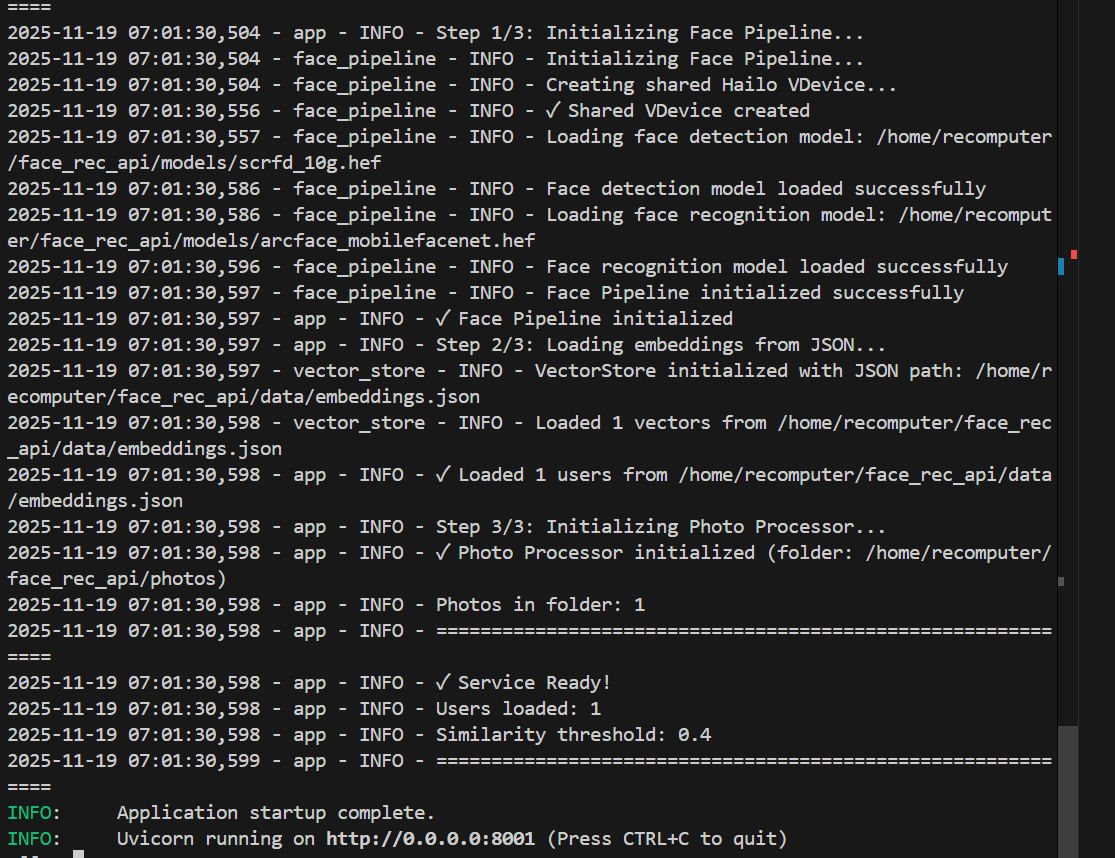
./start_standalone.sh
-
服务现在正在运行。Watcher 可以与 reComputer 通信以检查数据库中是否存在人脸。您可以使用
Ctrl + C停止服务。 -
您可以添加提示,如:"当检测到人员时,使用人脸识别工具检查姓名和置信度:如果置信度大于 40%,则按姓名问候他们;否则,给出通用问候。"
步骤 6. 更新人脸数据库
- 停止服务后,将新照片添加到
photos/文件夹中,重新生成嵌入向量并重启服务。
uv run scripts/batch_process.py
./start_standalone.sh
步骤 7. 清空人脸数据库
-
删除
photos/文件夹中的所有文件。 -
删除
data/文件夹中的embedding.json文件。
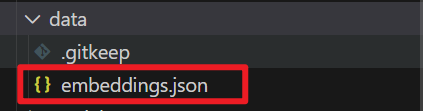
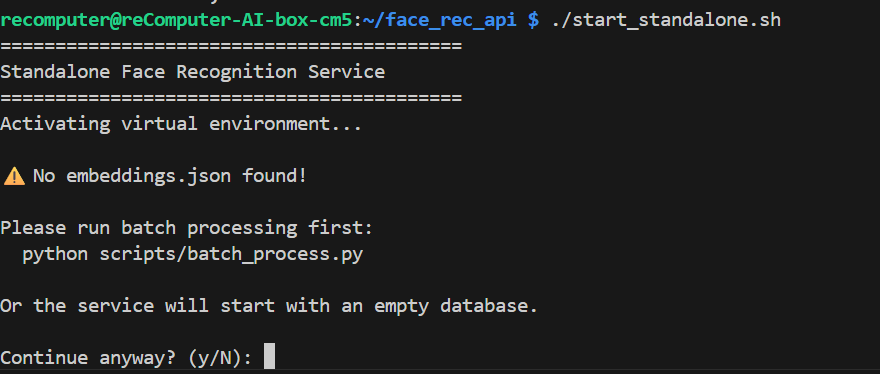
- 清空后,运行服务,您将看到相同的日志
常见问题
问:如何让小智 AI 调用人脸识别 API?
答: 只需向 Watcher 询问类似"检查我是否在人脸识别系统中"的问题。 AI 将自动调用 MCP 工具来检查人脸数据库。
问:如果人脸识别系统无法上传照片该怎么办?
答: 请检查 IP 地址是否正确以及人脸识别服务是否正常运行。
问:我可以使用其他设备来部署吗?
答: 可以。只要是搭载 Linux 系统且可以联网的设备都能部署,只是 reComputer 的运算性能会更好。