使用 Jetpack 将 BSP 刷写到指定 Jetson
⚡烧录 Jetson Linux
为所有 Seeed Studio Jetson 设备提供精简的烧录流程。请选择你的产品,并按照下方的引导步骤进行操作。
🎯 选择你的设备

📥 下载
🔐 校验 SHA256(可选)
要校验已下载文件的 SHA256 散列值,请在终端执行:
sha256sum mfi_xxxx.tar.gz
# 例如:
# sha256sum mfi_recomputer-super-orin-nx-16g-j401-6.2-36.4.3-2026-02-05.tar.gz
如果计算结果与文档给出的 SHA256 值一致,则说明你下载的固件完整且未被篡改。
🛠️ 准备环境要求
- Ubuntu 主机电脑
- reComputer Super J4012 / J4011 / J3010 或 J3011
- USB Type-C 数据线
主机环境建议
推荐使用实体 Ubuntu 主机,避免使用虚拟机进行刷写。
请参考下表准备主机环境:
推荐使用实体 Ubuntu 主机,避免使用虚拟机进行刷写。
请参考下表准备主机环境:
| JetPack 版本 | Ubuntu 版本(主机) | |||
|---|---|---|---|---|
| 18.04 | 20.04 | 22.04 | 24.04 | |
| JetPack 6.x | ✅ | ✅ | ||
| JetPack 7.2 | ✅ | ✅ | ✅ | |
对于 JetPack 7.2,Ubuntu 24.04 仅支持刷写和目标端组件安装;如果需要主机开发组件,请使用 Ubuntu 20.04 或 22.04。
🔄 进入恢复模式
在进入下一步前,请确认主板已进入强制恢复(Force Recovery)模式。
点击“分步说明”查看进入恢复模式的方法。
点击“分步说明”查看进入恢复模式的方法。
分步说明
- 步骤 1. 将拨码开关切至 RESET 档位。

- 步骤 2. 连接电源线,为载板上电。
- 步骤 3. 用 USB Type-C 数据线将载板与 Ubuntu 主机连接。
- 步骤 4. 在 Linux 主机上打开终端,执行 lsusb。若输出中包含与你所用 Jetson SoM 对应的下列任一条目,则表示已进入强制恢复模式。
若未检测到设备,请尝试:
- 重新插拔 USB 数据线。
- 更换 USB 接口(优先使用 USB 2.0 口)。
- 确认设备处于恢复模式(按住 Recovery + Reset)。
设备进入恢复模式后,在 Linux 主机上打开终端并执行:
lsusb
若输出包含以下任一 ID,表示设备已进入强制恢复模式:
- 适用于 Orin NX 16GB:
0955:7323NVidia Corp - 适用于 Orin NX 8GB:
0955:7423NVidia Corp - 适用于 Orin Nano 8GB:
0955:7523NVidia Corp - 适用于 Orin Nano 4GB:
0955:7623NVidia Corp
下图示例为 Orin Nano 8GB:

📦 安装依赖
在你的主机电脑上安装所需的烧录依赖:
sudo apt-get update && \
sudo apt-get install -y abootimg \
                        binfmt-support \
                        binutils \
                        cpp \
                        device-tree-compiler \
                        dosfstools \
                        lbzip2 \
                        libxml2-utils \
                        nfs-kernel-server \
                        python3-yaml \
                        qemu-user-static \
                        sshpass \
                        udev \
                        uuid-runtime \
                        whois \
                        openssl \
                        cpio \
                        rsync \
                        zstd
Ubuntu 18.04 及以下版本
sudo apt-get install -y liblz4-tool
Ubuntu 20.04 / 22.04 及以上版本
sudo apt-get install -y lz4
🚀 解压与烧录
步骤 1: 在 Ubuntu 主机上解压已下载的镜像文件:
cd <镜像所在路径>
sudo tar xpf  mfi_xxxx.tar.gz
# 例如:
# sudo tar xpf mfi_recomputer-super-orin-nx-16g-j401-6.2-36.4.3-2026-02-05.tar.gz
步骤 2: 执行以下命令,将 JetPack 系统刷写到 NVMe SSD:
cd mfi_xxxx
# 例如:
# cd mfi_recomputer-orin-super-j401
sudo ./tools/kernel_flash/l4t_initrd_flash.sh --flash-only --massflash 1 --network usb0 --showlogs
若刷写成功,你将看到类似如下的输出:

刷写过程可能持续 2–10 分钟。
步骤 3: 将 Jetson 使用主板上的连接器(HDMI 或 Type-C,取决于所使用的载板)连接到显示器,并完成初始配置设置:
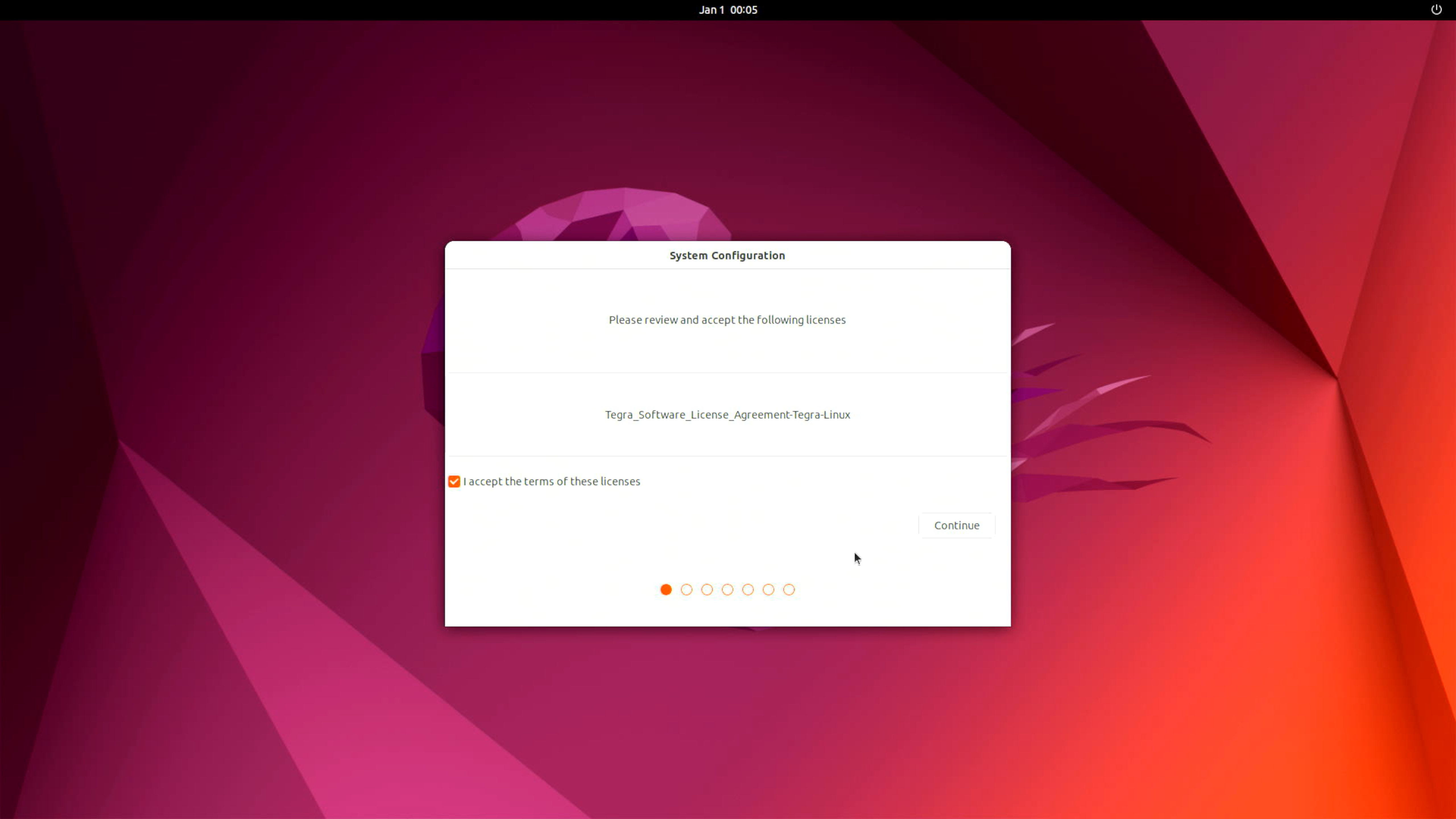
请根据需要完成系统初始化配置。
步骤 4(可选): 安装 NVIDIA JetPack SDK
请在 Jetson 设备上打开终端并执行:
sudo apt update
sudo apt install nvidia-jetpack
📚 资源与示例
🚀 入门指南
面向初学者的完整 Jetson 开发指南,包含实用示例和教程。
💡 代码示例
可直接使用的 AI、计算机视觉和机器人应用代码示例。
🔧 源代码
访问 Seeed 定制的 Linux for Tegra (L4T) 源代码及其修改内容。
🤝 技术支持与产品讨论
感谢您选择我们的产品!我们将为您提供多种支持,确保您在使用我们产品的过程中尽可能顺畅。我们提供多种沟通渠道,以满足不同的偏好和需求。