Raspberry Pi 入门指南
本 wiki 是为 ReSpeaker 2-Mics Pi HAT v2 编写的,要区分 v1 和 v2 设备,请参考 如何区分 ReSpeaker 2-Mics Pi HAT 硬件版本。
在最新的 Raspberry Pi OS 上,传统的驱动安装方法(适用于 v1 设备)不再可用,可能会导致以下已知问题:
- 安装后桌面环境可能会损坏。
- ReSpeaker 设备可能无法被
aplay/arecord检测到。
因此,我们针对这个问题重新发布了新的 wiki,如果您使用的是更现代的 Raspberry Pi OS 而不是之前的版本,请按照以下步骤让您的 ReSpeaker 正常工作。
驱动安装和配置
1. 将 ReSpeaker 2-Mics Pi HAT 连接到 Raspberry Pi
将 ReSpeaker 2-Mics Pi HAT 安装到您的 Raspberry Pi 上,确保在堆叠 ReSpeaker 2-Mics Pi HAT 时引脚正确对齐。
Raspberry Pi 连接

Raspberry Pi Zero 连接
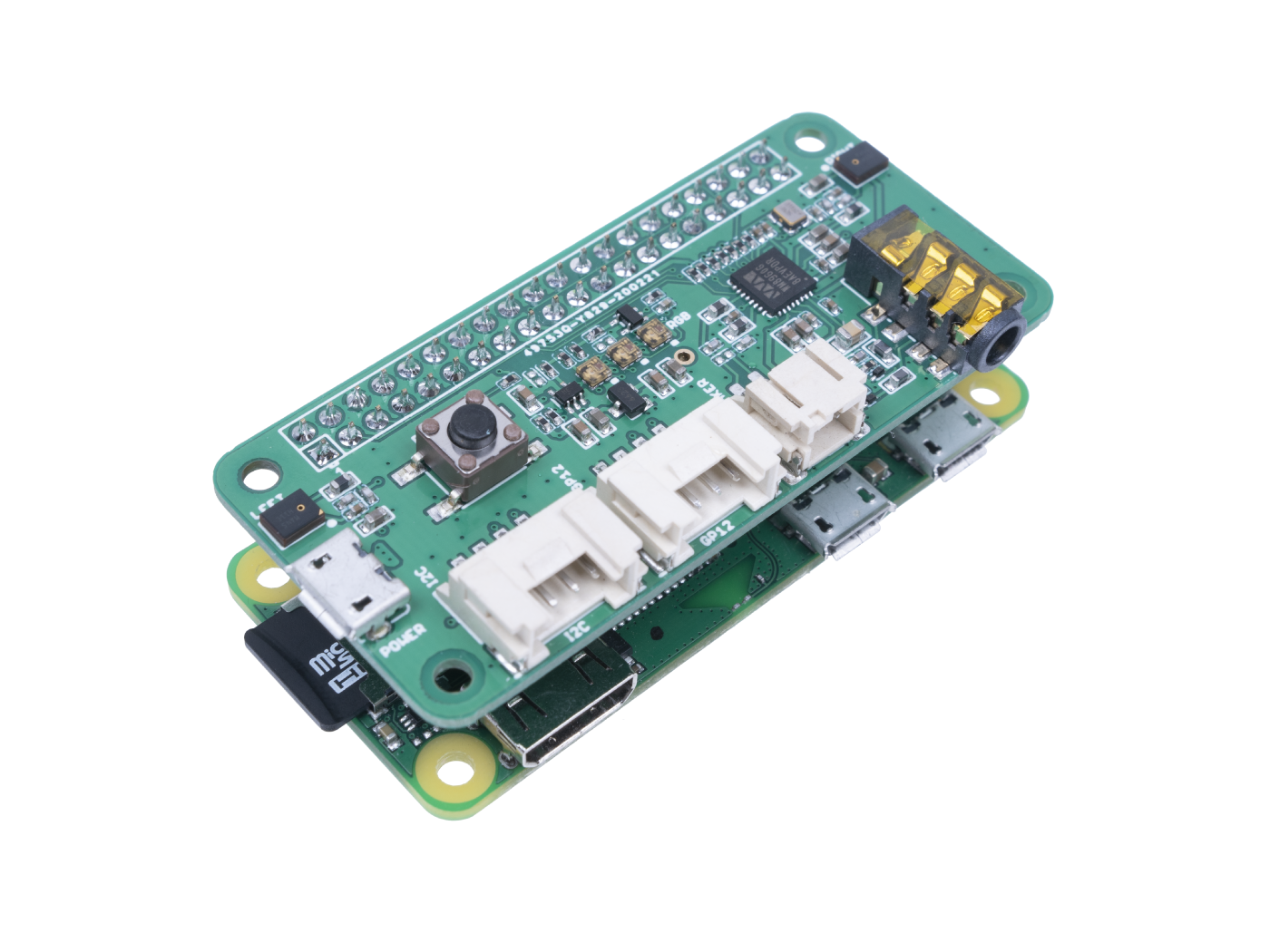
2. 在 Raspberry Pi 上设置驱动
确保您在 Pi 上运行的是 最新的 Raspberry Pi OS。(更新于 2024.11.19)
为 Raspberry Pi Zero W 做准备
## Install kernel
sudo apt install flex bison libssl-dev bc build-essential libncurses5-dev libncursesw5-dev linux-headers-6.6.51+rpt-rpi-v6
git clone --depth=1 --branch rpi-6.6.y https://github.com/raspberrypi/linux.git

## Make target directory
mkdir ~/tlv320aic3x_i2c_driver
cd ~/tlv320aic3x_i2c_driver
## Copy code
cp ~/linux/sound/soc/codecs/tlv320aic3x.c ~/tlv320aic3x_i2c_driver/
cp ~/linux/sound/soc/codecs/tlv320aic3x.h ~/tlv320aic3x_i2c_driver/
cp ~/linux/sound/soc/codecs/tlv320aic3x-i2c.c ~/tlv320aic3x_i2c_driver/
## Modify Makefile
nano Makefile
-------------------
obj-m += snd-soc-tlv320aic3x-i2c.o
snd-soc-tlv320aic3x-i2c-objs := tlv320aic3x.o tlv320aic3x-i2c.o

KDIR := /lib/modules/$(shell uname -r)/build
PWD := $(shell pwd)

all:
        $(MAKE) -C $(KDIR) M=$(PWD) modules

clean:
        $(MAKE) -C $(KDIR) M=$(PWD) clean

install:
        sudo cp snd-soc-tlv320aic3x-i2c.ko /lib/modules/$(shell uname -r)/kernel/sound/soc/codecs/
        sudo depmod -a

-------------------

## Compile the driver
make
sudo make install
sudo modprobe snd-soc-tlv320aic3x-i2c

## Check logs
lsmod | grep tlv320
dmesg | grep tlv320
- 步骤 1:获取 ReSpeaker 2-Mics Pi HAT(V2.0)的设备树源文件(DTS),编译并安装设备树覆盖。
git clone https://github.com/Seeed-Studio/seeed-linux-dtoverlays.git
cd seeed-linux-dtoverlays/
make overlays/rpi/respeaker-2mic-v2_0-overlay.dtbo
sudo cp overlays/rpi/respeaker-2mic-v2_0-overlay.dtbo /boot/firmware/overlays/respeaker-2mic-v2_0.dtbo
echo "dtoverlay=respeaker-2mic-v2_0" | sudo tee -a /boot/firmware/config.txt
注意: 如果您的内核版本大于 4.0,则不需要添加
dtoverlay=i2s-mmap。

- 步骤 2:重启您的 Pi。
sudo reboot
- 步骤 3:检查设备是否被
aplay/arecord检测到。
aplay 的预期输出应该是:
$ aplay -l
**** List of PLAYBACK Hardware Devices ****
card 0: vc4hdmi0 [vc4-hdmi-0], device 0: MAI PCM i2s-hifi-0 [MAI PCM i2s-hifi-0]
  Subdevices: 1/1
  Subdevice #0: subdevice #0
card 1: vc4hdmi1 [vc4-hdmi-1], device 0: MAI PCM i2s-hifi-0 [MAI PCM i2s-hifi-0]
  Subdevices: 1/1
  Subdevice #0: subdevice #0
card 2: seeed2micvoicec [seeed2micvoicec], device 0: 1f000a4000.i2s-tlv320aic3x-hifi tlv320aic3x-hifi-0 [1f000a4000.i2s-tlv320aic3x-hifi tlv320aic3x-hifi-0]
  Subdevices: 1/1
  Subdevice #0: subdevice #0
arecord 的预期输出应该是:
$ arecord -l
**** List of CAPTURE Hardware Devices ****
card 2: seeed2micvoicec [seeed2micvoicec], device 0: 1f000a4000.i2s-tlv320aic3x-hifi tlv320aic3x-hifi-0 [1f000a4000.i2s-tlv320aic3x-hifi tlv320aic3x-hifi-0]
  Subdevices: 1/1
  Subdevice #0: subdevice #0
其中 card 2 是 ReSpeaker 2-Mics Pi HAT 的索引,根据您的系统,这个数字可能会有所不同。要在此示例中访问 ReSpeaker,您可以使用 arecord -D plughw:2,0 或 aplay -D plughw:2,0。
3. 使用 alsamixer 配置声音设置并调整音量
alsamixer 是一个用于高级 Linux 声音架构(ALSA)的终端用户界面混音器程序,用于配置声音设置和调整音量。
alsamixer

左右箭头键用于选择通道或设备,上下箭头控制当前选定设备的音量。使用 ALT+Q 或按 Esc 键退出程序。更多信息
请先使用 F6 选择 seeed-2mic-voicecard 设备。
使用概述
要开始使用,请将 https://github.com/respeaker/mic_hat.git 仓库克隆到您的 Raspberry Pi。
git clone https://github.com/respeaker/mic_hat.git
cd mic_hat
下面示例中提到的所有 Python 脚本都可以在此仓库中找到。要安装必要的依赖项,请从 mic_hat 仓库文件夹运行
sudo apt-get install portaudio19-dev libatlas-base-dev
pip3 install -r requirements.txt
APA102 LED
要使用 LED,您需要首先启用 SPI 接口。要启用 SPI 接口,请打开 Raspberry Pi 软件配置工具:
sudo raspi-config
选择 "3 Interface Options" -> "I4 SPI" 来启用 SPI 接口。然后重启您的 Raspberry Pi。
sudo reboot
每个板载 APA102 LED 都有一个额外的驱动芯片。驱动芯片负责通过其输入线接收所需的颜色,然后保持这种颜色直到收到新命令。
cd mic_hat
python3 interfaces/pixels.py
用户按钮
有一个板载用户按钮,连接到 GPIO_17。
由于 RPI.GPIO 不兼容,仓库中的演示代码不适用于 Raspberry Pi 5。但我们为 Raspberry Pi 5 提供了使用 gpiozero 库的替代演示代码。
非 Raspberry Pi 5 设备
执行您在步骤 4 中克隆的仓库中的示例脚本,当您按下按钮时应该显示 "on":
$ python3 button.py
off
off
on
on
off
Raspberry Pi 5 设备
复制以下代码并保存为 ~/button.py:
from gpiozero import DigitalInputDevice
from time import sleep

def main():
    pin = DigitalInputDevice(pin=17, pull_up=True)
    try:
        while True:
            print("on" if pin.value == 1 else "off")
            sleep(1)
    finally:
        pin.close()

if __name__ == '__main__':
    main()
当您按下按钮时,它也应该显示 "on":
$ python3 ~/button.py
off
on
on
off
on
off
它在虚拟环境中不起作用,您需要先退出:
deactivate
python3 ~/button.py
使用 Python 录制声音
我们使用 PyAudio python 库 来用 Python 录制声音。
首先,运行以下脚本来获取 ReSpeaker 的设备索引号:
cd mic_hit
python3 recording_examples/get_device_index.py
您将看到如下设备 ID。
Input Device id 1 - seeed2micvoicec: 1f000a4000.i2s-tlv320aic3x-hifi tlv320aic3x-hifi-0 (hw:2,0)
要录制声音,请使用 nano、vim 或其他文本编辑器打开 recording_examples/record.py 文件,将 RESPEAKER_INDEX = 2 更改为您系统上 ReSpeaker 的索引号。然后运行 python 脚本 record.py 进行录制:
python3 recording_examples/record.py
如果您想从 2 个通道中提取通道 0 数据,请查看 record_one_channel.py 的内容。对于其他通道 X,请将 [0::2] 更改为 [X::2]。
python3 recording_examples/record_one_channel.py
要播放录制的样本,您可以使用 aplay 系统实用程序,例如
aplay -f cd -D hw:2,0 output.wav # for Stereo sound
aplay -D plughw:2,0 output_one_channel.wav #for Mono sound from one channel
或者,您可以使用 recording_examples/play.py 脚本通过 PyAudio 播放 .wav 文件。
python3 recording_examples/play.py path-to-wav-file
确保在 play.py 中指定正确的输出设备索引 - 否则 PyAudio 会冻结!
技术支持与产品讨论
感谢您选择我们的产品!我们在这里为您提供不同的支持,以确保您使用我们产品的体验尽可能顺畅。我们提供多种沟通渠道,以满足不同的偏好和需求。