使用 XIAO nRF54LM20A Sense 驱动电子纸和 SD 卡
XIAO nRF54LM20A 支持与 XIAO 系列的外设模块进行开发,并与 XIAO 产品的整个开发生态系统完全兼容。本文以 XIAO 系列的电子纸驱动和 MicroSD 卡读写功能为例,演示其生态兼容性。
tip
本教程基于 PlatformIO 构建系统和 Zephyr RTOS 开发。如果你还不熟悉如何在 PlatformIO 下为 XIAO nRF54LM20A 创建项目,可以跳转到 Getting Sarted With Seeed Studio XIAO nRF54LM20A。
硬件准备
在开始之前,请准备一块 XIAO nRF54LM20A 和相应的外设。
| Seeed Studio XIAO nRF54LM20A Sense | ePaper Driver Board for Seeed Studio XIAO | 2.13" Monochrome eInk | Seeed Studio Expansion Board Base for XIAO |
|---|---|---|---|
 |  |  |  |
搭配 2.13" 单色 eInk 的电子纸
本节将向你展示如何使用 ePaper Breakout Board 驱动 2.13" 单色 eInk 显示屏并渲染目标图形。
软件准备
- 修改设备树文件 app.overlay,写入目标显示驱动的硬件配置。
/ {
	chosen {
		zephyr,display = &ssd16xx_2in13_epaper_gdey0213b74;
	};

	mipi_dbi_2in13_epaper_gdey0213b74 {
		compatible = "zephyr,mipi-dbi-spi";
		spi-dev = <&xiao_spi>;
		dc-gpios = <&xiao_d 3 GPIO_ACTIVE_HIGH>;
		reset-gpios = <&xiao_d 0 GPIO_ACTIVE_LOW>;
		#address-cells = <1>;
		#size-cells = <0>;

		ssd16xx_2in13_epaper_gdey0213b74: ssd16xxfb@0 {
			compatible = "gooddisplay,gdey0213b74", "solomon,ssd1680";
			mipi-max-frequency = <4000000>;
			reg = <0>;
			/* Adjust to an integer multiple of 8, the actual resolution is 250x122.*/
			width = <256>;
			height = <122>;
			busy-gpios = <&xiao_d 2 GPIO_ACTIVE_HIGH>;	/* D7 */

			tssv = <0x80>;

			full {
				border-waveform = <0x05>;
			};

			partial {
				border-waveform = <0x3c>;
			};
		};
	};
};

&xiao_spi {
    status = "okay";
	cs-gpios = <&xiao_d 1 GPIO_ACTIVE_LOW>;
};
- 修改 prj.conf 以启用软件配置。
CONFIG_MAIN_STACK_SIZE=4096
CONFIG_HEAP_MEM_POOL_SIZE=16384

CONFIG_LOG=y
CONFIG_LOG_DEFAULT_LEVEL=3

CONFIG_MIPI_DBI_SPI=y
CONFIG_DISPLAY=y

CONFIG_LVGL=y
CONFIG_LV_Z_MEM_POOL_SIZE=49152
CONFIG_LV_USE_MONKEY=y

CONFIG_LV_USE_LABEL=y

CONFIG_LV_USE_THEME_DEFAULT=y
CONFIG_LV_Z_VDB_SIZE=64
CONFIG_LV_COLOR_DEPTH_1=y

CONFIG_LV_FONT_MONTSERRAT_12=y
CONFIG_LV_FONT_MONTSERRAT_14=y
CONFIG_LV_FONT_MONTSERRAT_16=y
CONFIG_LV_FONT_MONTSERRAT_18=y
CONFIG_LV_FONT_MONTSERRAT_24=y

# Benchmark Demo
CONFIG_LV_USE_FONT_COMPRESSED=y
- 修改 main.c 文件,实现显示逻辑和内容。
main.c
#include <zephyr/kernel.h>
#include <zephyr/device.h>
#include <zephyr/drivers/display.h>
#include <lvgl.h>

#define LOG_LEVEL CONFIG_LOG_DEFAULT_LEVEL
#include <zephyr/logging/log.h>
LOG_MODULE_REGISTER(epaper);

int main(void)
{
    // Get display device
    const struct device *display_dev = DEVICE_DT_GET(DT_CHOSEN(zephyr_display));
    if (!device_is_ready(display_dev)) {
        LOG_ERR("Display device not ready!");
        return 0;
    }
    LOG_INF("Display device ready.");

    // Initialize LVGL
    // Must be called before any LVGL object creation or operation
    lv_init();

    // Turn off display blanking (for ePaper, this usually triggers a full refresh to clear old content)
    if (display_blanking_off(display_dev)) {
        LOG_ERR("Failed to turn off display blanking!");
        return 0;
    }
    LOG_INF("Display blanking is off. Screen should be cleared by full refresh.");

    // Get the current active screen and set its background to white
    // This is also an LVGL-level "clear" operation to ensure the canvas is white
    lv_obj_t *scr = lv_scr_act();
    lv_obj_set_style_bg_color(scr, lv_color_white(), LV_STATE_DEFAULT);
    lv_obj_set_style_bg_opa(scr, LV_OPA_COVER, LV_STATE_DEFAULT);

    // Remove screen padding and scrollbar
    lv_obj_set_style_pad_all(scr, 0, LV_STATE_DEFAULT);
    lv_obj_set_scrollbar_mode(scr, LV_SCROLLBAR_MODE_OFF);


    // Get display width and height (for layout)
    lv_disp_t *disp = lv_disp_get_default();
    lv_coord_t width = lv_disp_get_hor_res(disp);
    lv_coord_t height = lv_disp_get_ver_res(disp);
    LOG_INF("Display width: %d, height: %d", width, height);


    // Create a centered panel
    lv_obj_t *panel = lv_obj_create(scr);
    lv_obj_set_size(panel, 230, 50);
    lv_obj_align(panel, LV_ALIGN_CENTER, 0, 0);

    // Set panel background to white, border to black for visibility
    lv_obj_set_style_bg_color(panel, lv_color_white(), LV_STATE_DEFAULT);
    lv_obj_set_style_border_color(panel, lv_color_black(), LV_STATE_DEFAULT);
    lv_obj_set_style_border_width(panel, 2, LV_STATE_DEFAULT);
    lv_obj_set_style_pad_all(panel, 10, LV_STATE_DEFAULT);


    // Add text to the panel
    lv_obj_t *label = lv_label_create(panel);
    lv_label_set_text(label, "nRF54LM20A Hello World");

    // Set text color to black for visibility on white background
    lv_obj_set_style_text_color(label, lv_color_black(), LV_STATE_DEFAULT);
    lv_obj_set_style_text_font(label, &lv_font_montserrat_16, LV_STATE_DEFAULT);
    lv_obj_align(label, LV_ALIGN_CENTER, 0, 0);

    // Add a time label at the top right
    lv_obj_t *time_label = lv_label_create(scr);
    lv_label_set_text(time_label, "07:21 PM");
    lv_obj_set_style_text_color(time_label, lv_color_black(), LV_STATE_DEFAULT);
    lv_obj_set_style_text_font(time_label, &lv_font_montserrat_12, LV_STATE_DEFAULT);
    lv_obj_align(time_label, LV_ALIGN_TOP_RIGHT, -11, 5);

    // Add a Zephyr logo at the bottom left
    lv_obj_t *zephyr_label = lv_label_create(scr);
    lv_label_set_text(zephyr_label, "Zephyr");
    lv_obj_set_style_text_color(zephyr_label, lv_color_black(), LV_STATE_DEFAULT);
    lv_obj_set_style_text_font(zephyr_label, &lv_font_montserrat_12, LV_STATE_DEFAULT);
    lv_obj_align(zephyr_label, LV_ALIGN_BOTTOM_LEFT, 5, -5);

    // Add author label at the bottom right
    lv_obj_t *author_label = lv_label_create(scr);
    lv_label_set_text(author_label, "Seeed Studio");
    lv_obj_set_style_text_color(author_label, lv_color_black(), LV_STATE_DEFAULT);
    lv_obj_set_style_text_font(author_label, &lv_font_montserrat_12, LV_STATE_DEFAULT);
    lv_obj_align(author_label, LV_ALIGN_BOTTOM_RIGHT, -11, -5);


    // Add four squares at the top left with a for loop
    lv_obj_t *squares[4];
    int square_offsets = 5;
    for (int i = 0; i < 4; i++) {
        squares[i] = lv_obj_create(scr);
        lv_obj_set_size(squares[i], 10, 10);
        lv_obj_set_style_bg_color(squares[i], lv_color_white(), LV_STATE_DEFAULT);
        lv_obj_set_style_border_color(squares[i], lv_color_black(), LV_STATE_DEFAULT);
        lv_obj_set_style_border_width(squares[i], 1, LV_STATE_DEFAULT);
        lv_obj_set_style_radius(squares[i], 0, LV_STATE_DEFAULT);
        lv_obj_align(squares[i], LV_ALIGN_TOP_LEFT, square_offsets, 5);
        square_offsets+=15;
    }

    while (1) {
        lv_task_handler();
        k_sleep(K_MSEC(1000)); // Lower refresh rate, suitable for ePaper
    }
    return 0;
}
tip
如果你需要驱动其他尺寸和类型的显示屏,请访问下面的仓库链接。
结果
在烧录程序并给设备上电后,文本 nRF54LM20A Hello World 将会显示在 2.13" 单色 eInk 显示屏上。

SD 卡
在开始本示例之前,除了 XIAO 扩展板底板之外,你还需要一张容量不大于 32 GB、格式为 FAT32 的 MicroSD 卡。卡槽位于 XIAO 扩展板底板的背面。
软件准备
- 修改设备树文件 app.overlay,添加用于 SD 卡读写操作的 SPI 协议配置。
&xiao_spi {
	status = "okay";
	cs-gpios = <&xiao_d 2 GPIO_ACTIVE_LOW>;

	sdhc0: sdhc@0 {
		compatible = "zephyr,sdhc-spi-slot";
		reg = <0>;
		status = "okay";
		mmc {
			compatible = "zephyr,sdmmc-disk";
			disk-name = "SD";
			status = "okay";
		};
		spi-max-frequency = <24000000>;
	};
};
- 在 prj.conf 中启用 SPI 软件配置。
CONFIG_DISK_ACCESS=y
CONFIG_LOG=y

# Enable SDHC interface
CONFIG_DISK_DRIVERS=y
CONFIG_DISK_DRIVER_SDMMC=y

# Allocate buffer on RAM for transferring chunk of data
# from Flash to SPI — increased from 8 to 64 for SD card reliability
CONFIG_SPI_NRFX_RAM_BUFFER_SIZE=64
# SDHC driver for SD card interface
CONFIG_SDHC=y

# FAT filesystem for SD card
CONFIG_FILE_SYSTEM=y
CONFIG_FAT_FILESYSTEM_ELM=y
CONFIG_FS_FATFS_LFN=y
CONFIG_FS_FATFS_LFN_MODE_STACK=y
CONFIG_FS_FATFS_EXFAT=y
CONFIG_FS_FATFS_MAX_LFN=255

# Increased stack and heap sizes for SD card operations
CONFIG_SYSTEM_WORKQUEUE_STACK_SIZE=16384
CONFIG_HEAP_MEM_POOL_SIZE=16384
CONFIG_MAIN_STACK_SIZE=32000
CONFIG_IDLE_STACK_SIZE=8192

# Shell for filesystem operations
CONFIG_SHELL=y
CONFIG_SHELL_STACK_SIZE=16000
CONFIG_FILE_SYSTEM_SHELL=y
- 在 main.c 中添加向 SD 卡写入数据的逻辑。由于代码较长,建议参考仓库中的示例代码。
结果
- 将 MicroSD 卡插入 XIAO 扩展板的卡槽中。给设备上电并打开串口监视器。系统会读取 SD 卡的容量,测试挂载功能,然后写入文件。
- 创建一个名为
some的新文件夹 - 创建一个名为
some.dat的新文件 - 创建一个名为
test.txt的新文件并向其中写入内容
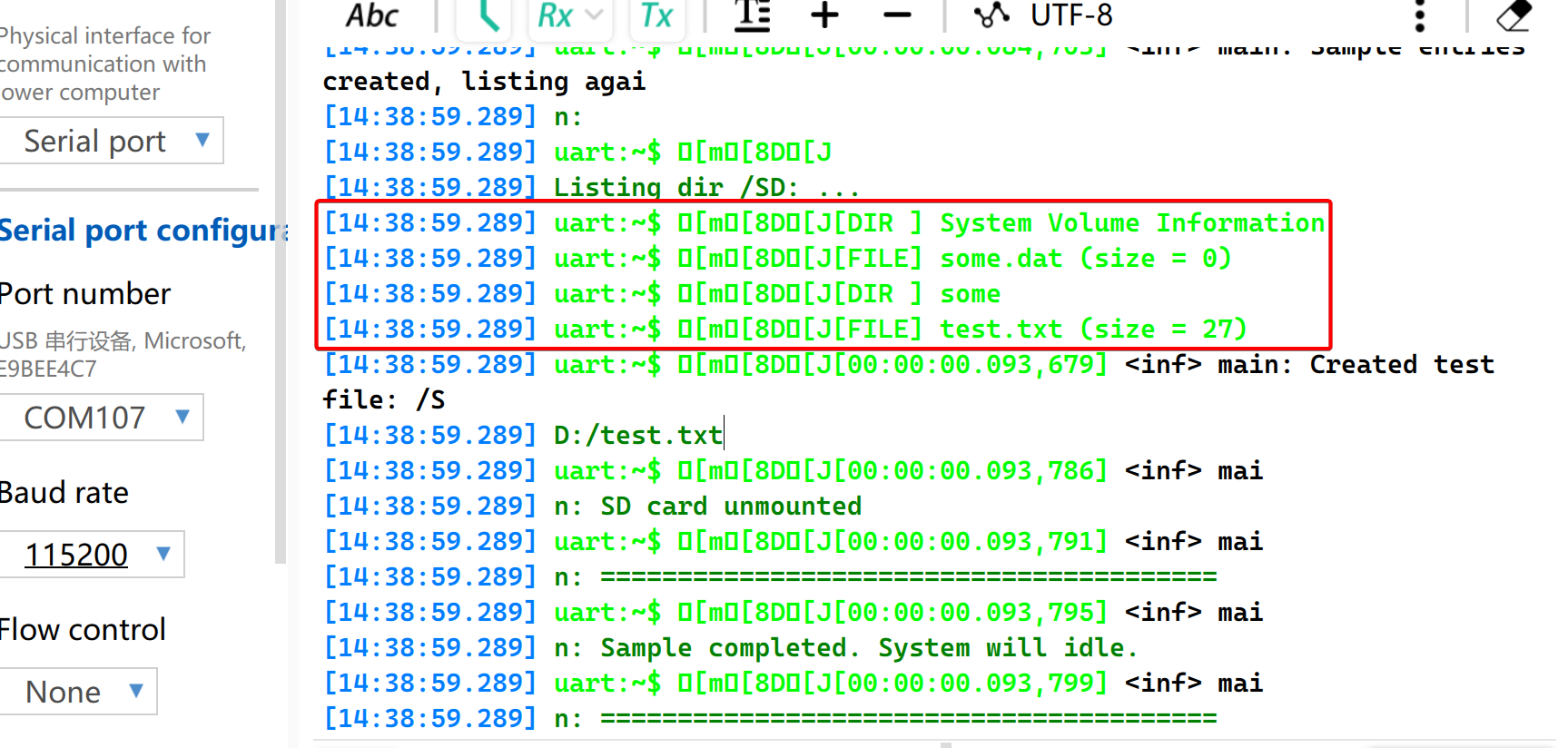
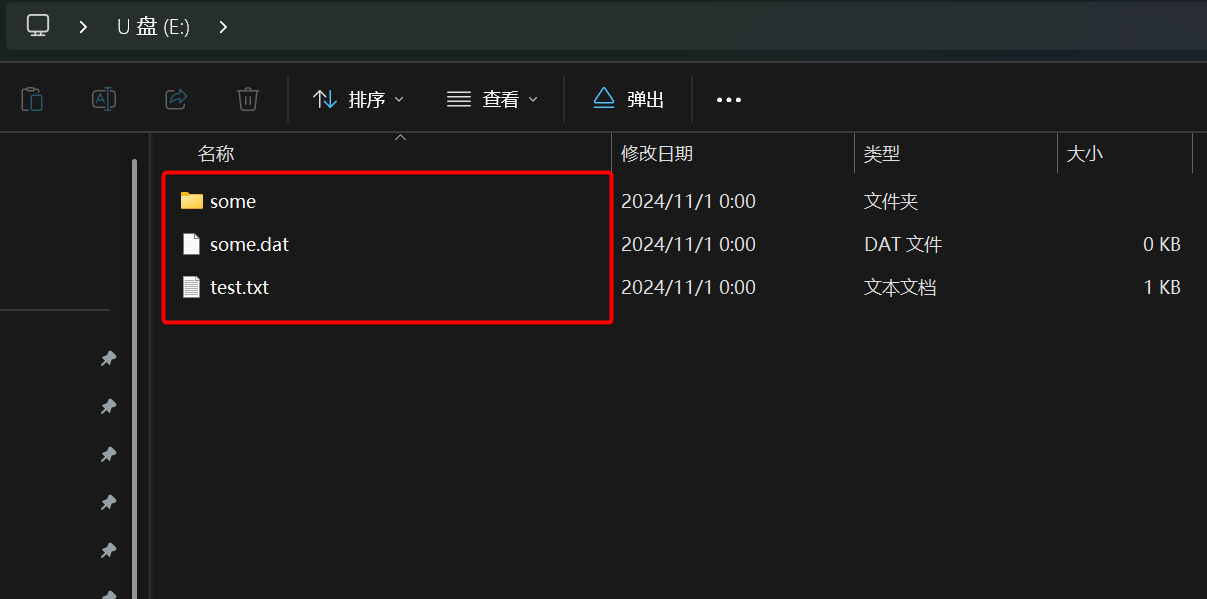
- 使用读卡器访问 SD 卡,你会发现里面有三个已创建的文件,并且都包含内容。
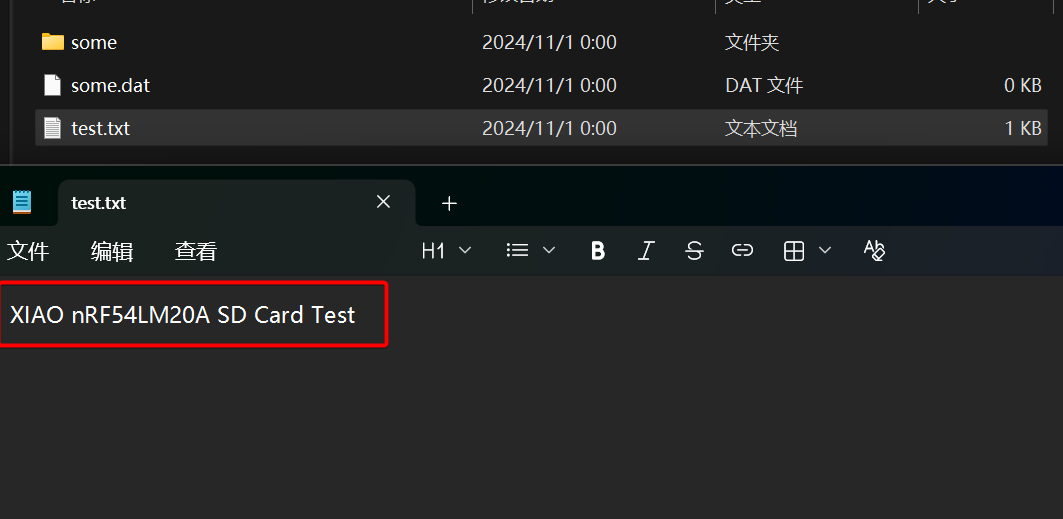
- 打开 TXT 文件,其内容为
XIAO nRF54LM20A SD Card Test,这验证了向 SD 卡写入数据已成功。
总结
通过以上示例,你现在应该已经很好地掌握了在 XIAO nRF54LM20A 上使用 ePaper 显示屏和 MicroSD 卡的方法。欢迎将你的想法分享给开源社区。
技术支持与产品讨论
感谢你选择我们的产品!我们将为你提供多种支持,以确保你在使用我们产品时的体验尽可能顺畅。我们提供多种沟通渠道,以满足不同的偏好和需求。