使用 PlatformIO 的 XIAO RP2040

PlatformIO 介绍
PlatformIO 是一个集成了多种开发板并具有良好可扩展性的开发平台。如果平台中没有你需要的开发板类型,你可以手动添加开发板类型。你在 Arduino 上编写的代码也可以使用它,只需添加相应的库即可。
在本篇 wiki 中,我们将介绍如何在 PlatformIO 中安装并运行示例代码。
在 XIAO RP2040 上使用 PlatformIO
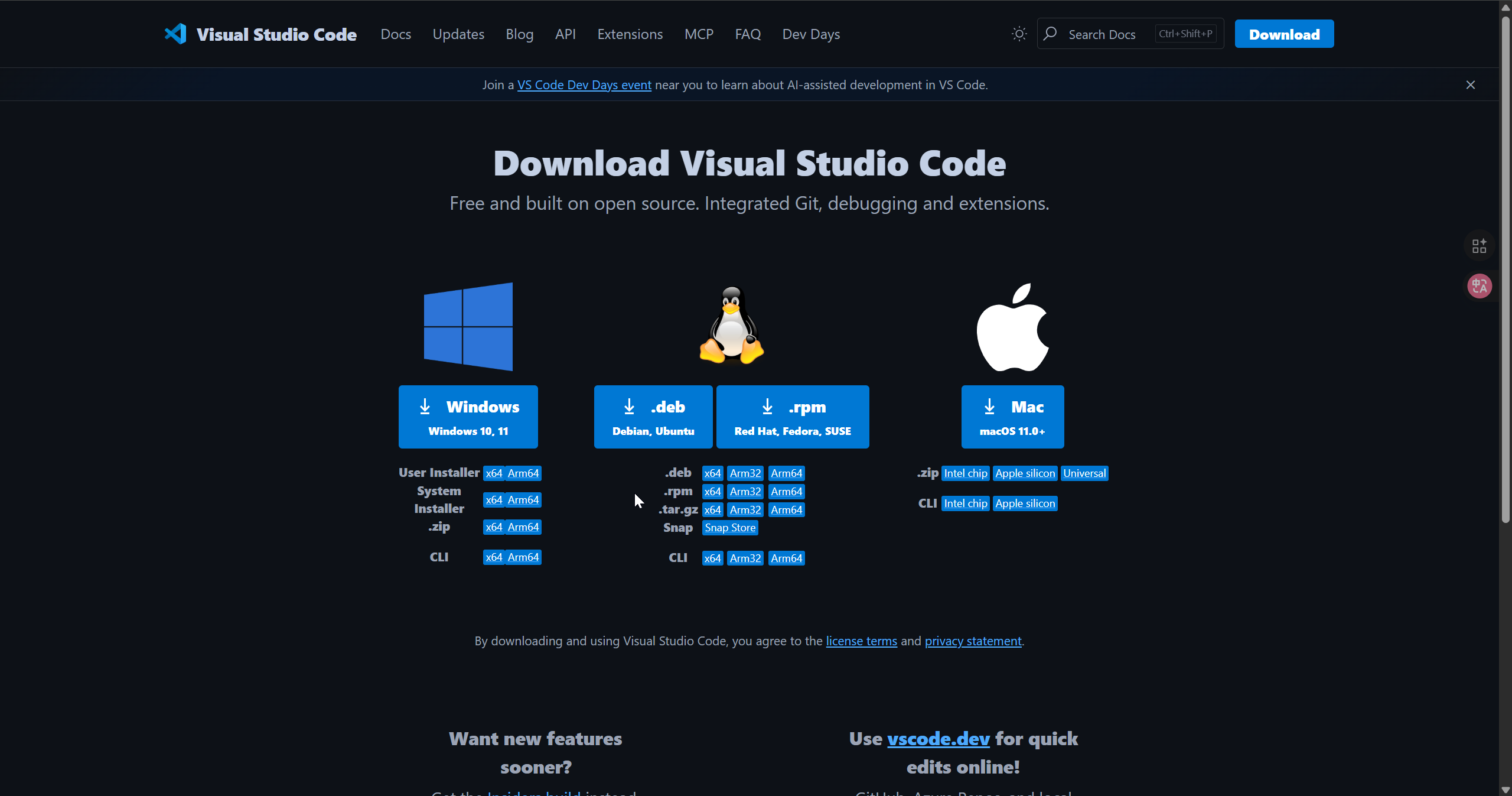
步骤 1 . 下载 VS Code
根据你所使用的系统下载 VS Code
步骤 2 . 安装 PlatformIO 扩展
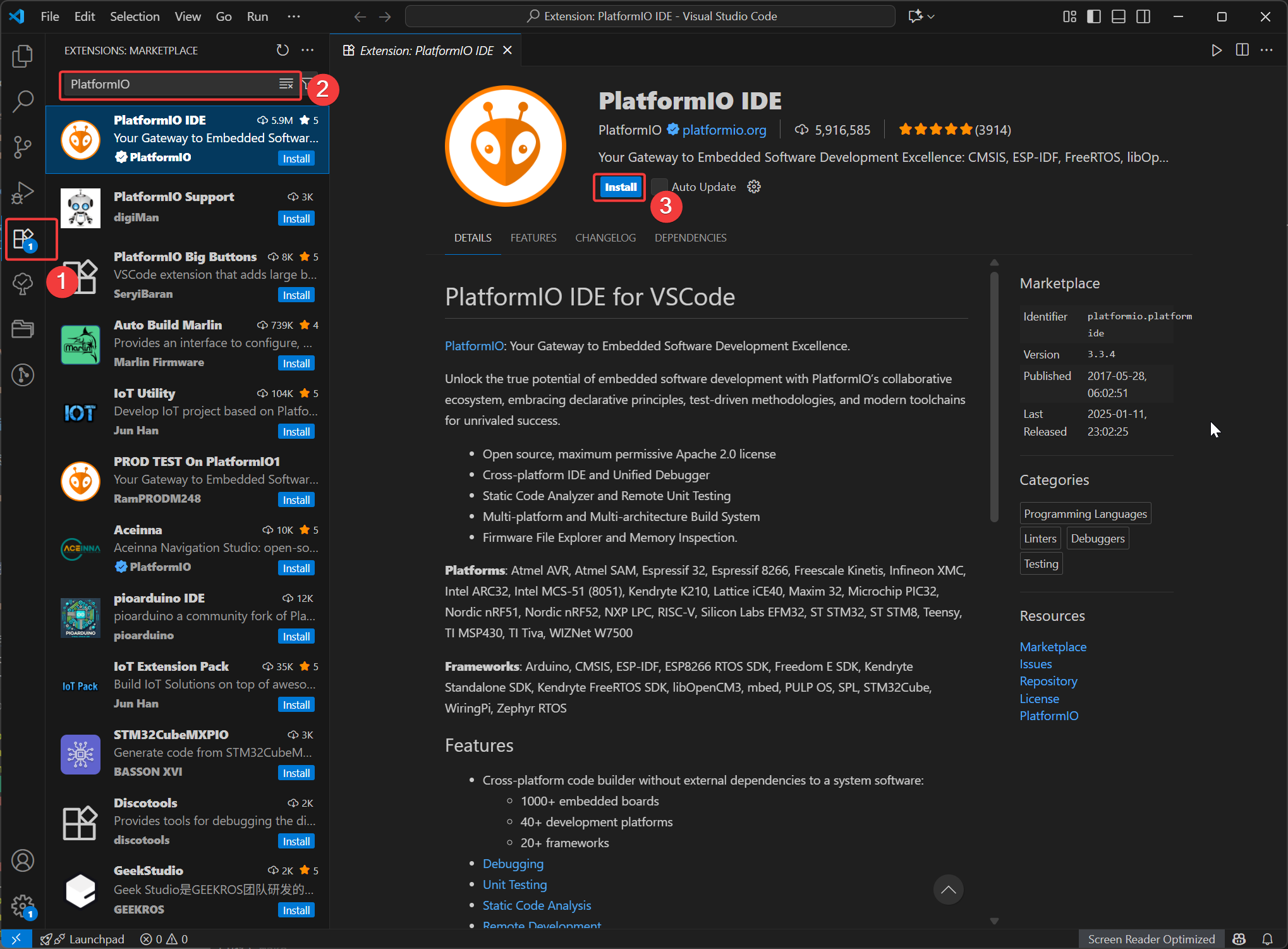
打开 VSCode,点击 Extensions,然后搜索 PlatformIO 并选择安装。安装完成后,重启 VSCode。
步骤 3 . 安装 platform-seeedboards 平台包
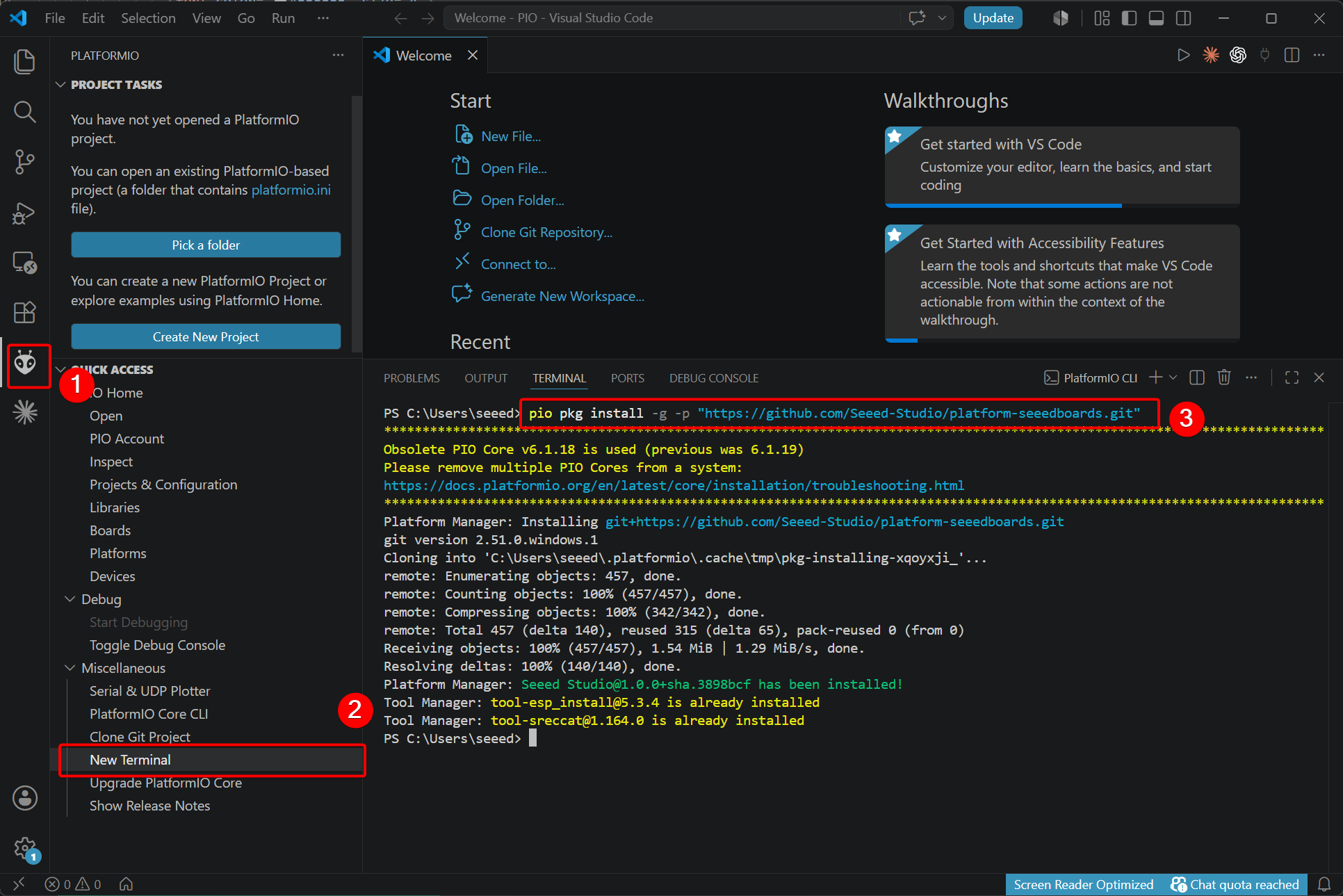
Seeed Studio XIAO 系列开发板使用自定义的 PlatformIO 平台,因此你需要手动安装对应的平台包。
- 运行以下命令进行全新安装:
pio pkg install -g -p "https://github.com/Seeed-Studio/platform-seeedboards.git"
- 如果你之前已经在 PlatformIO 中使用过 Seeed Studio XIAO 系列开发板,请运行下面的命令进行更新:
pio pkg uninstall -g -p "SeeedStudio"
pio pkg install -g -p "SeeedStudio=https://github.com/Seeed-Studio/platform-seeedboards.git" --force
tip
或者,你也可以基于现有项目进行替换操作。
[env:seeed_xiao_rp2040]
platform = https://github.com/Seeed-Studio/platform-seeedboards.git
board = seeed-xiao-rp2040
framework = arduino
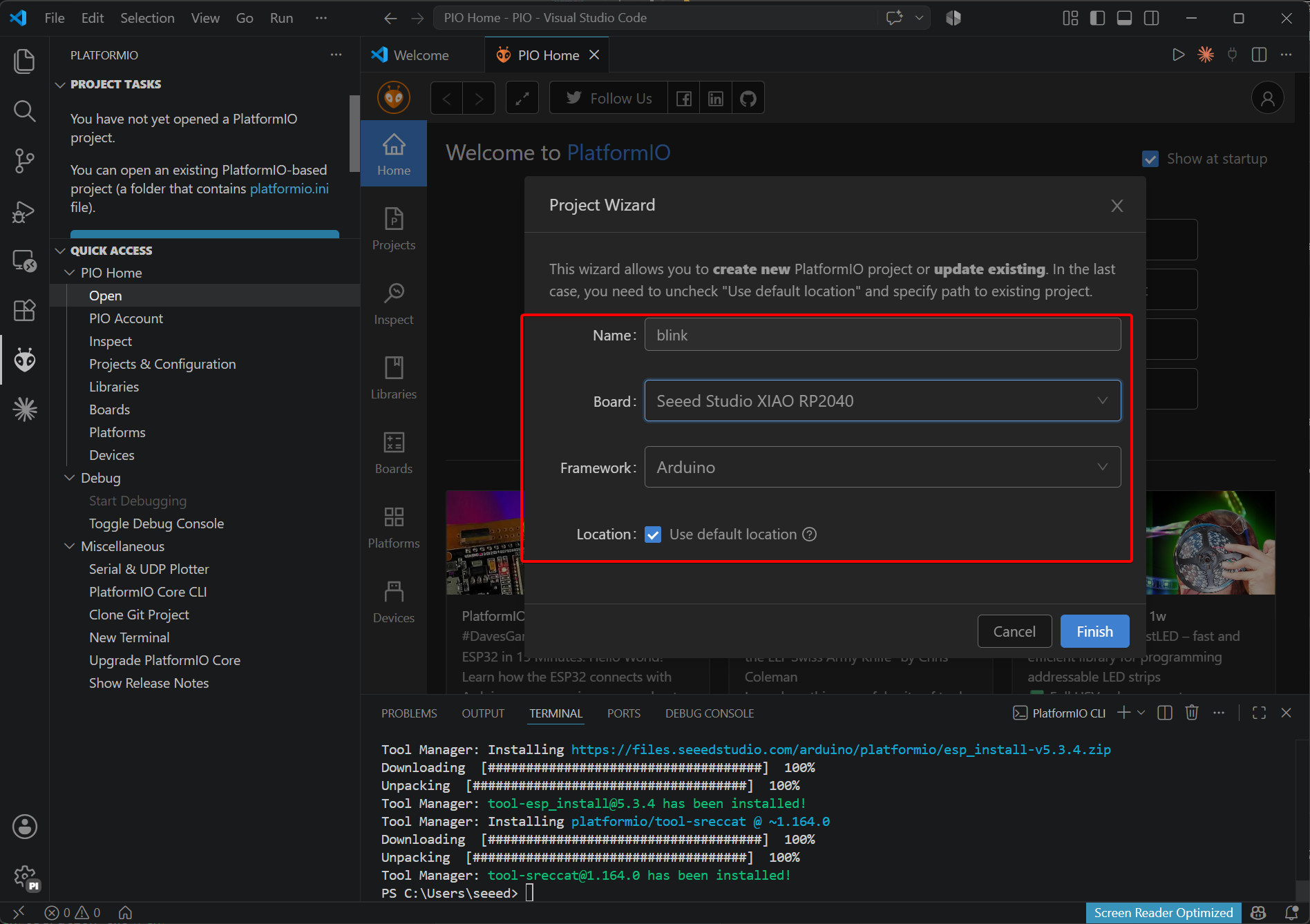
步骤 4 . 在 PlatformIO 中创建任意项目
打开 PlatformIO 扩展并选择 Create New Project。
步骤 4 . 编译与烧录
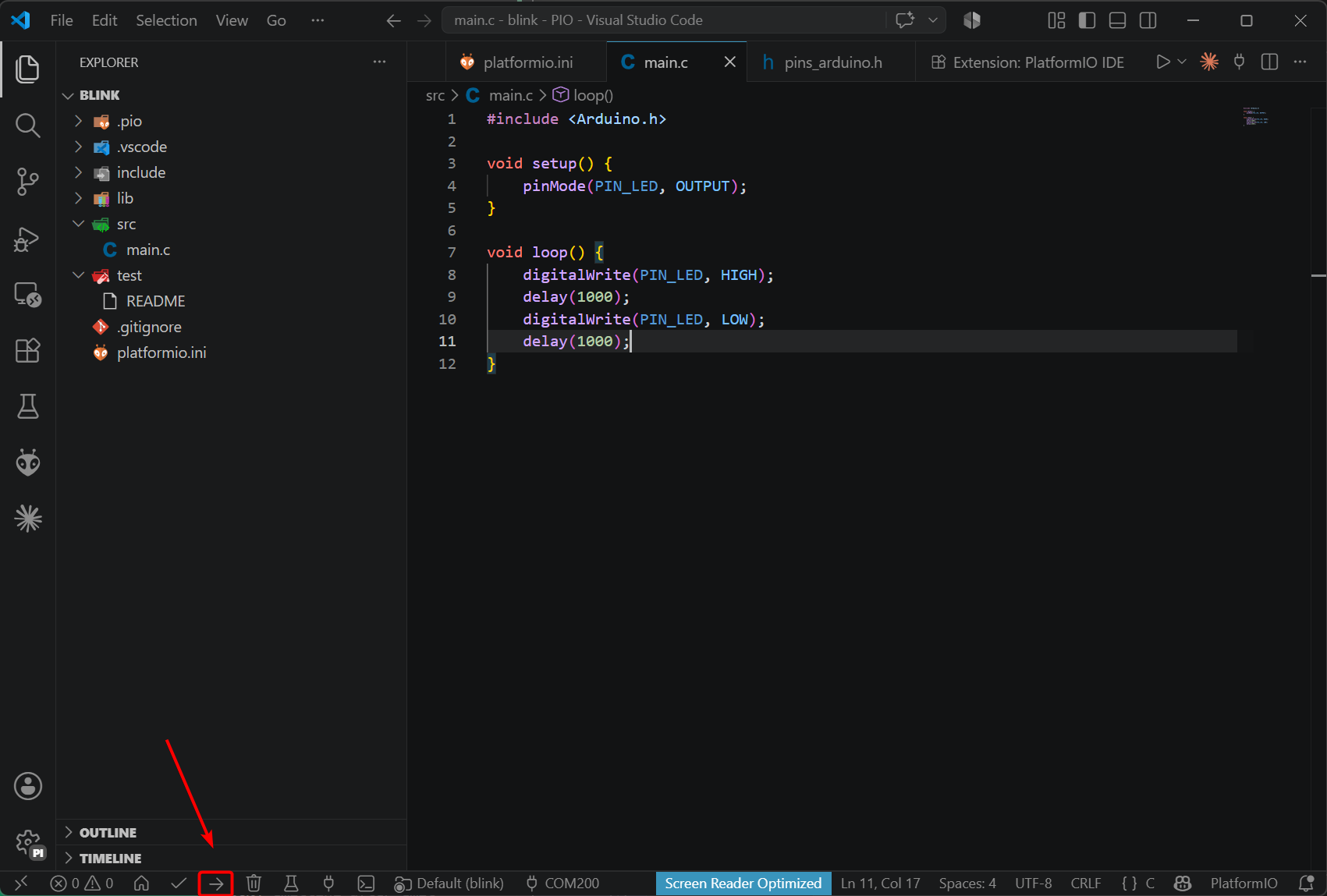
将以下程序复制到 main.c 中并上传到开发板。
#include <Arduino.h>

void setup() {
    pinMode(PIN_LED, OUTPUT);
}

void loop() {
    digitalWrite(PIN_LED, HIGH);
    delay(1000);
    digitalWrite(PIN_LED, LOW);
    delay(1000);
}
技术支持与产品讨论
感谢你选择我们的产品!我们将为你提供多种支持,以确保你在使用我们产品的过程中尽可能顺利。我们提供多种交流渠道,以满足不同的偏好和需求。