CodeCraft Community & Publishing
CodeCraft is not only suitable for building projects from scratch, but also allows you to browse, reuse, and publish works through the SenseCraft AI Application Gallery.
In the Application Gallery, you can explore project inspiration, browse official examples, experience community projects, and publish your own CodeCraft creations to share with more users. Other users can view your projects, deploy firmware, and—if permitted—clone your project for learning or further development.
This document explains how to browse community projects in the Application Gallery and how to publish CodeCraft projects to the SenseCraft AI Application Gallery.
3.1 Application Gallery & Community Projects
In the SenseCraft AI Application Gallery, you can complete the entire workflow from inspiration discovery to project publishing in one place.
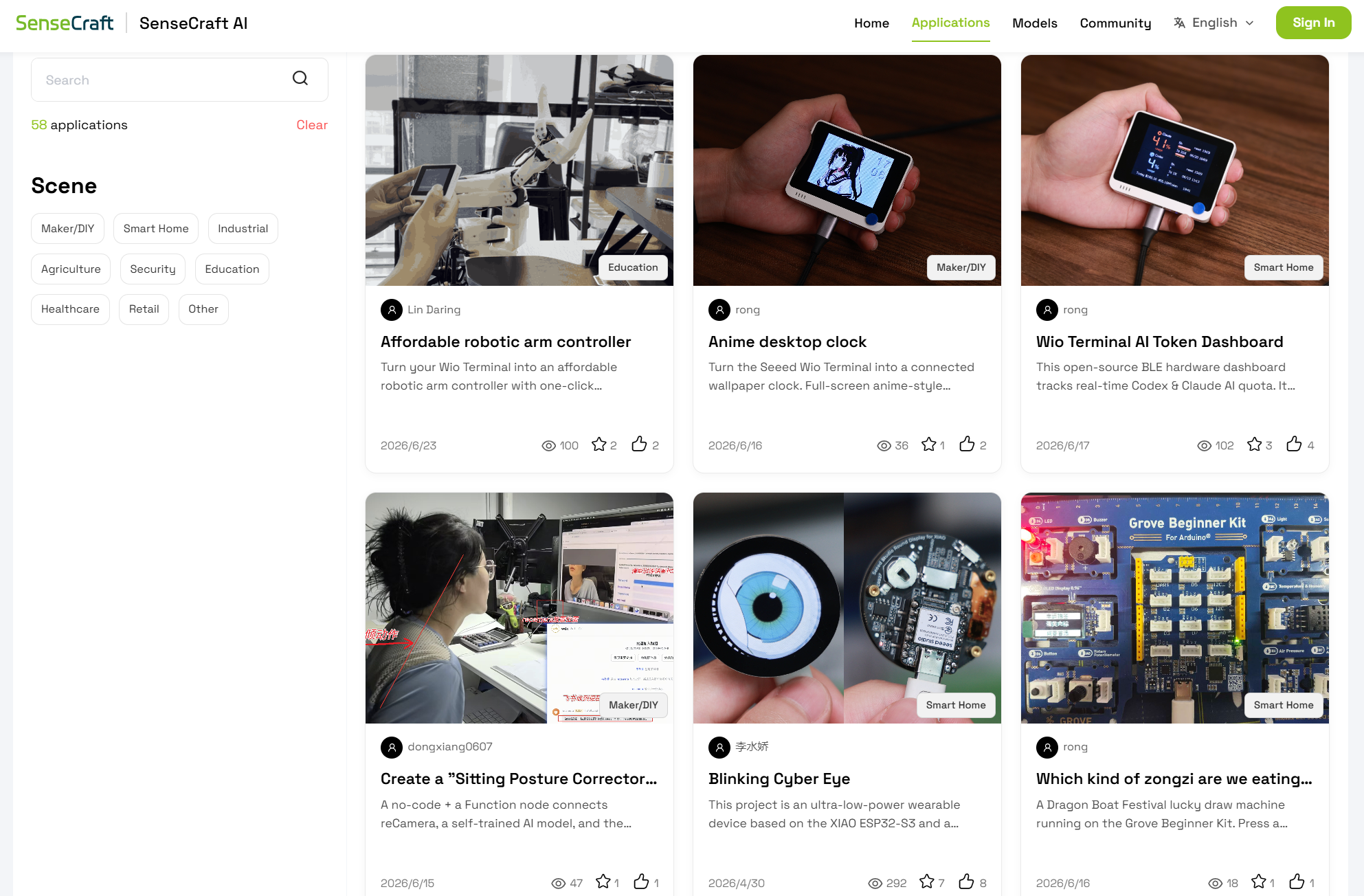
What can you do here?
| Purpose | Description |
|---|---|
| 🔍 Find inspiration | Browse a large number of projects for ideas |
| 📖 Learn official examples | Study standardized implementations provided by the official team |
| ♻️ Reuse community projects | Fork or adapt existing works directly |
| 🚀 Publish your own work | Showcase your creations to the community |
| 🎮 Quickly experience hardware | From mini games to complex maker projects, enabling rapid prototyping |
Core Advantages
- CodeCraft accelerates development — Helps you build prototypes faster and reduces coding barriers.
- One-click publishing — Completed projects can be directly published to the gallery for global reuse.
💡 Suitable for all stages, from casual projects to advanced maker builds. Both beginners and experienced users can benefit.
How to use the Application Gallery
| Method | How it works | Use case |
|---|---|---|
| Browse & Reuse | Clone (copy project → modify based on original) | • Quickly experience development boards or sensors • Modify existing examples • Adapt official projects for teaching or demos |
| Create & Publish | Publish (App → My Apps → Create New App → New Workspace) | • Showcase ideas and receive feedback • Contribute examples for others • Build a personal project portfolio |
3.2 Application Publishing
3.2.1 Preparation Before Publishing
Before publishing, prepare the following materials:
| Item | Requirements | Notes |
|---|---|---|
| Project Image | • Recommended as cover image • Aspect ratio: 4:3• Size < 2MB• Clear and visually representative | Required |
| Project Name & Description | • Concise and attractive name • May include device keywords (e.g., Wio Terminal, XIAO ESP32S3 Sense) | Required |
| Firmware File | • Format: .bin or .hex• Must be tested on real hardware • .bin for Wio Terminal / XIAO ESP32S3 Sense• .hex commonly used for Grove Beginner Kit | Required |
| Source Code File | • e.g., .ino file• Optional, for learning and modification | Optional |
3.2.2 Publishing FAQ
| Question | Answer |
|---|---|
| What if firmware is missing? | - Firmware is essential; without it others cannot run your project - Always test firmware on real hardware before uploading - If not generated, ask CodeCraft AI: “Please provide a .bin firmware file.” |
| Are GIFs supported in covers and documents? | - Yes, GIFs are supported in both cover and documentation - Recommended for dynamic demonstrations - Keep file size small to avoid slow loading |
| Can videos be embedded? | - Yes, video links are supported - Compatible with YouTube, Bilibili, Douyin, and other platforms - Paste links directly into the editor for automatic embedding |
3.3 Publishing a New App on SenseCraft AI
3.3.1 Go to SenseCraft AI
Open the SenseCraft AI Application Gallery. You can create a new application from scratch or clone an existing one for modification and republishing.
3.3.2 Create a New Application
You can either start from scratch or use an existing application as a template.
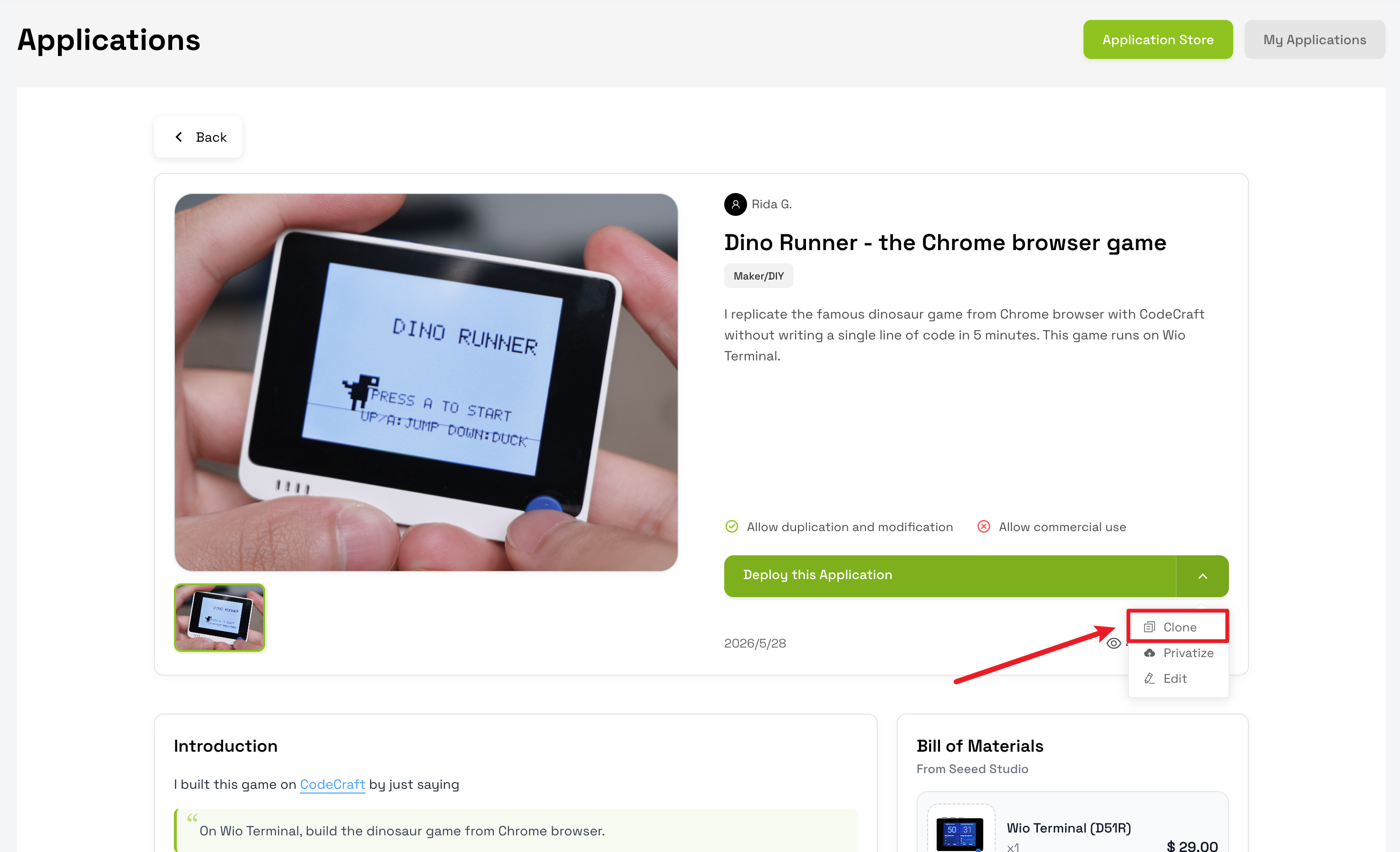
3.3.2.1 Clone an Existing App
Open any published application and click Clone to continue editing based on it.
3.3.2.2 Create a New App
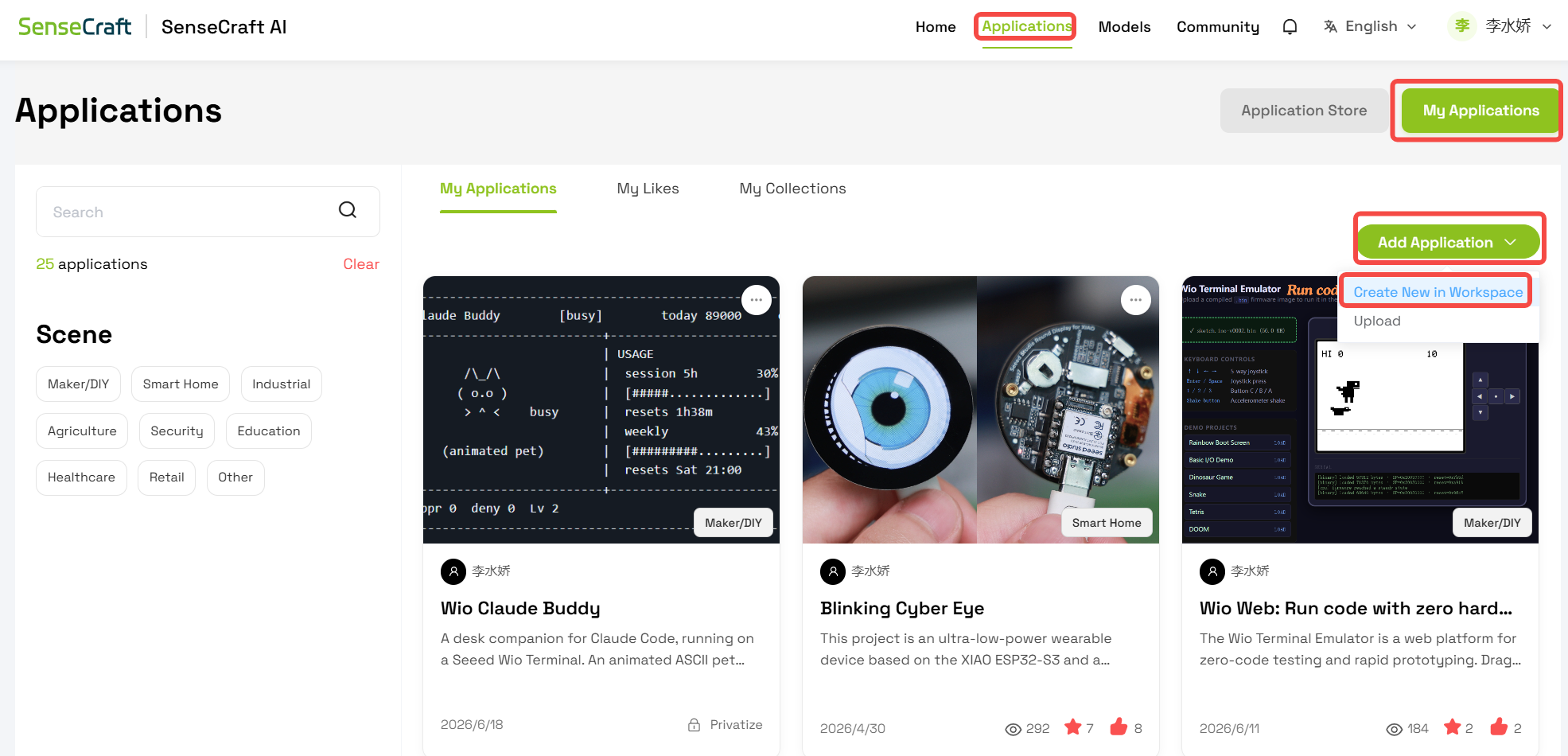
Go to the Application Gallery and click:
My Apps > Create New App > Create New Workspace
3.3.3 Editing Content
After creating an application, complete the content in four steps using the editor.

3.3.3.1 App Overview
Fill in basic app information including name, description, scenario, license, and images.
| Field | Description & Suggestions | Required |
|---|---|---|
| Name | • Clear and attractive • Include device keywords such as Wio Terminal, Grove Beginner Kit, XIAO ESP32S3 Sense, CodeCraft• Example: CodeCraft Smart Temperature & Humidity Display - Wio Terminal | ✅ |
| Description | • Briefly describe function and hardware used • Mention “created with CodeCraft” if applicable • Example: This is a Wio Terminal project created with CodeCraft for real-time temperature and humidity display. | ✅ |
| Scenario | Choose from: • Education • Smart Home • Environmental Monitoring • Sensor Applications • AIoT Projects | ✅ |
| License | 1. Allow cloning: enables others to fork and modify your project 2. Allow commercial use: enables commercial usage if allowed | ✅ |
| Images | • Use real device photos • Aspect ratio 4:3, size < 2MB• Clearly show project output • Up to 16 images | ✅ |
3.3.3.2 App Details
In this section, describe project background, development process, and usage instructions. You can also add firmware blocks for one-click deployment.
| Category | Instructions / Content | Example |
|---|---|---|
| Project Introduction | • Describe function and hardware • Explain CodeCraft workflow • List prompts used • Show results and notes • Add CodeCraft link | 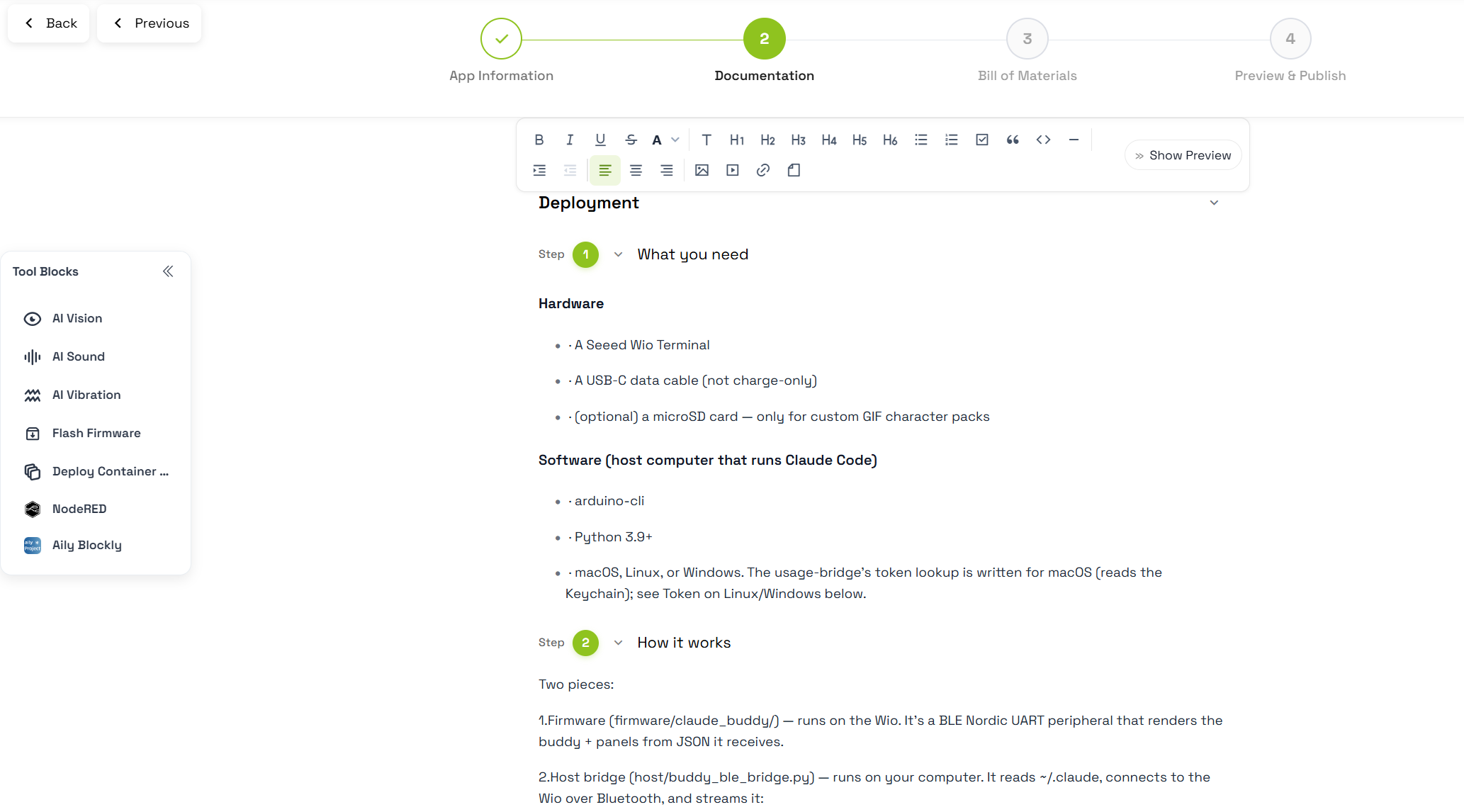 |
| Firmware & Device Deployment | • Insert “Flash Firmware” block • Select target device • Supports Wio Terminal / Grove Beginner Kit / XIAO ESP32S3 Sense | 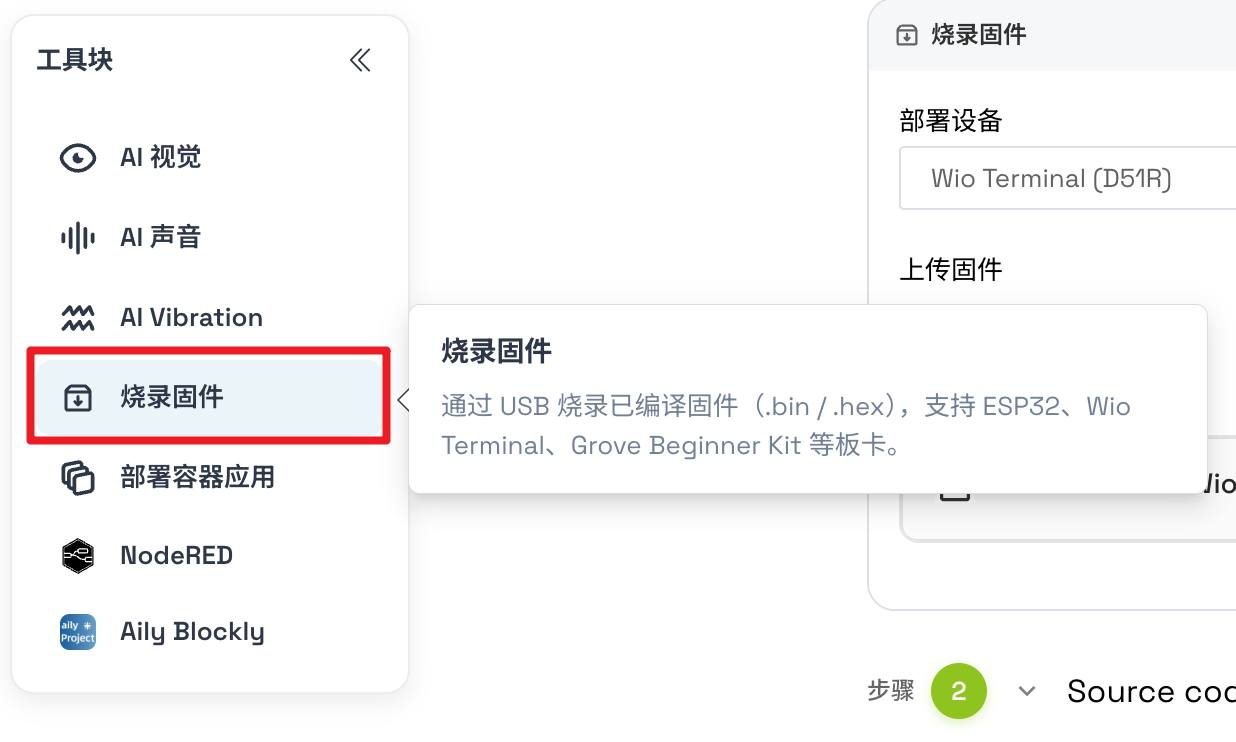 |
| Upload Firmware File | • Upload .bin or .hex files• .hex typically for Grove Beginner Kit• Ensure firmware is tested | 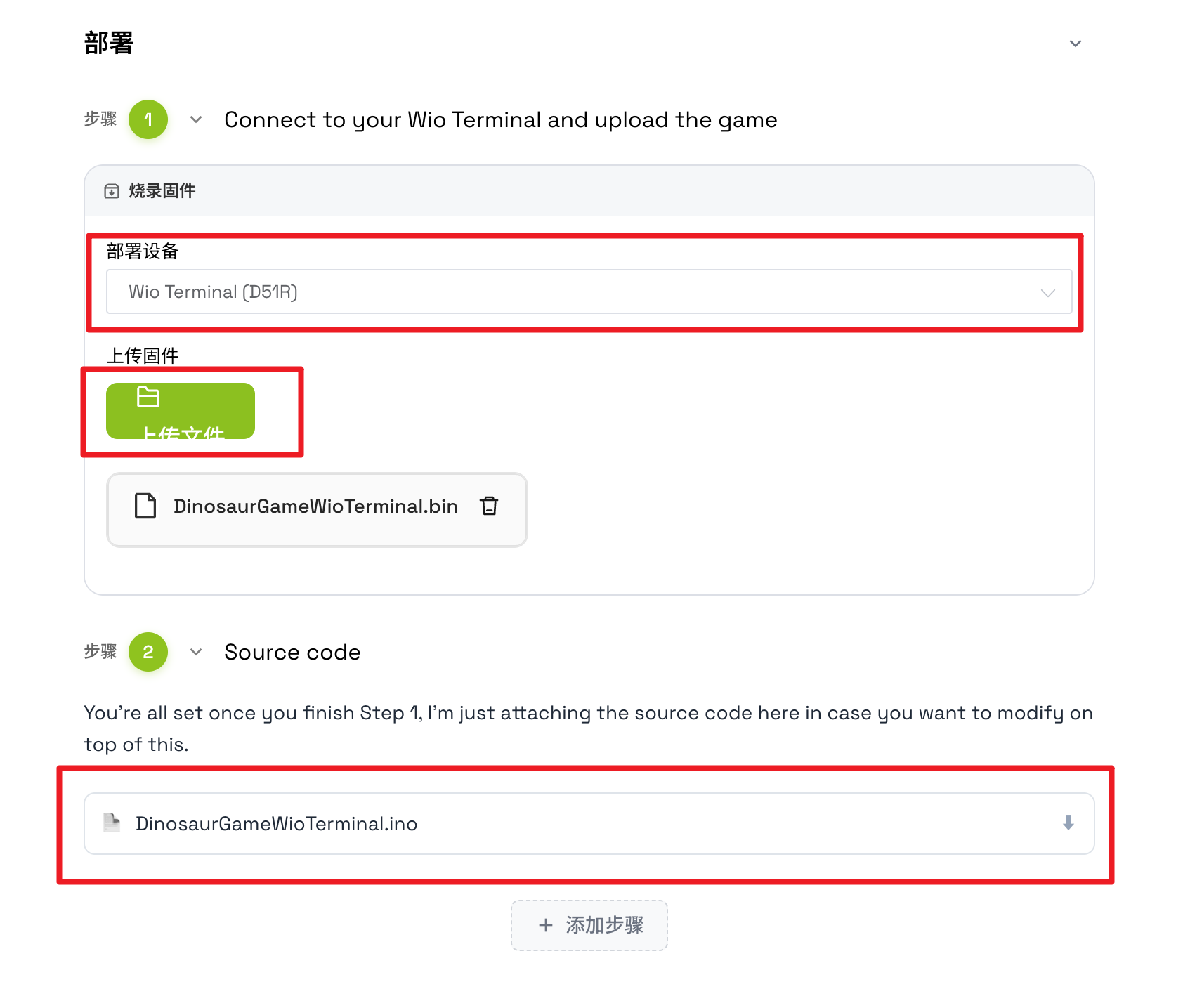 |
| Upload Source Code (Optional) | • Upload .ino or other source files• Helps learning and modification |  |
| Development & Testing Details | • Describe steps clearly • Include testing methods and results • Add screenshots or data if needed | — |
3.3.3.3 Bill of Materials
| Seeed Development Boards | Other Seeed Products | Third-party Hardware / Tools |
|---|---|---|
Wio Terminal, Grove Beginner Kit, XIAO ESP32S3 Sense | • Grove sensors, expansion modules, etc. • If missing, submit a request via SenseCraft AI Device Request Form | • Third-party hardware • Other related materials |
3.3.3.4 Preview & Publish
Before submitting, ensure the following:
| Category | Checklist |
|---|---|
| Basic Information | • Cover image is clear and attractive • App name is accurate • Description is clear • License settings are correct |
| Materials & Firmware | • Bill of materials is complete • Firmware uploaded correctly |
| Function Validation | • Device works correctly after flashing |
| Optional Content | • Source code downloadable (if uploaded) • Other files such as 3D models or vector assets |
Once confirmed, click Publish and agree to the disclaimer.
3.3.4 After Publishing
After review approval, your application will appear in the SenseCraft AI Application Gallery.
You can copy the app link and share it on social media, community forums, or project documentation so more users can discover and use your CodeCraft project.