Connecting to AWS IOT
AWS IoT Gateway Configuration
Log in to AWS. If you don’t have an AWS account, please create a new account first.

Add Gateway
Navigate to Internet of Things > IoT Core
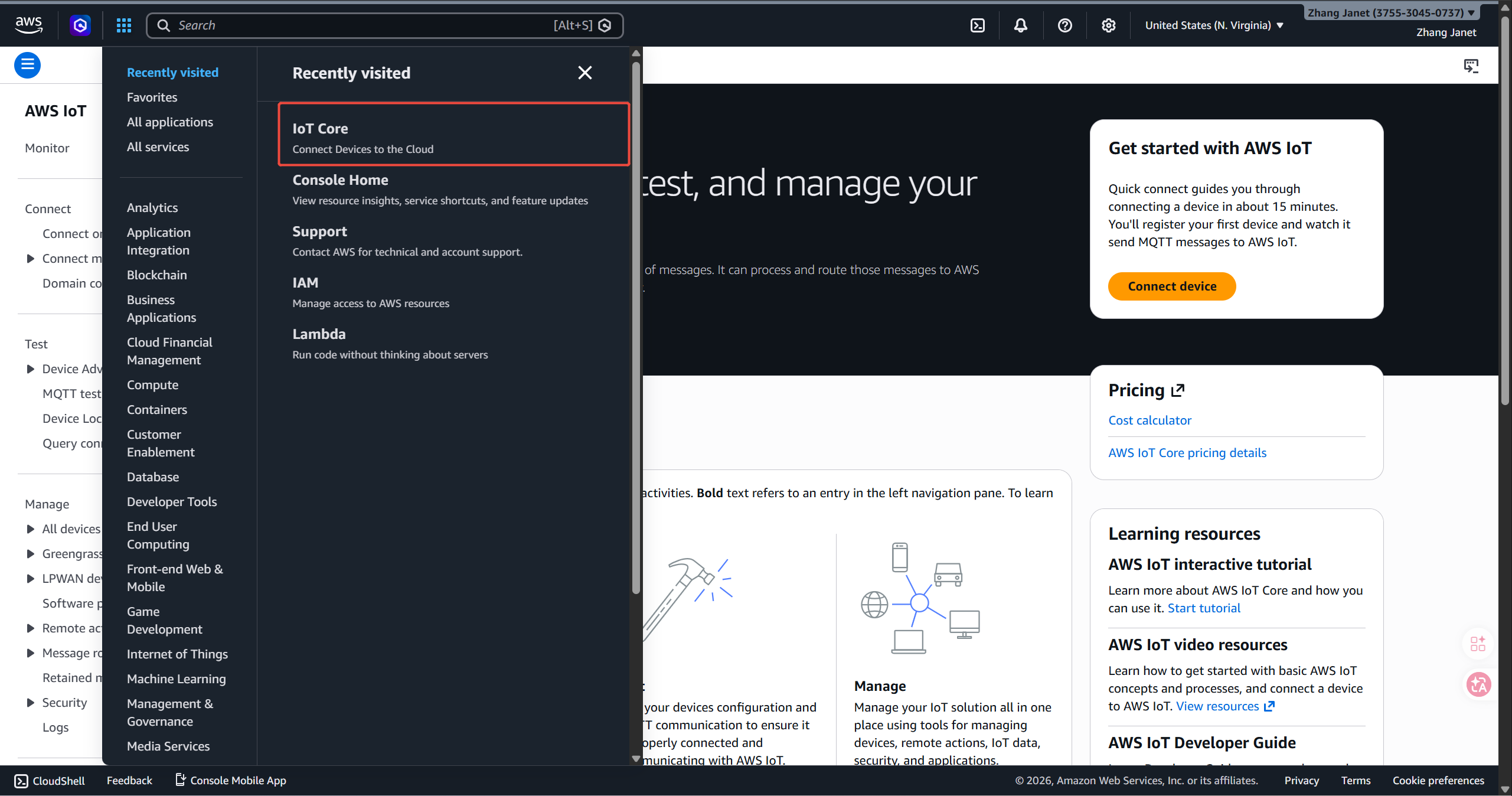
Select LPWAN devices > Gateway to add a gateway
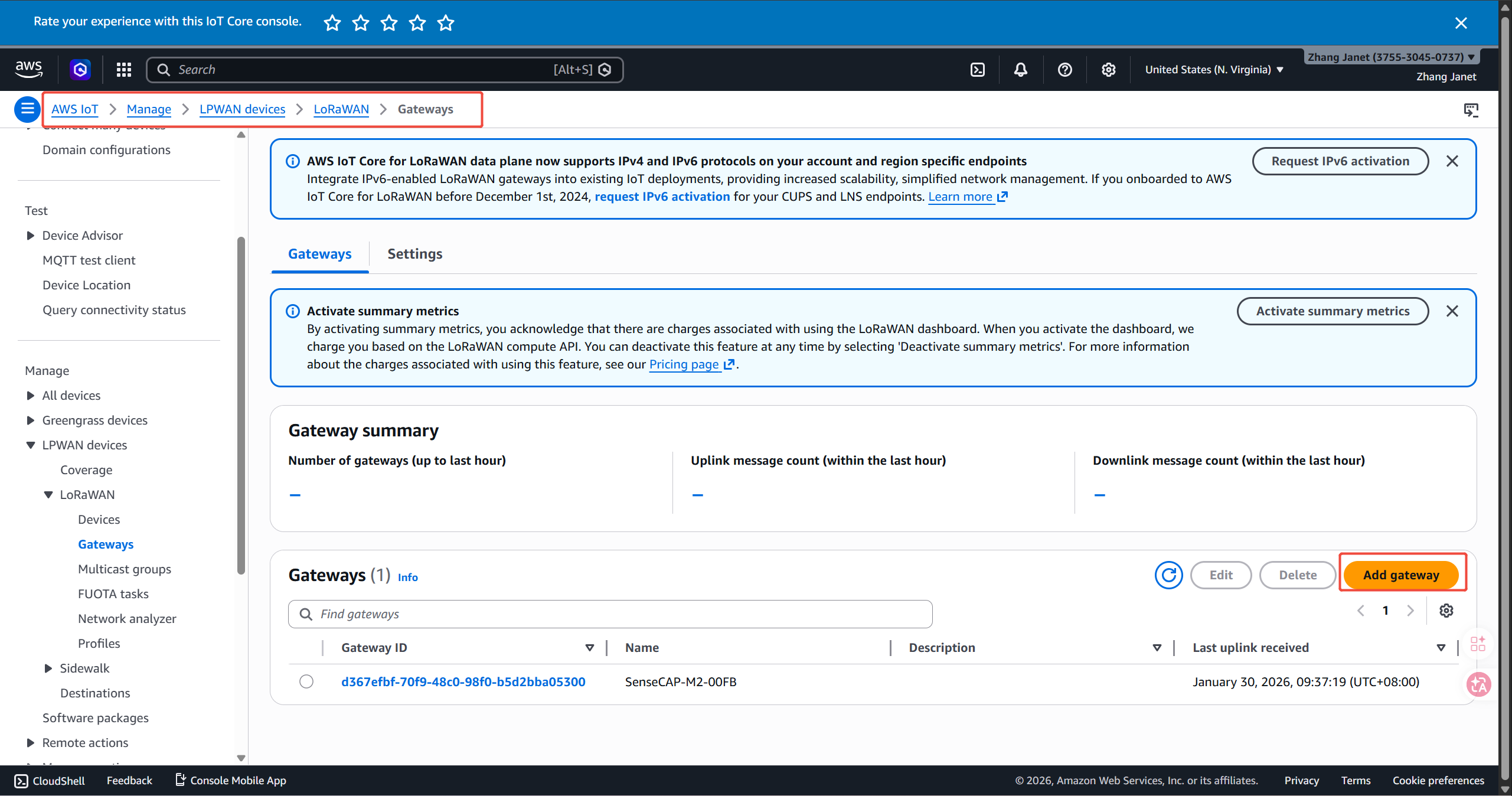
Gateway's EUI: The gateway EUI can be found on the device label or Local Console.
Frequency band: Select the Frequency plan according to the actual choice.
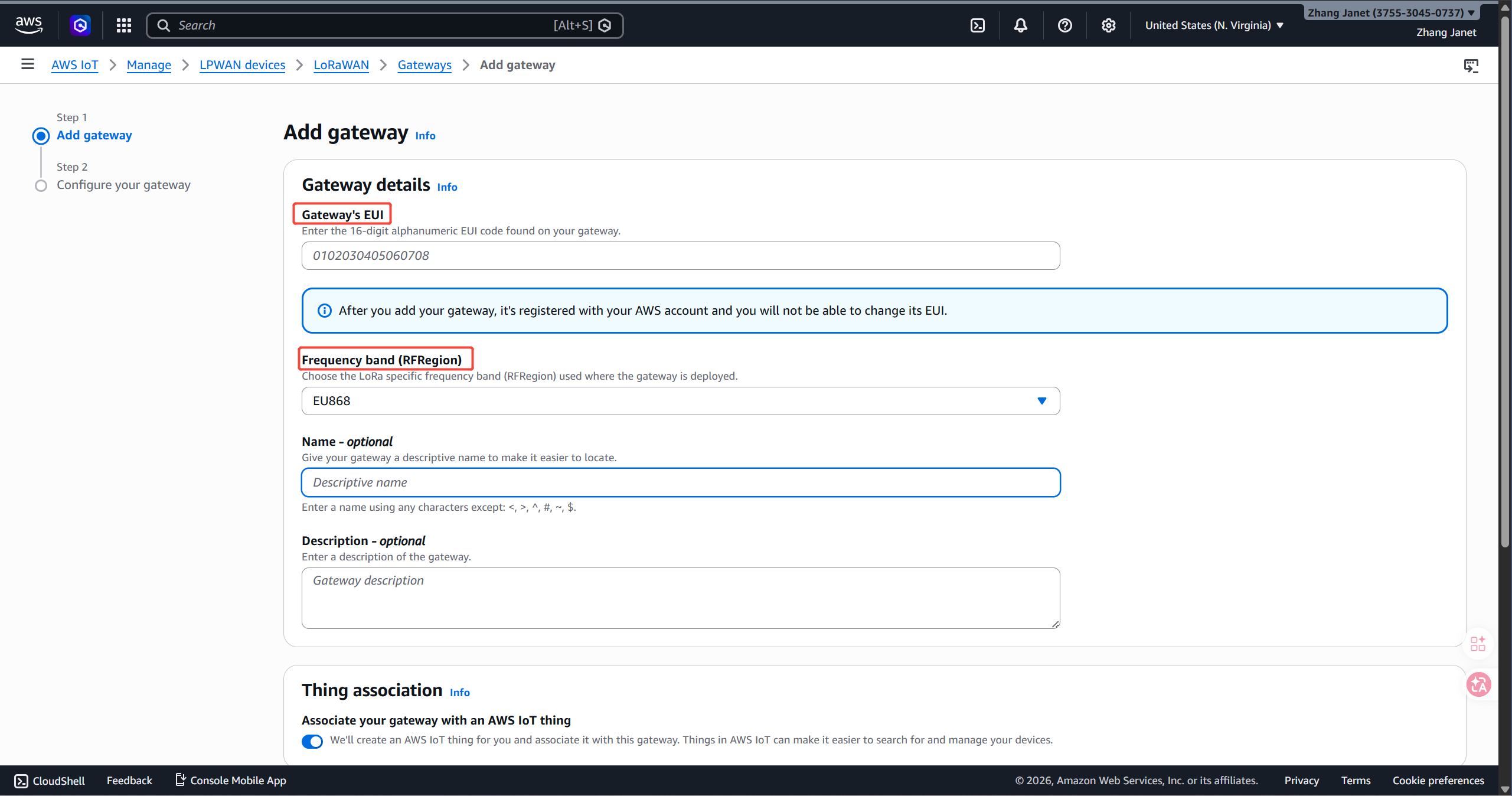
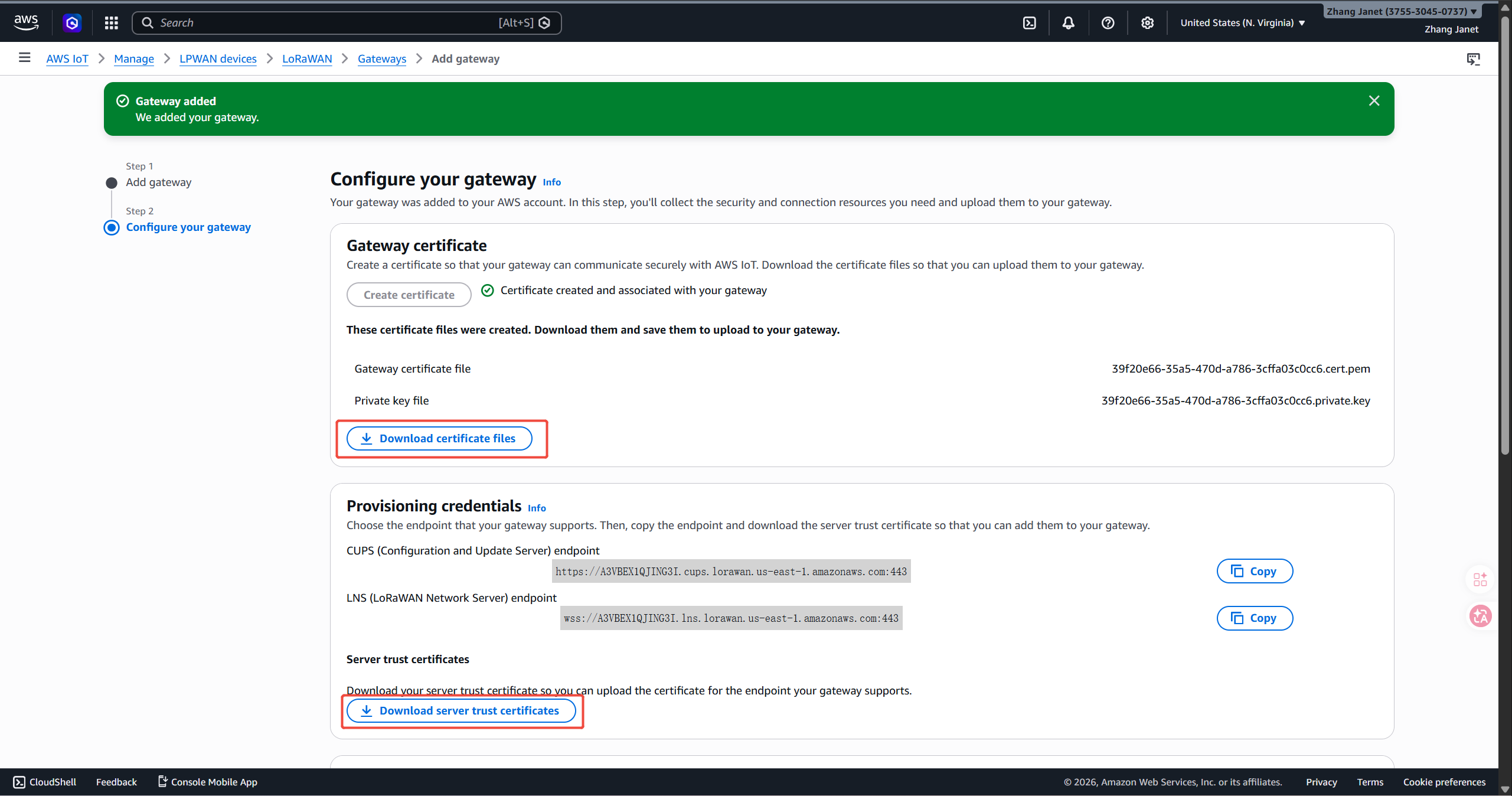
Create certificate
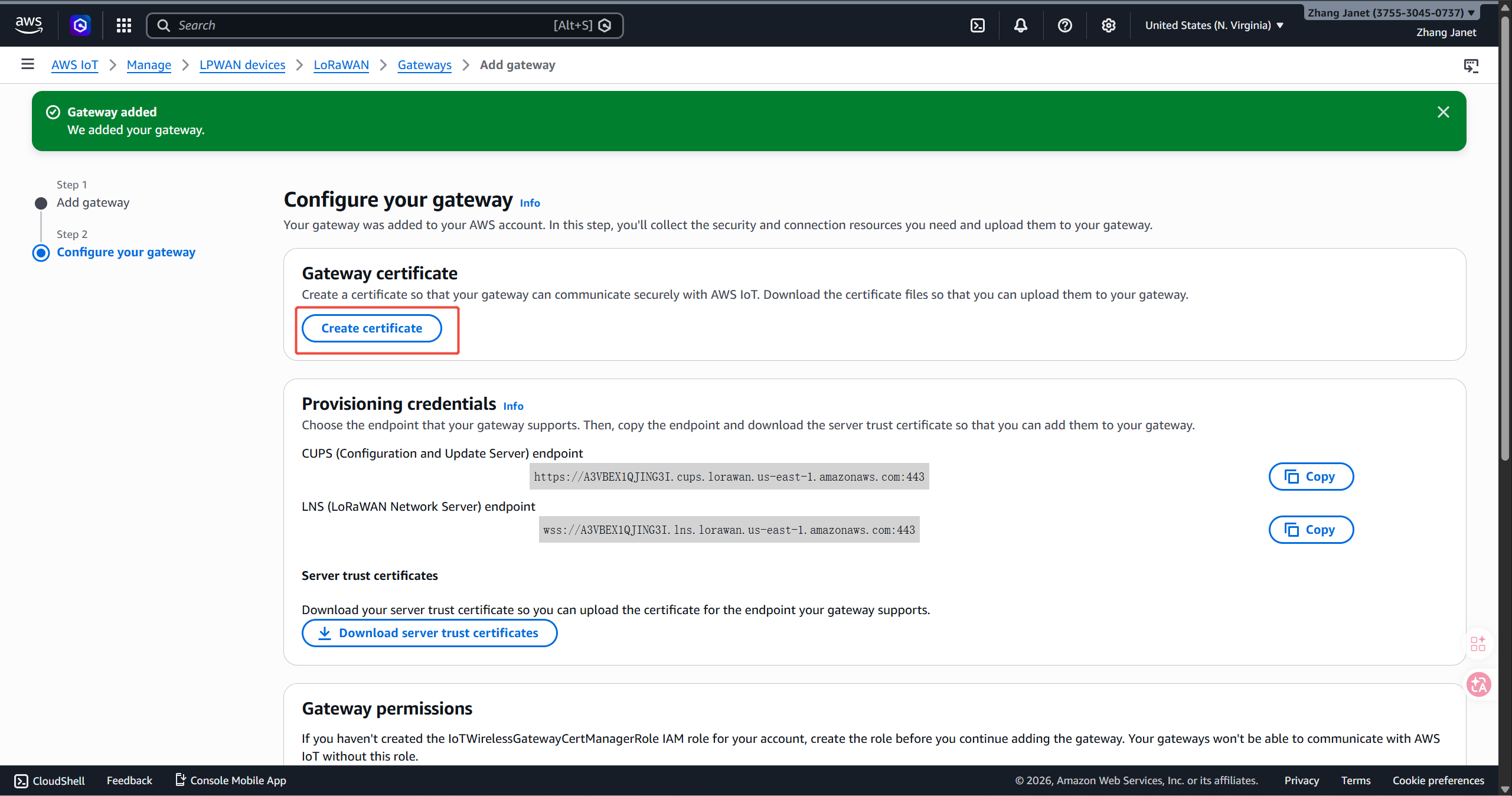
Download the certificate files and server trust certificates.

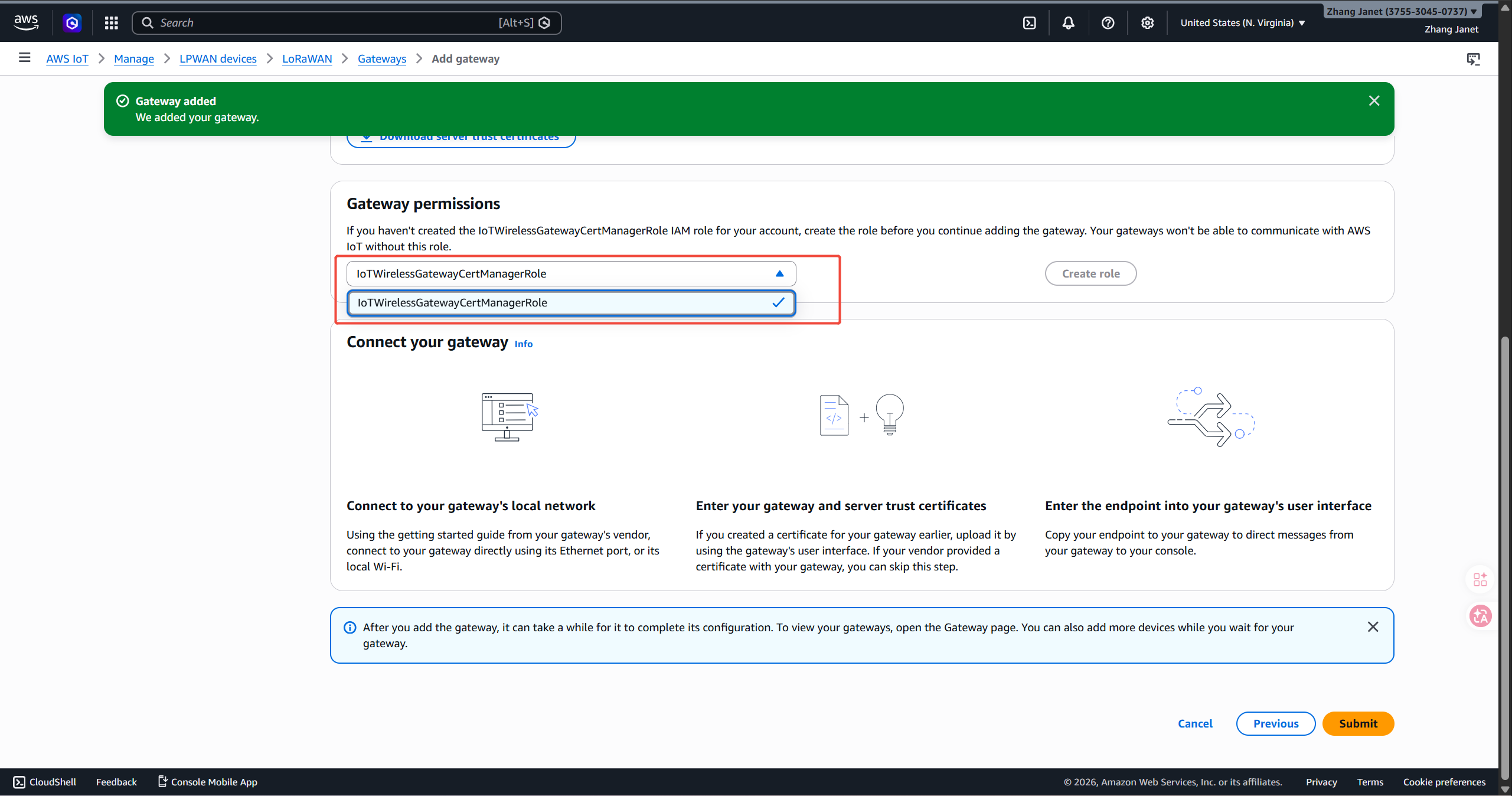
Choose the Role
choose IoT Wireless Gateway Cert Manager Role, then submit the configuration.
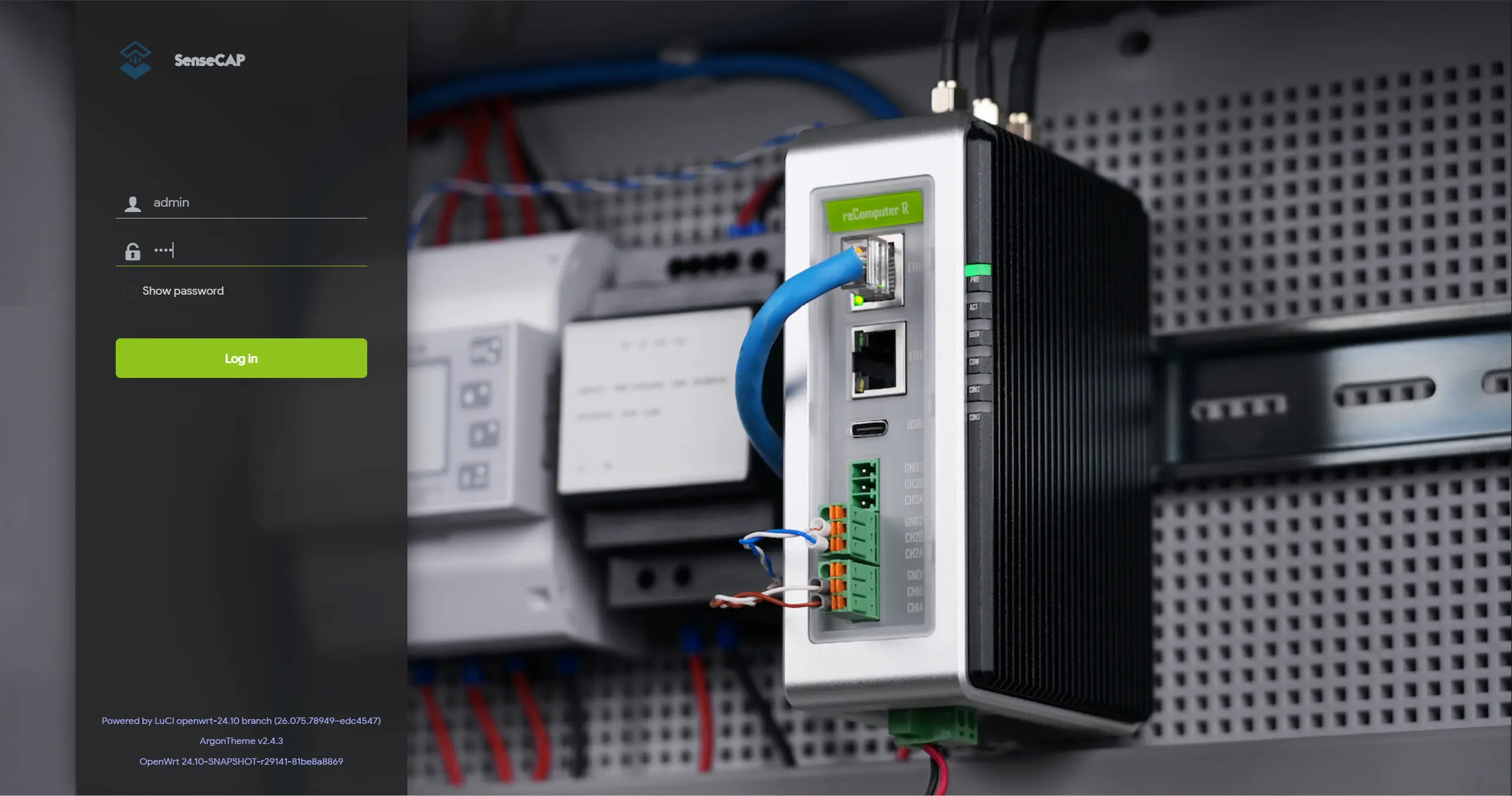
R1225 Gateway Configuration
Log into Local Console Check out the device's Quick Start to login.
LoRaWAN Network Settings
Navigate to LoRa > LoRa Network
Mode: Basics Station
Gateway EUI: It will automatically get the EUI of the connected gateway
Server: Choose CUPS Server or LNS Server (For CUPS, port is 443; for LNS, port is 8887)
Learn more about CUPS and LNS Server
Authenentication Mode: TLS Server and Client Authentication
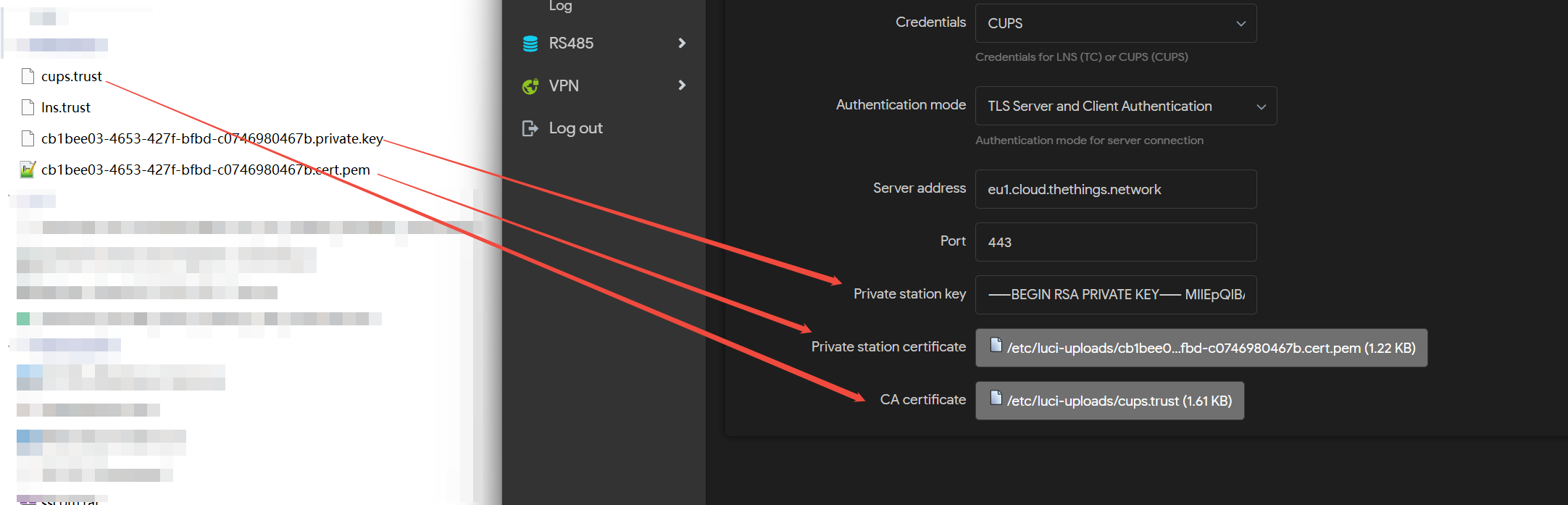
Click on Save&Apply when you finish the settings.
Check gateway connection status
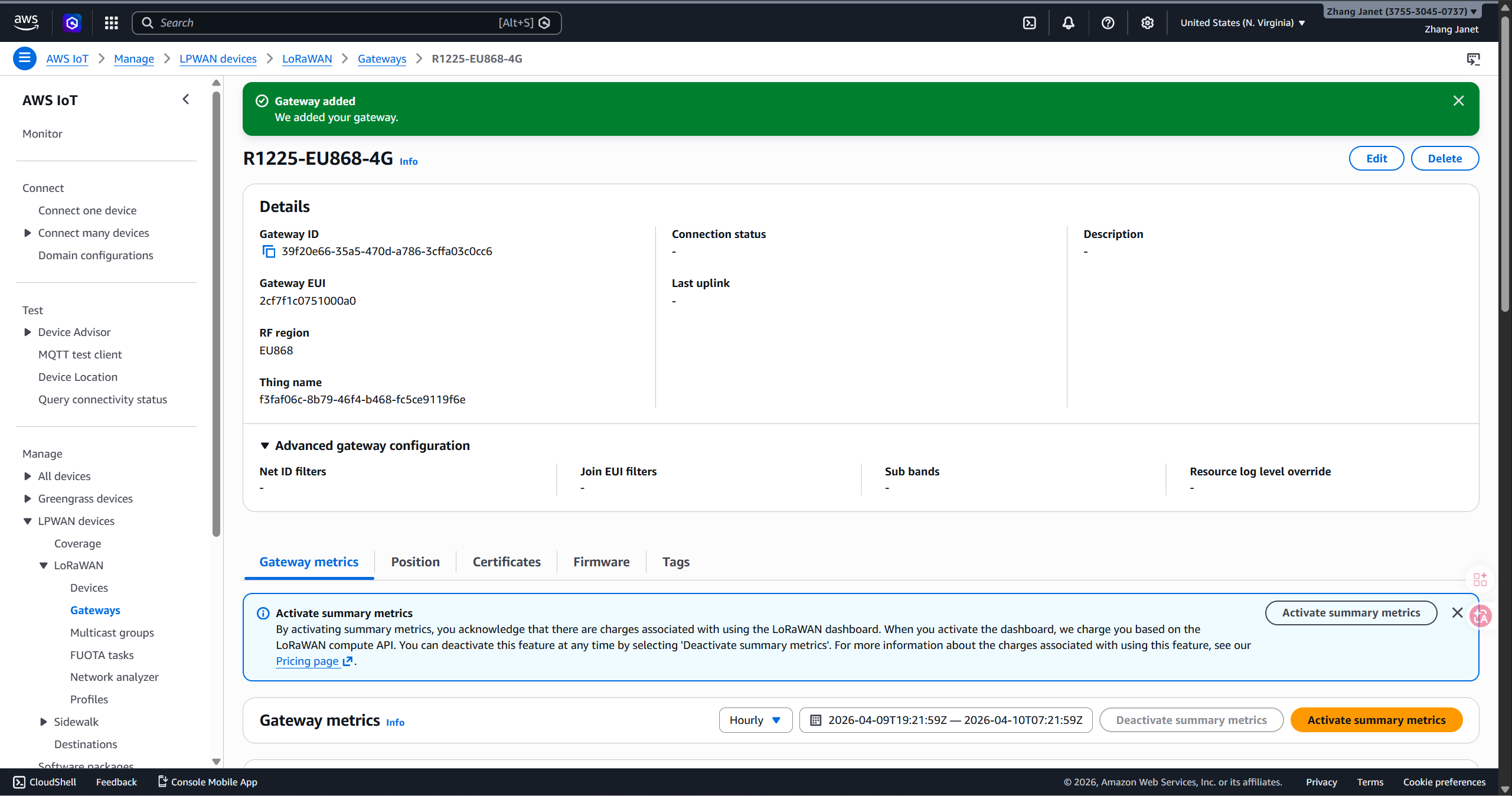
Navigate to the Gateways page and choose the gateway you've added.
In the LoRaWAN specific details section of the Gateway details page, you'll see the connection status and the date and time the last uplink was received.
AWS IoT Device Configuration
Add Profiles
Device and service profiles can be defined to describe common device configurations. These profiles describe configuration parameters that are shared by devices to make it easier to add those devices. AWS IoT Core for LoRaWAN supports device profiles and service profiles.
Add devices profiles
Navigate to Devices > Profiles, click Add device profile

Provide a Device profile name, select the Frequency band (RfRegion)that you're using for the device and gateway, and keep the other settings to the default values.

Add service profiles
Navigate to Devices > Profiles, click Add service profile

It's recommend that you leave the setting AddGWMetaData enabled so that you'll receive additional gateway metadata for each payload, such as RSSIand SNR for the data transmission.

Add Destination
Navigate to Devices > Destination, click Add destination

Publish to AWS IoT Core message broker
Permissions: Select an existing service role > IoT Wireless Gateway Cert Manager Role
Adestination name can only have alphanumeric, - (hyphen)and _ (underscore) characters and it can't have any spaces.

Add LoRaWAN Devices
Add wireless device
Navigate to LPWAN devices > Devices, click Add wireless device

Configure device
Wireless device specification: OTAAv1.0x
DevEUI: The device EUI/APP EUI/APP key can be found the the device label.


Check device connection status
Navigate to the Devices page and choose the device you've added.
In the Details section of the Wireless devices details page, you'll see the date and time the last uplink was received.
