Create Backup and Restore on reComputer
Introduction
The reComputer brings up to 275 TOPS of AI performance in a compact edge enclosure. Reinstalling a configured unit by hand is slow, so the flow below uses l4t_backup_restore.sh to read the NVMe system image off a reComputer J3011 onto a host, then writes that image to another unit. Both JetPack 5.1.3 and JetPack 6.2 are covered.
Our testing platform is reComputer J3011, JetPack 5.1.3 and JetPack 6.2 are provided for reference. Please select the appropriate section based on your JetPack version.
Prerequisite
- Ubuntu Host Computer
- USB Type-C data transmission cable
- reComputer J3011 (with JetPack 5.1.3 or JetPack 6.2 OS)
Installed and configured necessary software and applications on your reComputer. Ensure these modifications do not impair the device's boot functionality. It's recommended to reboot the device after making changes to confirm stability.
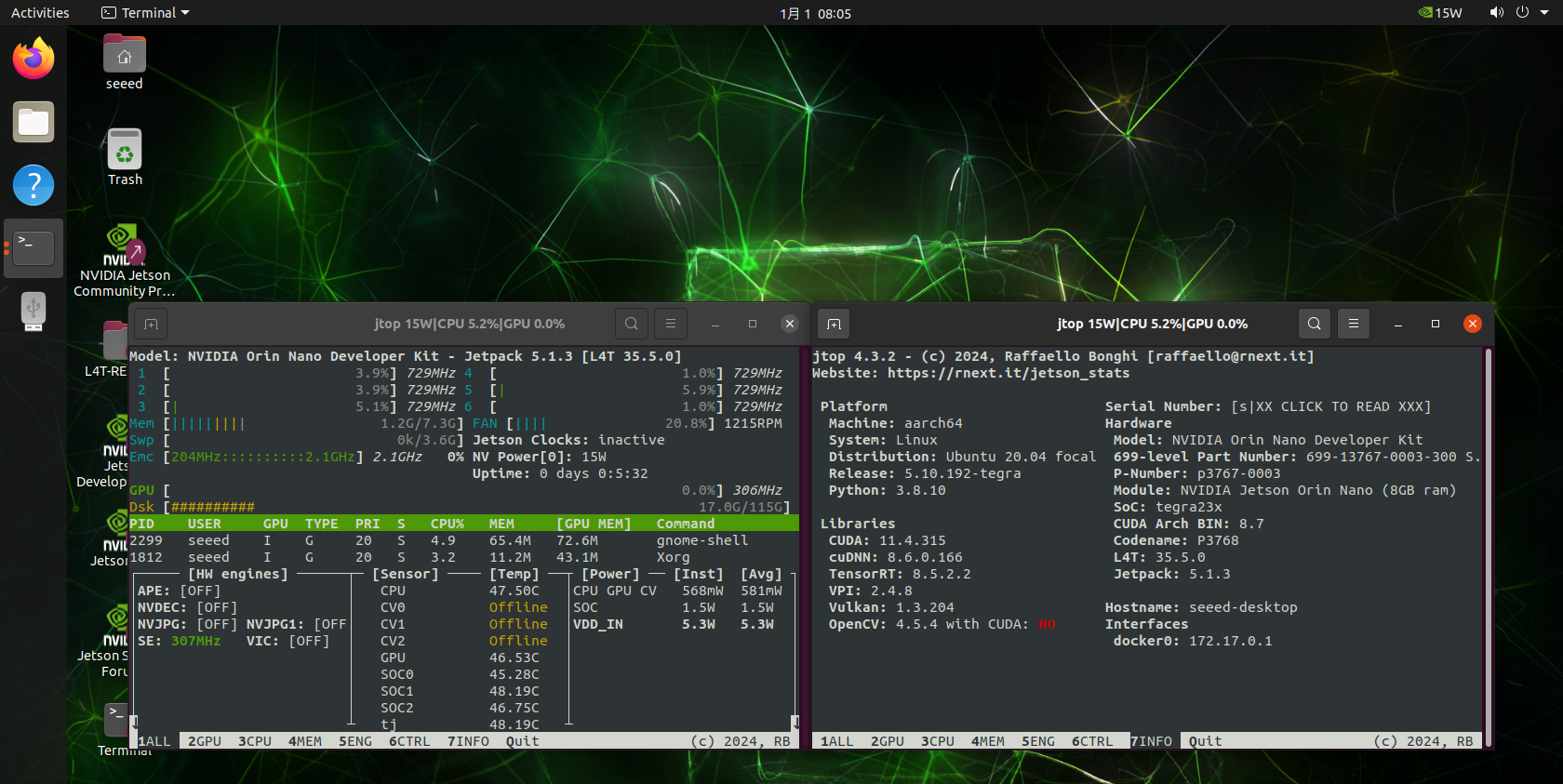
Like the screenshot above, we installed the jtop software, where we can use these commands on the terminal directly.
JetPack 5.1.3
Backing Up the System
Step 1. Setting the device into recovery mode refer to this wiki page.
Step 2. Obtain the JetPack BSP corresponding to your Jetson module. For JetPack 5.1.3, download the Jetson Linux R35.5.0 BSP from NVIDIA's official site.
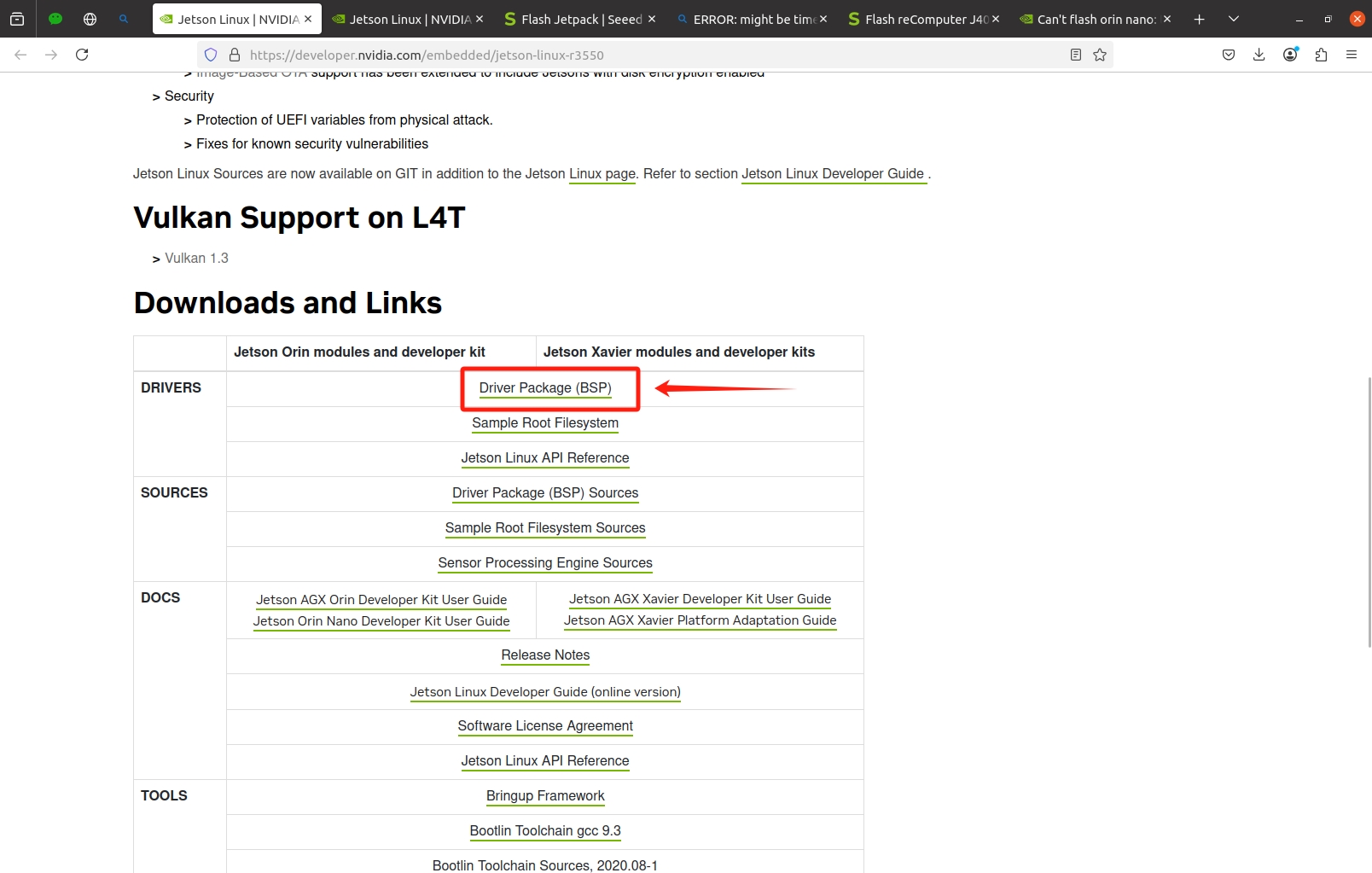
Step 3. Extract the BSP file to access the Linux_for_Tegra directory.
tar -xvzf jetson-linux-*.tbz2
# For Jetpack 5.1.3: tar -xvzf Jetson_Linux_R35.5.0_aarch64.tbz2
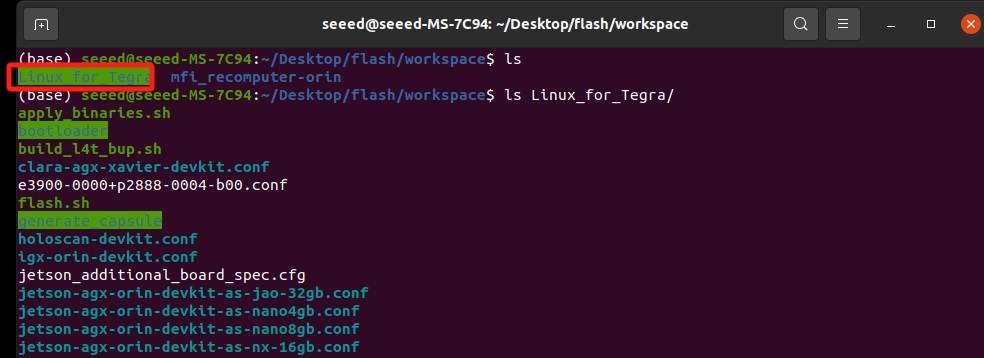
Step 4. Copy the contents of Linux_for_Tegra to your JetPack flashing package directory (e.g., mfi_recomputer-orin).
"flashing package directory" is the directory file used during the process of flashing the system.
Use the -rn options to preserve existing files:
sudo cp -rn Linux_for_Tegra/* mfi_recomputer-orin
Step 5. Navigate to your JetPack flashing package directory:
cd /path/to/mfi_recomputer-orin
Step 6. Execute the backup script, specifying your storage device and desired backup name:
sudo ./tools/backup_restore/l4t_backup_restore.sh -e nvme0n1 -b recomputer-orin
-b <target_board> replace with your device
you can navigate to your Jepack flashing package directory and find a xxx.conf file.
xxx is your <target_board>
ls | grep *.conf

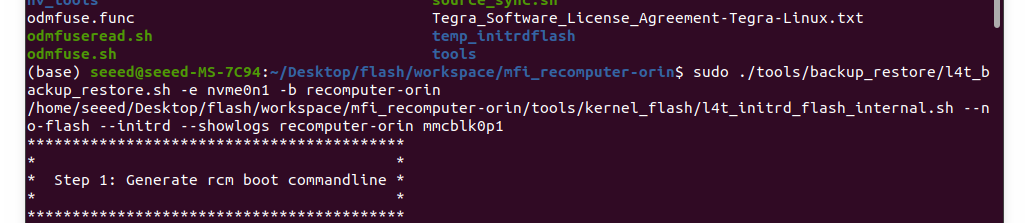
wait patiently until it finished. If all goes well, you will see something similar to the screenshot below in the terminal:

During this process, your device may reboot many times like the flashing process, you are not recommended to use virtual machines or WSL because it might lose connection and cause the backup/restore process failed. You may encounter some missing files; you can open the recomputer-orin.conf and remove the file that didn’t exist.
Usually these are temporary device tree overlay object files; they don't affect the backup and restore results. But if you made modifications to BSP, you will need to merge your overlay files.
Restoring the System
Step 1. Insert a new, empty SSD into your reComputer.
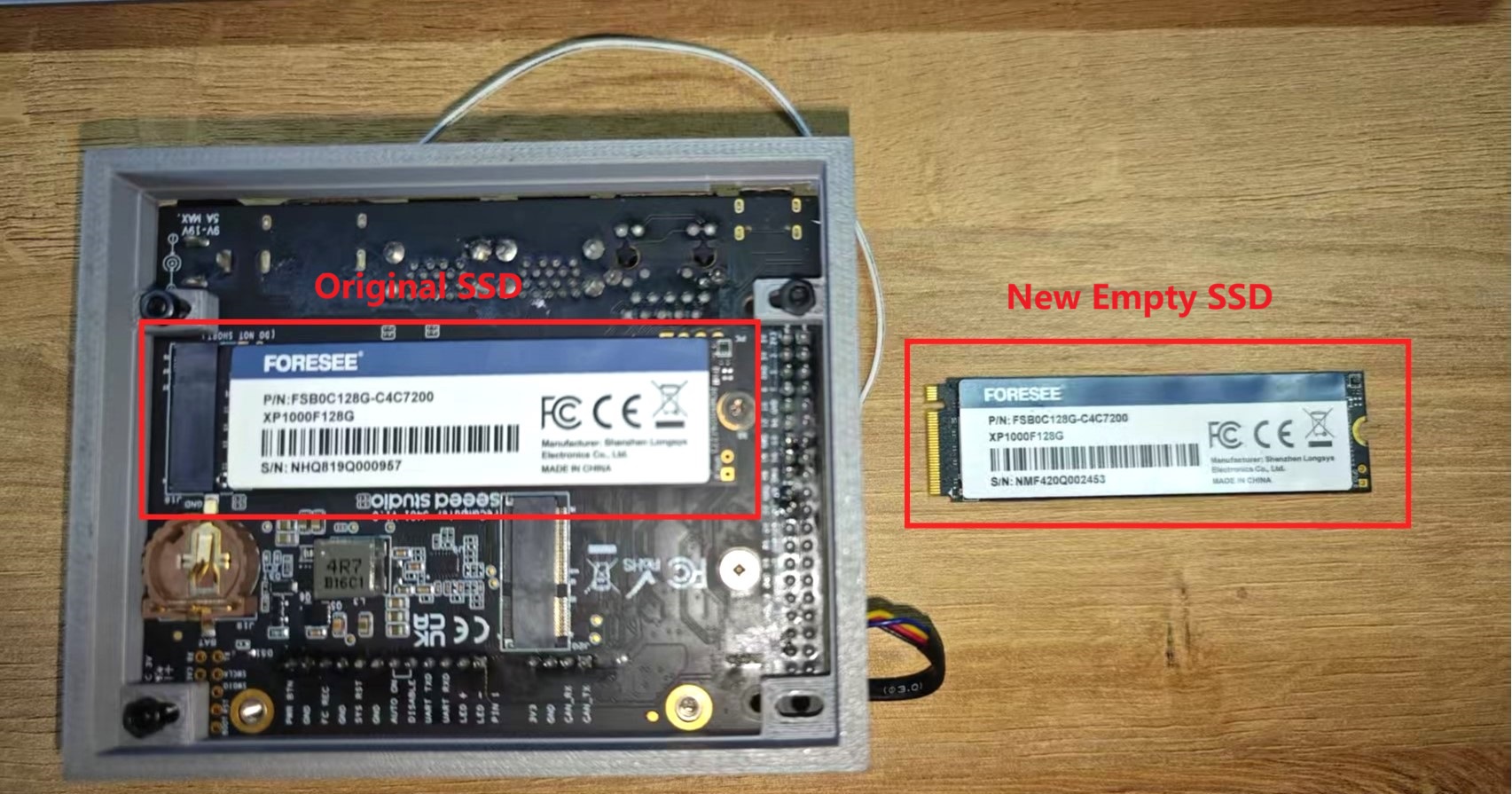
Step 2. Enter force recovery mode as previously described.
Step 3. On your host system, navigate to your JetPack flashing package directory and execute the restore command on host:
sudo ./tools/backup_restore/l4t_backup_restore.sh -e nvme0n1 -r recomputer-orin
If all goes well, you will see something similar to the screenshot below in the terminal:

Step 4. Power up the jetson device, use the username and password we previously set. And test some software we previously installed. If it worked, then our restore is successful.
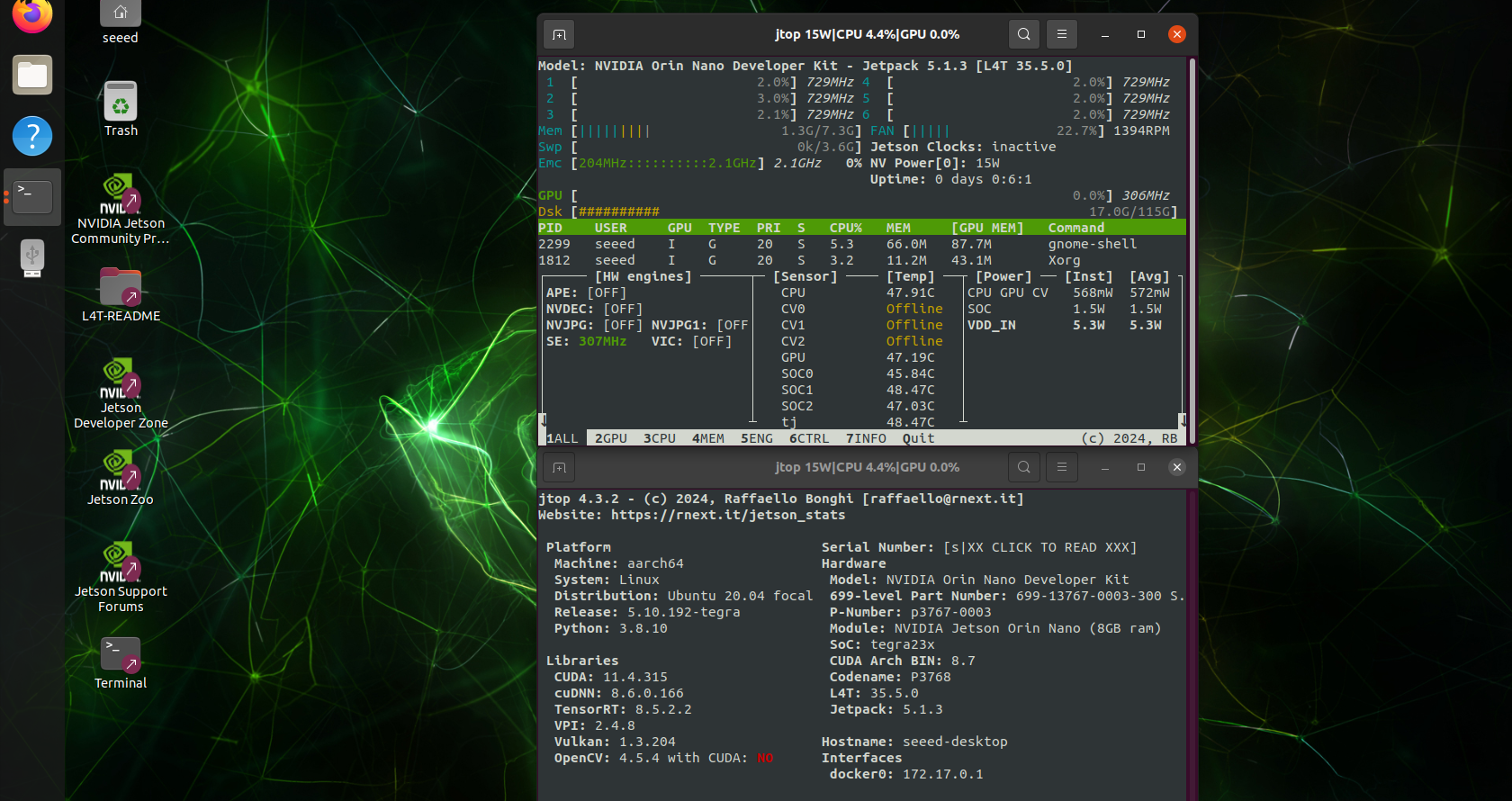
Because we had installed jtop in our previous system, we can directly launch jtop in the terminal of the new system.
Additionally, following cases have been tested for backup and restore:
- Restore the backup to original SSD.
- Restore the backup to different SSD.
- Restore the backup to same carrier board, with Jetson module in same batch, different SSDs.
JetPack 6.2
Backing Up the System
For JetPack 6.2 (L4T 36.4.3), the backup process requires downloading the compiled Seeed BSP firmware and compiling the source code before performing the backup.
Step 1. Download the compiled Seeed BSP firmware: L4T-36.4.3
Step 2. Extract the downloaded package and generate the necessary content using the following commands in your PC terminal:
sudo tar xpf L4T36-4-3_plus.tar
# For example: sudo tar xpf L4T36-4-3_plus.tar

cd Linux_for_Tegra/
sudo ./apply_binaries.sh
cd ..
Step 3. Set up environment variables in the extracted directory (where the tar.gz package is located):
export ARCH=arm64
export CROSS_COMPILE="$PWD/aarch64--glibc--stable-2022.08-1/bin/aarch64-buildroot-linux-gnu-"
export PATH="$PWD/aarch64--glibc--stable-2022.08-1/bin:$PATH"
export INSTALL_MOD_PATH="$PWD/Linux_for_Tegra/rootfs/"
Step 4. Navigate to the source directory and compile the source code (this process will take some time):
cd Linux_for_Tegra/source
./nvbuild.sh
Step 5. After compilation is complete, copy and install the compiled components:
./do_copy.sh
./nvbuild.sh -i
Step 6. The working directory is now prepared. Navigate to the Linux_for_Tegra/ directory,Setting the device into recovery mode refer to this wiki page and execute the backup script:
cd ../
sudo ./tools/backup_restore/l4t_backup_restore.sh -e nvme0n1 -b recomputer-orin-j401
-b <target_board> replace with your device. For JetPack 6.2, the default target board is recomputer-orin-j401.
Wait patiently until it finishes. If all goes well, you will see a success message in the terminal.
During this process, your device may reboot many times like the flashing process, you are not recommended to use virtual machines or WSL because it might lose connection and cause the backup/restore process failed.
Restoring the System
Step 1. Insert a new, empty SSD into your reComputer.
Step 2. Enter force recovery mode as previously described.
Step 3. On your host system, navigate to your Linux_for_Tegra/ directory and execute the restore command on host:
sudo ./tools/backup_restore/l4t_backup_restore.sh -e nvme0n1 -r recomputer-orin-j401
If all goes well, you will see a success message in the terminal.
Step 4. Power up the Jetson device, use the username and password we previously set. And test some software we previously installed. If it worked, then our restore is successful.
Additionally, following cases have been tested for backup and restore:
- Restore the backup to original SSD.
- Restore the backup to different SSD.
- Restore the backup to same carrier board, with Jetson module in same batch, different SSDs.
Resources
- Flash JetPack OS to J401 Carrier Board
- reComputer J30x Datasheet
- reComputer J40x Datasheet
- reComputer J30/J40 Schematic
- reComputer J30/J40 3D File
- Seeed Jetson Serials Catalog
- Seeed Studio Edge AI Success Stories
- Seeed Jetson Serials Comparision
- Seeed Jetson Devices One Page
- Jetson examples
- reComputer-Jetson-for-Beginners
FAQ
Which host can run the backup? An Ubuntu host with the USB Type-C cable connected to the reComputer. Do not run it in a virtual machine or WSL — the device reboots several times during the process and a dropped USB connection leaves a half-written image.
What do the -b and -r flags do?
-b reads the system image off the module into the flashing package directory; -r writes an image back to the NVMe. Both take -e nvme0n1 for the storage device and the target board name, which is recomputer-orin on JetPack 5.1.3 and recomputer-orin-j401 on JetPack 6.2.
The backup stops with missing file errors.
Temporary device-tree overlay objects referenced in recomputer-orin.conf may not exist. Remove those lines from the .conf file and rerun — they do not affect the image unless you modified the BSP, in which case merge your overlays instead.
Can the image go to a different SSD or a different unit? Yes. Restoring to the original SSD, to a different SSD, and to another unit of the same carrier board and module batch have all been tested. A different module SKU is a different image and is not covered.
Related Resources
- Flash JetPack onto reComputer J4012
- Deploy OTA updates on reComputer
- reComputer J3011 product page
- Jetson Linux R35.5.0 BSP
Tech Support & Product Discussion
Thank you for choosing our products! We are here to provide you with different support to ensure that your experience with our products is as smooth as possible. We offer several communication channels to cater to different preferences and needs.