🚨 Problem Description
Even without modifying any Jetson kernel-related content, the Jetson device encounters a UUID-related error during boot and enters the recovery terminal. This issue prevents normal system startup and requires manual intervention to resolve.
🔍 Symptoms
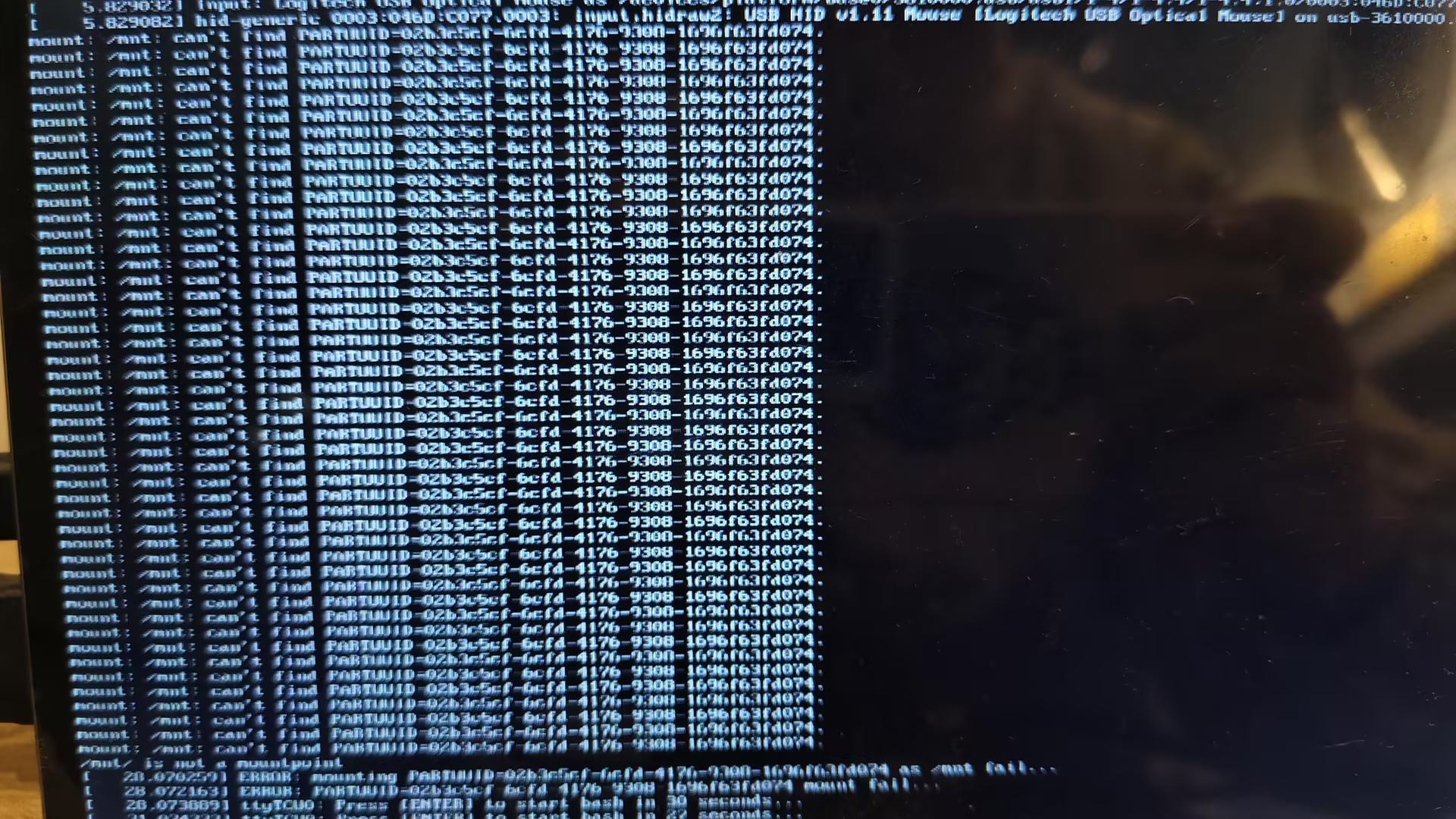
Unable to Access User Partition (UUID Error)
Initially, the system mysteriously fails to mount the user partition, resulting in continuous boot failures as shown in the image below:
System Enters Recovery Mode
The system then abnormally enters Recovery mode (rescue terminal):
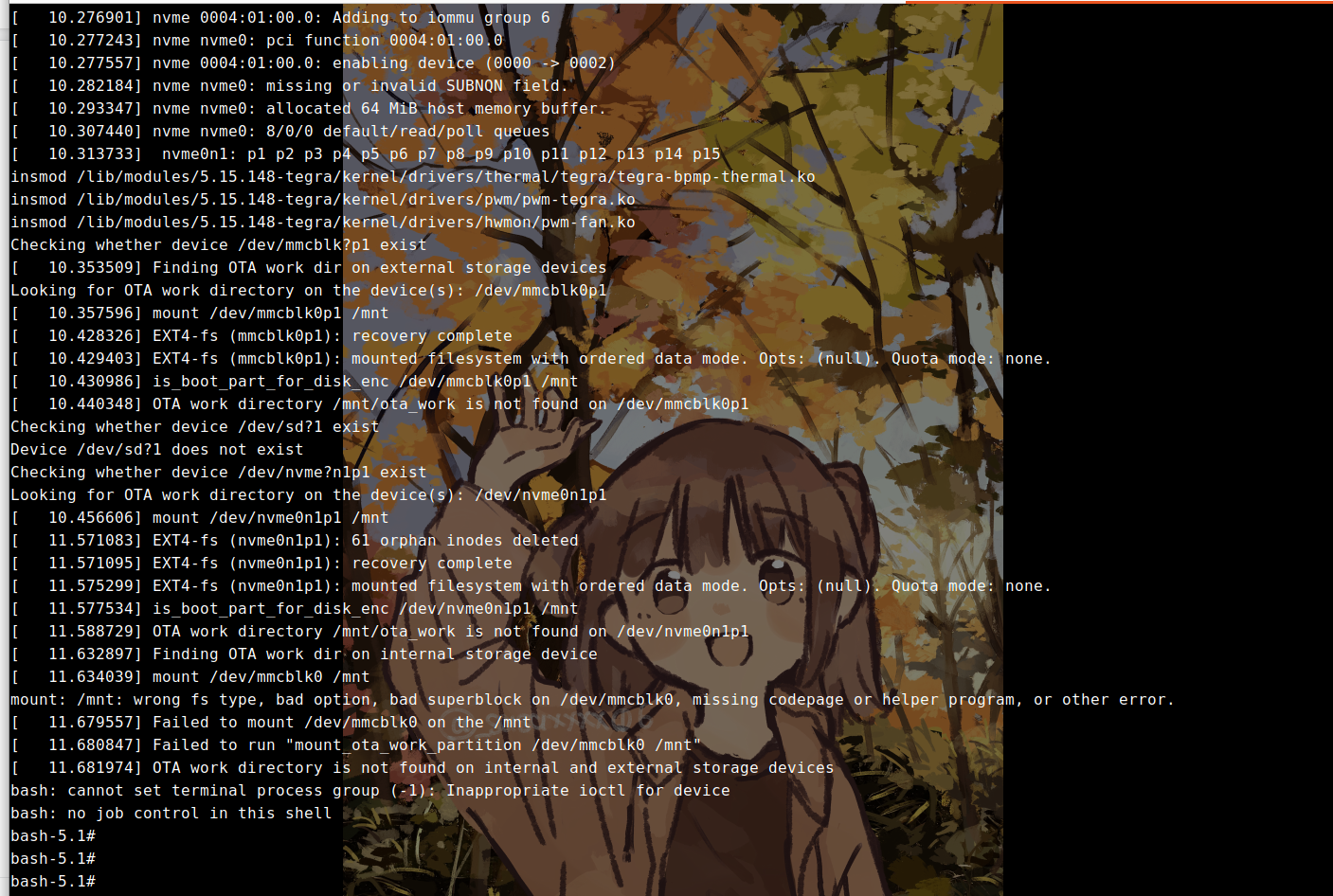
This issue typically occurs when the boot process encounters corrupted system files or incorrect partition flags, causing the system to fail normal startup and drop into a recovery shell environment. The UUID error indicates that the system cannot properly identify or mount the root filesystem, which is essential for normal operation.
🛠️ Solutions
Method 1: Clear OTA Flags and Replace initrd File
Possible Cause: The /boot/initrd image file is corrupted, causing the boot process to be interrupted.
Symptoms: The system cannot enter the normal OS during startup and repeatedly enters Recovery mode, dropping into the bash-5.1# shell.
Step 1: Mount EFI Variables in Recovery Terminal
First, mount the EFI variables filesystem in the recovery terminal:
mount -t efivarfs efivarfs /sys/firmware/efi/efivars
Step 2: Clear OTA Flag Variables
In the bash-5.1# shell environment, remove and delete the OTA flag bits:
1. Remove and clear L4T default boot mode flag:
chattr -i /sys/firmware/efi/efivars/L4TDefaultBootMode-781e084c-a330-417c-b678-38e696380cb9
rm /sys/firmware/efi/efivars/L4TDefaultBootMode-781e084c-a330-417c-b678-38e696380cb9
2. Remove and clear partition A status flag:
chattr -i /sys/firmware/efi/efivars/RootfsStatusSlotA-781e084c-a330-417c-b678-38e696380cb9
rm /sys/firmware/efi/efivars/RootfsStatusSlotA-781e084c-a330-417c-b678-38e696380cb9
3. Remove and clear partition B status flag:
chattr -i /sys/firmware/efi/efivars/RootfsStatusSlotB-781e084c-a330-417c-b678-38e696380cb9
rm /sys/firmware/efi/efivars/RootfsStatusSlotB-781e084c-a330-417c-b678-38e696380cb9
Step 3: Power Down the System
After clearing the erroneous flag bits, shut down and power off the Jetson device.
Step 4: Replace the /boot/initrd File
Replace the /boot/initrd file using an SSD enclosure to connect the Jetson's SSD to a PC. It's recommended to backup the old initrd file before replacement.
Detailed Steps:
- Remove the drive: Take the SSD out of the development board and connect it to a PC (Linux environment) using an SSD enclosure.
- Mount the partition: Mount the system root partition (RootFS) from the SSD.
- Replace the file:
- a. Locate the
/boot/initrdfile in the mount point. - b. Replace it with a new, verified working initrd image (or a newly compiled image).
- a. Locate the
- Recovery test: Reinstall the SSD back into the development board and power it on.
Download Links for initrd Files:
🔗 L4T 36.4.0 (JetPack 6.1): Click to download
🔗 L4T 36.4.3 (JetPack 6.2): Click to download
🔗 L4T 36.4.4 (JetPack 6.2.1): Click to download
Step 5: Restart the Jetson
After completing the file replacement, restart the Jetson device.
🔄 Method 2: Fresh Installation Approach
Prepare a
The content on the old SSD will remain intact and should now boot properly.
Tech Support & Product Discussion
Thank you for choosing our products! We are here to provide you with different support to ensure that your experience with our products is as smooth as possible. We offer several communication channels to cater to different preferences and needs.