Deploy NVBlox with Orbbec Camera on Jetson AGX Orin

Introduction
Isaac ROS NVBlox is a high-performance GPU-accelerated 3D mapping framework developed by NVIDIA for real-time robotic perception. Unlike monocular depth estimation models, NVBlox consumes true depth input from RGB-D cameras or stereo cameras to construct accurate 3D scene representations.
It builds dense TSDF (Truncated Signed Distance Field) and ESDF (Euclidean Signed Distance Field) maps in real time, enabling high-quality 3D reconstruction, obstacle-aware navigation, and collision checking. NVBlox can also generate meshes, voxel-based cost maps, and 3D occupancy representations suitable for autonomous mobile robots (AMRs).
This makes it particularly valuable for edge AI applications where hardware constraints and computational efficiency are critical considerations. This wiki demonstrates how to deploy Isaac ROS NVBlox on Jetson AGX Orin with ROS 2 integration, using an Orbbec RGB-D camera and a mobile robot platform to achieve a fully on-device perception and navigation pipeline. 🚀
Prerequisites
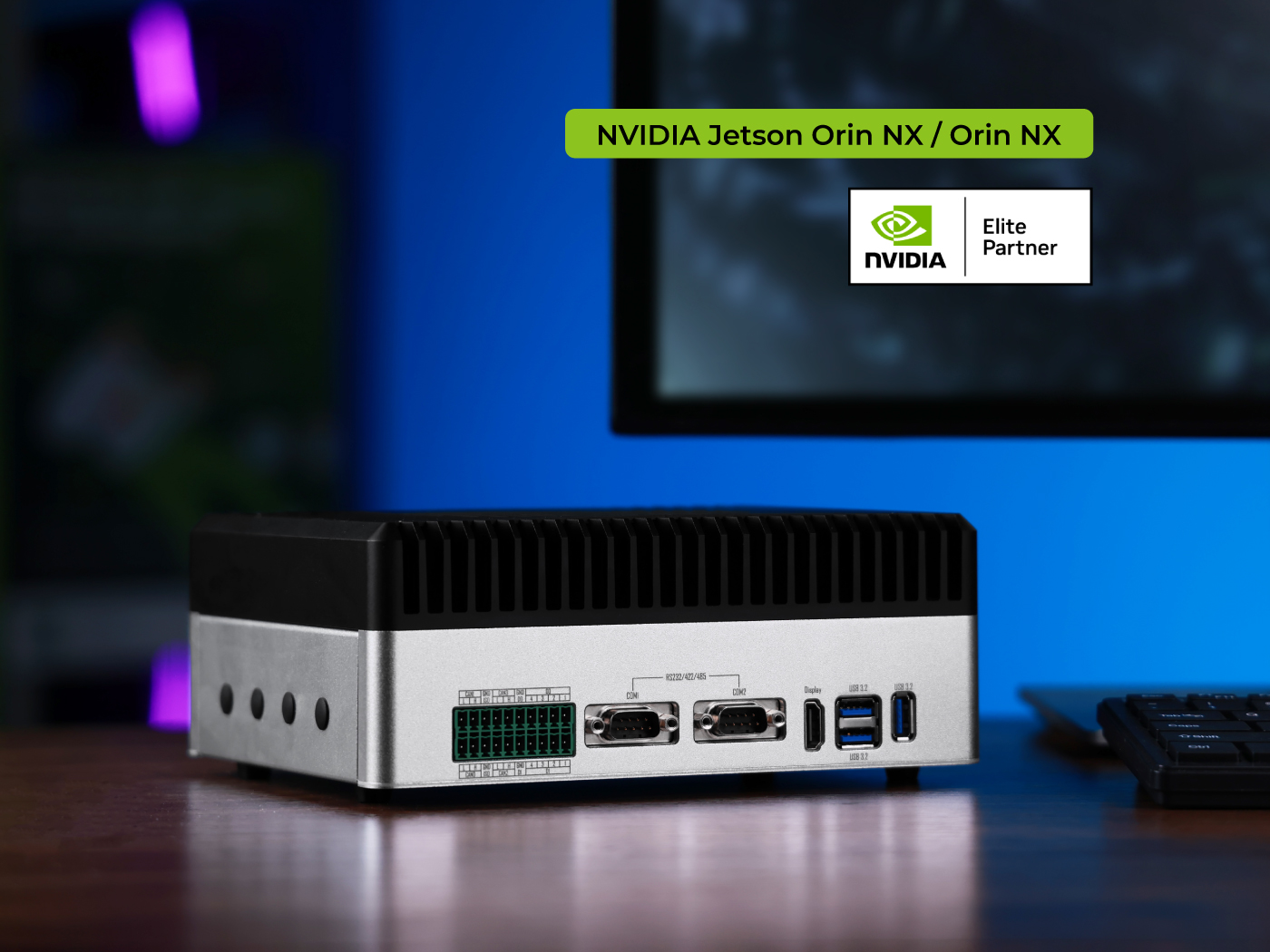
- reComputer J50 (Jetson AGX Orin) with JetPack 6.2.1
- Orbbec RGB-D Camera 📷
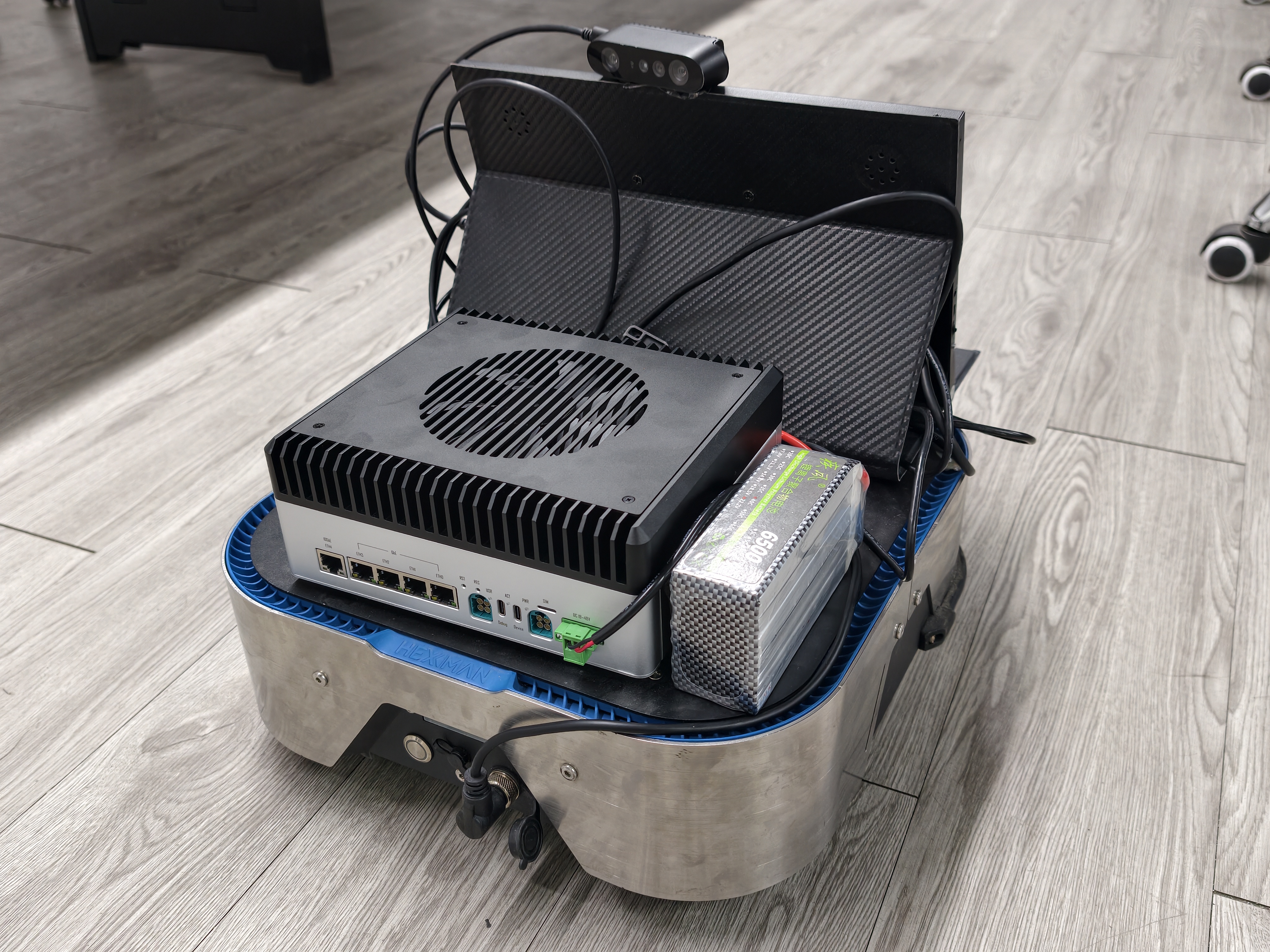
- Mobile robot chassis (optional) 🤖
- ROS2 Humble environment installed
- Orbbec ROS2 SDK installation required
- Isaac ROS installation required
Technical Highlights
-
Real-Time 3D Mapping: NVBlox generates dense TSDF and ESDF maps in real-time using GPU acceleration, enabling high-quality 3D scene reconstruction for robotics applications.
-
RGB-D Camera Integration: Leverages true depth information from Orbbec RGB-D cameras to create accurate 3D representations without relying on monocular depth estimation.
-
Optimized for Edge Deployment: Specifically designed for efficient inference on edge devices like Jetson AGX Orin, with CUDA optimization for maximum performance.
-
Navigation-Ready Outputs: Generates meshes, voxel-based cost maps, and 3D occupancy grids suitable for autonomous navigation and collision avoidance.
-
ROS2 Native Support: Provides seamless ROS2 Humble integration with standard robotics message types for easy integration into existing robotic systems.
Environment Setup
Install Basic Dependencies
Install the following dependencies in your terminal:
sudo apt update
sudo apt-get install python3-pip # Install Python3
sudo apt-get install nvidia-jetpack # Install developer tools
sudo pip3 install jetson-stats # Install Jtop to check JetPack version
sudo apt-get install git-lfs # Install Git LFS
Install Docker CE
Update software sources:
sudo apt-get update
Install basic dependencies:
sudo apt-get install \
    apt-transport-https \
    ca-certificates \
    curl \
    software-properties-common # Install essential packages to allow apt over HTTPS
Add Docker's official GPG key:
curl -fsSL https://download.docker.com/linux/ubuntu/gpg | sudo apt-key add -
Add Docker's stable repository:
sudo add-apt-repository \
   "deb [arch=arm64] https://download.docker.com/linux/ubuntu \
   $(lsb_release -cs) \
   stable"
Update package list again (new repository added):
sudo apt-get update
Install Docker CE (Community Edition):
sudo apt-get install docker-ce
Ensure Docker starts:
sudo systemctl enable docker
sudo systemctl start docker
Add permissions (add user to Docker group):
sudo usermod -aG docker $USER
Reboot system or logout:
sudo reboot
Install Isaac ROS 3.2
Create workspace and add to environment:
mkdir -p ~/workspaces/isaac_ros-dev/src
echo "export ISAAC_ROS_WS=${HOME}/workspaces/isaac_ros-dev/" >> ~/.bashrc
source ~/.bashrc
Enter workspace and clone packages:
cd ${ISAAC_ROS_WS}/src
git clone -b release-3.2 https://github.com/NVIDIA-ISAAC-ROS/isaac_ros_common.git
Pull official Isaac Common Docker image and enter Docker:
cd ${ISAAC_ROS_WS}/src/isaac_ros_common && \
  ./scripts/run_dev.sh
Running ./scripts/run_dev.sh will automatically install Isaac ROS and start the container.
Installing Isaac ROS requires logging into NVIDIA NGC in the terminal and entering your NGC account-generated API Key 🔑
Install Orbbec SDK ROS2
Using Orbbec RGB-D cameras requires installing the SDK driver. This guide uses the Build from Source method.
Install dependencies:
sudo apt install libgflags-dev nlohmann-json3-dev \
ros-$ROS_DISTRO-image-transport ros-${ROS_DISTRO}-image-transport-plugins ros-${ROS_DISTRO}-compressed-image-transport \
ros-$ROS_DISTRO-image-publisher ros-$ROS_DISTRO-camera-info-manager \
ros-$ROS_DISTRO-diagnostic-updater ros-$ROS_DISTRO-diagnostic-msgs ros-$ROS_DISTRO-statistics-msgs ros-$ROS_DISTRO-xacro \
ros-$ROS_DISTRO-backward-ros libdw-dev libssl-dev mesa-utils libgl1 libgoogle-glog-dev
Create a colcon workspace:
mkdir -p ~/ros2_ws/src

cd ~/ros2_ws/src
git clone https://github.com/orbbec/OrbbecSDK_ROS2.git
cd OrbbecSDK_ROS2
git checkout v2-main
Enter the working directory and compile:
cd ~/ros2_ws
colcon build --event-handlers console_direct+ --cmake-args -DCMAKE_BUILD_TYPE=Release
To allow Orbbec cameras to be recognized correctly on Linux, install the udev rules.
Enter the source code working directory and run the script:
cd ~/ros2_ws/src/OrbbecSDK_ROS2/orbbec_camera/scripts
sudo bash install_udev_rules.sh
sudo udevadm control --reload-rules && sudo udevadm trigger
If this script is not executed, opening the device will fail due to permission issues. You would need to run the sample with sudo (administrator privileges). ⚠️
Deploy NVBlox
Build NVBlox
Get the Orbbec camera-adapted NVBlox source code and copy it to the working directory:
git clone https://github.com/jjjadand/isaac-NVblox-Orbbec.git
cp -r isaac-NVblox-Orbbec/src/isaac_ros_nvblox/ ${ISAAC_ROS_WS}/src/
cp -r isaac-NVblox-Orbbec/src/isaac_ros_nitros/ ${ISAAC_ROS_WS}/src/
cp -r isaac-NVblox-Orbbec/build/ ${ISAAC_ROS_WS}/
Enter the workspace and start the Isaac ROS Docker container:
cd ${ISAAC_ROS_WS}/src/isaac_ros_common && \
  ./scripts/run_dev.sh
(Optional) If you encounter an error similar to the following:
Finished pulling pre-built base image: nvcr.io/nvidia/isaac/ros:aarch64-ros2_humble_4c0c55dddd2bbcc3e8d5f9753bee634c
Nothing to build, retagged nvcr.io/nvidia/isaac/ros:aarch64-ros2_humble_4c0c55dddd2bbcc3e8d5f9753bee634c as isaac_ros_dev-aarch64
Running isaac_ros_dev-aarch64-container
docker: Error response from daemon: failed to create task for container: failed to create shim task: OCI runtime create failed: could not apply required modification to OCI specification: error modifying OCI spec: failed to inject CDI devices: unresolvable CDI devices nvidia.com/gpu=all
You can try running the following command in the terminal to fix it:
sudo nvidia-ctk cdi generate --mode=csv --output=/etc/cdi/nvidia.yaml
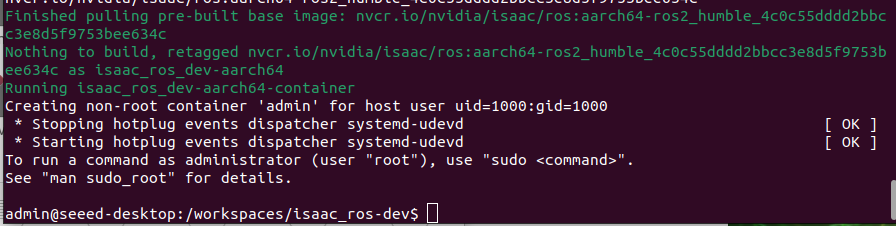
After successfully starting the container, you should see something like this:
Install additional dependencies:
sudo apt update
sudo apt-get install -y ros-humble-magic-enum
sudo apt-get install -y ros-humble-foxglove-msgs
Add CUDA environment variables to .bashrc:
echo '
CUDA_HOME=/usr/local/cuda
export PATH=$CUDA_HOME/bin:$PATH
export LD_LIBRARY_PATH=$CUDA_HOME/lib64:$LD_LIBRARY_PATH
export CUDACXX=$CUDA_HOME/bin/nvcc
' >> ~/.bashrc
Create symbolic links:
sudo ln -sf /opt/ros/humble/include/magic_enum.hpp /usr/include/magic_enum.hpp

sudo mkdir -p /opt/ros/humble/include/foxglove_msgs
sudo ln -sfn /opt/ros/humble/include/foxglove_msgs/foxglove_msgs/msg /opt/ros/humble/include/foxglove_msgs/msg
Build and initialize the workspace in /workspaces/isaac_ros-dev:
colcon build --symlink-install --cmake-args -DBUILD_TESTING=OFF
source install/setup.bash
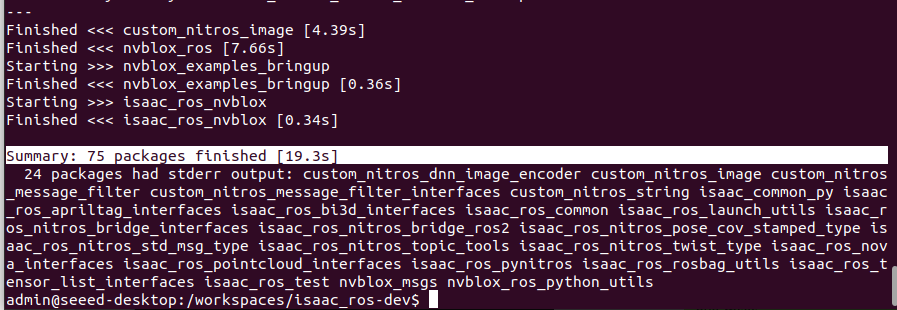
After compilation is complete, you should see results like this:
Launch NVBlox
After connecting the Orbbec camera to the Jetson via data cable, first start the Orbbec ROS2 script in the local environment:
cd ~/ros2_ws/src
source install/setup.bash

ros2 launch orbbec_camera <camera_name>.launch.py

# Example: ros2 launch orbbec_camera gemini2.launch.py
Here are some supported <camera_name> parameters:
- gemini210
- gemini2
- gemini2L
- gemini_330_gmsl
- gemini_330_series
Note that you should NOT start the Orbbec script inside the Docker container. Make sure you have installed the Orbbec driver following the previous tutorial. ⚠️
The Isaac ROS container bridges with locally published ROS2 by default. In the Docker container, enter:
ros2 topic list
Normally, you should see the following data topics published by the Orbbec camera in the Docker container:
/camera/accel/imu_info
/camera/color/camera_info
/camera/color/image_raw
/camera/depth/camera_info
/camera/depth/image_raw
/camera/depth/points
/camera/depth_filter_status
/camera/device_status
/camera/gyro/imu_info
/camera/gyro_accel/sample
/camera/ir/camera_info
/camera/ir/image_raw
Ensure you can read the Orbbec camera data topics. Then start the NVBlox example script in the Isaac ROS container:
cd ~/workspaces/isaac_ros-dev
source install/setup.bash

ros2 launch nvblox_examples_bringup orbbec_example.launch.py
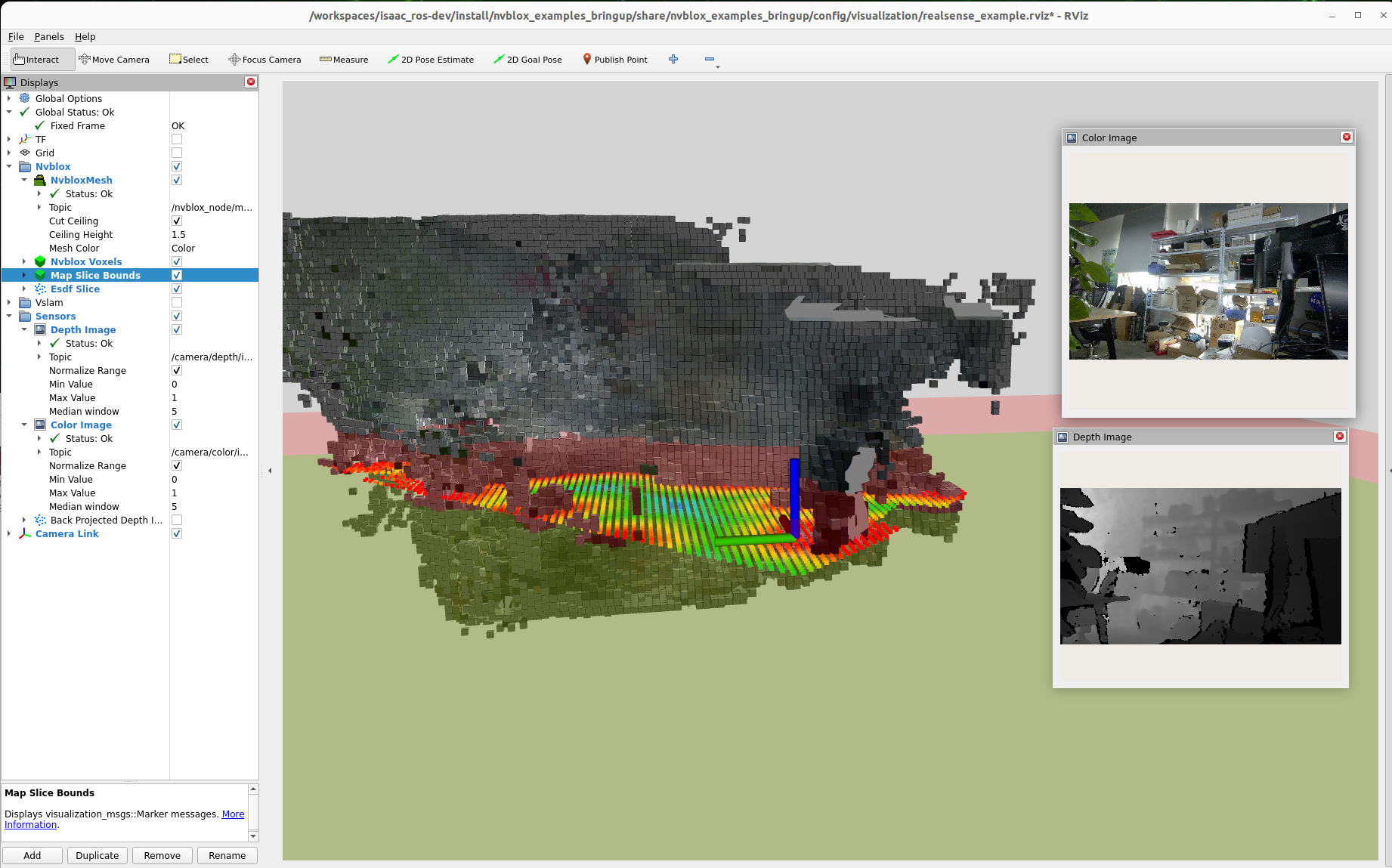
You can see NVBlox's output of 3D occupancy grids and meshes in RViz:
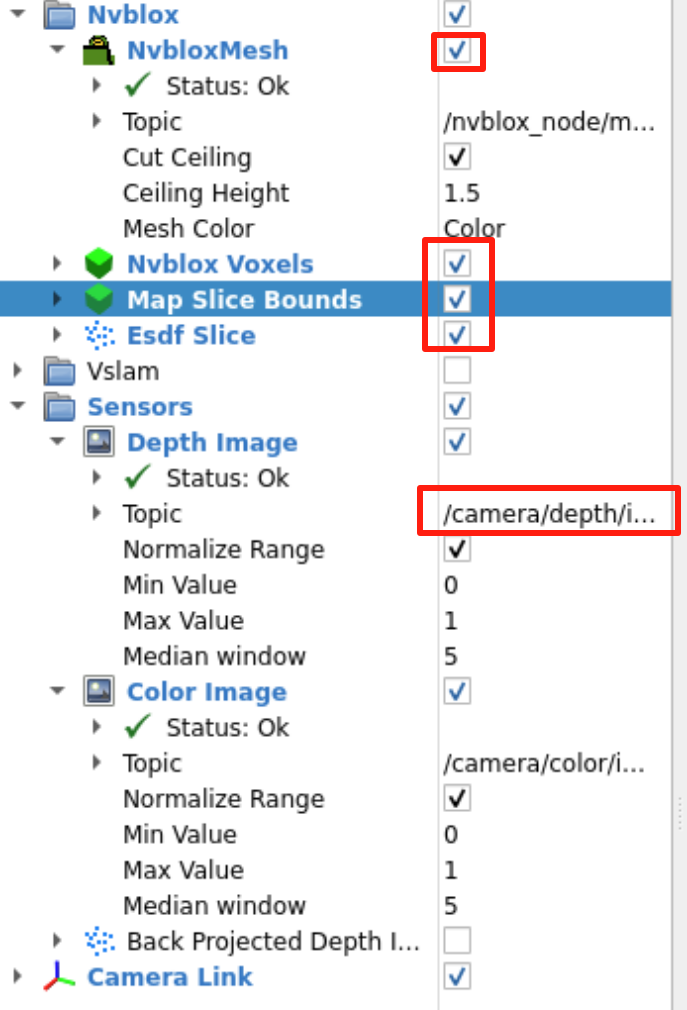
RViz can be configured as shown below. Enable the visualization results you want and select available topic names:
Finally, by mounting the AGX Orin and Orbbec camera on a mobile AGV, you can achieve the effect shown in the video: 🎥
This can be used for obstacle detection and building 3D mesh maps of scenes for mobile robots. 🤖
References
- Isaac ROS Common GitHub Repository
- Isaac ROS NVBlox GitHub Repository
- Isaac NVBlox Orbbec GitHub Repository
- ROS2 Humble Documentation
- Orbbec SDK ROS2 Documentation
Tech Support & Product Discussion
Thank you for choosing our products! We are here to provide you with different support to ensure that your experience with our products is as smooth as possible. We offer several communication channels to cater to different preferences and needs.