Develop reComputer Jetson using Clawdbot
Introduction
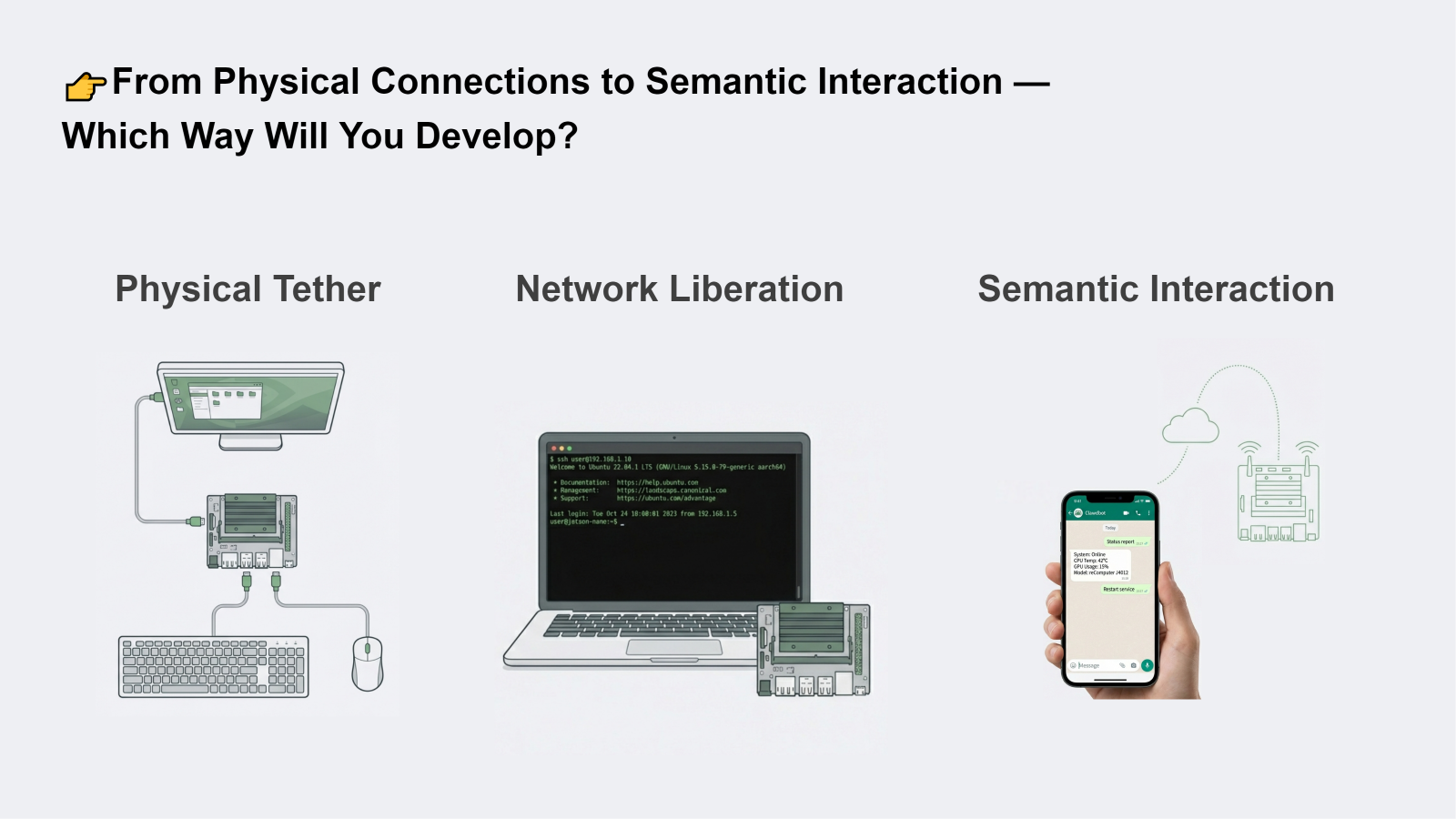
Traditionally, developing on a Jetson edge device required a physical setup with a monitor, keyboard, and mouse. Even with remote SSH access, developers still depended on terminal-based workflows and additional tools for monitoring and deployment. With Clawdbot, development becomes much simpler. Developers can now interact with the reComputer Jetson directly through a chat app like WhatsApp — sending messages to check device status, run commands, and debug scripts in a more convenient way.
This wiki shows how to deploy and use Clawdbot on reComputer Jetson.
Prerequisites
- reComputer Super J4012
- USB Camera
| reComputer Super J4012 | USB Camera |
|---|---|
 |  |
Hardware Connection
Connect the USB camera to a USB Type-A port on the Jetson device.
Getting Started
- Install Clawdbot on the Jetson device
Open a terminal on the Jetson device and run:
curl -fsSL https://molt.bot/install.sh | bash
- Configure Clawdbot
After installation, the setup page opens automatically. Follow the terminal prompts and pay attention to:
- Selecting the LLM and entering the API Key
- Choosing the interaction channel (WhatsApp in this example)
- Start the Clawdbot AI Agent
If everything is configured correctly, the agent starts automatically. Then open the WebUI in the Jetson device browser:
http://127.0.0.1:18789
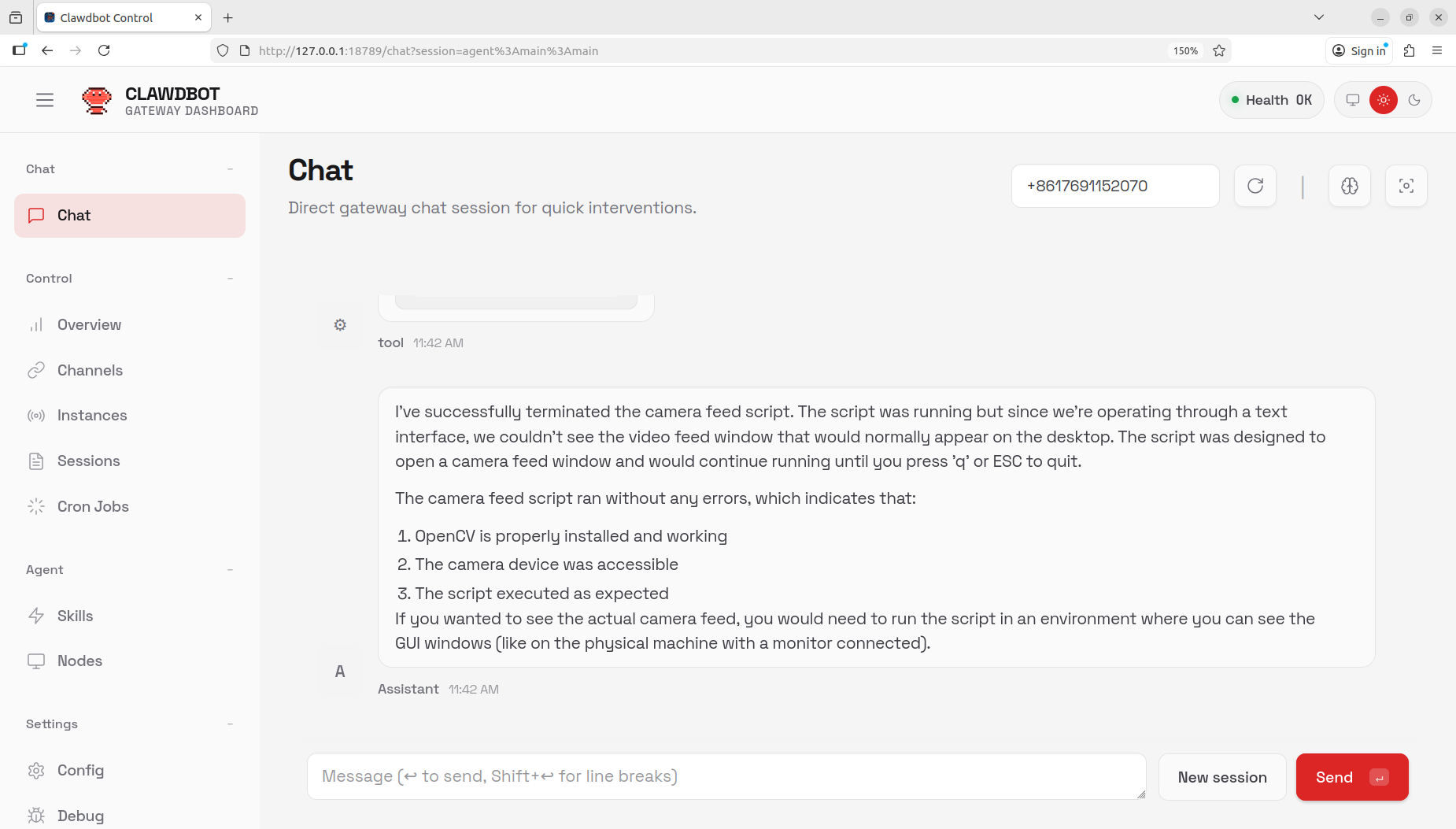
Now you can open WhatsApp on your phone and control the reComputer Jetson by sending messages to yourself.
Effect Demonstration
In the demo video, we used a mobile chat application to check the status of the Jetson device and developed a camera debugging script through chat-based interaction.
Tech Support & Product Discussion
Thank you for choosing our products! We are here to provide you with different support to ensure that your experience with our products is as smooth as possible. We offer several communication channels to cater to different preferences and needs.