EasySkyMesh IoT Firmware for Wio Tracker L1
EasySkyMesh is a community project based on MeshCore that focuses on building low-power firmware. This firmware enables the L1 Pro to achieve a 18-day battery life while maintaining the MeshCore communication function.
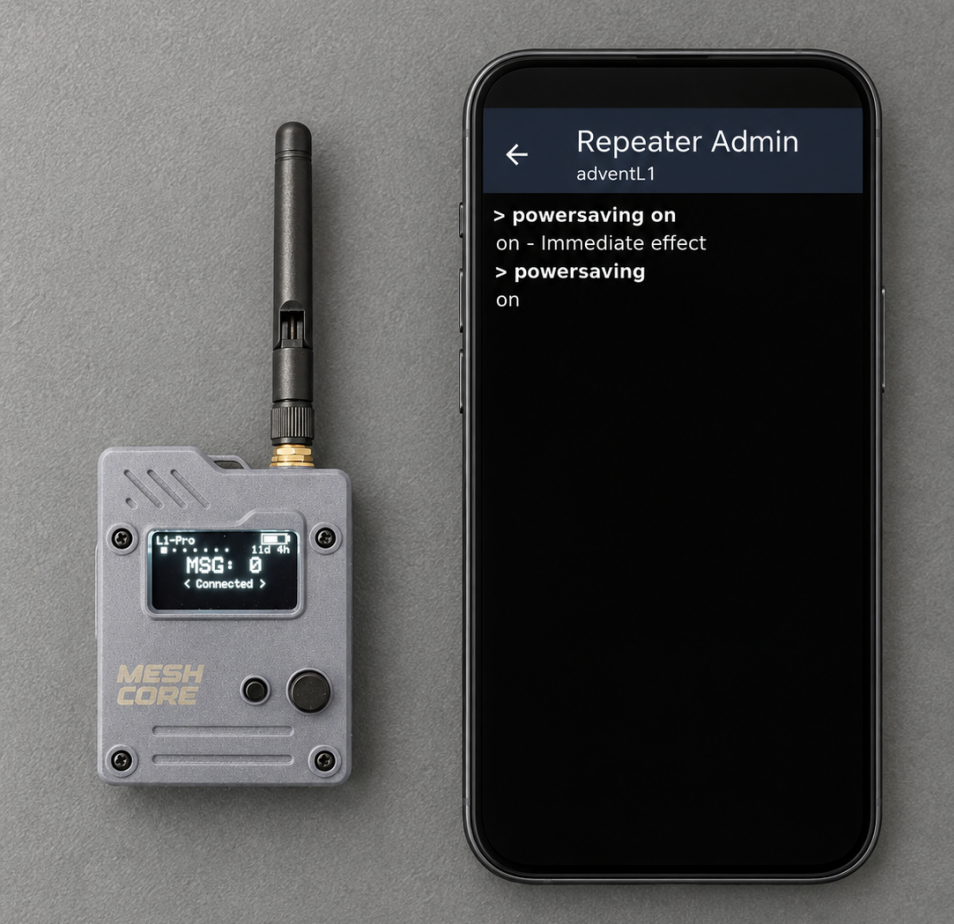
EasySkyMesh adds features for power saving and sensor data collection. Sensor data can be collected by MeshCore nodes and transmitted through an existing MeshCore network. It is particularly useful for:
- Low-power sensor networks
- Remote monitoring
- Solar-powered deployments
- Environmental monitoring
- Infrastructure monitoring
- IoT prototyping
Firmware Flashing
Hardware Preparation
Before flashing the firmware, prepare:
- Wio Tracker L1. Click here to get one.
- USB Type-C cable
- Computer
Connect the Wio Tracker L1 to your computer using the USB Type-C port.
Download EasySkyMesh Firmware
Go to the EasySkyMesh Releases page. Select a release that supports your board.
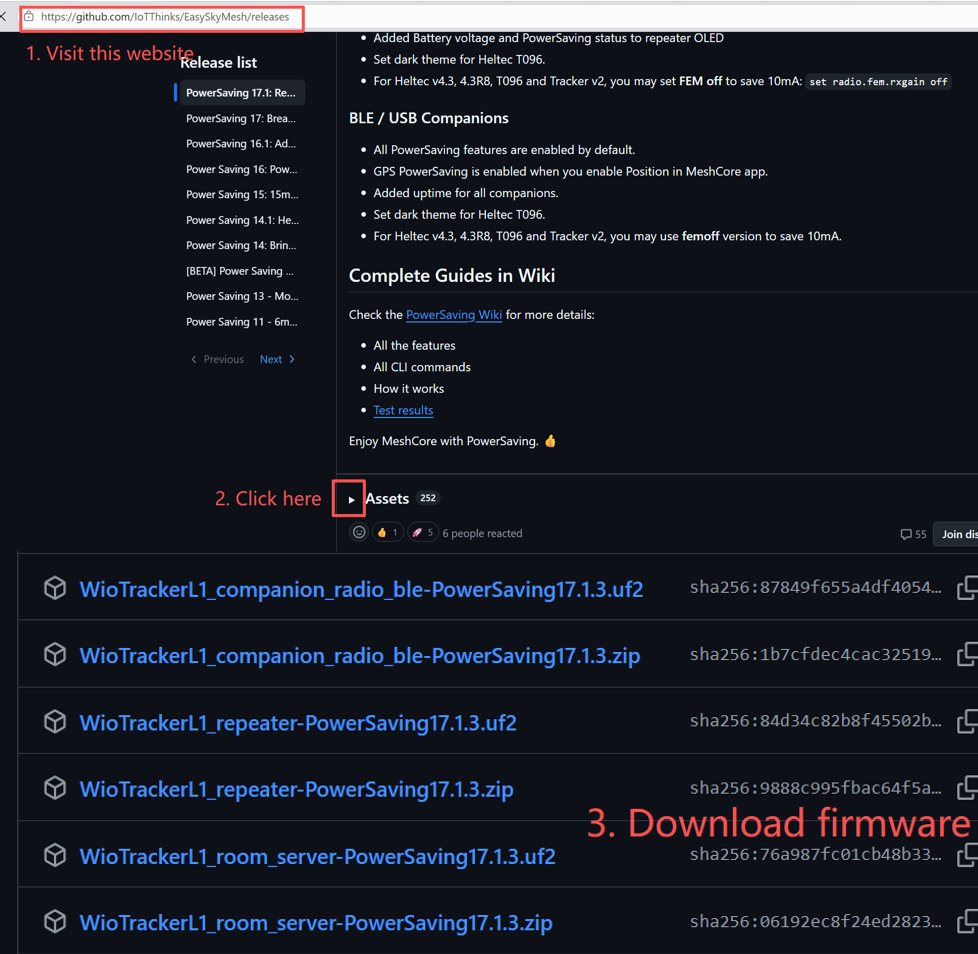
EasySkyMesh releases may provide different firmware files for different hardware and different upgrade scenarios. For a new installation, the project generally provides a fresh-install firmware image. For an existing installation, use the upgrade firmware when you want to preserve the existing configuration.
Flash the Firmware
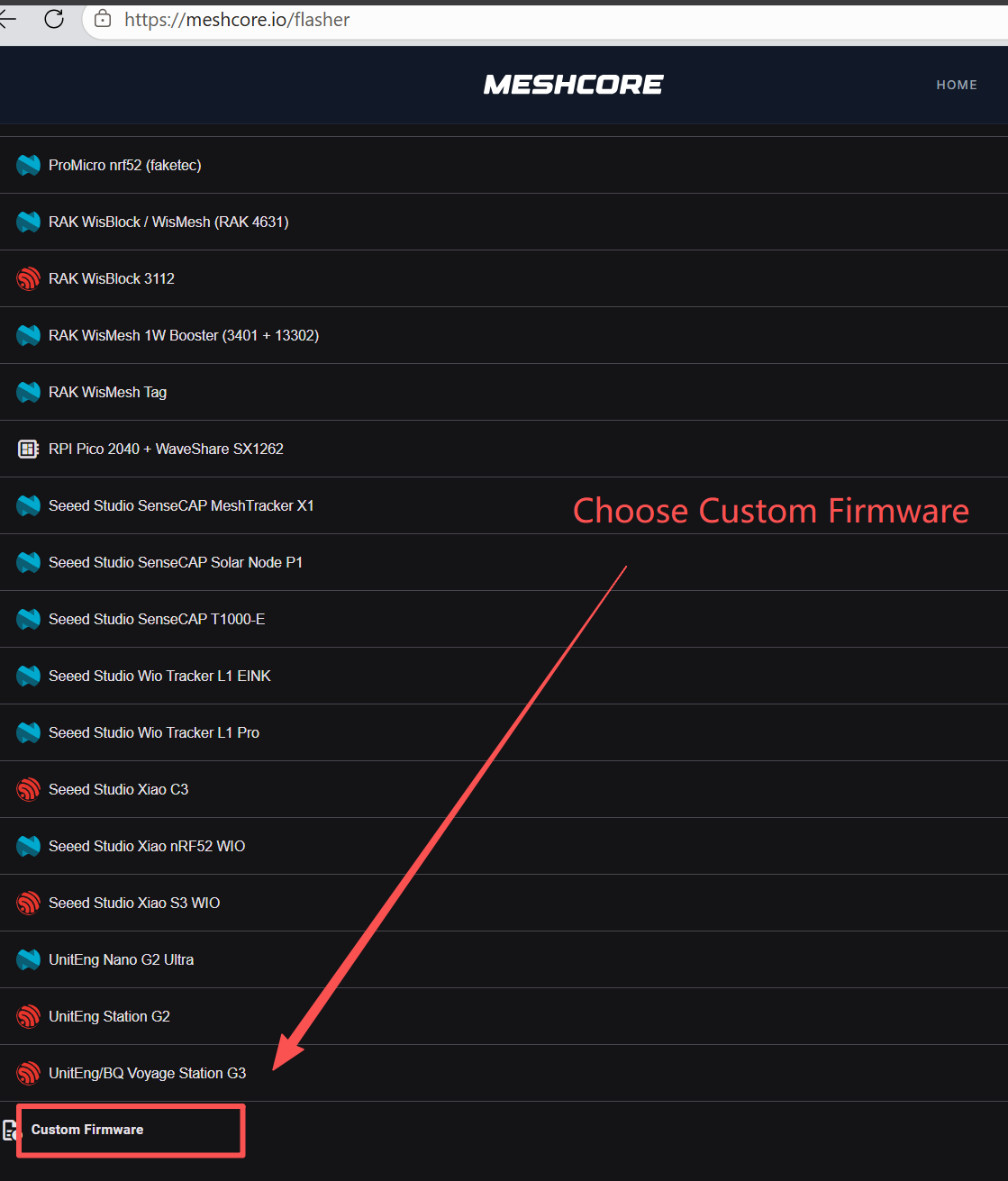
The EasySkyMesh project recommends using the MeshCore Web Flasher for supported devices.
Step1: Open MeshCore Web Flasher
Step2: Select Custom Firmware.
Step3: Select the EasySkyMesh firmware file.
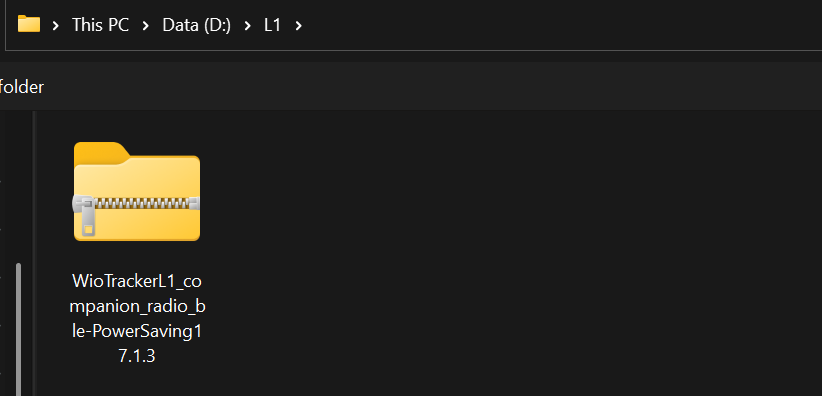
Step4: Enter DFU mode if required.
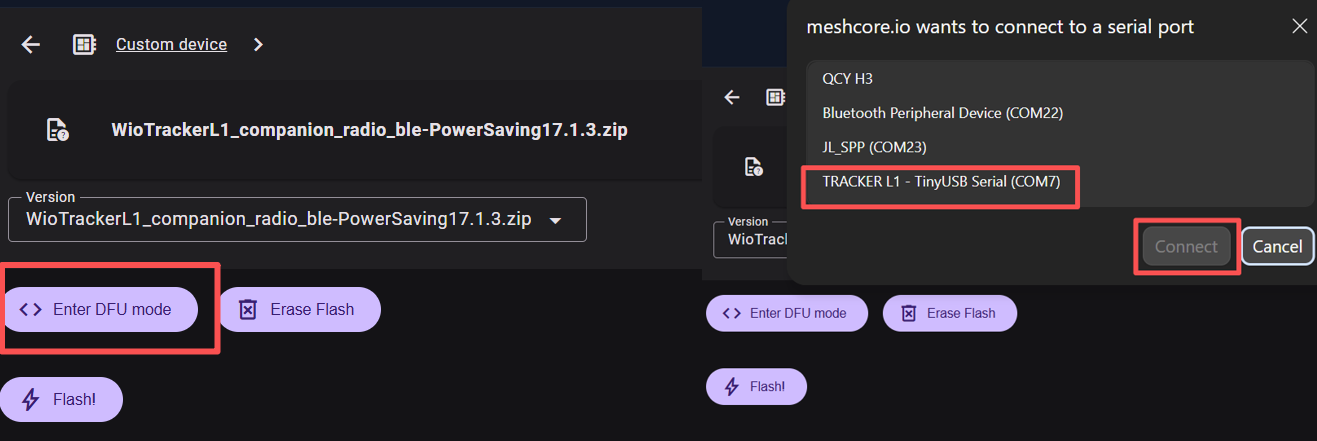
Step5: Start flashing. Wait until the flashing process is completed.
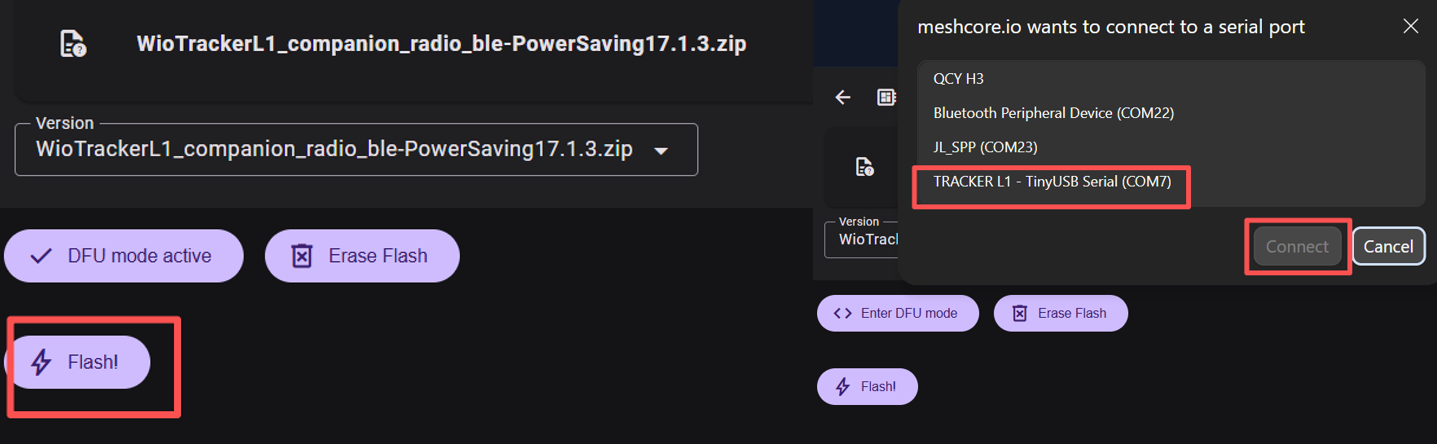
Step6: Reboot the device.
Power Saving
The project provides PowerSaving firmware releases with optimizations for different MeshCore boards. EasySkyMesh releases have introduced power-saving features for ESP32 and nRF52-based devices, as well as additional power-management functions for different MeshCore roles.
Companion Firmware
All PowerSaving features are enabled by default. RX PowerSaving is set as "balanced".
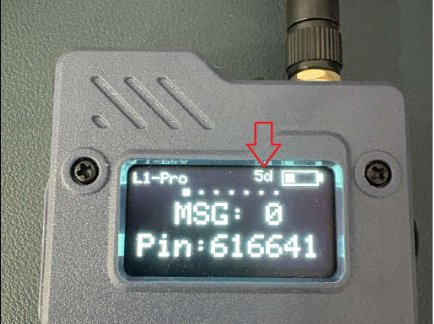
The uptime in m (minutes), h m (hours minutes) and d h (days hours) is shown on the left of the battery icon in the OLED.
Repeater & Room Server Firmware
Powersaving is off by default. You can enable PowerSaving through the MeshCore CLI.
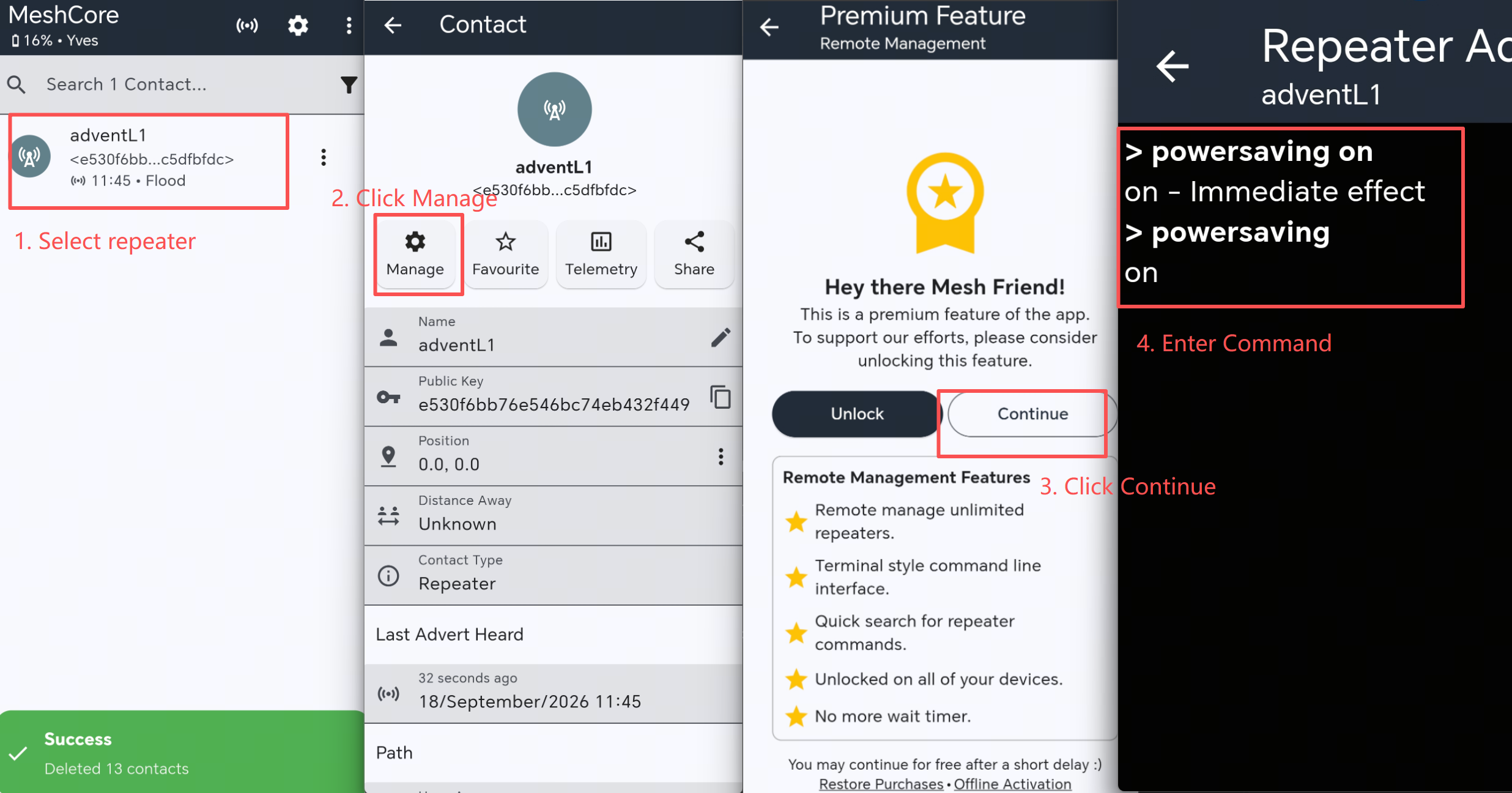
Enable powersaving by:
powersaving on
To check the current PowerSaving status:
powersaving
Click here to use more commands.
Sensor Support
EasySkyMesh extends MeshCore with sensor support, allowing sensor readings to be collected and transmitted through the existing MeshCore network. The project currently documents support for several common I2C sensors, including:
| Sensor | Measurement | I2C Address |
|---|---|---|
| AHT10 / AHT20 | Temperature / Humidity | 0x38 |
| BME280 | Temperature / Humidity / Pressure | 0x76 |
| BME680 | Temperature / Humidity / Pressure / Gas | 0x76 |
| BMP280 | Temperature / Pressure | 0x76 |
| SHTC3 | Temperature / Humidity | 0x70 |
| SHT4X | Temperature / Humidity | 0x44 |
| LPS22HB | Temperature / Pressure | 0x5C |
| INA3221 | Voltage / Current / Power | 0x42 |
| INA219 | Voltage / Current / Power | 0x40 |
| INA260 | Voltage / Current / Power | 0x41 |
| INA226 | Voltage / Current / Power | 0x44 |
| MLX90614 | Non-contact Temperature | 0x5A |
| VL53L0X | Distance | 0x29 |
Some firmware versions can automatically select the I2C address for sensors such as BME280, BME680, and BMP280.For supported EasySkyMesh versions, the sensor CLI command can be used to check the I2C and GPS serial pins:
sensor
Troubleshooting
The Device Does Not Appear in the Flasher
- Make sure the USB cable supports data transfer.
- Reconnect the Wio Tracker L1.
- Enter DFU mode again.
- Refresh the Web Flasher.
- Try another USB port or cable.
The Sensor Is Not Detected
Check:
- VCC and GND wiring.
- SDA and SCL wiring.
- Sensor operating voltage.
- I2C address.
- EasySkyMesh firmware version.
- Whether the sensor is listed as supported.
If the problem persists, check the EasySkyMesh GitHub repository for the latest documentation and issues.
Resources
Tech Support & Product Discussion