Getting Started with XIAO ePaper Display Board - EN04
| XIAO ePaper Display Board EN04 |
|---|
 |
Introduction
Powered by XIAO nRF52840 Plus, the display board EN04 supports both 24-pin and 50-pin ePaper displays. It features a JST 2.0 mm battery connector with power switch, built-in charging IC, NFC function and comes with one reset and three user buttons. Well-suited for low-power ePaper projects such as digital signage, electronic labels, and portable information boards.
Featrue
- Powered by XIAO nRF52840 Plus: Works immediately when connected to a compatible ePaper display.
- Versatile Display Support: Compatible with a wide range of ePaper screens, supporting both 24-Pin and 50-Pin interfaces with easy switching via jumper caps.
- BAT Connector with Switch: Provides simple battery connection and integrates a switch, enabling efficient power management and energy savings.
- User-Friendly Buttons: Includes 1 reset button and 3 user-programmable buttons, offering flexibility for project acceleration and customizable functions.
Specification
| Parameter | Description |
|---|---|
| Processor | XIAO nRF52840 Plus |
| ePaper Connector | FPC 24 Pin 0.5mm FPC 50 Pin 0.5mm |
| Battery Connector | JST 2.0mm |
| Switch | Battery Power ON/OFF |
| Power Supply | - 3.7V Li-Battery - USB Type-C |
| Button | - 1x Reset button - 3x User button |
ePaper Board Selection Guide
| Product | ePaper Display Board EN04 | ePaper Breakout | ePaper Driver Board |
|---|---|---|---|
| Processor | XIAO nRF52840 Plus | XIAO Series | XIAO Series |
| Compatible ePaper Displays | 24 Pin ePaper 50 Pin ePaper | 24 Pin ePaper | 24 Pin ePaper |
| ePaper Connector | FPC 24 Pin, 0.5mm FPC 50 Pin, 0.5mm | FPC 24 Pin 0.5mm | FPC 24 Pin 0.5mm |
| Battery Connector | JST 2.0mm | / | JST 2.0mm |
| Switch | Battery Power ON/OFF | / | Battery Power ON/OFF |
| Button | 1x Reset button 3x User button | / | / |
| Extension IO Port | / | connection of others controller | connection of additional sensors |
Application
- Smart Home Dashboard: Display real-time information such as weather updates, calendar events, and notifications from various smart home devices.
- Energy Monitoring: Show energy consumption data from smart meters, helping homeowners track and manage their energy usage more efficiently.
- Security Alerts: Display alerts and notifications about security events, such as motion detection or door/window sensor activation.
- Smart Thermostat Display: Show temperature and humidity levels, as well as control settings for your smart thermostat.
- Digital Photo Frame: Create a WiFi-enabled digital photo frame that can display images from your smart home network.
Hardware Overview

Supported ePaper
24-Pin Connector
- 1.54-inch ePaper - Monochrome 200x200
- 2.13-inch ePaper -Flexible Monochrome 212x104
- 2.13-inch ePaper - Quadruple 212x104
- 2.9-inch ePaper - Monochorm 128x296
- 2.9-inch ePaper - Quadruple color 128x296
- 4.2-inch ePaper - Monochorm 400x300
- 4.26-inch ePaper - Monochorm 800x480
- 5.83-inch ePaper - Monochorm 648x480
- 7.5-inch ePaper - Monochorm 800x480
- 7.5-inch ePaper - Tri-Color 800x480
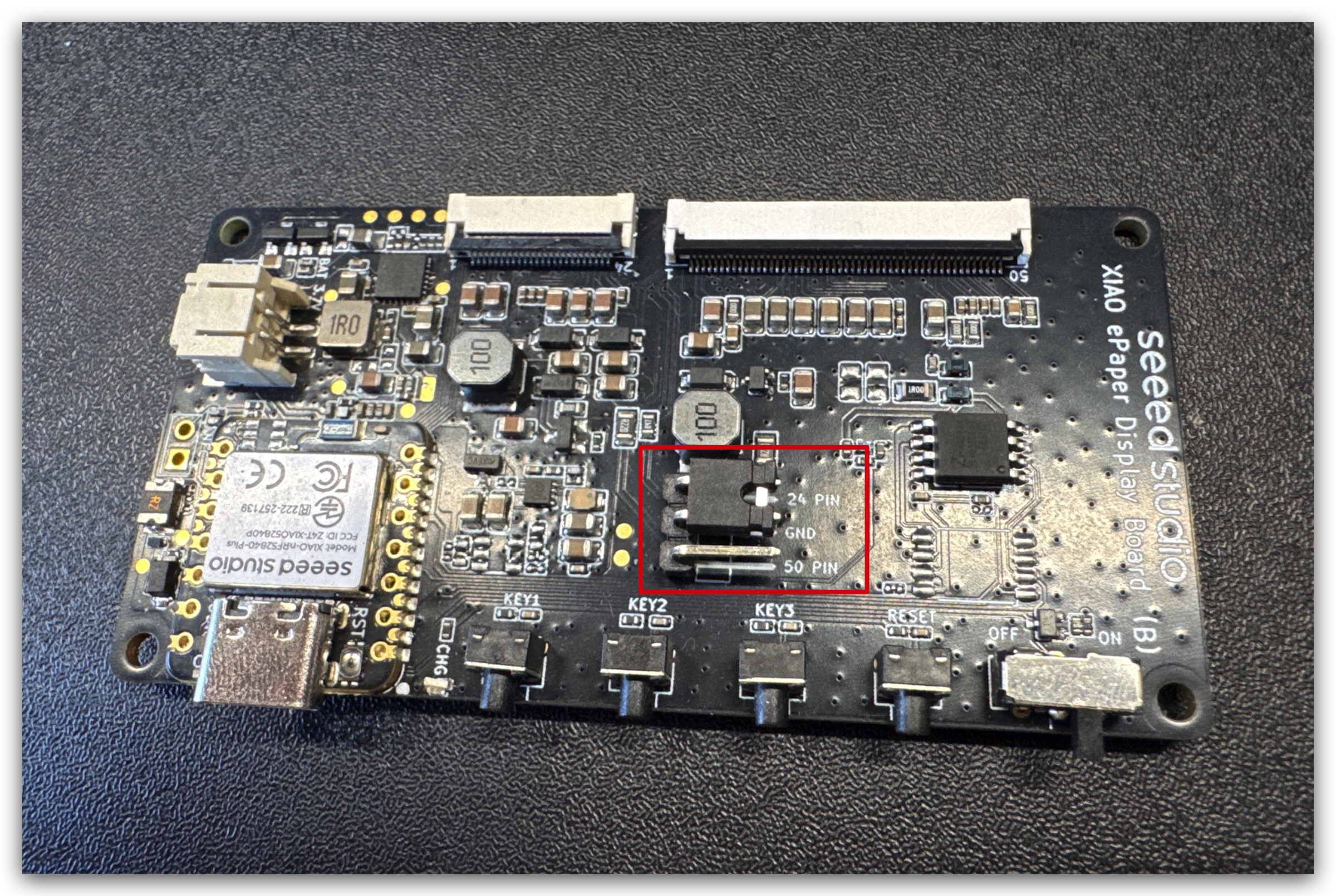
When using the XIAO ePaper Display Board, make sure to set the jumper according to the ePaper display type:
- For 24 Pin ePaper displays → set the jumper to 24 Pin
⚠️ Using the wrong jumper setting may cause the ePaper to fail to display or show abnormal content. Always double-check the jumper position before powering on.
50-Pin Connector
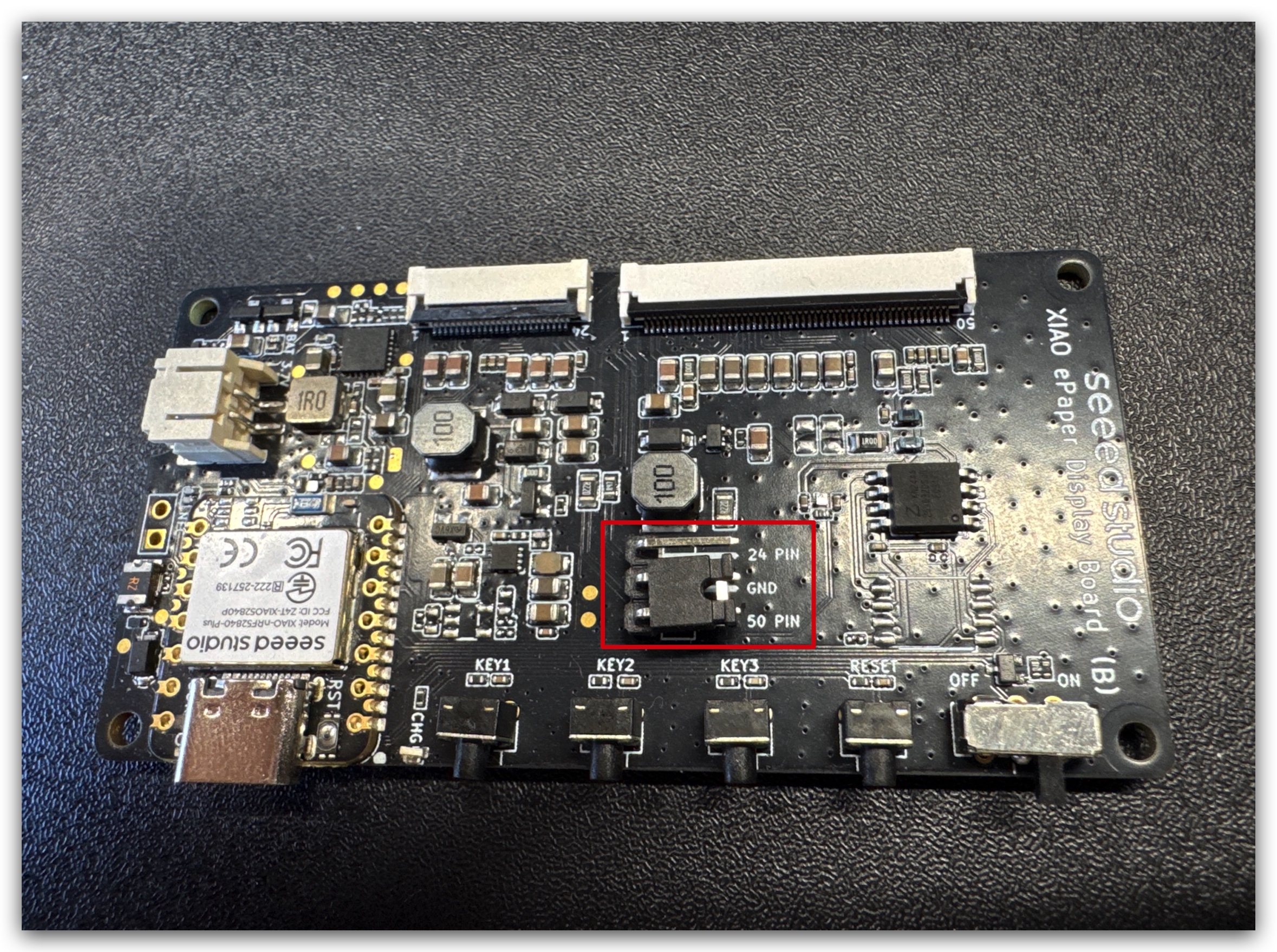
When using the XIAO ePaper Display Board, make sure to set the jumper according to the ePaper display type:
- For 50 Pin ePaper displays → set the jumper to 50 Pin
⚠️ Using the wrong jumper setting may cause the ePaper to fail to display or show abnormal content. Always double-check the jumper position before powering on.
Software Overview
Install Seeed GFX Library
This library has same function as TFT library and no compatible with it. If you have installed TFT library or other similary display libraries, please uninstall it first.
Download and install the Seeed GFX library from GitHub.

Scroll down and open this link.

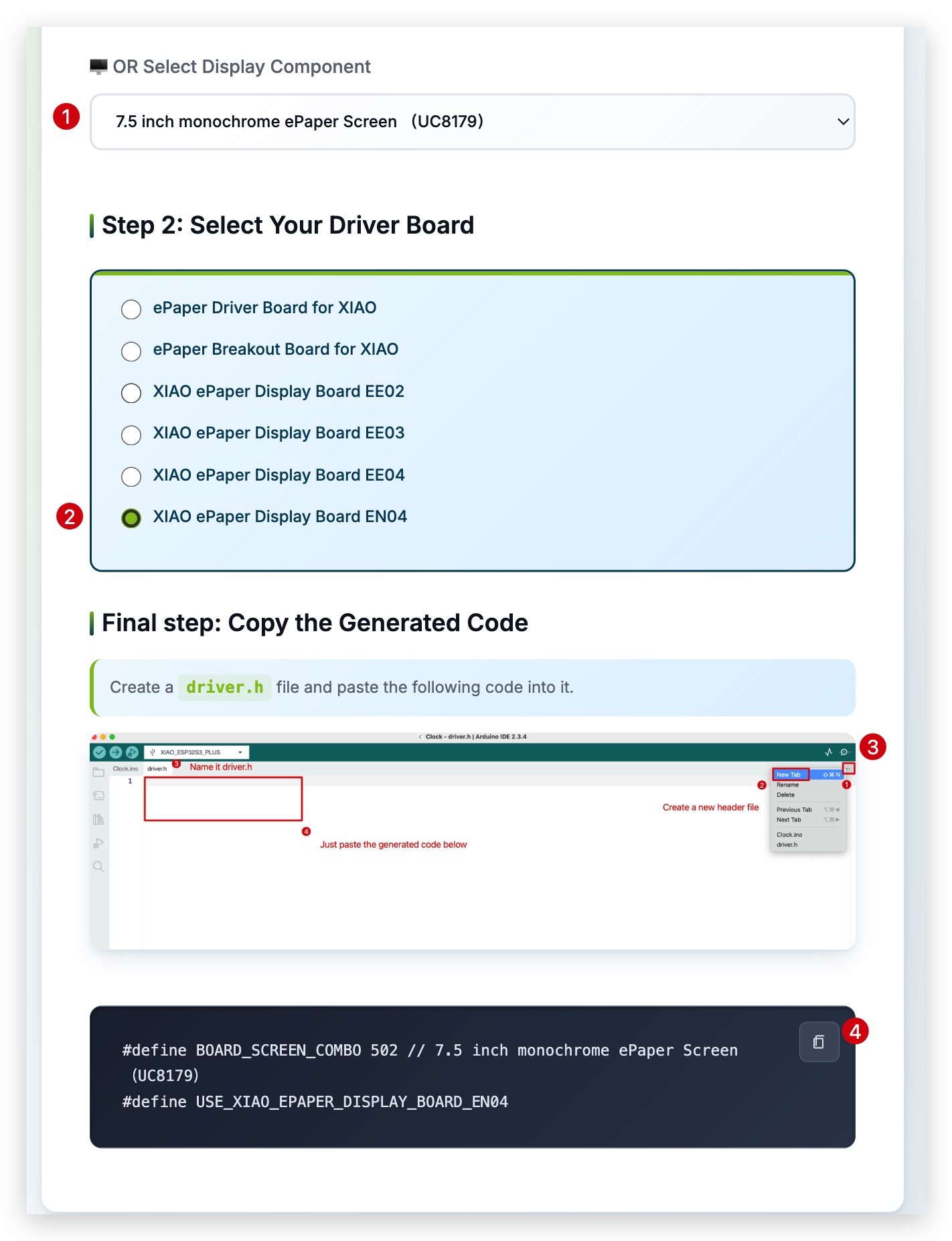
Select your device type and it will generate some code. Copy those code and we will use them later.
If you make the wrong choice, the screen will display nothing.
So please make sure your devices or components type.
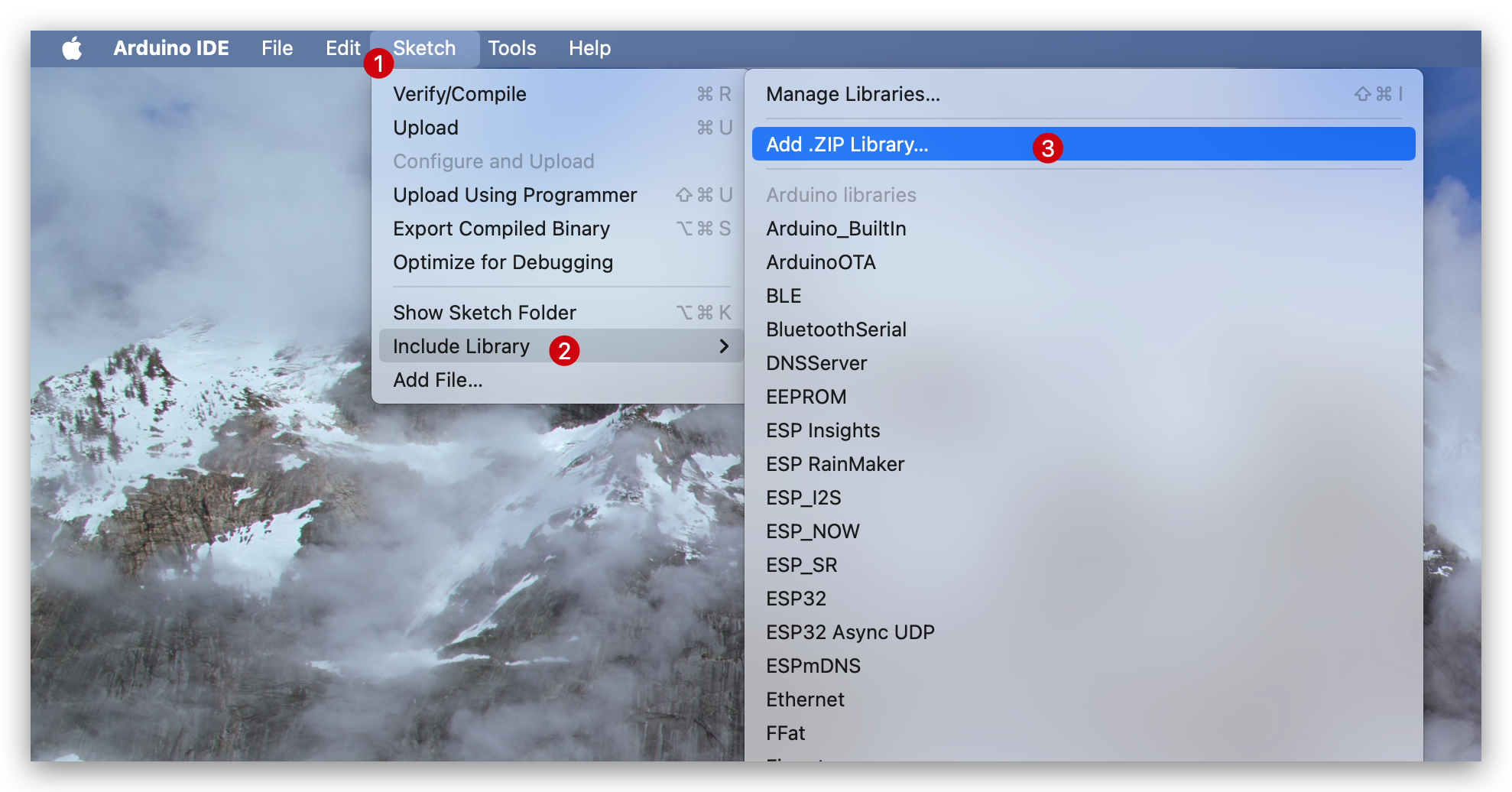
After downloading the library, go to Sketch -> Include Library -> Add .ZIP Library and select the downloaded library.
There are 4 basic examples, open a basic example you like:
- Bitmap: Display a bitmap image.
- Clock: Display a clock.
- Clock_digital: Display a digital clock.
- Shape: Display different sizes of words and shapes.

Getting Start
Here, we use a 7.5-inch display as an example. The steps are the same for all 24-pin screens; the only difference is selecting the appropriate screen size in the driver.
Create a new "driver.h" file and paste those code into it. The code should be like:
#define BOARD_SCREEN_COMBO 502 // 7.5 inch monochrome ePaper Screen (UC8179)
#define USE_XIAO_EPAPER_DISPLAY_BOARD_EN04
After that, go to Tools -> Board -> XIAO ESP32S3 and Tools -> Port -> Select the port your board is connected to. Then click Upload to upload the code.

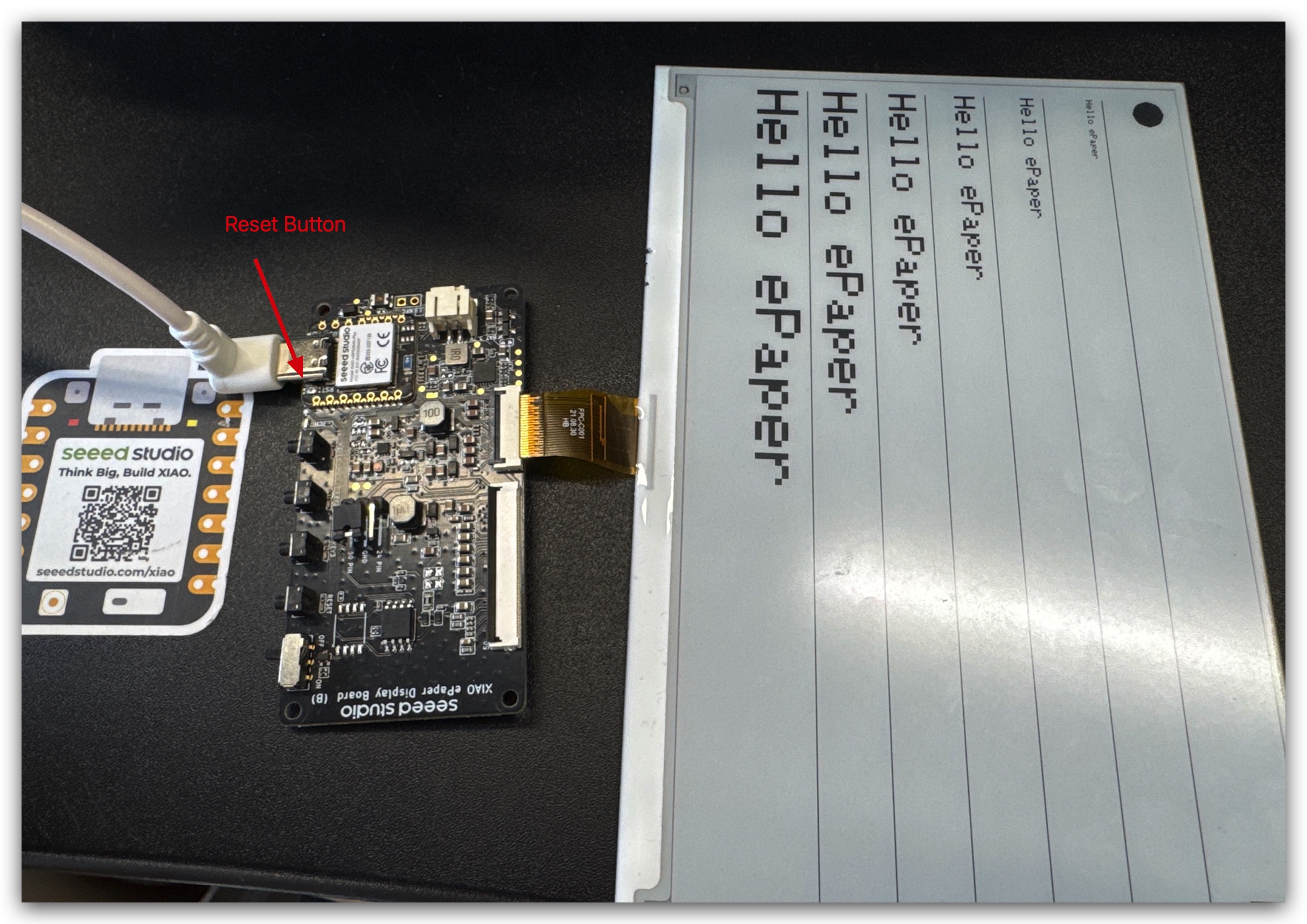
Now you will see the feedback in your epaper screen! Following are the results of Helloworld examples.(If nothing appears, please click the reset button)
⚠️ Note: ePaper Cable Orientation When connecting the ePaper display to the XIAO ePaper Display Board, make sure the FPC cable is inserted in the correct direction.
⚠️ Do not reverse the connector! Inserting the cable upside down may cause the ePaper to fail to display or even damage the screen/board. The image below shows the correct connection:
User Buttons on XIAO ePaper Display Board(nRF52840) - EN04
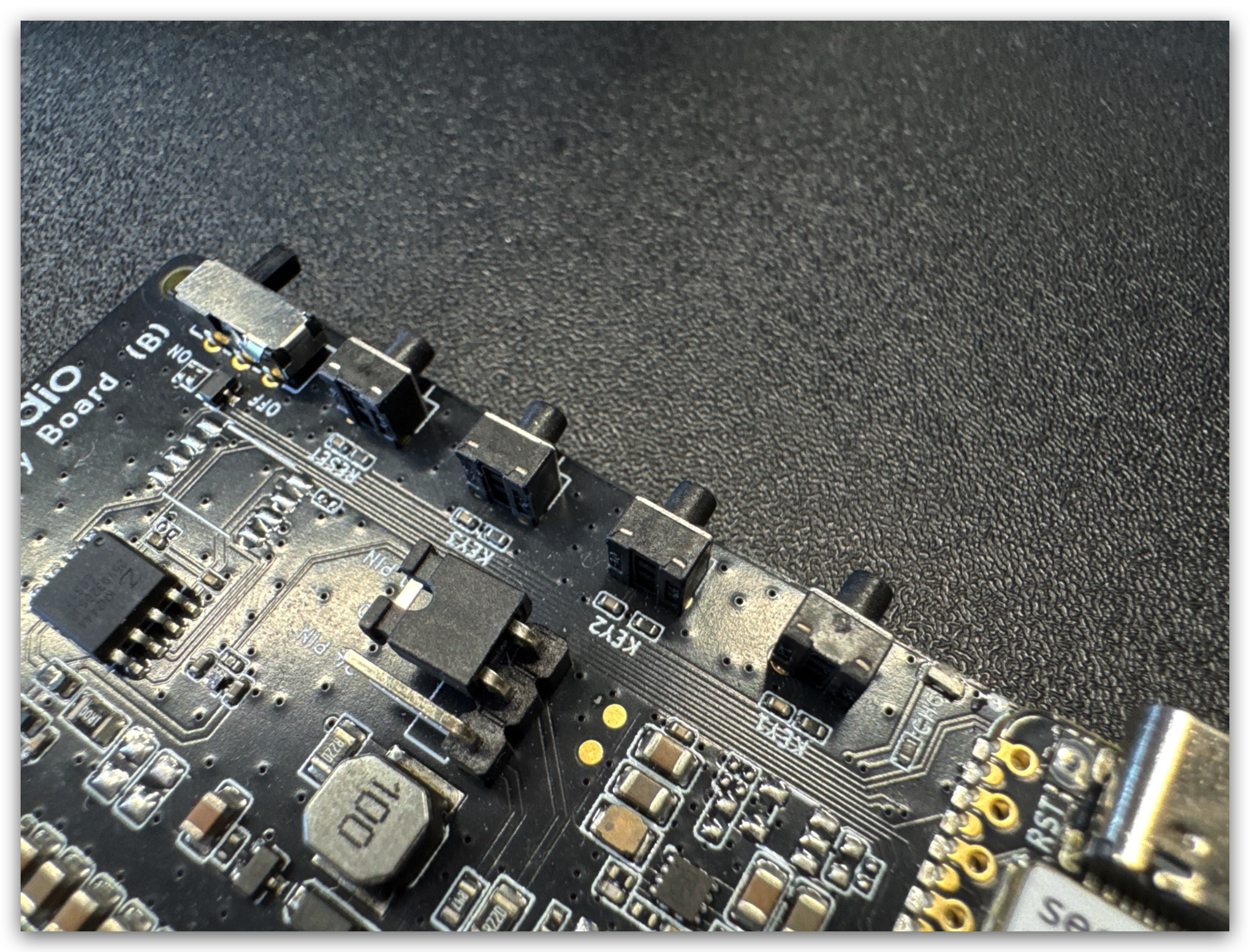
The EN04 features three user-programmable buttons that can be used for various control purposes. This section demonstrates how to read button states and respond to button presses using Arduino.
On the EN04, the three buttons are connected to the XIAO nRF52840 Plus:
| KEY1 | KEY2 | KEY3 |
|---|---|---|
| GPIO2_D1/A1 | GPIO3_D2/A2 | GPIO5_D4/A4 |
All buttons are active-low, meaning they read LOW when pressed and HIGH when released.
Basic Button Reading Example
This example demonstrates how to detect button presses and print messages to the serial monitor.
// Define button pin (GPIO2 corresponds to Arduino digital pin 2)
const int KEY_PIN = 2;

void setup() {
  // Initialize serial port (baud rate 9600, nRF52840 compatible with default Serial)
  Serial.begin(9600);
  // Wait for serial port initialization to complete (for nRF52840 Bluetooth module serial buffer)
  while (!Serial) delay(10);

  // Configure button pin as input mode with internal pull-up resistor enabled
  // Pin is HIGH when not pressed, LOW when pressed
  pinMode(KEY_PIN, INPUT_PULLUP);

  Serial.println("nRF52840 Button Detection Program Started");
  Serial.println("Press the button connected to GPIO2 to see output...");
}

void loop() {
  // Read button state (INPUT_PULLUP mode: LOW = pressed, HIGH = not pressed)
  int keyState = digitalRead(KEY_PIN);

  // Detect if button is pressed (low level)
  if (keyState == LOW) {
    // 50ms delay for debounce handling (avoids false triggers from mechanical button bounce)
    delay(50);
    // Read state again to confirm (ensure stable press)
    if (digitalRead(KEY_PIN) == LOW) {
      // Print specified content via serial port
      Serial.println("Hello. This is key1");

      // Wait for button release (prevent repeated printing during long press)
      while (digitalRead(KEY_PIN) == LOW) {
        delay(10); // Short delay to reduce CPU usage
      }
    }
  }

  // Short delay in main loop for performance optimization
  delay(10);
}
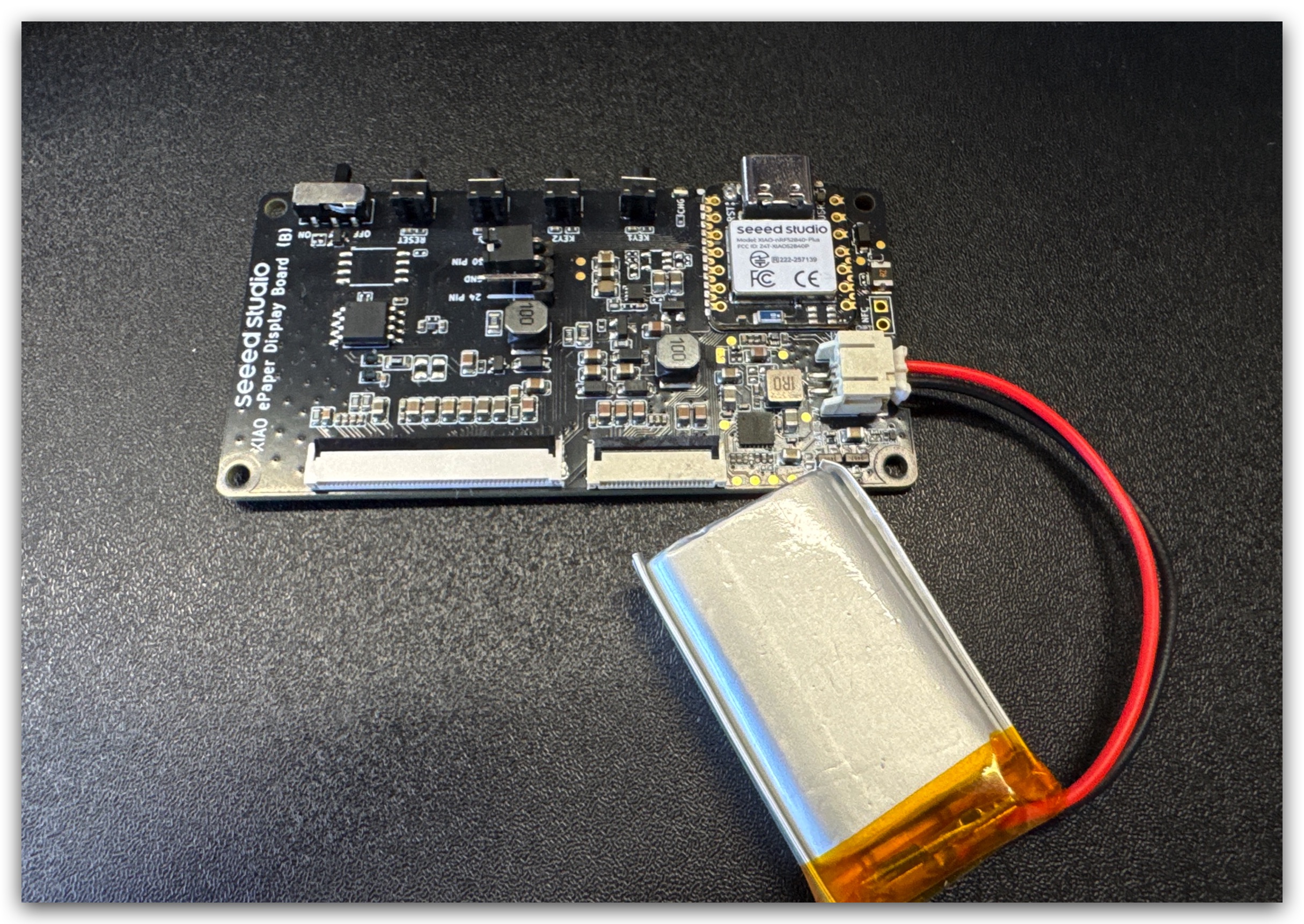
User Battery on XIAO ePaper Display Board(nRF52840) - EN04
When operating on battery power:
-
The device will automatically enter low-power mode between refreshes
-
Battery life depends on refresh frequency (typically 3-month on a full charge with default settings)
-
The device will display a low battery icon in the top-right corner when the battery level is below 20%
If you want to write some code by yourself to read battery voltage, it will be more precise to add 10ms delay before analogRead() function.
#define VOLTAGE_PIN A0 //GPIO1
#define ADC_ENABLE_PIN A5 //GPIO6

void setup() {
  Serial.begin(115200);
  delay(10);

  pinMode(VOLTAGE_PIN, INPUT);
  pinMode(ADC_ENABLE_PIN, OUTPUT);
  digitalWrite(ADC_ENABLE_PIN , HIGH);
}


void loop() {
  analogReadResolution(12);
  int adcValue = analogRead(VOLTAGE_PIN);
  float voltage = (adcValue / 4096.0) *7.16;
  Serial.print("ADC Value: ");
  Serial.print(adcValue);
  Serial.print(" Voltage: ");
  Serial.print(voltage, 3);
  Serial.println(" V");
  delay(10);
}
Resources
Tech Support & Product Discussion
Thank you for choosing our products! We are here to provide you with different support to ensure that your experience with our products is as smooth as possible. We offer several communication channels to cater to different preferences and needs.