Getting Started with XIAO ePaper Display Board - EN04
| XIAO ePaper Display Board EN04 |
|---|
 |
Introduction
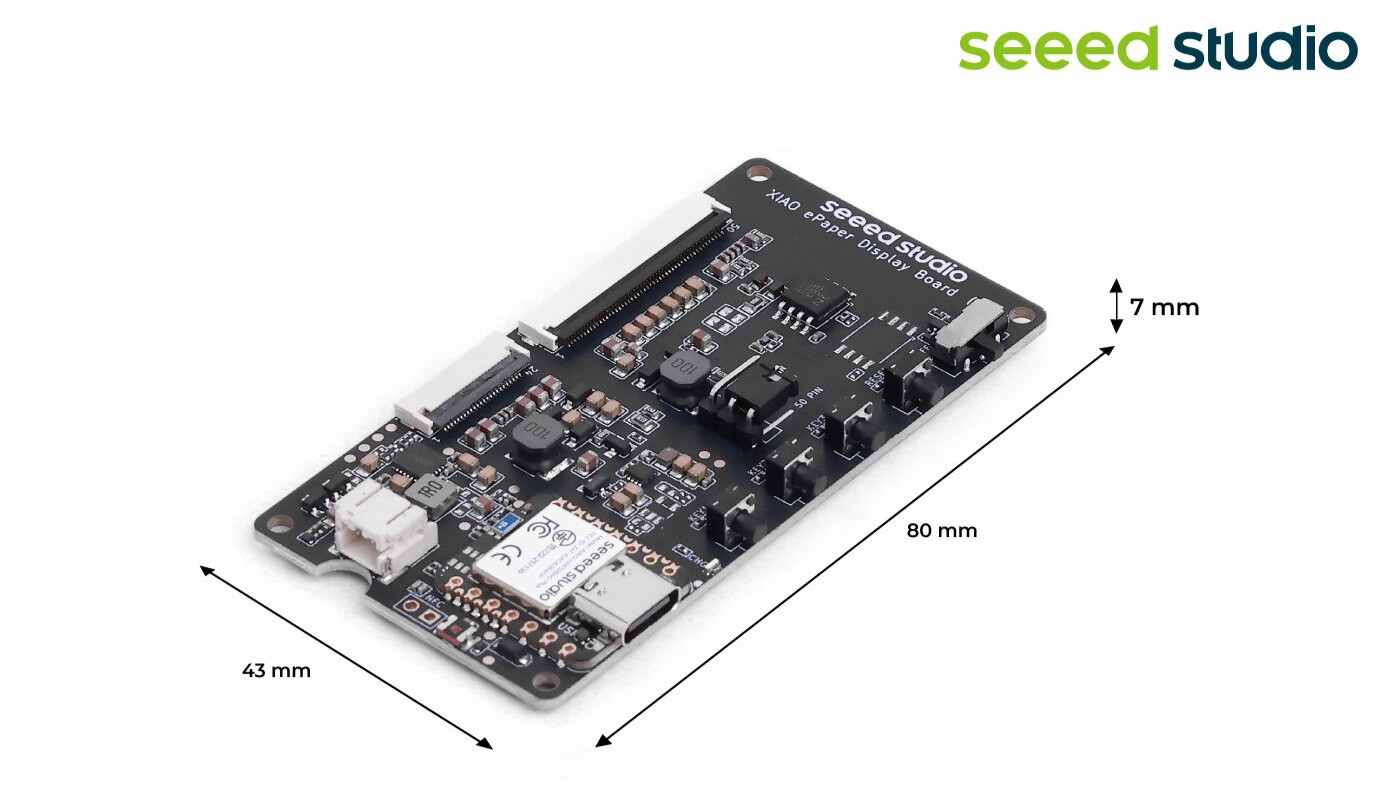
Powered by XIAO nRF52840 Plus, the display board EN04 supports both 24-pin and 50-pin ePaper displays. It features a JST 2.0 mm battery connector with power switch, built-in charging IC, and comes with one reset and three user buttons. Well-suited for low-power ePaper projects such as digital signage, electronic labels, and portable information boards.
Features
- Powered by XIAO nRF52840 Plus: Works immediately when connected to a compatible ePaper display.
- Versatile Display Support: Compatible with a wide range of ePaper screens, supporting both 24-Pin and 50-Pin interfaces with easy switching via jumper caps.
- BAT Connector with Switch: Provides simple battery connection and integrates a switch, enabling efficient power management and energy savings.
- User-Friendly Buttons: Includes 1 reset button and 3 user-programmable buttons, offering flexibility for project acceleration and customizable functions.
Specifications
| Parameter | Description |
|---|---|
| Processor | XIAO nRF52840 Plus |
| ePaper Connector | FPC 24 Pin 0.5mm FPC 50 Pin 0.5mm |
| Battery Connector | JST 2.0mm |
| Switch | Battery Power ON/OFF |
| Power Supply | - 3.7V Li-Battery - USB Type-C |
| Button | - 1x Reset button - 3x User button |
ePaper Board Selection Guide
| Product | ePaper Display Board EN04 | ePaper Breakout | ePaper Driver Board |
|---|---|---|---|
| Processor | XIAO nRF52840 Plus | XIAO Series | XIAO Series |
| Compatible ePaper Displays | 24 Pin ePaper 50 Pin ePaper | 24 Pin ePaper | 24 Pin ePaper |
| ePaper Connector | FPC 24 Pin, 0.5mm FPC 50 Pin, 0.5mm | FPC 24 Pin 0.5mm | FPC 24 Pin 0.5mm |
| Battery Connector | JST 2.0mm | / | JST 2.0mm |
| Switch | Battery Power ON/OFF | / | Battery Power ON/OFF |
| Button | 1x Reset button 3x User button | / | / |
| Extension IO Port | / | connection of others controller | connection of additional sensors |
Application
- Smart Home Dashboard: Display real-time information such as weather updates, calendar events, and notifications from various smart home devices.
- Energy Monitoring: Show energy consumption data from smart meters, helping homeowners track and manage their energy usage more efficiently.
- Security Alerts: Display alerts and notifications about security events, such as motion detection or door/window sensor activation.
- Smart Thermostat Display: Show temperature and humidity levels, as well as control settings for your smart thermostat.
- Digital Photo Frame: Create a WiFi-enabled digital photo frame that can display images from your smart home network.
Hardware Overview

Supported ePaper Displays
24-Pin Connector
- 1.54-inch ePaper - Monochrome 200x200
- 2.13-inch ePaper - Monochrome 122x250
- 2.13-inch ePaper - Quadruple Color 122x250
- 2.9-inch ePaper - Monochrome 128x296
- 2.9-inch ePaper - Quadruple Color 128x296
- 4.2-inch ePaper - Monochrome 400x300
- 4.26-inch ePaper - Monochrome 800x480
- 5.83-inch ePaper - Monochrome 648x480
- 7.5-inch ePaper - Monochrome 800x480
- 7.5-inch ePaper - Tri-Color 800x480
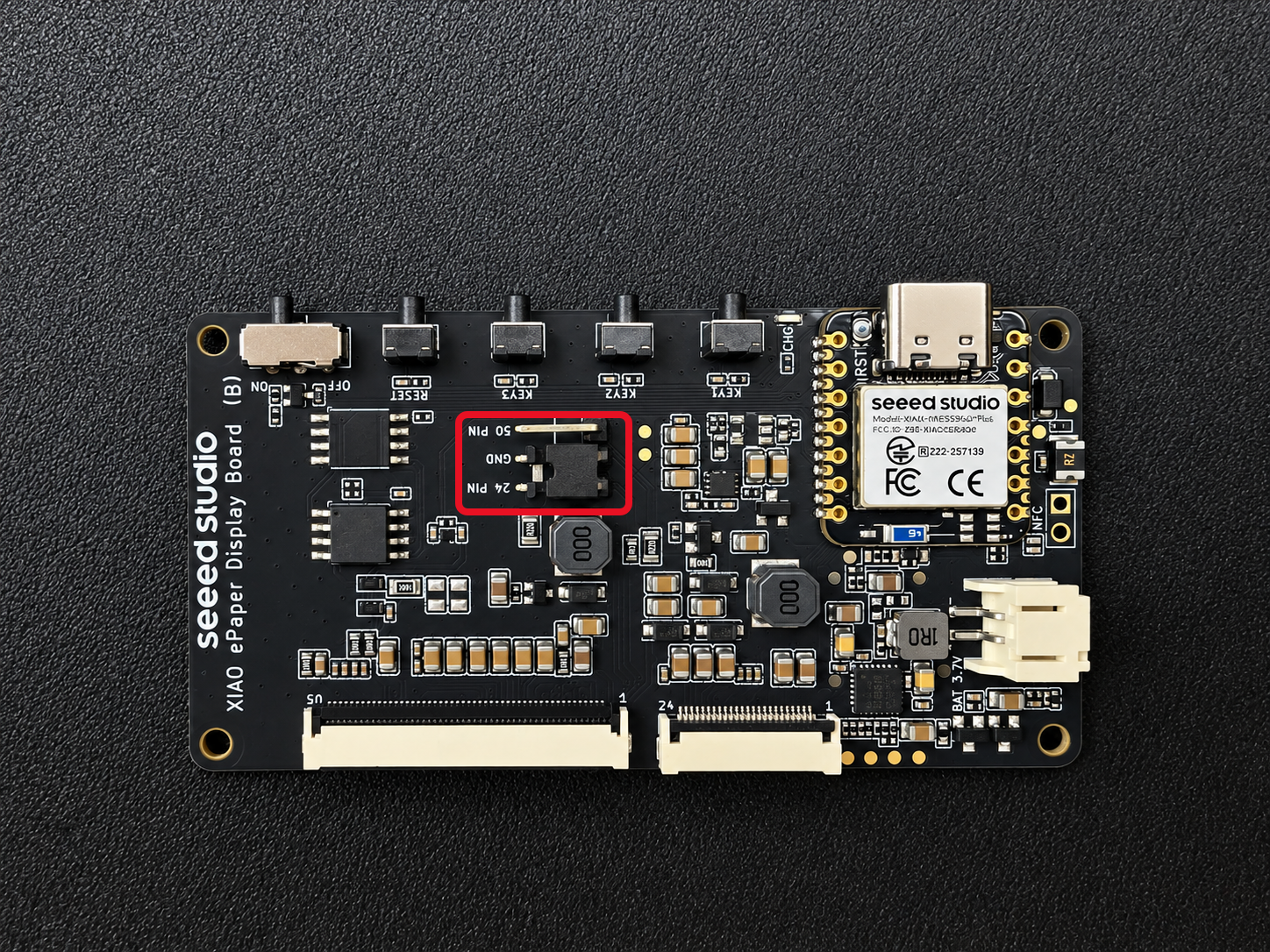
When using the XIAO ePaper Display Board, make sure to set the jumper according to the ePaper display type:
- For 24 Pin ePaper displays → set the jumper to 24 Pin
⚠️ Using the wrong jumper setting may cause the ePaper to fail to display or show abnormal content. Always double-check the jumper position before powering on.
50-Pin Connector
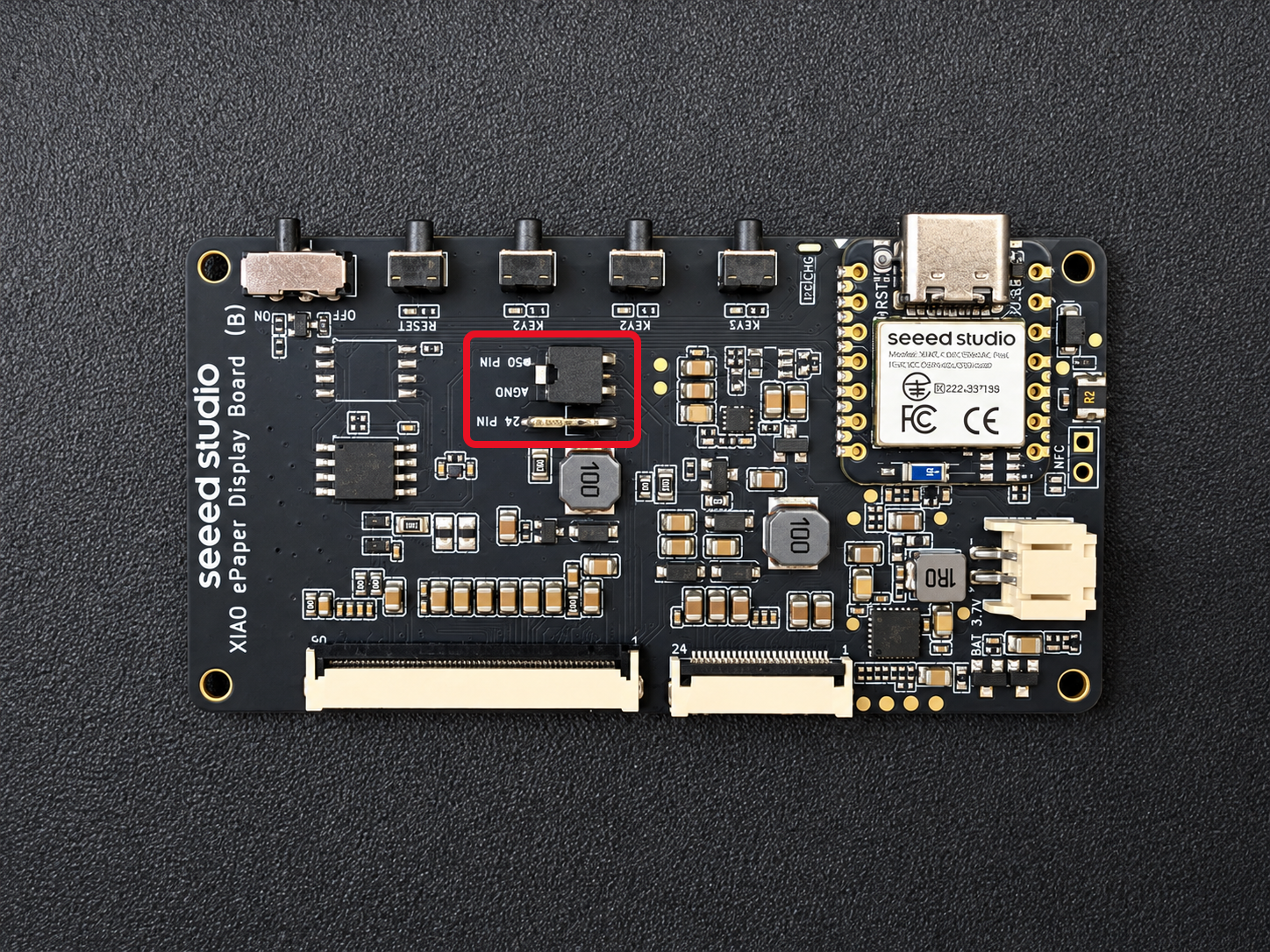
When using the XIAO ePaper Display Board, make sure to set the jumper according to the ePaper display type:
- For 50 Pin ePaper displays → set the jumper to 50 Pin
⚠️ Using the wrong jumper setting may cause the ePaper to fail to display or show abnormal content. Always double-check the jumper position before powering on.
User Buttons
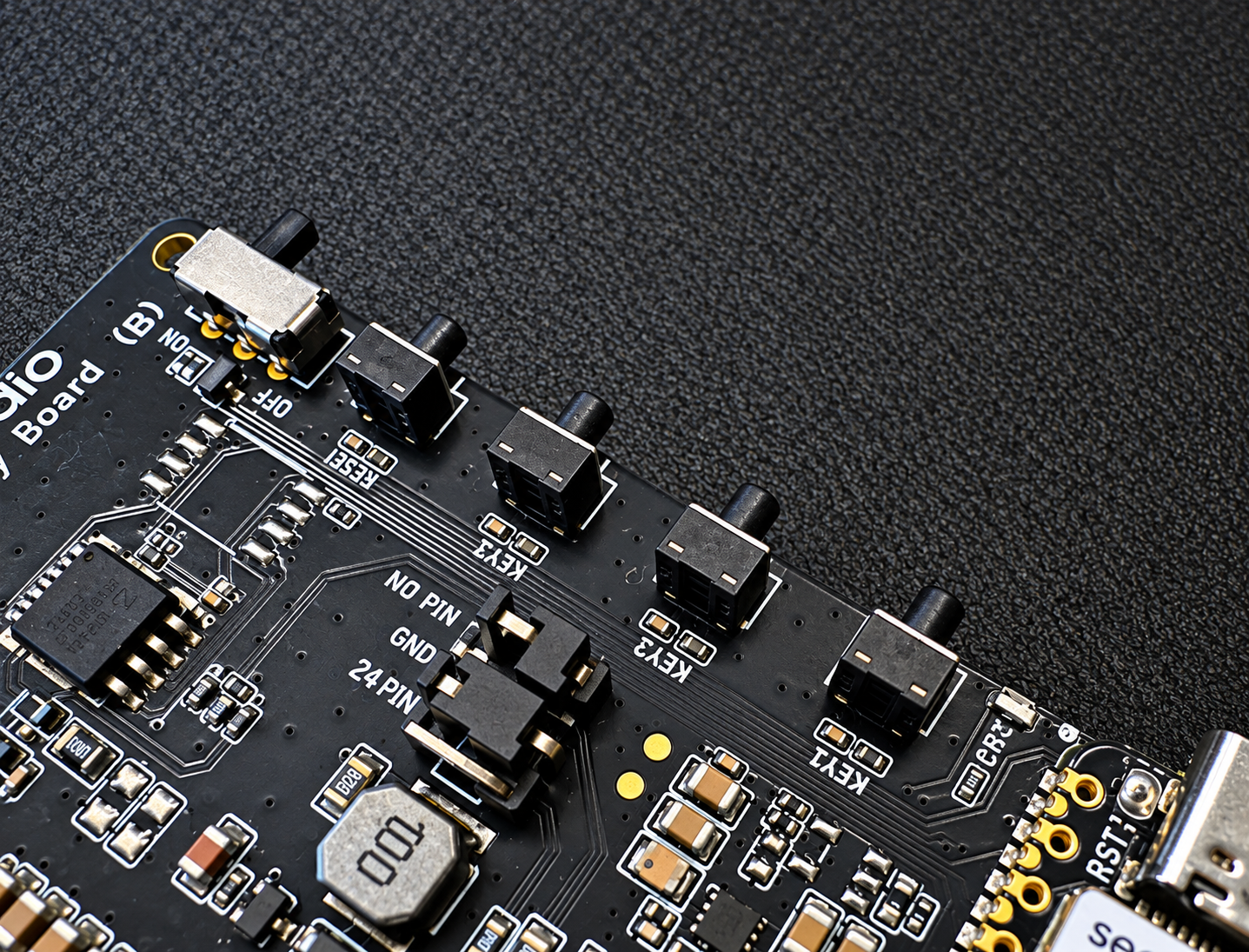
The EN04 features three user-programmable buttons that can be used for various control purposes. All buttons are active-low — they read LOW when pressed and HIGH when released.
On the EN04, the three buttons are connected to the XIAO nRF52840 Plus as follows:
| KEY1 | KEY2 | KEY3 |
|---|---|---|
| D1 / A1 | D2 / A2 | D4 / A4 |
The user buttons are programmable and can be configured for various functions such as page switching, mode selection, or triggering specific actions in your ePaper project.
Battery Connector
The EN04 is equipped with a JST 2.0 mm battery connector and a built-in charging IC, making it suitable for battery-powered low-power ePaper projects.
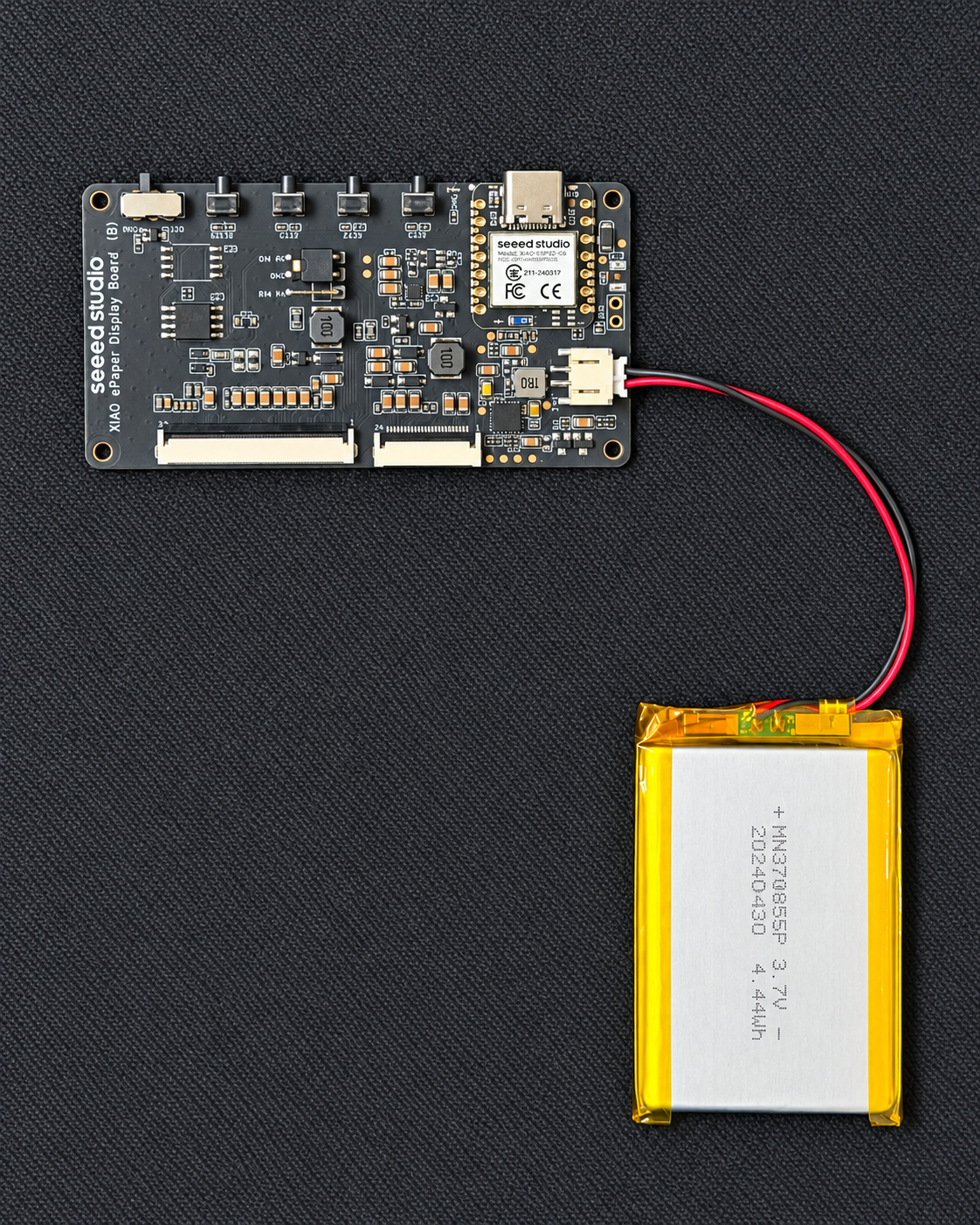
Getting Started with Arduino
Install Seeed GFX2 Library
All ePaper examples for the EN04 are built on the Seeed_GFX2 Arduino library, which supports every ePaper display listed in the Supported ePaper Displays section. The examples below use the 7.5-inch Monochrome ePaper (800 x 480) as an example.
Step 1. Download the Seeed_GFX2 Library
Visit the Seeed_GFX2 GitHub repository, click the green Code button, and select Download ZIP to save the library to your computer.
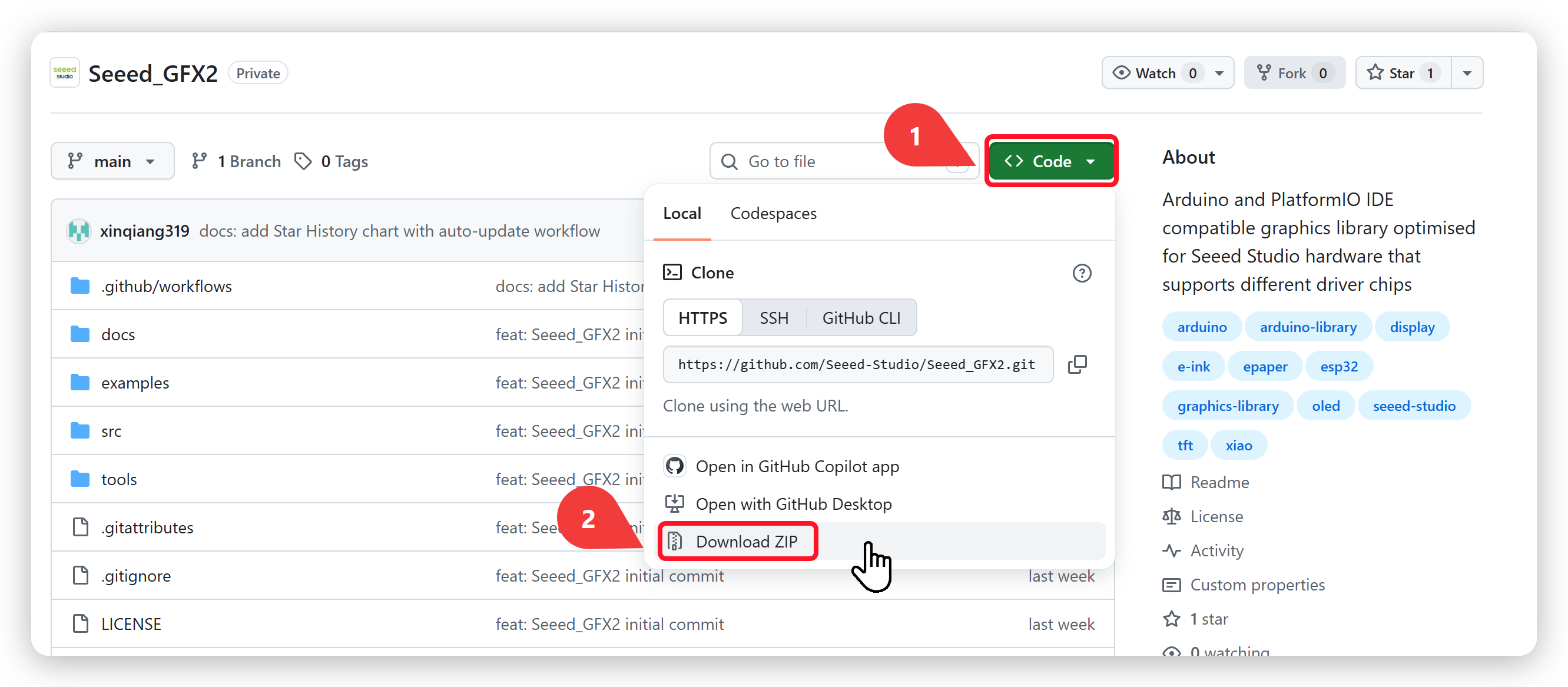
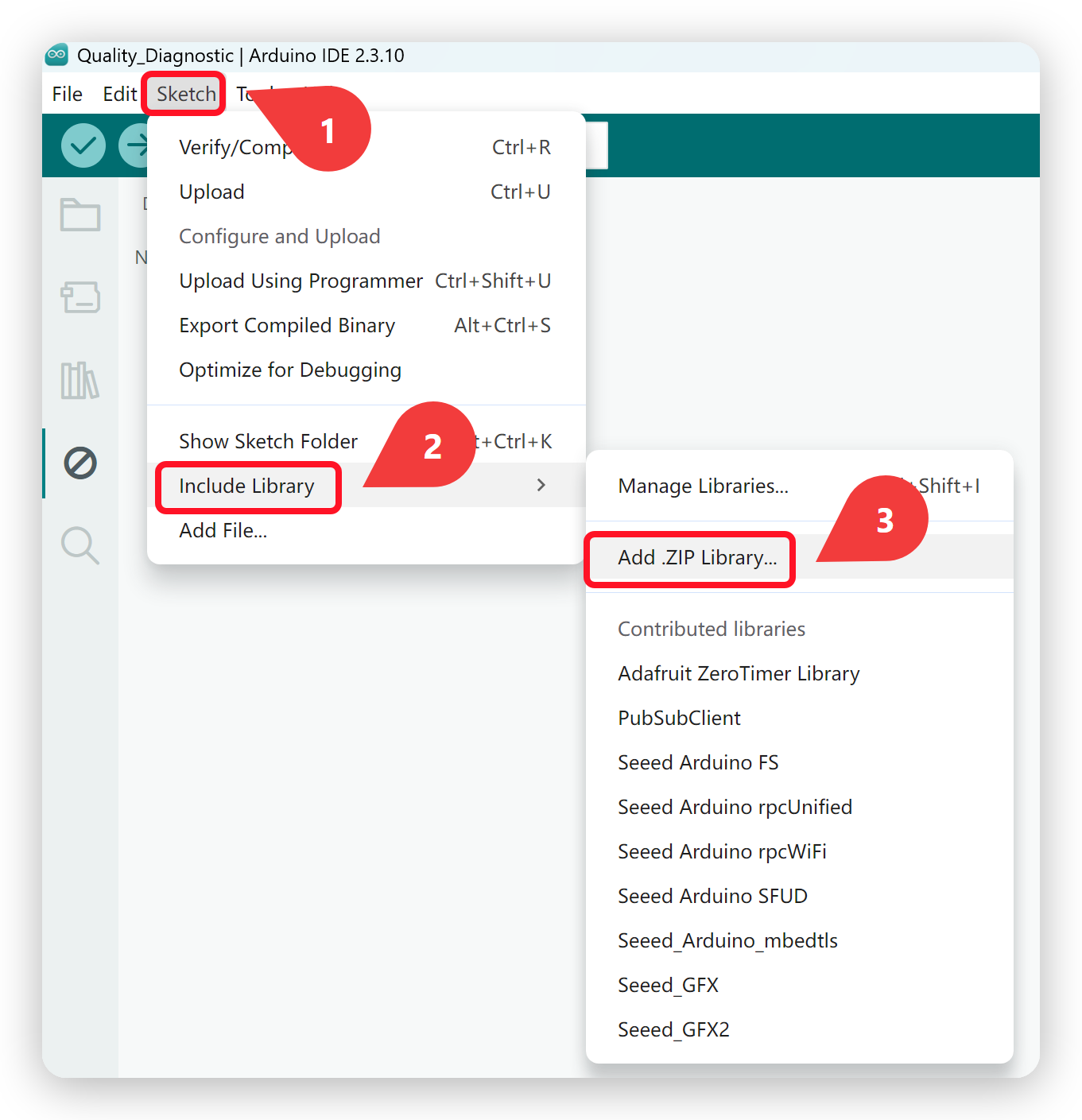
Step 2. Add the Library to Arduino IDE
Open the Arduino IDE, navigate to Sketch → Include Library → Add .ZIP Library..., and select the ZIP file you just downloaded.
Configure and burn the program
- Navigate to File → Examples → Seeed_GFX2 → ePaper Displays → Expansion Board Series → nRF52840 Series → XIAO ePaper Display Board - EN04 → 7.5-inch ePaper - Monochrome 800x480 → HelloWorld.
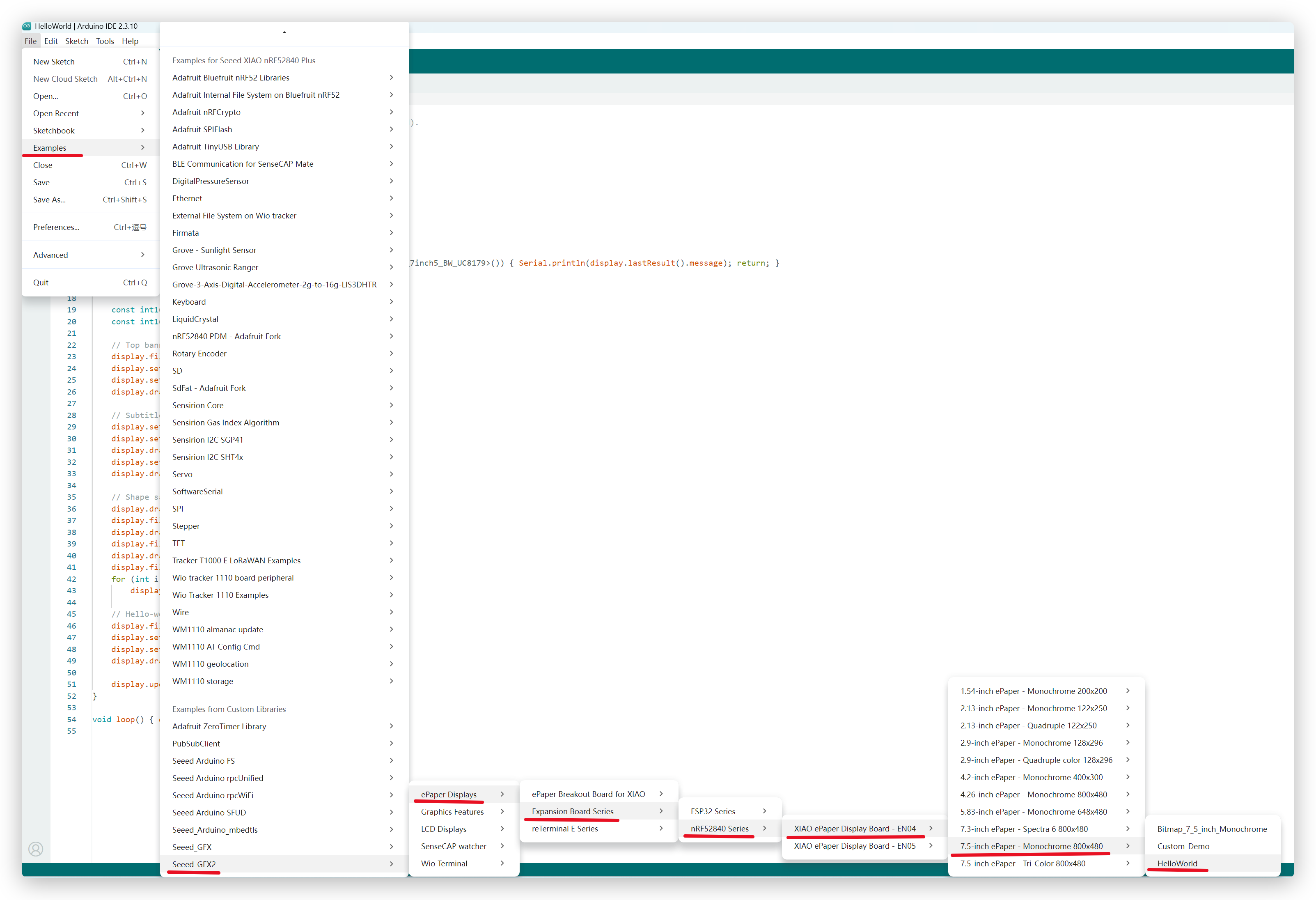
- In Tools → Board, select Seeed XIAO nRF52840 Plus.
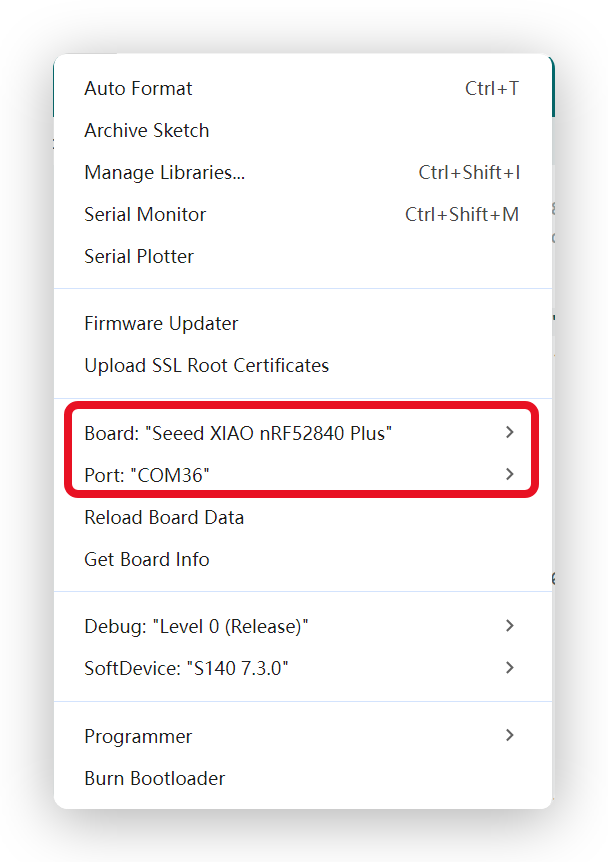
- Connect the board via USB Type-C, select the corresponding serial port, and click Upload.
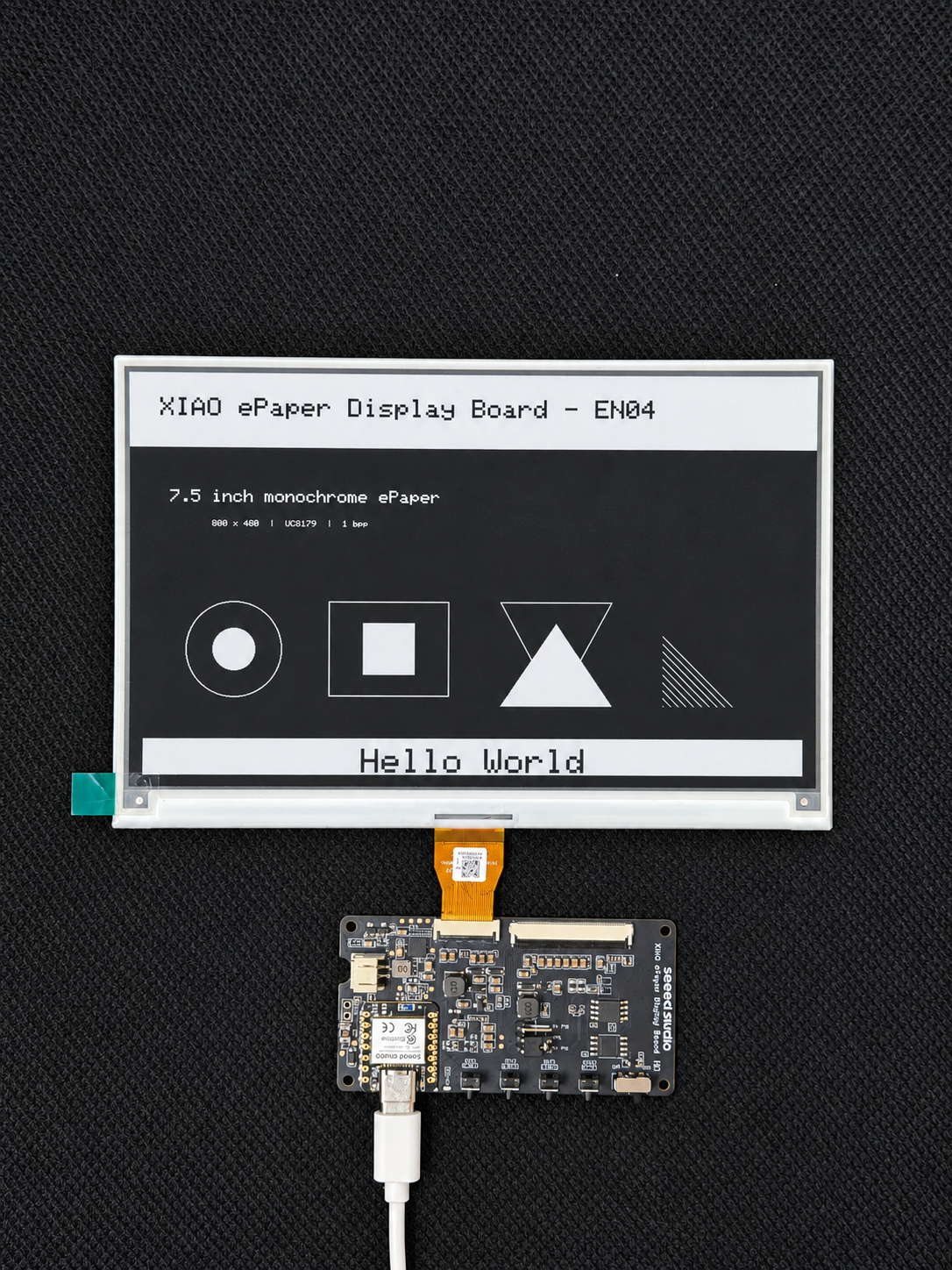
The example paths above use the 7.5-inch Monochrome display as an example. For other supported displays, simply pick the folder matching your screen model under XIAO ePaper Display Board - EN04 — each screen ships with HelloWorld, Bitmap and Custom_Demo examples (except the 7.5-inch Tri-Color, which ships with HelloWorld and Custom_Demo).
Software Overview
Basic Button Reading Example
This example demonstrates how to detect all three button presses and print messages to the serial monitor.
#include <Adafruit_TinyUSB.h> // Required for Serial on the Seeed nRF52 Boards core

// Button pin definitions (verified on hardware)
// KEY1 = D1 / A1 / P0.03
// KEY2 = D2 / A2 / P0.28
// KEY3 = D4 / A4 / P0.04
const int KEY1_PIN = 1;
const int KEY2_PIN = 2;
const int KEY3_PIN = 4;

void setup() {
  // Initialize serial port
  Serial.begin(9600);
  while (!Serial) delay(10);

  // Configure all button pins as input with internal pull-up
  // Pin is HIGH when not pressed, LOW when pressed
  pinMode(KEY1_PIN, INPUT_PULLUP);
  pinMode(KEY2_PIN, INPUT_PULLUP);
  pinMode(KEY3_PIN, INPUT_PULLUP);

  Serial.println("nRF52840 Three-Button Detection Program Started");
  Serial.println("Press KEY1 / KEY2 / KEY3 to see output...");
}

// Helper function: check if a button is pressed (with debounce)
bool isButtonPressed(int pin) {
  if (digitalRead(pin) == LOW) {
    delay(50); // debounce
    if (digitalRead(pin) == LOW) {
      // Wait for release to prevent repeated triggers
      while (digitalRead(pin) == LOW) {
        delay(10);
      }
      return true;
    }
  }
  return false;
}

void loop() {
  if (isButtonPressed(KEY1_PIN)) {
    Serial.println("Hello. This is KEY1");
  }
  if (isButtonPressed(KEY2_PIN)) {
    Serial.println("Hello. This is KEY2");
  }
  if (isButtonPressed(KEY3_PIN)) {
    Serial.println("Hello. This is KEY3");
  }

  delay(10);
}
Battery Voltage Reading Example
This example demonstrates how to read the battery voltage and print it to the serial monitor.
If you want to write some code by yourself to read battery voltage, it will be more precise to add 10ms delay before analogRead() function.
#include <Adafruit_TinyUSB.h> // Required for Serial on the Seeed nRF52 Boards core

#define VOLTAGE_PIN A0 //P0.02
#define ADC_ENABLE_PIN A5 //P0.05

void setup() {
  Serial.begin(115200);
  delay(10);

  pinMode(VOLTAGE_PIN, INPUT);
  pinMode(ADC_ENABLE_PIN, OUTPUT);
  digitalWrite(ADC_ENABLE_PIN , HIGH);
}


void loop() {
  analogReadResolution(12);
  int adcValue = analogRead(VOLTAGE_PIN);
  float voltage = (adcValue / 4096.0) *7.16;
  Serial.print("ADC Value: ");
  Serial.print(adcValue);
  Serial.print(" Voltage: ");
  Serial.print(voltage, 3);
  Serial.println(" V");
  delay(10);
}
Troubleshooting
Q1: The ePaper screen shows nothing after power-on.
- DIY Kit has no pre-installed firmware. The XIAO EN04 DIY Kit does not ship with ePaper firmware — a blank or black screen on first power-up is normal.
- Check the FPC cable orientation. Make sure the ePaper FPC cable is inserted in the correct direction. Reversing the connector can cause a blank screen and may damage the display.
- Press the RESET button. After uploading firmware or connecting power, press the reset button once to trigger a screen refresh.
Q2: The display shows garbled content or partial refresh.
- Verify the jumper cap setting. The EN04 supports both 24-Pin and 50-Pin ePaper displays — the jumper cap must match your screen type. Set it to 24 Pin for 24-pin screens, and 50 Pin for 50-pin screens.
- Confirm the screen model selection. In your Arduino example, make sure you selected the exact screen model (size and color type). Choosing the wrong model will cause incorrect rendering.
- Wait for a full refresh. ePaper displays use a full refresh cycle — partial or ghosting effects during the refresh are normal and will clear once the cycle completes.
Q3: The board does not power on when using battery.
- Check the power switch. Slide the battery power switch to the ON position — the board will not draw power from the battery when the switch is off.
- Verify the JST connector polarity. Ensure the JST 2.0 mm battery connector is plugged in with the correct polarity. Reversed battery polarity may damage the hardware. Verify the connector's +/− markings before connecting the battery.
- Charge the battery. If the battery is fully drained, the board may not start. Connect USB Type-C to charge the battery and try again.
Q4: Seeedash Firmware Flasher cannot detect the board.
- Press the RESET button. With the board connected via USB, press and release the RESET button to re-enumerate the USB port, then try detecting again.
- Use a data-capable USB cable. Some USB cables only provide power and do not support data transfer. Switch to a known-good data cable.
- Check the USB port. Try a different USB port on your computer — some ports may have power or driver issues.
Q5: Arduino IDE upload fails.
- Select the correct board. Go to Tools → Board and make sure Seeed XIAO nRF52840 Plus is selected. Do not choose other XIAO board variants.
- Select the correct port. Go to Tools → Port and pick the serial port corresponding to your board. If no port appears, check your USB cable and connection.
- Enter bootloader mode if needed. If upload consistently fails, double-press the RESET button to enter bootloader mode, then re-select the port and upload again.
Resources
Tech Support & Product Discussion
Thank you for choosing our products! We are here to provide you with different support to ensure that your experience with our products is as smooth as possible. We offer several communication channels to cater to different preferences and needs.