Getting Started with XIAO ePaper Display Board - EE05
| XIAO ePaper Display Board EE05 |
|---|
 |
Introduction
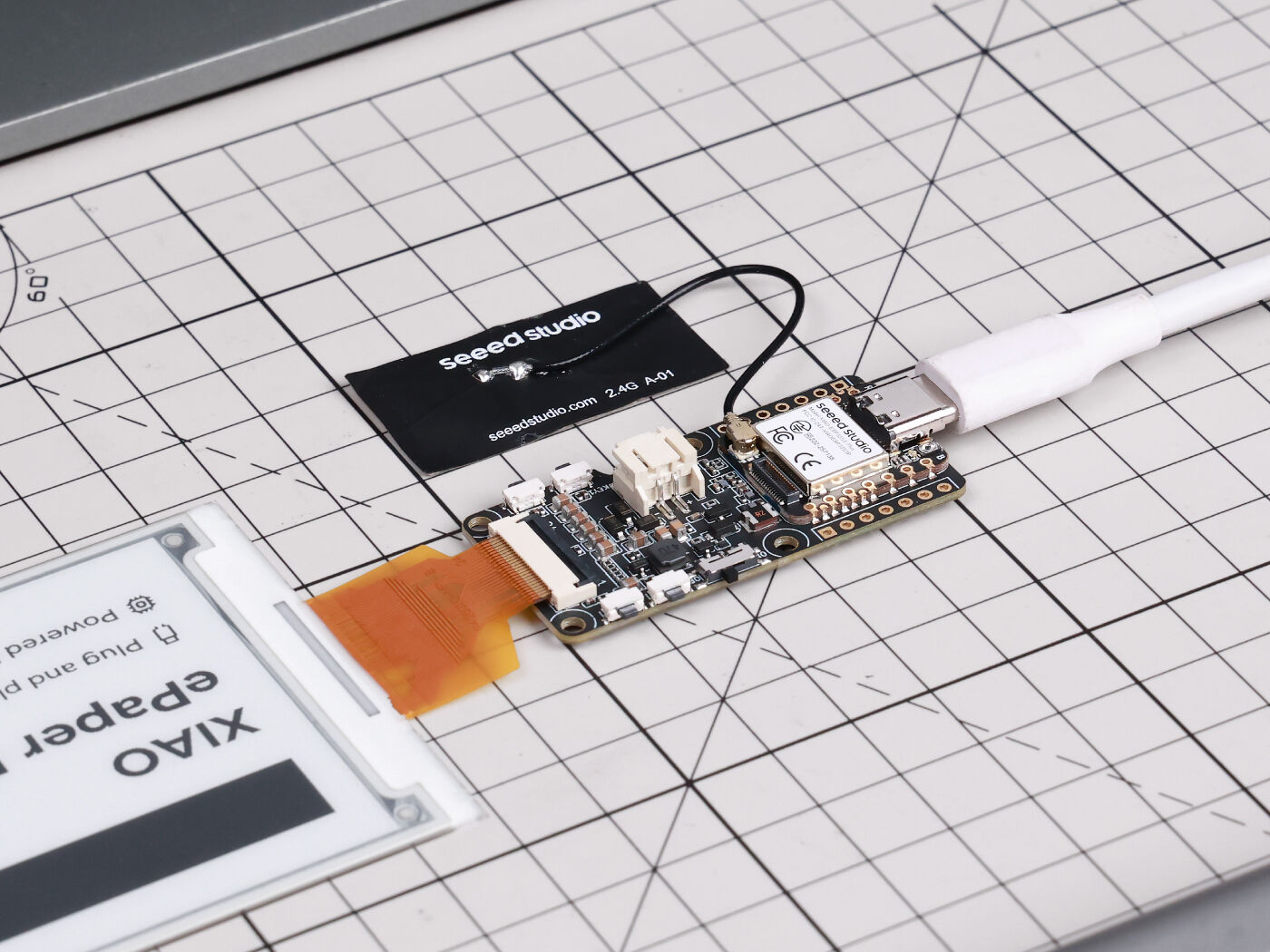
Powered by the XIAO ESP32-S3 Plus, the display board EE05 supports a wide range of 24-pin ePaper displays and enables no-code UI design and deployment with SenseCraft Seeedash. With extension IO and a battery connector power switch, it is ideal for low-power smart display applications.
Features
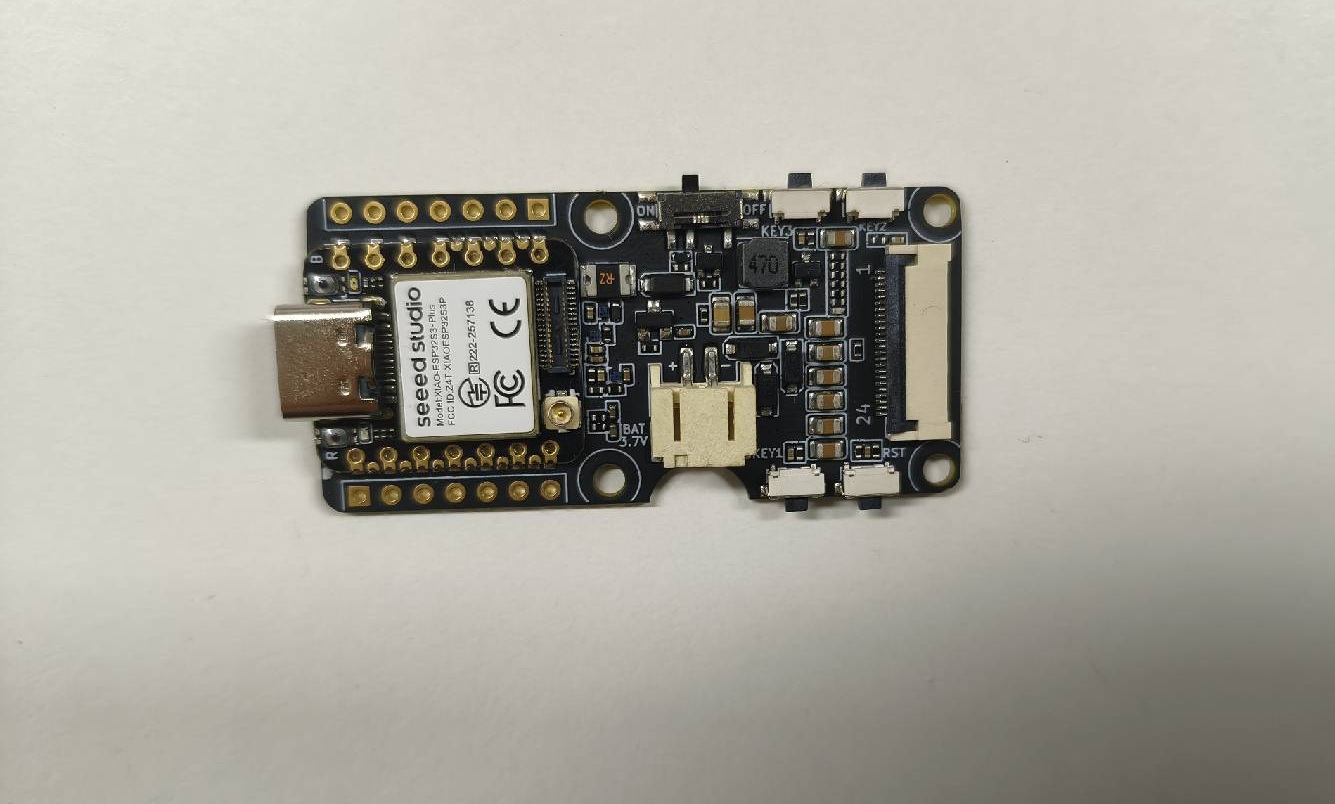
- Powered by XIAO ESP32-S3 Plus: Works immediately when connected to a compatible ePaper display.
- Versatile Display Support: Compatible with a wide range of 24-pin ePaper displays for various project requirements.
- Extension IO Port: Enables connection of additional sensors, such as temperature and humidity sensors, for enhanced functionality.
- BAT Connector with Switch: Provides simple battery connection and integrates a switch, enabling efficient power management and energy savings.
- No-Code UI Design & Deployment with SenseCraft Seeedash: Design and deploy personalized dashboards effortlessly with SenseCraft Seeedash, our new AI-powered no-code platform. Create your UI through simple drag-and-drop elements, choose from our rich templates, or let AI help you. Connect real-time data from web APIs, then deploy your finished dashboard to ePaper display with just a few clicks. From design to data configuration to deployment, everything happens seamlessly on one single platform.
Specifications
| Parameter | Description |
|---|---|
| Processor | XIAO ESP32-S3 Plus |
| ePaper Connector | SPI FPC 24-Pin 0.5mm |
| Battery Connector | JST 2.0mm |
| Switch | Hardware power slide switch |
| Power Supply | 3.7V Li-Battery / USB Type-C |
| Button | 1x Reset button (side-mounted) 3x User button (side-mounted) |
Application
- Smart Home Dashboard: Display real-time information such as weather updates, calendar events, and notifications from various smart home devices.
- Energy Monitoring: Show energy consumption data from smart meters, helping homeowners track and manage their energy usage more efficiently.
- Security Alerts: Display alerts and notifications about security events, such as motion detection or door/window sensor activation.
- Digital Photo Frame: Create a WiFi-enabled digital photo frame that can display images from your smart home network.
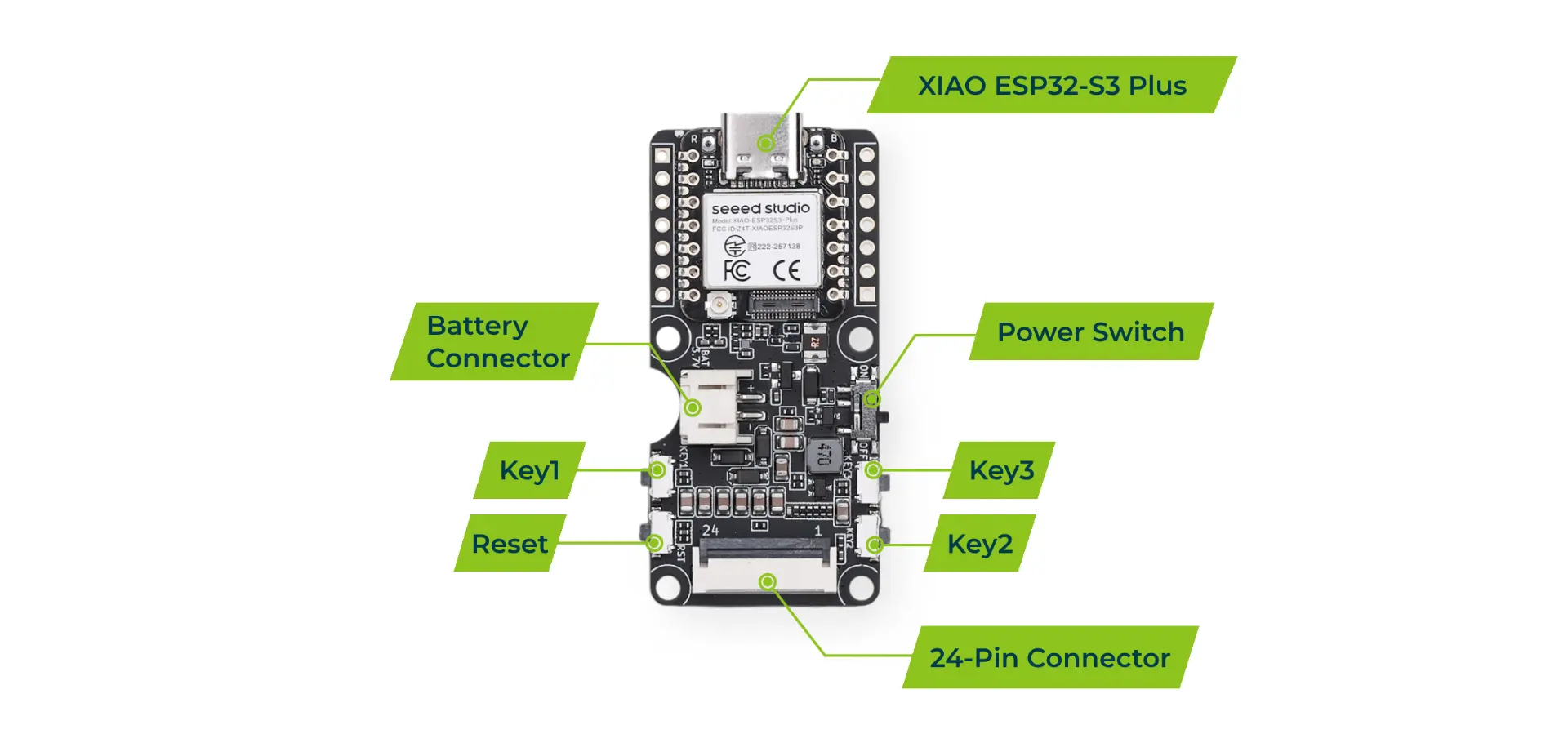
Hardware Overview
Supported ePaper Displays
The EE05 supports a variety of 24-Pin SPI ePaper displays, including but not limited to:
- 1.54-inch E-paper - Dotmatix 200x200
- 2.13-inch E-Paper -Flexible Monochrome 212x104
- 2.13-inch E-Paper - Quadruple 212x104
- 2.9 inch E-paper - Monocolor 128x296
- 4.2-inch E-Paper - Monocolor 400x300
- 4.26-inch E-Paper - Monocolor 800x480
- 5.83-inch E-paper - Monocolor 648x480
- 7.5-inch Monochrome ePaper Display with 800x480 Pixels
Buttons
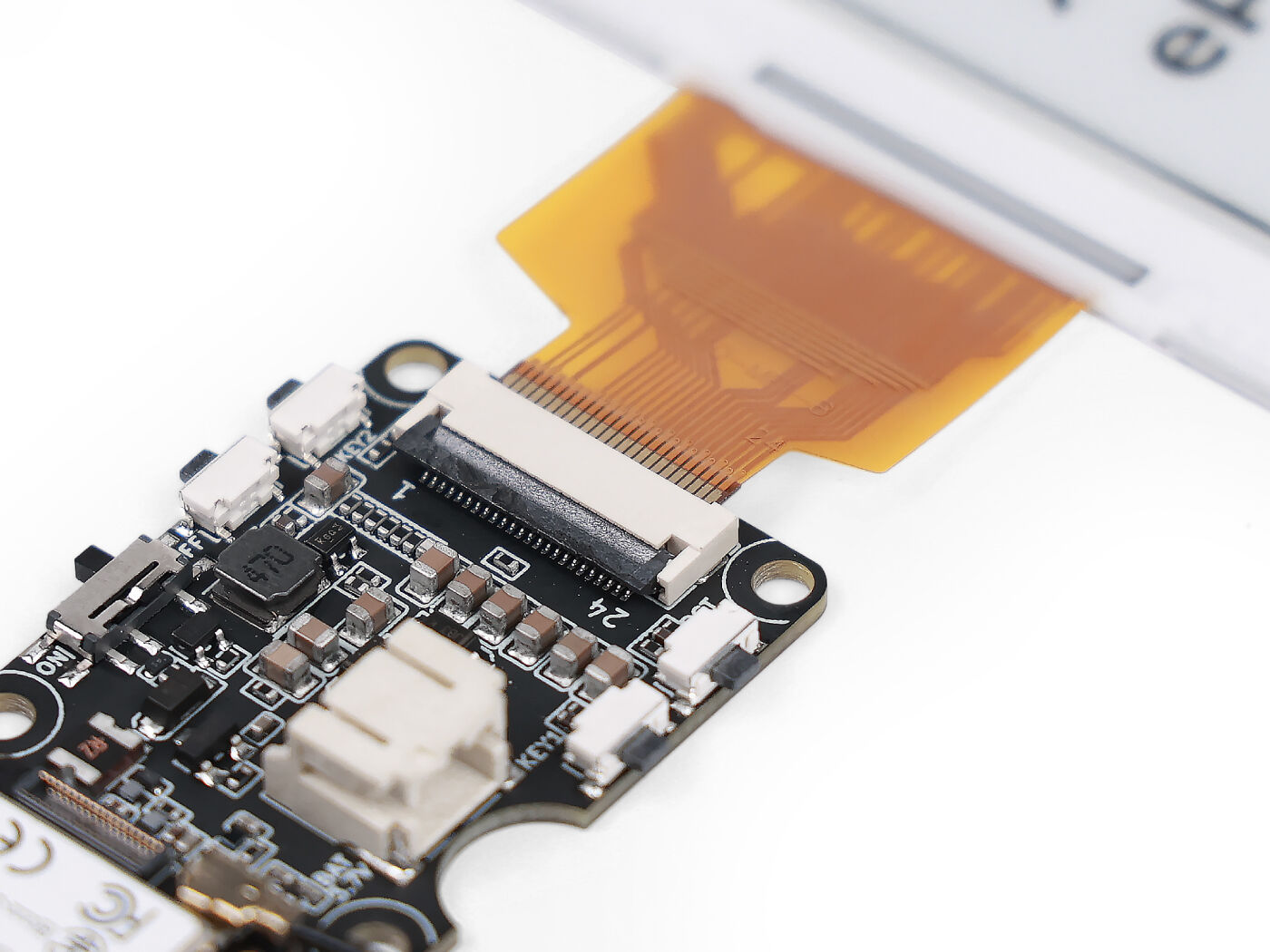
The EE05 features 3 user buttons and 1 reset button, all side-mounted for easy access:
- Key1 / Key2 / Key3: Three programmable user buttons for custom interactions and navigation. They are mapped to D1 (GPIO2), D2 (GPIO3) and D9 (GPIO8) of the XIAO ESP32-S3 Plus respectively, each with a 10k external pull-up (active LOW when pressed).
- RESET: Hardware reset button wired to the EN pin to restart the device.
Extension IO Port
The EE05 includes an extension IO port that allows you to connect additional sensors and modules, expanding the board's capabilities beyond display functionality. You can connect sensors such as temperature and humidity sensors, motion sensors, or other I2C/SPI peripherals to build more advanced projects.
Battery Connector
The board is equipped with a JST 2.0mm battery connector and a hardware power slide switch, making it easy to power the device with a 3.7V lithium battery for portable and low-power applications.
The following phenomena are inherent normal behaviors of the SenseCraft Seeedash firmware itself:
- Low power consumption design optimized for ePaper display applications
- Battery life depends on refresh frequency (typically 3 months on a full charge with default settings)
- Low battery indicator icon appears on screen when battery level drops below 20%
Getting Started with SenseCraft Seeedash
This guide uses the 7.5-inch Monochrome ePaper (800 x 480) as an example. All screenshots in this section show this screen model. If you are using a different screen model, simply select your screen's firmware in Step 2 — all other steps are identical.
The XIAO EE05 DIY Kit ships without screen-specific firmware pre-installed. When you first connect a screen and power on the board, the screen will likely remain black — this is normal and not a defect. You must first flash the firmware corresponding to your screen model using the SenseCraft Seeedash Firmware Flasher. After flashing, the welcome screen and setup interface will appear.
Prerequisites
- XIAO ePaper Display Board - EE05
- A compatible ePaper display
- USB Type-C cable
- A computer with a web browser (Chrome or Edge recommended)
Equipment Installation
Step 1. Connect the Display and Power
- Connect your ePaper display to the 24-pin FPC connector on the EE05 board. Make sure the connector is securely locked.
- Connect the EE05 board to your computer using a USB Type-C cable.
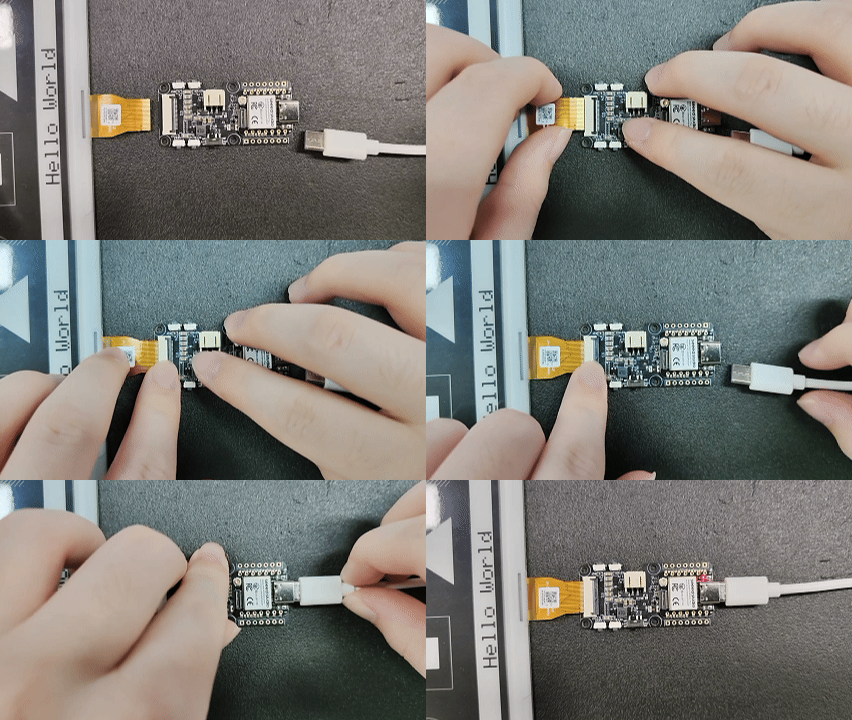
If you are powering the board via battery, make sure the hardware slide switch is in the ON position.
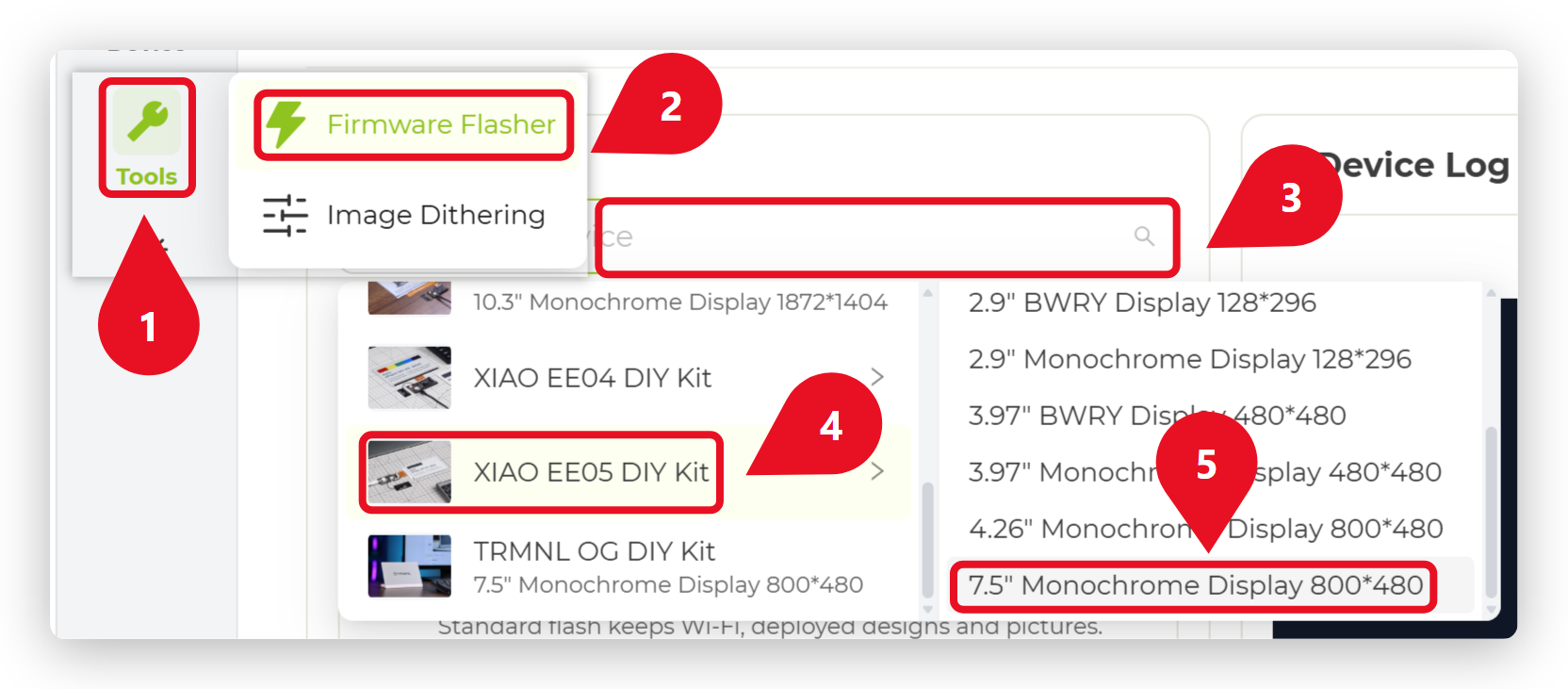
Step 2. Flash Screen Firmware
Before you can use SenseCraft Seeedash, you need to flash the firmware for your specific screen model.
- Open the SenseCraft Seeedash website in your browser.
- Click Tools in the left sidebar, then select Firmware Flasher.
- In the Device dropdown, select XIAO EE05 DIY Kit, then choose your screen model from the list (e.g., "7.5 inch Monochrome ePaper Display with 800*480").
- Click the Flash button, select the serial port for your EE05 board, and start the firmware‑flashing process.
If the serial port does not appear, try pressing the RESET button on the board or using a different USB cable (ensure it supports data transfer, not just charging).
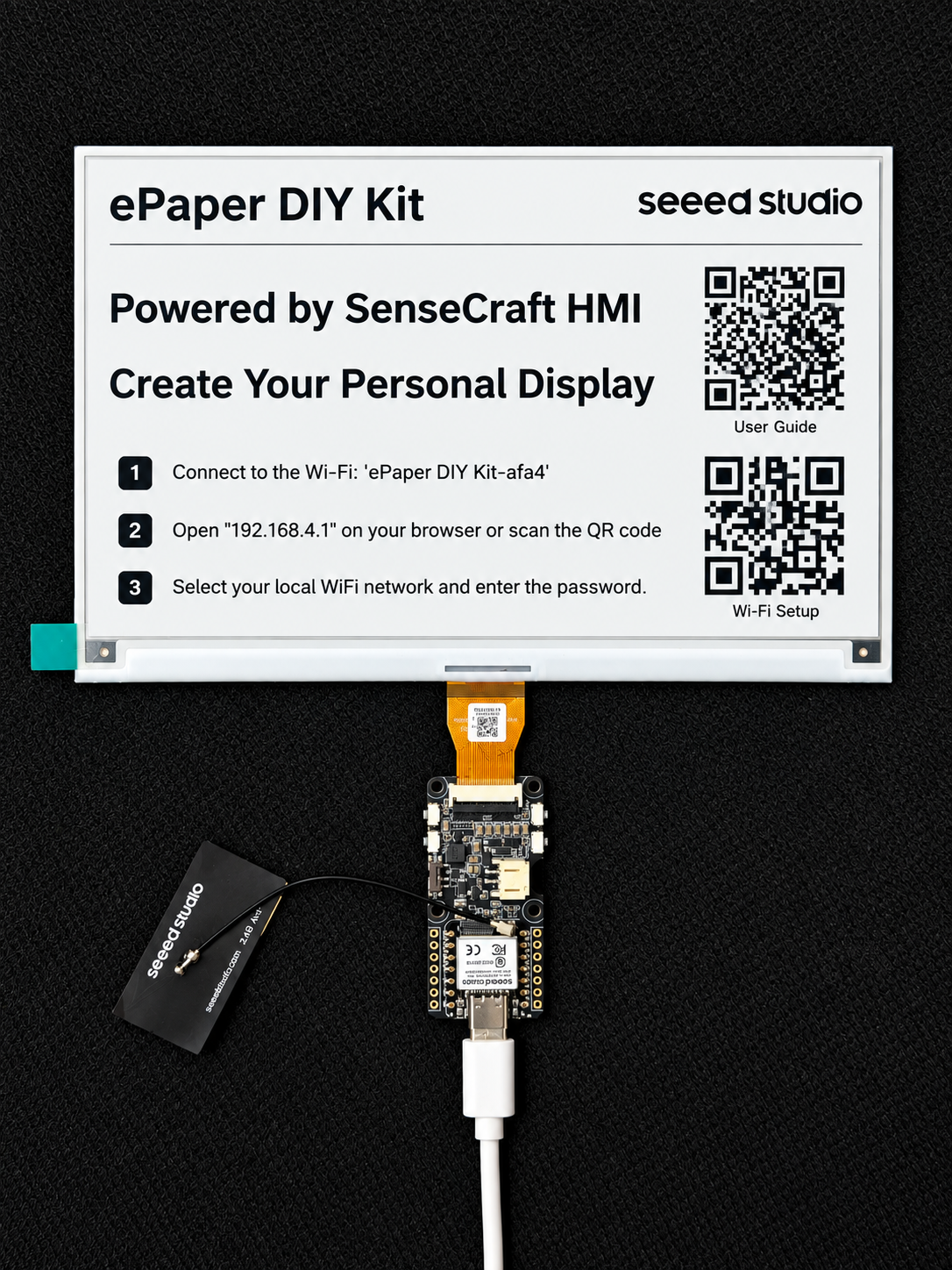
Step 3. Welcome Screen
After the firmware flashing is complete, the board will automatically restart. You should see the SenseCraft Seeedash welcome screen, followed by the Wi-Fi setup interface.
Network Configuration
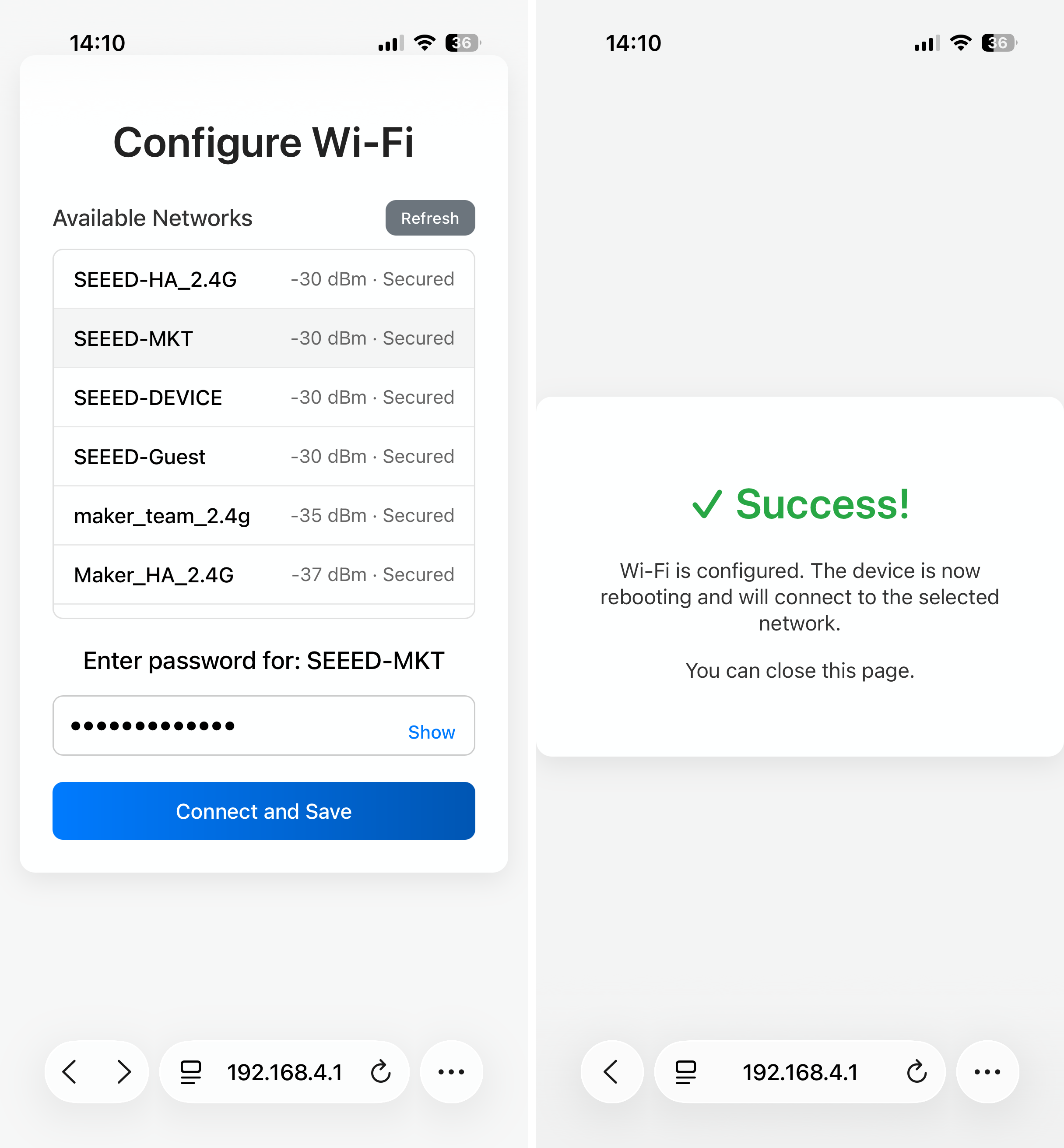
Step 4. Connect to Wi-Fi
Use your mobile phone to scan the QR code displayed on the screen. Follow the prompts on your phone to enter your local Wi-Fi SSID and password to connect the EE05 to the internet.
Step 5. Bind Device
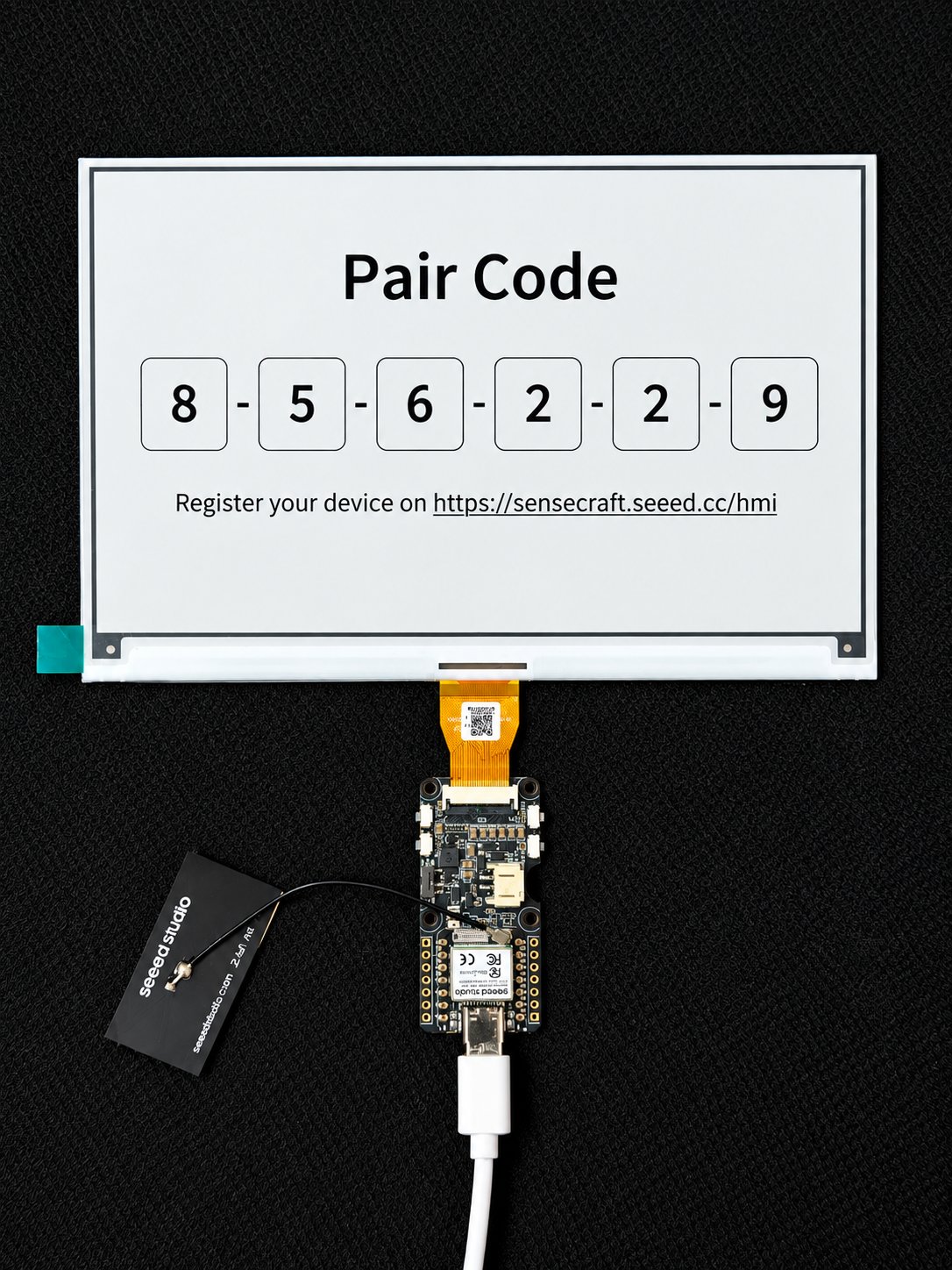
Once the network configuration is successful, the screen will refresh again and display a unique Pair Code. You will need this code for the next step.
Platform Binding & Update
Step 6. Bind Device on SenseCraft Seeedash
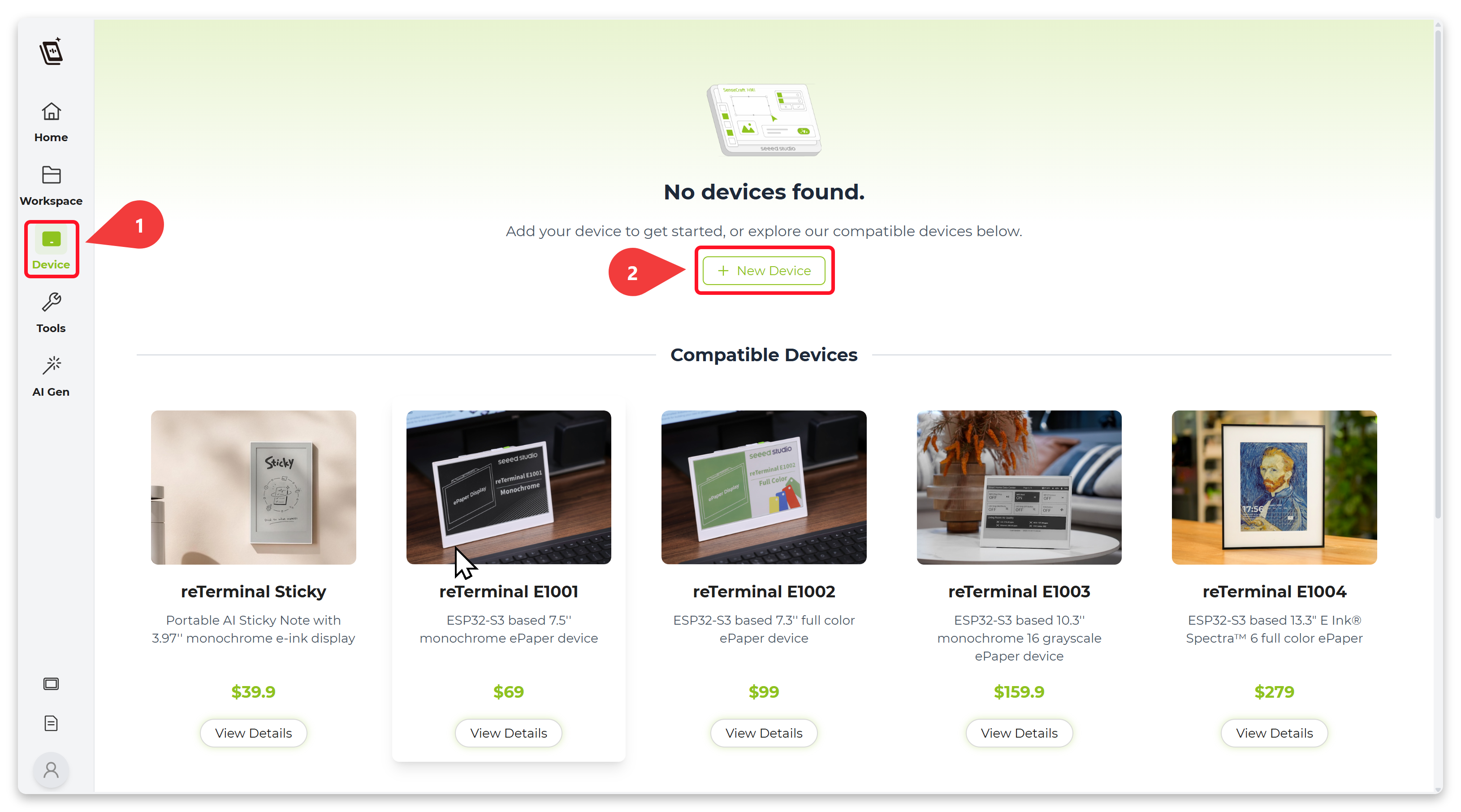
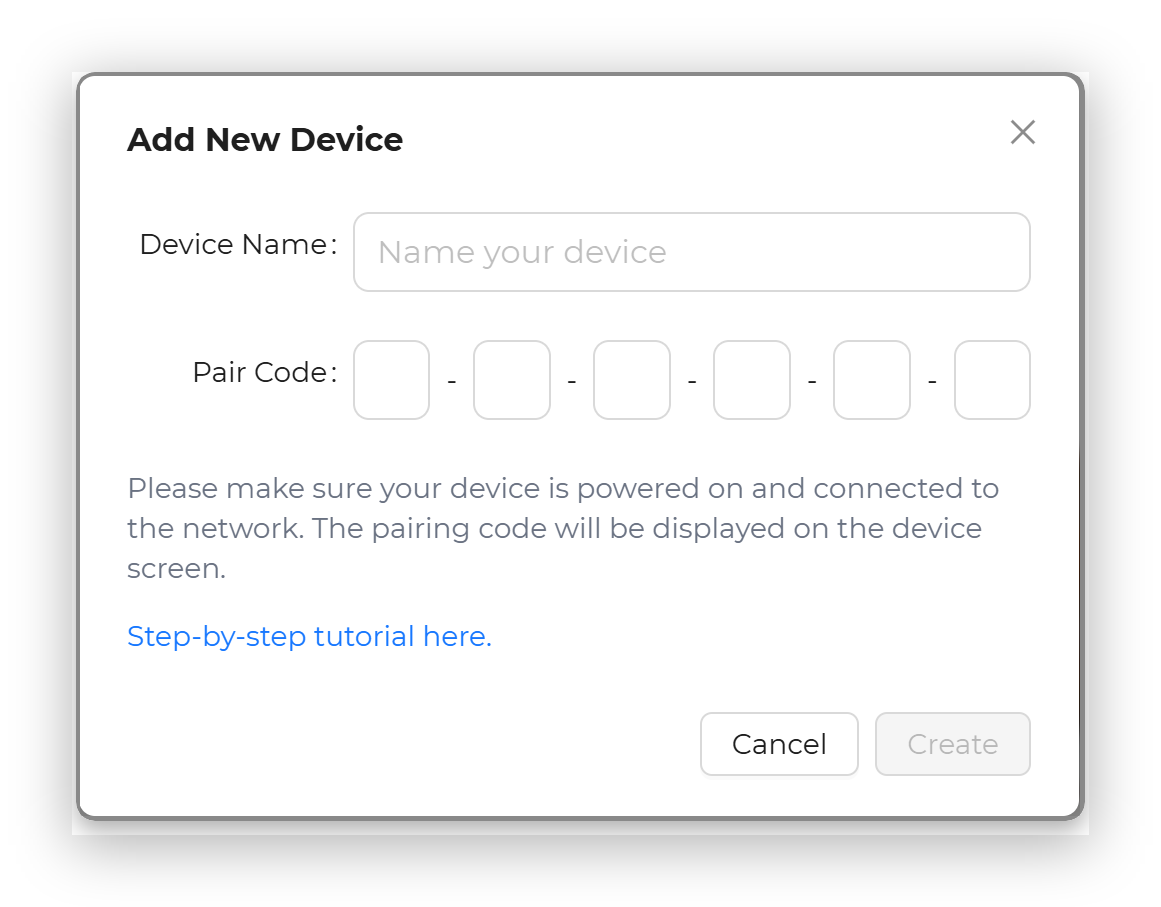
Go to the SenseCraft Seeedash Platform. Log in to your account. Navigate to the device management section and select New Device. Enter the Pair Code displayed on your E-ink screen.
Step 7. Create and Push New Interface
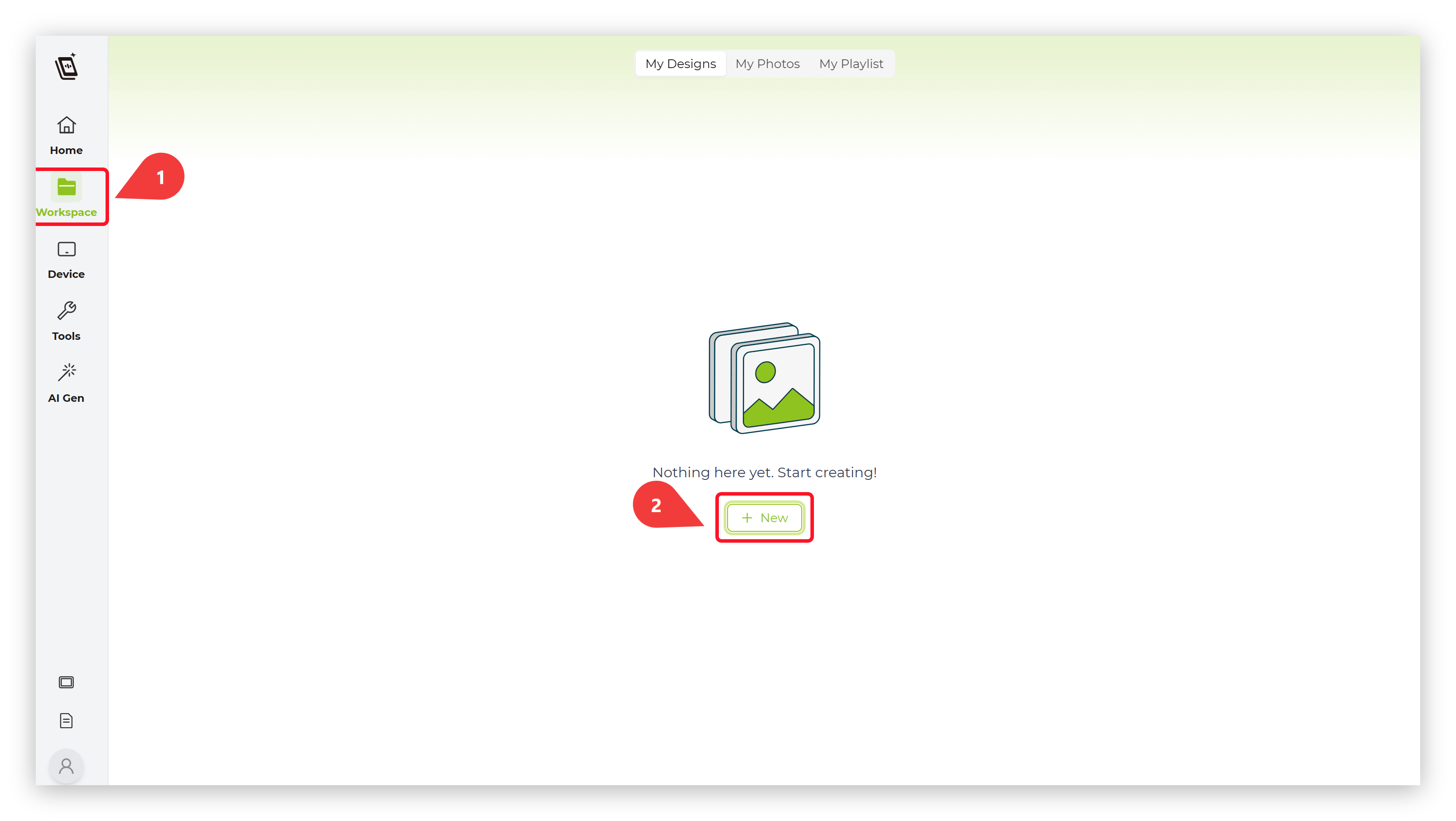
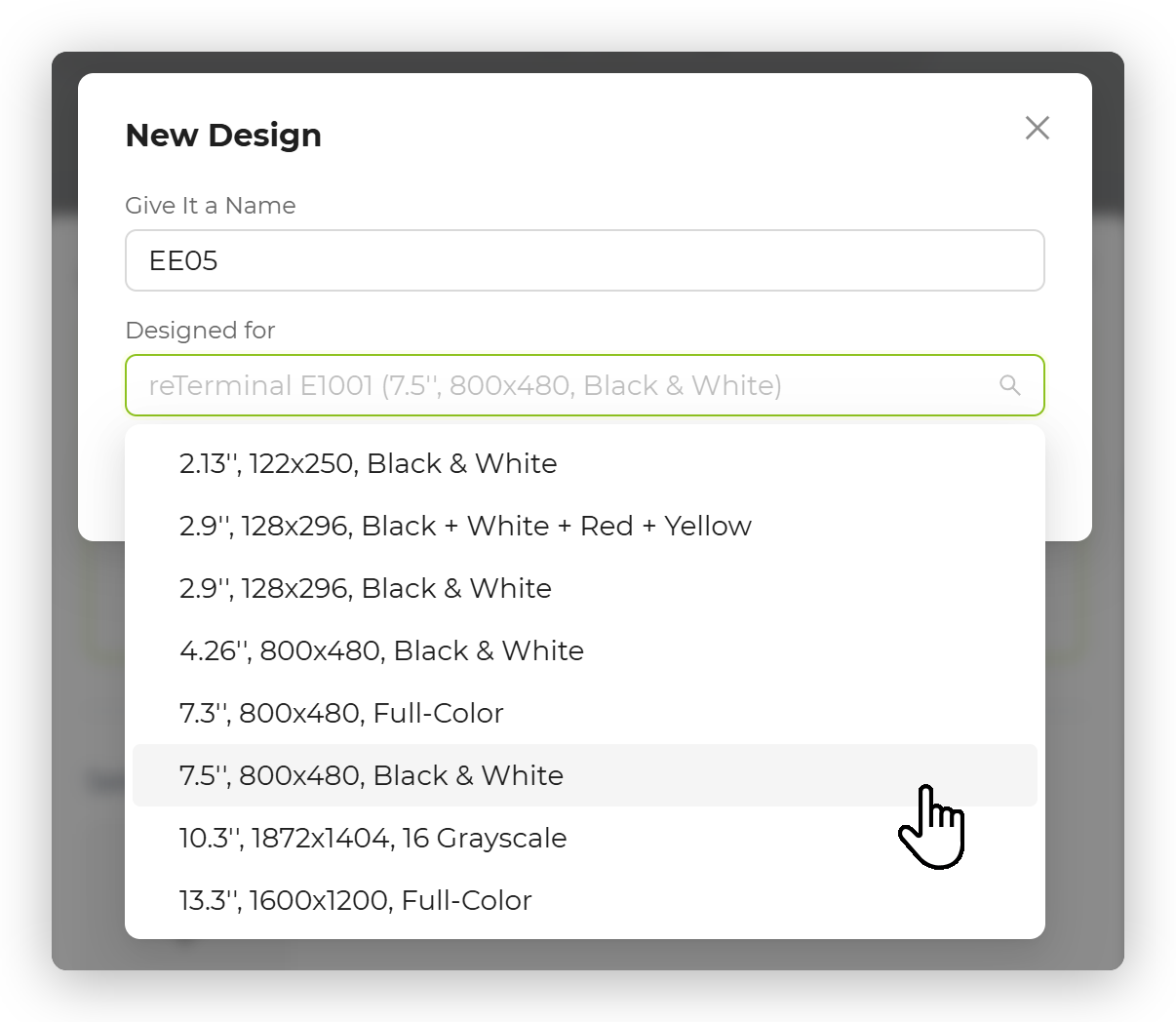
On the SenseCraft Seeedash platform, select the template suitable for the 7.5-inch screen to create a new interface or upload an image.
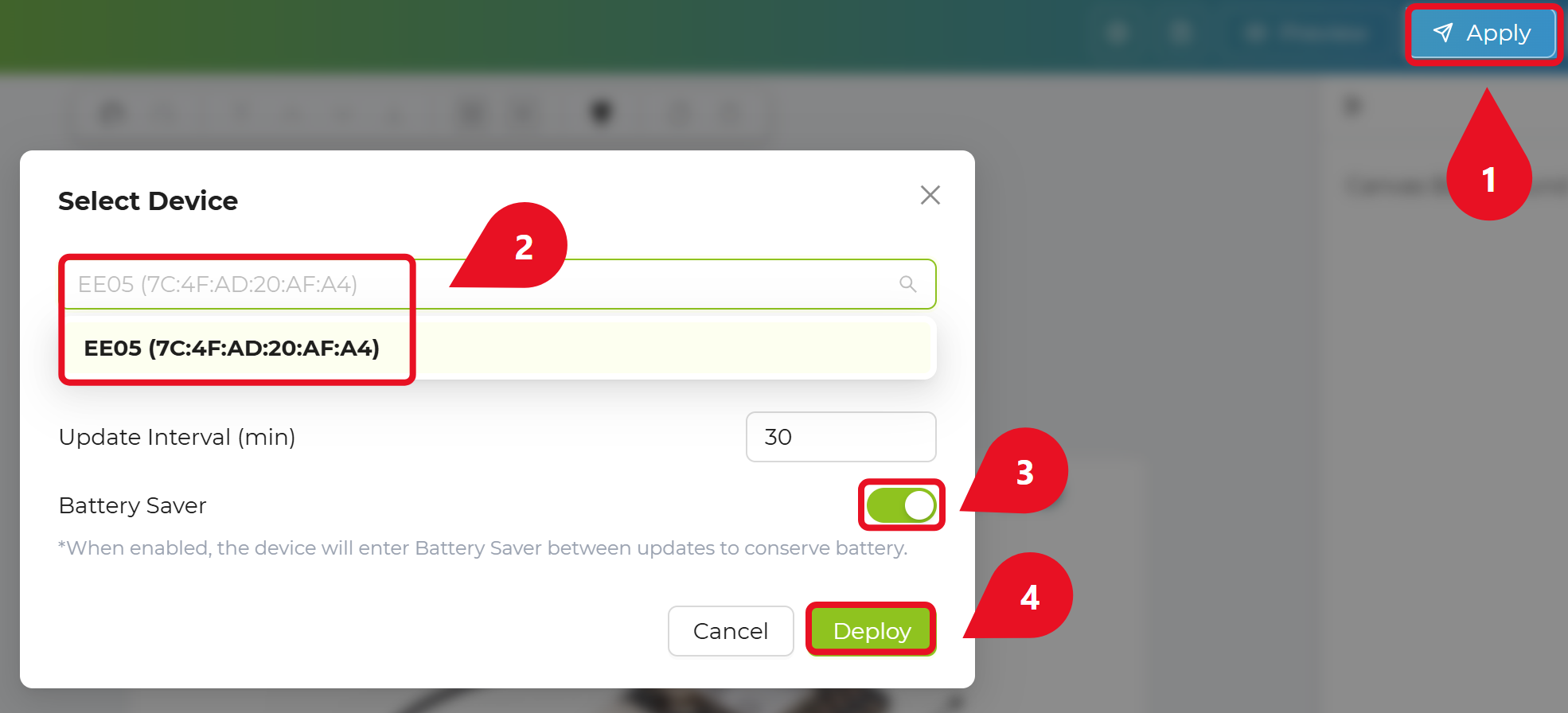
Step 8. Apply your images
Once finished, click the "Apply" button and select your EE05 device.
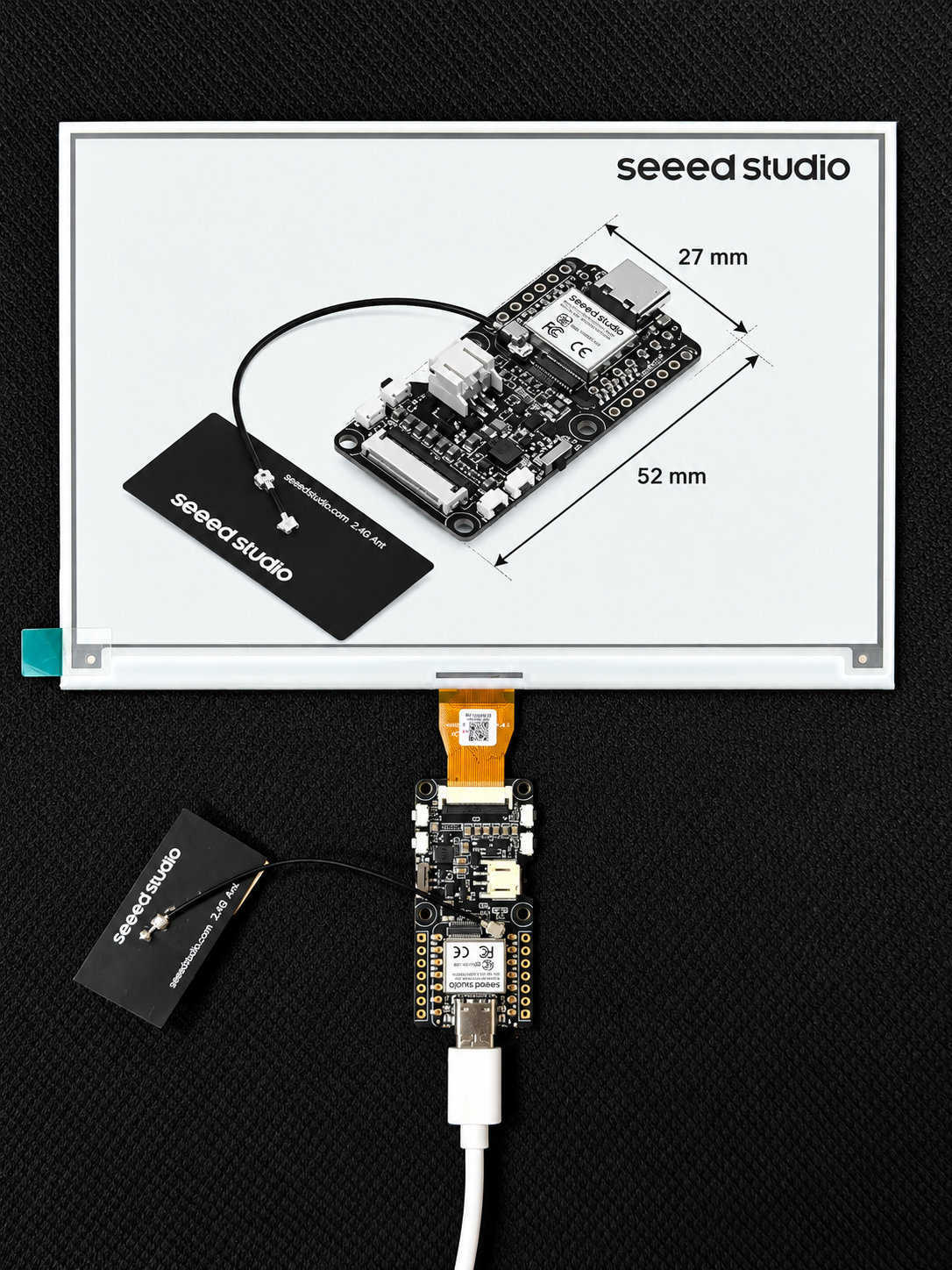
Step 9. Display on the screen
Finally the EE05 will receive the data and refresh the 7.5-inch screen with your new content.
Getting Started with Arduino
Install Seeed GFX2 Library
This library has the same function as the TFT library and is not compatible with it. If you have installed the TFT library or other similar display libraries, please uninstall them first.
Download and install the Seeed GFX2 library from GitHub.
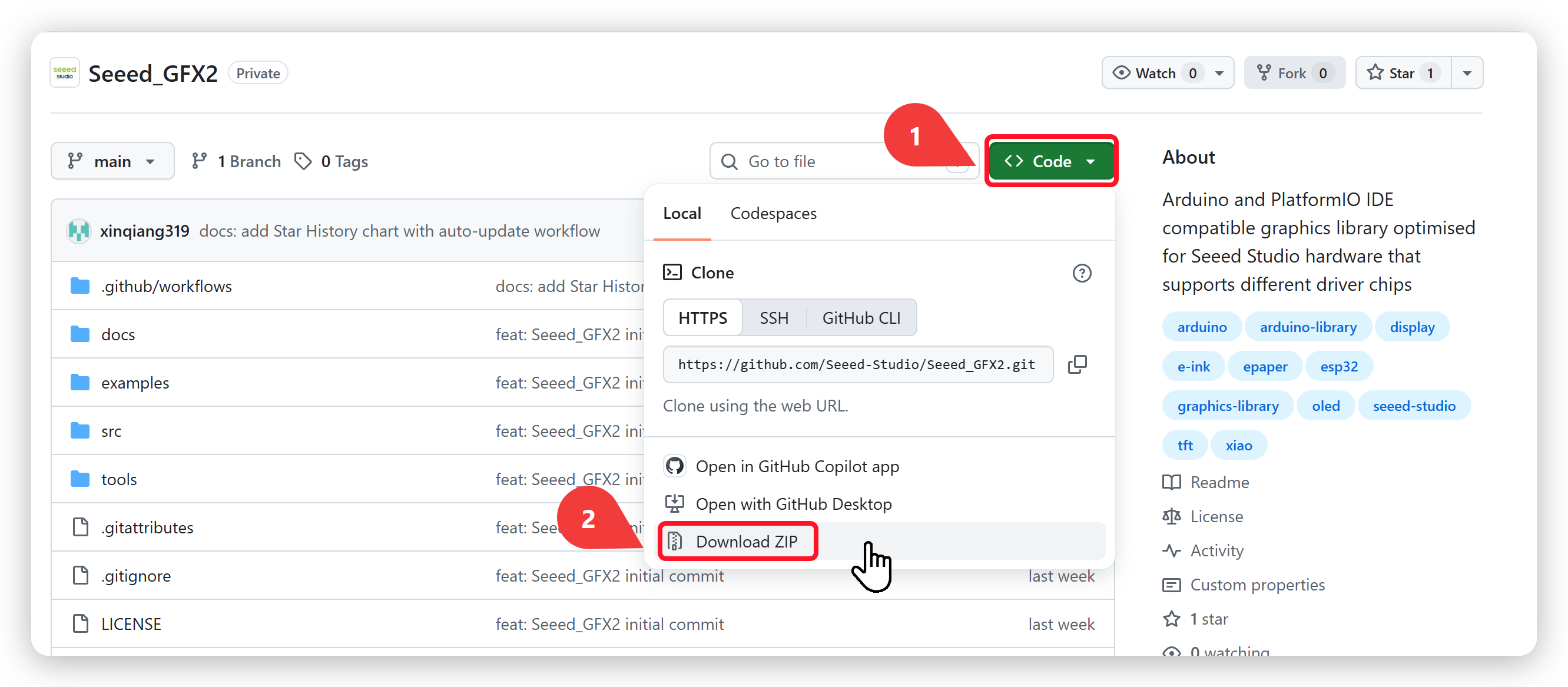
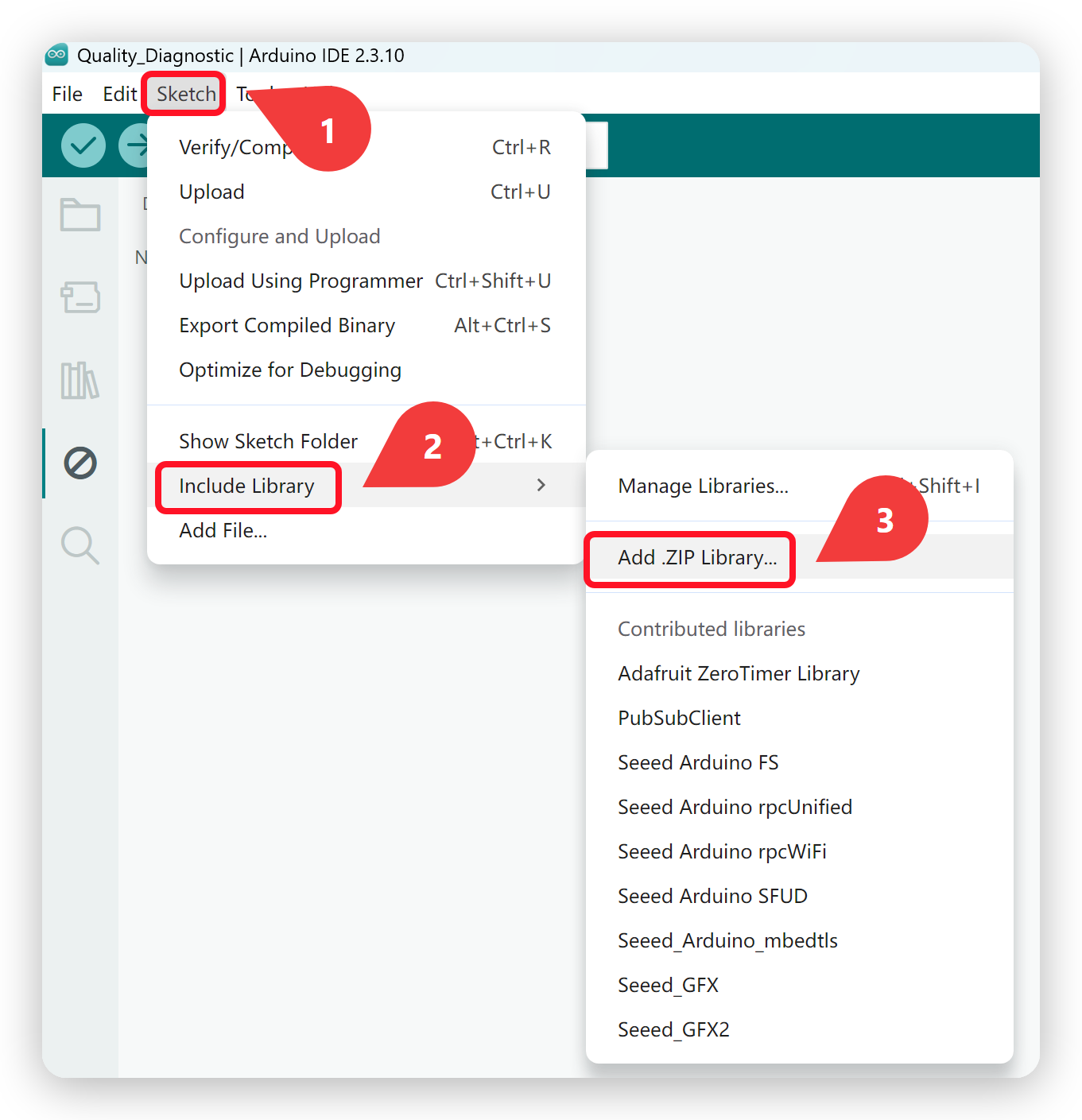
After downloading the library, go to Sketch -> Include Library -> Add .ZIP Library and select the downloaded library.
Configure and burn the program
As shown in the image, navigate to the example through this menu: File → Examples → Seeed_GFX2 → ePaper Displays → Expansion Board Series → ESP32 Series → XIAO ePaper Display Board - EE05 → 7.5-inch ePaper - Monochrome 800x480 → HelloWorld
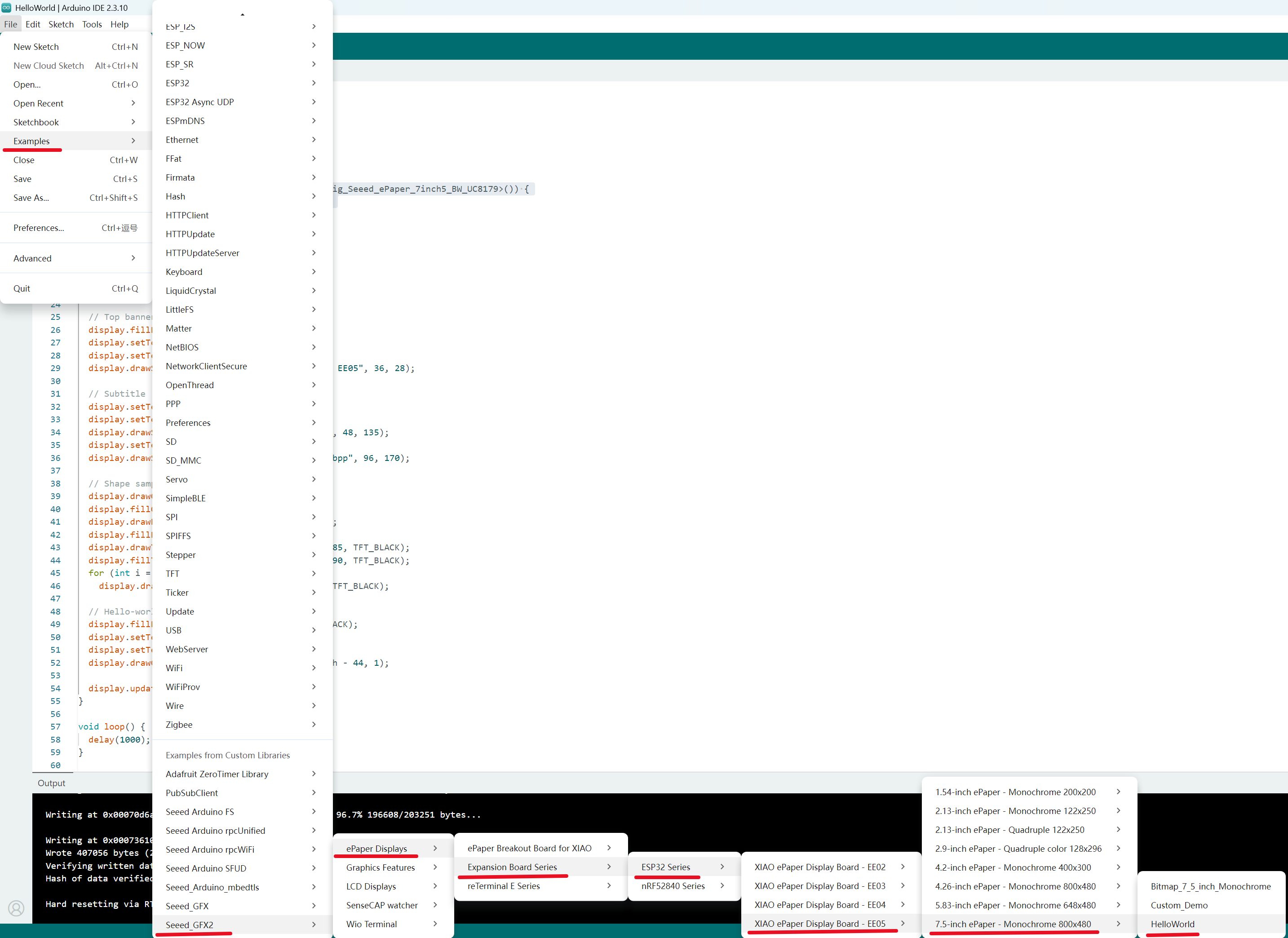
This guide uses the 7.5-inch Monochrome ePaper (800 x 480) as the example. If you have a different screen, open the example folder that matches your own panel model under EE05 instead.
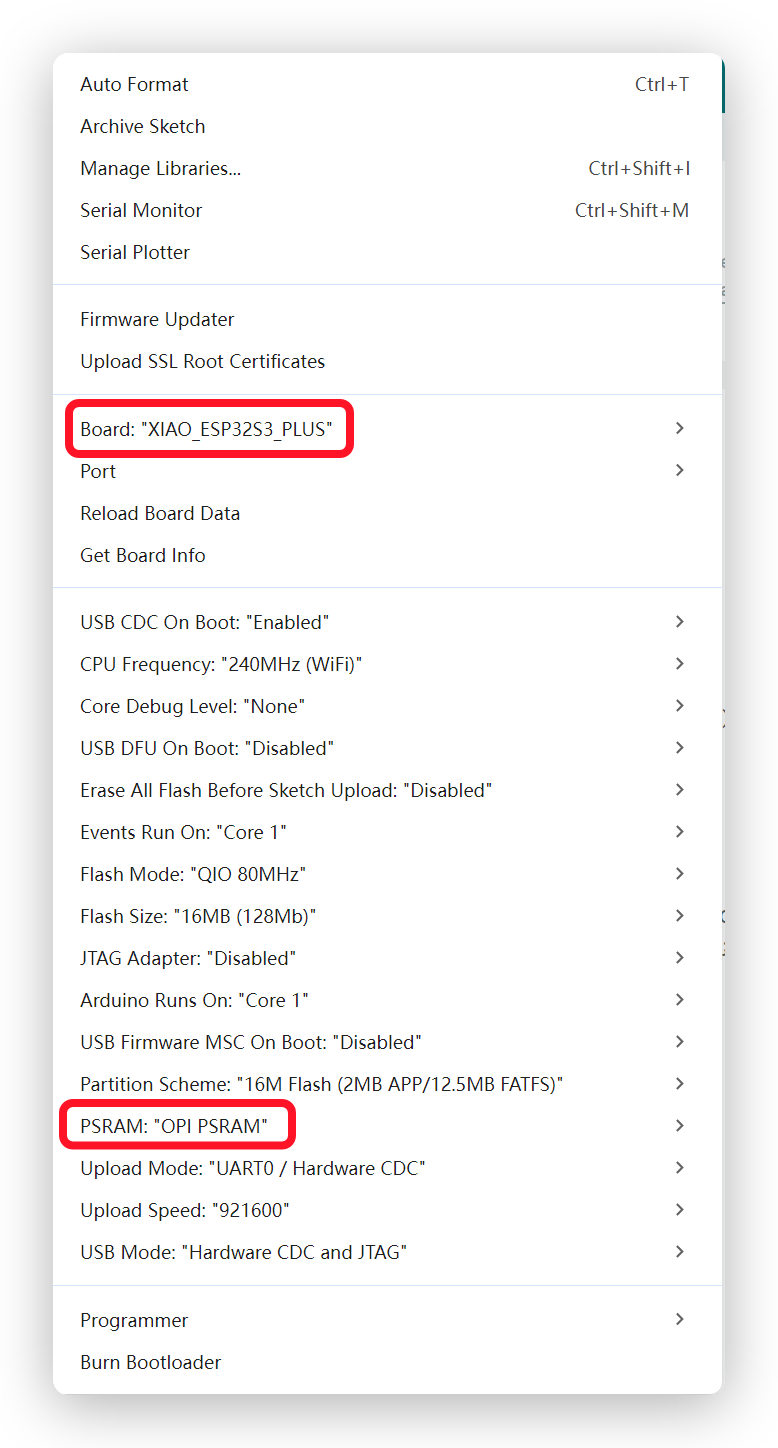
After that, go to Tools -> Board -> XIAO ESP32S3 Plus and Tools -> Port -> Select the port your board is connected to.
Note that PSRAM must be enabled.
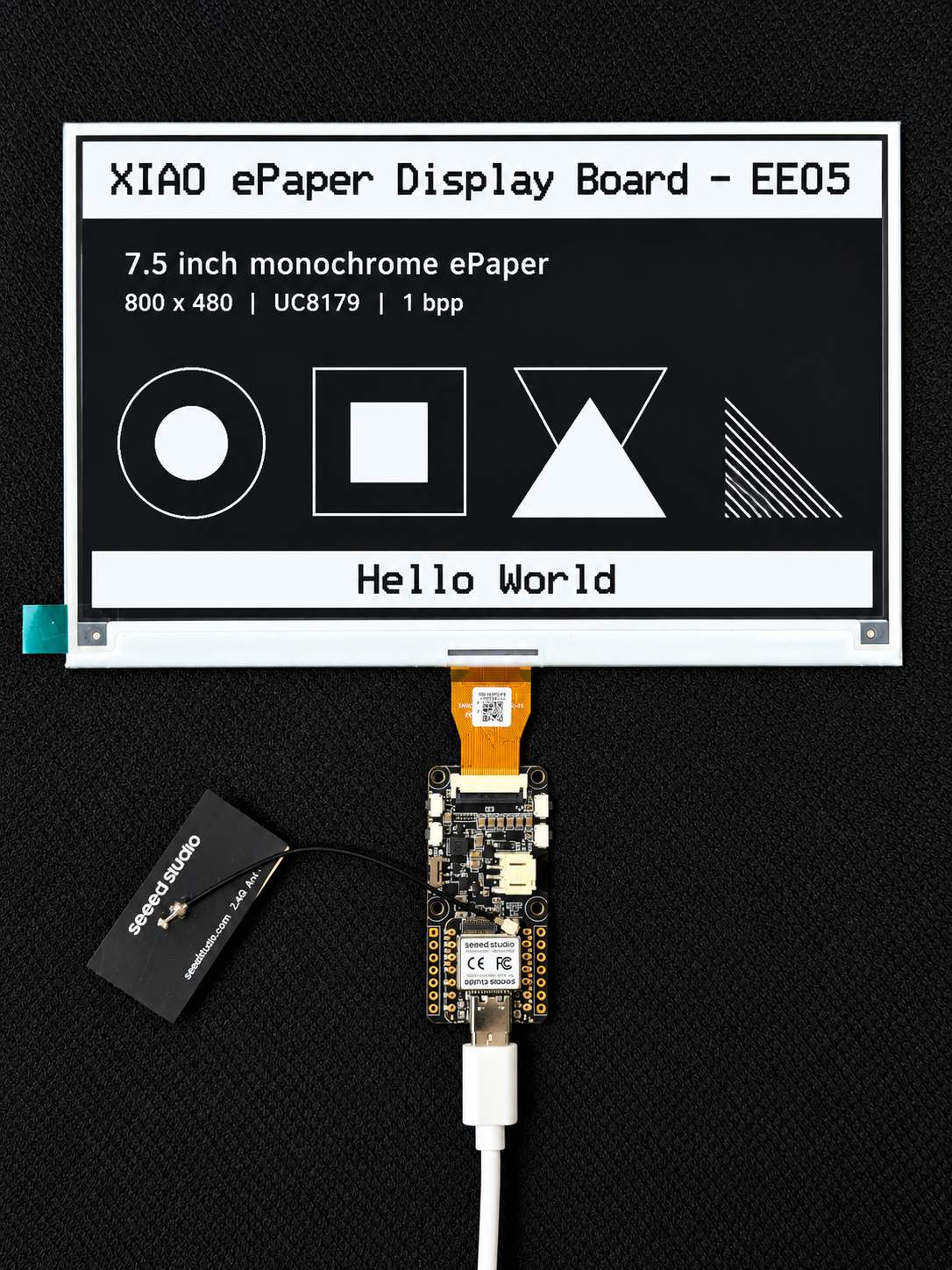
Then click Upload to upload the code. Now you will see the feedback in your epaper screen! Following is the result of the HelloWorld example.
Software Overview
Button Test Example
The EE05 has three user buttons (silkscreen: Key1 / Key2 / Key3) that you can use in your projects. Per the schematic, they map to D1 (GPIO2), D2 (GPIO3) and D9 (GPIO8), with external 10k pull-ups to 3.3V — pressing a button pulls the pin LOW. Here's a simple button test example:
#define KEY1_PIN  2  // Key1 -> D1 (GPIO2)
#define KEY2_PIN  3  // Key2 -> D2 (GPIO3)
#define KEY3_PIN  8  // Key3 -> D9 (GPIO8)

void setup() {
  Serial.begin(115200);
  pinMode(KEY1_PIN, INPUT_PULLUP);
  pinMode(KEY2_PIN, INPUT_PULLUP);
  pinMode(KEY3_PIN, INPUT_PULLUP);
}

void loop() {
  if (digitalRead(KEY1_PIN) == LOW) {
    Serial.println("Key1 (GPIO2) pressed");
    delay(200);
  }
  if (digitalRead(KEY2_PIN) == LOW) {
    Serial.println("Key2 (GPIO3) pressed");
    delay(200);
  }
  if (digitalRead(KEY3_PIN) == LOW) {
    Serial.println("Key3 (GPIO8) pressed");
    delay(200);
  }
}
Resources
- [PDF] XIAO ePaper Display Board Ex05 Schematic
- [ZIP] Seeed Studio XIAO ePaper Display EE05 SCH&PCB
- [GitHub] Seeed_GFX2 Library
- [Website] SenseCraft Seeedash
Troubleshooting
Q1: The screen does not display anything after uploading the code.
- Check the FPC Cable: Ensure the ePaper FPC cable is inserted in the correct orientation and is securely locked in the connector.
- Verify PSRAM is Enabled: Make sure you have selected "OPI PSRAM" under Tools → PSRAM in the Arduino IDE.
- Check Screen Model Selection: Double-check that you have selected the correct example for your specific screen model.
Q2: The colors are inverted or the display shows abnormal patterns.
- Select the Exact Model: Different screen sizes or IC revisions require specific configurations. Ensure you are using the correct example for your screen model.
- Check Power Supply: For larger screens (like 7.5-inch), ensure your power source can provide adequate current during screen refresh.
Q3: The board doesn't power on when connected to a battery.
- Hardware Switch: Verify that the hardware slide switch on the board is toggled to the ON position.
- Battery Connection: Check the JST 2.0mm connector polarity to ensure it matches the board's design.
- Battery Charge: Make sure the battery has sufficient charge. Try charging the battery via USB-C.
Q4: The SenseCraft Seeedash firmware flasher doesn't detect my board.
- Press RESET: Try pressing the RESET button on the board while the flasher is searching for the device.
- Check USB Cable: Ensure you are using a USB cable that supports data transfer (not just charging).
Tech Support & Product Discussion
Thank you for choosing our products! We are here to provide you with different support to ensure that your experience with our products is as smooth as possible. We offer several communication channels to cater to different preferences and needs.