Getting Started with XIAO ePaper Display Board - EN05
| XIAO ePaper Display Board EN05 |
|---|
 |
Introduction
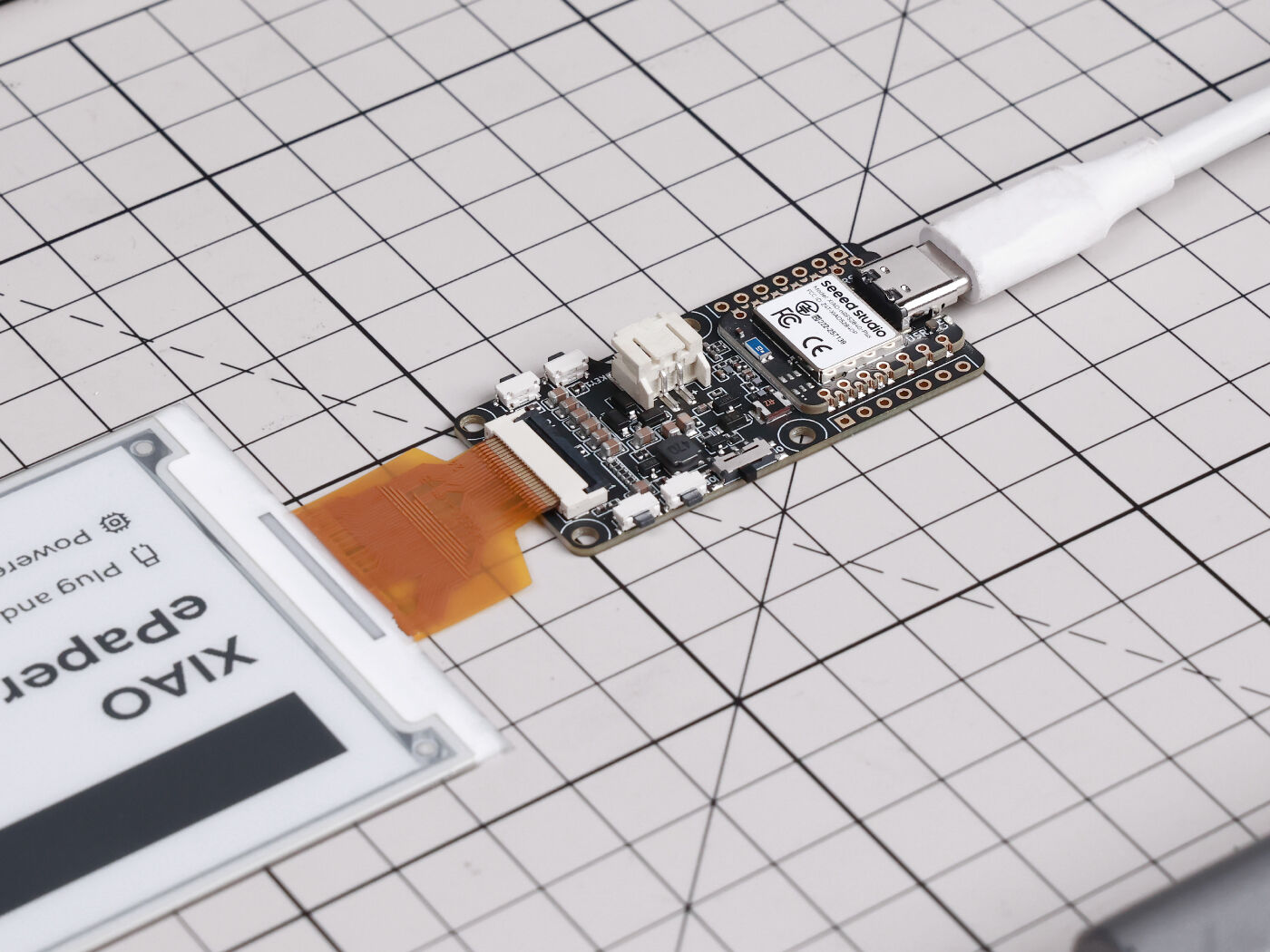
Powered by XIAO nRF52840 Plus, the display board EN05 supports a wide range of 24-pin ePaper displays. It features extension IO port for connecting additional sensors, JST 2.0 mm battery connector with power switch, built-in charging IC, and comes with three user buttons. Well-suited for ultra-low-power ePaper projects such as smart name badges, electronic price tags, meeting room signage, and portable information boards.
Features
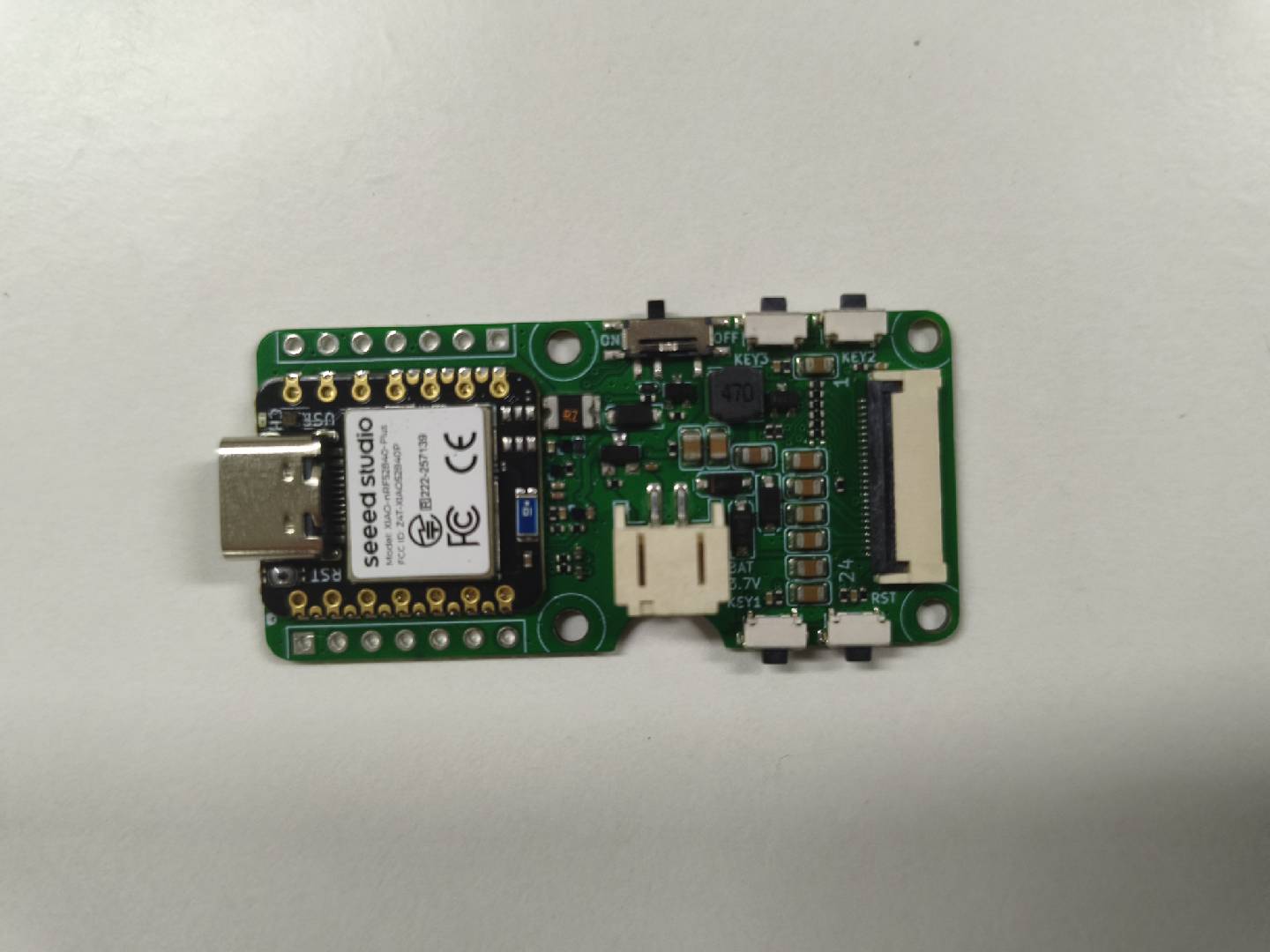
- Powered by XIAO nRF52840 Plus: Works immediately when connected to a compatible ePaper display, with onboard NFC interface for tap-to-configure, pairing, or triggering content updates.
- Versatile Display Support: Compatible with a wide range of 24-pin ePaper displays, supporting 24-Pin ePaper displays for various project requirements.
- Extension IO Port: Enables connection of additional sensors, such as temperature and humidity sensors, for enhanced functionality.
- BAT Connector with Switch: Provides simple battery connection and integrates a switch, enabling efficient power management and energy savings.
- Wide Software Compatibility: Whether you prefer coding with Arduino or PlatformIO, this driver board has you covered, providing maximum flexibility for your projects.
Specifications
| Parameter | Description |
|---|---|
| Processor | XIAO nRF52840 Plus |
| Wireless | Bluetooth 5.0 |
| ePaper Connector | SPI FPC 24-Pin 0.5mm |
| Battery Connector | JST 2.0mm (3.7V Li-Battery) |
| Switch | Hardware power slide switch |
| Buttons | 1x Reset button (side-mounted) 3x User button (side-mounted) |
| PCB Thickness | 1.2mm |
ePaper Board Selection Guide
| Product | ePaper Display Board EN05 | ePaper Display Board EN04 | ePaper Breakout | ePaper Driver Board |
|---|---|---|---|---|
| Processor | XIAO nRF52840 Plus | XIAO nRF52840 Plus | XIAO Series | XIAO Series |
| Compatible ePaper Displays | 24 Pin ePaper | 24 Pin ePaper 50 Pin ePaper | 24 Pin ePaper | 24 Pin ePaper |
| ePaper Connector | FPC 24 Pin, 0.5mm | FPC 24 Pin, 0.5mm FPC 50 Pin, 0.5mm | FPC 24 Pin 0.5mm | FPC 24 Pin 0.5mm |
| Battery Connector | JST 2.0mm | JST 2.0mm | / | JST 2.0mm |
| Switch | Battery Power ON/OFF | Battery Power ON/OFF | / | Battery Power ON/OFF |
| Button | 1x Reset button 3x User button | 1x Reset button 3x User button | / | / |
| Extension IO Port | connection of additional sensors | / | connection of others controller | connection of additional sensors |
Application
- Smart Name Badge: Create an ultra-low-power conference or employee badge that displays names, schedules, or QR codes, with NFC tap-to-configure content updates.
- Electronic Shelf Label: Build battery-powered price tags that can run for months on a single charge and refresh only when the price changes.
- Meeting Room Signage: Display room status, booking information, and upcoming events outside meeting rooms with minimal power consumption.
- Environmental Sensor Dashboard: Combine the extension IO port with temperature and humidity sensors to show live environmental data on an always-visible ePaper screen.
- Portable Information Board: Carry a lightweight, battery-powered display for task lists, notes, or reference information that stays readable even when powered off.
Hardware Overview
Supported ePaper Displays
The EN05 supports the following 24-Pin SPI ePaper displays:
- 1.54-inch ePaper - Monochrome 200x200
- 2.13-inch ePaper - Monochrome 122x250
- 2.13-inch ePaper - Quadruple Color 122x250
- 2.9-inch ePaper - Quadruple Color 128x296
- 4.2-inch ePaper - Monochrome 400x300
- 4.26-inch ePaper - Monochrome 800x480
- 5.83-inch ePaper - Monochrome 648x480
- 7.5-inch ePaper - Monochrome 800x480
User Buttons
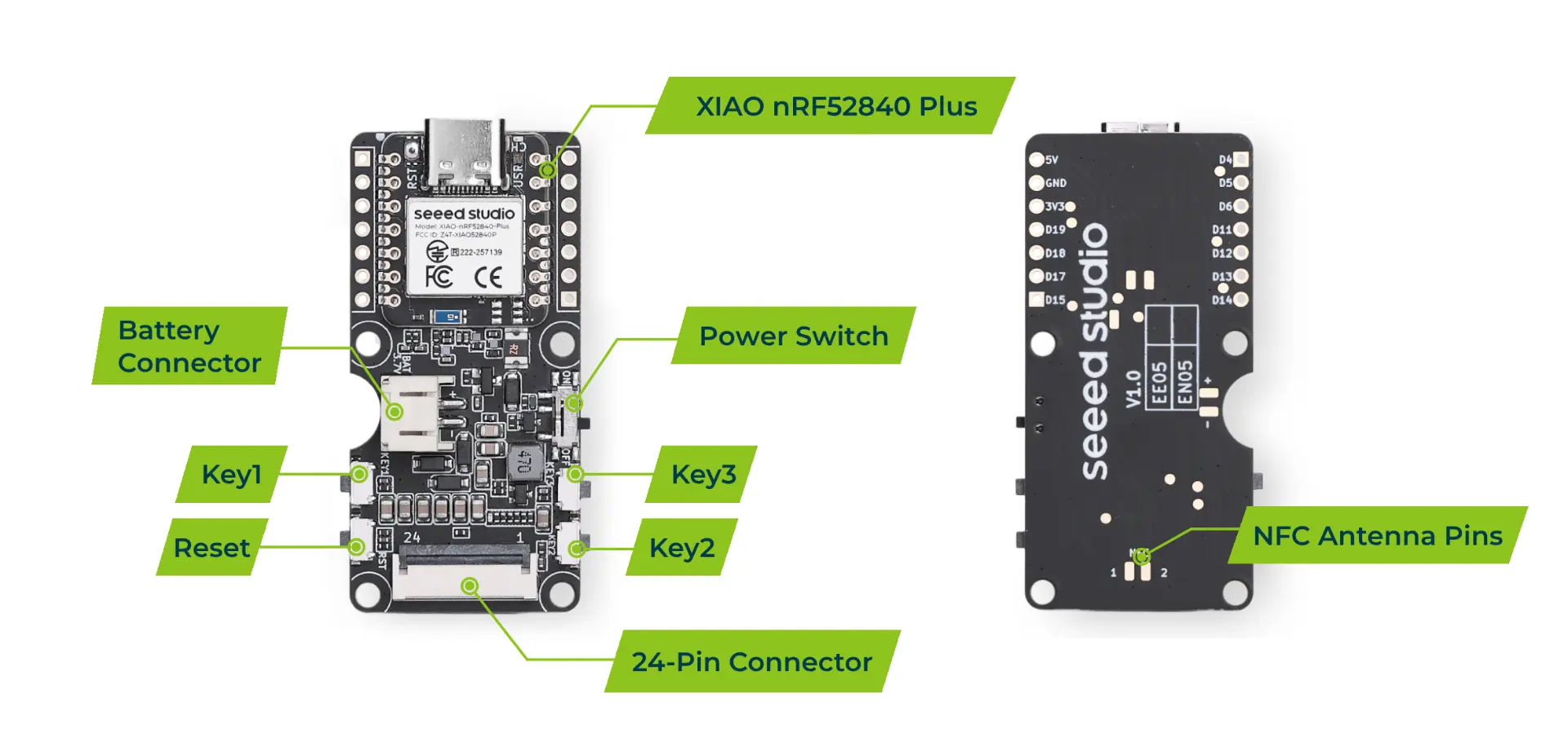
The EN05 features three user-programmable buttons that can be used for various control purposes. All buttons are active-low — they read LOW when pressed and HIGH when released.
On the EN05, the three buttons are connected to the XIAO nRF52840 Plus as follows:
| KEY1 | KEY2 | KEY3 |
|---|---|---|
| D1 / A1 | D2 / A2 | D9 |
The user buttons are programmable and can be configured for various functions such as page switching, mode selection, or triggering specific actions in your ePaper project.
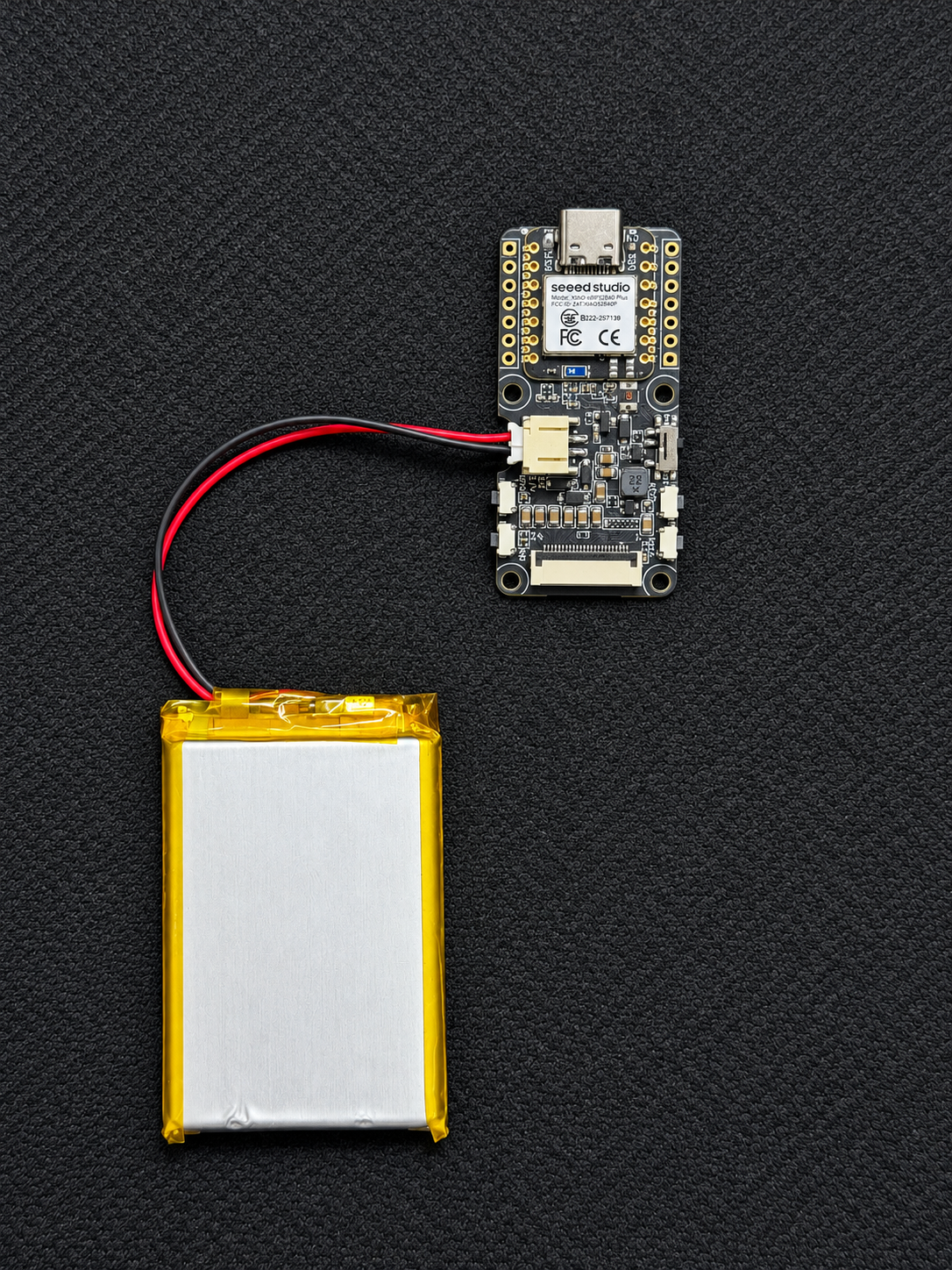
Battery Connector
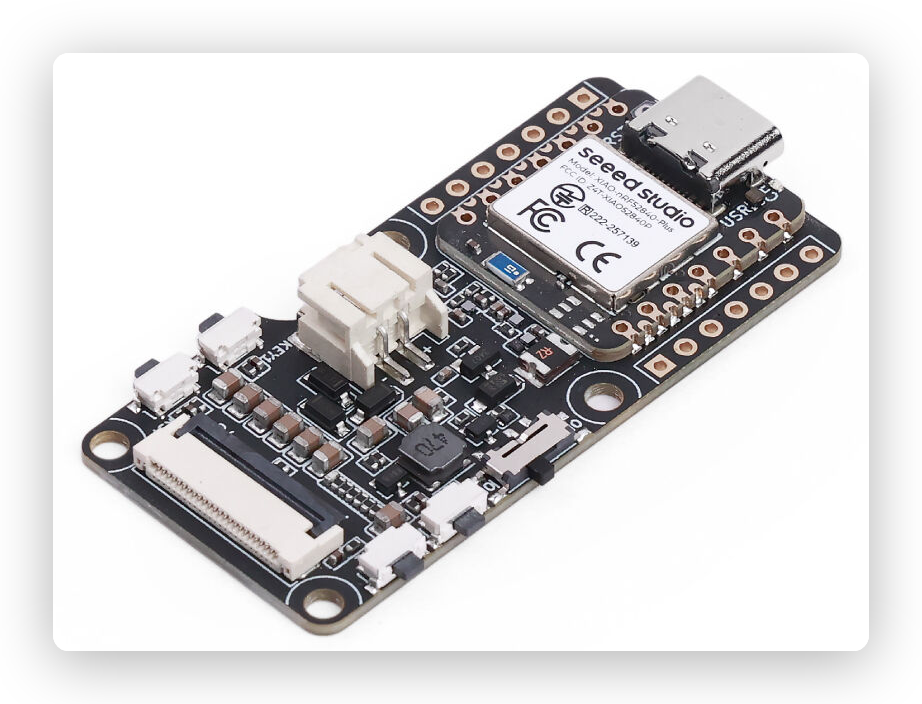
The EN05 is equipped with a JST 2.0 mm battery connector and a built-in charging IC, making it suitable for battery-powered low-power ePaper projects.
Getting Started with Arduino
Install Seeed GFX2 Library
All ePaper examples for the EN05 are built on the Seeed_GFX2 Arduino library, which supports every ePaper display listed in the Supported ePaper Displays section. The examples below use the 7.5-inch Monochrome ePaper (800 x 480) as an example.
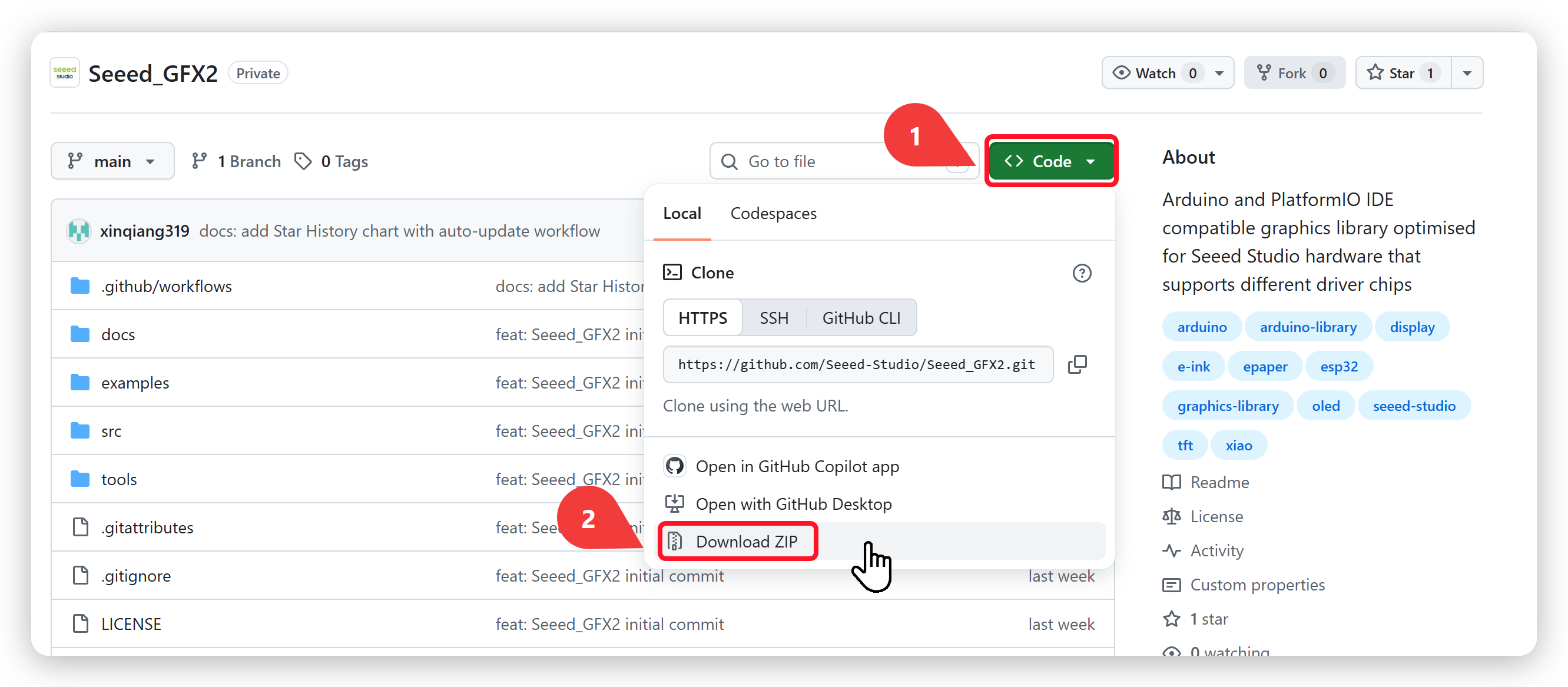
Step 1. Download the Seeed_GFX2 Library
Visit the Seeed_GFX2 GitHub repository, click the green Code button, and select Download ZIP to save the library to your computer.
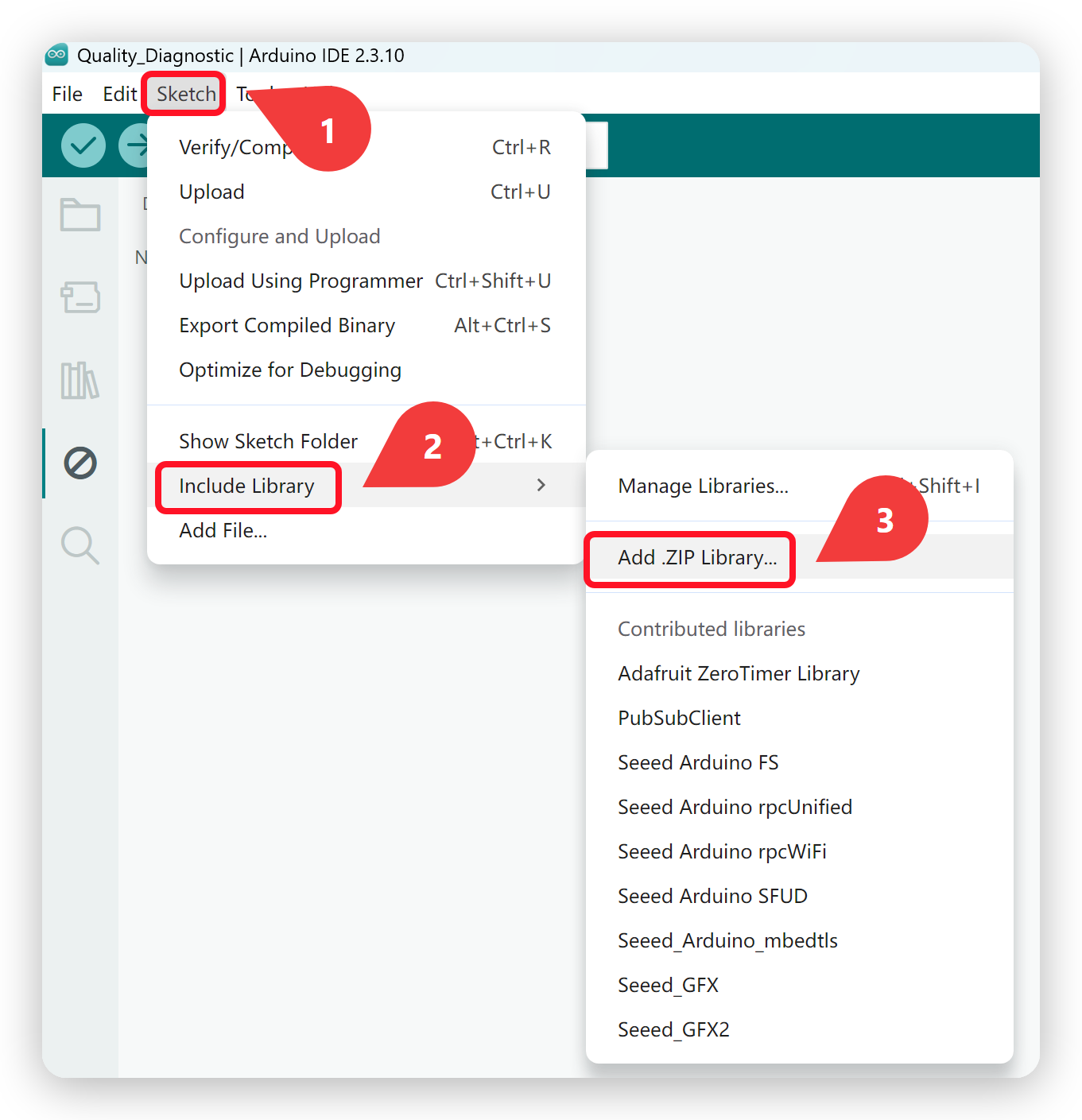
Step 2. Add the Library to Arduino IDE
Open the Arduino IDE, navigate to Sketch → Include Library → Add .ZIP Library..., and select the ZIP file you just downloaded.
Configure and burn the program
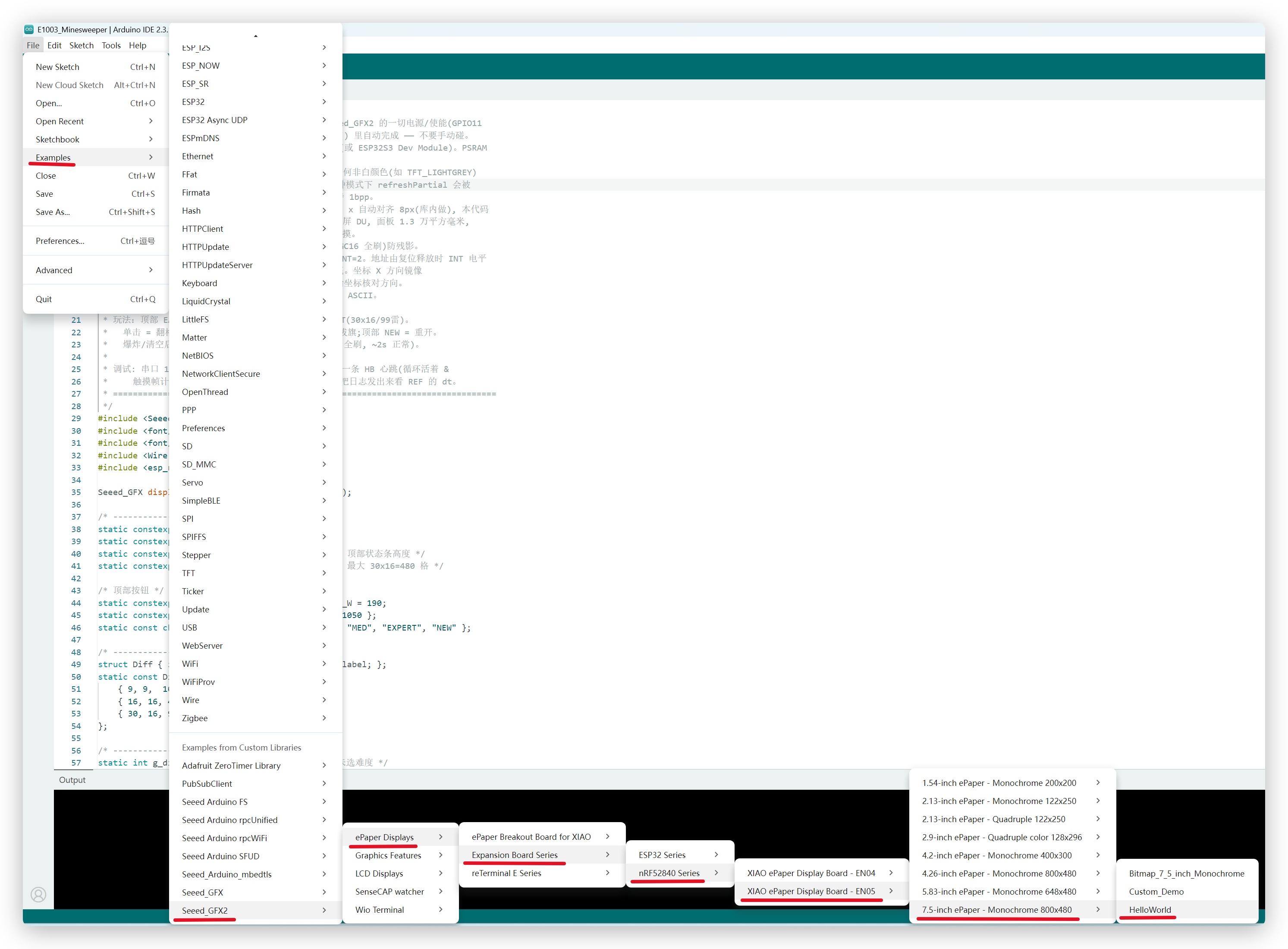
- Navigate to File → Examples → Seeed_GFX2 → ePaper Displays → Expansion Board Series → nRF52840 Series → XIAO ePaper Display Board - EN05 → 7.5-inch ePaper - Monochrome 800x480 → HelloWorld.
-
If you have not set up the XIAO nRF52840 board support yet, open Tools → Board → Boards Manager..., search for Seeed nRF52 Boards and install it — note this is the regular Seeed nRF52 Boards package, not Seeed nRF52 mbed-enabled Boards. For detailed setup instructions, refer to the XIAO BLE Software Setup guide.
-
In Tools → Board, select Seeed XIAO nRF52840 Plus.
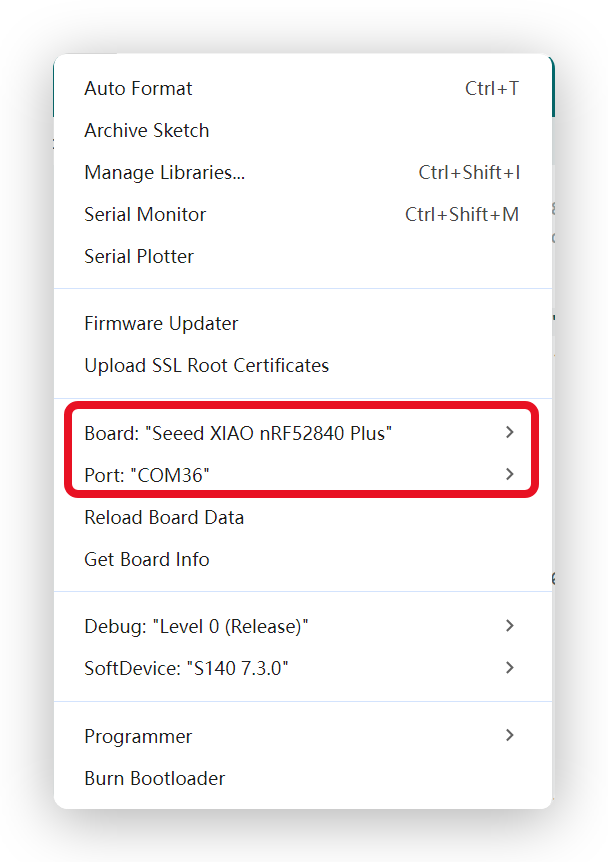
- Connect the board via USB Type-C, select the corresponding serial port, and click Upload. Once the upload completes, the ePaper will refresh and display the demo.
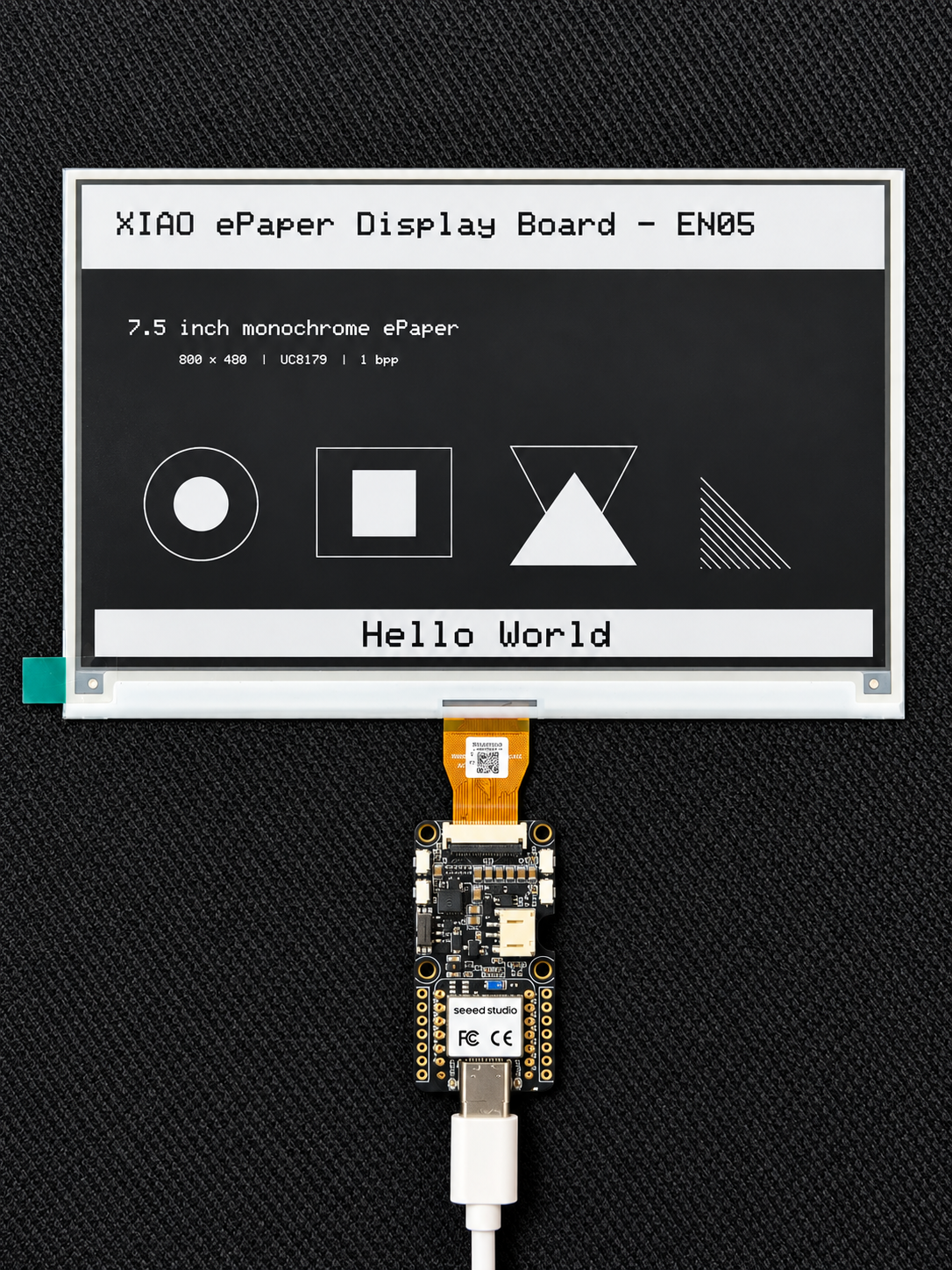
The example paths above use the 7.5-inch Monochrome display as an example. For other supported displays, simply pick the folder matching your screen model under XIAO ePaper Display Board - EN05 — each screen ships with HelloWorld, Bitmap_<screen_model> (e.g. Bitmap_7_5_inch_Monochrome) and Custom_Demo examples.
Software Overview
Basic Button Reading Example
This example demonstrates how to detect all three button presses and print messages to the serial monitor.
#include <Adafruit_TinyUSB.h> // Required for Serial on the Seeed nRF52 Boards core

// Button pin definitions (from the EN05 schematic V1.11)
// KEY1 = D1 / A1 / P0.03
// KEY2 = D2 / A2 / P0.28
// KEY3 = D9
const int KEY1_PIN = 1;
const int KEY2_PIN = 2;
const int KEY3_PIN = 9;

void setup() {
  // Initialize serial port
  Serial.begin(9600);
  while (!Serial) delay(10);

  // Configure all button pins as input with internal pull-up
  // Pin is HIGH when not pressed, LOW when pressed
  pinMode(KEY1_PIN, INPUT_PULLUP);
  pinMode(KEY2_PIN, INPUT_PULLUP);
  pinMode(KEY3_PIN, INPUT_PULLUP);

  Serial.println("nRF52840 Three-Button Detection Program Started");
  Serial.println("Press KEY1 / KEY2 / KEY3 to see output...");
}

// Helper function: check if a button is pressed (with debounce)
bool isButtonPressed(int pin) {
  if (digitalRead(pin) == LOW) {
    delay(50); // debounce
    if (digitalRead(pin) == LOW) {
      // Wait for release to prevent repeated triggers
      while (digitalRead(pin) == LOW) {
        delay(10);
      }
      return true;
    }
  }
  return false;
}

void loop() {
  if (isButtonPressed(KEY1_PIN)) {
    Serial.println("Hello. This is KEY1");
  }
  if (isButtonPressed(KEY2_PIN)) {
    Serial.println("Hello. This is KEY2");
  }
  if (isButtonPressed(KEY3_PIN)) {
    Serial.println("Hello. This is KEY3");
  }

  delay(10);
}
Resources
Troubleshooting
Q1: The ePaper screen shows nothing after power-on.
- Check the FPC cable orientation. Make sure the ePaper FPC cable is inserted in the correct direction. Reversing the connector can cause a blank screen and may damage the display.
- Press the RESET button. After uploading firmware or connecting power, press the reset button once to trigger a screen refresh.
Q2: The display shows garbled content or partial refresh.
- Confirm the screen model selection. In your Arduino example, make sure you selected the exact screen model (size and color type). Choosing the wrong model will cause incorrect rendering.
- Wait for a full refresh. ePaper displays use a full refresh cycle — partial or ghosting effects during the refresh are normal and will clear once the cycle completes.
Q3: The board does not power on when using battery.
- Check the power switch. Slide the battery power switch to the ON position — the board will not draw power from the battery when the switch is off.
- Verify the JST connector polarity. Ensure the JST 2.0 mm battery connector is plugged in with the correct polarity. Reversed battery polarity may damage the hardware. Verify the connector's +/− markings before connecting.
- Charge the battery. If the battery is fully drained, the board may not start. Connect USB Type-C to charge the battery and try again.
Q4: The computer does not detect the board, or no serial port appears.
- Press the RESET button. With the board connected via USB, press and release the RESET button to re-enumerate the USB port, then try again.
- Use a data-capable USB cable. Some USB cables only provide power and do not support data transfer. Switch to a known-good data cable.
- Check the USB port. Try a different USB port on your computer — some ports may have power or driver issues.
Q5: Arduino IDE upload fails.
- Select the correct board. Go to Tools → Board and make sure Seeed XIAO nRF52840 Plus is selected. Do not choose other XIAO board variants.
- Select the correct port. Go to Tools → Port and pick the serial port corresponding to your board. If no port appears, check your USB cable and connection.
- Enter bootloader mode if needed. If upload consistently fails, double-press the RESET button to enter bootloader mode, then re-select the port and upload again.
Tech Support & Product Discussion
Thank you for choosing our products! We are here to provide you with support to ensure that your experience with our products is as smooth as possible. We offer several communication channels to cater to different preferences and needs.