Flashear BSP con Jetpack al Jetson seleccionado
⚡Flashear Jetson Linux
Proceso de flasheo simplificado para todos los dispositivos Jetson de Seeed Studio. Selecciona tu producto y sigue los pasos guiados a continuación.
🎯 Selecciona tu dispositivo

Consulte aquí el uso de la interfaz de la carrier board: uso de la interfaz
🚀 JetPack 6.2 con MAXN Super Mode
Configuraciones de rendimiento mejoradas ahora disponibles para los módulos Orin Nano y Orin NX. Más información
📥 Descargar
🔐 Verificar SHA256 (Opcional)
Para verificar el hash SHA256 del archivo descargado, ejecute en la terminal:
sha256sum mfi_xxxx.tar.gz
# Por ejemplo:
# sha256sum mfi_recomputer-super-orin-nx-16g-j401-6.2-36.4.3-2026-02-05.tar.gz
Si el resultado coincide con el SHA256 indicado en la documentación, se confirma que el firmware descargado está completo e intacto.
🛠️ Preparar requisitos
- Equipo anfitrión con Ubuntu
- reComputer Super J4012 / J4011 / J3010 o J3011
- Cable de datos USB Type-C
Recomendamos usar un host físico con Ubuntu en lugar de máquinas virtuales.
Consulte la siguiente tabla para preparar el equipo anfitrión.
| Versión de JetPack | Versión de Ubuntu (Host) | |||
|---|---|---|---|---|
| 18.04 | 20.04 | 22.04 | 24.04 | |
| JetPack 6.x | ✅ | ✅ | ||
| JetPack 7.2 | ✅ | ✅ | ✅ | |
Para JetPack 7.2, Ubuntu 24.04 solo es compatible con el flasheo y la instalación de componentes del dispositivo de destino. Use Ubuntu 20.04 o 22.04 si necesita componentes de desarrollo en el host.
🔄 Entrar en modo de recuperación
Haga clic en "Paso a paso" para ver cómo entrar en modo de recuperación.
Paso a paso
- Paso 1. Cambie el interruptor a la posición RESET.

- Paso 2. Encienda la carrier board conectando el cable de alimentación.
- Paso 3. Conecte la placa al PC con Ubuntu mediante un cable de datos USB Type-C.
- Paso 4. En el PC con Linux, abra una terminal y ejecute lsusb. Si aparece una de las salidas siguientes según su SoM de Jetson, la placa está en modo de recuperación forzada.
Si el dispositivo no es detectado, pruebe:
- Reconectar el cable USB.
- Usar otro puerto USB (preferiblemente USB 2.0).
- Asegurarse de que el dispositivo esté en modo de recuperación (mantener Recovery + Reset).
Tras entrar en modo de recuperación, abra una terminal en el PC con Linux y ejecute:
lsusb
Si la salida incluye alguno de los siguientes ID, la placa está en modo de recuperación forzada:
- Para Orin NX 16GB:
0955:7323NVidia Corp - Para Orin NX 8GB:
0955:7423NVidia Corp - Para Orin Nano 8GB:
0955:7523NVidia Corp - Para Orin Nano 4GB:
0955:7623NVidia Corp
La imagen siguiente corresponde a Orin Nano 8GB:

📦 Instalar dependencias
Instala las dependencias de flasheo requeridas en tu PC host:
sudo apt-get update && \
sudo apt-get install -y abootimg \
                        binfmt-support \
                        binutils \
                        cpp \
                        device-tree-compiler \
                        dosfstools \
                        lbzip2 \
                        libxml2-utils \
                        nfs-kernel-server \
                        python3-yaml \
                        qemu-user-static \
                        sshpass \
                        udev \
                        uuid-runtime \
                        whois \
                        openssl \
                        cpio \
                        rsync \
                        zstd
Ubuntu 18.04 y anteriores
sudo apt-get install -y liblz4-tool
Ubuntu 20.04 / 22.04 y posteriores
sudo apt-get install -y lz4
🚀 Extraer y Flashear
Paso 1: En el PC con Ubuntu, extraiga la imagen descargada:
cd <ruta-a-la-imagen>
sudo tar xpf  mfi_xxxx.tar.gz
# Por ejemplo:
# sudo tar xpf mfi_recomputer-super-orin-nx-16g-j401-6.2-36.4.3-2026-02-05.tar.gz
Paso 2: Ejecute el siguiente comando para flashear JetPack en el NVMe SSD:
cd mfi_xxxx
# Por ejemplo:
# cd mfi_recomputer-orin-super-j401
sudo ./tools/kernel_flash/l4t_initrd_flash.sh --flash-only --massflash 1 --network usb0 --showlogs
Si el proceso de flasheo finaliza correctamente, verá una salida similar a la siguiente:

Paso 3: Conecta el Jetson a una pantalla utilizando el conector en la placa (HDMI o Type-C, dependiendo de tu placa portadora) y completa la configuración inicial:
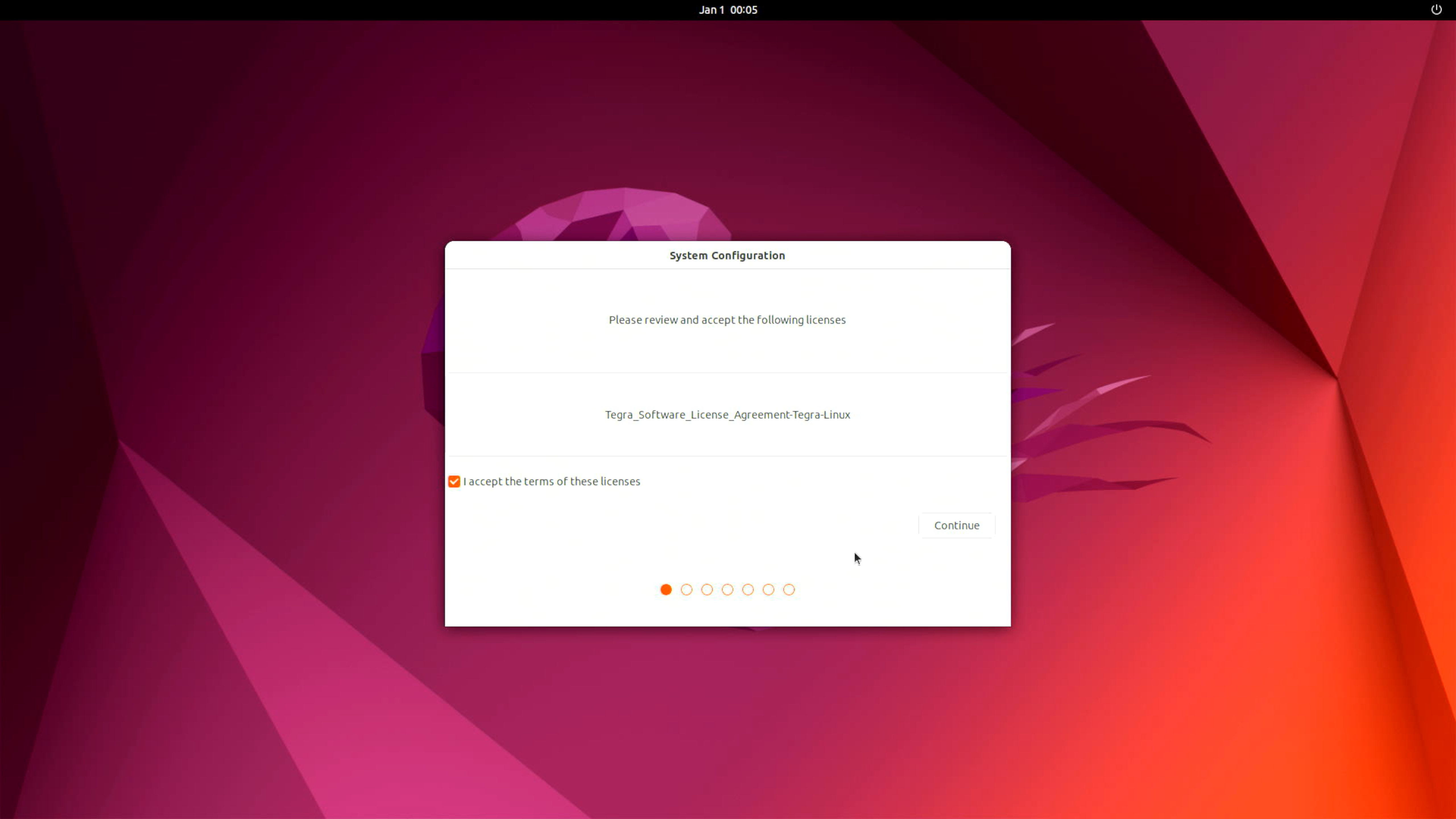
Paso 4 (opcional): Instalar NVIDIA JetPack SDK
Abra la terminal en el dispositivo Jetson y ejecute los siguientes comandos:
sudo apt update
sudo apt install nvidia-jetpack
📚 Recursos y Ejemplos
🚀 Primeros Pasos
Guía completa para principiantes sobre el desarrollo con Jetson, con ejemplos prácticos y tutoriales.
💡 Ejemplos de Código
Ejemplos de código listos para usar para aplicaciones de IA, visión por computadora y robótica.
🔧 Código Fuente
Accede al código fuente y las modificaciones del Linux for Tegra (L4T) personalizado de Seeed.
🤝 Soporte Técnico y Debate sobre el Producto
Gracias por elegir nuestros productos. Estamos aquí para ofrecerte diferentes tipos de soporte y garantizar que tu experiencia con nuestros productos sea lo más fluida posible. Ofrecemos varios canales de comunicación para adaptarnos a diferentes preferencias y necesidades.