Extending Face Regonition with MCP
Overview
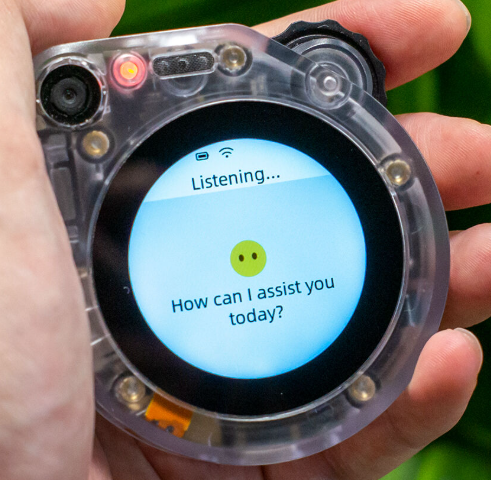
This guide explains how to deploy a face-recognition workflow using SenseCAP Watcher (Xiaozhi) together with a reComputer Raspberry Pi system. The Watcher captures images and sends them to the reComputer for face matching against a local database using the internal MCP tool.
Hardware Preparation
| SenseCAP Watcher for XiaoZhi | reComputer AI R2130-12 |
|---|---|
 |  |
Prerequisites
Follow this guide to install the reComputer Raspberry Pi system: reComputer R2000 Series Getting Started
Execution Result

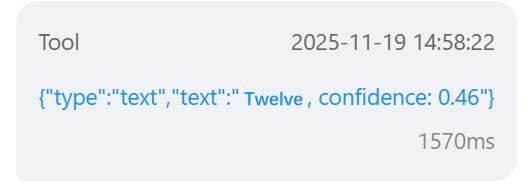
Source Code Repositories:
Deploy Process
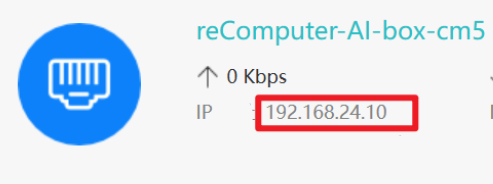
Step1. Note reComputer's IP address
-
Connect the reComputer to your network, like router
-
Obtain its IP address, example IP used here: 192.168.24.10
Step2. Flash the firmware onto Watcher
-
Connect the PC to the Watcher using a Type-C cable at the bottom port
-
Open ESP-IDF 5.5 CMD (version 5.5.1) and navigate to a suitable folder
-
Clone the Watcher firmware repository
git clone -b face_rec_api --single-branch https://github.com/suharvest/xiaozhi-esp32.git
cd xiaozhi-esp32
- Locate the code section for communication with the reComputer
- File location : main/boards/sensecap-watcher/sscma_camera.cc (line 769)
std::string face_rec_url = "http://192.168.10.131.80001/recognize"
-
Change the IP address to your reComputer’s actual IP
std::string face_rec_url = <Your_reComputer_actual_IP>- example

-
Compile and flash the firmware
idf.py set-target esp32s3
idf.py menuconfig    # Select SenseCAP Watcher board
idf.py build flash
Step3. SSH into reComputer and Prepare Environment
- Connect via SSH (replace username and IP as needed)
ssh <Your_reComputer's username>@<Your_reComputer's host IP>
# For example : ssh [email protected]
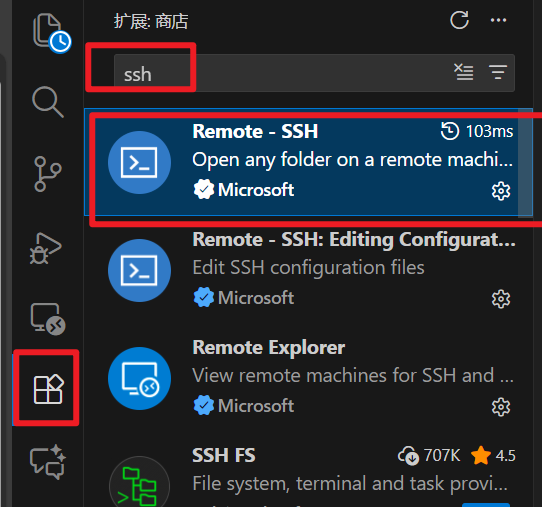
We recommend using the Remote - SSH extension in VS Code for connecting to your reComputer.
- Install Docker and set docker user
curl -sSL https://linuxmirrors.cn/docker.sh -o install_docker.sh
sudo bash install_docker.sh
bash <(curl -sSL https://linuxmirrors.cn/docker.sh)

sudo groupadd docker
sudo usermod -aG docker $USER
- Update system software
sudo apt update && sudo apt full-upgrade
sudo rpi-eeprom-update
- Install uv
curl -LsSf https://astral.sh/uv/install.sh | sh
Step4. Clone the API and update dependencies
git clone https://github.com/suharvest/face_rec_api.git
cd face_rec_api/
uv sync
- Install DKMS, HailoRT, add configuration, and reboot
sudo apt-get install dkms
sudo dpkg --install hailort-4.21.0/hailort_4.21.0_arm64.deb hailort-4.21.0/hailort-pcie-driver_4.21.0_all.deb
echo "options hailo_pci force_desc_page_size=4096" | sudo tee /etc/modprobe.d/hailo_pci.conf
- Check HailoRT status
sudo reboot
hailortcli scan
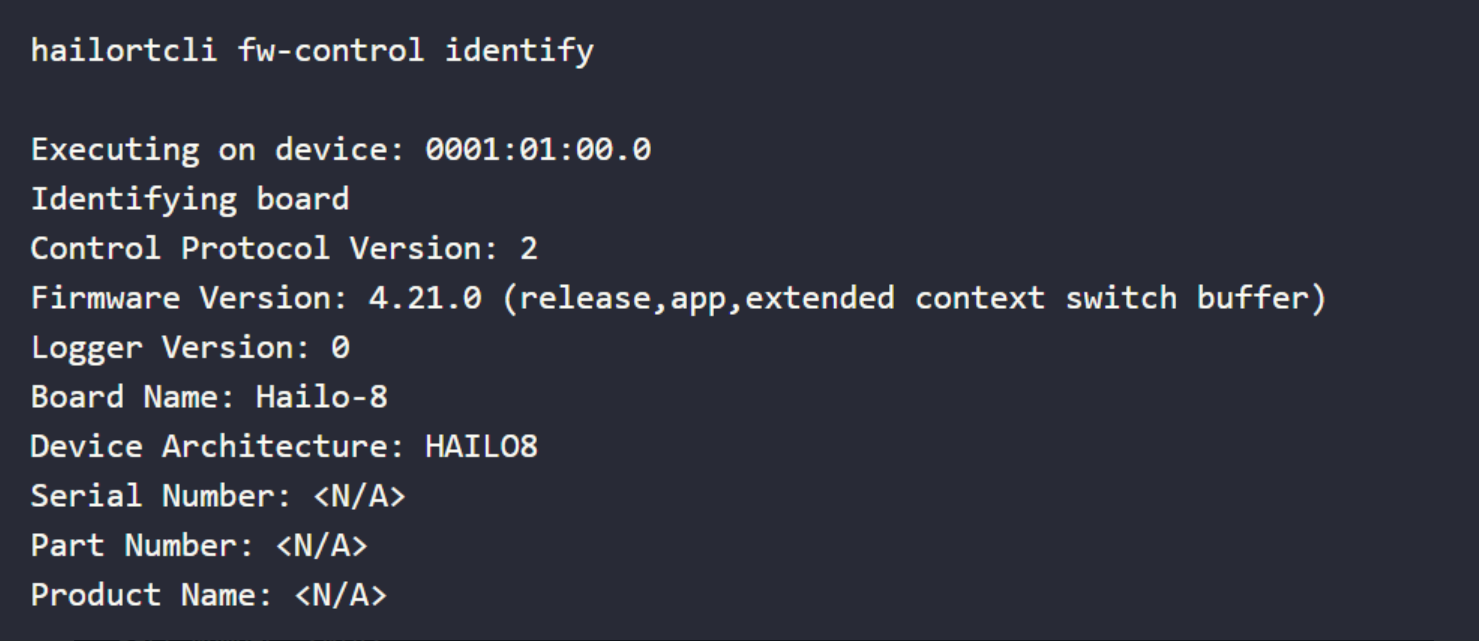
hailortcli fw-control identify
- If you see information similar to the following, it means your driver has been installed successfully
Step5. Add Photos and Start the Face Recognition Service
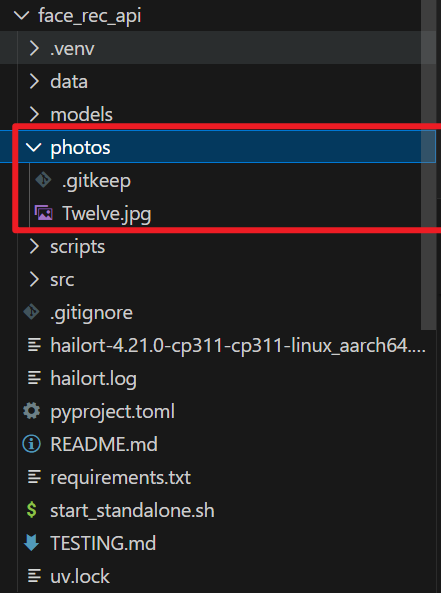
- Place photos in the photos/ folder
- Generate embeddings
uv run scripts/batch_process.py

- Give execution permission and start the service
chmod +x start_standalone.sh
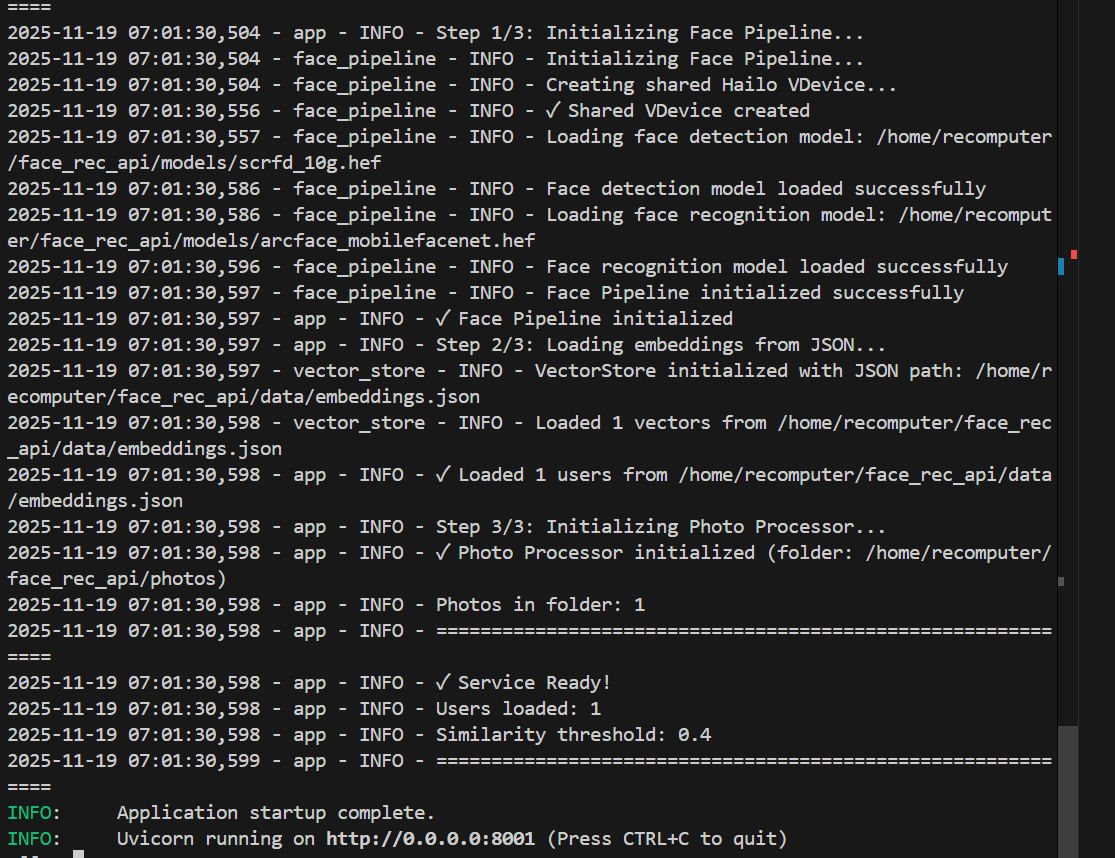
./start_standalone.sh
-
The service is now running. The Watcher can communicate with the reComputer to check if a face exists in the database. You can stop the service with
Ctrl + C. -
You can add prompt like : "When a person is detected, use the face recognition tool to check name and confidence: if confidence is greater than 40%, greet them by name; otherwise, give a generic greeting."
Step6. Update the Face Database
- After stop the service, add new photos to the
photos/folder and regenerate embeddings and restart service.
uv run scripts/batch_process.py
./start_standalone.sh
Step7. Clear the Face Database
-
Delete all files in the
photos/folder. -
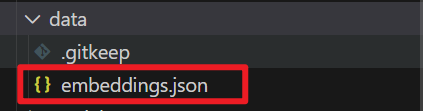
Remove the
embedding.jsonfile in thedata/folder.
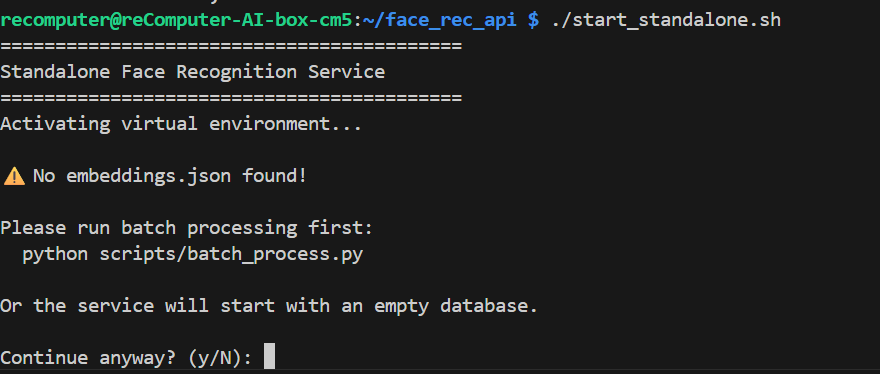
- After clearing, run the service and you will see the same log
FAQ
Q: How can I make the Xiaozhi AI call the face recognition API?
A: Simply ask the Watcher a question like, "Check if I am in the face recognition system."
The AI will automatically call the MCP tool to check the face database.
Q: What should I do if the face recognition system cannot upload a photo?
A: Please check that the IP address is correct and that the face recognition service is running properly.
Q:Can I deploy the face recognition system on other devices?
A: Yes. As long as the device runs a Linux-based system and can connect to the network, it can be used for deployment. However, the reComputer series offers better computing performance.