Extending Face Recognition with MCP
Overview
This guide explains how to deploy a face-recognition workflow using SenseCAP Watcher (Xiaozhi) together with a reComputer Raspberry Pi system.
By flashing a customized firmware onto the SenseCAP Watcher, the Xiaozhi AI gains a face recognition ability powered by a reComputer with Hailo-8 acceleration. Once set up, simply ask the Watcher something like "check who this person is" and the AI will automatically capture a photo, identify the face against a local database on the reComputer, and respond with the person's name and confidence level.
Hardware Preparation
| SenseCAP Watcher for Xiaozhi | reComputer AI R2130-12 |
|---|---|
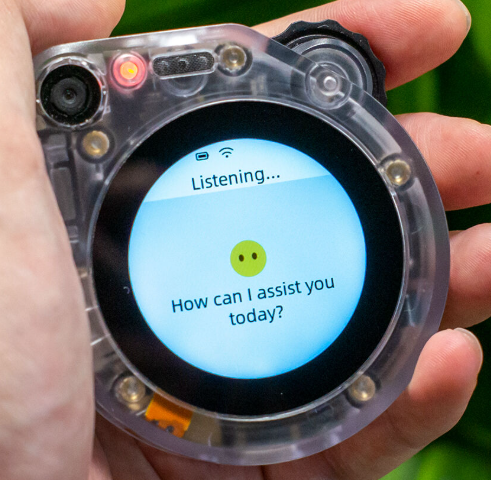 |  |
Prerequisites
- Install the reComputer Raspberry Pi system by following: reComputer R2000 Series Getting Started
- Source code repositories:
Deployment Process
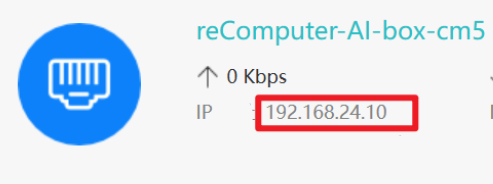
Step 1. Note the reComputer's IP Address
Connect the reComputer to your network (e.g. router) and obtain its IP address. The example IP used in this guide is 192.168.24.10.
Step 2. Flash the Firmware onto Watcher
-
Connect the PC to the Watcher using a Type-C cable at the bottom port.
-
Open ESP-IDF 5.5 CMD (version 5.5.1) and clone the firmware repository:
git clone -b face_rec_api --single-branch https://github.com/suharvest/xiaozhi-esp32.git
cd xiaozhi-esp32
- Open
main/boards/sensecap-watcher/sscma_camera.cc, search forface_rec_url, and change the IP to your reComputer's IP:
// Before (default):
std::string face_rec_url = "http://192.168.10.131:8001/recognize";

// After (your reComputer IP):
std::string face_rec_url = "http://<reComputer_IP>:8001/recognize";
- Compile and flash:
idf.py set-target esp32s3
idf.py menuconfig    # Select SenseCAP Watcher board
idf.py build flash
Step 3. Set Up the reComputer Environment
- Connect via SSH:
ssh <username>@<reComputer_IP>
# Example: ssh [email protected]
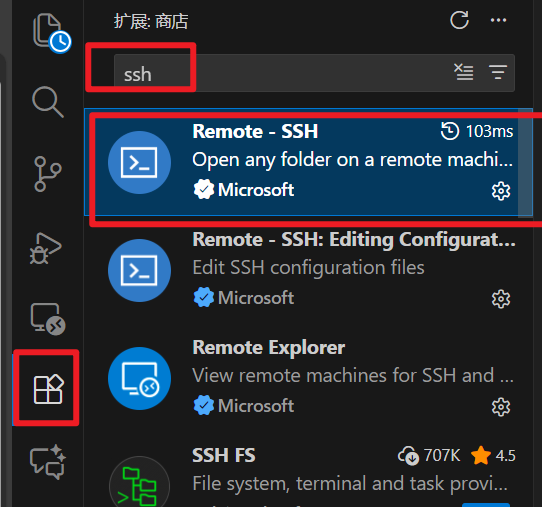
We recommend using the Remote - SSH extension in VS Code for connecting to your reComputer.
- Update system software:
sudo apt update && sudo apt full-upgrade
sudo rpi-eeprom-update
- Install Hailo runtime and drivers:
sudo apt install hailo-all
sudo reboot
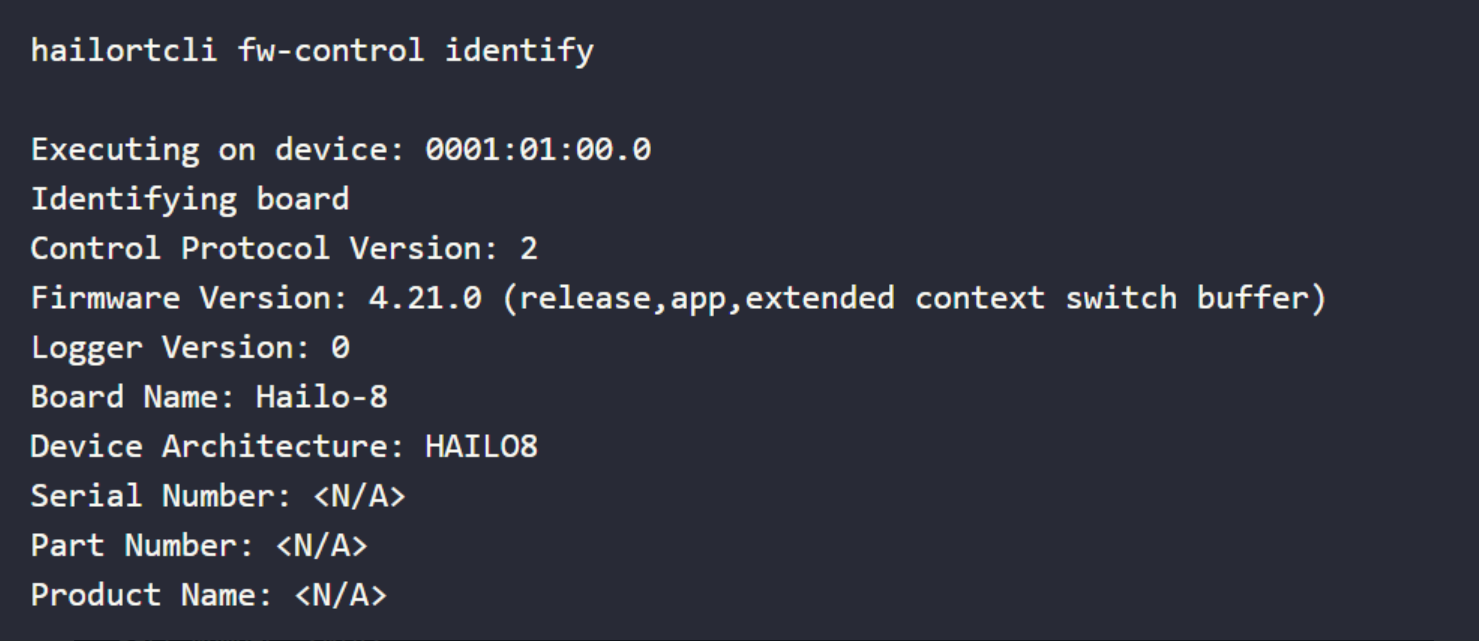
- After the reboot, reconnect via SSH and verify HailoRT:
hailortcli scan
hailortcli fw-control identify
If you see output similar to the following, the driver is installed successfully:
- Install uv:
curl -LsSf https://astral.sh/uv/install.sh | sh
source $HOME/.local/bin/env
Step 4. Clone the API and Install Dependencies
git clone https://github.com/suharvest/face_rec_api.git
cd face_rec_api/
uv sync
Step 5. Add Photos and Start the Service
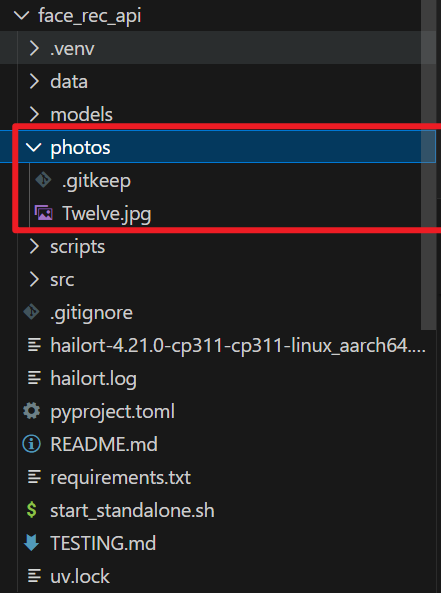
- Place photos in the
photos/folder. Each file should be named after the person (the filename without extension is used as the person's name):
photos/
├── john_doe.jpg
├── jane_smith.png
└── alice_wang.jpg
- Generate embeddings:
uv run scripts/batch_process.py

- Start the service:
chmod +x start_standalone.sh
./start_standalone.sh
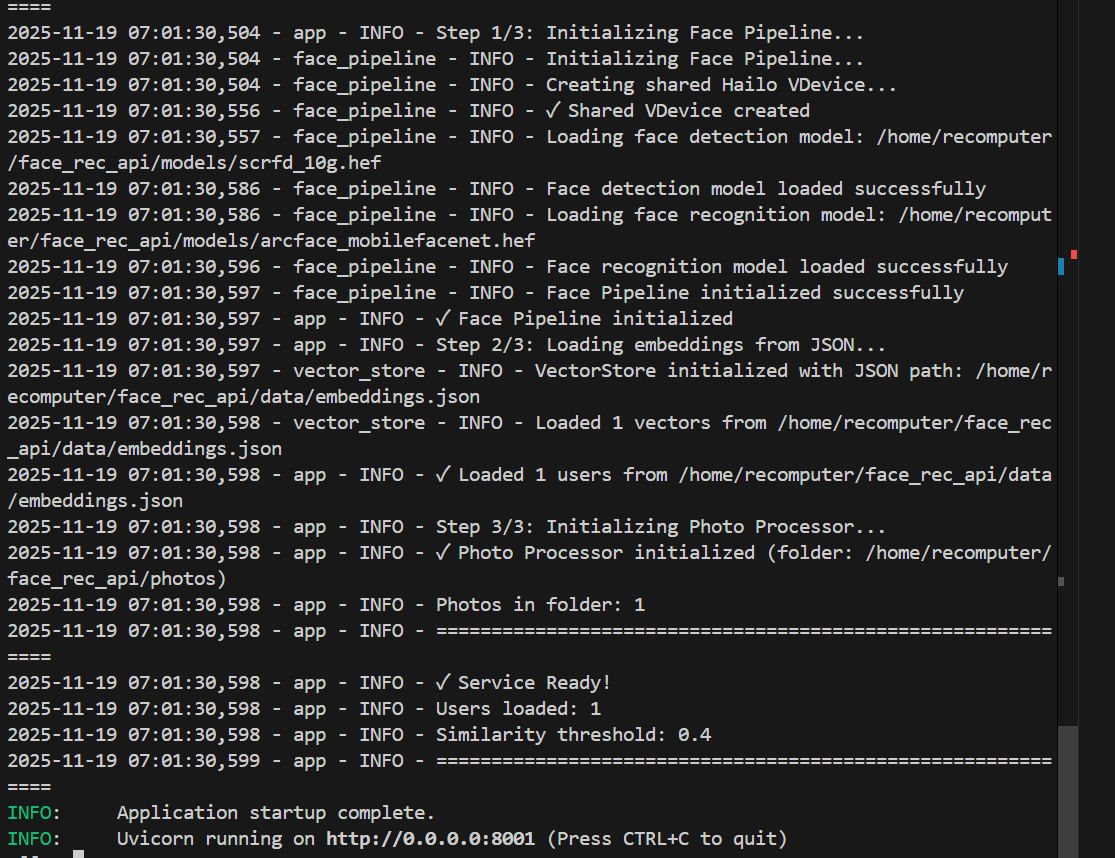
The service is now running on port 8001. The Watcher can communicate with the reComputer to check if a face exists in the database. You can stop the service with Ctrl + C.
You can add a prompt like: "When a person is detected, use the face recognition tool to check name and confidence: if confidence is greater than 0.40, greet them by name; otherwise, give a generic greeting."
Step 6. Update the Face Database
Add new photos to the photos/ folder, then regenerate embeddings and restart the service:
uv run scripts/batch_process.py
./start_standalone.sh
You can also update the database while the service is running by calling the reload endpoint:
curl -X POST http://localhost:8001/reload
Step 7. Clear the Face Database
- Delete all files in the
photos/folder. - Remove the
embeddings.jsonfile in thedata/folder.
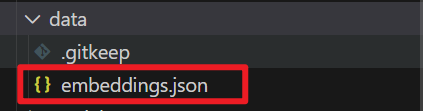
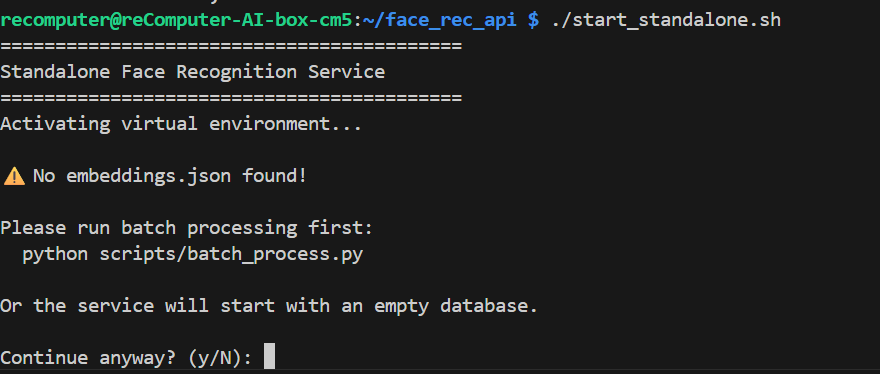
After clearing, restart the service and you will see a clean log:
Execution Result

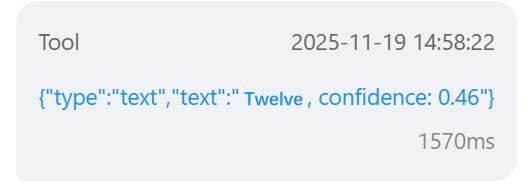
FAQ
Q: How can I make the Xiaozhi AI call the face recognition API?
A: Simply ask the Watcher a question like "Check if I am in the face recognition system." The AI will automatically invoke the face recognition tool.
Q: The service cannot connect or recognize faces. What should I check?
A: Verify that:
- The reComputer's IP address in the firmware matches the actual IP.
- The face recognition service is running (
curl http://<reComputer_IP>:8001/health). - There are no firewall rules blocking port 8001.
Q: Hailo is not detected after installing hailo-all. What should I do?
A: Re-run hailortcli scan after a full reboot. If still not detected, check the PCIe connection with lspci | grep Hailo and dmesg | grep -i hailo.
Q: Can I deploy the face recognition system on other devices?
A: Yes, as long as the device runs a Linux-based system with Hailo-8 hardware. The reComputer series is recommended as this guide is validated on that platform.