Flash and OTA Upgrade to JetPack 7.2
This guide is the primary JetPack 7.2 installation entry for supported Seeed Studio NVIDIA Jetson products. It explains when to perform a clean flash, when an image-based OTA update is appropriate, and how to use Seeed Jetson DevelopTool Flash Center as the guided flashing example.
JetPack 7.2 is based on Jetson Linux 39.2, Ubuntu 24.04, and Linux kernel 6.8. Always select an image built for the exact Jetson module and Seeed carrier board combination.
Choose the Upgrade Method First
| Method | Recommended use | Data impact | JetPack 7.2 status |
|---|---|---|---|
| Full flash with Seeed Jetson DevelopTool | New devices, development systems, JetPack 6.x to 7.2 migration, recovery, or BSP replacement | Target system storage is erased | Recommended default |
| Manual BSP flash | Custom BSP development, factory automation, or troubleshooting outside the GUI | Target system storage is erased | Supported when using the correct Seeed/NVIDIA BSP and board configuration |
| Image-based OTA | Managed production fleets with a validated source image, target image, board configuration, partition layout, and rollback plan | Application data can be preserved if explicitly designed and tested | Use only when a JetPack 7.2 OTA payload is validated for the exact product and source release |
apt upgrade across JetPack major versions | Not recommended | Unpredictable | Do not use as a JetPack 6.x to 7.2 migration method |
For a major migration such as JetPack 6.x to JetPack 7.2, use a full flash unless Seeed explicitly publishes or validates an OTA payload for your exact product, source L4T release, storage device, and partition layout.
Video: Seeed Jetson DevelopTool Flashing Workflow
The following video demonstrates Seeed Jetson DevelopTool with an NVIDIA Jetson AGX Thor platform. The Flash Center workflow is also representative of supported Seeed Jetson products, but the available device models and firmware versions depend on the current DevelopTool catalog.
Part 1: Full Flash with Seeed Jetson DevelopTool
Before You Start
- Confirm that the JetPack flashing selector or product wiki lists a JetPack 7.2 / L4T 39.2 image for your device.
- Use a stable Ubuntu host. Native Linux is recommended for the most reliable USB recovery connection.
- Prepare at least 20 GB of free host storage; additional space may be needed for downloaded and extracted BSP packages.
- Use a USB data cable connected directly to the correct recovery/flashing port.
- Back up user data, containers, calibration files, application configuration, encryption keys, and custom BSP sources.
- Disconnect unnecessary Jetson recovery-mode devices so the wrong target cannot be selected.
Flashing erases the selected Jetson system storage. Confirm the target device, carrier board, module SKU, and storage destination before starting.
Step 1: Install and Launch DevelopTool
Install the published Python package:
python3 -m pip install --upgrade seeed-jetson-developer
seeed-jetson-developer
Alternatively, install it from source:
git clone https://github.com/Seeed-Projects/Seeed-Jetson-DevelopTool.git
cd Seeed-Jetson-DevelopTool
python3 -m pip install .
seeed-jetson-developer
See DevelopTool Installation for the complete host setup.
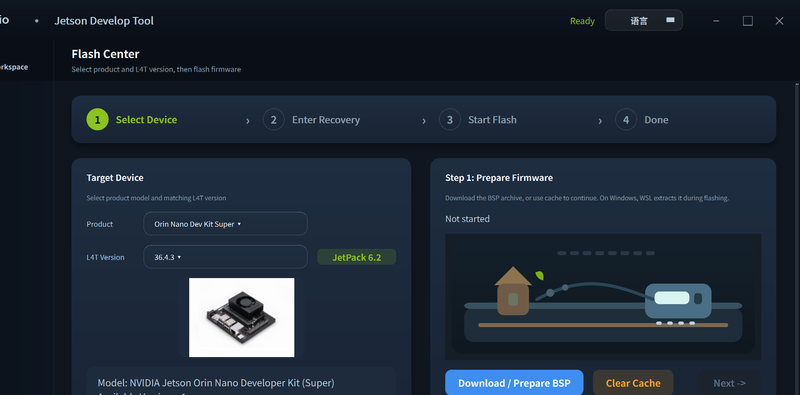
Step 2: Open Flash Center
Open Flash Center in Seeed Jetson DevelopTool.
Step 3: Select the Exact Device and JetPack 7.2 Image
Select the exact Seeed product or carrier-board configuration, then select L4T 39.2 / JetPack 7.2 when it is available for that target.
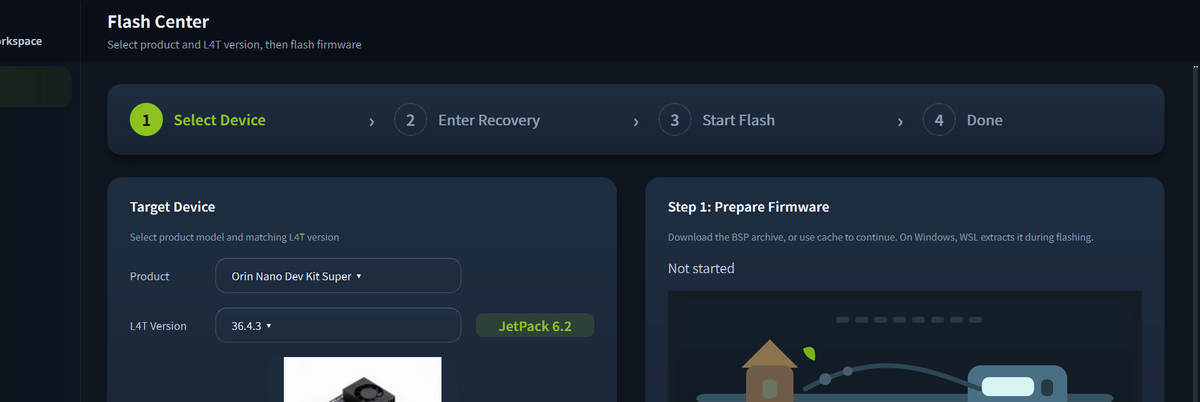
Do not select a similarly named board. A Jetson module can be electrically attached to different carrier boards that require different device trees, pinmux settings, power configurations, and peripheral drivers.
If L4T 39.2 is not offered for the selected product, stop and check:
- Flash BSP with JetPack to Selected Jetson
- DevelopTool Supported Devices
- The product-specific flashing wiki linked from the JetPack 7.2 Resource Hub
Step 4: Download, Verify, and Extract the BSP
Click Download / Extract BSP. DevelopTool downloads the firmware package, supports resumed downloads, verifies the checksum when provided, and extracts the BSP.
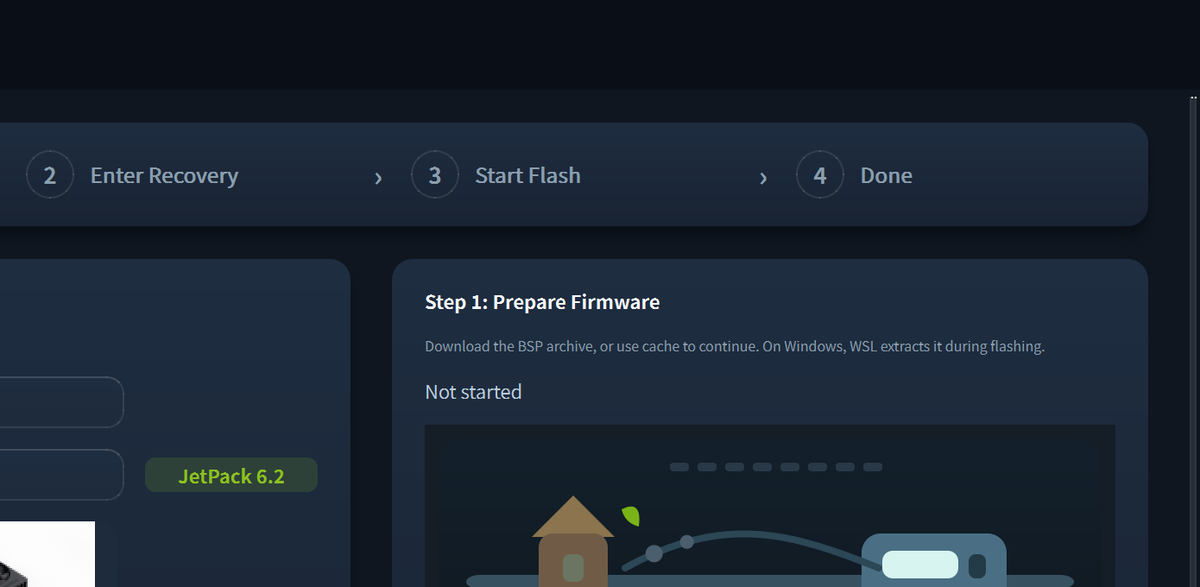
Do not continue if download verification or extraction fails. Delete an incomplete package only after confirming that DevelopTool cannot resume it.
Step 5: Put the Jetson into Force Recovery Mode
Use the product-specific recovery button or jumper sequence, connect the recovery USB port, and power or reset the device as instructed by its hardware guide.
On the host, verify that NVIDIA recovery USB is present:
lsusb | grep 0955
Jetson Orin recovery device IDs commonly match the 0955:7x23 family. Jetson Thor uses a different recovery ID. The exact value depends on the module.
See Connect Device for the DevelopTool USB recovery workflow.
Step 6: Detect and Confirm the Target
Click Detect Device. Before starting the flash, confirm:
- Selected Seeed product and carrier board
- Jetson module and memory configuration
- L4T 39.2 / JetPack 7.2 image
- Target storage device
- USB recovery device
- Backup completion
Step 7: Start Flashing
Click Start Flash and keep both USB and power connected until the process completes.
Do not automatically retry a failed flash without first reviewing the failure log. For USB errors, put the device back into Force Recovery Mode, reconnect it directly to the host, and detect the target again.
Step 8: Complete First Boot
After the device boots:
- Complete the Ubuntu first-boot setup, or use the DevelopTool remote initialization workflow for a headless device.
- Configure the network and SSH access.
- Restore application data only after the base system passes validation.
Step 9: Verify JetPack 7.2
Run:
head -n 1 /etc/nv_tegra_release
cat /etc/os-release
uname -r
nvcc --version
dpkg -l | grep -E 'nvidia-jetpack|tensorrt|libnvinfer|cudnn'
Confirm the following baseline:
- Jetson Linux reports the R39.2 release family.
- The root filesystem reports Ubuntu 24.04.
- The kernel reports the JetPack 7.2 kernel 6.8 line supplied by the image.
- CUDA and TensorRT packages match the target JetPack image.
Then validate Ethernet, Wi-Fi, camera, GMSL, CAN, USB, M.2, GPIO, storage, fan control, and the required power modes.
Part 2: JetPack 7.2 Image-Based OTA
Image-based OTA updates a deployed Jetson without attaching every device to a flashing host. It is a release-engineering workflow, not a generic package upgrade.
The ready-to-use OTA payloads currently documented in Deploy OTA on reComputer upgrade JetPack 5.1.3 systems to JetPack 6.2. Do not apply those payloads to JetPack 7.2 devices or use them as JetPack 6.x to 7.2 packages.
Required OTA Compatibility Inputs
A JetPack 7.2 OTA payload must be generated and validated for all of the following:
- Exact Seeed product and carrier board
- Exact Jetson module SKU and memory configuration
- Exact source L4T release and root filesystem state
- Exact target L4T 39.2 BSP
- Boot storage and partition layout
- Secure Boot, disk encryption, and key configuration
- Custom device tree, kernel, kernel modules, firmware, and root filesystem changes
- Data-preservation list and available free space
- Power-loss recovery and rollback behavior
If any of these inputs differ, build and validate a separate payload.
Recommended OTA Development Flow
- Reproduce both the source image and the target JetPack 7.2 image from version-controlled BSP inputs.
- Flash representative devices with the source image and record partition, bootloader, storage, and security state.
- Generate the image-based OTA payload using the Jetson Linux 39.2 OTA tools and the matching Seeed board support package.
- Sign the payload when the production security model requires it.
- Define only the data that must survive the update; back it up independently before the first production rollout.
- Test normal update, interrupted download, interrupted installation, low-storage, power-loss, and rollback scenarios.
- Roll out to a small canary group before expanding the deployment.
- Verify Jetson Linux, boot slots, application services, peripherals, and AI runtime versions after reboot.
The existing Deploy OTA on reComputer and Updating Jetson Linux with Image-Based OTA pages are useful references for the package-generation structure and on-device nv_ota_start.sh workflow. Their version-specific commands must be replaced with the correct Jetson Linux 39.2 packages, board configuration, and partition data.
OTA Device-Side Validation Checklist
Before applying the payload:
df -h
lsblk -f
head -n 1 /etc/nv_tegra_release
systemctl --failed
After the OTA reboot:
head -n 1 /etc/nv_tegra_release
uname -r
systemctl --failed
journalctl -b -p err
Also verify application data, network identity, device certificates, container volumes, hardware interfaces, and the production watchdog.
JetPack 6.x to 7.2 Migration Checklist
- Rebuild out-of-tree kernel modules against JetPack 7.2 kernel headers.
- Rebuild camera and GMSL drivers for the target BSP.
- Rebuild CUDA extensions and native applications for CUDA 13.
- Rebuild serialized TensorRT engines on JetPack 7.2.
- Recreate Python environments instead of copying the JetPack 6.x environment directory.
- Revalidate containers against the JetPack 7.2 NVIDIA container runtime.
- Restore the JetPack 7.2 wireless modules when required by the hardware.
- Validate the original power mode before enabling
MAXN_SUPERor another higher-performance mode. - Record memory, latency, throughput, temperature, and power before production rollout.
Troubleshooting
DevelopTool Reports No Recovery Device
- Confirm the USB cable supports data.
- Use the dedicated recovery/flashing USB port.
- Repeat the product-specific Force Recovery sequence.
- Run
lsusb | grep 0955on the host. - Disconnect other Jetson devices in recovery mode.
- Prefer native Ubuntu if WSL2 USB passthrough is unstable.
The Required JetPack 7.2 Image Is Not Listed
Do not select another carrier board as a workaround. Check the central flashing selector and product wiki, then wait for or request a validated BSP for the exact hardware.
The Device Does Not Boot After Flashing
- Confirm the image matches the carrier board and module SKU.
- Remove the Force Recovery jumper or release the recovery button.
- Power-cycle the device.
- Capture the UART serial boot log.
- Re-enter recovery mode and review the DevelopTool flash log before re-flashing.
OTA Fails or Does Not Reboot into JetPack 7.2
- Confirm the payload source and target versions match the device exactly.
- Confirm there is enough free storage for staging and installation.
- Review the OTA logs before retrying.
- Restore the full known-good image if the tested rollback path cannot recover the device.
Related Resources
- JetPack 7.2 Resource Hub
- Flash BSP with JetPack to Selected Jetson
- DevelopTool Flash Firmware
- DevelopTool Supported Devices
- Deploy OTA on reComputer
- Updating Jetson Linux with Image-Based OTA
- JetPack 7.2 Deep Dive
Tech Support & Product Discussion
Thank you for choosing our products! We are here to provide you with different support to ensure that your experience with our products is as smooth as possible. We offer several communication channels to cater to different preferences and needs.