Getting Started with XIAO ePaper Display Board - EE03
| XIAO ePaper Display Board EE03 | 10.3" Monochrome ePaper Display |
|---|---|
 |  |
Introduction
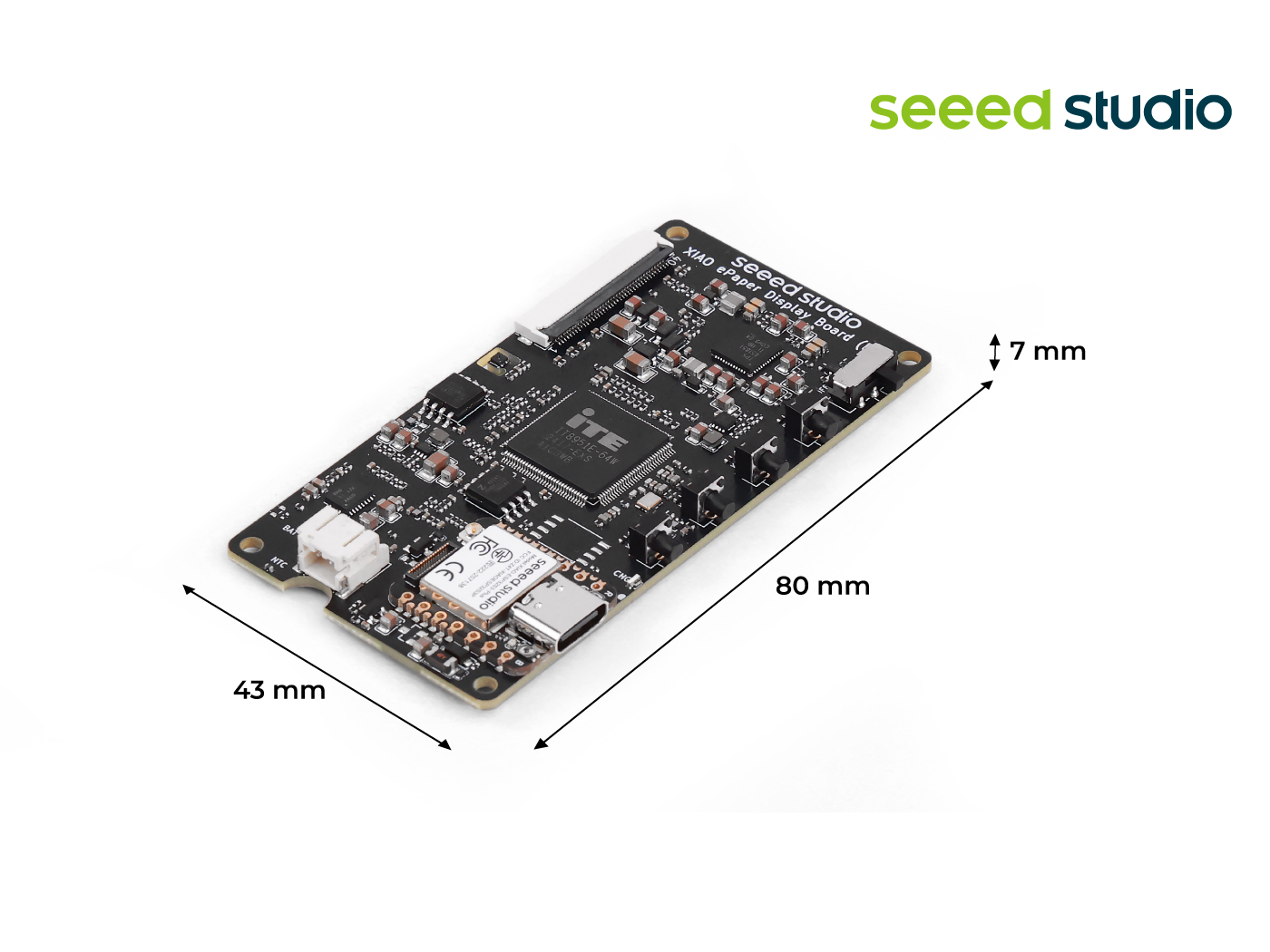
Powered by XIAO ESP32-S3 Plus, the ePaper driver board EE03 supports 10.3 Monochrome ePaper Display. It features a JST 2.0 mm battery connector with power switch, built-in charging IC, and comes with one reset and three user buttons. Well-suited for low-power ePaper projects such as digital photo frames and information boards.
Features
- Built in XIAO ESP32-S3 Plus: Works immediately when connected to a compatible ePaper display.
- Dedicated 10.3" Monochrome ePaper Display Support: Specifically designed for 10.3" high-speed refresh epaper display, ensuring quick setup and stable operation.
- High-Speed Refresh Enabled: Integrated T-CON timing control ensures precise high-speed driving, while the onboard SHT40 provides real-time temperature sensing for waveform compensation.
- BAT Connector with Switch: Provides simple battery connection and integrates a switch, enabling efficient power management and energy savings.
- User-Friendly Buttons: Features 1 reset button and 3 user-programmable buttons, providing flexibility for project acceleration and customizable functions.
- SenseCraft HMI Firmware Pre-Flashed: Simply plug in and start right away with SenseCraft HMI, our AI-powered no-code UI design platform. Choose from rich templates or drag-and-drop UI building (with optional AI assistance), and deploy to the ePaper display in just a few clicks.
Specification
| Parameter | Description |
|---|---|
| Processor | XIAO ESP32-S3 Plus |
| ePaper Connector | FPC 40 Pin 0.5mm |
| Battery Connector | JST 2.0mm |
| Switch | Battery Power ON/OFF |
| Power Supply | - 3.7V Li-Battery - USB Type-C |
| Button | - 1x Reset button - 3x User button |
Application
- Digital E-Book Readers: Deliver a paper-like monochrome reading experience with 16-level grayscale and fast refresh for smoother page turns and more responsive updates.
- Real-Time Dashboard: Display live information such as weather updates, calendar schedules, key notifications, and data widgets like energy usage, sensor status, or KPIs.
- Security Alerts: Display alerts and notifications about security events, such as motion detection or door/window sensor activation.
- Public Transit Arrival Board: Show real-time bus/train arrival times, route status, and service alerts at a glance for daily commuting.
Hardware Overview
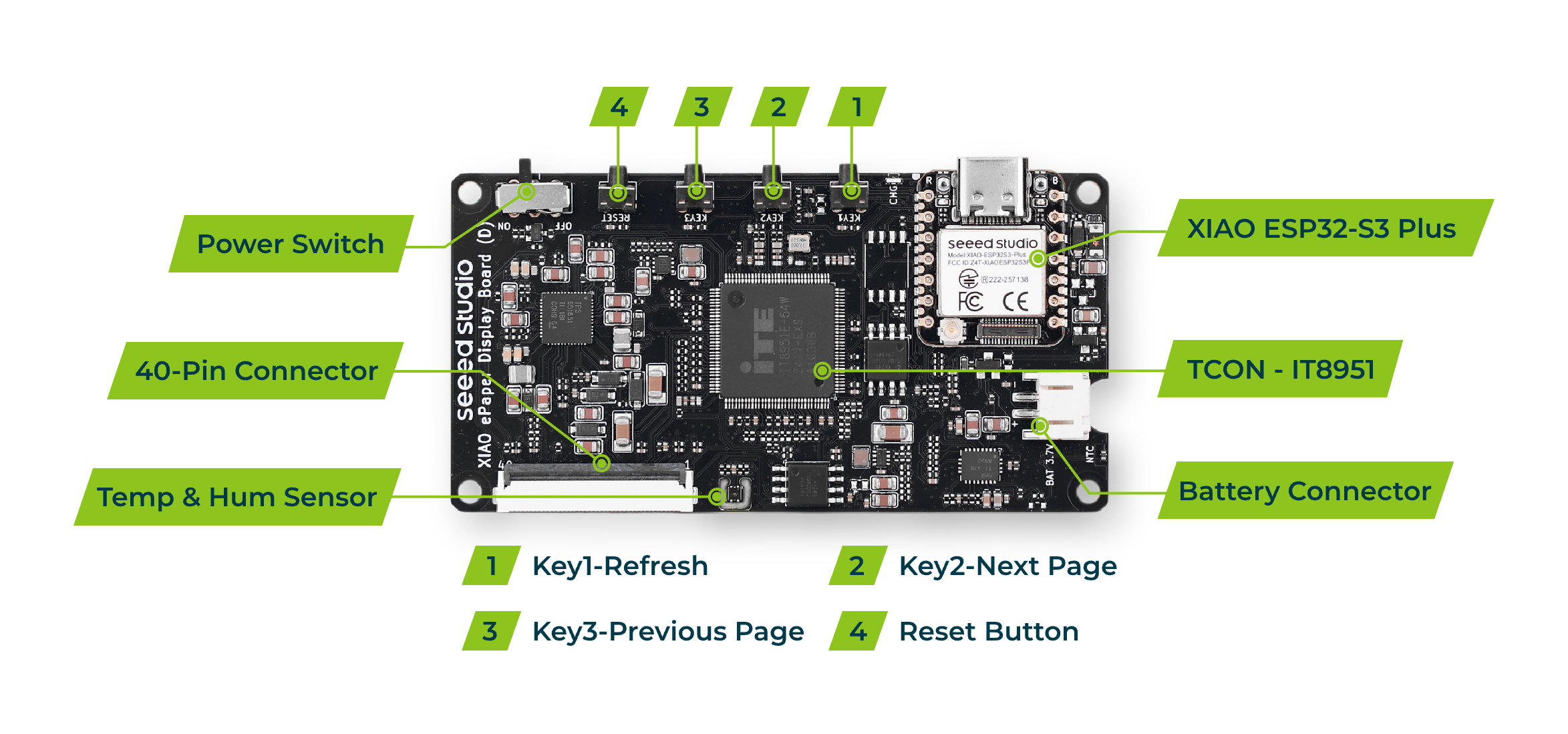
- USB Type-C: For power supply and firmware flashing.
- FPC Connector: To connect the ePaper display.
- Reset Button: To reset the board.
- User Buttons: Programmable buttons for user interaction.
- Power Switch: Control the power of battery on/off.
- Boot Button: Used for entering bootloader mode.
- LED Indicators: Status indicators for power and charging.
- JST Connector: 2 pins JST 2.0mm connector to connect battery.
Getting Started with SenseCraft HMI
This section will guide you through connecting your EE03 to the SenseCraft HMI platform, allowing you to easily update the screen content wirelessly.
Equipment Installation
Step 1. Connect the Screen and Board Carefully connect the FPC cable of your ePaper screen to the connector on the EE03 driver board. Ensure the locking mechanism is secure.
Step 2. Power On Connect the EE03 board to a power source (computer or USB adapter) using a USB Type-C cable. Upon powering up, the screen will refresh and display a welcome image.
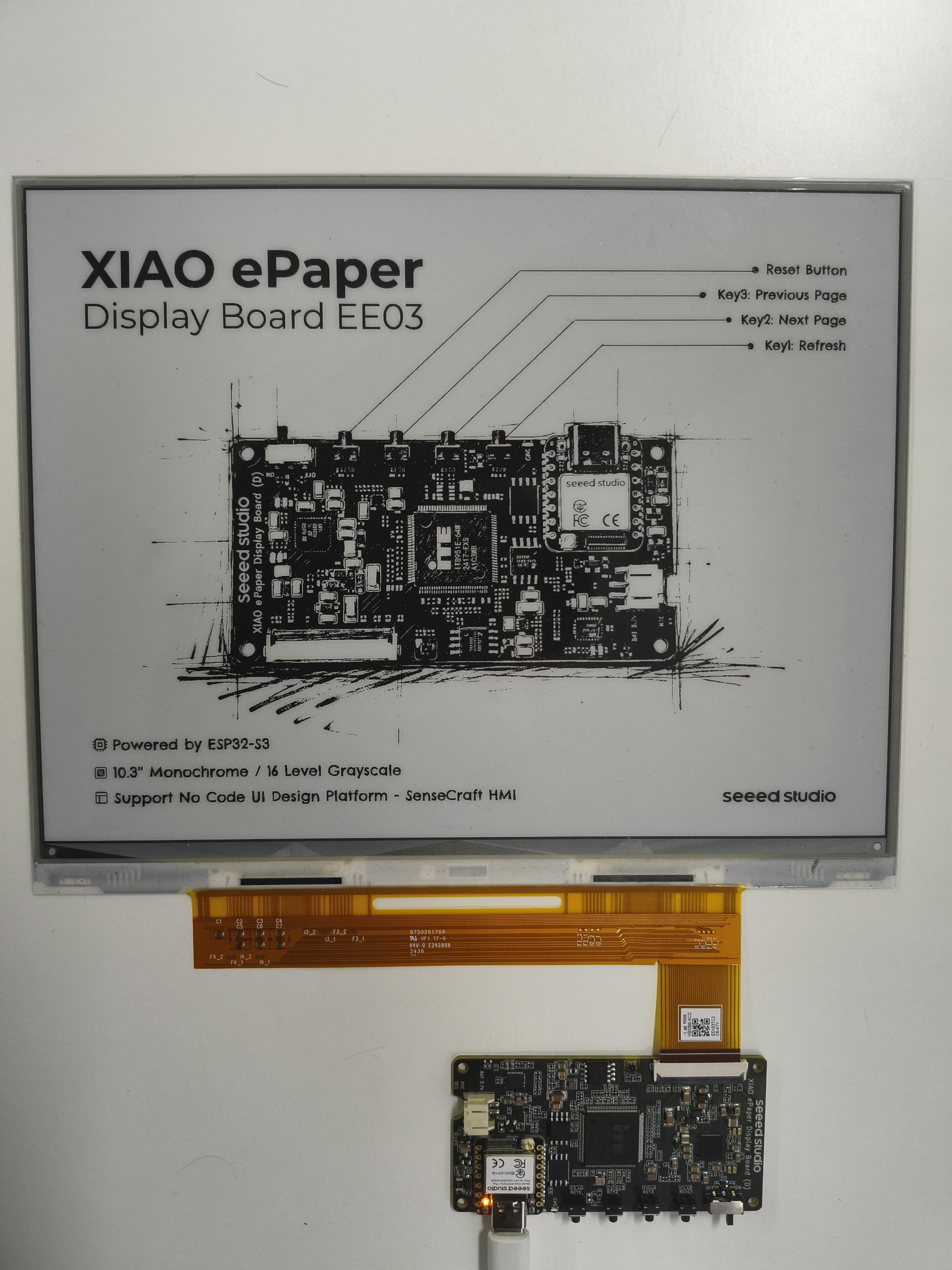
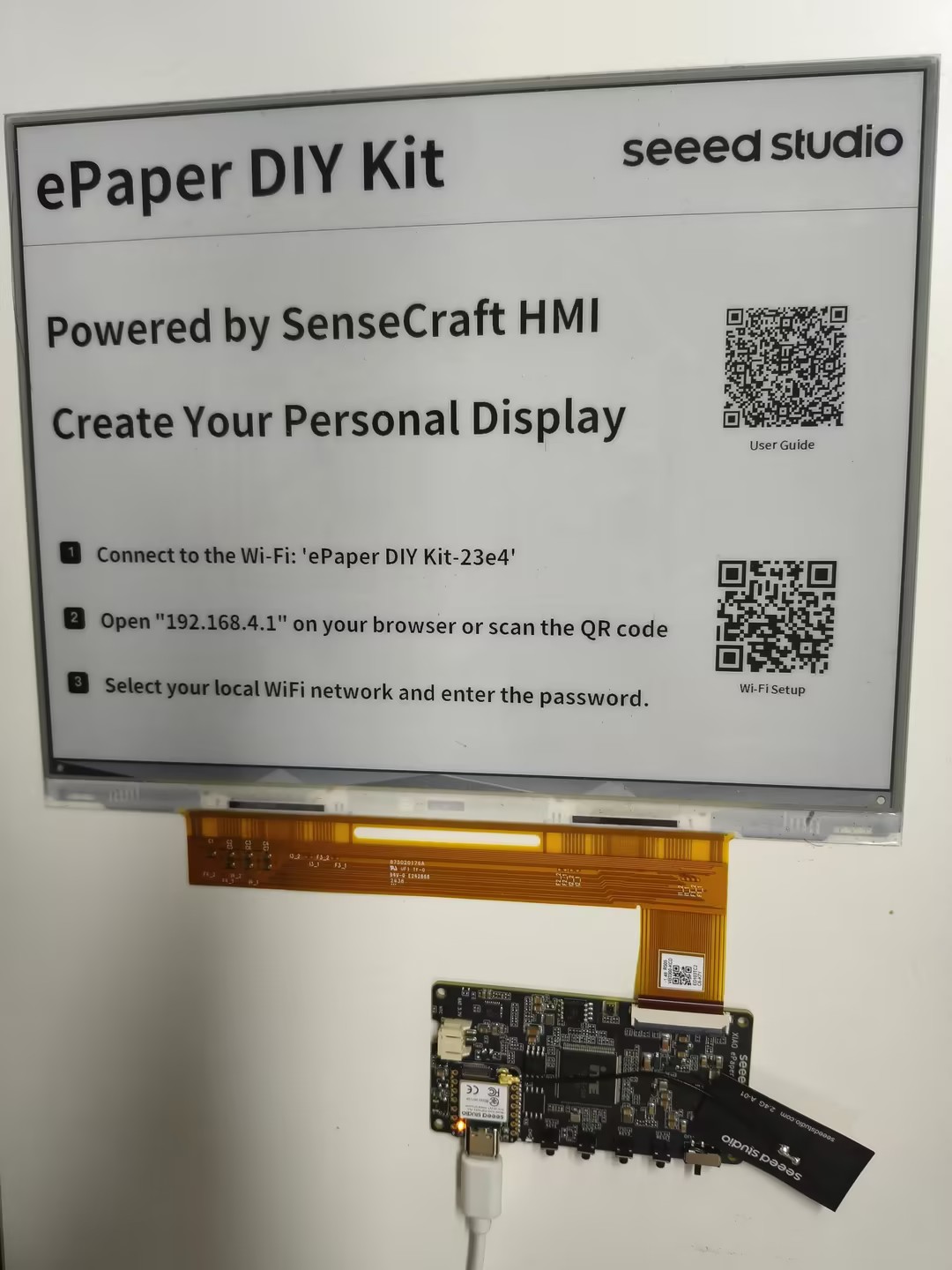
Step 3. Enter Network Configuration Mode After the welcome image, the screen will automatically refresh to show the Network Configuration interface. This indicates the device is ready to connect to Wi-Fi.
Network Configuration
Step 4. Configure Wi-Fi via Mobile Phone Use your mobile phone to scan the QR code displayed on the screen. Follow the prompts on your phone to enter your local Wi-Fi SSID and password to connect the EE03 to the internet.
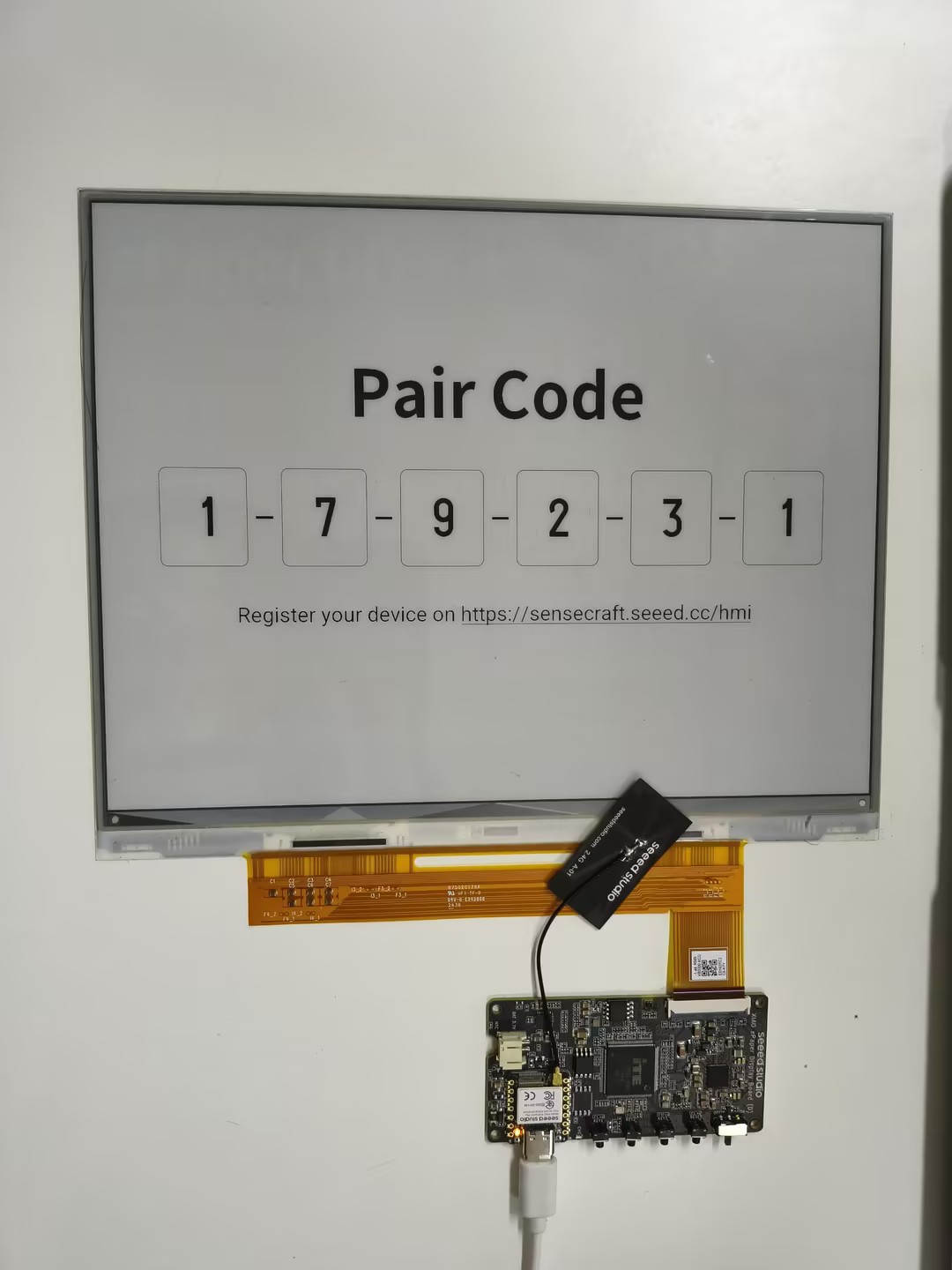
Step 5. Obtain Pairing Code Once the network configuration is successful, the screen will refresh again and display a unique Pairing Code. You will need this code for the next step.
Platform Binding & Update
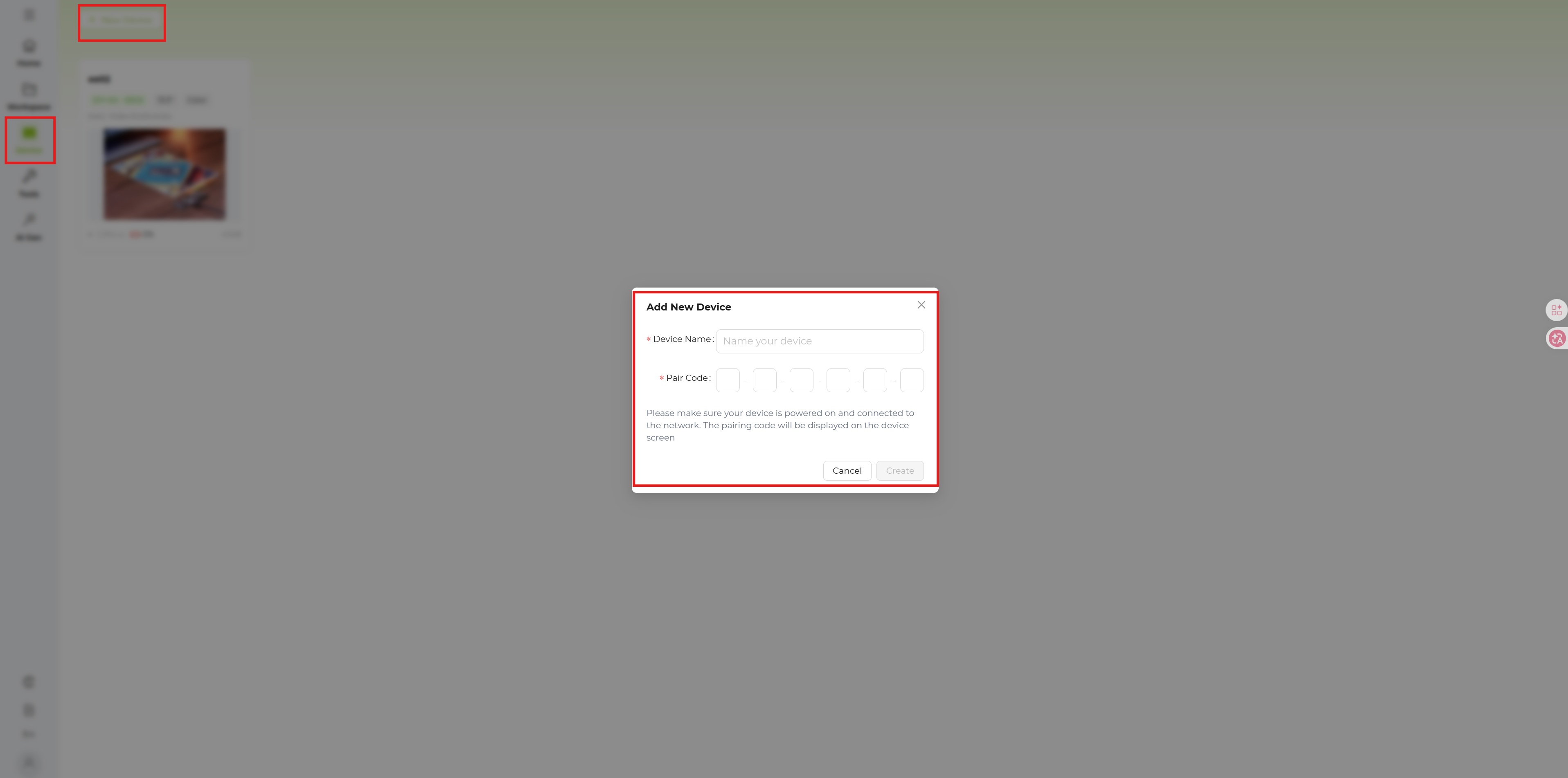
Step 6. Bind Device on SenseCraft HMI Go to the SenseCraft HMI Platform. Log in to your account. Navigate to the device management section and select "Add Device". Enter the Pairing Code displayed on your E-ink screen.
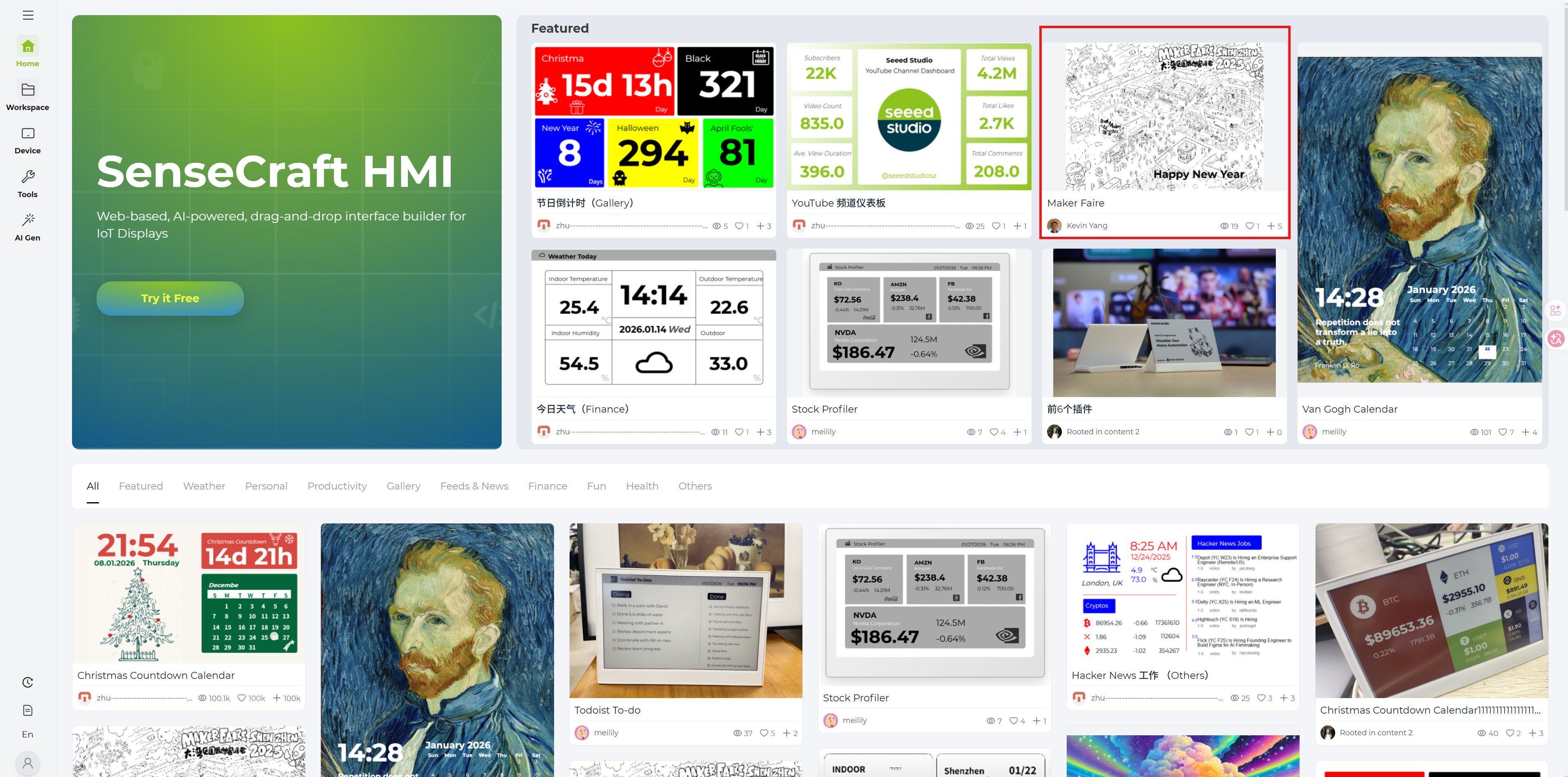
Step 7. Create and Push New Interface
On the SenseCraft HMI platform, select the template suitable for the 10.3-inch screen to create a new interface or upload an image.
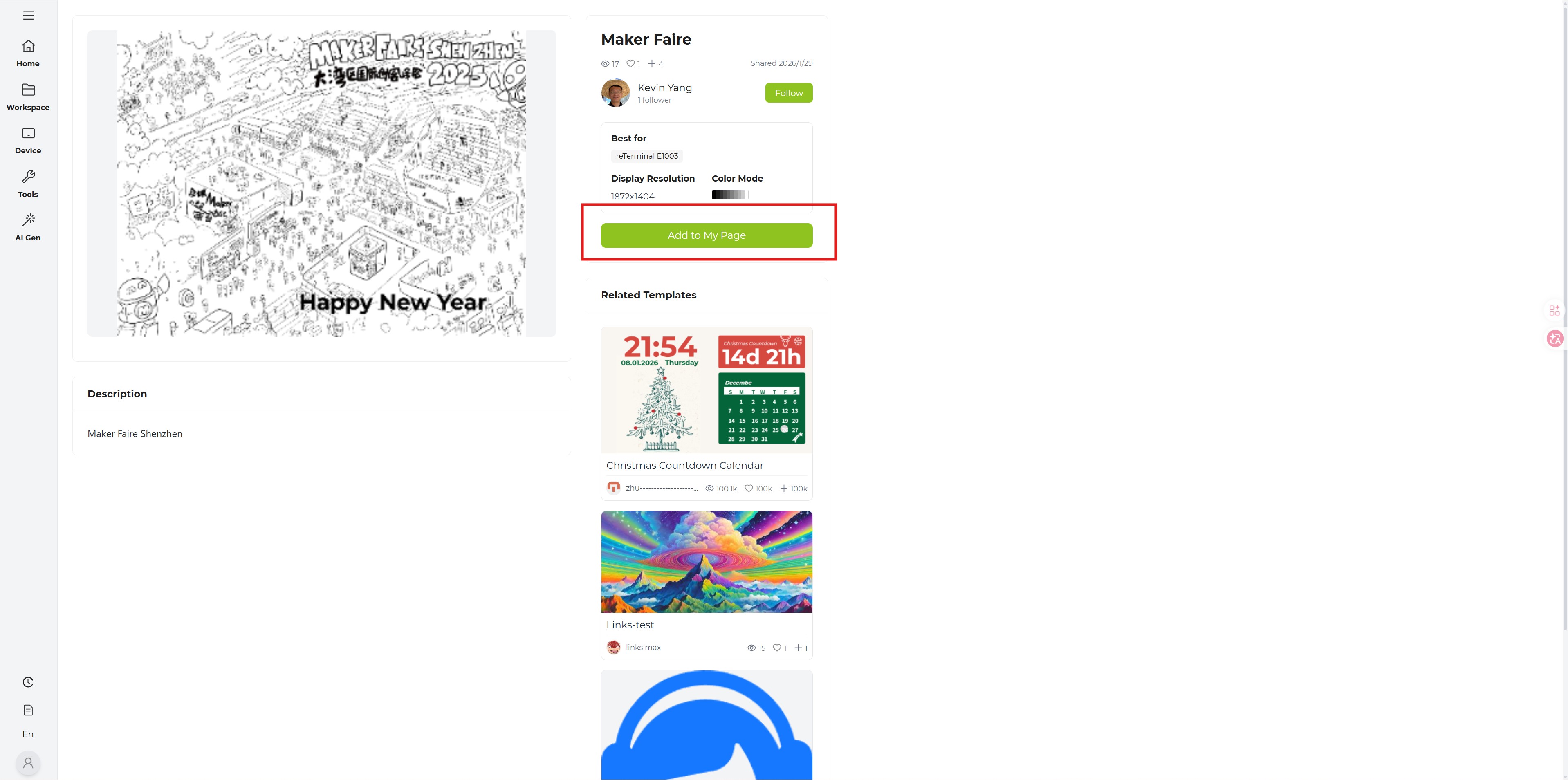
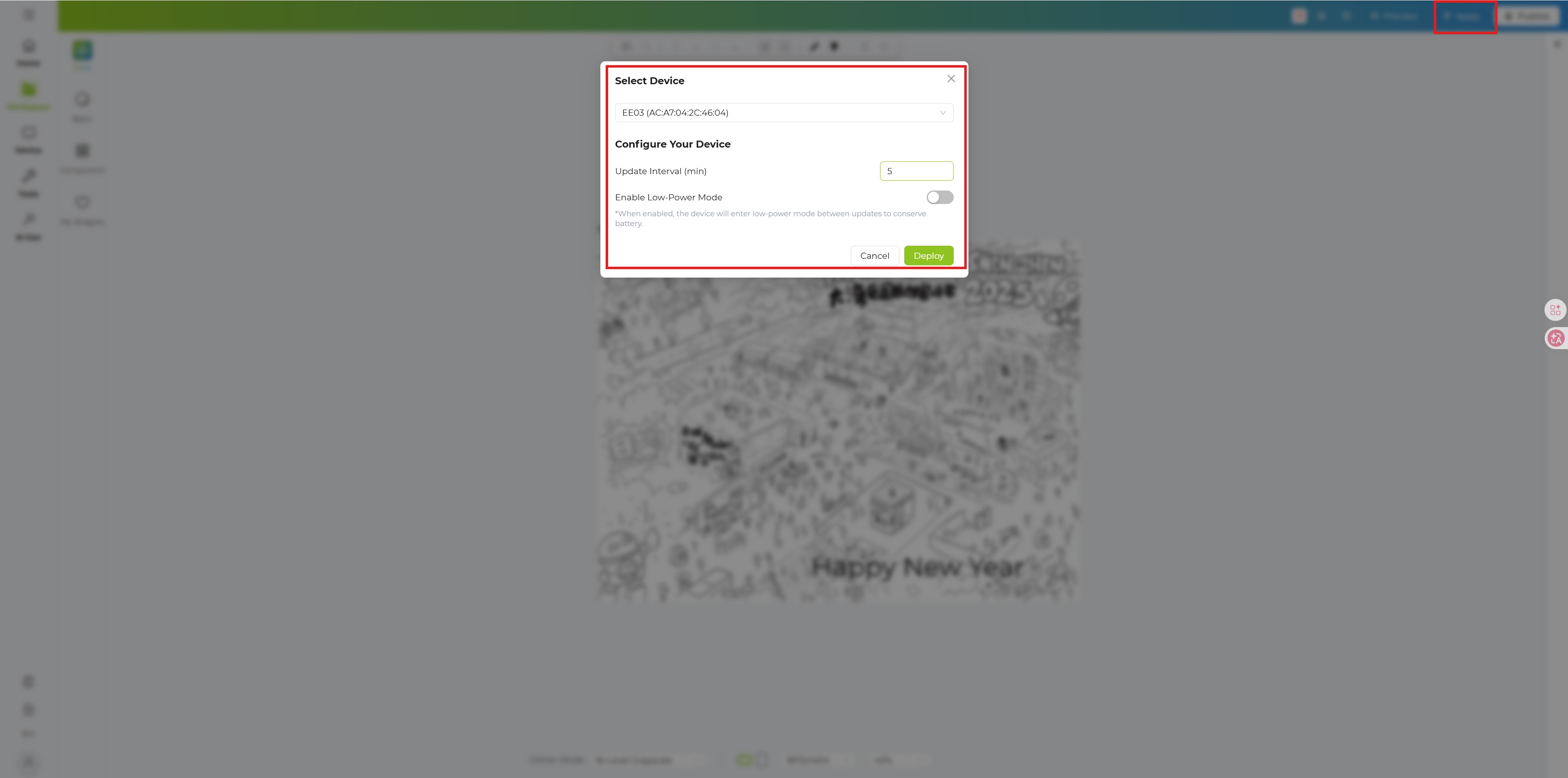
Step 8. Apply your images Once finished, click the "Apply" button and select your EE03 device.
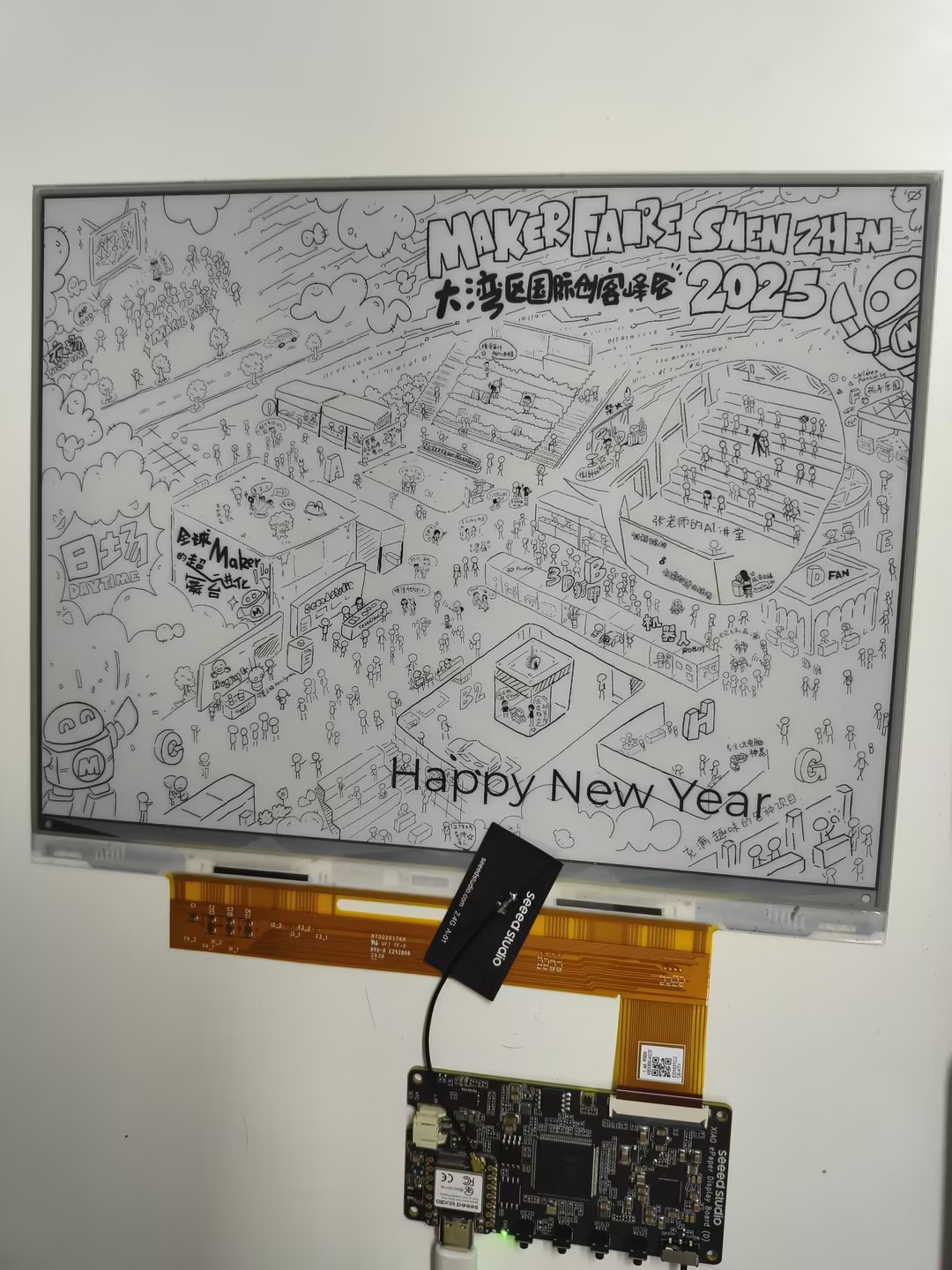
Step 9. Display on the screen Finally the EE03 will receive the data and refresh the 10.3-inch screen with your new content.
Getting Started with Arduino
Install Seeed GFX Library
This library has same function as TFT library and no compatible with it. If you have installed TFT library or other similar display libraries, please uninstall it first.
Download and install the Seeed GFX library from GitHub.

Scroll down and open this link.

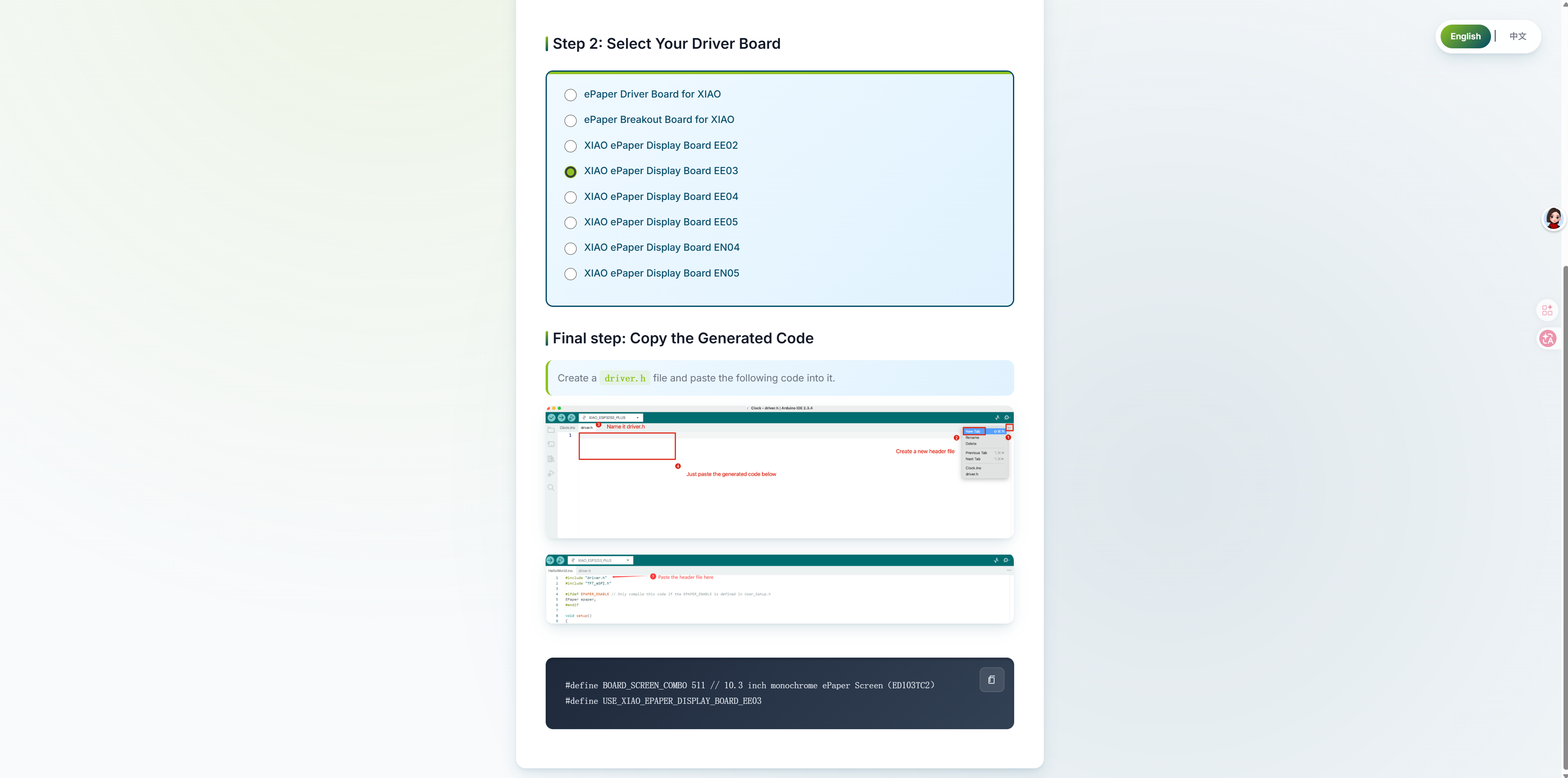
Select your device type and it will generate some code. Copy those code and we will use them later.
If you make the wrong choice, the screen will display nothing.
So please make sure you select the correct device or component type.
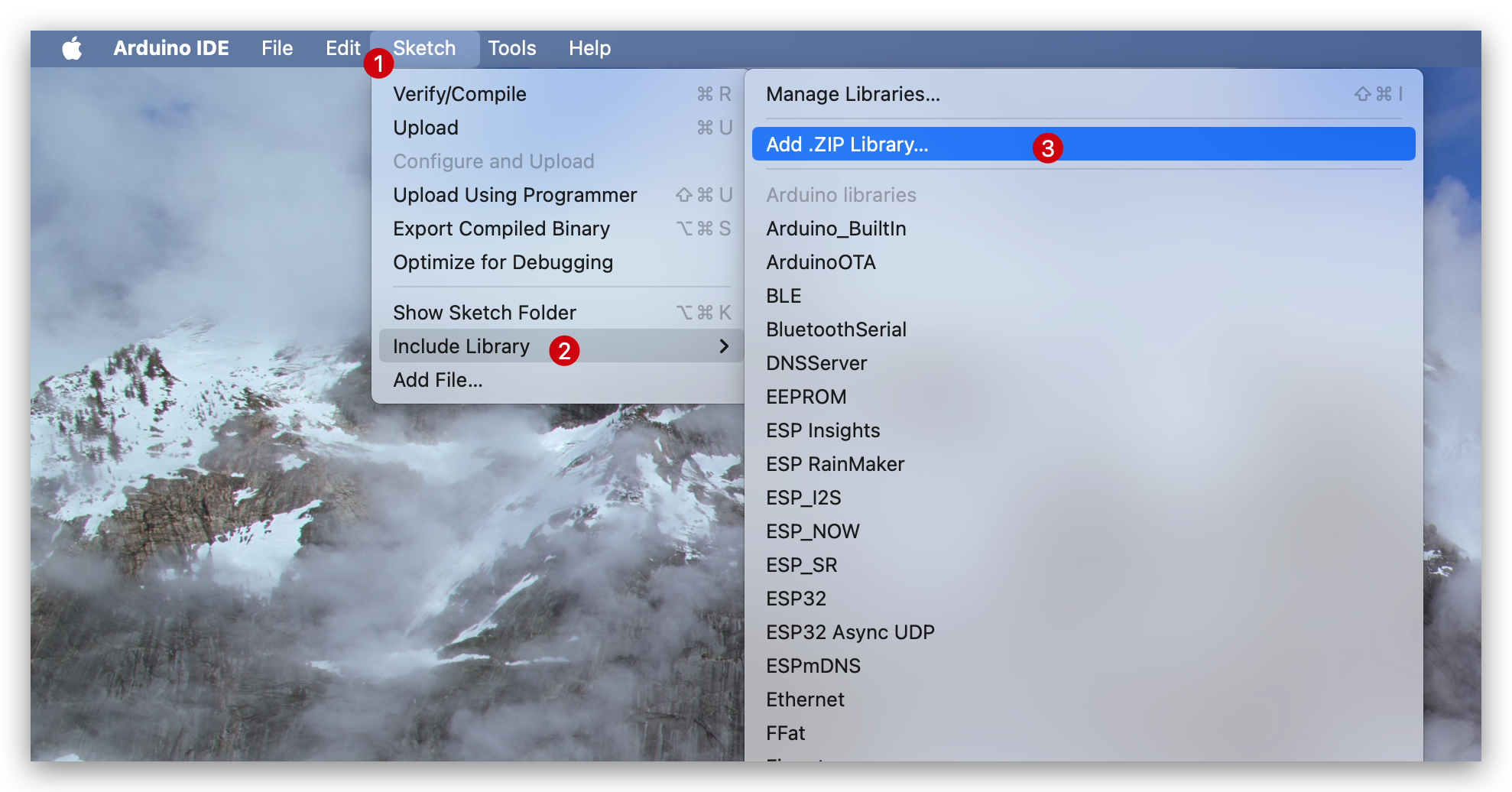
After downloading the library, go to Sketch -> Include Library -> Add .ZIP Library and select the downloaded library.
Configure and burn the program
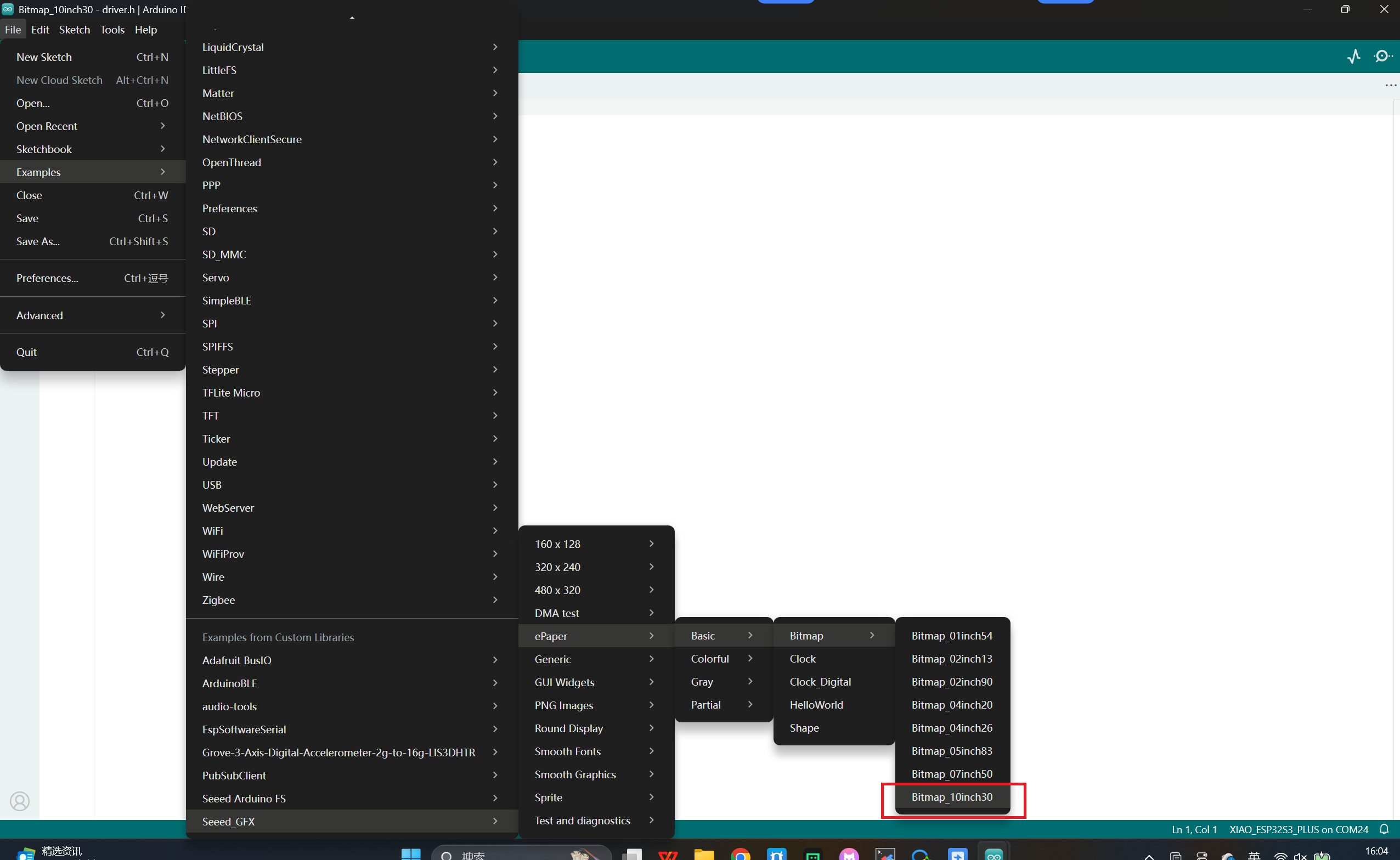
Select the example shown in the figure
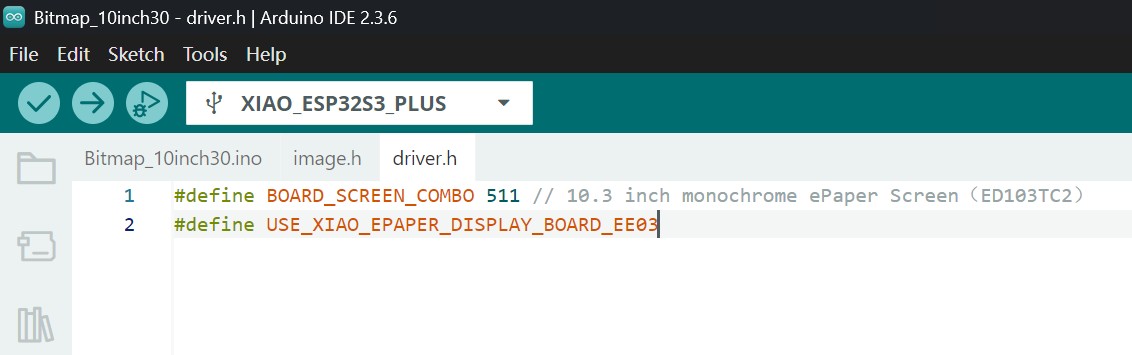
Create a new "driver.h" file and paste those code into it. The code should be like:
#define BOARD_SCREEN_COMBO 511 // 10.3 inch monochrome ePaper Screen(ED103TC2)
#define USE_XIAO_EPAPER_DISPLAY_BOARD_EE03
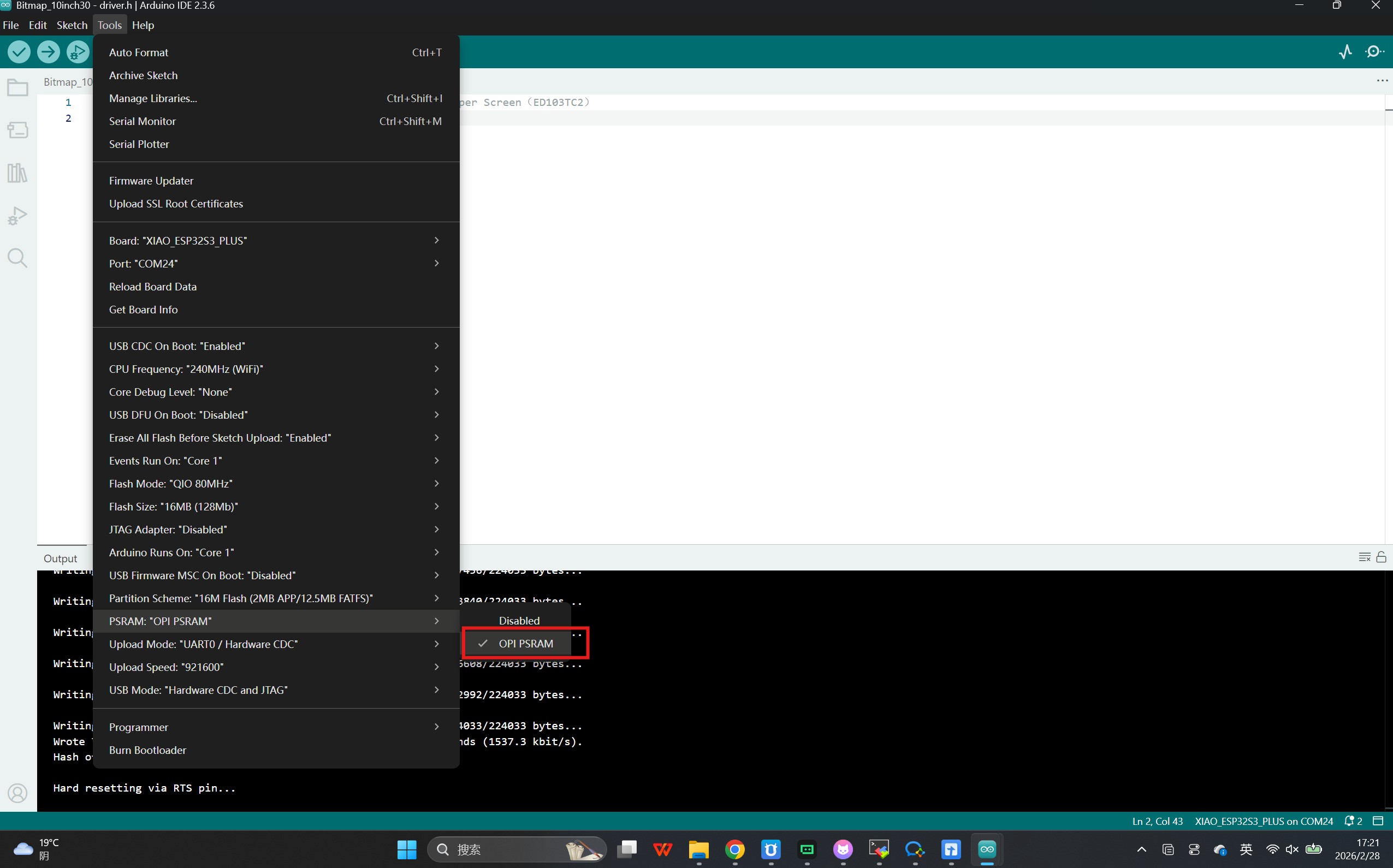
After that, go to Tools -> Board -> XIAO ESP32S3 Plus and Tools -> Port -> Select the port your board is connected to.
Note that PSAM must be enabled.
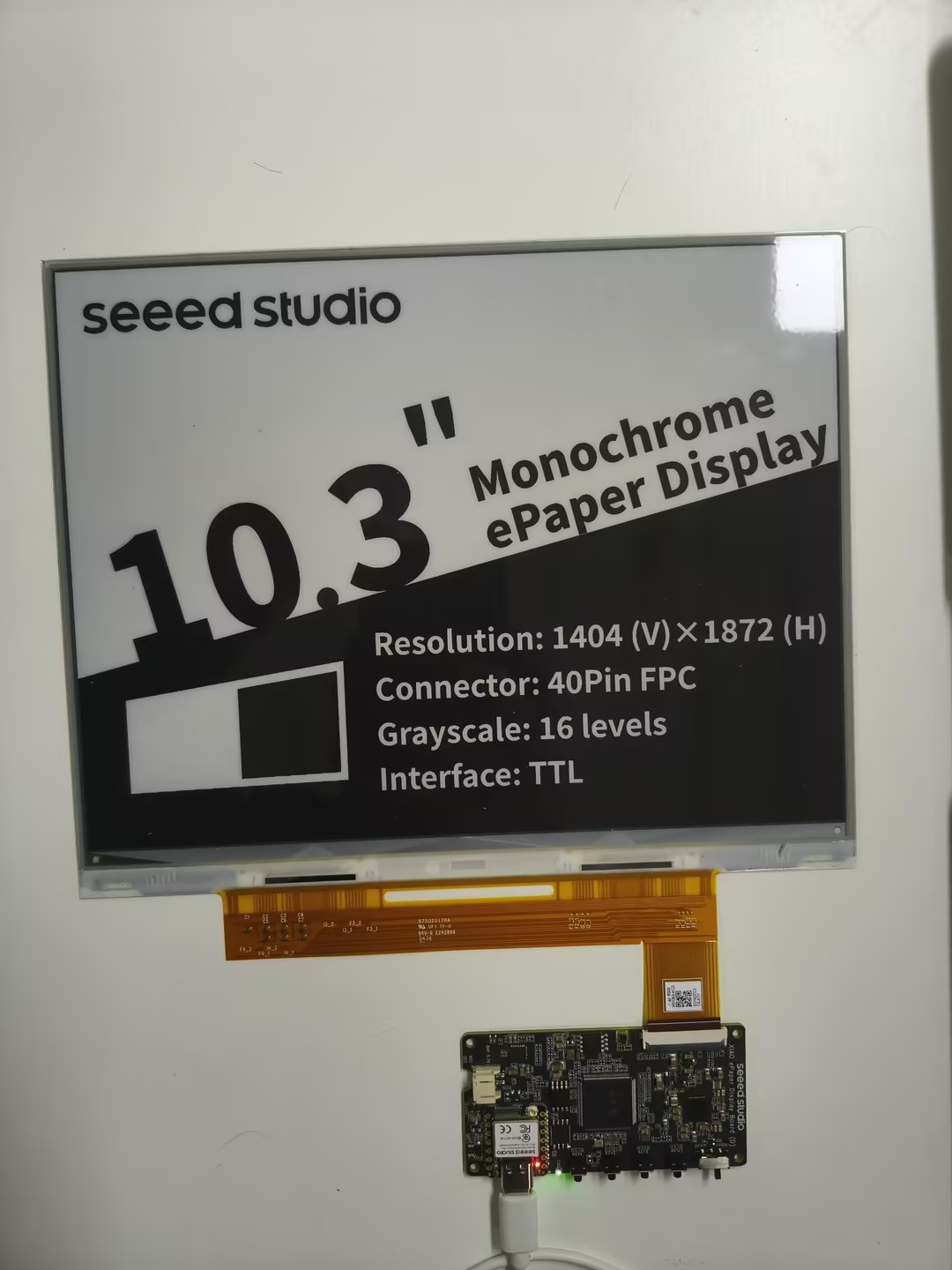
Then click Upload to upload the code. Now you will see the feedback in your epaper screen! Following are the results of Bitmap examples.
Troubleshooting
Q1: The screen does not refresh after powering on.
- Check if the FPC cable is correctly inserted and locked.
- Ensure the USB Type-C cable provides sufficient power.
- Press the Reset button to restart the board.
Q2: Wi-Fi configuration fails.
- Ensure your Wi-Fi network is 2.4GHz.
- Check if the Wi-Fi password was entered correctly.
Q3: The screen display is blurry or has ghosting.
- This can happen if the screen hasn't been refreshed for a long time or if the power supply is unstable. Try refreshing the screen again via the HMI platform.
Resources
- [PDF] Seeed Studio XIAO ePaper Display EE03 Schematic
- [ZIP] Seeed Studio XIAO ePaper Display EE03 PCBA&SCH
Tech Support & Product Discussion
Thank you for choosing our products! We are here to provide you with different support to ensure that your experience with our products is as smooth as possible.