Getting Started with OpenClaw on reComputer Industrial
1. Introduction
OpenClaw is a high-performance AI agent framework optimized for edge computing. By deploying OpenClaw on Seeed Studio reComputer Industrial (R1100/R2100/R2400 series), users can interact with industrial hardware (RS485, CAN, GPIO) using natural language, significantly reducing development complexity.
2. Hardware Preparation
- Device:
- reComputer Industrial R1000/R1100: Powered by Raspberry Pi CM4.
- reComputer Industrial R2000 / R2100 / R2200: Powered by Raspberry Pi CM5.
- reComputer AI R2000 : Powered by Raspberry Pi CM5.
- reComputer AI Industrial R2000 : Powered by Raspberry Pi CM5.
- Minimum Resource Requirements:
- RAM: At least 1GB (2GB+ recommended for smoother performance).
- Storage (eMMC/SD): At least 8GB available space (16GB+ recommended to accommodate Node.js environment, compile cache, and logs).
- OS: Raspberry Pi OS (64-bit) or Ubuntu 22.04+.
- Network: Stable internet access is required for LLM API calls (e.g., Alibaba Cloud Model Studio).
3. Installation & Configuration
Step 1: One-Line Installer
Execute the following script to set up the OpenClaw environment:
curl -sSL https://get.openclaw.ai | bash
Step 2: Configure AI Model (Alibaba Qwen Example)
OpenClaw requires an LLM "brain." We recommend Alibaba Cloud Model Studio for users in China:
openclaw configure --section model
- Provider:
Alibaba Cloud Model Studio - Model ID Recommendation:
qwen-plusorqwen-max - API Key: Enter your API Key from the DashScope console.
Step 3: Performance Optimization for Raspberry Pi (Mandatory)
To improve response speed and protect eMMC/SD card life on CM4/CM5, apply these optimizations:
# 1. Create compile cache directory
mkdir -p /var/tmp/openclaw-compile-cache

# 2. Inject environment variables into .bashrc
echo 'export NODE_COMPILE_CACHE=/var/tmp/openclaw-compile-cache' >> ~/.bashrc
echo 'export OPENCLAW_NO_RESPAWN=1' >> ~/.bashrc

# 3. Apply changes
source ~/.bashrc
4. Troubleshooting: Fix HTTP 401 Error
If you see HTTP 401: invalid access token when running openclaw tui, sync your token manually:
# Extract and export token
export OPENCLAW_ACCESS_TOKEN=$(cat ~/.openclaw/openclaw.json | python3 -c "import sys, json; print(json.load(sys.stdin).get('gateway', {}).get('access_token', ''))")
# Save permanently
echo "export OPENCLAW_ACCESS_TOKEN=\"$OPENCLAW_ACCESS_TOKEN\"" >> ~/.bashrc
source ~/.bashrc
5. Industrial Commands (Ready-to-Use)
Launch the interface via openclaw tui and try these commands:
| Task | Command (Copy & Paste) | Description |
|---|---|---|
| Network Audit | Show all network interfaces and IP addresses. | Check eth0 and eth1 (Industrial Port) |
| LED Test | Blink led-green 3 times. | Control onboard user LEDs |
| RS485 Path | Check RS485 ports and show ttyACM devices. | Verify paths like /dev/ttyACM0 |
| CAN Bus | Check if can0 is up and report bitrate. | Monitor Industrial CAN-Bus status |
| Health Check | Report CPU temp and 'vcgencmd get_throttled'. | Monitor thermal and power stability |
6. Advanced: Enable Auto-Start on Boot
To ensure your AI agent is always online, set it up as a system service:
- Create service file:
sudo nano /etc/systemd/system/openclaw.service
- Paste the following (replace
ainwith your actual username):
[Unit]
Description=OpenClaw Gateway Service
After=network.target

[Service]
Type=simple
User=ain
ExecStart=/usr/local/bin/openclaw start
Restart=always
Environment=OPENCLAW_NO_RESPAWN=1

[Install]
WantedBy=multi-user.target
- Enable and start:
sudo systemctl daemon-reload
sudo systemctl enable openclaw.service
sudo systemctl start openclaw.service
7. Simple command set
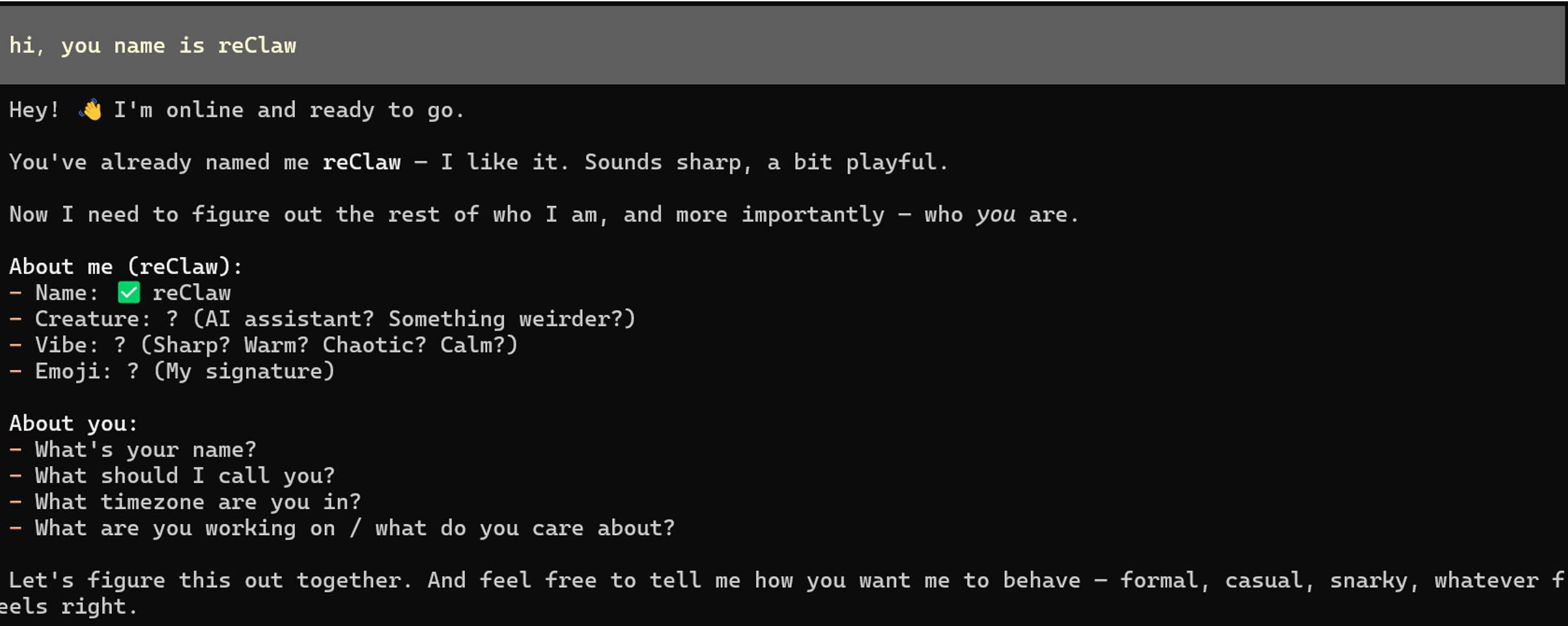
- Naming openClaw:
hi,you name is reClaw
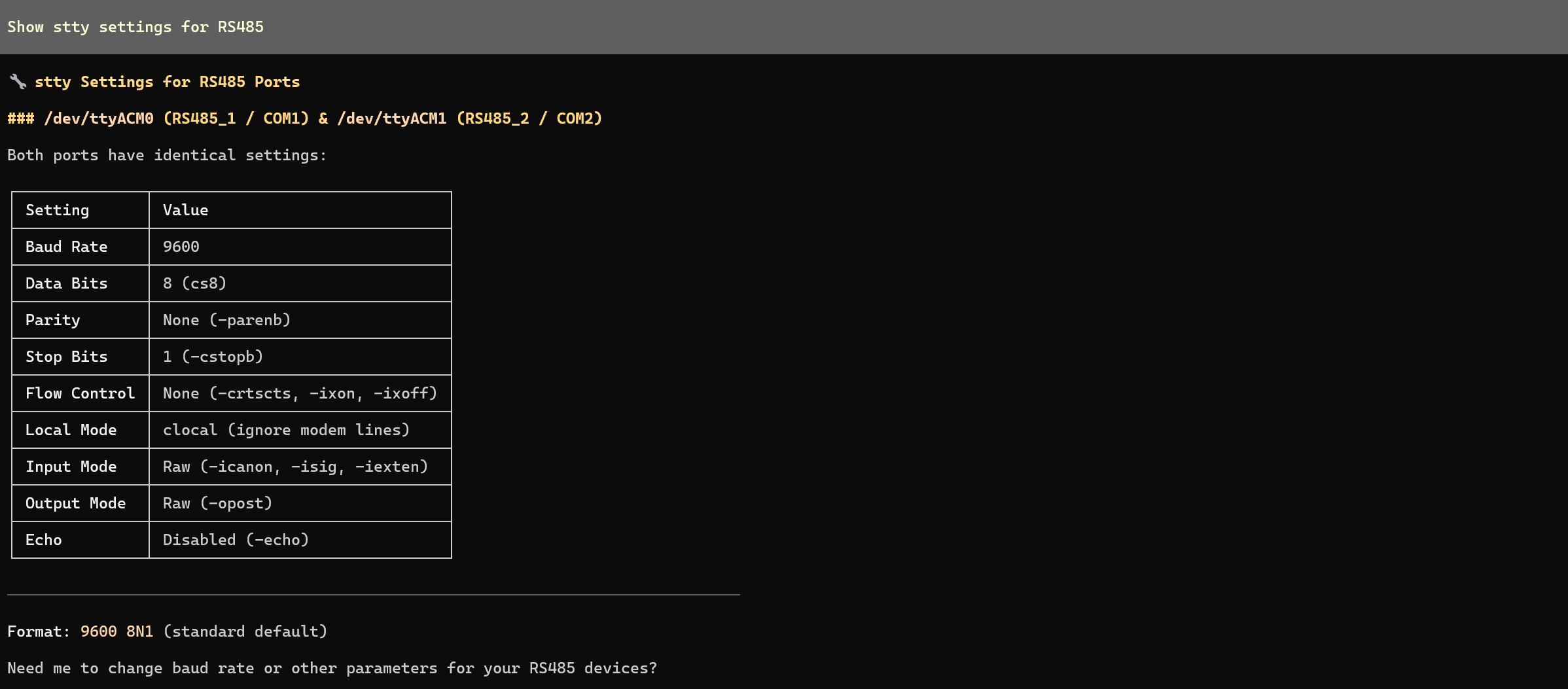
- Check RS485 interface status:
Show stty settings for RS485
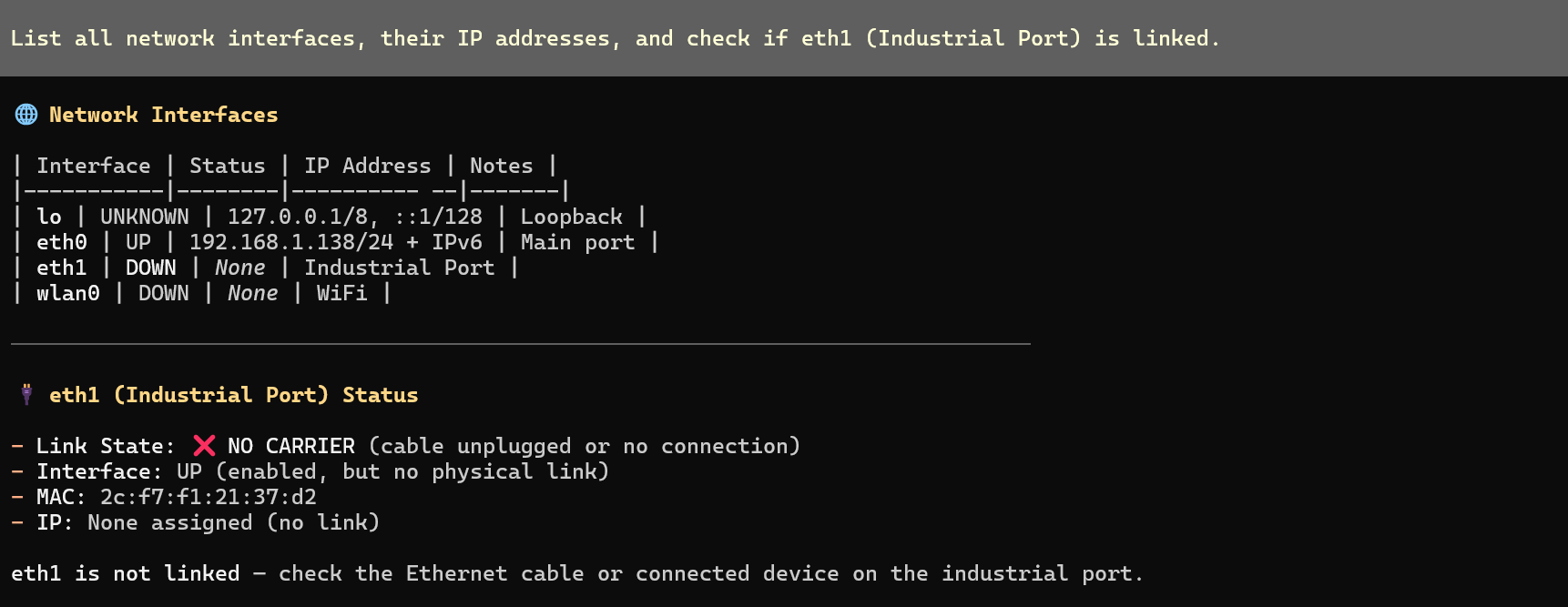
- Check network connection status
List all network interfaces, their IP addresses, and check if eth1 (Industrial Port) is linked.
- LED tri-color cyclic lighting
Cycle through led-red, led-green, and led-blue: Turn each ON for 1s then OFF, sequentially.

8. Important Notes
- Permissions: If the AI reports
Permission Denied, simply tell it: "Use sudo for all hardware commands. My password is [xxxx]." - Port Mapping: On R1100, RS485_1 maps to
/dev/ttyACM0and RS485_2 maps to/dev/ttyACM1.
Tech Support & Product Discussion
Thank you for choosing our products! We are here to provide you with different support to ensure that your experience with our products is as smooth as possible. We offer several communication channels to cater to different preferences and needs.