Getting Started with reTerminal E1002

If you want to quickly preview project results or try the basic demo firmware before setting up a development environment, open the reTerminal E-Series Firmware Hub. You can choose a supported reTerminal E Series device and flash demo firmware directly from a browser.
We recommend that you complete your product's firmware update as soon as you receive it for the best experience.
-
If your reTerminal has been idle for a long time, you can long press the green button on the device for 5 seconds to clear the screen content (using the factory firmware), which can effectively prevent the residual shadow and increase the screen life.
-
Whenever possible, do not display a screen for a long period of time (more than 1 day), as this may create a residual image, and it is recommended that the screen's image be refreshed at least once a day. If the device is not used for a long time, it is recommended to clear the device display content.
-
Please refresh the screen as infrequently as possible when using and debugging the program. Refreshing the screen at high speed for a long period of time may also reduce the service life of the screen.
Introduction
reTerminal E1002 is a 7.3 inch open-source full color ePaper display with exceptional 3-month battery life. Powered by ESP32-S3, it natively supports our SenseCraft Seeedash no-code UI platform for effortless dashboard creation, while supporting Home Assistant, TRMNL E-ink dashboard, Arduino and ESP-IDF for further development. With the E Ink® Spectra™ 6 full-color ePaper Display, it's perfect for digital frame, colorful dashboard visulization.
Features
- Beautiful, Ready-to-Use E Ink® Spectra™6 Color ePaper Display
- Ultra-Low Power with 3-Month Battery Life
- No-Code UI Design & Deployment with SenseCraft Seeedash
- Works with Popular Software Platforms
- Flexible Hardware & Software Customization
Specification
| Item | Description |
|---|---|
| Product Name | reTerminal E1002 |
| Processor | ESP32-S3 with 8MB PSRAM |
| Storage | 32MB Flash, support Micro SD card |
| Display | 7.3" Full Color (E Ink® Spectra™ 6) |
| Resolution | 800 x 480 Pixels |
| Micro SD Card | Maximum support 32GB SD card, FAT32 format |
| Wireless Connectivity | 2.4GHz 802.11 b/g/n Wi-Fi, Bluetooth 5.0 |
| Sensors | Temperature, humidity sensors |
| Microphone | Reserved for voice interaction application |
| Buzzer | Buzzer for sound alert |
| Battery | 2000mAh |
| Power Input | USB-C 5V/1A |
| Working Temperature | 0-40°C |
| Dimensions | 176mm x 120mm x 53mm (With Stand) / 17mm (Without Stand) |
Hardware Overview
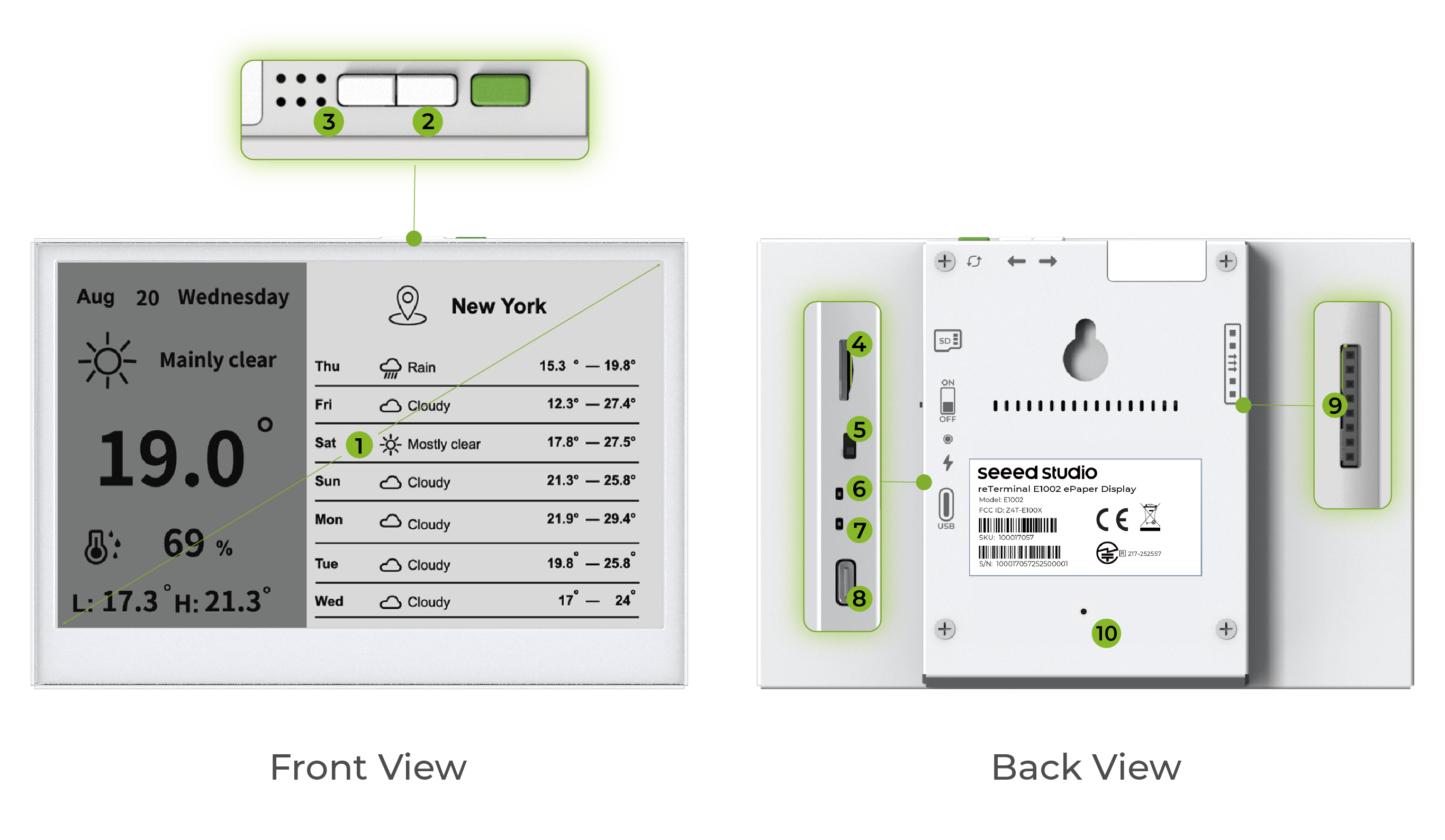
The reTerminal E1002 hardware includes:
- 7.3-inch full-Color ePaper Display: Full-color display with 800×480 resolution
- Buttons: Located at the top of the device for manual screen usage
- Microphone
- MicroSD Card Slot: For expandable storage
- Power Switch: Located on the back for powering the device on/off
- Status LED: User indicator (green)
- Power LED: Charge indicator (red)
- USB-C Port: For charging and firmware updates
- Expansion Port: 8-pin expansion header providing VDD, GND, UART, I2C, and GPIO connections
- Stand Mounting Inserts: Embedded nuts (screw holes) on the bottom back of the device for attaching the 3D-printed support stand
Getting Started
Preliminary
Step 1. Unbox your reTerminal E1002 and ensure all components are included:
- reTerminal E1002 device
- USB-C cable
- Quick start guide
- long screwdriver
- screws
- 3D-printed support stand
Step 2. (Optional) Install the 3D-printed support stand to place the device upright:
Locate the 3D-printed support stand included in the package. Position the support stand against the designated mounting area on the bottom back of the reTerminal E1002 where the embedded nuts are located. Use a long screwdriver to secure the stand to the device by tightening the screws into the embedded nuts on the back of the reTerminal E1002. Once securely attached, place the reTerminal E1002 on a flat surface where the stand will support it in an upright position.
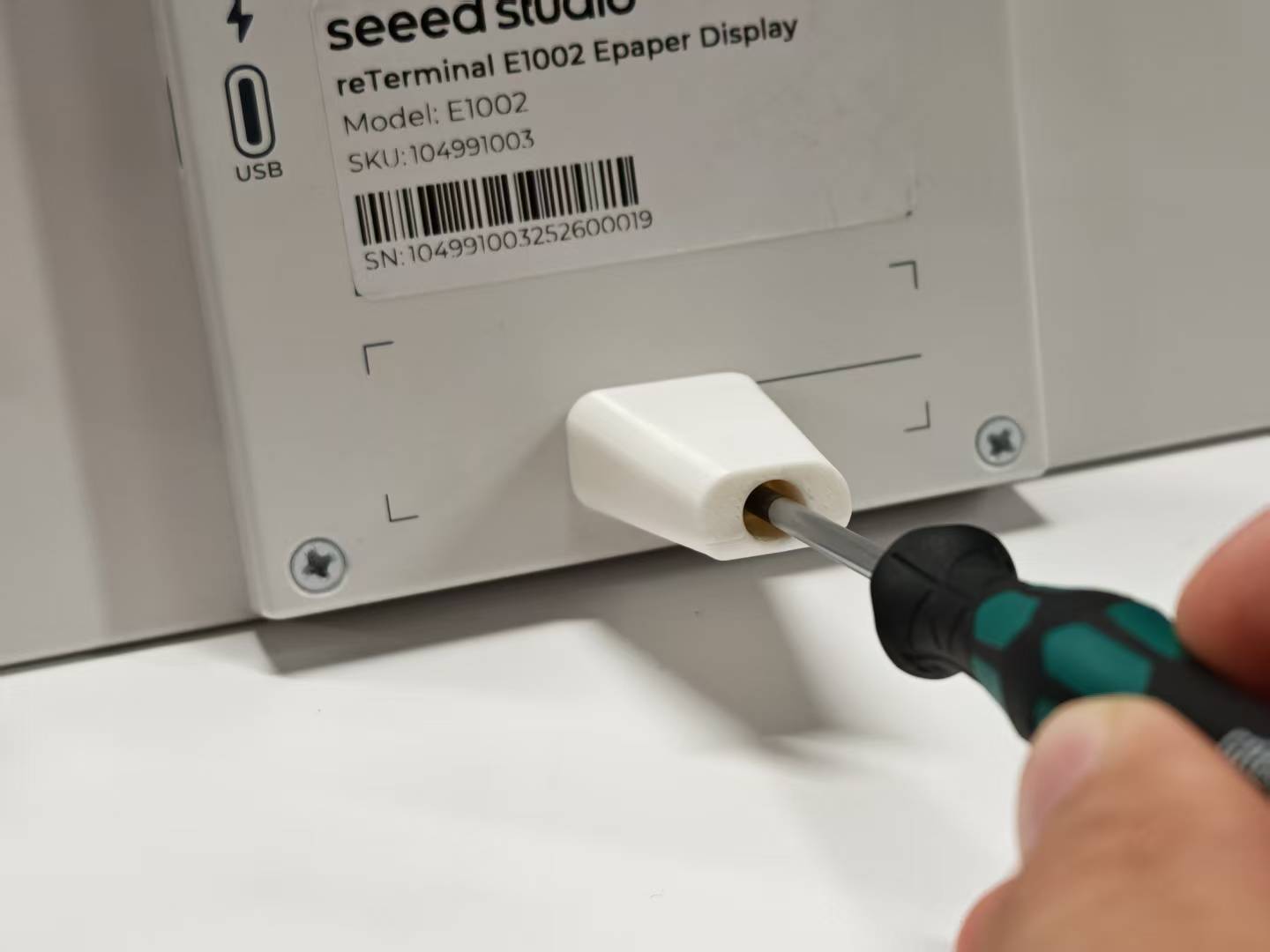
The stand provides a fixed viewing angle and cannot be adjusted. This fixed positioning is designed to offer optimal visibility in most usage scenarios.
Step 3. (Optional) Insert a microSD card if you plan to use the device as a digital photo frame or need additional storage.

The reTerminal E Series ePaper Display only supports MicroSD cards up to 32GB in Fat32 format.
The 32GB SD card is formatted as exFAT by default. After formatting it to FAT32, it can be successfully mounted and used to store images.
Step 4. (Optional) Install USB drivers if needed:
Depending on your operating system, you may need to install USB drivers to ensure proper communication with your reTerminal E1002:
- Windows
- MacOS
- Linux
- Windows 11 systems typically include the driver by default
- For Windows 10 and earlier versions, you may need to download and install the CH341 driver from WCH official website
Download and install the CH34X driver from WCH official website
Most modern Linux distributions include the necessary drivers by default
Power On
Step 1. Power on the device by sliding the power switch to the ON position. The power switch is located on the back of the unit.
Step 2. On first boot, the device will display product information and network setup instructions.
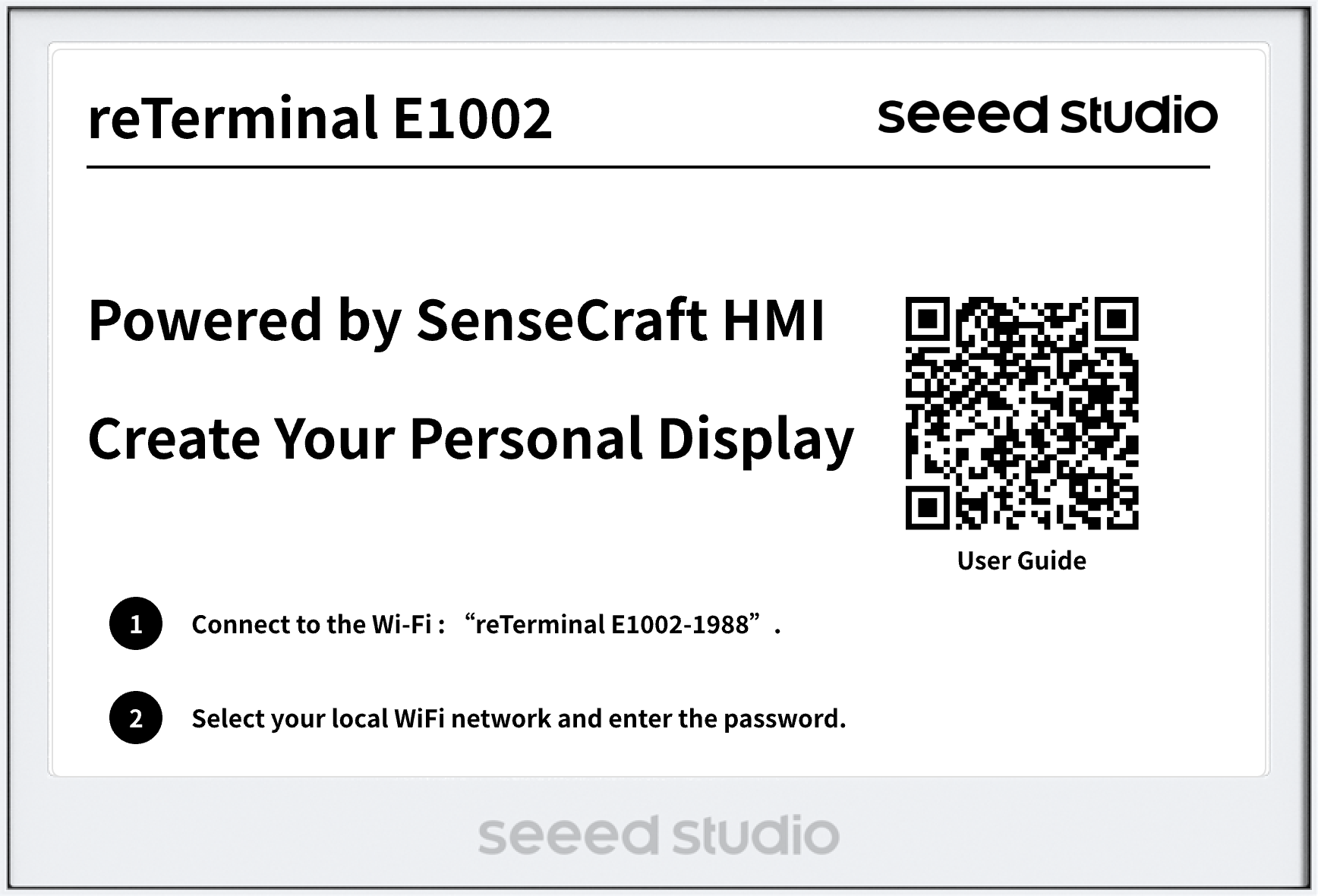
Step 3. The green user LED will light up for approximately 30 seconds, indicating the device is powered on and initializing. 30 seconds of no operation of the device, in order to ensure the power, the device will automatically enter the sleep mode, the LED light will automatically turn off.
So, we need to complete the next steps of configuring the network during this time. When the device goes to sleep, you will not be able to find the device's hotspot. If this is the case, you can wake up the device by clicking once on the device's green Wake button.
Network Setup
- Network Setup via PC
- Network Setup via SenseCraft APP
Step 1. Connect to the device's Wi-Fi access point from your smartphone or computer. The AP name will appear on the screen (no password required). The network credentials are reTerminal E1002-{MAC Adress}.
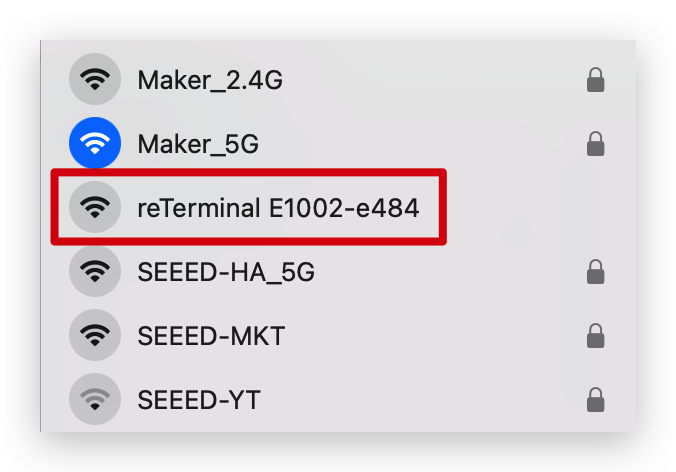
Step 2. Once connected, your phone should automatically redirect to the Wi-Fi configuration page. If not, open a browser and navigate to 192.168.4.1.
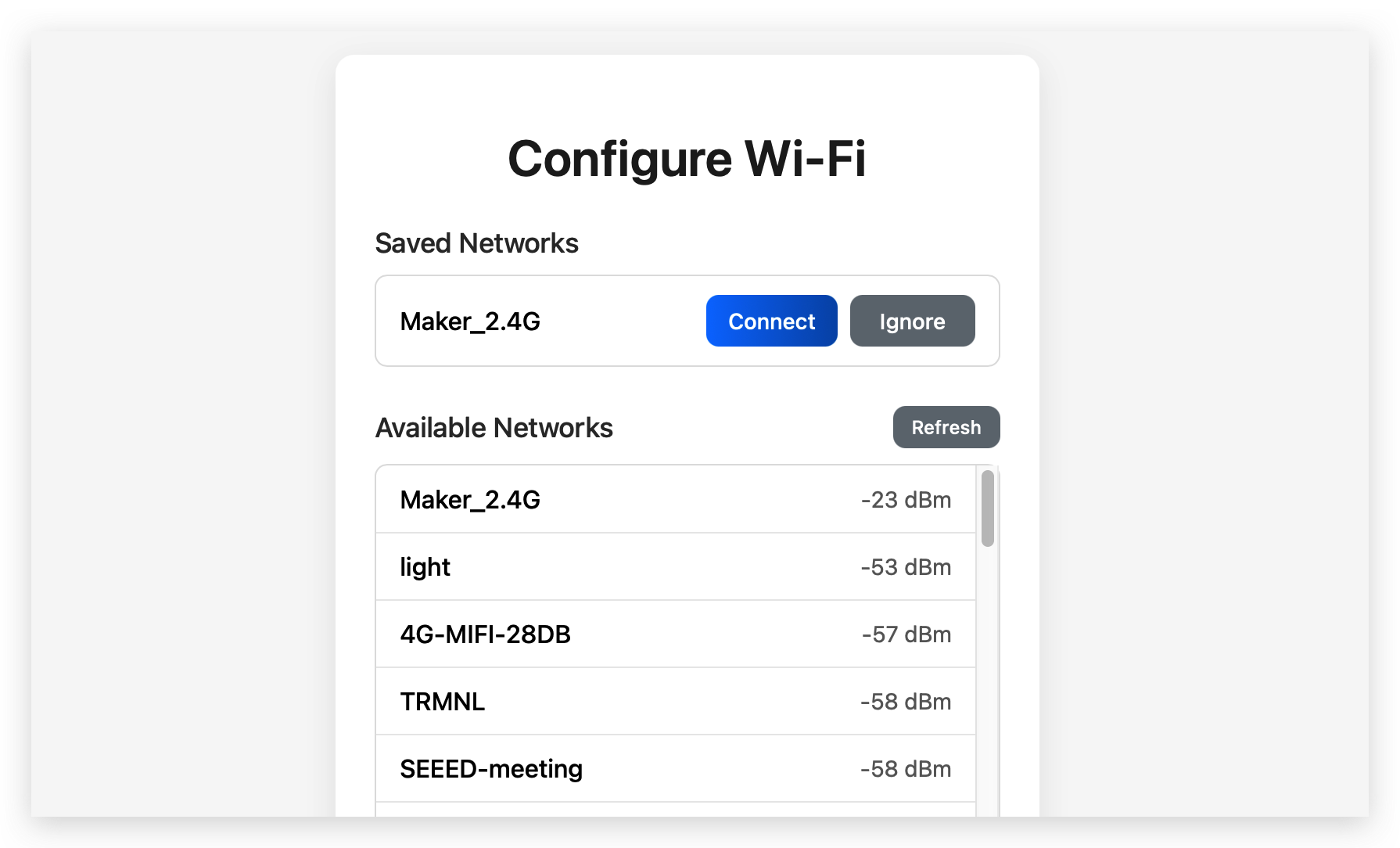
Step 3. Select your local Wi-Fi network and enter the password, then click "Connect".
The reTerminal E Series ePaper Display only supports 2.4GHz WiFi networks, not 5GHz or other bands.
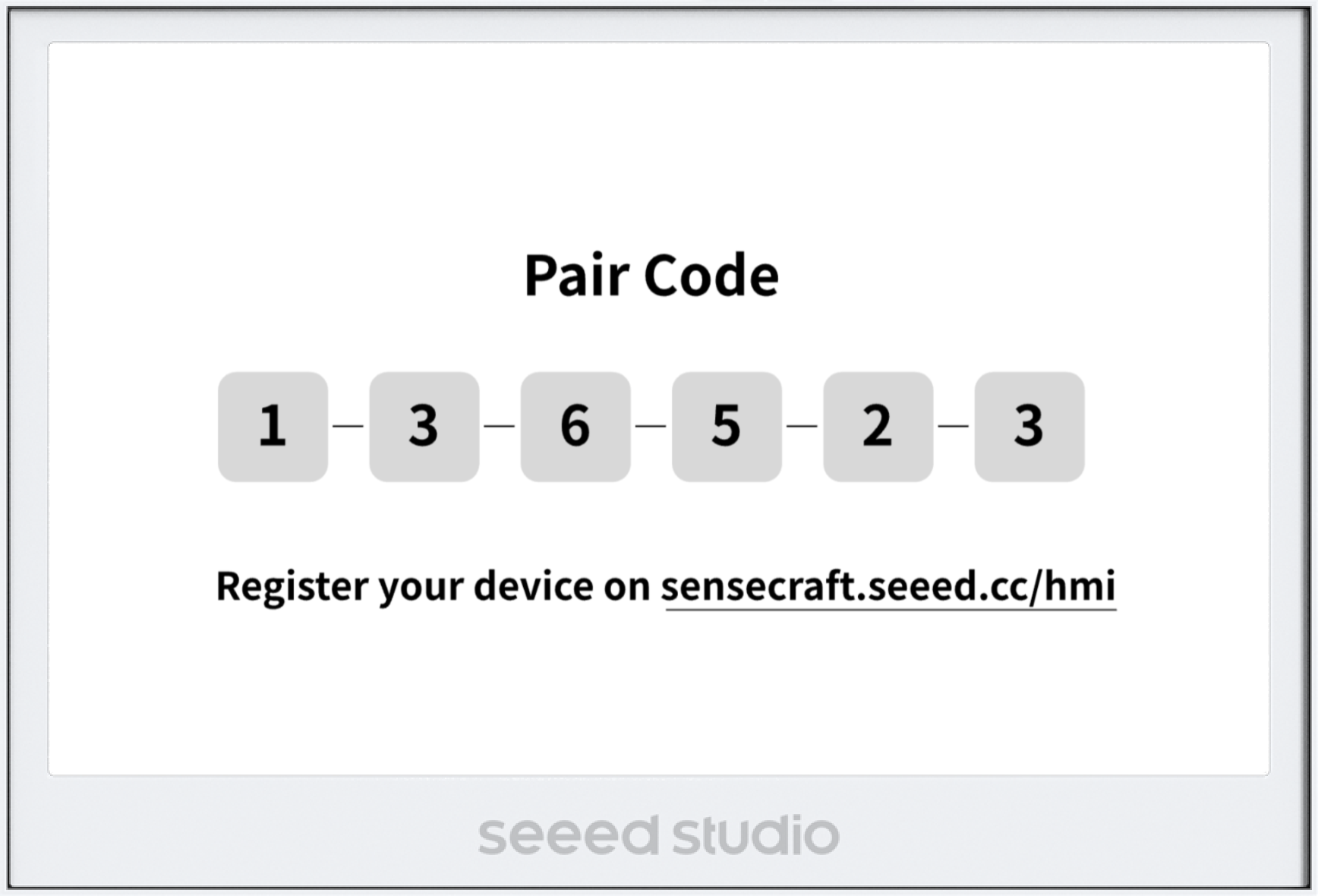
Step 4. Upon successful connection, the device will emit a confirmation beep and display a pairing code screen.
Connecting to SenseCraft Platform
Step 1. Visit SenseCraft Seeedash in your web browser and create an account or sign in.
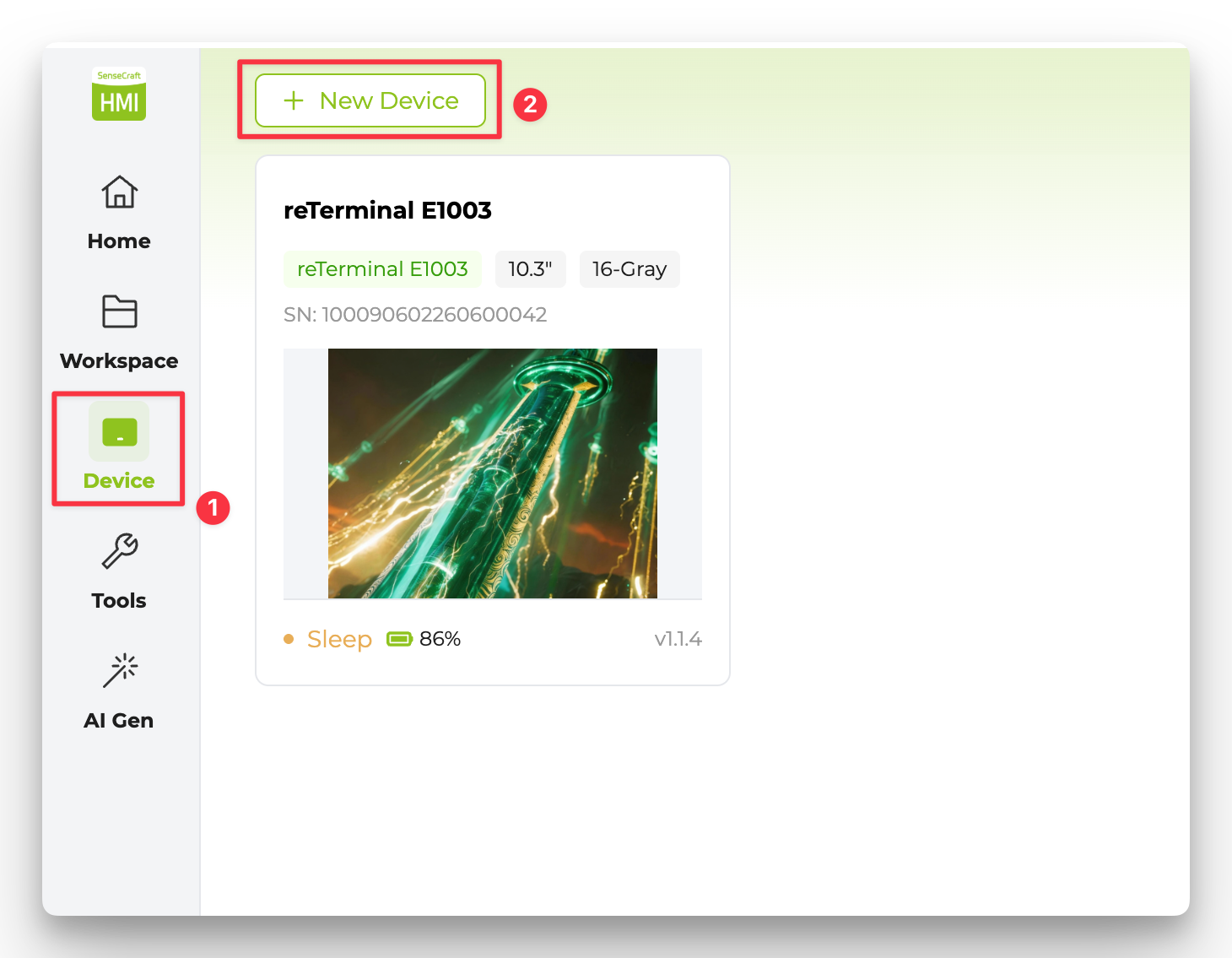
Step 2. In the left sidebar, click Device to enter the Device page, then click the + New Device button in the upper-left corner.
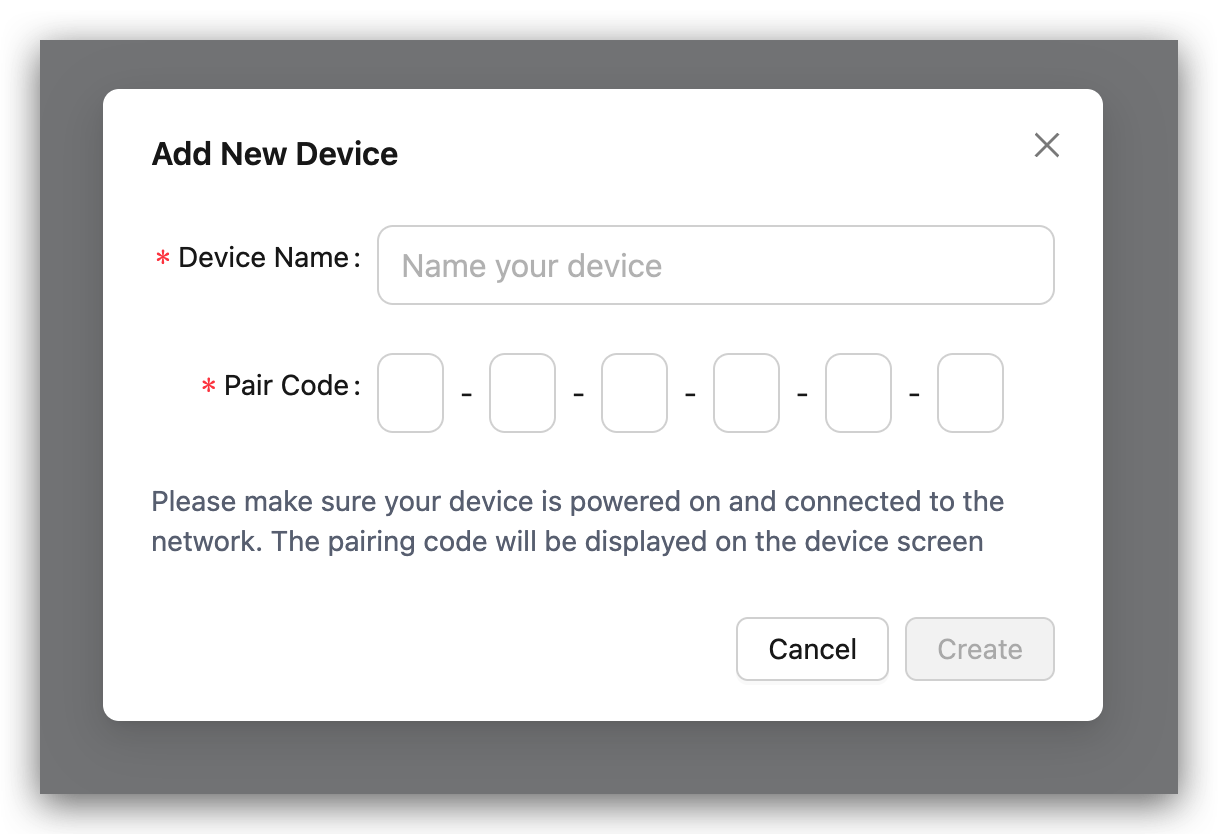
Step 3. Name your device and enter the pairing code displayed on your device's screen and click Create.
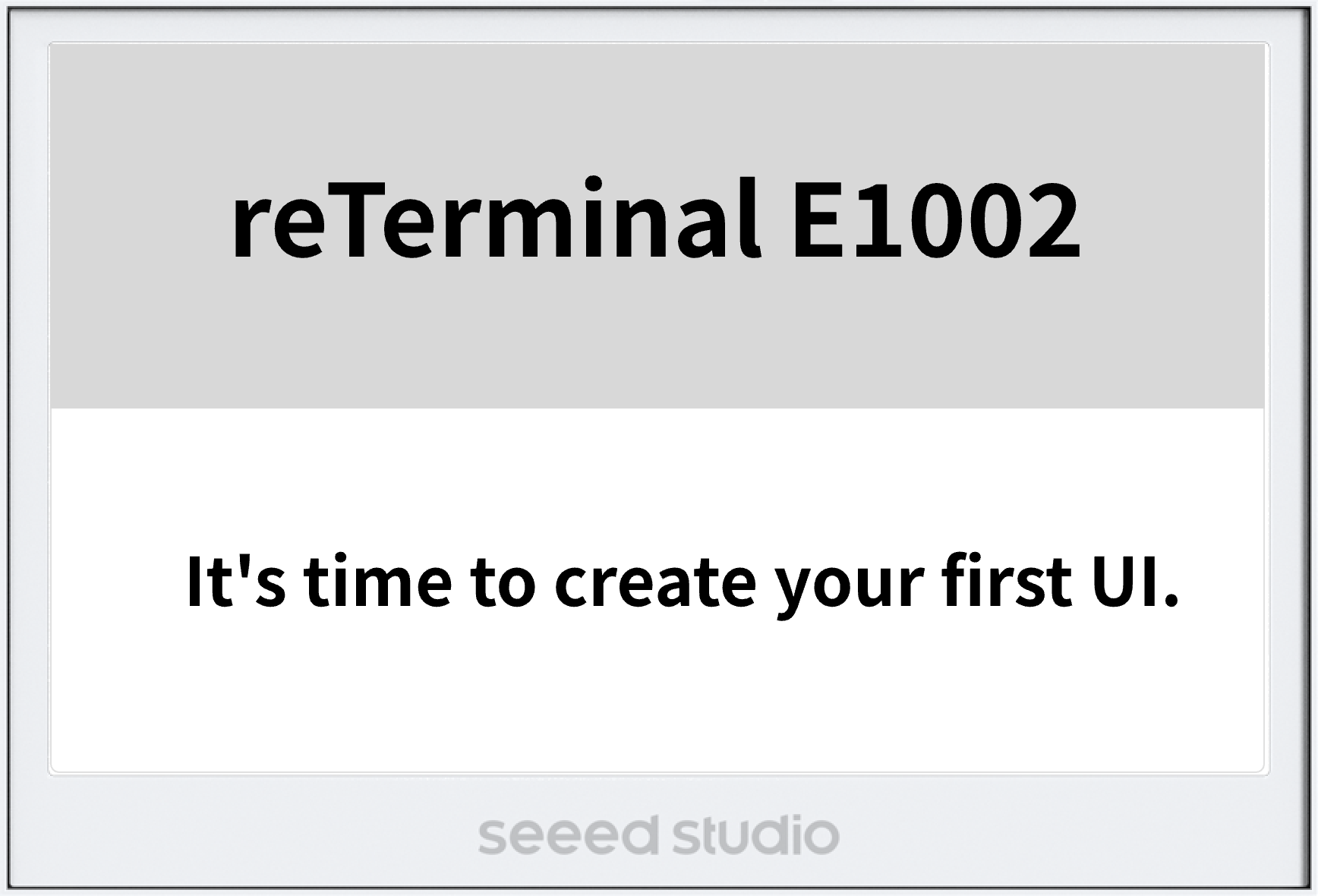
Step 4. Once paired, the device will display a message prompting you to create your first dashboard.
This method uses the SenseCraft mobile app to configure the device's network and add it to your SenseCraft account via Bluetooth.
First, download the SenseCraft App. You can find it by searching "SenseCraft" on the Google Play Store or Apple App Store. Alternatively, you can download it from this website.
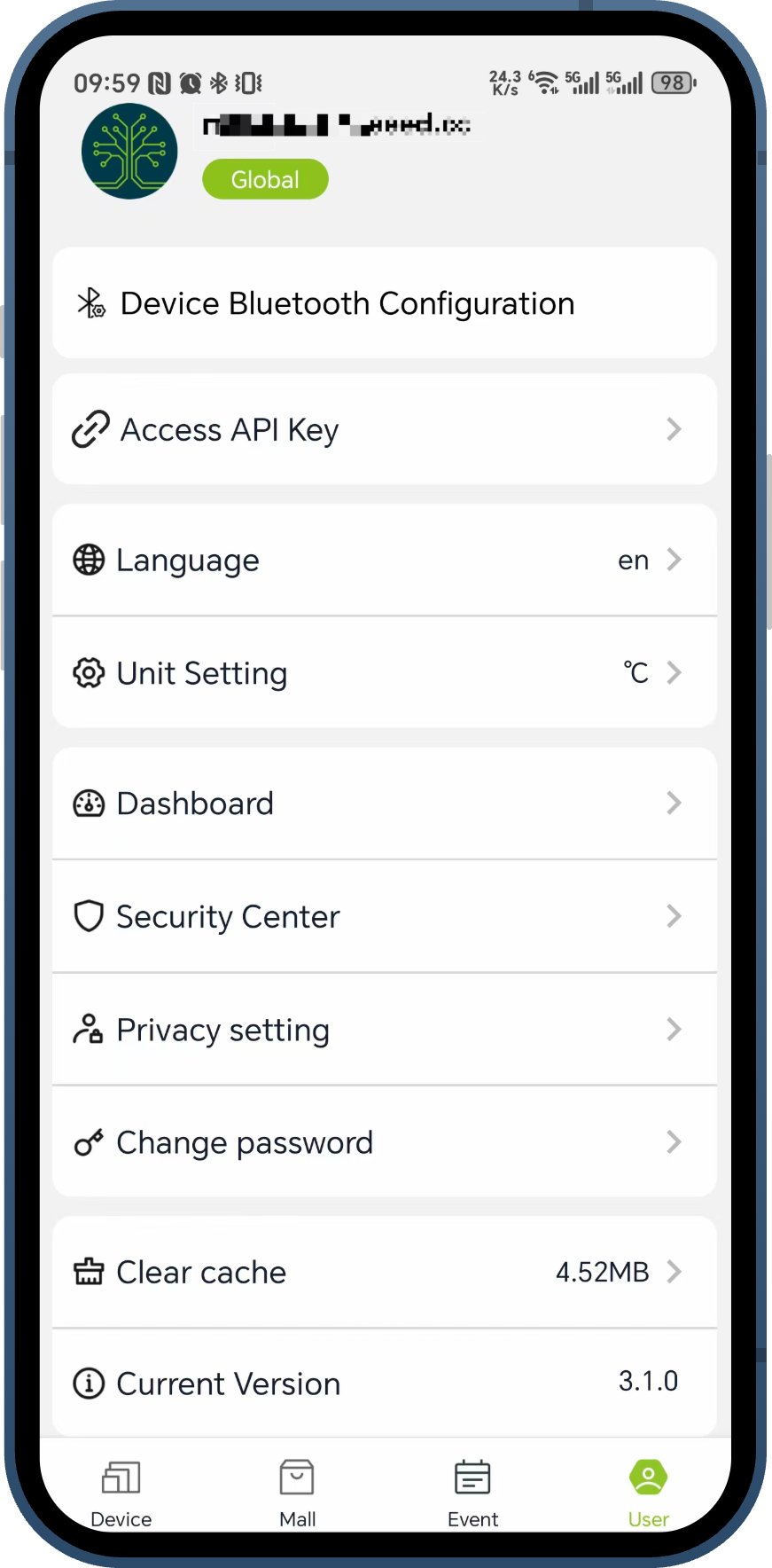
Step 1. Open the SenseCraft App, sign in to your account, and navigate to the User tab. Tap on Device Bluetooth Configuration to begin the process.
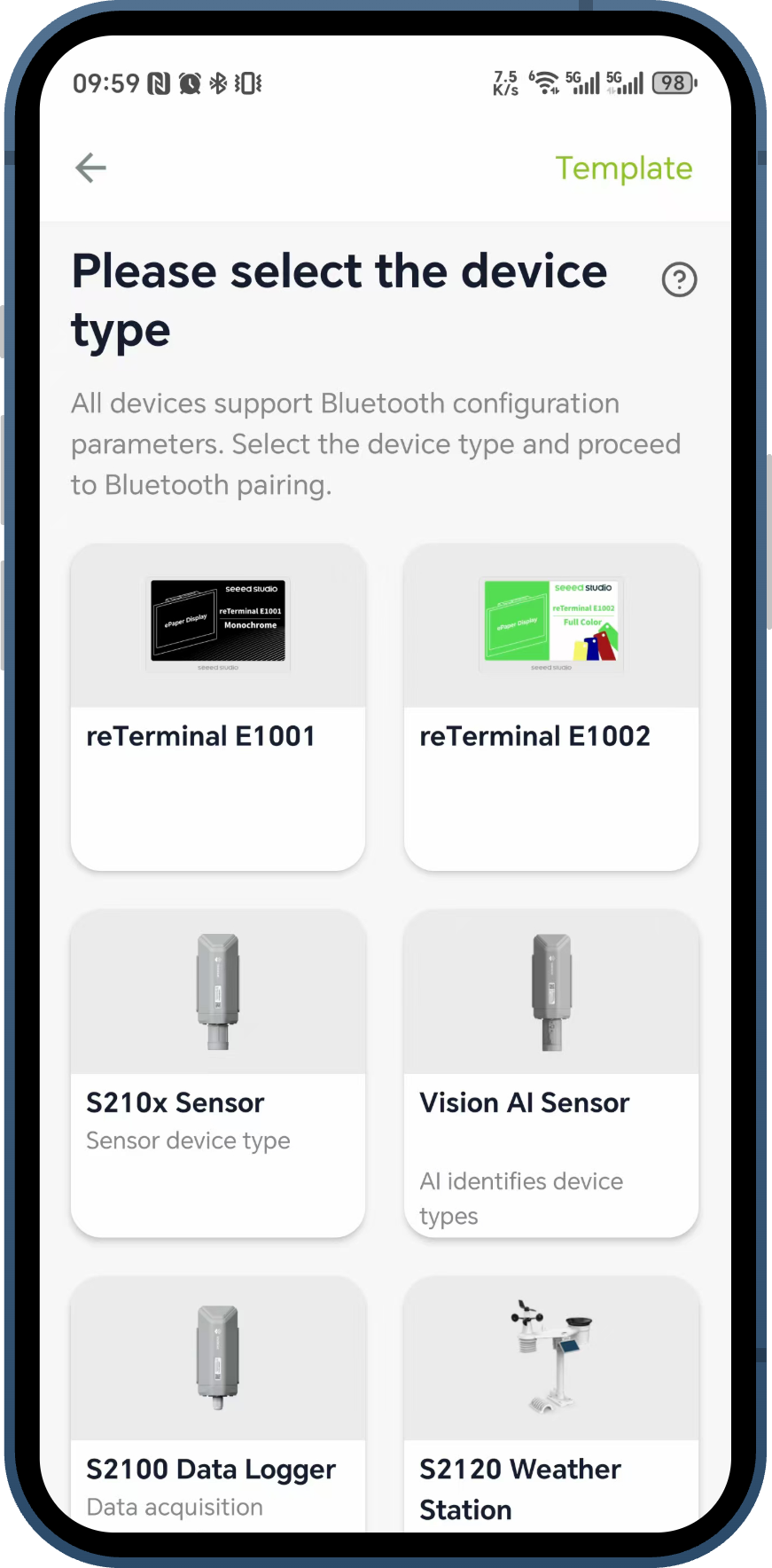
Step 2. On the "Please select the device type" screen, choose your reTerminal model (e.g., reTerminal E1001 or reTerminal E1002).
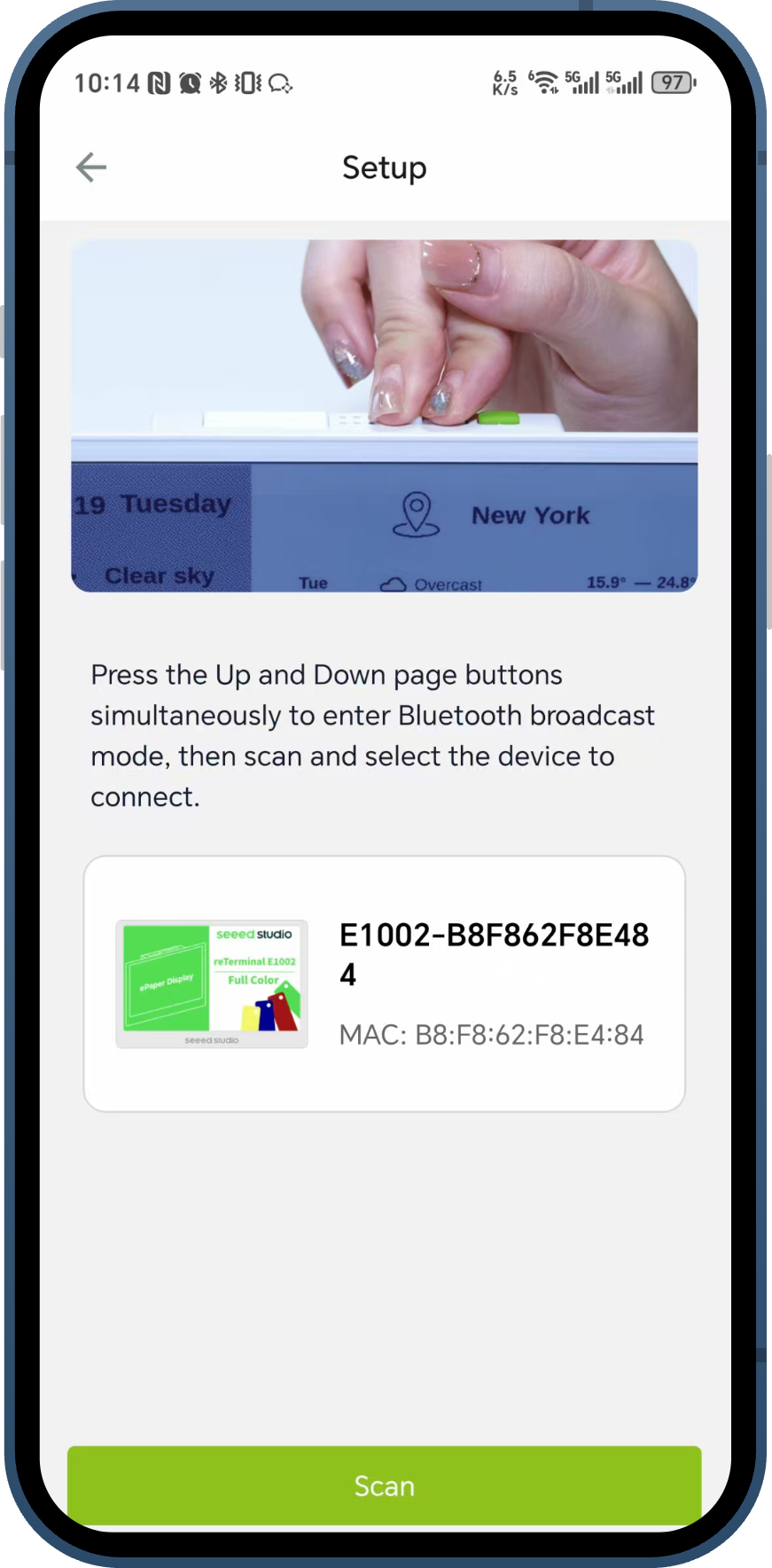
Step 3. Follow the on-screen instructions to put your device into Bluetooth broadcast mode. This is typically done by pressing the Up and Down page buttons simultaneously. Ensure your phone's Bluetooth is enabled. Tap Scan, and the app will discover nearby devices. Select your device from the list to connect.
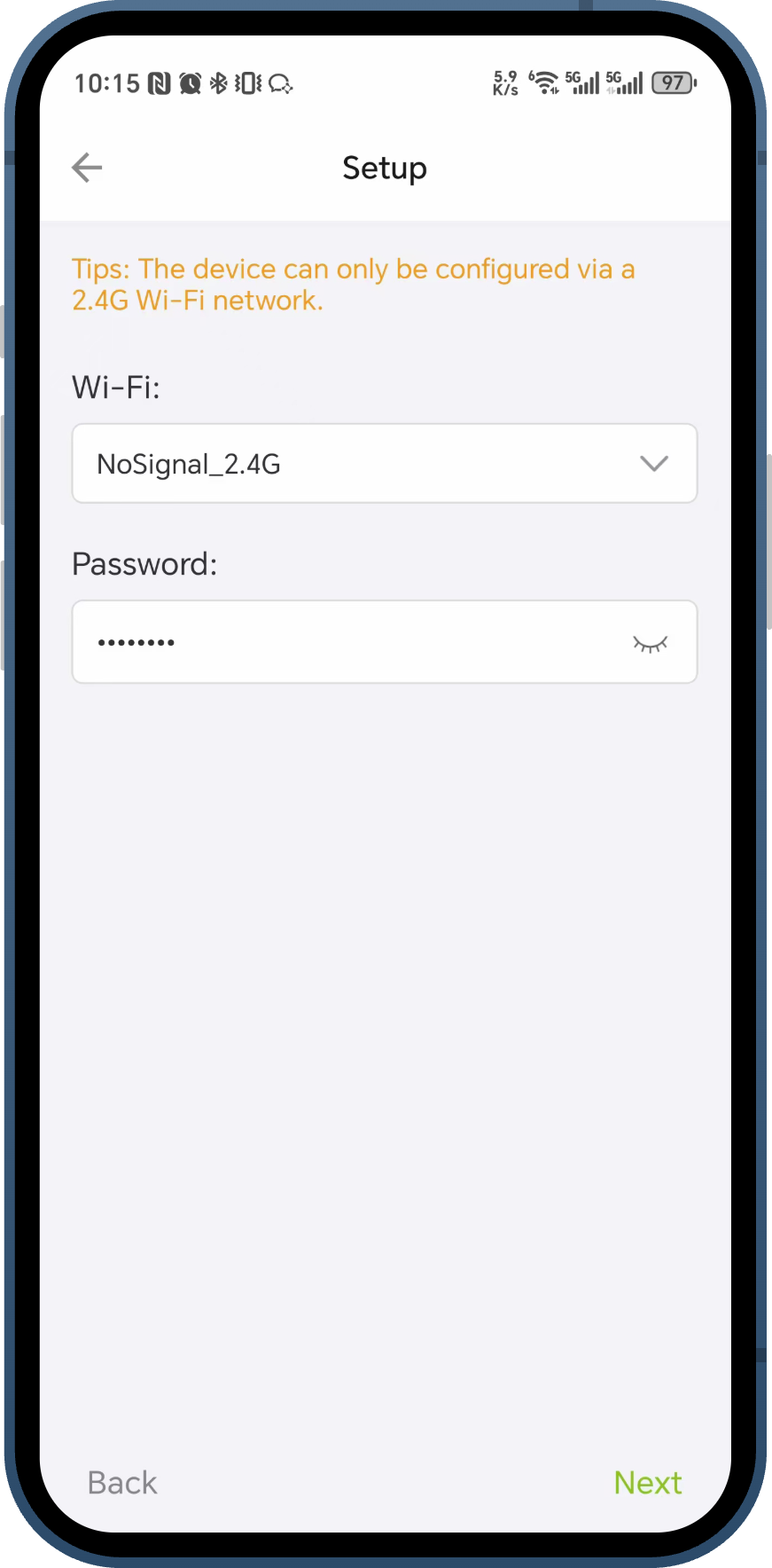
Step 4. Once connected via Bluetooth, the app will prompt you to set up the Wi-Fi connection. Select your local 2.4GHz Wi-Fi network from the dropdown list, enter the password, and tap Next.
The device can only be configured via a 2.4G Wi-Fi network.
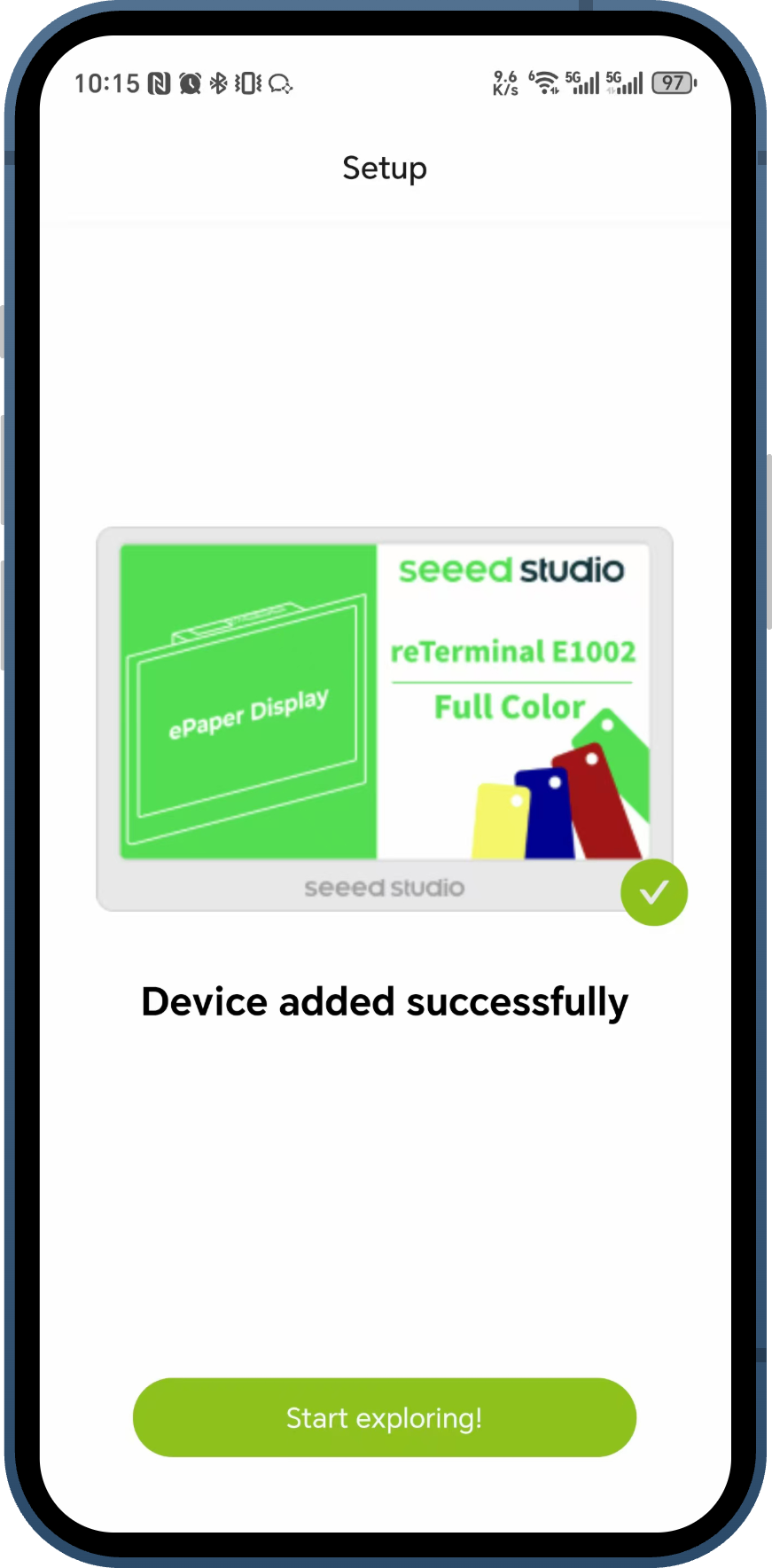
Step 5. The app will send the Wi-Fi credentials to the device and add it to your SenseCraft account. A "Device added successfully" message will appear upon completion. You can now tap Start exploring! to proceed.
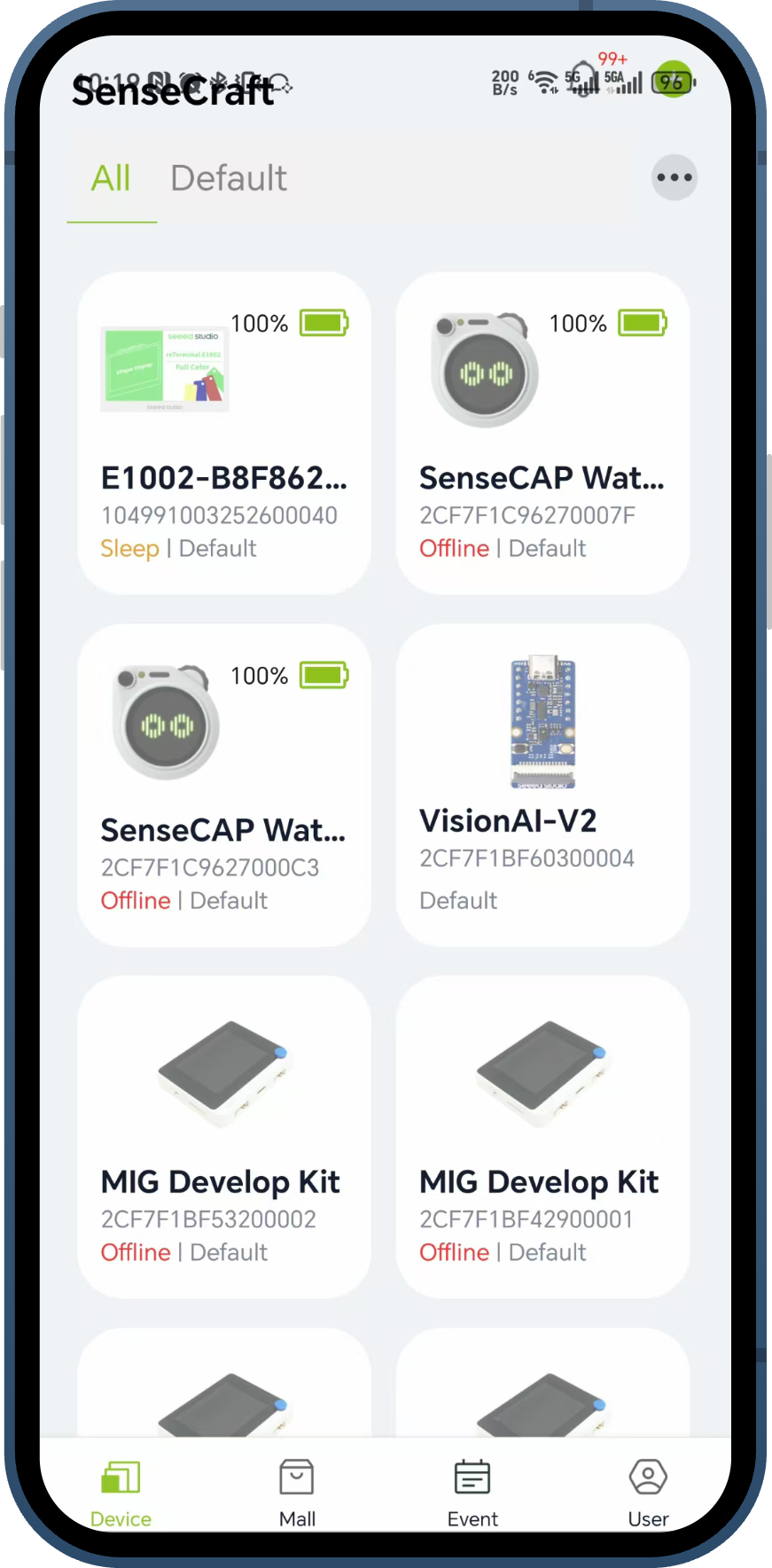
Step 6. Your reTerminal will now appear in your device list on the main Device tab of the app, successfully connected to your SenseCraft account.
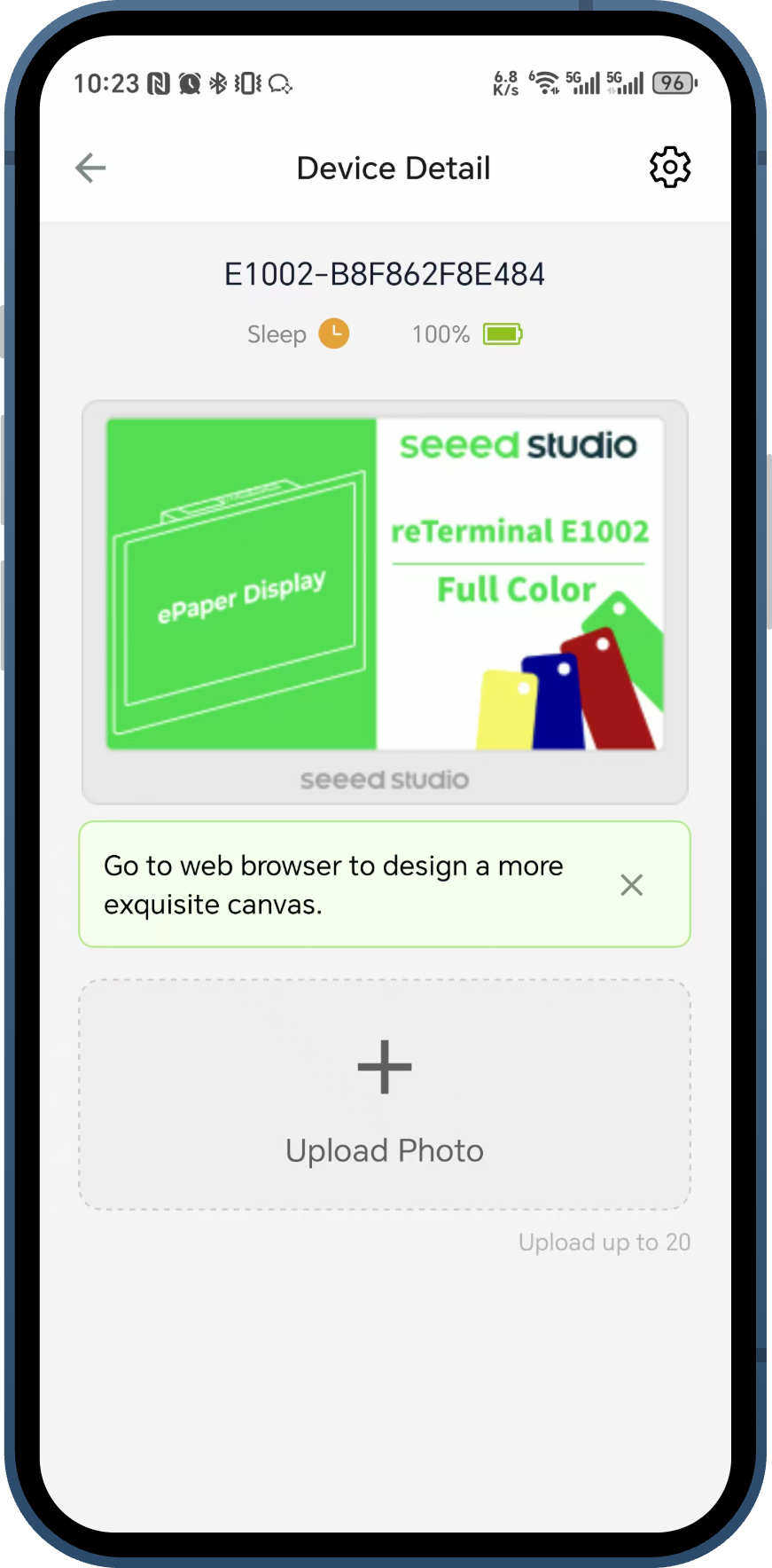
Step 7. You can tap on the device in the list to view its Device Detail page. From here, you can manage the device and upload photos. For more complex dashboard and canvas design, you will be prompted to use the web browser version of SenseCraft.
Firmware Update
After the device is successfully added to your SenseCraft account, the platform will automatically check the firmware version. If a newer firmware is available, you will be prompted to update.
You can also check the firmware version manually at any time:
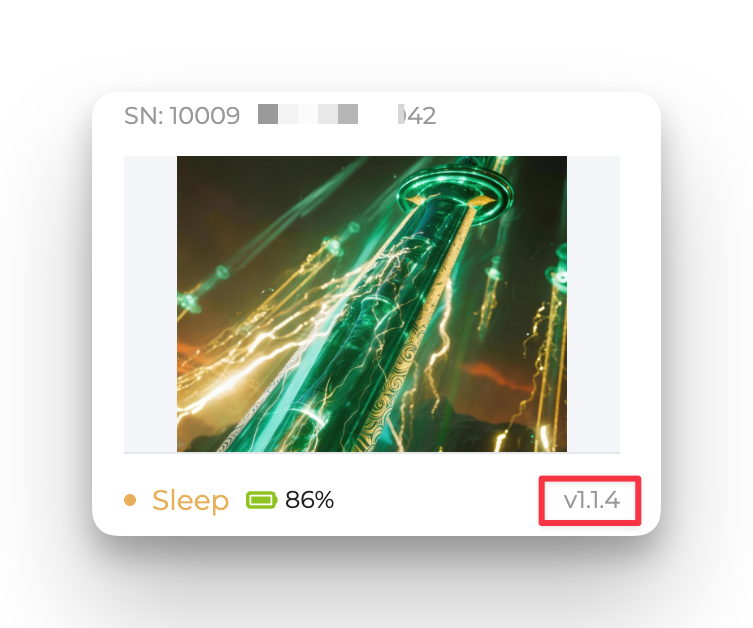
Step 1. On the Device page, find your reTerminal E1002 to view its details, and note the current firmware version.
Step 2. In the left sidebar, click Tools and open the Firmware Flasher tab to see the latest firmware version available for this device.
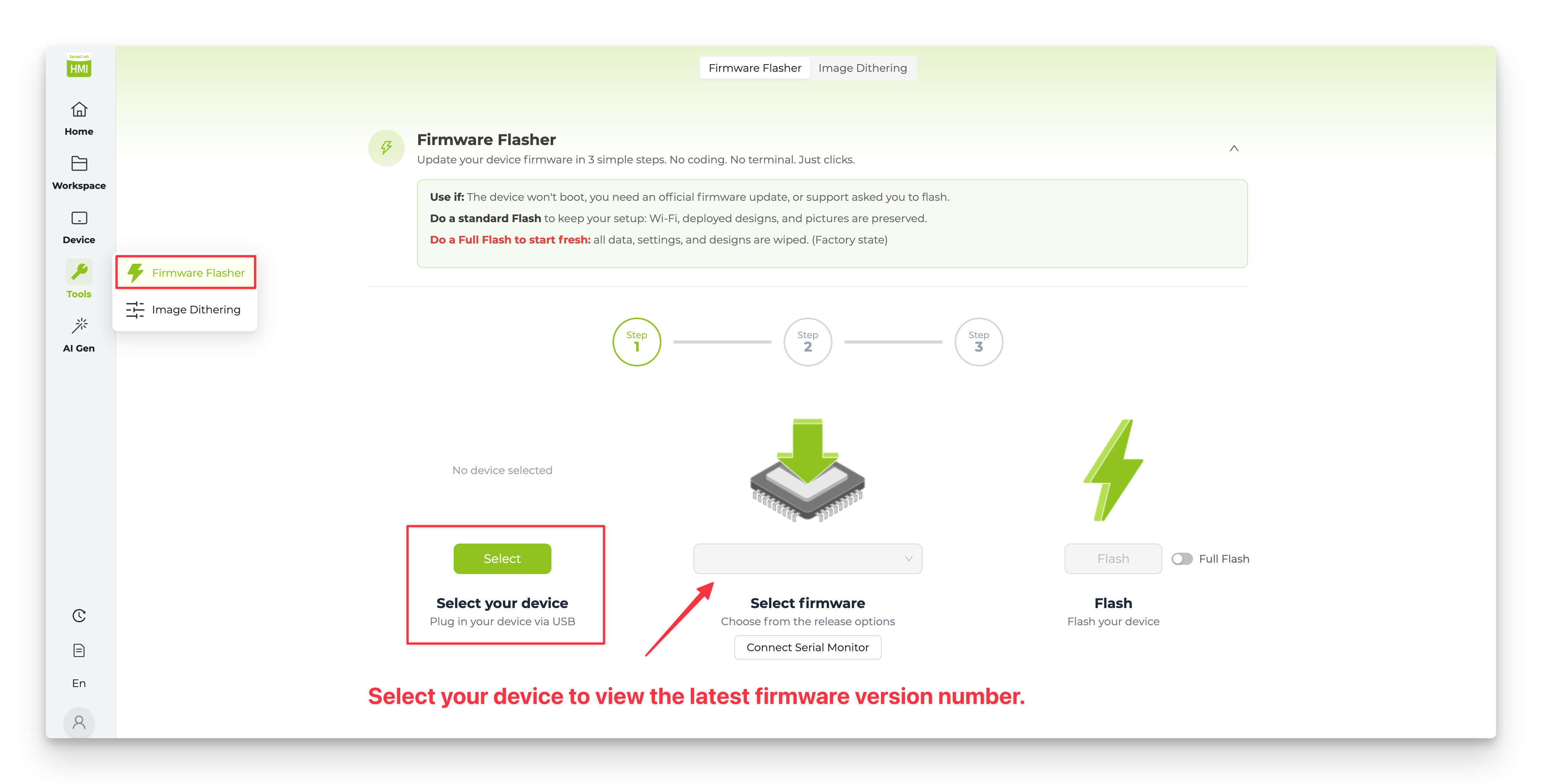
Step 3. If the current version is older than the latest one, follow the 3-step flow on the Firmware Flasher page to update:
-
Select your device — plug the reTerminal E1002 into your computer via the USB-C cable, make sure the power switch is ON, then click Select and choose your device from the list.
-
Select firmware — choose the latest firmware from the release options dropdown.
-
Flash — click Flash and wait for the update to complete. Enable Full Flash only if you want to reset the device to factory state (all data, settings, and designs will be wiped).
-
Updating the firmware ensures optimal performance and access to the latest features.
-
It is not possible to flash the firmware properly when the device is in the shutdown or sleep state. If you select the correct port for your device but never see the flash firmware progress, you may need to wake up the device by pressing the green button on the top of the unit and try again.
-
Do a standard Flash to keep your setup: Wi-Fi, deployed designs, and pictures are preserved. Do a Full Flash to start fresh: all data, settings, and designs are wiped (factory state).
Display Content on Your reTerminal E1002
Once your device is paired, you can start using it to display whatever you like. We recommend SenseCraft Seeedash — a no-code cloud platform that lets you design and deploy content to your reTerminal E1002 in just a few clicks.
SenseCraft Seeedash has its own dedicated Wiki with full tutorials and feature documentation. For in-depth guides (account setup, firmware flashing, advanced editor usage, deployment, etc.), please refer to:
Since this article is a product Getting Started, we will not repeat the same content here — the following only shows how to quickly display something on your reTerminal E1002.
Home — Start From a Community Template
The fastest way to get something on your screen is to start from a ready-made template. On the Home page of SenseCraft Seeedash, you will find a large and continuously growing collection of templates contributed by the community — dashboards, clocks, weather panels, quote walls, calendars, photo frames, and more. Browse the gallery, pick whichever design you like, and deploy it to your reTerminal E1002 with one click.

Workspace — Manage and Design Your Own Content
The Workspace page is where you manage all pages and content shown on the currently bound device. From here you can:
- Create and arrange your own design pages from scratch
- Upload images and organize them into slideshows
- Combine text, widgets, shapes, data, RSS feeds, web content, and more in a single drag-and-drop editor
- Deploy the final design wirelessly to your reTerminal E1002
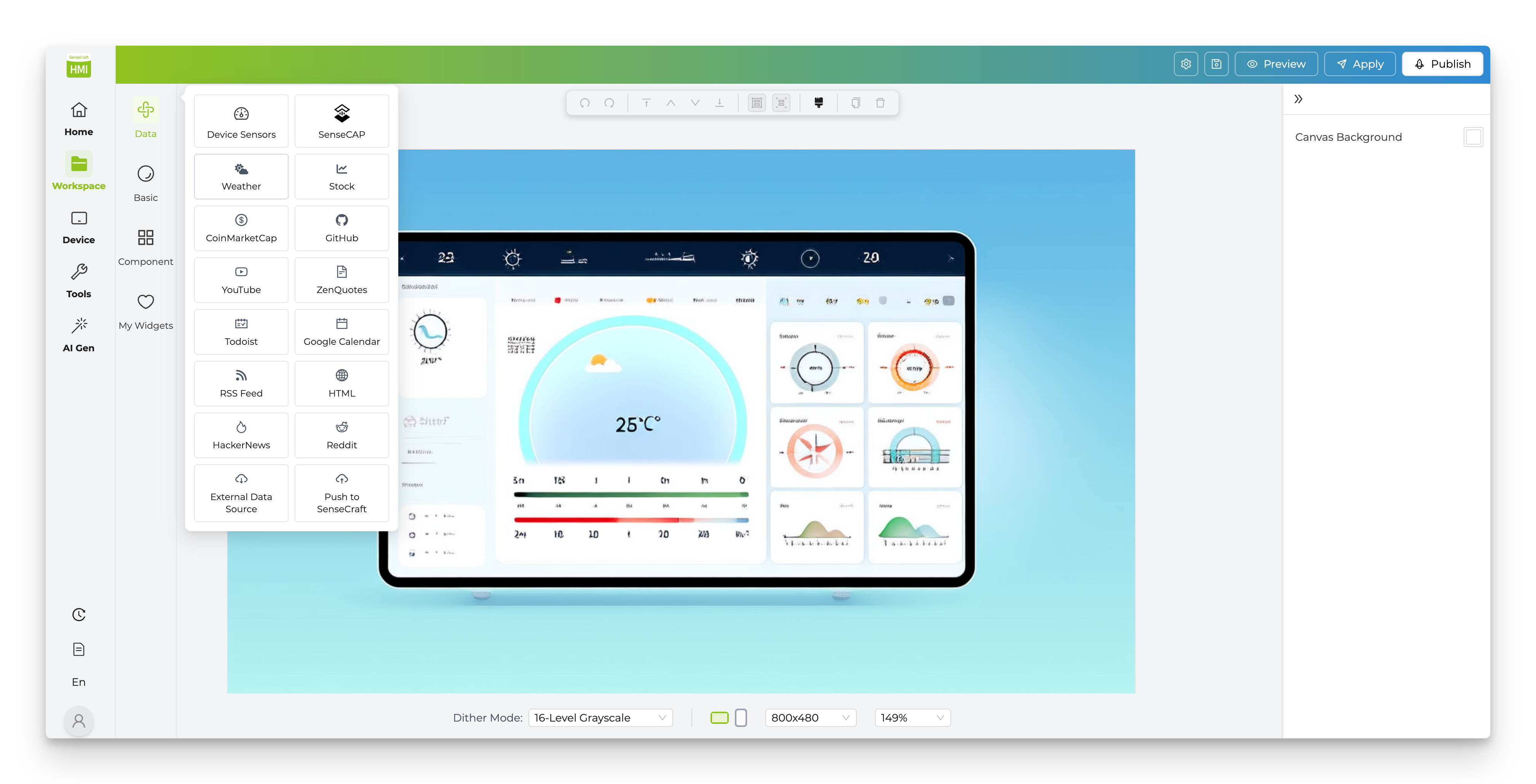
Once your design is saved, click Deploy to Device, select your paired reTerminal E1002, and the content will be transmitted wirelessly to the device. The ePaper display will update to show your design, and you can use the left/right navigation buttons on the device to switch between multiple pages if you created them.
For everything else — detailed editor operations, tips, and release notes — refer to the SenseCraft Seeedash Wiki.
Operating the Device
Refresh Button

The refresh button at the top of the device serves several functions:
-
Single Press: Manually refreshes the display and checks for new content from the SenseCraft platform. The buzzer will beep once to confirm the action. This button is also commonly used to wake up the device. You can use this button to wake up a device when it has gone to sleep and a dashboard refresh command is usually not immediately available to the device.
-
Long Press (future functionality): Will activate voice input mode.
Navigation Buttons
The left and right buttons allow you to navigate between multiple pages if your dashboard contains more than one page:
-
Left Button: Navigate to the previous page
-
Right Button: Navigate to the next page
Network Reset

If you need to connect to a different Wi-Fi network:
Step 1. Press and hold both navigation buttons (left and right) simultaneously for 2 seconds.
Step 2. The device will enter Wi-Fi configuration mode, and you can follow the Network Setup steps again to connect to a new network.
LED Indicators
-
Red LED:
- Off: Fully charged or not charging
- Always on: charging
-
Green LED:
- On for 30 seconds at boot: Device is powering on
Battery Operation
When operating on battery power:
-
The device will automatically enter low-power mode between refreshes
-
Battery life depends on refresh frequency (typically 3-month on a full charge with default settings)
-
The device will display a low battery icon in the top-right corner when the battery level is below 20%
If you want to write some code by yourself to read battery voltage, it will be more precise to add 10ms delay before analogRead() function.
Expansion Pins
The reTerminal E1002 features an 8-pin expansion header (J2) that provides connectivity options for adding external sensors, modules, or other hardware to extend the functionality of your device. This expansion header exposes several ESP32-S3 GPIO pins and communication interfaces, making it a versatile connection point for your DIY projects.
Expansion Header Pinout
The 8-pin expansion header (J2) has the following pinout:
| Pin (from top to bottom) | Label | ESP32-S3 Pin | Function | Description |
|---|---|---|---|---|
| 1 | HEADER_3V3 | - | Power | 3.3V power supply for external devices |
| 2 | GND | - | Ground | Common ground reference |
| 3 | ESP_IO46 | GPIO46 | GPIO/ADC | General purpose I/O with analog input capability |
| 4 | ESP_IO2/ADC1_CH4 | GPIO2 | GPIO/ADC | General purpose I/O with analog input capability (ADC1 channel 4) |
| 5 | ESP_IO17/TX1 | GPIO17 | GPIO/UART TX | GPIO or UART transmit (TX) signal |
| 6 | ESP_IO18/RX1 | GPIO18 | GPIO/UART RX | GPIO or UART receive (RX) signal |
| 7 | ESP_IO20/I2C0_SCL | GPIO20 | GPIO/I2C SCL | GPIO or I2C clock signal |
| 8 | ESP_IO19/I2C0_SDA | GPIO19 | GPIO/I2C SDA | GPIO or I2C data signal |
Troubleshooting
Q1: Device Won't Power On
- Ensure the power switch is in the ON position
- Connect the USB-C cable to charge the device
- Check if the red LED is always on (indicating charging)
- If using battery power, ensure the battery is properly connected and charged
Q2: Can't Connect to Wi-Fi
- Verify you're entering the correct Wi-Fi password
- Ensure your Wi-Fi network is operational
- Check if your Wi-Fi router supports 2.4GHz networks (5GHz is not supported)
- Try positioning the device closer to your Wi-Fi router
Q3: Display Not Updating
- Press the refresh button to manually trigger an update
- Verify the device is connected to Wi-Fi (no disconnection icon in the corner)
- Check your SenseCraft account to ensure the dashboard is properly deployed
- If the problem persists, try restarting the device
- If the device still does not respond after restarting, re-flash the corresponding firmware on the SenseCraft Seeedash platform and check whether the device can refresh normally
Q4: Network Connection Lost
- The device will automatically attempt to reconnect to known networks
- When reconnected, the Wi-Fi disconnection icon will disappear
- If unable to reconnect, follow the Network Reset procedure above
Q5: Cannot Find Serial Port (COM) on macOS
If your Mac doesn't recognize the reTerminal via USB, follow this compact guide to install the CH340/CH340K driver:
Step 1. Download and Install the Driver
Download the driver from the official WCH page and run CH34xVCPDriver.pkg.
If macOS blocks the installation, go to System Settings → Privacy & Security, scroll to find the blocked WCH software, and click Allow.
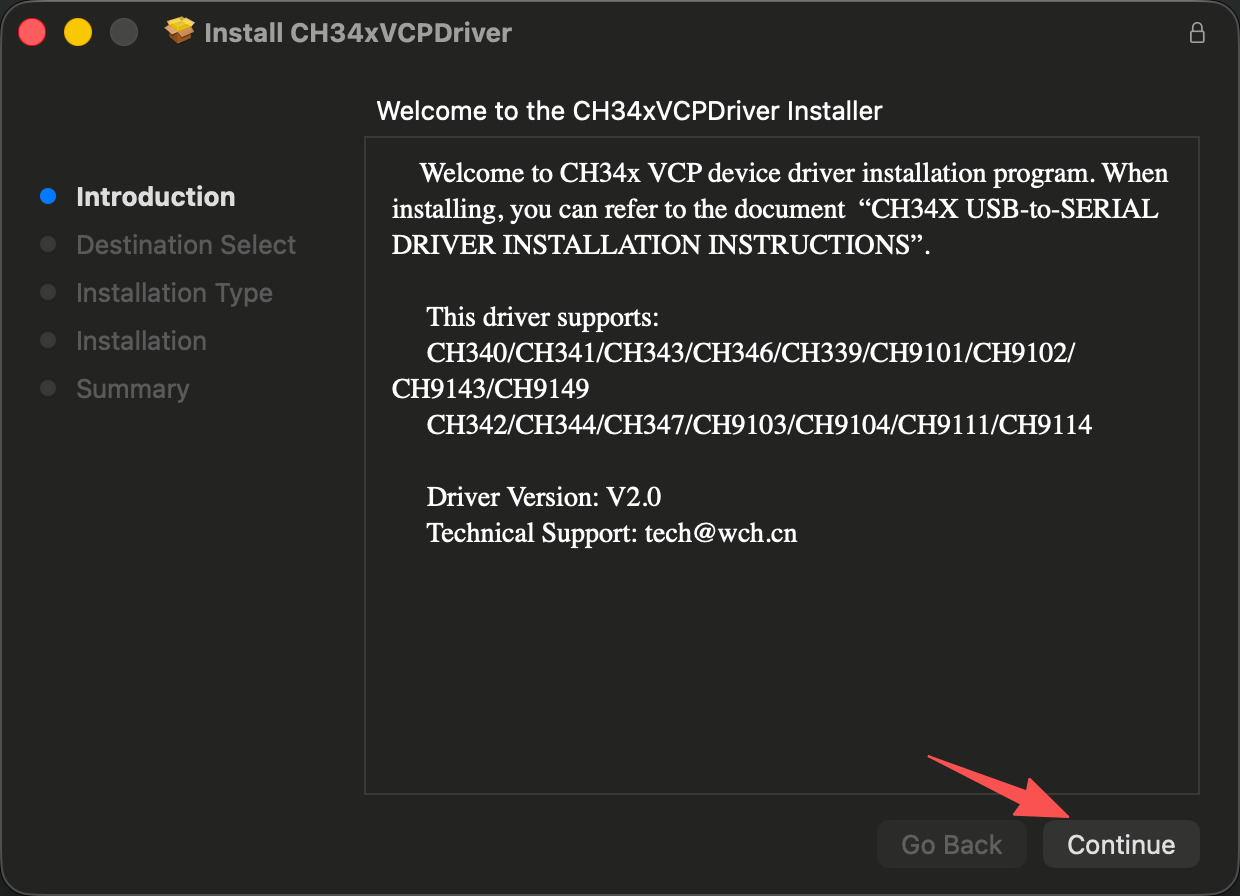
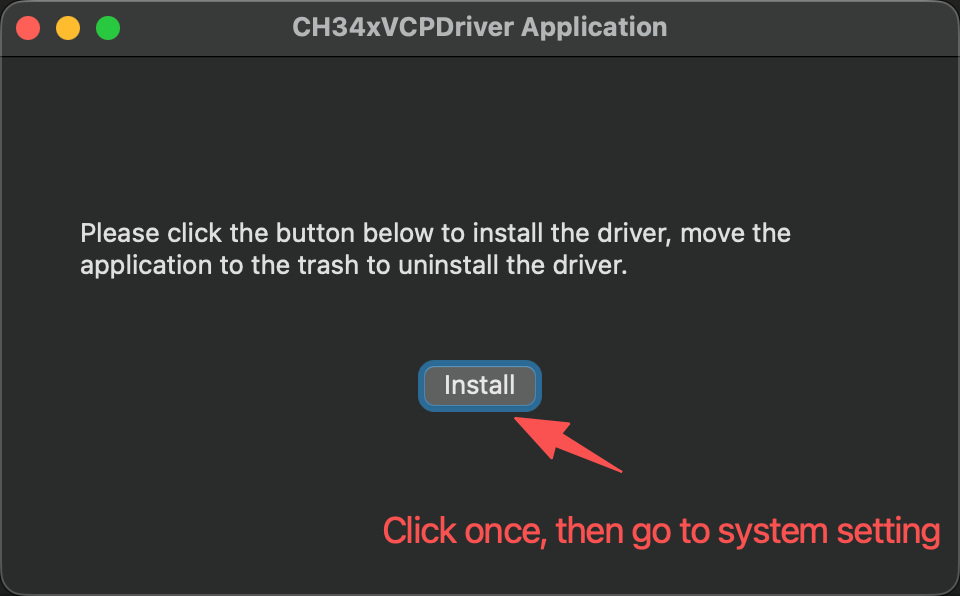
Step 2. Enable Driver Extension (Critical) Open the CH34xVCPDriver app from Launchpad, click Install, then go to System Settings → General → Login Items & Extensions → Driver Extensions. Toggle CH34xVCPDriver Extensions to ON (blue).
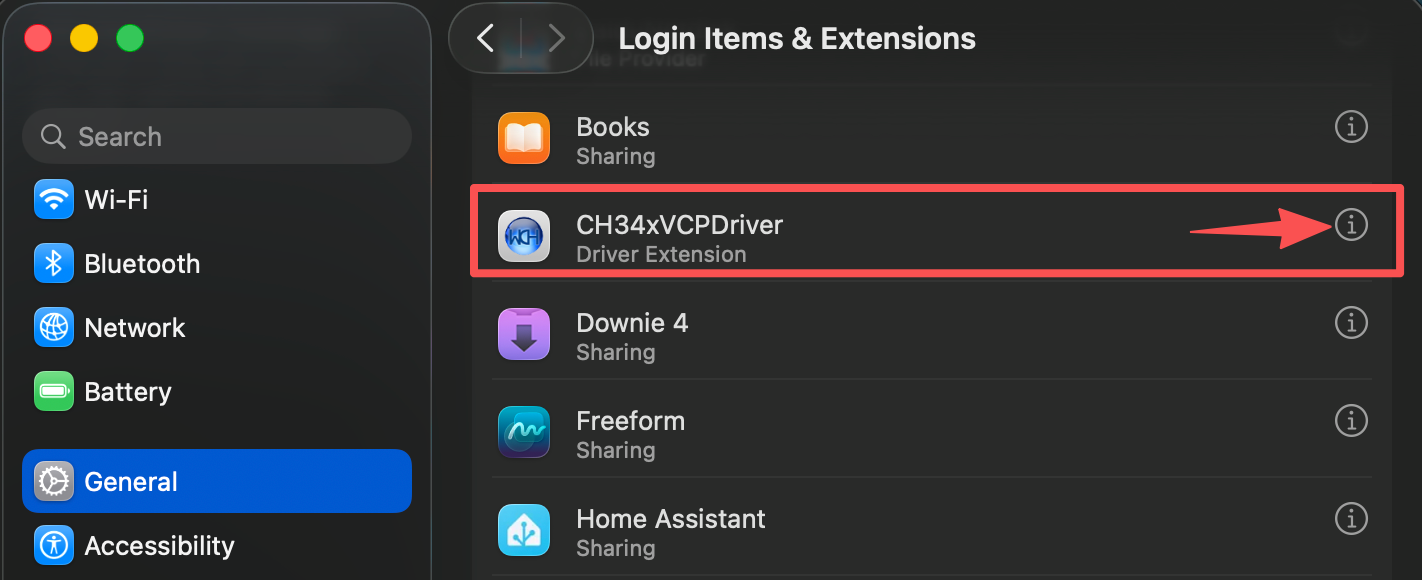
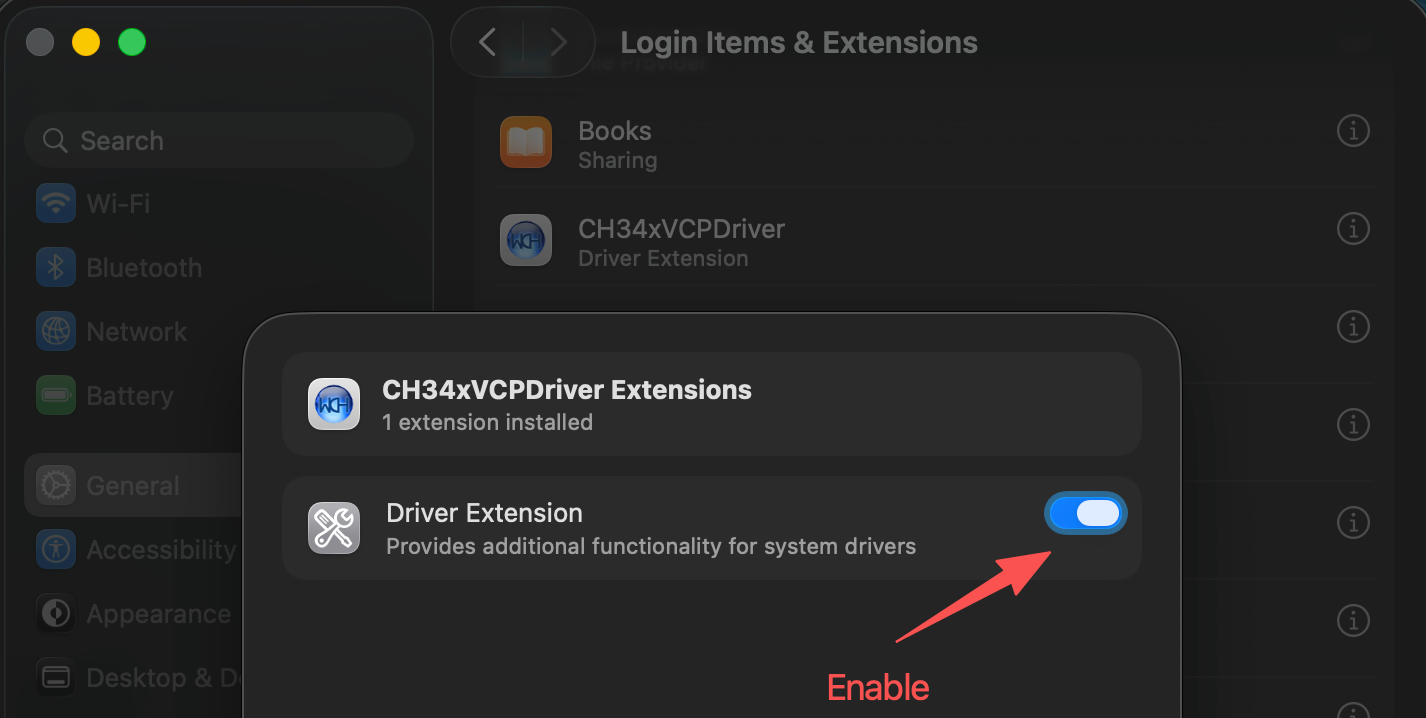
Step 3. Connect and Verify Ensure the device power switch is ON and use a data USB-C cable (not charge-only). Open Terminal and run:
ls /dev/tty.wch*
# Expected output: /dev/tty.wchusbserialxxx
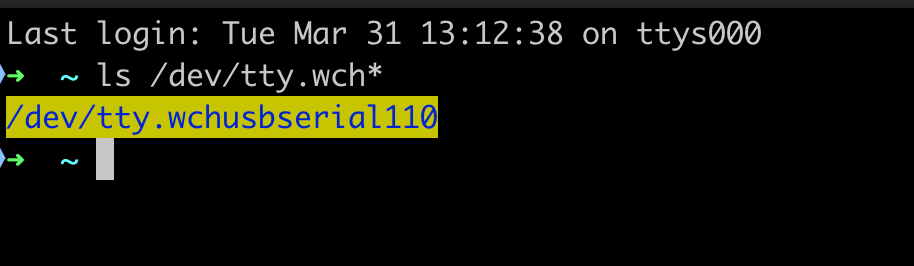
If you see the device path in the output, the driver is correctly installed and your reTerminal is ready for use!
Q6: Device Not Charging
If you find that the device is not charging, please try replacing the charging head with a non-Apple brand power adapter.
Resources
- reTerminal E1002 Schematic (PDF)
- ESP32-S3 Datasheet
- SenseCraft Seeedash Platform Documentation
- reTerminal E1002 Enclosure 3D Model (STP)
Tech Support & Product Discussion
Thank you for choosing our products! We are here to provide you with different support to ensure that your experience with our products is as smooth as possible. We offer several communication channels to cater to different preferences and needs.