How to use bacnet MS/TP with R1225
Introduction
BACnet MS/TP (Master-Slave/Token Passing) is a communication protocol for building automation and control networks. It is part of the BACnet (Building Automation and Control Networks) protocol suite. MS/TP usually uses the RS-485 physical layer and bus topology. All devices are connected to the same twisted pair cable. There are master stations and slave stations in the MS/TP network. The master is responsible for generating and delivering the token, while the slave only responds when a request is received. The master device determines which device can send data by passing the token. The token passing mechanism ensures that communication on the bus is orderly and conflict-free
This article mainly introduces how to perform functional testing of bacnet MS/TP protocol on reComputer R1225.We simulated a bacnet MS/TP server on reComputer R1225, and then used YABE on the W10 PC to check whether the device is present. If the device we simulated can be found normally, it means that the bacnet MS/TP communication is normal.
Getting Start
Before you start this project, you may need to prepare your hardware and software in advance as described here.
Hardware Preparation
| reComputer R1225 |
|---|
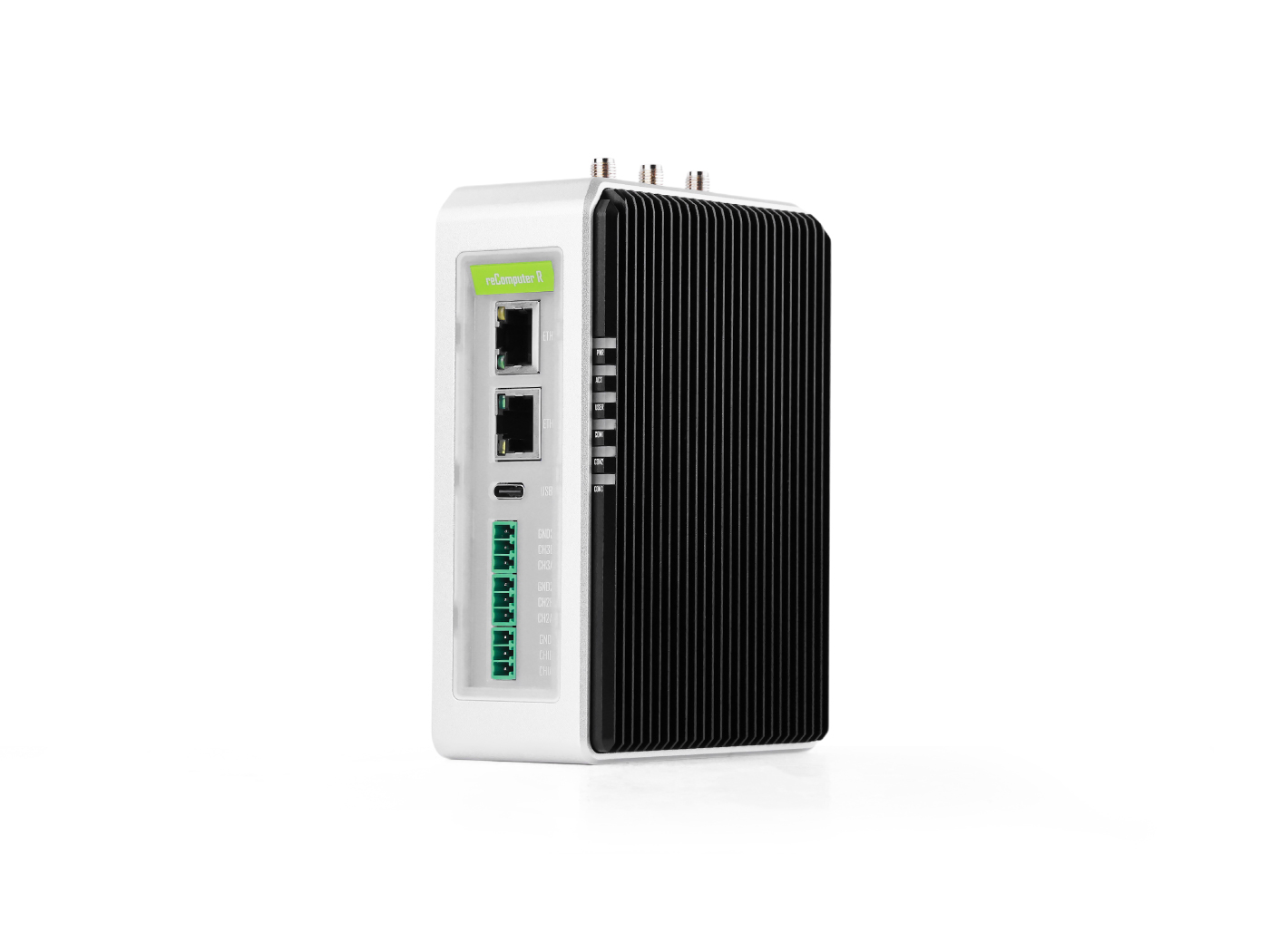 |
Software
-
Since bacnet MS/TP uses the RS485 physical layer, you can refer to this wiki on how to use the RS485 function on reComputer R1225.
-
We simulate a server with the help of the
bacnet-stacklibrary application, so you need to enter the following command to download it:git clone https://github.com/bacnet-stack/bacnet-stack.git
cd bacnet-stack -
Please go to this link and download YABE (Yet Another BACnet Explorer).
-
Please go to this link and download wireshark.
Hardware Configuration
We use an RS485-to-USB converter to connect the R1225 to a Windows 10 PC for testing.
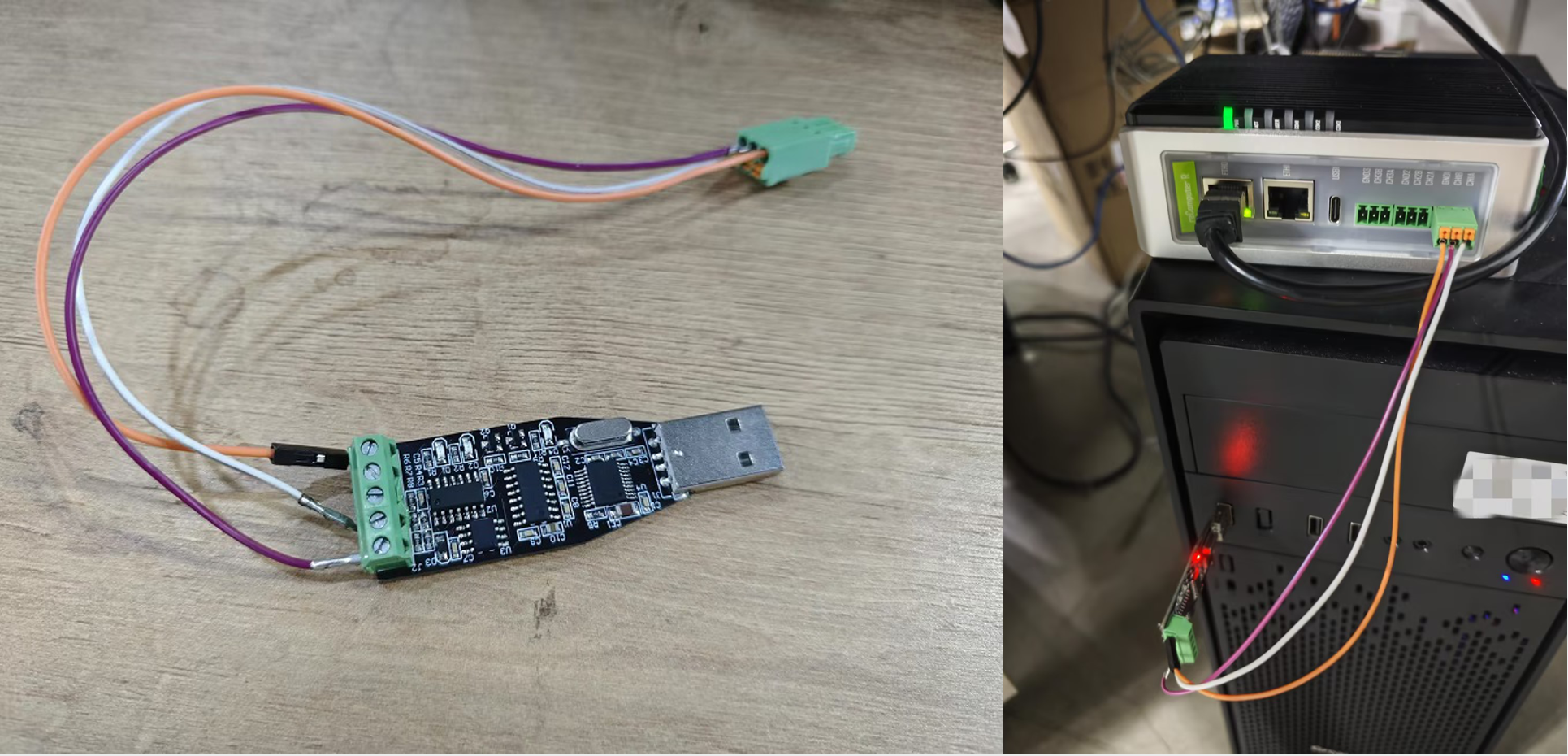
Steps to test bacnet mstp communication function
Method 1: Using the Command-Line Interface (CLI)
Step 1: Download bacnet-stack.

Step 2: Change the port number
The default serial port number of bacnet-stack is /dev/ttyUSB0. If the port number you actually use is not it, communication will not be possible, so you need to modify the port number. The file name that needs to be modified is ports/ linux/rs485.c. Change this to the port number you need to use. I changed it to /dev/ttyAMA30.

Step 3: Enter the following instructions to compile. The compilation results can be seen in the bin directory.
make clean
make mstp
# wait
cd bin/

Step 4: Run bacserv and use YABE to search for simulated devices.You can see that the device we simulated was successfully searched.

Step 5: Use wireshark to view bacnet MS/TP messages.You can see that the device we simulated passes the token. Since there are no other devices on my bus, it keeps passing the token.

Method 2: Using the Graphical User Interface (GUI)
RS485 Parameter Configuration
Follow the Quick Start guide to access the SenseCAP Gateway OS web interface.
Step 1: Login Luci
Input the IP Address of your device in a browser to enter the Luci page. Then input your device username and password to login, and click the Login button.

Step 2: Click on RS485 - Serial Settings
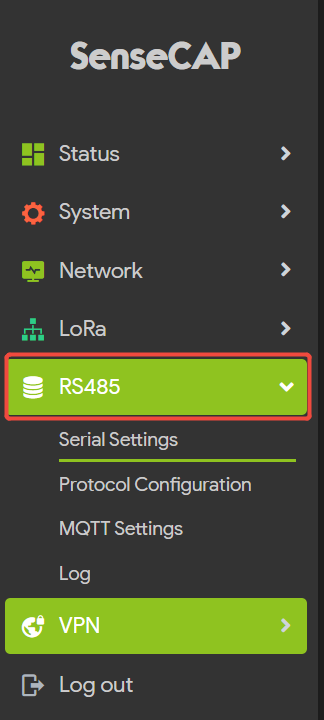
The parameter settings for all three 485 channels of the R1225 are integrated here.
First,select the channel you want to use (CH1, CH2, CH3);
Next, configuration parameters: baud rate, data bits, stop bits, parity, flow control, and read timeout.
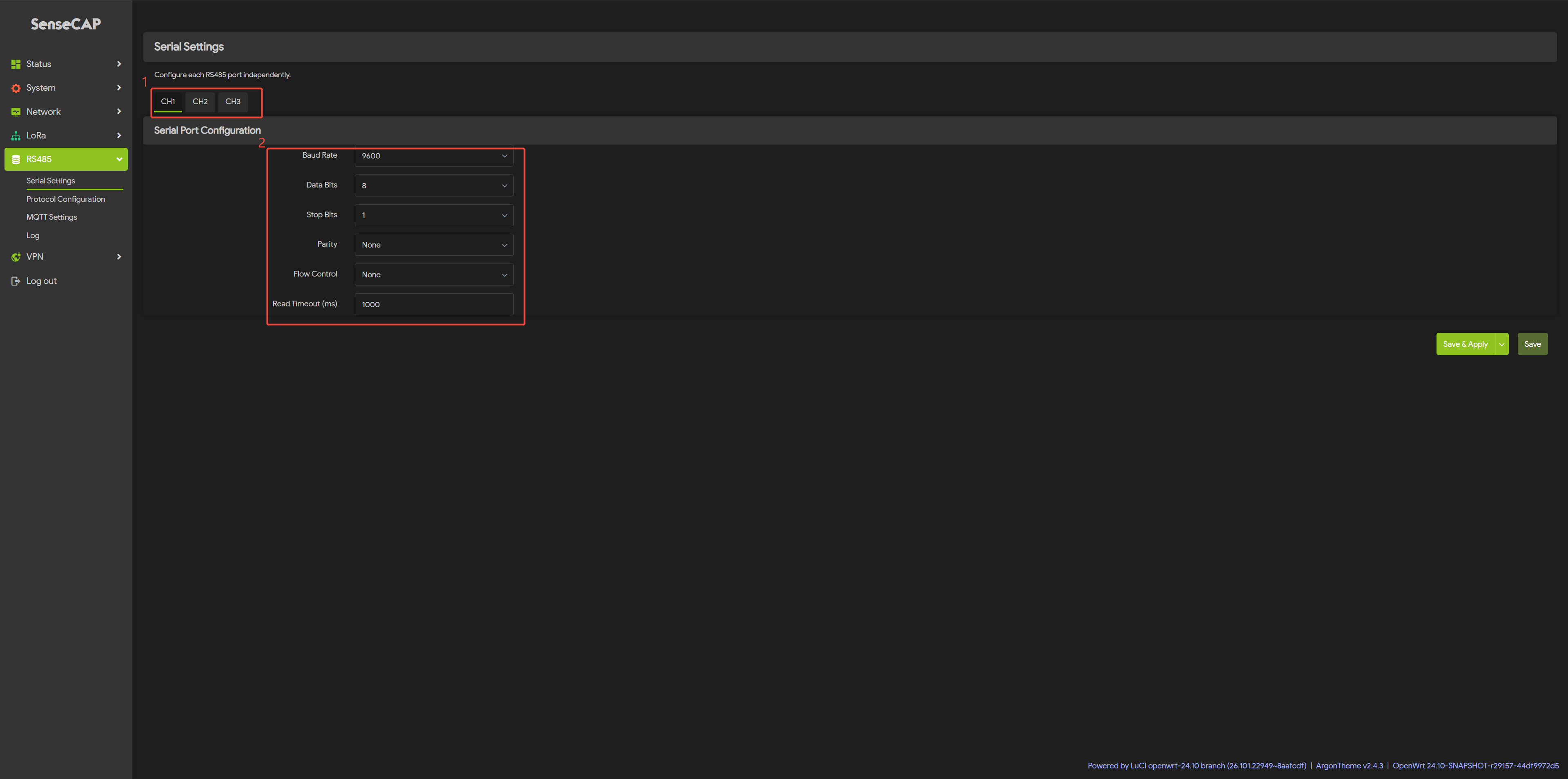
BACnet MS/TP Parameter Configuration
After configuring the parameters for the three RS-485 ports (the default settings are “9600, 8, 1, N”), you can proceed with the BACnet MS/TP configuration.
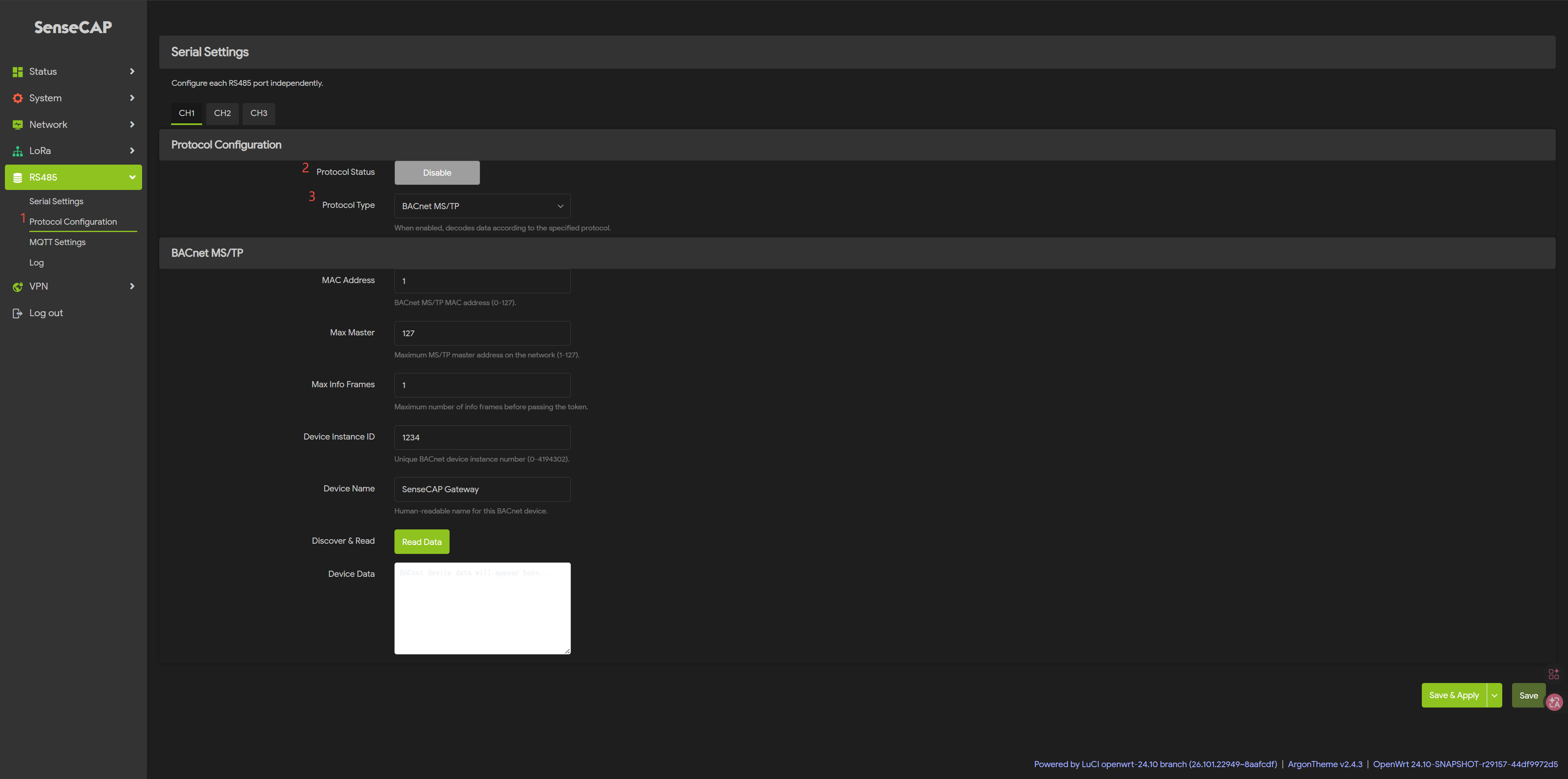
Step 3: Click on RS485 - Protocol Configuration
Select the channel you want to debug (CH1, CH2, CH3).
Select "Enable" for the protocol status and "BACnet MS/TP" for the protocol type.
Once enabled, you will see the BACnet MS/TP settings screen; simply configure it according to the datasheet for the connected sensor.
Step 4: BACnet MS/TP Parameter Settings
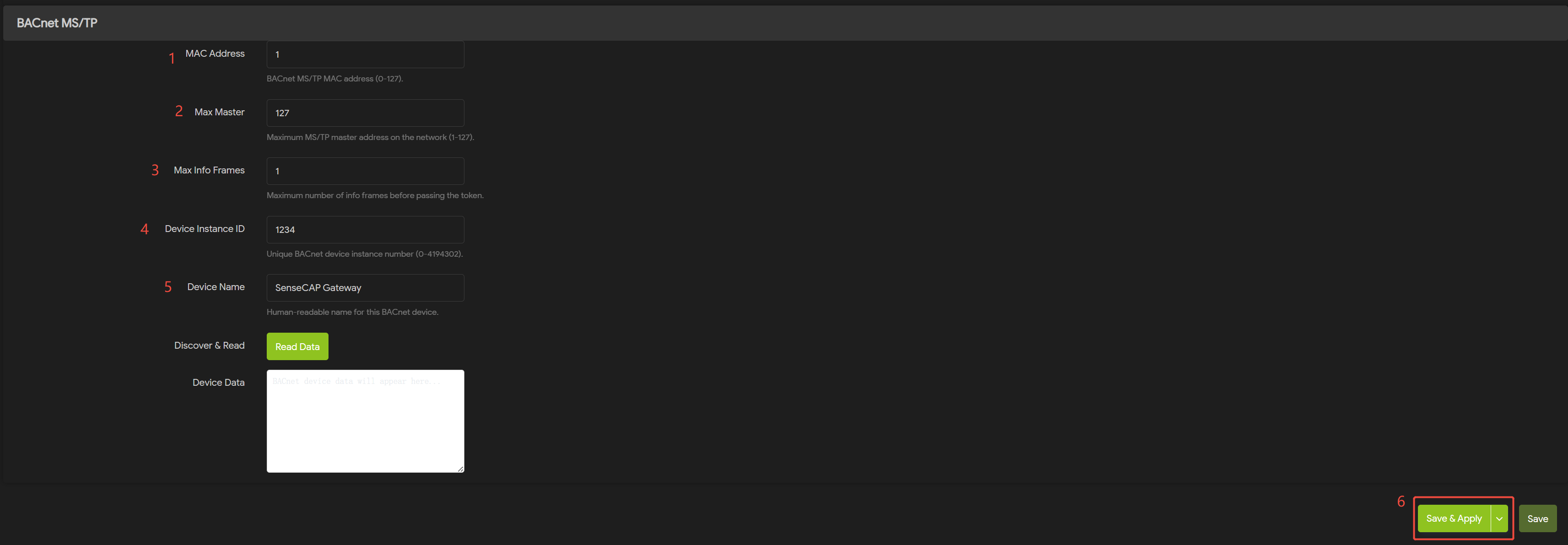
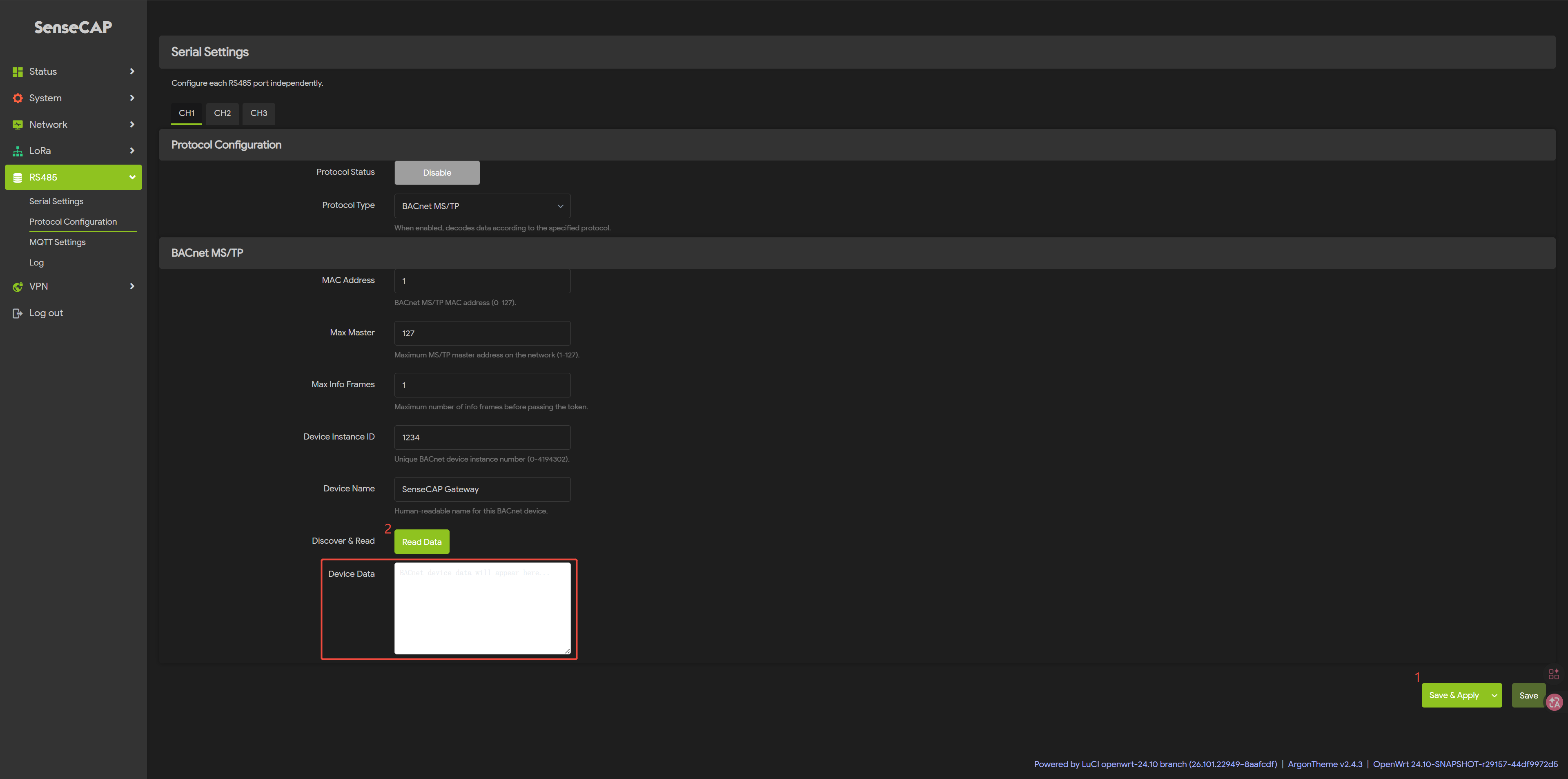
Step 5: Click onSave & Apply
Once the settings have taken effect, click the Read Data, you can see the retrieved data in the Frame Sata.
Tech Support & Product Discussion
Thank you for choosing our products! We are here to provide you with different support to ensure that your experience with our products is as smooth as possible. We offer several communication channels to cater to different preferences and needs.