HighTorqueモーター制御完全ガイド
Python、C++、Rust、Arduinoでの実装を含む高性能HighTorqueモーター制御ベースライン



📋 目次
- プロジェクト概要
- ハードウェア準備
- ソフトウェア環境セットアップ
- CANバス設定
- Python完全使用ガイド
- C++完全使用ガイド
- Rust完全使用ガイド
- プロトコル詳細説明
- トラブルシューティング
- 性能比較
- 高度なアプリケーション
🎯 プロジェクト概要
HighTorqueモーターとは?
Hightorqueモーターは、ロボティクスアプリケーション専用に設計されたブラシレスDCモーターシステムで、CANバス通信をサポートし、以下の用途に適しています:
- 🤖 ヒューマノイドロボット - 関節制御
- 🦾 ロボットアーム - 精密位置決め
- 🚗 移動ロボット - ホイール駆動
- ⚙️ 自動化機器 - サーボ制御
サポートされるモーターモデル
| モデル | トルク | 最大速度 | 減速比 | 用途 |
|---|---|---|---|---|
| 5046_20 | 17 Nm | 50 rad/s | 20:1 | 一般的な関節 |
| 4538_19 | 17 Nm | 44 rad/s | 19:1 | 軽量関節 |
| 5047_36 | 60 Nm | 50 rad/s | 36:1 | 重負荷アプリケーション |
| 5047_09 | 17 Nm | 33 rad/s | 9:1 | 高速アプリケーション |
主要機能
- ✅ CANバス通信 - 複数モーターの並列サポート
- ✅ 高精度制御 - 位置/速度/トルク三重ループ制御
- ✅ リアルタイムフィードバック - ステータス監視とデータ収集
- ✅ 安全保護 - 過電流/過電圧/過温度保護
- ✅ 多言語SDK - Python/C++/Rust/Arduinoサポート
🔧 ハードウェア準備
必要なハードウェアリスト
- HighTorqueモーター - 最低1台
- CANアダプター - USB-to-CANまたはPCIe CANカード
- CANケーブル - ツイストペアシールドケーブル
- 120Ω終端抵抗 - バスの両端に1つずつ
- 電源 - 24Vまたは48V DC電源
- 開発ホスト - Linuxシステム(Ubuntu 20.04+推奨)
ハードウェア接続図
[Linux Host] ←USB→ [CAN Adapter] ←CAN_H/CAN_L→ [Motor1]
                                            ↓
                                    [120Ω Resistor]
                                            ↓
                                          [Motor2]
接続手順
- CANアダプターをホストのUSBポートに接続
- CANバス接続:
- CAN_H ←→ CAN_H(全デバイス)
- CAN_L ←→ CAN_L(全デバイス)
- GND ←→ GND(共通グランド接続)
- 終端抵抗の設置:
- バスの両端に120Ω抵抗を1つずつ設置
- デバイスが2台のみの場合、各デバイスに1つずつ設置
- モーター電源接続:
- 赤線:+24V/+48V
- 黒線:GND
- 黄線:CAN_H
- 緑線:CAN_L
💻 ソフトウェア環境セットアップ
システム要件
- オペレーティングシステム:Ubuntu 18.04+ / CentOS 7+ / Debian 10+
- カーネルバージョン:Linux 4.15+(SocketCANサポート)
- アーキテクチャ:x86_64 / ARM64
汎用依存関係のインストール
# Update system packages
sudo apt update && sudo apt upgrade -y

# Install basic tools
sudo apt install -y build-essential git cmake make

# Install CAN tools
sudo apt install -y can-utils

# Install Python development environment
sudo apt install -y python3 python3-pip python3-dev

# Install Rust (if needed)
curl --proto '=https' --tlsv1.2 -sSf https://sh.rustup.rs | sh
source ~/.cargo/env
プロジェクトのクローン
# Clone official SDK
git clone https://github.com/Seeed-Projects/HighTorque_Control ~/HighTorque_Control
pushd ~/HighTorque_Control

# Check project structure
ls -la
# Should see: python/ cpp/ rust/ arduino/ directories
🌐 CANバス設定
1. CANカーネルモジュールの読み込み
# Check if modules are loaded
lsmod | grep can

# If not loaded, load manually
sudo modprobe can
sudo modprobe can_raw
sudo modprobe can_dev
2. CANインターフェースの設定
# Shut down interface (if already open)
sudo ip link set can0 down

# Configure CAN interface parameters
sudo ip link set can0 type can bitrate 1000000 restart-ms 100

# Start interface
sudo ip link set can0 up

# Check interface status
ip -details link show can0
3. CAN通信の確認
# Terminal 1: Monitor CAN messages
candump can0

# Terminal 2: Send test message
cansend can0 123#DEADBEEF

# If you see messages, configuration is successful
4. 起動時の自動開始設定
# Create configuration file
sudo tee /etc/network/interfaces.d/can0 << EOF
auto can0
iface can0 inet manual
    pre-up ip link set can0 type can bitrate 1000000 restart-ms 100
    up ip link set can0 up
    down ip link set can0 down
EOF

# Make configuration effective
sudo systemctl restart networking
トラブルシューティング
# Check interface permissions
sudo usermod -a -G dialout $USER
# Log out and log back in for effect

# Check device permissions
ls -la /dev/can*
# If no devices, check if driver is loaded correctly

# Check baud rate setting
ip -details link show can0 | grep bitrate
🐍 Python完全使用ガイド
1. 環境準備
cd python

# Install Python dependencies
pip install -r requirements.txt

# Manual dependency installation (if requirements.txt doesn't exist)
pip install python-can==4.3.1 numpy matplotlib
2. モータースキャン - 接続されたモーターの発見
# Basic scan (scan IDs 1-14)
python3 can_motor_scanner.py

# Specify scan range
python3 can_motor_scanner.py --start 1 --end 10

# Specify CAN channel
python3 can_motor_scanner.py --channel can0

# Detailed information mode
python3 can_motor_scanner.py --detailed

# Continuous monitoring mode (monitor for 30 seconds)
python3 can_motor_scanner.py --monitor 30

# Test single motor communication
python3 can_motor_scanner.py --test 1

# Save scan report
python3 can_motor_scanner.py --save scan_report.txt
期待される出力:
Initializing can0 @ 1000000bps...
✅ CAN interface connected successfully
==================================================
Starting motor ID scan (range: 1-14)...
Timeout: 0.05s per motor
Press Ctrl+C to stop at any time
==================================================
Scanning ID  1... ✅ [Response] Found motor ID: 1 (CAN ID: 0x8001)
Scanning ID  2... No response
Scanning ID  3... ✅ [Response] Found motor ID: 3 (CAN ID: 0x8003)
...
==================================================
✅ Scan completed, online motor list: [1, 3]
Total: 2 motors
3. 速度制御 - モーター回転速度の制御
# Basic speed control (control motor ID=1)
python3 velocity_acceleration_control.py --motor_id 1

# Specify CAN channel
python3 velocity_acceleration_control.py --motor_id 1 --channel can0

# Specify baud rate
python3 velocity_acceleration_control.py --motor_id 1 --bitrate 1000000
インタラクティブ制御例:
Motor 1 started! Use control commands:
- Speed: +number (e.g.: +5.0, -2.5)
- Acceleration: anumber (e.g.: a10.0)
- Stop: stop
- Query status: status
- Exit: quit

> +5.0        # Set forward 5.0 rad/s
> a8.0        # Set acceleration 8.0 rad/s²
> stop        # Smart stop
> status      # Query current status
> quit        # Exit program
4. 位置制御 - モーター角度の制御
# Interactive position control
python3 angle_stream_control.py --motor_id 1 --mode interactive

# Sine wave test
python3 angle_stream_control.py --motor_id 1 --mode sine --amplitude 1.57 --frequency 0.5

# Step test
python3 angle_stream_control.py --motor_id 1 --mode step --target 1.57

# Multi-position test
python3 angle_stream_control.py --motor_id 1 --mode multi
インタラクティブ制御例:
Motor 1 connected and enabled!
Use control commands:
- Position: pvalue (radians, e.g.: p1.57, p-0.5)
- Torque: tvalue (Nm, e.g.: t2.0, t-1.5)
- Stop: stop
- Exit: quit

> p1.57       # Rotate to 90 degree position
> t2.0        # Set 2Nm torque
> stop        # Stop motor
> quit        # Exit program
5. Pythonコード例
モータースキャンコード
#!/usr/bin/env python3
from can_motor_scanner import LivelyMotorScanner

def main():
    # Create scanner
    scanner = LivelyMotorScanner(channel='can0', bitrate=1000000)

    # Connect CAN bus
    if not scanner.connect():
        print("CAN connection failed!")
        return

    try:
        # Scan motors
        found_motors = scanner.scan_range(start_id=1, end_id=14)

        if found_motors:
            print(f"Found motors: {found_motors}")

            # Get detailed information
            for motor_id in found_motors:
                info = scanner.get_motor_info(motor_id)
                if info:
                    print(f"Motor{motor_id}: Mode={info.get('mode_name', 'Unknown')}")
        else:
            print("No motors found")

    finally:
        scanner.disconnect()

if __name__ == "__main__":
    main()
速度制御コード
#!/usr/bin/env python3
from velocity_acceleration_control import MotorVelAccController

def main():
    # Create controller
    controller = MotorVelAccController(channel='can0', motor_id=1)

    # Connect and enable motor
    if not controller.connect():
        print("Connection failed!")
        return

    controller.enable_motor()
    controller.start_control()

    try:
        # Set speed and acceleration
        controller.set_velocity(5.0)  # 5 rad/s
        controller.set_acceleration(10.0)  # 10 rad/s²

        # Run for 10 seconds
        import time
        time.sleep(10)

        # Smart stop
        controller.emergency_stop()

    finally:
        controller.disable_motor()
        controller.disconnect()

if __name__ == "__main__":
    main()
⚡ C++ 完全使用ガイド
1. 環境準備
cd cpp

# Compile all programs
make clean
make

# Or compile single program
make can_motor_scanner
make velocity_acceleration_control
make angle_stream_control
2. モータースキャン
# Scan motor IDs 1-5
./can_motor_scanner 1 5

# Scan all possible IDs
./can_motor_scanner 1 14
期待される出力:
Initializing CAN0 @ 1000000bps...
✅ CAN interface connected successfully
Starting motor ID scan (1-5)...
Scanning ID 1... ✅ Found motor ID: 1 (CAN ID: 0x8001)
Scanning ID 2... No response
Scanning ID 3... ✅ Found motor ID: 3 (CAN ID: 0x8003)
Scanning ID 4... No response
Scanning ID 5... No response
Scan completed! Online motors: [1, 3]
3. 速度制御
# Control motor ID=1
./velocity_acceleration_control 1

# Control specified ID motor
./velocity_acceleration_control 3
制御コマンド:
+number- 前進速度を設定-number- 後退速度を設定anumber- 加速度を設定stop- スマート停止quit- プログラム終了
4. 位置制御
# Interactive mode
./angle_stream_control 1 interactive

# Sine wave mode
./angle_stream_control 1 sine

# Step mode
./angle_stream_control 1 step

# Multi-position mode
./angle_stream_control 1 multi
5. C++ コード例
モータースキャンコード
#include "can_motor_scanner.h"

int main() {
    // Create scanner
    LivelyMotorScanner scanner("can0", 1000000);

    // Connect CAN bus
    if (!scanner.connect()) {
        std::cerr << "CAN connection failed!" << std::endl;
        return 1;
    }

    // Scan motors
    std::vector<int> found_motors = scanner.scan_range(1, 14);

    if (!found_motors.empty()) {
        std::cout << "Found motors: ";
        for (int id : found_motors) {
            std::cout << id << " ";
        }
        std::cout << std::endl;
    } else {
        std::cout << "No motors found" << std::endl;
    }

    scanner.disconnect();
    return 0;
}
コンパイルと実行:
g++ -o scan_example scan_example.cpp -lcan
./scan_example
🦀 Rust 完全使用ガイド
1. 環境準備
cd rust

# Check if Rust is installed
rustc --version

# Compile release version
cargo build --release

# Or use Makefile
make
2. モータースキャン
# Scan specified range
./target/release/can_motor_scanner --start-id 1 --end-id 5

# Complete scan
./target/release/can_motor_scanner --start-id 1 --end-id 14

# Specify CAN channel
./target/release/can_motor_scanner --channel can0 --start-id 1 --end-id 5
3. 速度制御
# Basic speed control
./target/release/velocity_acceleration_control --motor-id 1

# Specify channel
./target/release/velocity_acceleration_control --motor-id 1 --channel can0
4. 位置制御
# Interactive mode
./target/release/angle_stream_control --motor-id 1 interactive

# Sine wave mode
./target/release/angle_stream_control --motor-id 1 sine --amplitude 1.57

# Step mode
./target/release/angle_stream_control --motor-id 1 step --target 1.57
5. Rust コード例
モータースキャンコード
use livelybot_motor_sdk::{LivelyMotorController, CanFrame};

fn main() -> Result<(), Box<dyn std::error::Error>> {
    // Create controller
    let mut controller = LivelyMotorController::new("can0")?;

    // Connect CAN bus
    controller.connect()?;

    // Scan motors
    let mut found_motors = Vec::new();

    for motor_id in 1..=14 {
        if controller.ping_motor(motor_id)? {
            println!("✅ Found motor ID: {}", motor_id);
            found_motors.push(motor_id);
        } else {
            println!("❌ Motor ID: {} No response", motor_id);
        }
    }

    println!("Scan completed, found {} motors", found_motors.len());

    Ok(())
}
コンパイルと実行:
# Save as scan_example.rs
rustc --extern livelybot_motor_sdk=target/release/liblivelybot_motor_sdk.rlib scan_example.rs
./scan_example
📡 プロトコル詳細説明
CAN フレーム形式
- フレームタイプ: 拡張フレーム(29ビットID)
- ボーレート: 1Mbps
- データ長: 8バイト
- エンディアン: ビッグエンディアン
コアプロトコルコマンド
1. モータースキャン(Ping)コマンド
CAN ID: 0x8000 | motor_id
Data: [0x11, 0x00, 0x50, 0x50, 0x50, 0x50, 0x50, 0x50]
0x8000: 高位ビットは応答が必要であることを示すmotor_id: モーターID(1-127)0x11: 読み取りコマンド0x00: アドレス(モーターモード読み取り)
2. 速度制御コマンド(0xAD)
CAN ID: 0x00AD
Data: [PosL, PosH, VelL, VelH, AccL, AccH, 0x50, 0x50]
PosL/PosH: 位置目標(16ビット、FACTOR_POS=10000.0)VelL/VelH: 速度目標(16ビット、FACTOR_VEL=4000.0)AccL/AccH: 加速度目標(16ビット、FACTOR_ACC=1000.0)0x50: パディングバイト
3. 位置制御コマンド(0x90)
CAN ID: 0x0090
Data: [PosL, PosH, VelL, VelH, TqeL, TqeH, 0x50, 0x50]
PosL/PosH: 位置目標(16ビット、FACTOR_POS=10000.0)VelL/VelH: 速度制限(16ビット、FACTOR_VEL=4000.0)TqeL/TqeH: トルク制限(16ビット、FACTOR_TQE=200.0)
プロトコル係数
| パラメータ | 値 | 説明 | 例 |
|---|---|---|---|
| FACTOR_POS | 10000.0 | 位置変換係数 | 1.57 rad → 15700 |
| FACTOR_VEL | 4000.0 | 速度変換係数 | 5.0 rad/s → 20000 |
| FACTOR_ACC | 1000.0 | 加速度変換係数 | 10.0 rad/s² → 10000 |
| FACTOR_TQE | 200.0 | トルク変換係数 | 2.0 Nm → 400 |
| MAGIC_POS | -32768 | 速度モードフラグ | 特別な位置値 |
データ変換例
位置変換
# Radians → Protocol value
position_rad = 1.57  # 90 degrees
protocol_value = int(position_rad * FACTOR_POS)  # 15700

# Protocol value → Radians
protocol_value = 15700
position_rad = protocol_value / FACTOR_POS  # 1.57
速度変換
# rad/s → Protocol value
velocity_rps = 5.0
protocol_value = int(velocity_rps * FACTOR_VEL)  # 20000

# Protocol value → rad/s
protocol_value = 20000
velocity_rps = protocol_value / FACTOR_VEL  # 5.0
🔧 トラブルシューティング
よくある問題と解決策
1. CAN インターフェースが開始できない
# Error message
Error: Cannot find device can0

# Solution
sudo modprobe can
sudo modprobe can_raw
sudo ip link set can0 type can bitrate 1000000
sudo ip link set can0 up
2. 権限不足
# Error message
Operation not permitted

# Solution 1: Add user to dialout group
sudo usermod -a -G dialout $USER
# Re-login for effect

# Solution 2: Run with sudo
sudo python3 can_motor_scanner.py
3. モーターをスキャンできない
# Check hardware connection
1. Confirm 120Ω termination resistor is installed
2. Check if CAN_H/CAN_L wiring is correct
3. Confirm motor power supply is normal
4. Check if baud rate setting matches

# Verify connection with candump
candump can0
# Manually rotate motor, should see feedback messages
4. 通信が不安定
# Check signal quality
candump can0 -tA
# View error frame count

# Adjust sampling point
sudo ip link set can0 down
sudo ip link set can0 type can bitrate 1000000 sample-point 0.875
sudo ip link set can0 up
5. コンパイルエラー
# Python dependency issues
pip install --upgrade pip
pip install -r requirements.txt

# C++ compilation errors
sudo apt install build-essential
sudo apt install libcan-dev

# Rust compilation errors
rustup update
cargo clean && cargo build --release
デバッグのヒント
1. Wireshark を使用した CAN 通信解析
# Install wireshark
sudo apt install wireshark

# Start packet capture
sudo wireshark -i can0
2. リアルタイムモーター状態監視
# Python continuous monitoring
python3 can_motor_scanner.py --monitor 60

# C++ real-time viewing
./can_motor_scanner 1 14 | grep "Found motor"
3. プロトコル解析
# Send raw CAN commands
import can
bus = can.interface.Bus(channel='can0', interface='socketcan')
msg = can.Message(arbitration_id=0x8001, data=[0x11, 0x00, 0x50, 0x50, 0x50, 0x50, 0x50, 0x50])
bus.send(msg)
reComputer Mini Jetson Orin でモーターを制御する
現在、市場でモーター用に最も一般的に使用されている CAN 通信インターフェースは XT30(2+2) と JST コネクタです。私たちの reComputer Mini Jetson Orin と reComputer Robotics デバイスには、デュアル XT30(2+2) ポートと JST ベースの CAN インターフェースが搭載されており、シームレスな互換性を提供します。
reComputer Mini:

reComputer Robotics
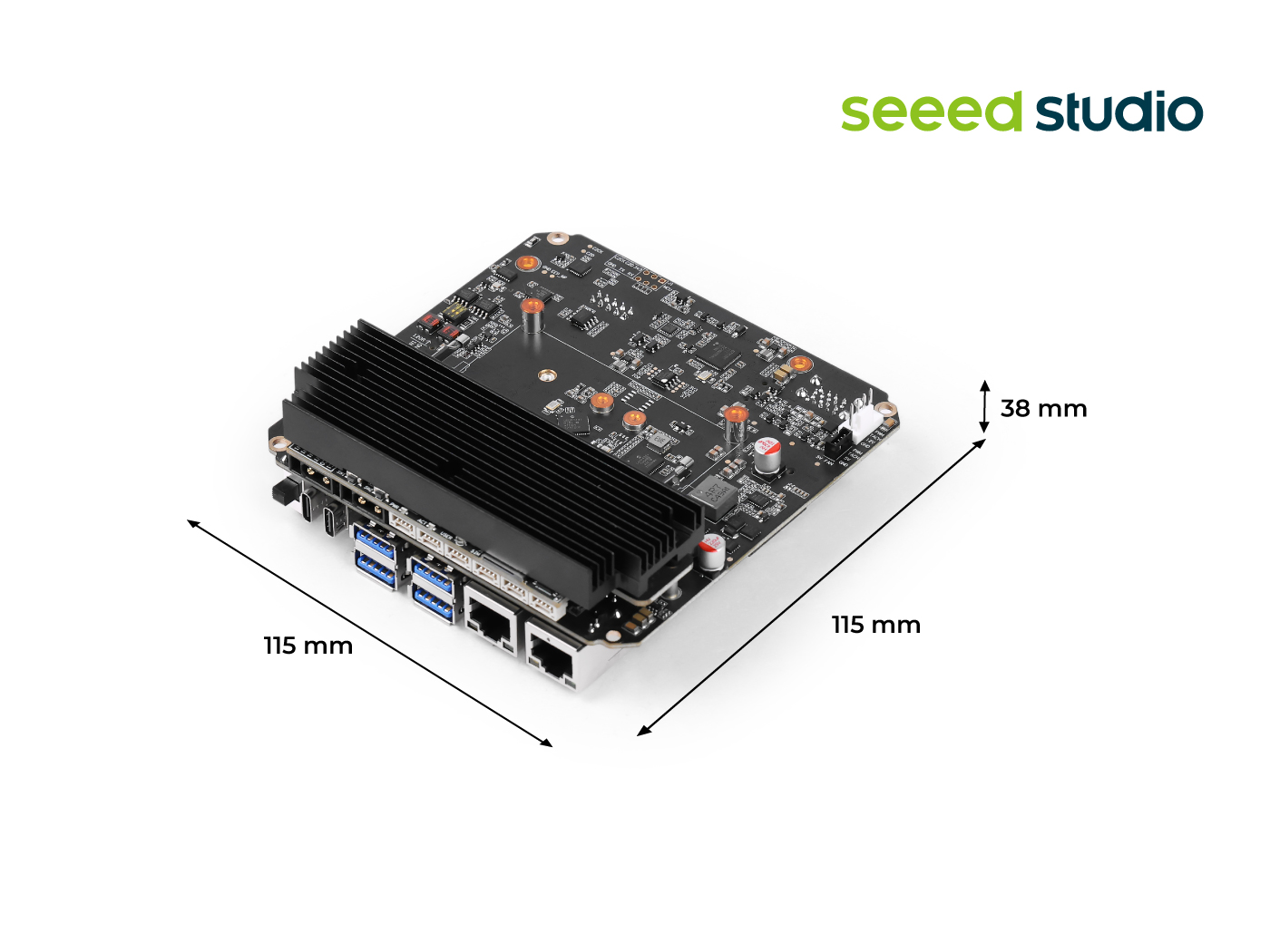
CAN 使用の詳細については、このwikiを参照してください。
CAN インターフェースの有効化
ステップ 1: CAN0 と CAN1 を使用する前に、底面カバーを取り外し、両方の 120Ω 終端抵抗を ON 位置に設定します。
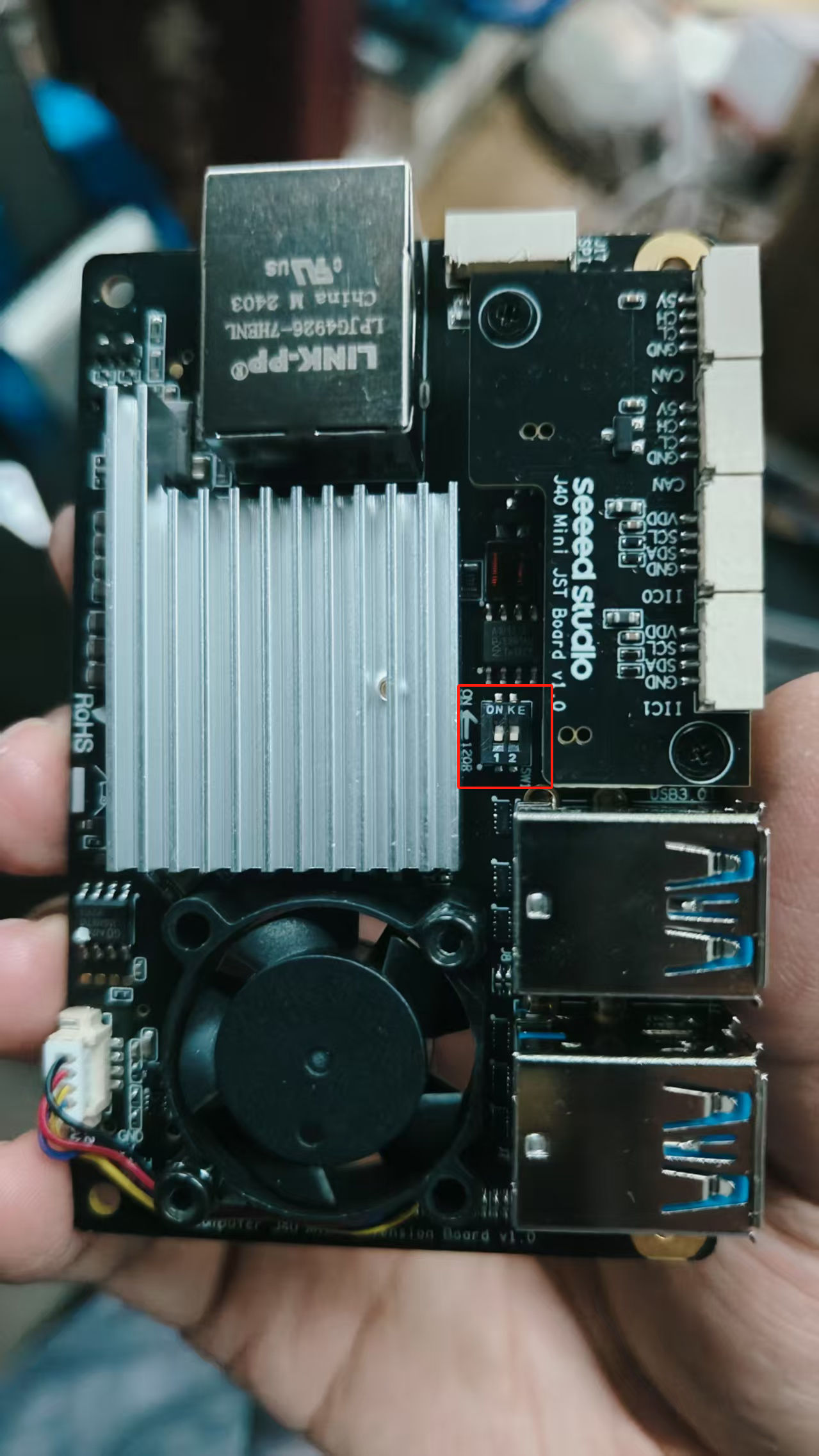
ステップ 2: XT30(2+2) インターフェースを介してモーターを reComputer Mini の CAN0 に直接接続します。
reComputer Mini の CAN インターフェースの H/L ピンはモーターのものと逆になっているため、XT30 2+2 ハーネスの H/L 接続を逆にする必要があります。
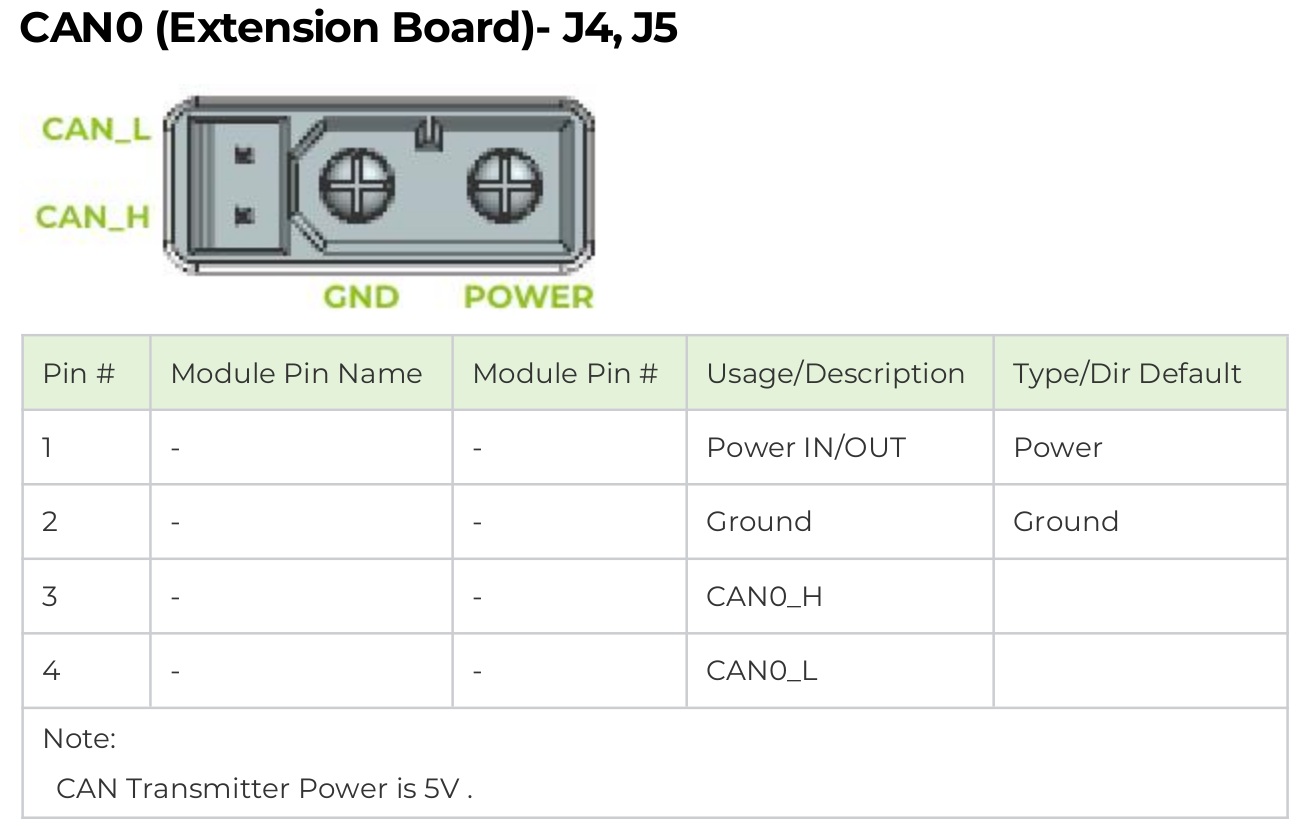

この電源ソリューションは、単一モーターの学習とテスト用途にのみ適しています。マルチモーターアプリケーションの場合は、Jetsonの電源供給とモーターの電源供給を分離し、大電流がJetsonを直接通過することを避けるため、独立した電源ボードを設計してください。
Jetson CAN通信の有効化
ターミナルを開き、以下のコマンドを入力してGPIOピンをハイにしてCAN0を有効化します:
gpioset --mode=wait 0 43=0
JSTインターフェースのCAN1を使用する場合は、ピン106をハイにします:
gpioset --mode=wait 0 106=0
このターミナルを開いたまま、新しいターミナルを作成してCAN0を設定します:
sudo modprobe mttcan
sudo ip link set can0 type can bitrate 1000000
sudo ip link set can0 up
Python制御
- Python環境のインストール
pip install python-can numpy
- スクリプトディレクトリの作成
mkdir -p ~/hightorque/scripts
- hightorque_motor.pyファイルの作成
cd ~/hightorque/scripts
touch hightorque_motor.py
以下のコードをhightorque_motor.pyにコピーします。
hightorque_motor.py
import can
import numpy as np
from time import sleep
from enum import IntEnum

class MotorType(IntEnum):
    """Motor Type Enum"""
    HT5046 = 0  # 5046 Motor
    HT4538 = 1  # 4538 Motor
    HT5047_36 = 2  # 5047/6056 Dual-pole 36 Reduction Ratio
    HT5047_9 = 3  # 5047 Single-pole 9 Reduction Ratio

class ControlMode(IntEnum):
    """Control Mode Enum"""
    NORMAL = 0  # Normal Mode
    TORQUE = 1  # Torque Mode
    COOPERATIVE = 2  # Cooperative Control Mode

class Motor:
    def __init__(self, motor_type: MotorType, slave_id: int, master_id: int):
        """
        Initialize Motor Object
        :param motor_type: Motor Type
        :param slave_id: Slave ID
        :param master_id: Master ID
        """
        self.motor_type = motor_type
        self.slave_id = slave_id
        self.master_id = master_id
        self.position = 0
        self.velocity = 0
        self.torque = 0
        self.temperature = 0

        # Set Torque Conversion Parameters Based on Motor Type
        if motor_type == MotorType.HT5046:
            self.torque_k = 0.005397
            self.torque_d = -0.455107
        elif motor_type == MotorType.HT4538:
            self.torque_k = 0.004587
            self.torque_d = -0.290788
        elif motor_type == MotorType.HT5047_36:
            self.torque_k = 0.004563
            self.torque_d = -0.493257
        elif motor_type == MotorType.HT5047_9:
            self.torque_k = 0.005332
            self.torque_d = -0.072956

    def update_status(self, position: float, velocity: float, torque: float, temperature: float):
        """Update Motor Status"""
        self.position = position
        self.velocity = velocity
        self.torque = torque
        self.temperature = temperature

class MotorControl:
    def __init__(self, channel: str, bitrate: int = 1000000):
        """
        Initialize Motor Controller
        :param channel: CAN Channel
        :param bitrate: CAN Baud Rate
        """
        self.bus = can.interface.Bus(channel=channel, bustype='socketcan', bitrate=bitrate)
        self.motors = {}

    def add_motor(self, motor: Motor):
        """Add Motor to Controller"""
        self.motors[motor.slave_id] = motor

    def __send_data(self, motor_id: int, data: bytes):
        """
        Send CAN Data
        :param motor_id: Motor ID
        :param data: Data to Send
        """
        msg = can.Message(
            arbitration_id=0x8000 | motor_id,
            data=data,
            is_extended_id=True
        )
        self.bus.send(msg)

    def enable(self, motor: Motor):
        """Enable Motor"""
        data = bytes([0x01, 0x00, 0x01])
        self.__send_data(motor.slave_id, data)
        sleep(0.1)

    def disable(self, motor: Motor):
        """Disable Motor"""
        data = bytes([0x01, 0x00, 0x00])
        self.__send_data(motor.slave_id, data)
        sleep(0.1)

    def set_zero_position(self, motor: Motor):
        """Set Motor Zero Position"""
        data = bytes([0x40, 0x01, 0x04, 0x64, 0x20, 0x63, 0x0a])
        self.__send_data(motor.slave_id, data)
        sleep(1.0)  # Wait 1 second
        self.save_settings(motor)

    def save_settings(self, motor: Motor):
        """Save Motor Settings to Flash"""
        data = bytes([0x05, 0xb3, 0x02, 0x00, 0x00])
        self.__send_data(motor.slave_id, data)

    def control_position(self, motor: Motor, position: float, torque: float):
        """
        Position Control
        :param motor: Motor Object
        :param position: Target Position (Unit: 0.0001 turns)
        :param torque: Torque Limit
        """
        pos_bytes = int(position).to_bytes(2, 'little')
        tqe_bytes = int(torque).to_bytes(2, 'little')
        data = bytes([0x07, 0x07]) + pos_bytes + bytes([0x80, 0x00]) + tqe_bytes
        self.__send_data(motor.slave_id, data)

    def control_velocity(self, motor: Motor, velocity: float, torque: float):
        """
        Velocity Control
        :param motor: Motor Object
        :param velocity: Target Velocity (Unit: 0.00025 turns/second)
        :param torque: Torque Limit
        """
        vel_bytes = int(velocity).to_bytes(2, 'little')
        tqe_bytes = int(torque).to_bytes(2, 'little')
        data = bytes([0x07, 0x07, 0x00, 0x80]) + vel_bytes + tqe_bytes
        self.__send_data(motor.slave_id, data)

    def control_torque(self, motor: Motor, torque: float):
        """
        Torque Control
        :param motor: Motor Object
        :param torque: Target Torque
        """
        tqe_bytes = int(torque).to_bytes(2, 'little')
        data = bytes([0x05, 0x13]) + tqe_bytes
        self.__send_data(motor.slave_id, data)

    def control_cooperative(self, motor: Motor, position: float, velocity: float, torque: float):
        """
        Cooperative Control (Position, Velocity, Torque Simultaneous Control)
        :param motor: Motor Object
        :param position: Target Position (Unit: 0.0001 turns)
        :param velocity: Target Velocity (Unit: 0.00025 turns/second)
        :param torque: Torque Limit
        """
        vel_bytes = int(velocity).to_bytes(2, 'little')
        tqe_bytes = int(torque).to_bytes(2, 'little')
        pos_bytes = int(position).to_bytes(2, 'little')
        data = bytes([0x07, 0x35]) + vel_bytes + tqe_bytes + pos_bytes
        self.__send_data(motor.slave_id, data)

    def read_motor_status(self, motor: Motor):
        """Read Motor Status"""
        data = bytes([0x17, 0x01])
        self.__send_data(motor.slave_id, data)
        sleep(0.01)  # Wait for Data Reception

        # Receive and Parse Data
        msg = self.bus.recv(timeout=0.1)
        if msg and msg.arbitration_id == (0x8000 | motor.slave_id):
            data = msg.data
            if len(data) >= 8 and data[0] == 0x27:
                position = int.from_bytes(data[2:4], 'little')
                velocity = int.from_bytes(data[4:6], 'little')
                torque = int.from_bytes(data[6:8], 'little')
                motor.update_status(position, velocity, torque, 0)

    def periodic_read_status(self, motor: Motor, period_ms: int):
        """
        Set Periodic Motor Status Reading
        :param motor: Motor Object
        :param period_ms: Period (milliseconds)
        """
        period_bytes = int(period_ms).to_bytes(2, 'little')
        data = bytes([0x05, 0xb4, 0x02, 0x00]) + period_bytes
        self.__send_data(motor.slave_id, data)

    def close(self):
        """Close CAN Bus"""
        self.bus.shutdown()
- hightorque_test.pyファイルの作成
以下のコードをhightorque_test.pyにコピーします。
hightorque_test.py
#!/usr/bin/env python3
# -*- coding: utf-8 -*-

import time
import math
import numpy as np
from hightorque_motor import Motor, MotorControl, MotorType

# Configuration Parameters
NUM_MOTORS = 2  # Number of Motors to Control
CAN_INTERFACE = "can0"  # CAN Interface Name
CAN_BITRATE = 1000000  # CAN Baud Rate
MOTOR_TYPE = MotorType.HT5047_36  # Motor Type

# Sine Wave Parameters
FREQUENCY = 0.1  # Frequency (Hz)
AMPLITUDE = 2500  # Amplitude (0.0001 turns)
OFFSET = 2500    # Offset to Ensure Positive Position
DURATION = 60.0  # Run Duration (s)

def main():
    # Create Motor Control Object
    controller = MotorControl(channel=CAN_INTERFACE, bitrate=CAN_BITRATE)

    try:
        # Create and Add Motors
        motors = []
        for i in range(NUM_MOTORS):
            motor = Motor(MOTOR_TYPE, slave_id=i+1, master_id=0)
            controller.add_motor(motor)
            motors.append(motor)

            # Enable Motor
            print(f"Enabling Motor {i+1}...")
            controller.enable(motor)
            time.sleep(1)  # Wait for Motor Enable

            # Set Zero Position
            print(f"Setting Motor {i+1} Zero Position...")
            controller.set_zero_position(motor)
            time.sleep(1)

            # Save Settings to Flash
            print(f"Saving Motor {i+1} Settings...")
            controller.save_settings(motor)
            time.sleep(1)

            # Read Initial Status
            controller.read_motor_status(motor)
            print(f"Motor {i+1} Initial Status:")
            print(f"Position: {motor.position * 0.0001:.4f} turns")
            print(f"Velocity: {motor.velocity * 0.00025:.4f} turns/second")
            print(f"Torque: {motor.torque * motor.torque_k + motor.torque_d:.4f} Nm")

        # Start Sine Wave Position Control
        print("\nStarting Sine Wave Position Control...")
        start_time = time.time()
        while time.time() - start_time < DURATION:
            current_time = time.time() - start_time

            # Calculate Sine Wave Position with Offset to Ensure Positive
            position = AMPLITUDE * math.sin(2 * math.pi * FREQUENCY * current_time) + OFFSET

            # Control All Motors
            for motor in motors:
                # Use Position Control Mode with Max Torque of 1000
                controller.control_position(motor, position=int(position), torque=1000)

            # Control Frequency
            time.sleep(0.001)  # 1kHz Control Frequency

    except KeyboardInterrupt:
        print("\nProgram Interrupted by User")
    finally:
        # Disable All Motors
        for motor in motors:
            print(f"Disabling Motor {motor.slave_id}...")
            controller.disable(motor)

        # Close CAN Bus
        controller.close()
        print("CAN Bus Closed")

if __name__ == "__main__":
    main()
- hightorque_test.py を実行
python hightorque_test.py
推奨使用シナリオ
- Python: 迅速なプロトタイピング、アルゴリズム検証、教育実験
- C++: 本番環境、高性能要件、リアルタイム制御システム
- Rust: 本番環境、メモリ安全性要件、長期メンテナンスプロジェクト
適切な言語の選択
- 初心者: Python - シンプルで使いやすく、素早く始められる
- 製品開発: C++ - 高性能、リアルタイム制御
- 長期プロジェクト: Rust - メモリ安全、モダンな言語機能
リソース
- 📧 モーター公式ウェブサイト: https://hightorquerobotics.com/
- 🐛 プロジェクト問題フィードバック: https://github.com/Seeed-Projects/HighTorque_Control/issue
- 🐛 モーター公式インターフェース: https://github.com/HighTorque-Robotics/livelybot_hardware_sdk/
技術サポート & 製品ディスカッション
弊社製品をお選びいただき、ありがとうございます!弊社では、お客様の製品体験が可能な限りスムーズになるよう、さまざまなサポートを提供しています。異なる好みやニーズに対応するため、複数のコミュニケーションチャンネルを用意しています。