reSpeaker XVF3800 上の TensorFlow Lite
はじめに
このチュートリアルでは、Seeed XIAO ESP32 と XVF3800 ReSpeaker 上で TensorFlow Lite Micro (TFLM) を用いて、カスタム音声認識システムを構築する手順を説明します。音声データの収集とラベリング方法、学習用の前処理、学習用データと検証用データへの分割方法を学びます。次に、あなたのデータセットに合わせたカスタムキーワードスポッティングモデルを学習し、それを TFLite 形式に変換してから、最終的に ESP32 上に hex ファイルとしてデプロイし、リアルタイムで音声コマンドを認識できるようにします。最後には、発話コマンドを高精度に分類できる、マイコンベースの完全なシステムが完成します。
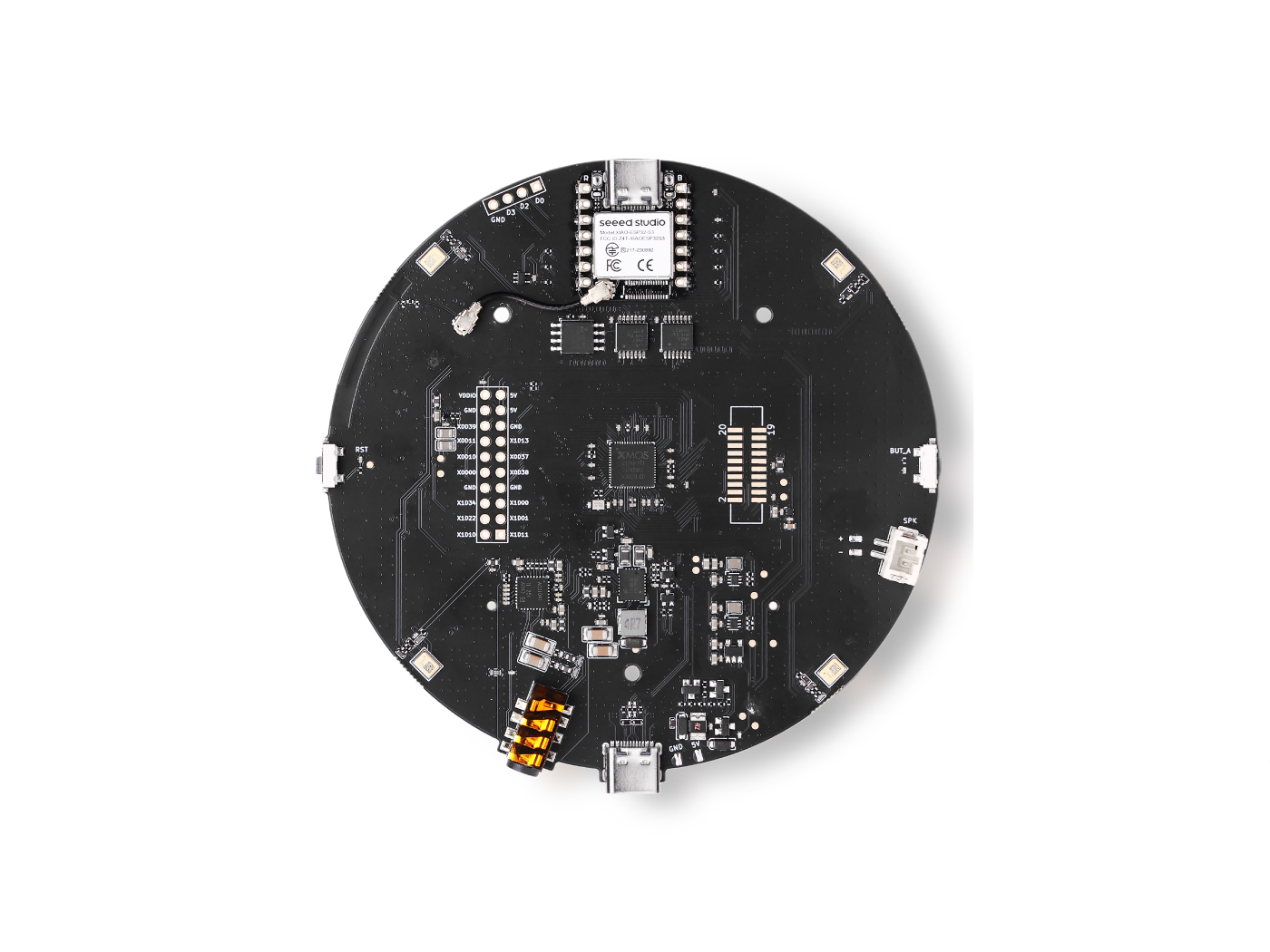
依存関係
このチュートリアルに従うには、以下の Arduino ライブラリをインストールする必要があります:
これらのライブラリを Arduino IDE にインストールしてください。各 GitHub リポジトリには、ライブラリを正しくインストールおよび設定するためのガイドが含まれています。
データの収集
10 秒間の短い音声サンプルを録音し、それらを 1 秒クリップに分割します。XVF3800 ReSpeaker を使用するには、最初に USB ファームウェアをインストールする必要がある場合があります。
ファームウェアガイド: Seeed Studio XVF3800 Firmware Flash
ステップ 1:デバイス ID を確認する
次の Python スクリプトを使用して、PC に接続されているすべてのオーディオデバイスを一覧表示し、ReSpeaker 用の正しいデバイスインデックスを見つけます:
import sounddevice as sd

# List all available devices
devices = sd.query_devices()

# Print all devices
for i, device in enumerate(devices):
    print(f"Device {i}: {device['name']} (input channels: {device['max_input_channels']})")
Note: 次のスクリプト内の
DEVICE_INDEXを、ReSpeaker に対して表示されたデバイス番号に合わせて更新してください。
ステップ 2:音声サンプルを収集する
この Python スクリプトは、人の名前とラベルに基づいて音声サンプルを収集します。各人物ごとにフォルダが作成され、WAV ファイルは対応するラベルの下に保存されます。
import os
import sounddevice as sd
from scipy.io.wavfile import write

# === Settings ===
SAMPLERATE = 16000
CHANNELS = 1  # ReSpeaker 4-Mic Array
DURATION = 10  # seconds
DEVICE_INDEX = 2  # Set to your ReSpeaker device index


def record_audio(filename, samplerate=SAMPLERATE, channels=CHANNELS, duration=DURATION, device=DEVICE_INDEX):
    print(f"Recording '{filename}' for {duration} seconds...")
    recording = sd.rec(int(duration * samplerate),
                       samplerate=samplerate,
                       channels=channels,
                       dtype='int16',
                       device=device)
    sd.wait()
    write(filename, samplerate, recording)
    print(f"Saved: {filename}")


def get_next_filename(directory, label):
    existing = [f for f in os.listdir(directory) if f.startswith(label) and f.endswith('.wav')]
    index = len(existing) + 1
    return os.path.join(directory, f"{label}.{index}.wav")


def collect_samples():
    while True:
        sample_name = input("Enter sample name (e.g., PersonA): ").strip()
        if not sample_name:
            print("Sample name cannot be empty.")
            continue

        sample_dir = os.path.join(os.getcwd(), sample_name)
        os.makedirs(sample_dir, exist_ok=True)
        print(f"Directory created: {sample_dir}")

        while True:
            label = input("Enter sound/voice to record (e.g., yes, no): ").strip()
            if not label:
                print("Label cannot be empty.")
                continue

            while True:
                filename = get_next_filename(sample_dir, label)
                record_audio(filename)

                cont = input("Record another sample for this label? (yes/no): ").strip().lower()
                if cont != 'yes':
                    break

            next_label = input("Do you want to record a different label? (yes/no): ").strip().lower()
            if next_label != 'yes':
                break

        next_sample = input("Do you want to create a new sample? (yes/no): ").strip().lower()
        if next_sample != 'yes':
            print("Audio collection completed.")
            break


if __name__ == "__main__":
    collect_samples()
動作概要:
- 各人物ごとにフォルダを作成します。
- ラベル(例:"yes"、"no")の入力を促し、対応する音声ファイルを保存します。
- 10 秒間の音声クリップを録音し、後で学習用に 1 秒セグメントへ分割できます。
データ前処理
10 秒の音声サンプルを収集したら、次のステップとして、それらを学習用に 1 秒クリップへ分割します。私は Edge Impulse を使用して、録音を可視化し、簡単に分割しました。
音声ファイル形式
すべての音声ファイルは、次の要件を満たす必要があります:
- フォーマット: WAV (.wav)
- サンプリングレート: 16 kHz
- チャンネル数: モノラル(1 チャンネル)
- ビット深度: 16-bit PCM
- 長さ: 1 秒(1000 ms)
Note: Edge Impulse を使うと、より長い録音を自動的にこれらの 1 秒セグメントに分割できます。
ターゲットラベル
-
各 フォルダ名 は クラスラベル として扱われます。
-
例:
hi_speaker→ モデルは「hi speaker」を認識seeed→ モデルは「seeed」を認識
-
必要に応じてクラスを追加できますが、フォルダ名は学習時に使用する
WANTED_WORDSリストと必ず一致させてください。
Unknown / Other
other/フォルダには、ターゲットリストに含まれないランダムな単語を入れてください。これにより、モデルは未知語を正しく分類できるようになります。
Silence / Noise
-
_background_noise_/フォルダには、次のような環境音を含めます:- オフィスの雑音
- 通りの騒音
- キーボード入力音
- 無音録音(マイクはオンだが発話なし)
適切な前処理により、モデルはターゲットコマンド、未知語、背景雑音を区別して学習できるようになります。
dataset_dir/
│
├── hi_speaker/           # All audio samples for the "hi_speaker" keyword
│   ├── audio_0.wav
│   ├── audio_1.wav
│   └── ...
│
├── seeed/                # All audio samples for the "seeed" keyword
│   ├── audio_2.wav
│   ├── audio_3.wav
│   └── ...
│
├── other/                # Random speech or non-target words
│   ├── audio_4.wav
│   ├── audio_5.wav
│   └── ...
│
└── _background_noise_/   # Background noise samples
    ├── noise_0.wav
    ├── noise_1.wav
    └── ...
データの学習
カスタム音声認識モデルを学習するには、Ubuntu x86 を搭載した PC を使用することを推奨します。また、xxd ツールが必要で、次のコマンドでインストールできます:
sudo apt-get install xxd
ステップ 1:Anaconda をインストールする
- Anaconda Navigator をダウンロードしてインストールします
- このプロジェクト用に Anaconda で新しい環境を作成します。
ステップ 2:環境をセットアップする
環境内に必要なパッケージをインストールします:
- ディープラーニングフレームワーク: TensorFlow 1.5
- プログラミング言語: Python 3.7
このセットアップにより、マイコンへのデプロイにおける TensorFlow Lite Micro との互換性が確保されます。
ステップ 3:学習ノートブックを実行する
- Jupyter ノートブックをダウンロードします: train_micro_speech_model.ipynb
- ノートブックを Jupyter で開き、指示に従います。
- 完了すると、ESP32 へのデプロイに向けた 16 進数モデルファイル
model.ccが生成されます。
その後、
model.ccファイルを Arduino プロジェクトに含めることで、XIAO ESP32 と XVF3800 ReSpeaker 上でリアルタイムのキーワードスポッティングを実行できます。
XVF3800 搭載 XIAO ESP32 上での推論
model.cc ファイルの準備ができたら、XIAO ESP32 にデプロイしてリアルタイム音声コマンド認識を行えます。XVF3800 は 32-bit 音声サンプル を出力するため、TensorFlow Lite Micro 用に 16-bit へ変換する必要があります。また、モデル要件に合わせて I2S ピン、サンプリングレート、チャンネル数を設定します。
Arduino コード例
#include "AudioTools.h"
#include "AudioTools/AudioLibs/TfLiteAudioStream.h"
#include "model.h"  // Replace with your generated model.cc

I2SStream i2s;
TfLiteAudioStream tfl;
StreamCopy copier(tfl, i2s);

const char* kCategoryLabels[] = {
    "silence",
    "unknown",
    "hi_respeaker", //change the key word that you trained
    "seeed" // change the key word that you trained
};

void respondToCommand(const char* found_command, uint8_t score, bool is_new_command) {
  if (is_new_command) {
    Serial.printf("Detected: %s (score: %d)\n", found_command, score);
  }
}

// Temp buffer for 32-bit I2S samples
int32_t i2s_buffer[512];
int16_t conv_buffer[512];

void setup() {
  Serial.begin(115200);
  AudioLogger::instance().begin(Serial, AudioLogger::Warning);

  // XVF3800 I2S input configuration
  auto cfg = i2s.defaultConfig(RX_MODE);
  cfg.sample_rate = 16000;
  cfg.channels = 1;            // Mono
  cfg.bits_per_sample = 32;    // XVF3800 streams 32-bit samples
  cfg.pin_bck = 8;
  cfg.pin_ws = 7;
  cfg.pin_data = 44;
  cfg.pin_data_rx = 43;
  cfg.is_master = true;
  i2s.begin(cfg);

  // TensorFlow Lite configuration
  auto tcfg = tfl.defaultConfig();
  tcfg.setCategories(kCategoryLabels);
  tcfg.sample_rate = 16000;
  tcfg.channels = 1;
  tcfg.kTensorArenaSize = 15 * 1024;
  tcfg.respondToCommand = respondToCommand;
  tcfg.model = g_model;  // Replace with your model.cc
  tfl.begin(tcfg);
}

void loop() {
  // Read 32-bit audio from XVF3800
  size_t n = i2s.readBytes((uint8_t*)i2s_buffer, sizeof(i2s_buffer));

  if (n > 0) {
    size_t samples = n / sizeof(int32_t);

    // Convert 32-bit -> 16-bit
    for (size_t i = 0; i < samples; i++) {
      conv_buffer[i] = (int16_t)(i2s_buffer[i] >> 16);
    }

    // Feed converted data into TensorFlow
    tfl.write((uint8_t*)conv_buffer, samples * sizeof(int16_t));
  }
}
重要なポイント
- 生成された
model.ccファイル名に合わせて、必ずg_modelを置き換えて ください。


- XVF3800 はデフォルトで 32-bit ステレオ を出力しますが、モデルに合わせるために 16-bit モノラル に変換します。
- TensorFlow Lite Micro はオーディオデータを連続的に読み取り、認識されたコマンドが検出されるたびに
respondToCommand()をトリガーします。
このセットアップにより、XIAO ESP32 は XVF3800 マイクアレイを使用して、カスタム音声コマンドをリアルタイムで認識できるようになります。
技術サポートと製品ディスカッション
弊社製品をお選びいただきありがとうございます。私たちは、製品をできるだけスムーズにご利用いただけるよう、さまざまなサポートを提供しています。お好みやニーズに応じてお選びいただける、複数のコミュニケーションチャネルをご用意しています。