Seeed Studio XIAO ESP32-C5 での Bluetooth 使用方法
| Seeed Studio XIAO ESP32-C5 |
|---|
 |
Seeed Studio XIAO ESP32-C5 は、Bluetooth 5、BLE、およびメッシュネットワーキングをサポートする強力な開発ボードで、ワイヤレス接続を必要とする幅広い IoT アプリケーションに最適な選択肢です。優れた RF 性能により、XIAO ESP32-C5 は様々な距離で信頼性の高い高速ワイヤレス通信を提供でき、短距離および長距離ワイヤレスアプリケーションの両方に対応する汎用的なソリューションとなっています。このチュートリアルでは、近くの Bluetooth デバイスをスキャンする方法、Bluetooth 接続を確立する方法、Bluetooth 接続を介してデータを送受信する方法など、XIAO ESP32-C5 の Bluetooth 機能の基本的な機能に焦点を当てます。
入門ガイド
アンテナの取り付け
Seeed Studio XIAO ESP32-C5 のパッケージ内には、専用の Wi-Fi/BT アンテナコネクタがあります。最適な WiFi/Bluetooth 信号強度を得るには、パッケージに含まれているアンテナを取り出してコネクタに接続する必要があります。
より強い信号ゲイン効果を得たい場合は、RP-SMA オスコネクタ付き 2.4G/5G 外部アンテナを購入して取り付けることができます — パッケージに含まれている内蔵 FPC アンテナよりもはるかに高いゲインを提供します!
| RP-SMA オスコネクタ付き 2.4G/5G 外部アンテナ |
|---|
 |
Bluetooth Low Energy (BLE) の使用方法
Bluetooth Low Energy(略して BLE)は、Bluetooth の省電力版です。BLE の主な用途は、少量のデータ(低帯域幅)の短距離伝送です。常時オンの Bluetooth とは異なり、BLE は接続が開始される場合を除いて、常にスリープモードを維持します。
ESP32-C5 は BLE のみをサポートし、Bluetooth Classic はサポートしていません
その特性により、BLE はコイン電池で動作し、定期的に少量のデータを交換する必要があるアプリケーションに適しています。例えば、BLE はヘルスケア、フィットネス、トラッキング、ビーコン、セキュリティ、ホームオートメーション業界で大いに活用されています。
これにより、非常に低い電力消費を実現します。BLE は Bluetooth と比較して約 100 分の 1 の電力を消費します(使用ケースによって異なります)。
XIAO ESP32-C5 の BLE 部分について、以下の 3 つのセクションでその使用方法を紹介します。
- 基本的な概念 -- BLE プログラムの実行プロセスと考え方を理解するために、BLE で頻繁に使用される可能性のある概念をまず理解します。
- BLE スキャナ -- このセクションでは、近くの Bluetooth デバイスを検索してシリアルモニターに出力する方法を説明します。
- BLE サーバー/クライアント -- このセクションでは、XIAO ESP32-C5 をサーバーおよびクライアントとして使用して、指定されたデータメッセージを送受信する方法を説明します。また、電話から XIAO へのメッセージの受信や送信にも使用します。
基本的な概念
サーバーとクライアント
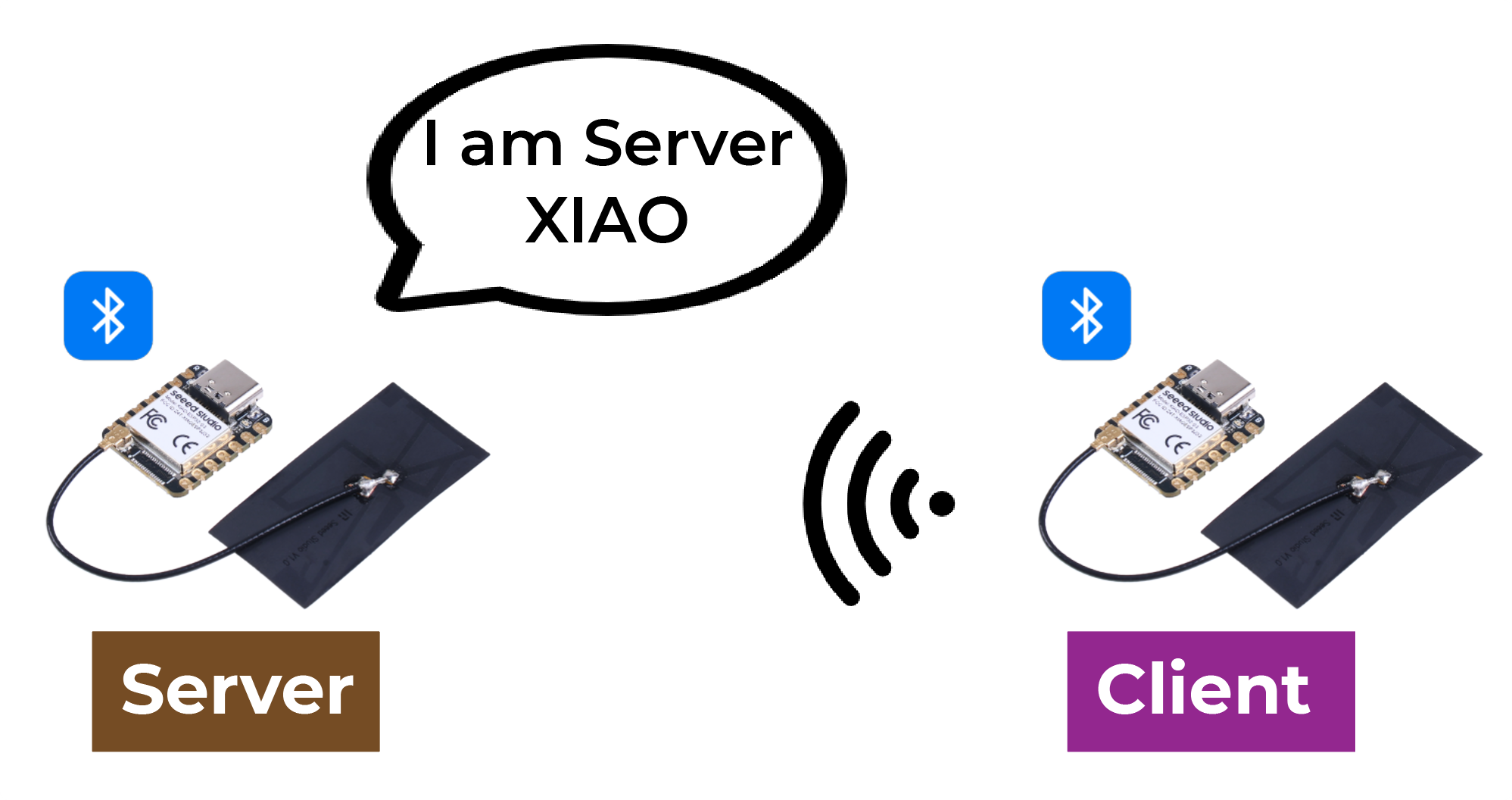
Bluetooth Low Energy では、サーバーとクライアントの 2 種類のデバイスがあります。XIAO ESP32-C5 はクライアントまたはサーバーのいずれかとして動作できます。
サーバーは自身の存在をアドバタイズして他のデバイスに発見されるようにし、クライアントが読み取ることができるデータを含んでいます。クライアントは近くのデバイスをスキャンし、探しているサーバーを見つけると接続を確立して受信データを待機します。これはポイントツーポイント通信と呼ばれます。
アトリビュート
アトリビュートは実際にはデータの一部です。各 Bluetooth デバイスはサービスを提供するために使用され、サービスはデータの集合であり、この集合はデータベースと呼ぶことができます。データベース内の各エントリがアトリビュートです。そのため、ここではアトリビュートをデータエントリと翻訳します。Bluetooth デバイスをテーブルとして想像でき、テーブル内の各行がアトリビュートです。

GATT
2 つの Bluetooth デバイスが接続を確立する際、通信方法を決定するプロトコルが必要です。GATT(Generic Attribute Profile)は、Bluetooth デバイス間でデータを送信する方法を定義するプロトコルです。
GATT プロトコルでは、デバイスの機能と特性は、サービス、キャラクタリスティック、ディスクリプタと呼ばれる構造に整理されます。サービスは、デバイスが提供する関連する機能と特徴のセットを表します。各サービスには複数のキャラクタリスティックを含めることができ、これらはセンサーデータや制御コマンドなど、サービスの特定の特性や動作を定義します。各キャラクタリスティックには一意の識別子と値があり、通信のために読み取りまたは書き込みが可能です。ディスクリプタは、キャラクタリスティック値の形式やアクセス許可など、キャラクタリスティックのメタデータを記述するために使用されます。
GATT プロトコルを使用することで、Bluetooth デバイスは、センサーデータの送信やリモートデバイスの制御など、さまざまなアプリケーションシナリオで通信できます。
BLE キャラクタリスティック
ATT は Attribute Protocol の略です。これは BLE でのデータ交換の基盤となるメカニズムです。ATT は、リクエスト、レスポンス、通知、インディケーションなどの一連のコマンドに依存しています。Bluetooth プロトコルスタックでは、ATT はデータ転送を担当する層であり、Bluetooth データパケットを分析する際の主要な焦点となります。
ATT コマンドは、正式には ATT PDU(Protocol Data Unit)として知られています。これには、読み取り、書き込み、通知、インディケーションの 4 つのカテゴリが含まれます。これらのコマンドは 2 つのタイプに分けることができます:Write Request や Indication などの操作はピアからの確認応答を必要としますが、Write Command や Notification は必要としません。
サービスとキャラクタリスティックは GATT 層で定義されます。サービス側がサービスを提供し、サービスはデータであり、データはアトリビュートです。サービスとキャラクタリスティックはデータの論理的な表現、またはユーザーが見ることができるデータが最終的にサービスとキャラクタリスティックに変換されます。
モバイルの観点からサービスとキャラクタリスティックがどのように見えるかを見てみましょう。nRF Connect は、各パケットがどのように見えるべきかを非常に視覚的に示すアプリケーションです。
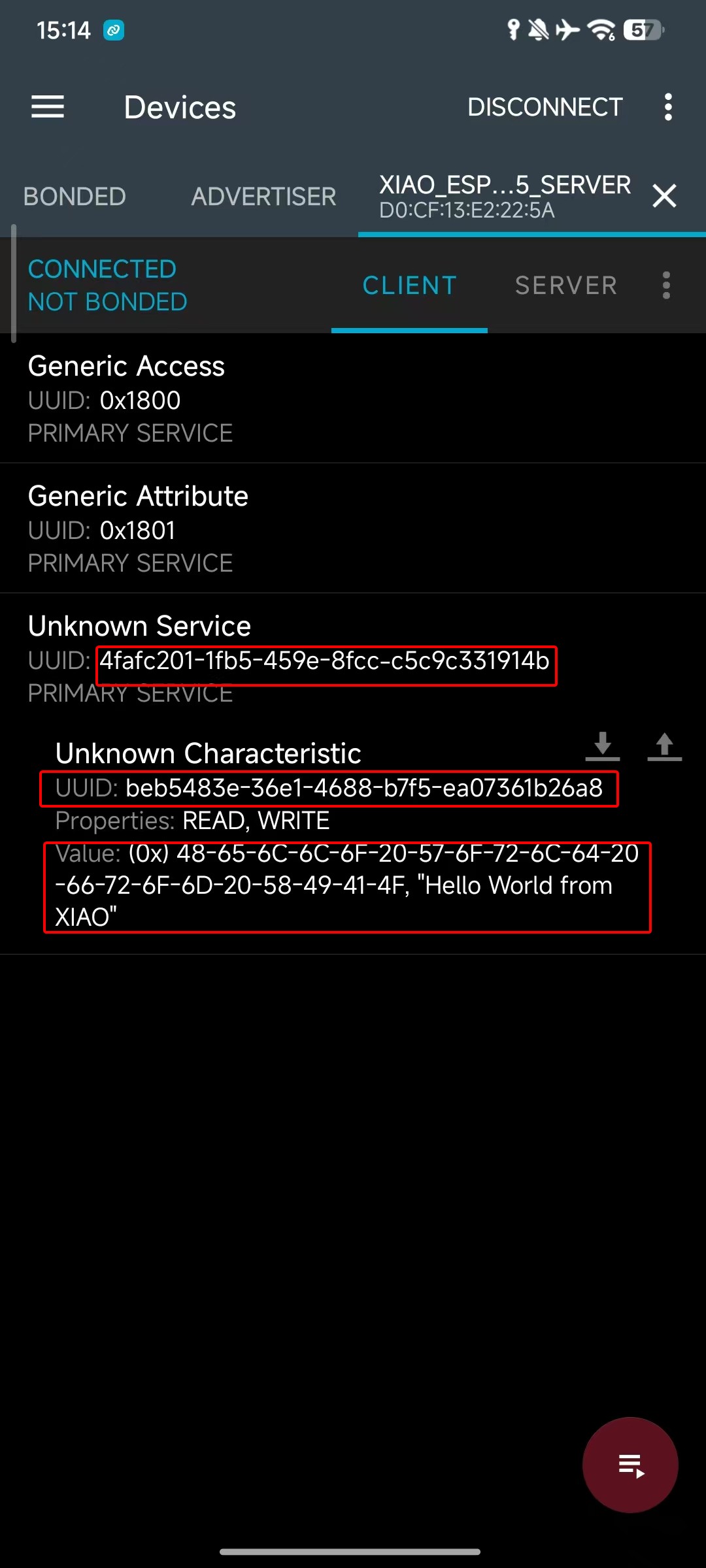
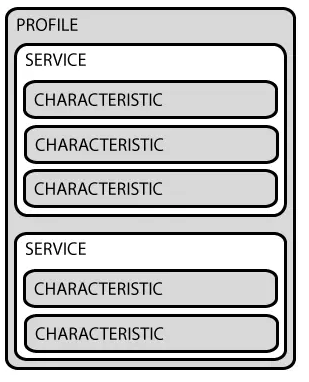
ご覧のとおり、Bluetooth 仕様では、各特定の Bluetooth アプリケーションは複数のサービスで構成され、各サービスは複数のキャラクタリスティックで構成されます。キャラクタリスティックは UUID、プロパティ、および値で構成されます。
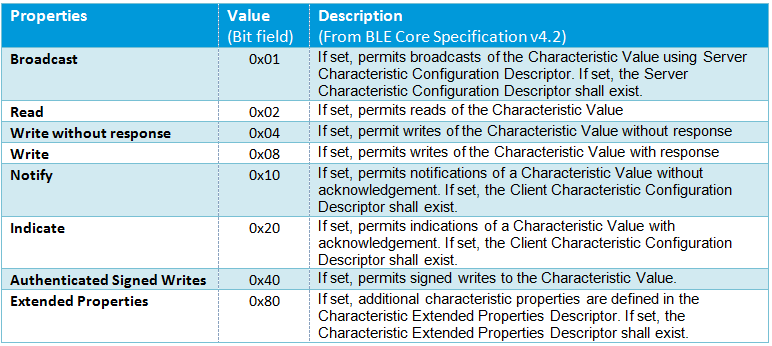
プロパティは、読み取り、書き込み、通知などをサポートするかどうかなど、キャラクタリスティックに対する操作のタイプと権限を記述するために使用されます。これは ATT PDU に含まれる 4 つのカテゴリに似ています。
UUID
各サービス、キャラクタリスティック、ディスクリプタには UUID(Universally Unique Identifier)があります。UUID は一意の 128 ビット(16 バイト)番号です。例えば:
ea094cbd-3695-4205-b32d-70c1dea93c35
SIG(Bluetooth Special Interest Group)で指定されているすべてのタイプ、サービス、プロファイルには短縮 UUID があります。ただし、アプリケーションが独自の UUID を必要とする場合は、この UUID ジェネレーターウェブサイトを使用して生成できます。
BLE 使用例
次に、いくつかの実用的な例を通じて、XIAO ESP32-C5 で Bluetooth Low Energy (BLE) を使用する方法を紹介します。
以下の例は Arduino IDE に基づいて実装されています。Arduino IDE を使用したことがない場合は、Seeed Studio XIAO ESP32-C5 入門ガイドをご覧ください。
BLE スキャナ
BLE スキャナモードでは、XIAO ESP32-C5 は セントラルまたは オブザーバーとして動作します。接続を確立する代わりに、周辺エリアの他のデバイスによってブロードキャストされるアドバタイジングパケットをリッスンします。
プログラム
- 以下は、XIAO ESP32-C5 で BLE スキャナモードを使用する方法を示す参考コードスニペットです。
#include <BLEDevice.h>
#include <BLEUtils.h>
#include <BLEScan.h>
#include <BLEAdvertisedDevice.h>

int scanTime = 5; // Scanning duration (seconds)
BLEScan* pBLEScan;

class MyAdvertisedDeviceCallbacks: public BLEAdvertisedDeviceCallbacks {
    void onResult(BLEAdvertisedDevice advertisedDevice) {
      // Callback function when a device is discovered
      Serial.printf("Device found: %s \n", advertisedDevice.toString().c_str());
    }
};

void setup() {
  Serial.begin(115200);
  Serial.println("Initializing BLE Scanner...");

  BLEDevice::init("");
  pBLEScan = BLEDevice::getScan(); // Create scan object
  pBLEScan->setAdvertisedDeviceCallbacks(new MyAdvertisedDeviceCallbacks());
  pBLEScan->setActiveScan(true); // Active scan (consumes more power but gets more complete information)
  pBLEScan->setInterval(100);
  pBLEScan->setWindow(99);
}

void loop() {
  Serial.println("Starting scan...");
  // false here means do not keep duplicate device results, true to keep
  BLEScanResults* foundDevices = pBLEScan->start(scanTime, false);

  Serial.print("Scan finished, number of devices found: ");
  Serial.println(foundDevices->getCount());
  Serial.println("Scan completed, clearing results...");

  pBLEScan->clearResults();   // Clear cache to release memory
  delay(2000);
}
効果の表示
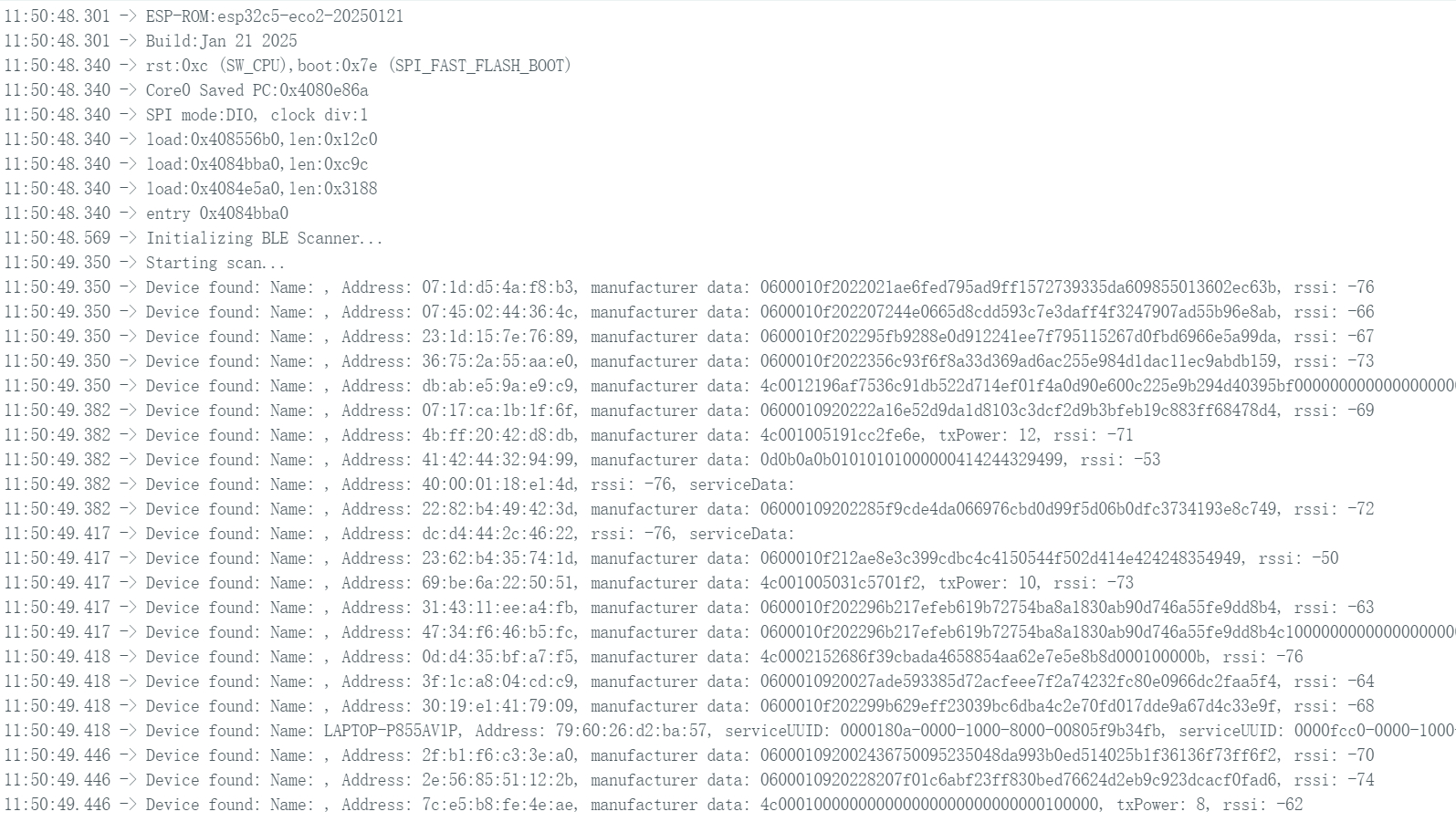
- コードをアップロードしてシリアルモニターを開くと、XIAO ESP32-C5 が周囲の環境でBluetoothデバイスをスキャンし、関連情報を出力します。
BLE サーバー/クライアント
BLE サーバーモードでは、サービスとキャラクタリスティックを作成し、その存在をブロードキャストして、他のデバイスがデータの読み書きのために接続するのを待ちます。
BLE クライアントモードでは、クライアントが特定のサービス UUID をスキャンし、サーバーを見つけた後に接続を開始し、サーバーのキャラクタリスティック値を読み書きします。
BLE サーバープログラム
次に、コード例を使用して XIAO ESP32-C5 で BLE サーバーを設定する方法を説明します。
- 参考コード
#include <BLEDevice.h>
#include <BLEUtils.h>
#include <BLEServer.h>

// Website for generating UUID: uuidgenerator.net
#define SERVICE_UUID        "4fafc201-1fb5-459e-8fcc-c5c9c331914b"
#define CHARACTERISTIC_UUID "beb5483e-36e1-4688-b7f5-ea07361b26a8"

class MyCallbacks: public BLECharacteristicCallbacks {
    void onWrite(BLECharacteristic *pCharacteristic) {
      String value = pCharacteristic->getValue();
      if (value.length() > 0) {
        Serial.print("Data received from Client: ");
        for (int i = 0; i < value.length(); i++)
          Serial.print(value[i]);
        Serial.println();
      }
    }
};

void setup() {
  Serial.begin(115200);

  // 1. Initialize BLE
  BLEDevice::init("XIAO_ESP32C5_Server");

  // 2. Create Server
  BLEServer *pServer = BLEDevice::createServer();

  // 3. Create Service
  BLEService *pService = pServer->createService(SERVICE_UUID);

  // 4. Create Characteristic (set read/write permissions)
  BLECharacteristic *pCharacteristic = pService->createCharacteristic(
                                         CHARACTERISTIC_UUID,
                                         BLECharacteristic::PROPERTY_READ |
                                         BLECharacteristic::PROPERTY_WRITE
                                       );

  pCharacteristic->setCallbacks(new MyCallbacks()); // Set write callback function
  pCharacteristic->setValue("Hello World from XIAO"); // Set initial value

  // 5. Start Service
  pService->start();

  // 6. Start Advertising
  BLEAdvertising *pAdvertising = BLEDevice::getAdvertising();
  pAdvertising->addServiceUUID(SERVICE_UUID);
  pAdvertising->setScanResponse(true);
  pAdvertising->setMinPreferred(0x06);
  BLEDevice::startAdvertising();
}

void loop() {
  delay(2000);
}
効果の表示
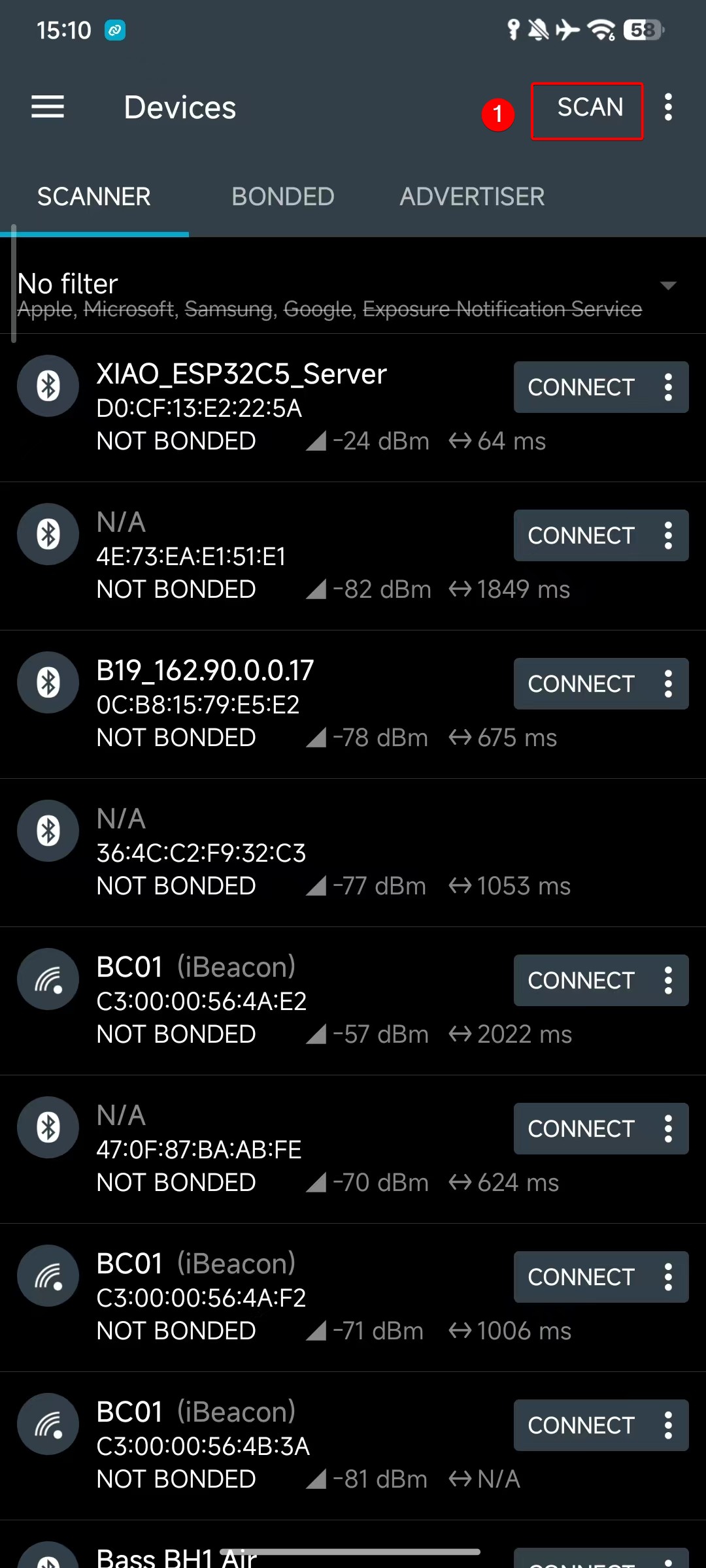
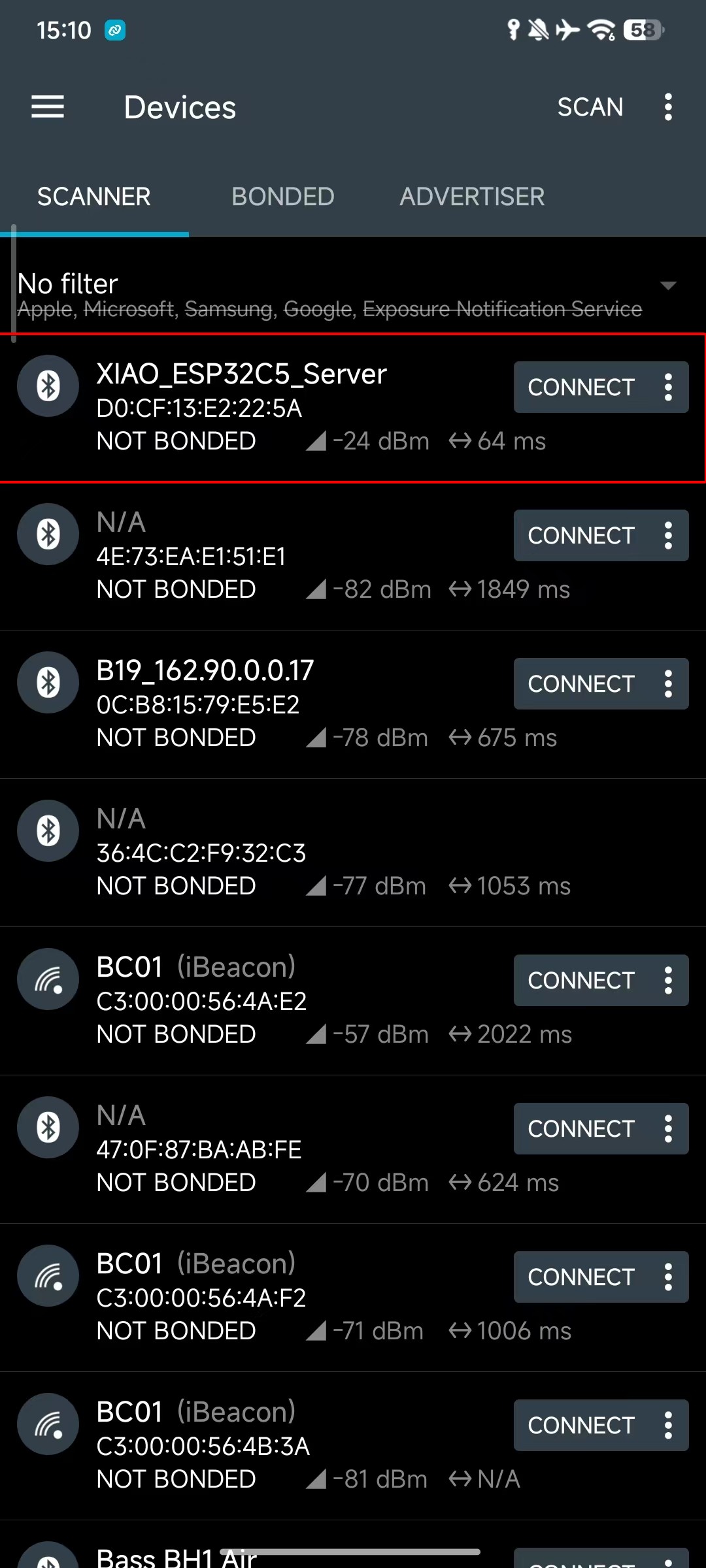
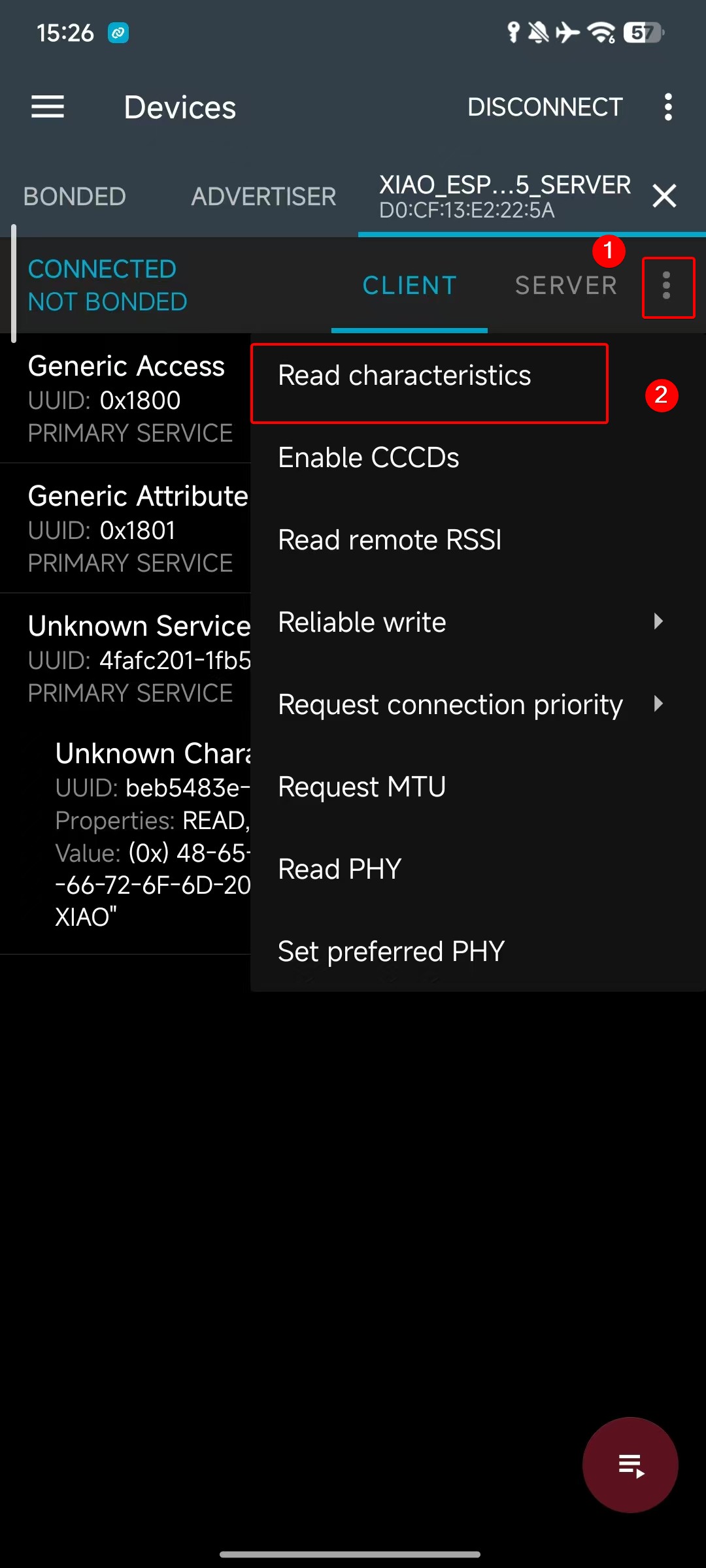
- コードをアップロードした後、nRF Connect アプリをダウンロードし、BLE デバイス(上記で言及した XIAO_ESP32C5_Server という名前)をスキャンして発見し、それを選択して接続を確立します。
同時に、主要なモバイルアプリストアで nRF Connect アプリを検索してダウンロードできます。これにより、お使いの携帯電話でBluetoothデバイスを検索して接続できます。
- Android: nRF Connect
- IOS: nRF Connect
ソフトウェアをダウンロードした後、以下に示す手順に従って XIAO ESP32-C5 を検索して接続すると、アドバタイズされた Hello World from XIAO が表示されます。
 |  |  | |
BLE クライアントプログラム
次に、コード例を使用して XIAO ESP32-C5 で BLE クライアントを設定する方法を説明します。クライアント機能を使用するには、少なくとも2つの XIAO Bluetooth対応デバイスが必要です:1つはデータを送信するサーバーとして機能し、もう1つはデータを受信するクライアントとして機能します。
参考コード
#include <BLEDevice.h>
#include <BLEUtils.h>
#include <BLEScan.h>
#include <BLEAdvertisedDevice.h>
#include <BLEClient.h>

// UUID of the Server (must be exactly the same as the Server)
static BLEUUID serviceUUID("4fafc201-1fb5-459e-8fcc-c5c9c331914b");
static BLEUUID charUUID("beb5483e-36e1-4688-b7f5-ea07361b26a8");

// Scanning parameters
const int scanTime = 10; // Scanning duration (seconds)

// Global variables
static BLEAddress serverAddress;        // Address of the found Server
static bool deviceFound = false;        // Whether the target device is found
static BLERemoteCharacteristic* pRemoteCharacteristic = nullptr;
static BLEClient* pClient = nullptr;

// Scan callback: called when a device is discovered
class MyAdvertisedDeviceCallbacks : public BLEAdvertisedDeviceCallbacks {
  void onResult(BLEAdvertisedDevice advertisedDevice) {
    // Check if it contains the service UUID we need
    if (advertisedDevice.haveServiceUUID() && advertisedDevice.isAdvertisingService(serviceUUID)) {
      Serial.print("Found target Server! Name: ");
      Serial.print(advertisedDevice.getName().c_str());
      Serial.print(", Address: ");
      Serial.println(advertisedDevice.getAddress().toString().c_str());

      serverAddress = advertisedDevice.getAddress();
      deviceFound = true;

      // Stop scanning (stop once found)
      BLEDevice::getScan()->stop();
    }
  }
};

// Client connection callback (optional, used to monitor connection status)
class MyClientCallbacks : public BLEClientCallbacks {
  void onConnect(BLEClient* pclient) {
    Serial.println("Connected to Server successfully!");
  }

  void onDisconnect(BLEClient* pclient) {
    Serial.println("Disconnected from Server.");
    deviceFound = false;  // Rescan next time
  }
};

void setup() {
  Serial.begin(115200);
  while (!Serial); // Wait for serial port to open (optional)

  Serial.println("Starting BLE Client...");

  BLEDevice::init("XIAO_Client");  // Client device name

  // Start the first scan
  scanAndConnect();
}

void loop() {
  // If connected successfully, read/write data every 5 seconds
  if (pClient && pClient->isConnected() && pRemoteCharacteristic) {
    // Read characteristic value
    String value = pRemoteCharacteristic->readValue();
    Serial.print("Read value from Server: ");
    Serial.println(value.c_str());

    // Write new data (with response)
    String sendMsg = "Hello from Client @ " + String(millis() / 1000) + "s";
    pRemoteCharacteristic->writeValue(sendMsg.c_str(), true);  // true = require response
    Serial.println("Sent: " + sendMsg);

    delay(5000);
  }
  else {
    // Not connected or disconnected → rescan
    if (!deviceFound || (pClient && !pClient->isConnected())) {
      Serial.println("Server not connected, rescanning...");
      scanAndConnect();
    }
    delay(1000);
  }
}

// Encapsulate scan + connect logic
void scanAndConnect() {
  BLEScan* pBLEScan = BLEDevice::getScan();
  pBLEScan->setAdvertisedDeviceCallbacks(new MyAdvertisedDeviceCallbacks());
  pBLEScan->setActiveScan(true);  // Active scan to get more information
  pBLEScan->setInterval(100);
  pBLEScan->setWindow(99);

  Serial.println("Scanning for Server...");
  deviceFound = false;
  pBLEScan->start(scanTime, false);  // Scan for scanTime seconds

  if (!deviceFound) {
    Serial.println("Target Server not found, will retry later.");
    return;
  }

  // Create client and connect after finding the device
  pClient = BLEDevice::createClient();
  pClient->setClientCallbacks(new MyClientCallbacks());

  Serial.print("Connecting to ");
  Serial.println(serverAddress.toString().c_str());

  if (!pClient->connect(serverAddress)) {
    Serial.println("Connection failed!");
    return;
  }

  // Get remote service
  BLERemoteService* pRemoteService = pClient->getService(serviceUUID);
  if (pRemoteService == nullptr) {
    Serial.println("Failed to find service UUID");
    pClient->disconnect();
    return;
  }
  Serial.println("Service found.");

  // Get remote characteristic
  pRemoteCharacteristic = pRemoteService->getCharacteristic(charUUID);
  if (pRemoteCharacteristic == nullptr) {
    Serial.println("Failed to find characteristic UUID");
    pClient->disconnect();
    return;
  }
  Serial.println("Characteristic found. Ready to communicate!");
}
効果の表示
- コードをアップロードした後、シリアルモニターを開いて観察すると、サーバーから送信されたBluetoothデータを受信できます。
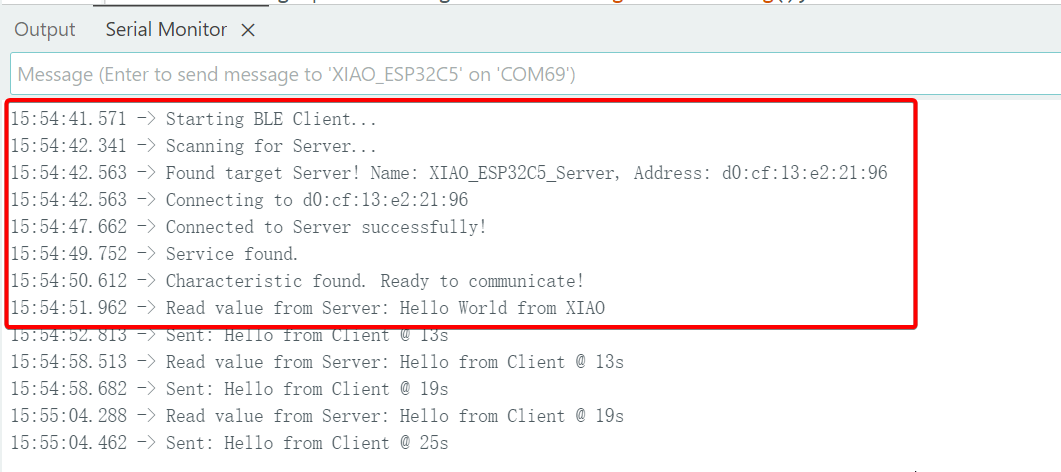
クライアント機能を検証する際は、事前に別の XIAO デバイスにサーバープログラムを書き込む必要があります。そうしないと検証が失敗します。
NimBLE-Arduino
ネイティブの Arduino BLEDevice ライブラリは Bluedroid プロトコルスタックに基づいており、完全な機能を提供しますが、Flash と RAM を大量に消費します。NimBLE は完全に書き直された BLE プロトコルスタック(Apache Mynewt から派生)で、以下の利点があります:
-
極めて小さなメモリフットプリント(RAM使用量を50%以上削減)。
-
より高速な接続速度。
-
API互換性:ネイティブの Arduino BLE ライブラリの構文とほぼ完全に互換性があるように設計されており、ヘッダーファイルの変更と軽微な型調整のみが必要です。
詳細については、作者の GitHub リポジトリ:NimBLE-Arduino をご覧ください。
次に、NimBLE-Arduinoライブラリを基にしたBluetooth スキャン機能を実装します。
プログラム
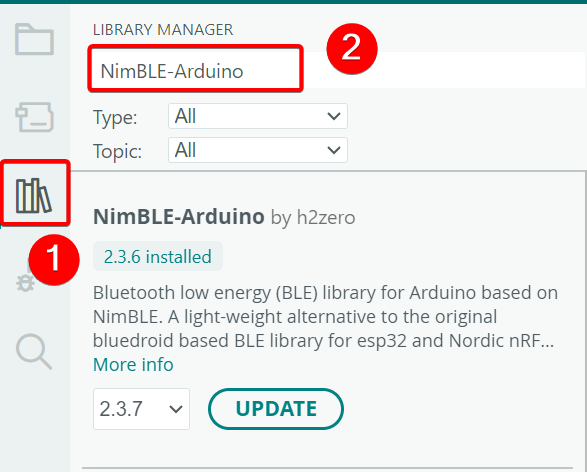
- NimBLE-Arduinoライブラリをインストールします。
参考コード
#include <Arduino.h>
#include <NimBLEDevice.h>
#include <NimBLEAdvertisedDevice.h>
#include "NimBLEEddystoneTLM.h"
#include "NimBLEBeacon.h"

#define ENDIAN_CHANGE_U16(x) ((((x) & 0xFF00) >> 8) + (((x) & 0xFF) << 8))

int         scanTime = 5 * 1000; // In milliseconds
NimBLEScan* pBLEScan;

class ScanCallbacks : public NimBLEScanCallbacks {
    void onResult(const NimBLEAdvertisedDevice* advertisedDevice) override {
        if (advertisedDevice->haveName()) {
            Serial.print("Device name: ");
            Serial.println(advertisedDevice->getName().c_str());
            Serial.println("");
        }

        if (advertisedDevice->haveServiceUUID()) {
            NimBLEUUID devUUID = advertisedDevice->getServiceUUID();
            Serial.print("Found ServiceUUID: ");
            Serial.println(devUUID.toString().c_str());
            Serial.println("");
        } else if (advertisedDevice->haveManufacturerData() == true) {
            std::string strManufacturerData = advertisedDevice->getManufacturerData();
            if (strManufacturerData.length() == 25 && strManufacturerData[0] == 0x4C && strManufacturerData[1] == 0x00) {
                Serial.println("Found an iBeacon!");
                NimBLEBeacon oBeacon = NimBLEBeacon();
                oBeacon.setData(reinterpret_cast<const uint8_t*>(strManufacturerData.data()), strManufacturerData.length());
                Serial.printf("iBeacon Frame\n");
                Serial.printf("ID: %04X Major: %d Minor: %d UUID: %s Power: %d\n",
                              oBeacon.getManufacturerId(),
                              ENDIAN_CHANGE_U16(oBeacon.getMajor()),
                              ENDIAN_CHANGE_U16(oBeacon.getMinor()),
                              oBeacon.getProximityUUID().toString().c_str(),
                              oBeacon.getSignalPower());
            } else {
                Serial.println("Found another manufacturers beacon!");
                Serial.printf("strManufacturerData: %d ", strManufacturerData.length());
                for (int i = 0; i < strManufacturerData.length(); i++) {
                    Serial.printf("[%X]", strManufacturerData[i]);
                }
                Serial.printf("\n");
            }
            return;
        }

        NimBLEUUID eddyUUID = (uint16_t)0xfeaa;

        if (advertisedDevice->getServiceUUID().equals(eddyUUID)) {
            std::string serviceData = advertisedDevice->getServiceData(eddyUUID);
            if (serviceData[0] == 0x20) {
                Serial.println("Found an EddystoneTLM beacon!");
                NimBLEEddystoneTLM foundEddyTLM = NimBLEEddystoneTLM();
                foundEddyTLM.setData(reinterpret_cast<const uint8_t*>(serviceData.data()), serviceData.length());

                Serial.printf("Reported battery voltage: %dmV\n", foundEddyTLM.getVolt());
                Serial.printf("Reported temperature from TLM class: %.2fC\n", (double)foundEddyTLM.getTemp());
                int   temp     = (int)serviceData[5] + (int)(serviceData[4] << 8);
                float calcTemp = temp / 256.0f;
                Serial.printf("Reported temperature from data: %.2fC\n", calcTemp);
                Serial.printf("Reported advertise count: %d\n", foundEddyTLM.getCount());
                Serial.printf("Reported time since last reboot: %ds\n", foundEddyTLM.getTime());
                Serial.println("\n");
                Serial.print(foundEddyTLM.toString().c_str());
                Serial.println("\n");
            }
        }
    }
} scanCallbacks;

void setup() {
    Serial.begin(115200);
    Serial.println("Scanning...");

    NimBLEDevice::init("Beacon-scanner");
    pBLEScan = BLEDevice::getScan();
    pBLEScan->setScanCallbacks(&scanCallbacks);
    pBLEScan->setActiveScan(true);
    pBLEScan->setInterval(100);
    pBLEScan->setWindow(100);
}

void loop() {
    NimBLEScanResults foundDevices = pBLEScan->getResults(scanTime, false);
    Serial.print("Devices found: ");
    Serial.println(foundDevices.getCount());
    Serial.println("Scan done!");
    pBLEScan->clearResults(); // delete results scan buffer to release memory
    delay(2000);
}
効果の実演
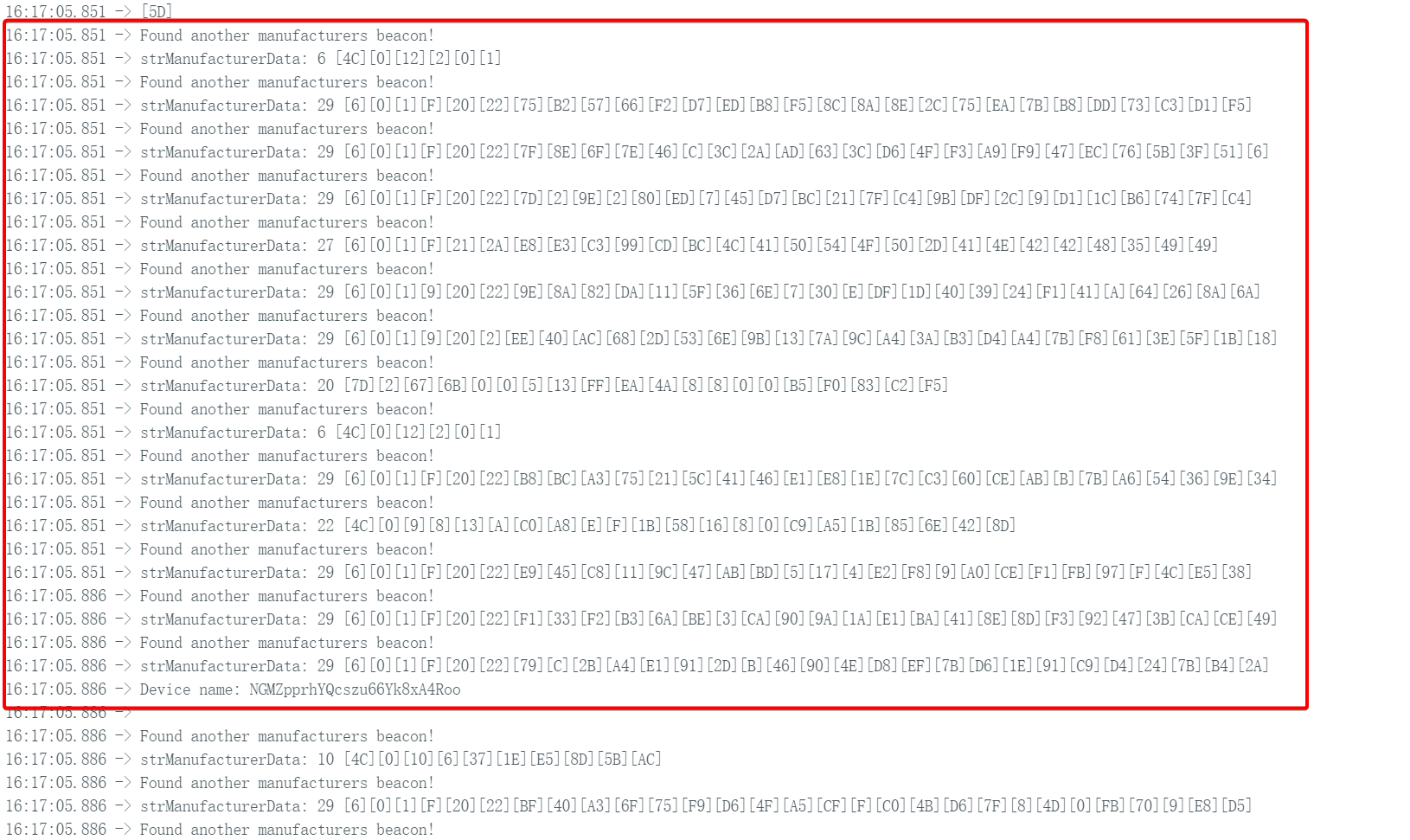
- コードをアップロードしてシリアルモニターを開いて観察します。これもBluetooth スキャン機能を実装していますが、より高速なスキャン速度を持ちます。
例:Home Assistantへの接続
ここまでで、XIAO ESP32-C5のBLEモードについて基本的な理解を得られたはずです。
次に、より実用的なプロジェクトに取り組みましょう:XIAO ESP32-C5に温湿度センサー(または簡単なボタンスイッチ)をシミュレートさせ、BLE経由でセンサーデータやステータスを定期的にブロードキャストします。Home AssistantはこのBLEデバイスを自動的に発見し、追加の複雑な統合設定を必要とせずに、現在の温湿度値(またはボタンステータス)をインターフェースに直接表示します。
この簡単な例は、モノのインターネット(IoT)とスマートホーム分野におけるESP32-C5の大きな可能性を十分に実証しています:低消費電力、開発の容易さ、パッシブBLEデバイスの即座のサポートにより、誰でも迅速に独自のスマートセンサーネットワークを構築できます。
Home Assistantを使用したことがない場合は、こちらをご覧ください:XIAO ESP32-C5をHome Assistantに接続
- 参考コード
#include <NimBLEDevice.h>

// Simulated temperature value
float temp = 20.0;

void setup() {
  Serial.begin(115200);

  // 1. Initialize NimBLE
  NimBLEDevice::init("XIAO_BTHome_Sensor");

  // 2. Create advertising object
  NimBLEAdvertising *pAdvertising = NimBLEDevice::getAdvertising();

  // ==========================================
  // Construct BTHome data packet (This is the most critical part)
  // ==========================================
  // Reference: https://bthome.io/format/

  std::string serviceData = "";

  // A. BTHome device information byte (Required)
  // bit 0: Encryption (0=No)
  // bit 1-2: Version (2=v2)
  // Result: 0100 0000 -> 0x40
  serviceData += (char)0x40;

  // B. Temperature data (16-bit, 0.01 factor)
  // ID: 0x02 (Temperature)
  serviceData += (char)0x02;

  // Value: Assume 25.50°C -> 2550 (0x09F6) -> Little-endian: F6 09
  int16_t tempInt = (int16_t)(temp * 100);
  serviceData += (char)(tempInt & 0xFF);        // Low byte
  serviceData += (char)((tempInt >> 8) & 0xFF); // High byte

  // C. Battery level (8-bit, %) - Optional
  // ID: 0x01 (Battery)
  serviceData += (char)0x01;
  serviceData += (char)85; // 85%

  // ==========================================

  // 3. Put the constructed data into Service Data
  // BTHome UUID is 0xFCD2
  NimBLEAdvertisementData oAdvertisementData = NimBLEAdvertisementData();
  oAdvertisementData.setFlags(0x06); // General Discovery Mode
  oAdvertisementData.setServiceData(NimBLEUUID((uint16_t)0xFCD2), serviceData);

  // 4. Set advertising parameters
  pAdvertising->setAdvertisementData(oAdvertisementData);

  // 5. Start advertising (Advertise every 3 seconds, can be set longer to save power in practice)
  pAdvertising->start();

  Serial.println("BTHome advertising started...");
}

void loop() {
  // To update data dynamically: stop advertising -> update data -> restart advertising
  // For simple demonstration, only static advertising logic is used here
  // In actual projects, you will read sensors here, update oAdvertisementData, then enter sleep mode
  delay(10000);
}
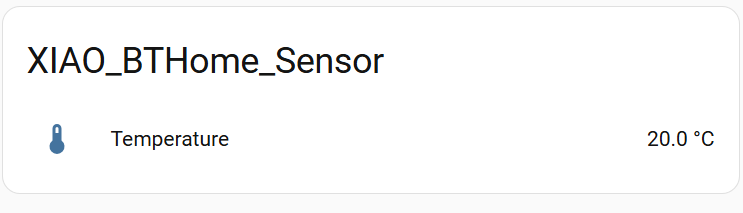
- コードをアップロードしてHome Assistantプラットフォームを開きます。Settings -> Devices & ServicesでBTHomeデバイスを見つけて、ダッシュボードに追加できます。
技術サポート & 製品ディスカッション
弊社製品をお選びいただき、ありがとうございます!弊社製品での体験が可能な限りスムーズになるよう、さまざまなサポートを提供しています。異なる好みやニーズに対応するため、複数のコミュニケーションチャンネルを用意しています。