Seeed Studio XIAO ESP32C6 での Arduino プログラミング
| Seeed Studio XIAO ESP32C6 |
|---|
 |
Seeed Studio XIAO ESP32C6 は、高度に統合された ESP32-C6 SoC を搭載しており、2 つの 32 ビット RISC-V プロセッサ をベースに構成されています。高性能 (HP) プロセッサは 最大 160 MHz で動作 し、低消費電力 (LP) 32 ビット RISC-V プロセッサは最大 20 MHz で動作させることができます。チップ上には 512KB の SRAM と 4 MB のフラッシュ が搭載されており、より広いプログラム領域を提供し、IoT 制御シナリオにさらなる可能性をもたらします。
入門ガイド
ピン配置の概要
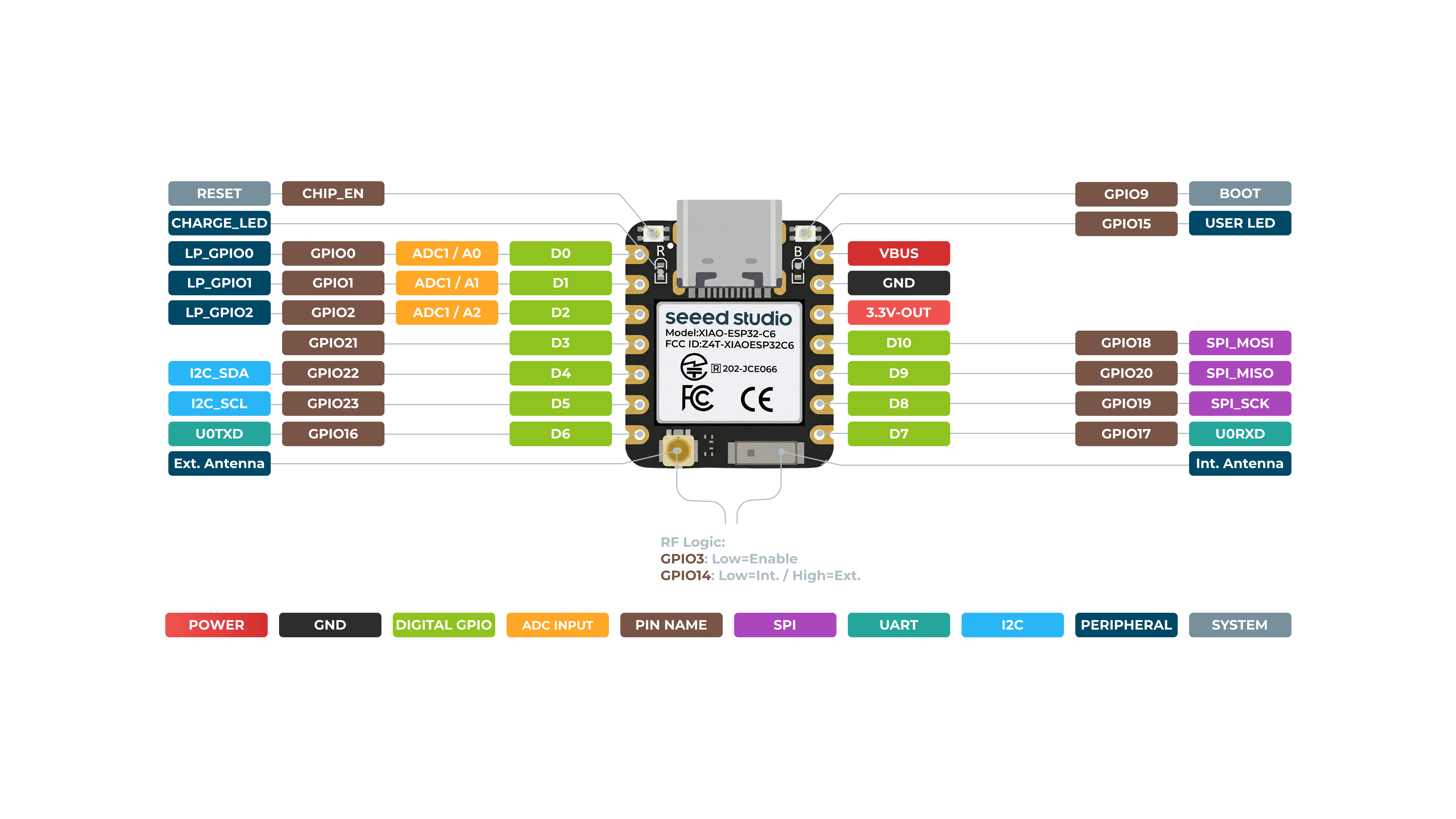
始める前に、次の回路図を使って XIAO ESP32C6 が持つすべてのピンとその機能を確認しましょう。
表面
裏面
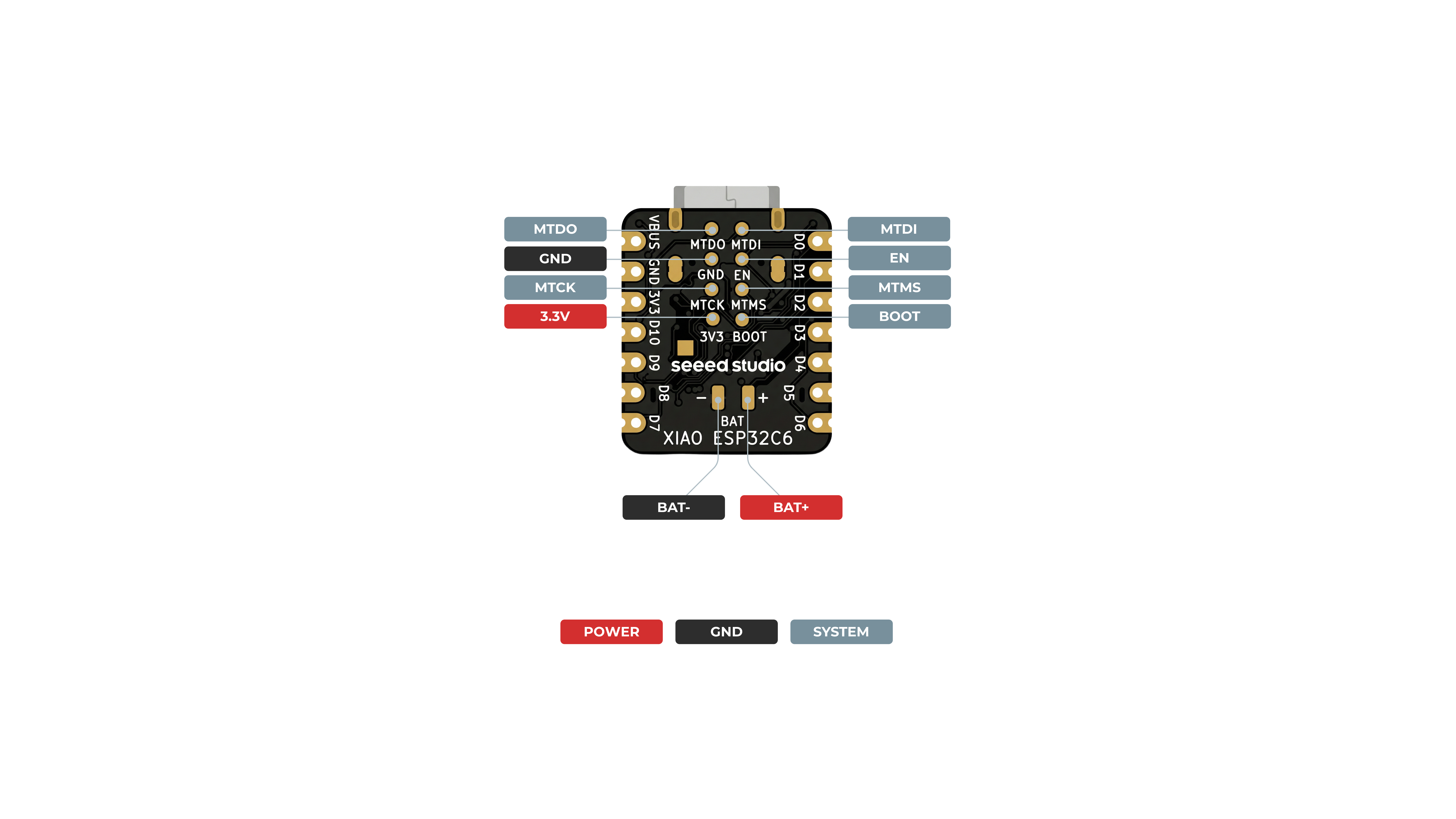
- 5V - これは USB ポートからの 5V 出力です。また、このピンを電圧入力として使用することもできますが、外部電源とこのピンの間には、アノードをバッテリー側、カソードを 5V ピン側にしたダイオード(ショットキー、信号用、電力用のいずれか)を必ず入れてください。
- 3V3 - これはオンボードレギュレータからの安定化出力です。700mA まで取り出すことができます。
- GND - 電源/データ/信号のグラウンド
シリアル通信
XIAO ESP32C6 でシリアル通信を行う方法には、software serial と hardware serial の 2 種類があります。ソフトウェアシリアルは柔軟性のためによく使用され、ハードウェアシリアルはより高い性能を提供します。
ハードウェア構成
- 外部デバイスの TX ピン を XIAO ESP32C6 の RX ピン(
D7)に接続します。 - 外部デバイスの RX ピン を XIAO ESP32C6 の TX ピン(
D6)に接続します。
コード例
ソフトウェアシリアル
ソフトウェアシリアルを使用するには、EspSoftwareSerial ライブラリをインストールします。
現在、EspSoftwareSerial ライブラリの 7.0.0 バージョンを推奨しています。その他のバージョンでは、ソフトシリアルポートが正しく動作しないさまざまな問題が発生する可能性があります。
#include <SoftwareSerial.h>

SoftwareSerial mySerial(D7, D6); // RX, TX

void setup() {
  Serial.begin(9600);
  mySerial.begin(9600);
}

void loop() {
  if (mySerial.available()) {
    char data = mySerial.read();
    Serial.print("Received via software serial: ");
    Serial.println(data);
  }

  if (Serial.available()) {
    char data = Serial.read();
    mySerial.print("Received via hardware serial: ");
    mySerial.println(data);
  }
}
この例では、D7 (RX) と D6 (TX) ピンに 9600 ボーのソフトウェアシリアルを設定します。ハードウェアシリアル(USB)とソフトウェアシリアルの両方を監視し、受信したデータを相互にエコーします。
ハードウェアシリアル
XIAO ESP32C6 にはシリアル通信のためのハードウェア UART(UART0)が搭載されており、D7/D6 ピンに対応しています。
#include <HardwareSerial.h>

HardwareSerial mySerial(0); // UART0 (Serial0)

void setup() {
  Serial.begin(9600);  // USB serial
  mySerial.begin(9600); // UART0
}

void loop() {
  if (Serial.available()) {
    char data = Serial.read();
    Serial.print("Received on USB: ");
    Serial.println(data);
  }

  if (mySerial.available()) {
    char data = mySerial.read();
    Serial.print("Received on UART0: ");
    Serial.println(data);
  }
}
この例では、通信にハードウェア UART0(Serial0)を使用します。USB シリアルと UART0 の両方を初期化し、両方のポートで受信データを監視して、受信したメッセージを USB シリアルポートに出力します。
Serial1 の使用
上記の XIAO ESP32C6 のピン図における具体的なパラメータから、TX ピンと RX ピンがあることが分かります。 これは通常のシリアル通信とは異なりますが、いくつかのパラメータを追加する必要がある点を除けば、使い方は非常によく似ています。 そこで次に、チップから引き出されているピンを使ってシリアル通信を行います。
含める必要があるコア関数は次のとおりです:
Serial1.begin(BAUD,SERIAL_8N1,RX_PIN,TX_PIN);-- Serial1 を有効化します。関数プロトタイプ :<Serial.Type>.begin(unsigned long baud, uint32_t config, int8_t rxPin, int8_t txPin);baud: ボーレートconfig: 設定ビットrxPin: 受信ピンtxPin: 送信ピン
デジタルピンポートを使って定義する場合、ここは #define RX_PIN D7、#define TX_PIN D6 とする必要がある点に注意してください。具体的なパラメータについては、各 XIAO シリーズのピン図を参照してください。
以下はサンプルプログラムです:
#define RX_PIN D7
#define TX_PIN D6
#define BAUD 115200

void setup() {
    Serial1.begin(BAUD,SERIAL_8N1,RX_PIN,TX_PIN);
}

void loop() {
  if(Serial1.available() > 0)
  {
    char incominByte = Serial1.read();
    Serial1.print("I received : ");
    Serial1.println(incominByte);
  }
  delay(1000);
}
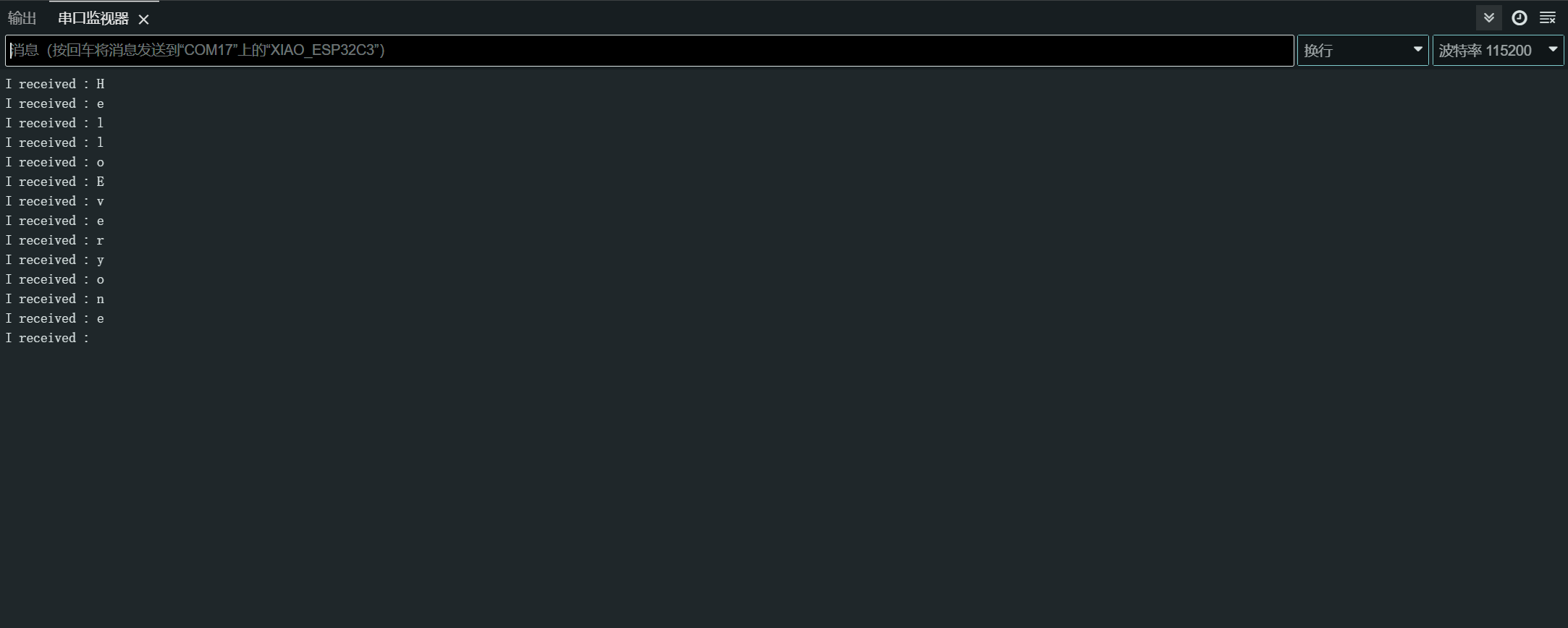
プログラムを書き込んだら、Arduino IDE でシリアルモニタを開き、ボーレートを 115200 に設定します。すると、シリアルモニタ Serial を通じて XIAO ESP32C6 に送信したい内容を送ることができ、XIAO は送信した内容の各バイトを出力します。ここでは、入力した内容は「Hello Everyone」であり、結果のチャートは次のとおりです。
デジタル I/O
XIAO ESP32C6 には、入力または出力として設定できる 12 本の GPIO ピンがあります。
ハードウェア準備
- ボタンをピン
D1に接続します:- 外部プルアップ抵抗を使用します(内部プルアップ抵抗を使用する場合は任意)。
- LED をピン
D10に接続します:- LED と直列に電流制限抵抗を入れてください。
ソフトウェア実装
GPIO API は、GPIO ピンを設定および操作するための関数を提供します。詳細については GPIO API ドキュメントを参照してください。
const int buttonPin = D1; // Button pin
const int ledPin = D10; // LED pin

void setup() {
  pinMode(ledPin, OUTPUT); // Set LED pin as output
  pinMode(buttonPin, INPUT); // Set button pin as input
  // If not using an external pull-up resistor
  pinMode(buttonPin, INPUT_PULLUP); // Enable internal pull-up resistor
}

void loop() {
  int buttonState = digitalRead(buttonPin); // Read button state
  digitalWrite(ledPin, buttonState); // Write button state to LED
}
割り込み方式
ボタン押下をより効率的に処理するために、割り込みを使用することもできます。
// Define the pin numbers for the button and LED
const int buttonPin = D1;
const int ledPin = D10;

// Define a structure to hold button-related data
struct Button {
    const uint8_t PIN; // Pin number for the button
    uint32_t numberKeyPresses; // Counter for the number of button presses
    bool pressed; // Flag to indicate if the button is currently pressed
};

// Create an instance of the Button structure for the button
Button my_button = {buttonPin, 0, false};

// Interrupt Service Routine (ISR) to handle button presses
void ARDUINO_ISR_ATTR isr(void* arg) {
    Button* s = static_cast<Button*>(arg); // Cast the argument to a Button pointer
    s->numberKeyPresses += 1; // Increment the number of button presses
    s->pressed = true; // Set the pressed flag
}

void setup() {
    Serial.begin(115200);
    pinMode(my_button.PIN, INPUT_PULLUP); // Set the button pin as input with internal pull-up resistor
    attachInterruptArg(my_button.PIN, isr, &my_button, FALLING); // Attach the ISR to the button pin, triggered on falling edge
}

void loop() {
    if (my_button.pressed) { // Check if the button is pressed
        Serial.printf("Button 1 has been pressed %lu times\n", my_button.numberKeyPresses); // Print the number of button presses
        my_button.pressed = false; // Reset the pressed flag
    }

    static uint32_t lastMillis = 0; // Variable to store the last time the interrupt was detached
    if (millis() - lastMillis > 10000) { // Check if 10 seconds have elapsed
        lastMillis = millis(); // Update the last detach time
        detachInterrupt(my_button.PIN); // Detach the interrupt from the button pin
    }
}
この例では、ボタンに関連するデータ(ピン番号、押下回数、現在ボタンが押されているかどうかを示すフラグ)を保持するために Button 構造体を使用します。
isr 関数はボタン押下を処理する割り込みサービスルーチン(ISR)です。ボタンの押下回数をインクリメントし、pressed フラグを true に設定します。
setup 関数では、シリアル通信を初期化し、ボタンピンを内部プルアップ抵抗付きの入力として設定し、ボタンピンに対して isr 関数を割り込みハンドラとして割り当て、立下りエッジ(ボタン押下)でトリガーされるようにします。
loop 関数では、ボタンが押されているかどうかを確認します。押されていれば、シリアルモニタにボタンの押下回数を出力し、pressed フラグをリセットします。さらに、10 秒ごとにボタンピンから割り込みをデタッチするセクションを含めており、これは他の処理を行うため、または意図しない割り込みを防ぐためと考えられます。
了解しました。以下は、書き直してより分かりやすくしたバージョンです:
ADC - アナログ・デジタルコンバータ
XIAO ESP32C6 には、アナログ電圧を読み取ることができる複数のアナログ入力ピンがあります。
詳細については、ADC API のドキュメントを参照してください。
ハードウェアセットアップ
- 可変抵抗器をピン A0 に接続し、一方の端子を 3.3V に、もう一方の端子を GND に接続します。
ソフトウェア実装
以下はアナログ値を読み取る Arduino スケッチです:
const int analogPin = A0;

void setup() {
  // Initialize serial communication at 115200 bits per second
  Serial.begin(115200);

  // Set the resolution to 12 bits (0-4095)
  analogReadResolution(12);
}

void loop() {
  // Read the analog value and millivolts for the analogPin
  int analogValue = analogRead(analogPin);
  int analogVolts = analogReadMilliVolts(analogPin);

  // Print the values to the Serial Monitor
  Serial.printf("ADC analog value = %d\n", analogValue);
  Serial.printf("ADC millivolts value = %d\n", analogVolts);

  delay(100); // Delay for clear reading from serial
}
このコードは、指定したピンからアナログ値を読み取り、その値とミリボルト値をシリアルモニタに出力します。
PWM 信号 / LED 制御
XIAO ESP32-C6 には 6 つの LEDC チャネルがあり、独立した波形を生成できます。これは、例えば RGB LED デバイスを駆動するために使用できます。
詳細については、LEDC API のドキュメントを参照してください。
ハードウェアセットアップ
- 電流制限抵抗を直列に入れて、LED をピン
D2に接続します。
ソフトウェア実装
以下は PWM 出力を示す Arduino スケッチです:
一般的な PWM
const int ledPin = D2;

void setup() {
  pinMode(ledPin, OUTPUT);
}

void loop() {
  for (int dutyCycle = 0; dutyCycle <= 255; dutyCycle++) {
    analogWrite(ledPin, dutyCycle);
    delay(10);
  }
}
このコードは、PWM を使用して LED の明るさを徐々に増加させます。
LED 制御
/*
 LEDC Software Fade

 This example shows how to software fade an LED
 using the ledcWrite function.

 Code adapted from the original Arduino Fade example:
 https://www.arduino.cc/en/Tutorial/Fade

 This example code is in the public domain.
 */

// Use 12-bit precision for the LEDC timer
#define LEDC_TIMER_12_BIT  12

// Use 5000 Hz as the LEDC base frequency
#define LEDC_BASE_FREQ     5000

// Fade LED PIN (replace with LED_BUILTIN constant for the built-in LED)
#define LED_PIN            D5

int brightness = 0;    // How bright the LED is
int fadeAmount = 5;    // How many points to fade the LED by

// Arduino-like analogWrite
// Value has to be between 0 and valueMax
void ledcAnalogWrite(uint8_t pin, uint32_t value, uint32_t valueMax = 255) {
  // Calculate duty, 4095 from 2 ^ 12 - 1
  uint32_t duty = (4095 / valueMax) * min(value, valueMax);

  // Write duty to LEDC
  ledcWrite(pin, duty);
}

void setup() {
  // Setup timer and attach timer to the LED pin
  ledcAttach(LED_PIN, LEDC_BASE_FREQ, LEDC_TIMER_12_BIT);
}

void loop() {
  // Set the brightness on the LEDC channel
  ledcAnalogWrite(LED_PIN, brightness);

  // Change the brightness for the next loop iteration
  brightness = brightness + fadeAmount;

  // Reverse the direction of the fading at the ends of the fade
  if (brightness <= 0 || brightness >= 255) {
    fadeAmount = -fadeAmount;
  }
  // Wait for 30 milliseconds to see the dimming effect
  delay(30);
}
このコードは、ledcWrite 関数を使用して LED をフェードさせる方法を示しています。LED の明るさは、連続ループの中で徐々に増加し、減少します。
I2C
XIAO ESP32C6 には、I2C デバイスと通信するためのハードウェア I2C インターフェースがあります。
詳細については、I2C API のドキュメントを参照してください。
ハードウェア準備
- I2C デバイスの SDA ピンを XIAO の SDA ピン(
D4)に接続します。 - I2C デバイスの SCL ピンを XIAO の SCL ピン(
D5)に接続します。
ソフトウェア実装
マスターモード
以下は、I2C センサからの読み取りを示す Arduino スケッチです:
#include <Wire.h>

const int sensorAddress = 0x40;

void setup() {
  Wire.begin();
  Serial.begin(115200);
}

void loop() {
  Wire.beginTransmission(sensorAddress);
  Wire.write(0x01);  // Register address
  Wire.endTransmission();

  Wire.requestFrom(sensorAddress, 2);
  if (Wire.available() >= 2) {
    int data = Wire.read() << 8 | Wire.read();
    Serial.println(data);
  }

  delay(100);
}
このコードは、I2C センサのレジスタ 0x01 から 16 ビット値を読み取ります。
スレーブモード
以下は、XIAO ESP32C6 を I2C のスレーブデバイスとして使用する例を示す Arduino スケッチです:
#include "Wire.h"

#define I2C_DEV_ADDR 0x55

uint32_t i = 0;

void onRequest() {
  Wire.print(i++);
  Wire.print(" Packets.");
  Serial.println("onRequest");
}

void onReceive(int len) {
  Serial.printf("onReceive[%d]: ", len);
  while (Wire.available()) {
    Serial.write(Wire.read());
  }
  Serial.println();
}

void setup() {
  Serial.begin(115200);
  Serial.setDebugOutput(true);
  Wire.onReceive(onReceive);
  Wire.onRequest(onRequest);
  Wire.begin((uint8_t)I2C_DEV_ADDR);

#if CONFIG_IDF_TARGET_ESP32
  char message[64];
  snprintf(message, 64, "%lu Packets.", i++);
  Wire.slaveWrite((uint8_t *)message, strlen(message));
#endif
}

void loop() {
  // Slave device code here
}
このスレーブモードの例では、XIAO ESP32C6 はアドレス 0x55 の I2C スレーブデバイスとして設定されています。onReceive コールバック関数は、スレーブがマスターからデータを受信したときに呼び出され、onRequest コールバック関数は、マスターがスレーブからデータを要求したときに呼び出されます。
SPI
XIAO ESP32C6 マイコンボードには SPI インターフェースが内蔵されており、他の SPI 対応デバイスとの高速なデータ交換を容易にします。これは、複数のデバイス間で高速な通信が必要なプロジェクトで特に有用です。
- 詳細な技術仕様については、XIAO ESP32C6 Datasheet を参照してください。
- XIAO ESP32C6 で SPI インターフェースを使用する方法については、SPI API Documentation を参照して詳しく見ることができます。
ハードウェア準備
XIAO ESP32C6 を他の SPI デバイスに接続するには、次の手順に従います:
- MOSI (Master Out Slave In): SPI デバイスの
MOSIピンを XIAO のピンD10に接続します。 - MISO (Master In Slave Out): SPI デバイスの
MISOピンを XIAO のピンD9に接続します。 - SCK (Serial Clock): SPI デバイスの
SCKピンを XIAO のピンD8に接続します。 - CS (Chip Select): SPI デバイスの
CSピンを XIAO のデジタルピン(例:D3)に接続します。
MOSI -> D10
MISO -> D9
SCK -> D8
CS -> D3 (as an example)
ソフトウェア実装
以下は、XIAO ESP32C6 を使用して SPI デバイスと基本的な SPI 通信を行う、簡略化された Arduino スケッチです。このスケッチは、SPI デバイスにコマンドを送信し、応答(SPI デバイスからのデータ)を読み取ります。
#include <SPI.h>

const int csPin = 3;  // Use pin D3 for Chip Select (CS)

void setup() {
  // Initialize SPI communication
  SPI.begin();
  // Set the CS pin as an output
  pinMode(csPin, OUTPUT);
  // Set the CS pin high to indicate no active communication
  digitalWrite(csPin, HIGH);
}

void loop() {
  // Start communication with the device
  digitalWrite(csPin, LOW);
  SPI.transfer(0x01);  // Send a command to the device
  int data = SPI.transfer(0);  // Read the response
  digitalWrite(csPin, HIGH);  // End communication

  // Print the received data
  Serial.println(data);
  delay(100);  // Wait for a short period
}
スケッチ内のピン割り当てが、ハードウェアセットアップでの物理的な接続と一致していることを確認してください。上記の例では、XIAO ESP32-C6 用の pin_arduino.h ファイルに基づく事前定義されたピン番号と、CS ピン用の追加定義を使用しています。