速度推定と徘徊検知のためのYOLOv11
はじめに
YOLOv11は、「You Only Look Once」(YOLO)ファミリーのリアルタイム物体検出モデルの最新かつ最も先進的なバージョンで、2024年後半にUltralyticsによってリリースされました。
このwikiは、YOLOv11を使用してHailo AIアクセラレータ向けに最適化された包括的なリアルタイム物体検出、追跡、速度推定システムです。このプロジェクトは、同時追跡と速度計算機能を備えた効率的な物体検出(人物と車両に焦点)を可能にします。
ハードウェアの準備
| reComputer AI Industrial R2000 | reComputer AI R2000 | reComputer Industrial R2045 | reComputer Industrial R2135 |
|---|---|---|---|
 |  |  |  |
注意:入力としてUSBカメラが必要です。
Hailoソフトウェアのインストールと動作確認
システムの更新
sudo apt update
sudo apt full-upgrade
更新中に以下の問題が発生することがあります。
Get:1 http://deb.debian.org/debian bookworm InRelease [151 kB]
Get:2 http://deb.debian.org/debian-security bookworm-security InRelease [48.0 kB]
Get:3 http://deb.debian.org/debian bookworm-updates InRelease [55.4 kB]
Get:4 http://archive.raspberrypi.com/debian bookworm InRelease [39.0 kB]
Reading package lists... Done
E: Release file for http://deb.debian.org/debian/dists/bookworm/InRelease is not valid yet (invalid for another 58d 8h 26min 35s). Updates for this repository will not be applied.
E: Release file for http://deb.debian.org/debian-security/dists/bookworm-security/InRelease is not valid yet (invalid for another 84d 18h 23min 59s). Updates for this repository will not be applied.
E: Release file for http://archive.raspberrypi.com/debian/dists/bookworm/InRelease is not valid yet (invalid for another 84d 13h 13min 5s). Updates for this repository will not be applied.
E: Release file for http://deb.debian.org/debian/dists/bookworm-updates/InRelease is not valid yet (invalid for another 85d 0h 52min 29s). Updates for this repository will not be applied.
これはRaspberry Piの時刻が正しく設定されていないためです。以下のコマンドでRaspberry Piの時刻を手動で設定する必要があります:
# This command only you can connect google.com
sudo date -s "$(wget -qSO- --max-redirect=0 google.com 2>&1 | grep Date: | cut -d' ' -f5-8)Z"
Raspberry Piの時刻を設定した後、Raspberry Piを更新できます。
PCIeをgen2/gen3に設定(gen3はgen2より高速)
/boot/firmware/config.txtに以下のテキストを追加します
#Enable the PCIe external connector

dtparam=pciex1

#Force Gen 3.0 speeds

dtparam=pciex1_gen=3
gen2を使用したい場合は、dtparam=pciex1_gen=3をコメントアウトしてください
hailo-allのインストールと再起動
Raspberry Pi5でターミナルを開き、以下のコマンドを入力してHailoソフトウェアをインストールします。
sudo apt install hailo-all
sudo reboot
ソフトウェアとハードウェアの確認
Raspberry Pi5でターミナルを開き、以下のコマンドを入力してhailo-allがインストールされているかを確認します。
hailortcli fw-control identify
正しい結果は以下のように表示されます:

Raspberry Pi5でターミナルを開き、以下のコマンドを入力してhailo-8Lが接続されているかを確認します。
lspci | grep Hailo
正しい結果は以下のように表示されます:

プロジェクトの実行
プロジェクトのインストール
cd ~ && git clone https://github.com/Seeed-Projects/YOLOv11-Hailo-Tracker.git
cd YOLOv11-Hailo-Tracker
環境の準備
python -m venv .env --system-site-packages
source .env/bin/activate
pip install -r requirements.txt
プロジェクトの実行
localhost:5000にアクセスしてフロントエンドに到達し、設定を構成します。
python run_api.py
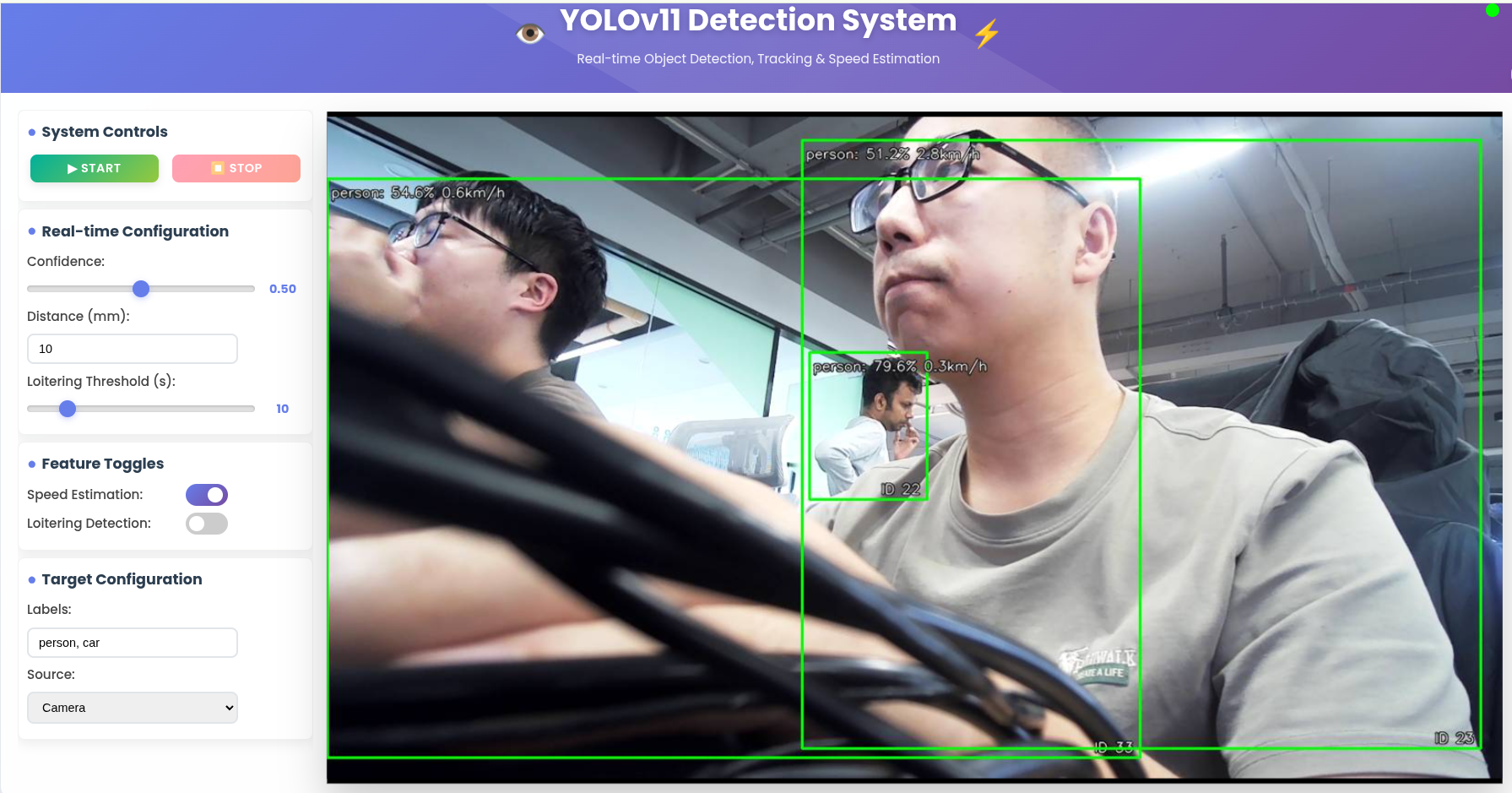
結果
技術サポートと製品ディスカッション
弊社製品をお選びいただき、ありがとうございます!弊社製品での体験が可能な限りスムーズになるよう、さまざまなサポートを提供しています。さまざまな好みやニーズに対応するため、複数のコミュニケーションチャネルを提供しています。