Build a Local AI Agent on Jetson Orin with Laya and Qwen
Introduction
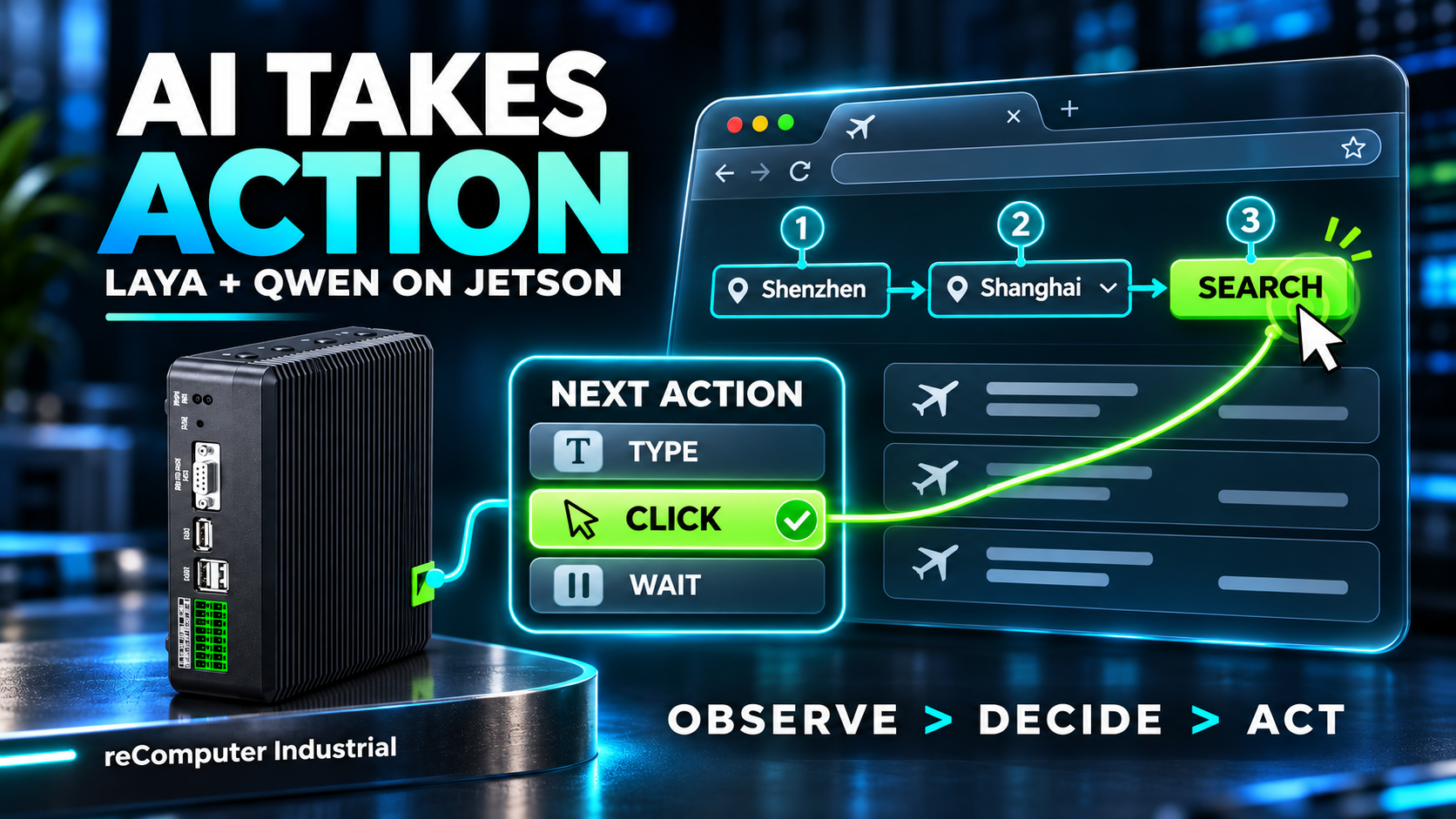
This wiki builds a local AI agent on NVIDIA Jetson Orin. Laya local decision model (System One model) chooses the next action; Qwen3.5-4B handles request parsing and text generation. Measurements come from a reComputer Industrial J4012 with Jetson Orin NX 16GB.
Let's take a look at the actual test results. The agent is asked to search for one-way direct flights from Shenzhen to Shanghai, sorted by the lowest price, and the ticket options for the matching flights are displayed. The entire execution process only took 32.8 seconds. Those who have used agents to perform various browser automation operations can appreciate that this time consumption is quite advantageous.
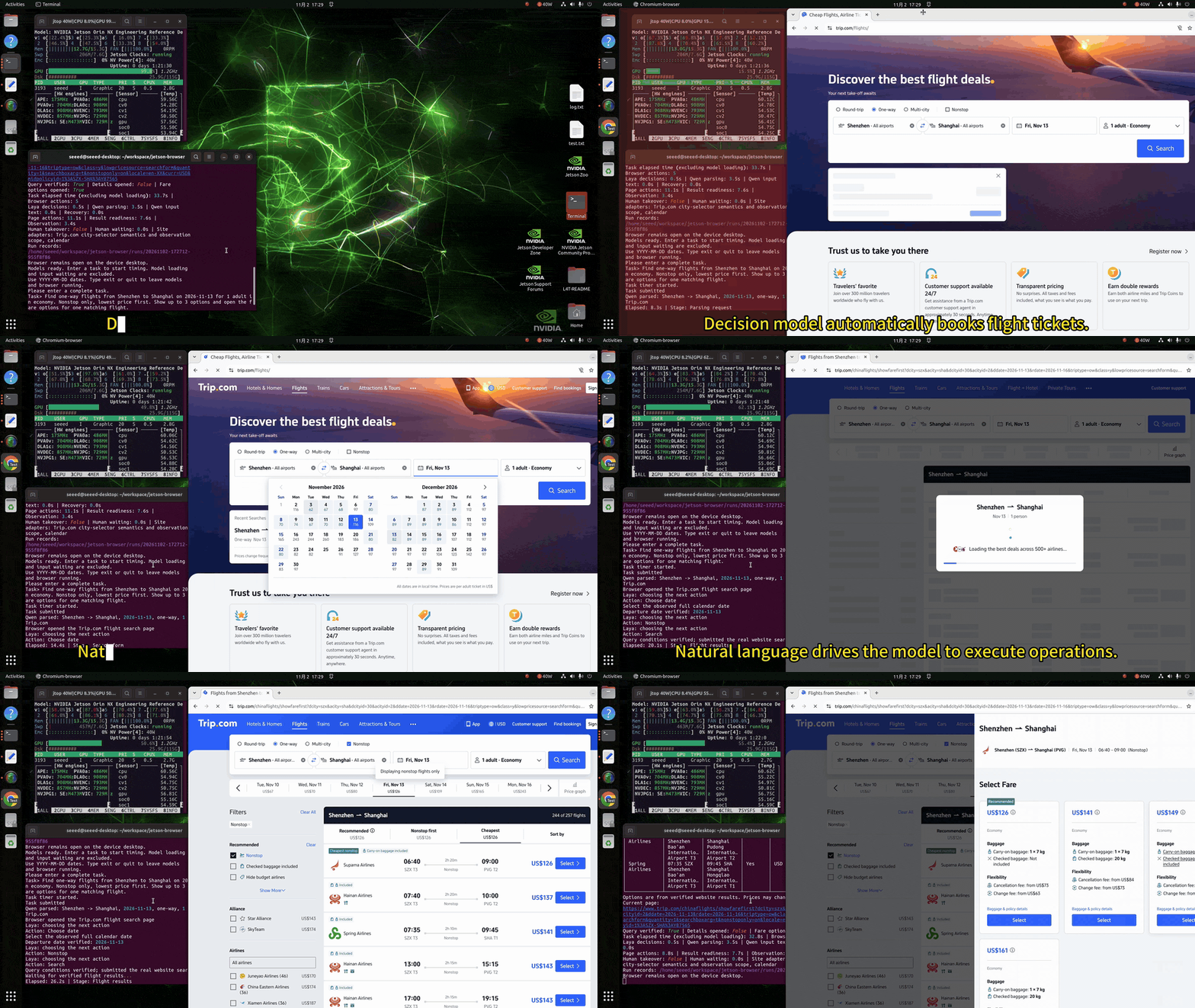
Flight demo. One English request, the live Trip.com page, and the fare layer the assistant opens by itself.
Let's take a look at another demonstration of operating the whiteboard for drawing. You can use natural language to control the agent to draw, and you can also use natural language at any time to ask the agent to help you modify the content.
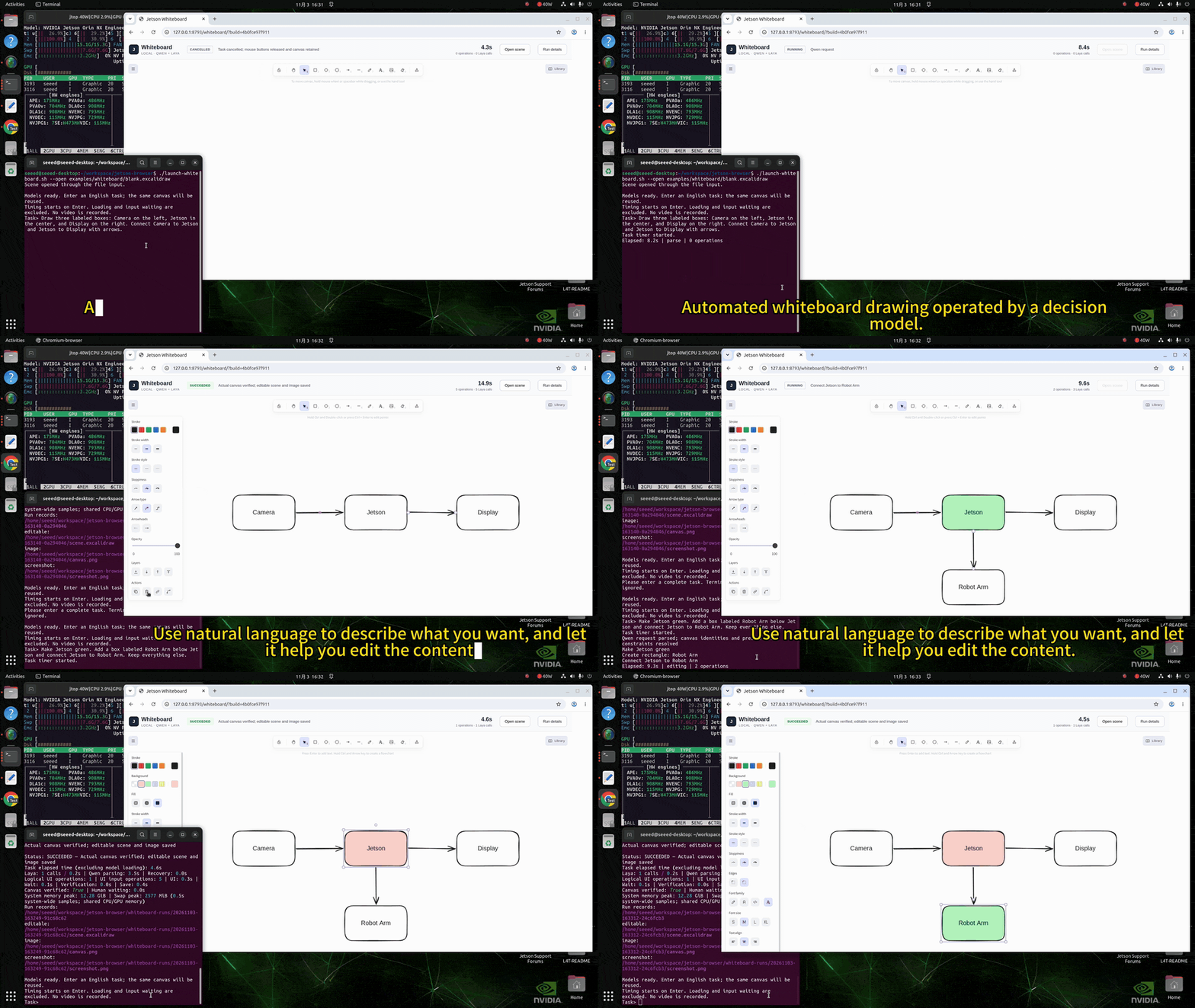
Whiteboard demo. Draw, recolour, extend: three requests on one canvas, nothing redrawn.
Prerequisites
- reComputer with JetPack 6.2
How Can an LLM Operate a Web Page?
Imagine asking an LLM agent to find flights. It reads the request, opens the page and needs to decide what to do next. At one point, the page may show departure and destination fields, a date selector and a Search button. A program can provide these controls as available actions, but something still has to choose one.
A traditional text-generating LLM can make that choice by reading the task and page description and writing an action. For example, it might return an instruction to click Search. The program interprets the output and performs the click. After the page changes, the assistant observes it again and asks for the next action.
To produce that instruction, the LLM first reads the task and page information. It then writes its answer piece by piece, with each piece depending on what it has already written. These steps are called prefill and decode. After the page changes, the assistant may repeat them to decide the next action.
An LLM can write many different answers. But what if the program already has a list of actions, such as fill in a city, click Search, or wait? It could ask a model to choose from that list instead. This is where a decision model comes in.
What Does a Decision Model Do Differently?
A decision model receives the current state, the goal and a set of available choices. It scores those choices and returns a selection. In the flight example, once the required search conditions are verified, it can select click Search from the offered actions. The program maps that selection to a real page control and performs the click.
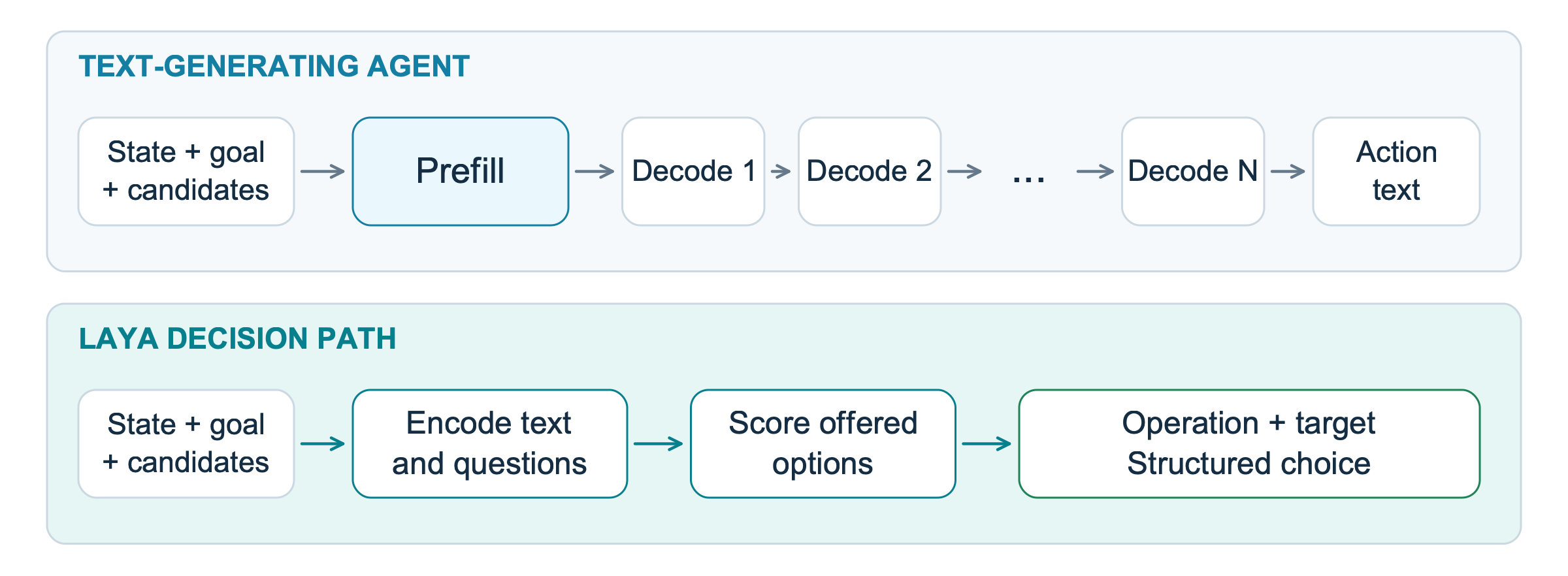
Text generation produces an action as output text; Laya scores the offered choices.
Both approaches process the input and require computation. A text model can also produce a short action ID.
This project uses both models. Qwen interprets the user's request and provides text when needed. Laya repeatedly selects an operation and target from the current candidates. The program provides the tools, executes the selected action and checks the result.
How Does Laya Select the Next Action?
Let's use the whiteboard to see how one decision works. There is a green box labeled Camera, and we want to make it blue without moving it or changing its label:
Make the Camera rectangle background blue. Keep its text and position.
Before asking Laya to choose, the program describes the situation in text:
| Input | Camera example |
|---|---|
| State | Camera is green; its label and position are known |
| Goal | Make Camera blue and preserve its label and position |
| Candidates | The available red, green, blue and yellow buttons |
Think of this as a multiple-choice question. The program tells Laya what is on the canvas, what needs to change, and which buttons are available. Laya then chooses from those buttons. In this recorded example, the goal was supplied directly to Laya.
Inside Laya, an encoder reads the text and builds an understanding of the situation: green is the current color, blue is the desired color, and the label and position should stay the same. A decision head then scores the available answers. In this project, the encoder is mmBERT-base; see the pinned model configuration and architecture documentation for details.
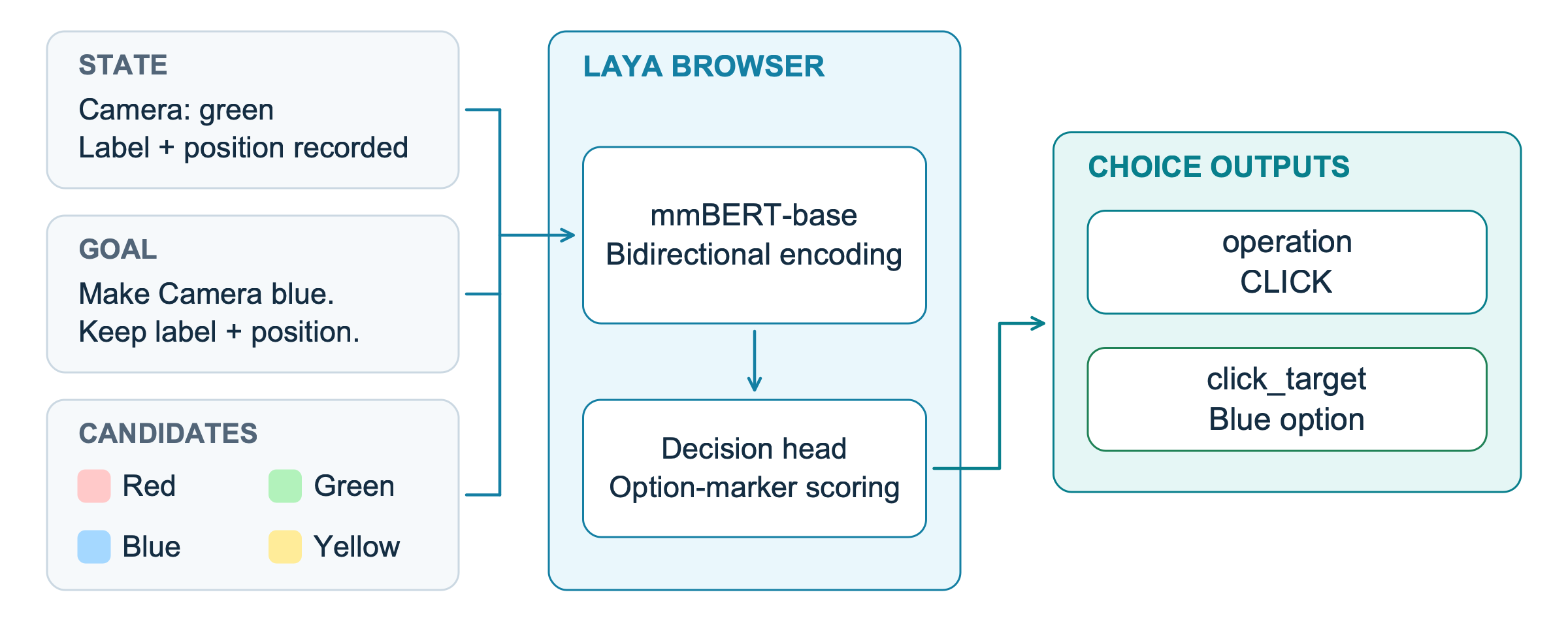
Laya reads text about the state, goal and candidates; this implementation does not send screenshot pixels to the model.
For this decision, option 3 is the blue button. Once Laya chooses it, the program finds the matching button using its action ID, color_blue. The choices can change as the page or canvas changes, so the program creates a fresh list when it observes the next state.
The result answers two questions: what should I do? and where should I do it? Here, Laya selected CLICK and the blue button. Both answers can be calculated in the same batch.
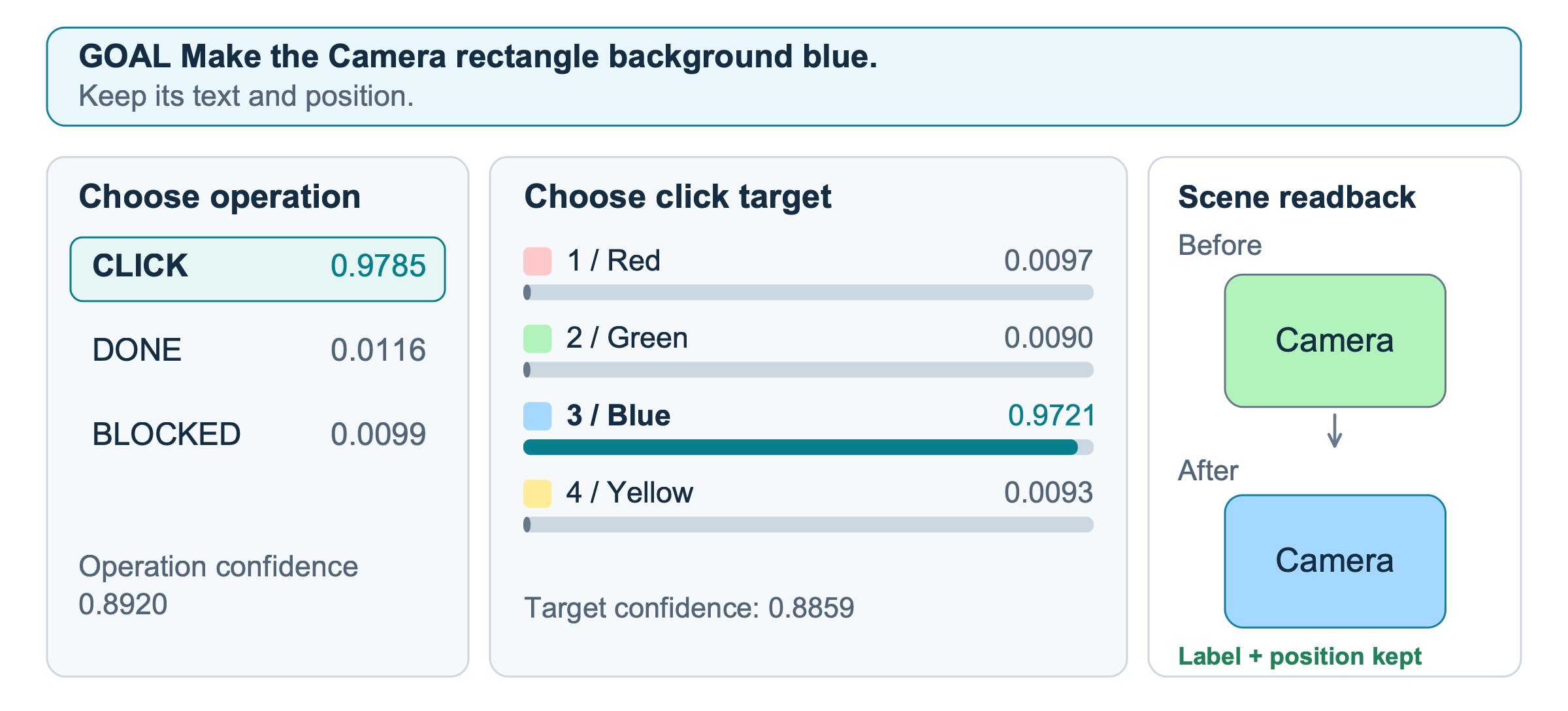
One recorded Camera decision. The colored boxes are reconstructed from saved scene values.
In the recorded result, CLICK received a score of 0.9785, and the blue button received 0.9721 in its own set of choices. The program clicked the button, then read the canvas again. Camera was blue, and its label and position were unchanged.
These scores show which options the model favored. The target confidence value, 0.8859, is a separate field. A high score alone cannot guarantee that a click worked or that the whole task is complete.
The program must also offer the right choices: Laya cannot pick a button that is missing from its list. When there are many choices, the wrapper may compare them in groups. That means one request can involve more than one model evaluation.
From a Model Choice to a Verified Result
Laya has chosen the blue button. Does that mean the task is finished? Not yet. The button could have moved, or the click might not change the box. The program must carry out the action and check what actually happened.
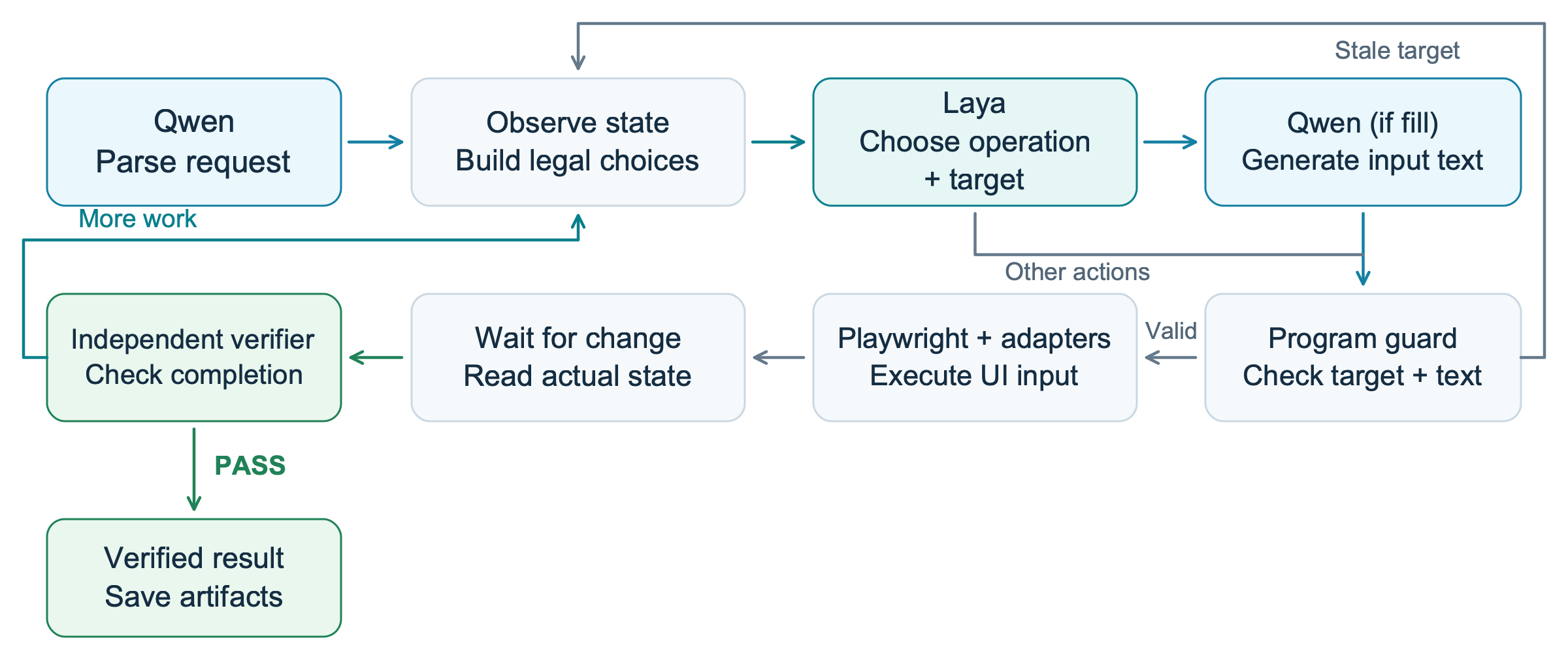
Qwen interprets the request, Laya selects among available actions, and the program executes and verifies them.
In the Camera example, the program follows these steps:
- Observe: Read the canvas and find the available color buttons.
- Choose: Ask Laya which action and target to use.
- Check: Make sure the chosen button is still available. If the canvas has changed, observe it again.
- Execute: Use Playwright to click the blue button.
- Verify: Read the canvas again. Is Camera blue? Are its label and position unchanged?
If the result still needs work, the program can repeat the loop with the updated canvas, within its retry limits. If the checks pass, it reports the task as complete. Even if the model returns DONE, the program still checks the actual result.
The same idea applies to flights: the program provides actions such as selecting a date, then checks the route, date and other requirements. These actions are implemented in the application. Laya chooses among them; it does not create new tools on its own.
Quickly run on Jetson Orin
On the Jetson desktop, open a terminal as your normal user and run:
git clone https://github.com/zibochen6/jetson-browser-assistant.git
cd jetson-browser-assistant
./setup.sh
The installer checks the device, prepares the isolated uv environment and matching CUDA PyTorch, installs Chromium, downloads the pinned models, builds llama.cpp and preloads the services. Run it without sudo; it requests elevated access when system libraries are needed. See the README and installation guide for compatibility, downloads and troubleshooting.
When Is a Decision Model Useful?
A decision model is worth evaluating when the user's goal or the current state can change, but the available tools are bounded. Flight filters and edits to existing whiteboard objects are two examples. The application still needs to observe the current state, provide meaningful choices and verify what happened.
For a stable task that always follows the same path, a deterministic script may be simpler. For open-ended answers or new text, a text-generating model remains useful. This project has no equivalent script baseline, so the demos do not establish a speed or maintenance advantage over scripts.
The current release covers a limited Trip.com workflow and small whiteboards. Other websites, arbitrary drawing, voice and industrial control require separate development and validation. Jetson's 16GB is shared CPU/GPU memory; other applications and swap affect available capacity.
Try the Browser and Whiteboard Demos
Before running the demos, let's look at where the time goes. The recorded flight task took 32.8 seconds in total. Laya decisions took about 0.5 seconds combined across the task, while Qwen parsing took about 3.5 seconds. Browser actions, page waits, checks and saving also contribute to the total.
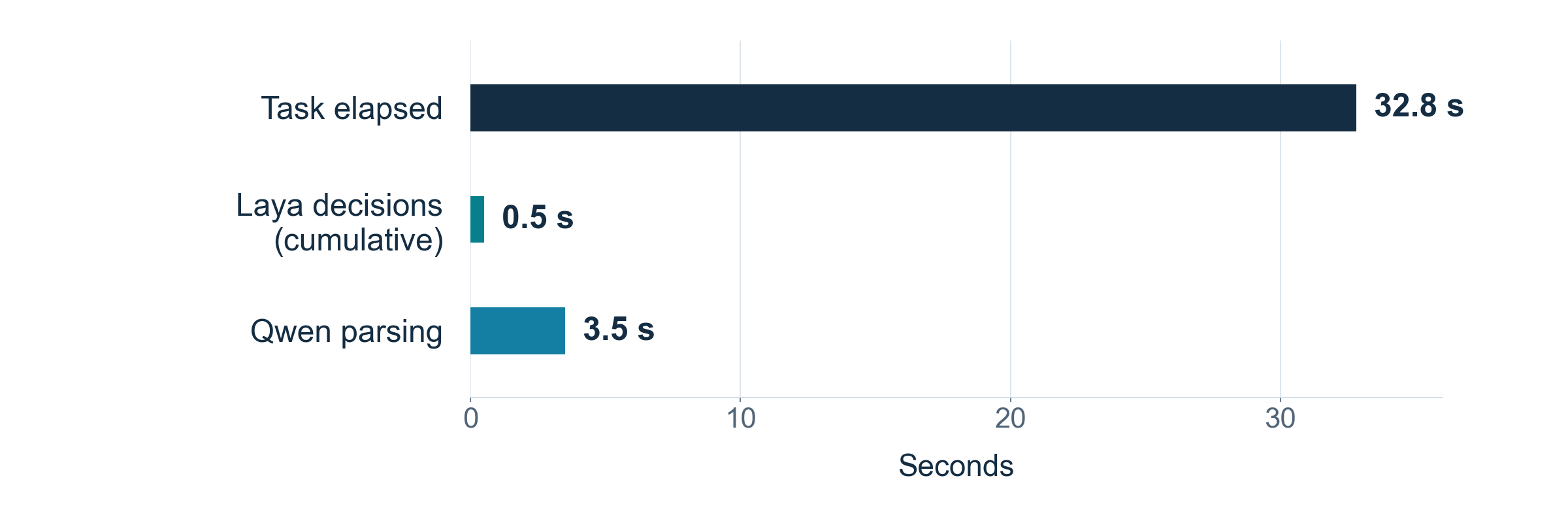
Recorded flight-task timings. The bars are separate counters, not a complete additive breakdown; the task reused existing search conditions.
Search for flights
Start the assistant and wait for Models ready and Task>:
./launch.sh
Enter the following task, replacing the date with a valid future date:
Find one-way flights from Shenzhen to Shanghai on 2026-11-13 for 1 adult in economy. Nonstop only, lowest price first. Show up to 3 options and open the fare options for one matching flight.
The launcher shows the website and a read-only Live Flow window. Use ./launch.sh --no-visualize to show only the website. Check the candidates, Query verified and Fare options opened. The assistant opens the fare-options layer without submitting an order or payment.
Edit the same whiteboard
Finish or cancel any active task, then open a blank canvas:
./launch-whiteboard.sh --open examples/whiteboard/blank.excalidraw
--open replaces the current canvas; existing exports remain. At Task>, enter:
Draw three labeled boxes: Camera on the left, Jetson in the center, and Display on the right. Connect Camera to Jetson and Jetson to Display with arrows.
Once it finishes, submit a second task without reopening the blank file:
Make Jetson green. Add a box labeled Robot Arm below Jetson and connect Jetson to Robot Arm. Keep everything else.
Each completed whiteboard task saves an editable scene.excalidraw, a PNG, a screenshot and a verification report. The whiteboard guide covers additional edits and reopening saved scenes.
Timing starts when you press Enter and includes parsing, necessary browser opening, inference, UI actions, waits, verification and saving. Model loading, warmup and input waiting are excluded; human waiting is included and reported separately.
Press Ctrl+C during a task to cancel it. At the idle prompt, enter exit or quit to leave the models and browser running. Use ./status.sh to check services and ./stop.sh to stop project services and models. Flight records are in runs/; whiteboard records are in whiteboard-runs/. See the usage guide for other controls and recovery.
References
- Jetson Browser Assistant source and README
- laya-browser model, training data and limitations
- Pinned laya-browser wrapper
- Pinned encoder and head configuration
- Laya architecture and probability calibration
Tech Support & Product Discussion
Thank you for choosing our products! We are here to provide you with different support to ensure that your experience with our products is as smooth as possible. We offer several communication channels to cater to different preferences and needs.