Getting Started with reComputer Robotics J601
Connect perception and control on one robotics carrier board
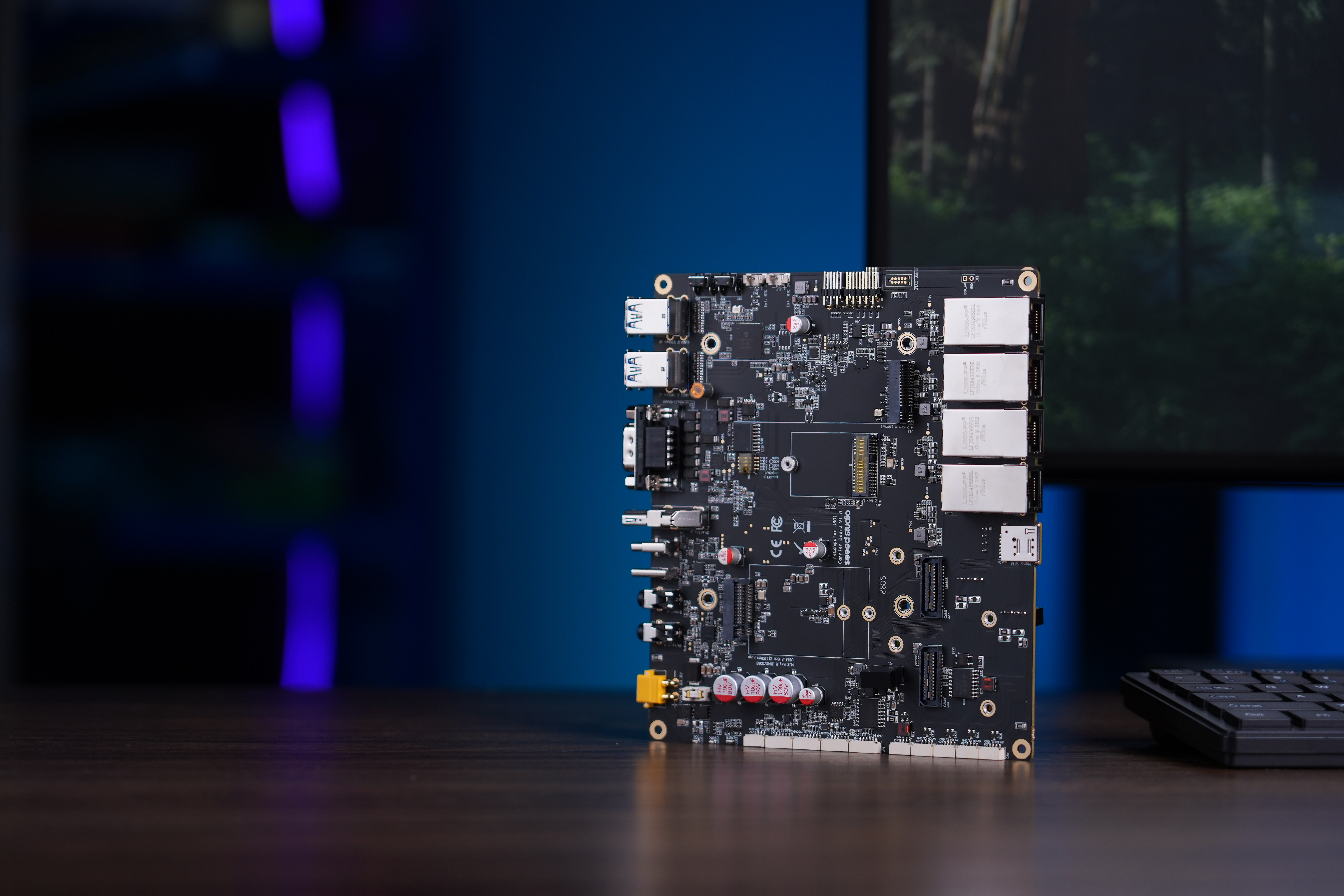
The reComputer Robotics J601 carrier board supports NVIDIA Jetson AGX Thor T5000 and T4000 modules for multi-camera perception, sensor fusion, and embodied AI development. Combine high-speed Ethernet, GMSL2 camera expansion, and isolated robotics I/O with the Jetson software platform.
Choose Your Jetson Configuration
The J601 is a carrier board. Select a compatible Jetson AGX Thor module, NVMe SSD, and cooling solution for your build. The J6015 and J6014 names below identify the module-specific configurations and BSP packages used in this guide.
reComputer Robotics J6015
Use the T5000 BSP for the configuration with four active 10GbE ports and four isolated CAN interfaces.
reComputer Robotics J6014
Use the T4000 BSP for the configuration with three active 10GbE ports and two isolated CAN interfaces.
Compatible modules: NVIDIA Jetson AGX Thor T5000 and NVIDIA Jetson AGX Thor T4000.
Why reComputer Robotics J601
Specifications
| Interface / Property | J601 Carrier Board |
|---|---|
| Module Compatibility | NVIDIA Jetson AGX Thor T5000 / T4000 |
| PCB Size | 168 mm x 155 mm (without the Jetson AGX Thor module) |
| Display | 1x HDMI 2.1 |
| USB | 4x USB 3.2 Type-A (10Gbps, Host), 1x USB 2.0 Type-C (Debug), 1x USB 3.0 Type-C (Recovery) |
| Ethernet | 4x RJ45 10GbE with T5000; 3x RJ45 10GbE with T4000 |
| M.2 Key M | 1x M.2 Key M for PCIe Gen 4 NVMe 2280 SSD |
| M.2 Key E | 1x M.2 Key E for M.2 2230 Wi-Fi module |
| M.2 Key B | 1x M.2 Key B for 4G/5G module |
| Serial | 1x RS-232/422/485 (DB9 connector) |
| JST Ports | 4x CAN with T5000 or 2x CAN with T4000, 1x RS-485, 1x I2S, 1x I2C, 4x GPI, and 4x GPO |
| Audio | 1x microphone input and 1x audio output |
| Fan | 1x 4-pin fan connector (12V PWM) |
| RTC | 1x RTC 2-pin header |
| LEDs | 1x green PWR LED, 1x green SSD LED, and 1x RGB USR LED |
| Buttons | 1x Recovery button and 1x Reset button |
| GMSL | 2x Mini-Fakra connectors for up to 8x GMSL2 cameras |
| Operating Temperature | -10°C to 60°C with thermal grease; -10°C to 55°C with a thermal pad |
| Power Supply | XT30, 19V to 48V DC |
| JetPack | JetPack 7.1 |
Hardware Overview
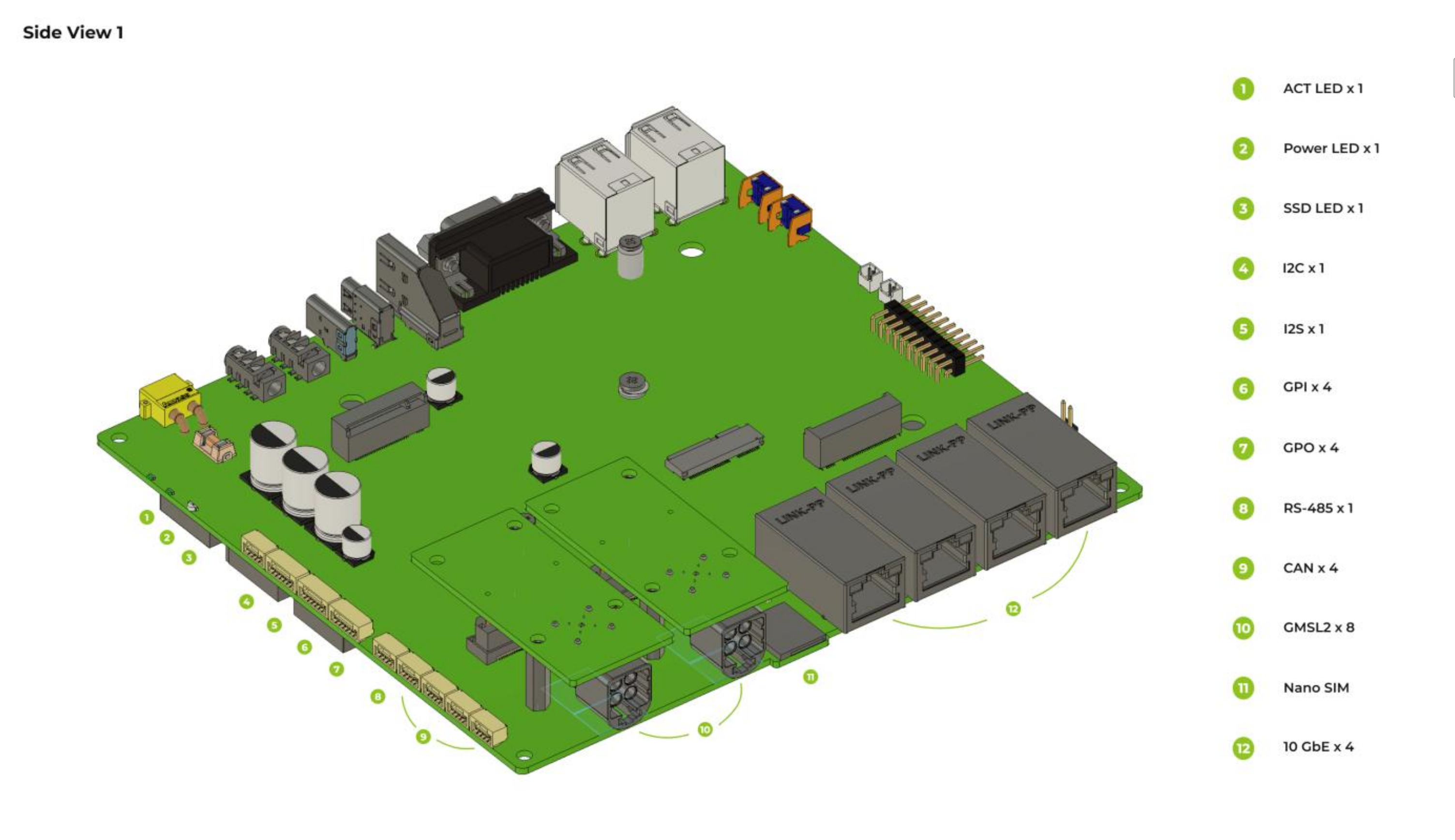
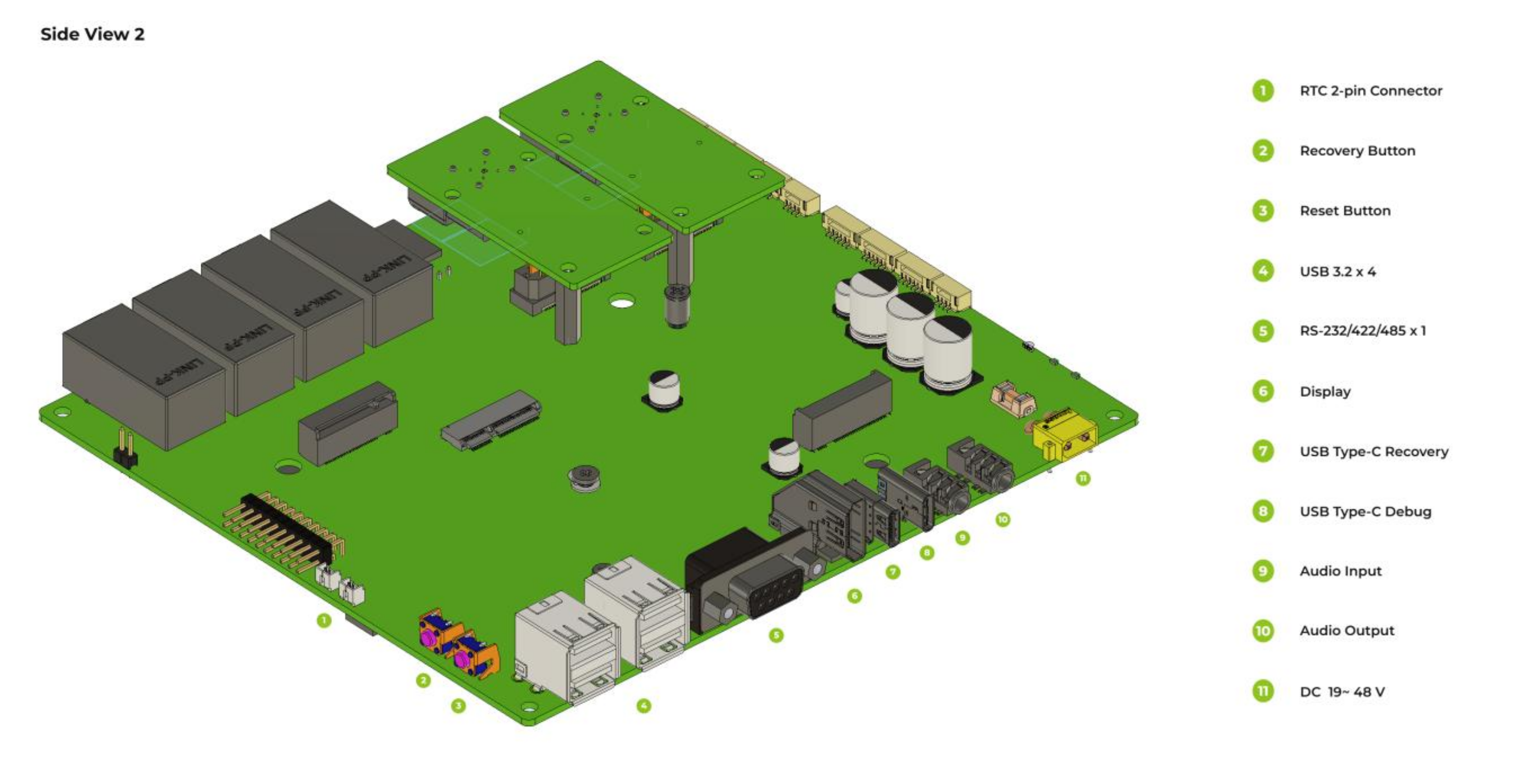
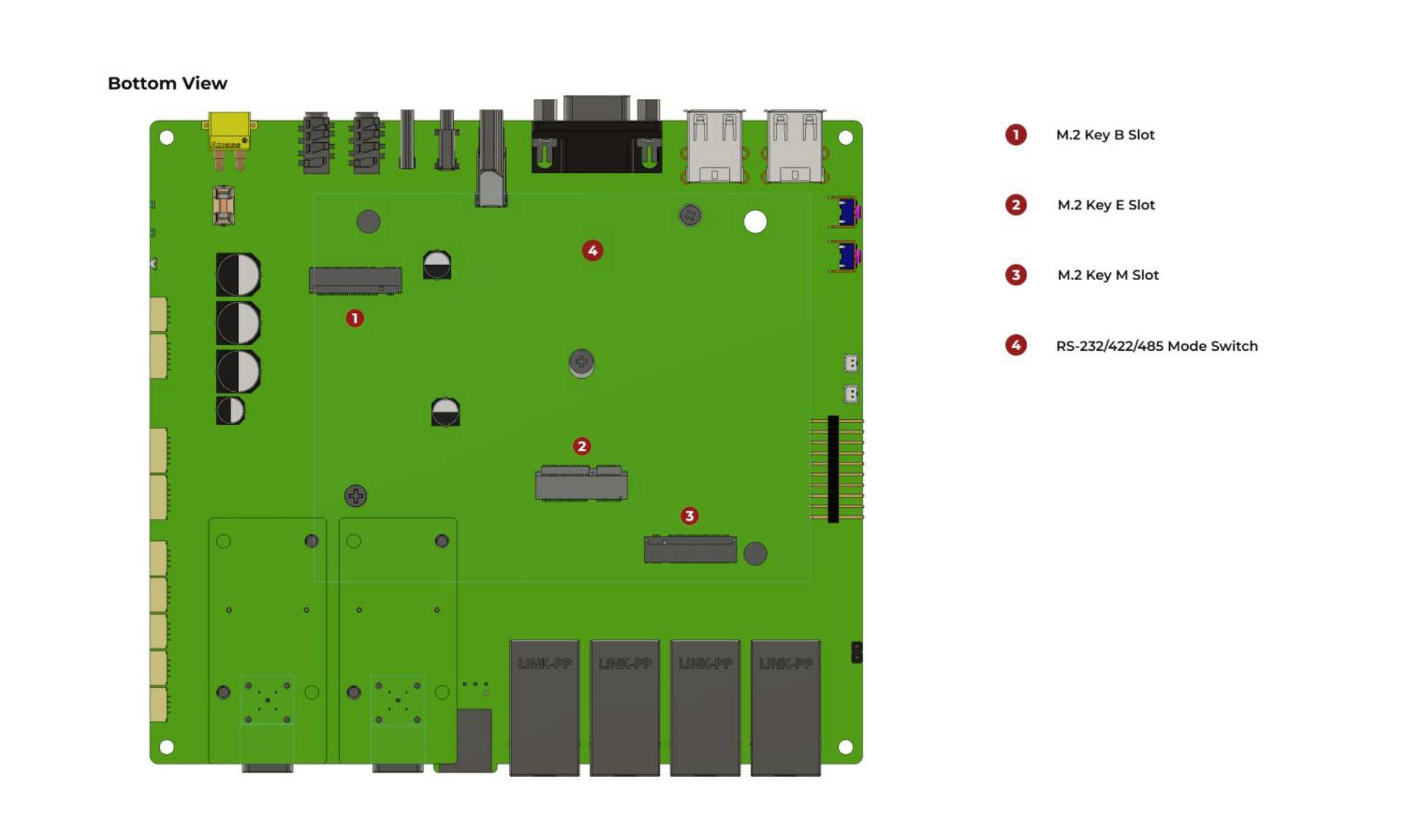
| Indicator | Color | Role |
|---|---|---|
| PWR | Green | Power indicator |
| SSD | Green | Storage activity indicator |
| USR | RGB | User-controllable status LED |
For connector pinouts, wiring, interface tests, and RGB LED control, open Hardware & I/O.
Flash JetPack
This workflow installs JetPack 7.1 (L4T 38.4.0) to an NVMe SSD on the J601 carrier board. Choose the BSP for the installed module: J6015 for T5000 or J6014 for T4000.
Flashing erases data on the target NVMe SSD. Back up important data before starting, and keep power and USB connected until flashing completes.
Prepare the Equipment
Step 1 · Set up the Ubuntu host and target hardware
Prepare the following equipment:
- J601 carrier board with a Jetson AGX Thor T5000 or T4000 module and suitable cooling
- NVMe M.2 2280 SSD installed in the Key M slot
- 19–48 V DC power supply connected through XT30
- Physical Ubuntu 22.04 or 24.04 host PC with at least 220 GB of free storage
- USB Type-C data cable
- HDMI display, keyboard, and mouse for first boot
A native Ubuntu host provides the most reliable flashing experience. Seeed Jetson DevelopTool also supports Windows through WSL2; follow its installation guide for host setup.
Enter Force Recovery Mode
Step 2 · Connect J4 and verify the installed module
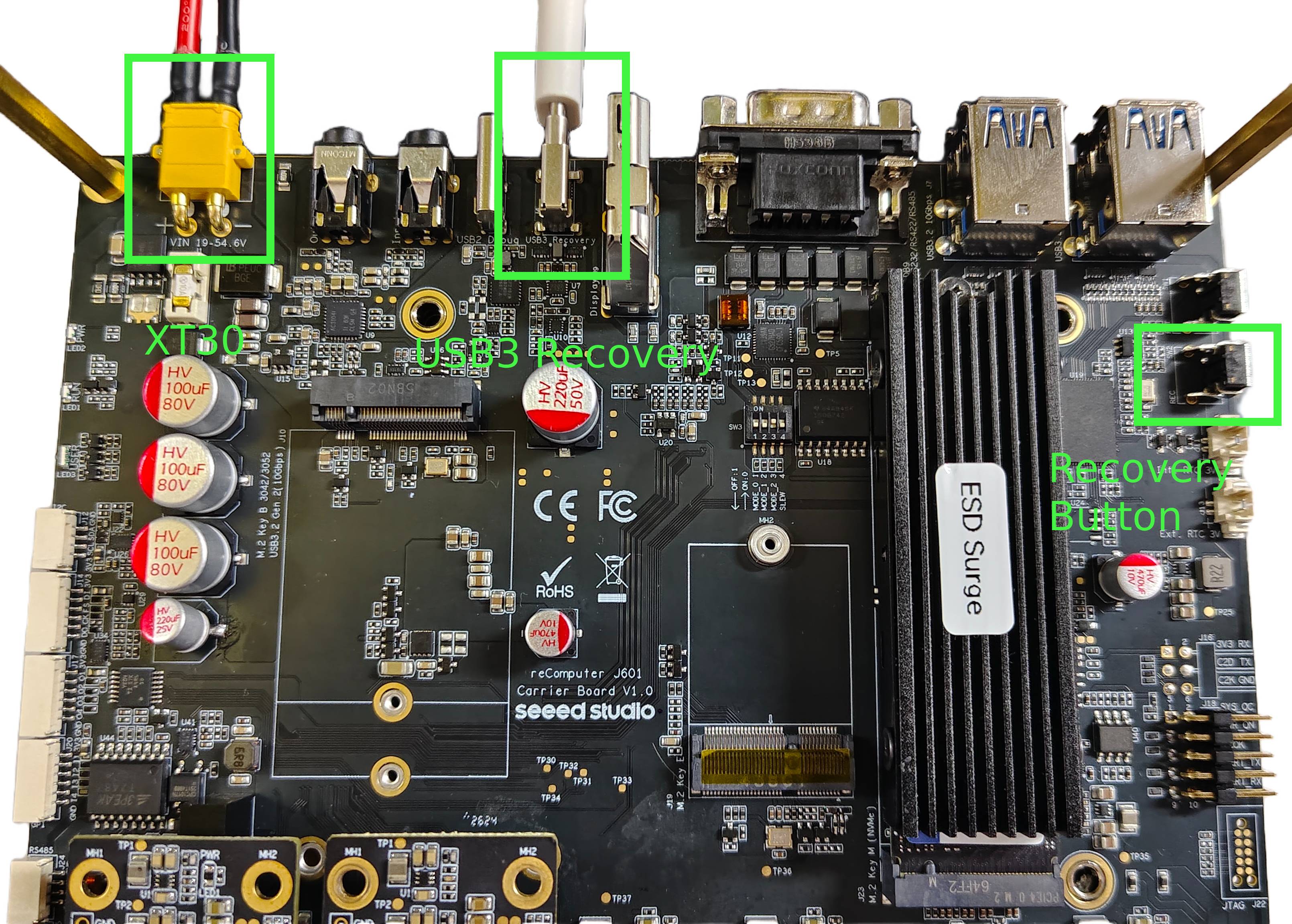
- With the board powered off, connect the host PC to the USB 3.0 Type-C recovery/flashing port (J4). The USB 2.0 Type-C debug port (J3) is a separate connector.
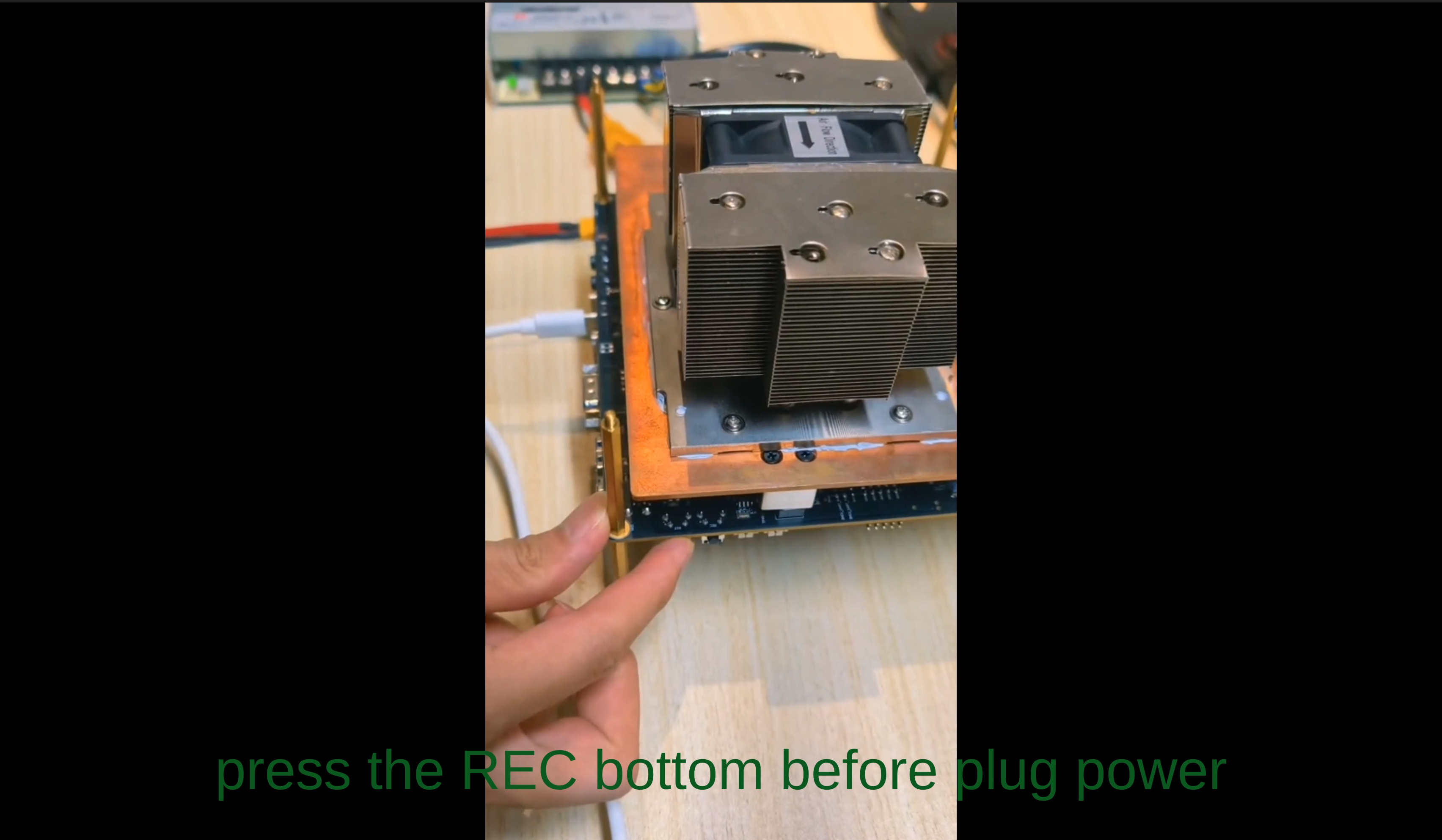
- Press and hold RECOVERY.
- Connect the 19–48 V DC power supply through XT30.
- Release RECOVERY after two seconds.
- Run the following command on the Ubuntu host:
lsusb
| Configuration | Module | Expected recovery USB ID |
|---|---|---|
| J6015 | AGX Thor T5000 | 0955:7026 NVIDIA Corp. |
| J6014 | AGX Thor T4000 | 0955:7226 NVIDIA Corp. |
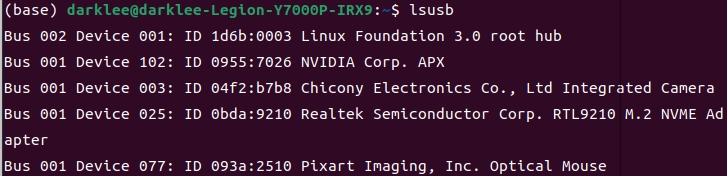
If the expected ID is missing, check the data cable and recovery port, then repeat the recovery sequence before continuing.
Prepare the Matching BSP
Step 3 · Choose software or command-line flashing
- Software Flashing
- Command-Line Flashing
Install and launch Seeed Jetson DevelopTool, then prepare the firmware:
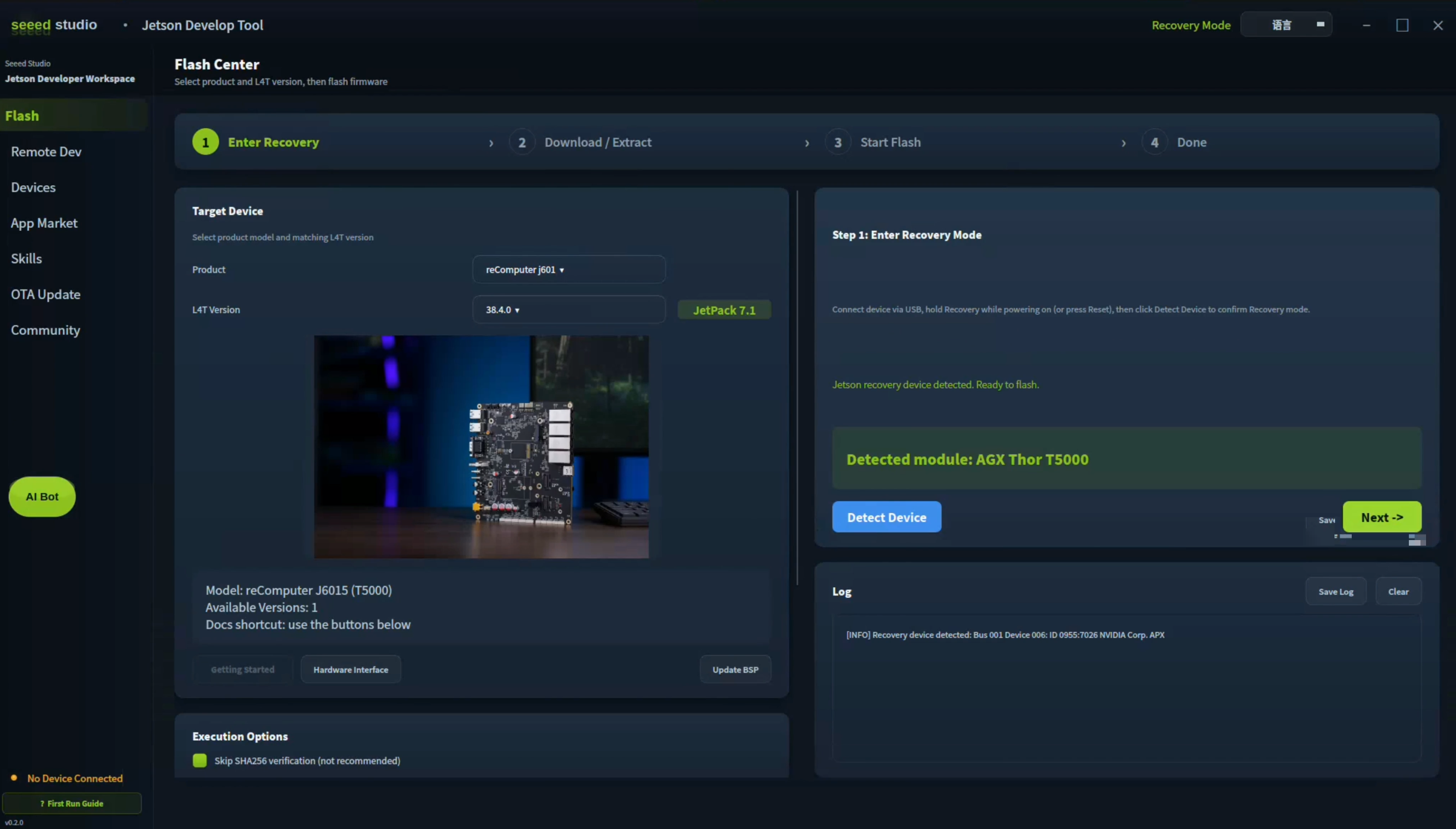
- Open Flash Center and select reComputer J601 and JetPack 7.1 (L4T 38.4.0).
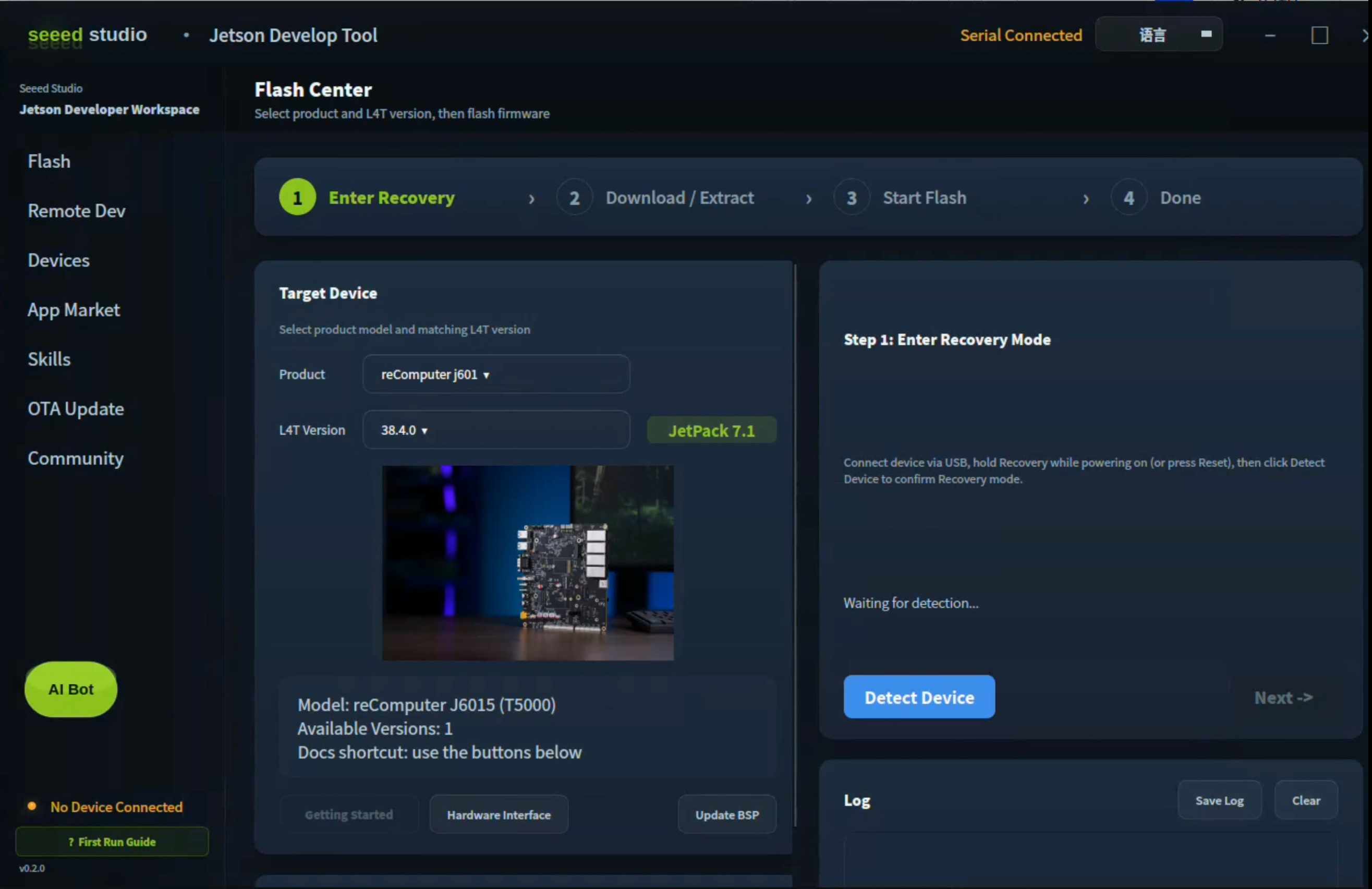
- Confirm the recovery wiring from Step 2.
- Click Detect Device, confirm the installed module, and click Next.
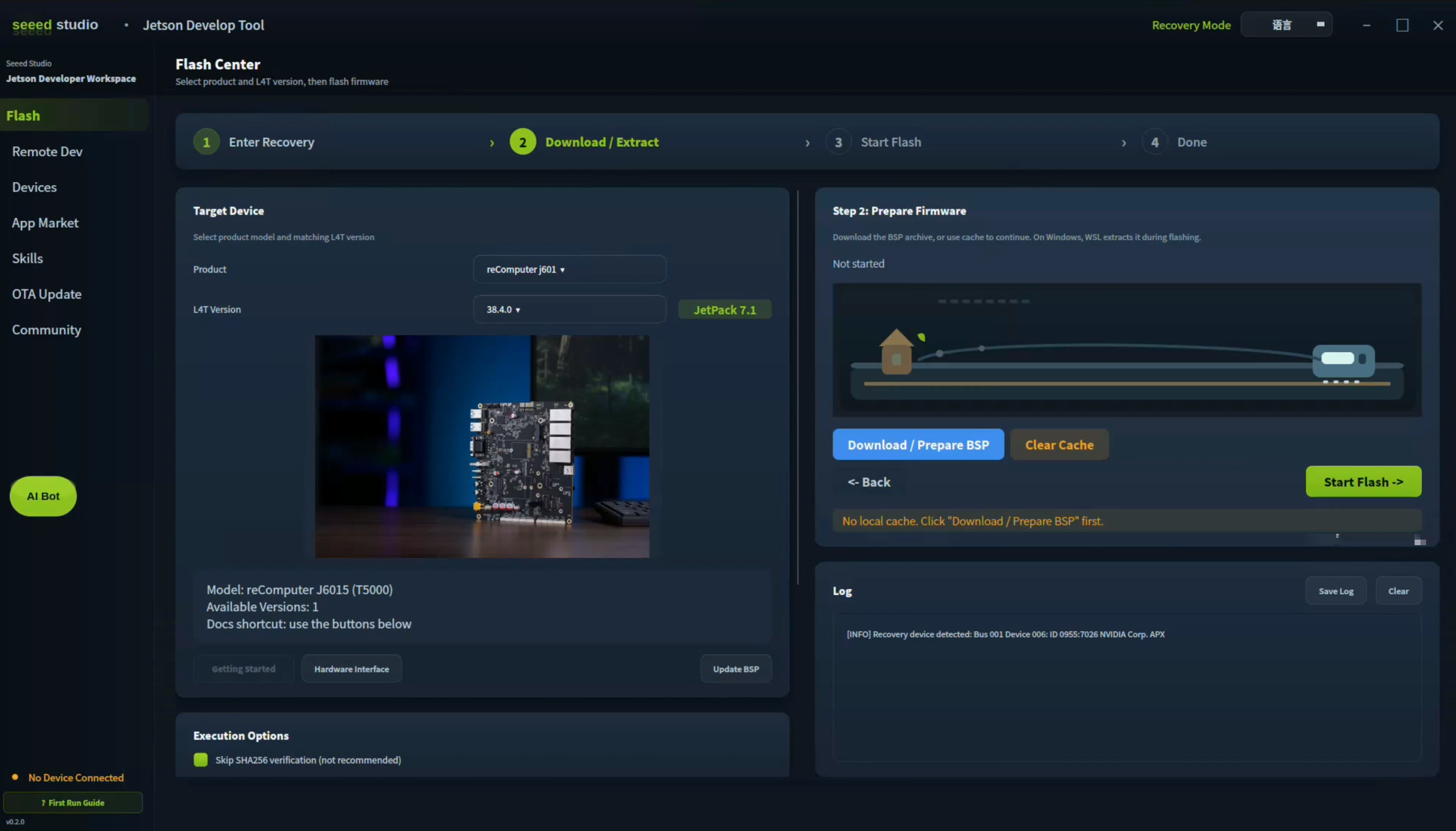
- Click Download / Prepare BSP. The tool downloads the firmware, verifies its SHA-256 checksum, and extracts the package.
Watch the Jetson DevelopTool flashing tutorial
Download the module-specific BSP package below. The archive is large; downloading may take around 60 minutes. Wait for the download to finish before extracting it.
- AGX Thor T5000 (J6015)
- AGX Thor T4000 (J6014)
| JetPack Version | Jetson Module | Product | Download Link | SHA256 |
|---|---|---|---|---|
| 7.1 (L4T 38.4.0) | AGX Thor T5000 | reComputer Robotics J6015 | Download | 3f75780b43f6559bc950b6a97aa38fd6f61d4d001cce870bdfb498f64e6d18e5 |
| JetPack Version | Jetson Module | Product | Download Link | SHA256 |
|---|---|---|---|---|
| 7.1 (L4T 38.4.0) | AGX Thor T4000 | reComputer Robotics J6014 | Download | c63eddfe7005a088ab439c64fb5d3bf9a52b85d62d377c6a4bf829295f7222ef |
On the Ubuntu host, verify the downloaded archive and compare the full result with the checksum for your module:
sha256sum <downloaded-archive.tar.gz>
Flash the NVMe SSD
Step 4 · Use the same flashing method and module selection
- Software Flashing
- Command-Line Flashing
Click Start Flash in Jetson DevelopTool and wait for the interface to report success. Keep the power supply and USB data cable connected throughout the process.
Extract the archive on the Ubuntu host, then run the command for your installed module. Replace YYYY-MM-DD with the date in the downloaded archive's filename.
- AGX Thor T5000 (J6015)
- AGX Thor T4000 (J6014)
cd <path-to-image>
sudo tar xpf mfi_recomputer-thor-carrier-j6015-7.1-38.4.0-YYYY-MM-DD.tar.gz
cd mfi_recomputer-thor-carrier-j6015
sudo ./tools/kernel_flash/l4t_initrd_flash.sh --flash-only --showlogs --external-device nvme0n1p1 -c tools/kernel_flash/flash_l4t_t264_nvme.xml -S 80GiB --network usb0 recomputer-thor-carrier-j6015 external
cd <path-to-image>
sudo tar xpf mfi_recomputer-thor-carrier-j6014-7.1-38.4.0-YYYY-MM-DD.tar.gz
cd mfi_recomputer-thor-carrier-j6014
sudo ./tools/kernel_flash/l4t_initrd_flash.sh --flash-only --showlogs --external-device nvme0n1p1 -c tools/kernel_flash/flash_l4t_t264_nvme.xml -S 80GiB --network usb0 recomputer-thor-carrier-j6014 external
The flash command usually takes 2–10 minutes. Wait for the terminal to report a successful flash.

Complete the First Boot
Step 5 · Configure Ubuntu and check your interfaces
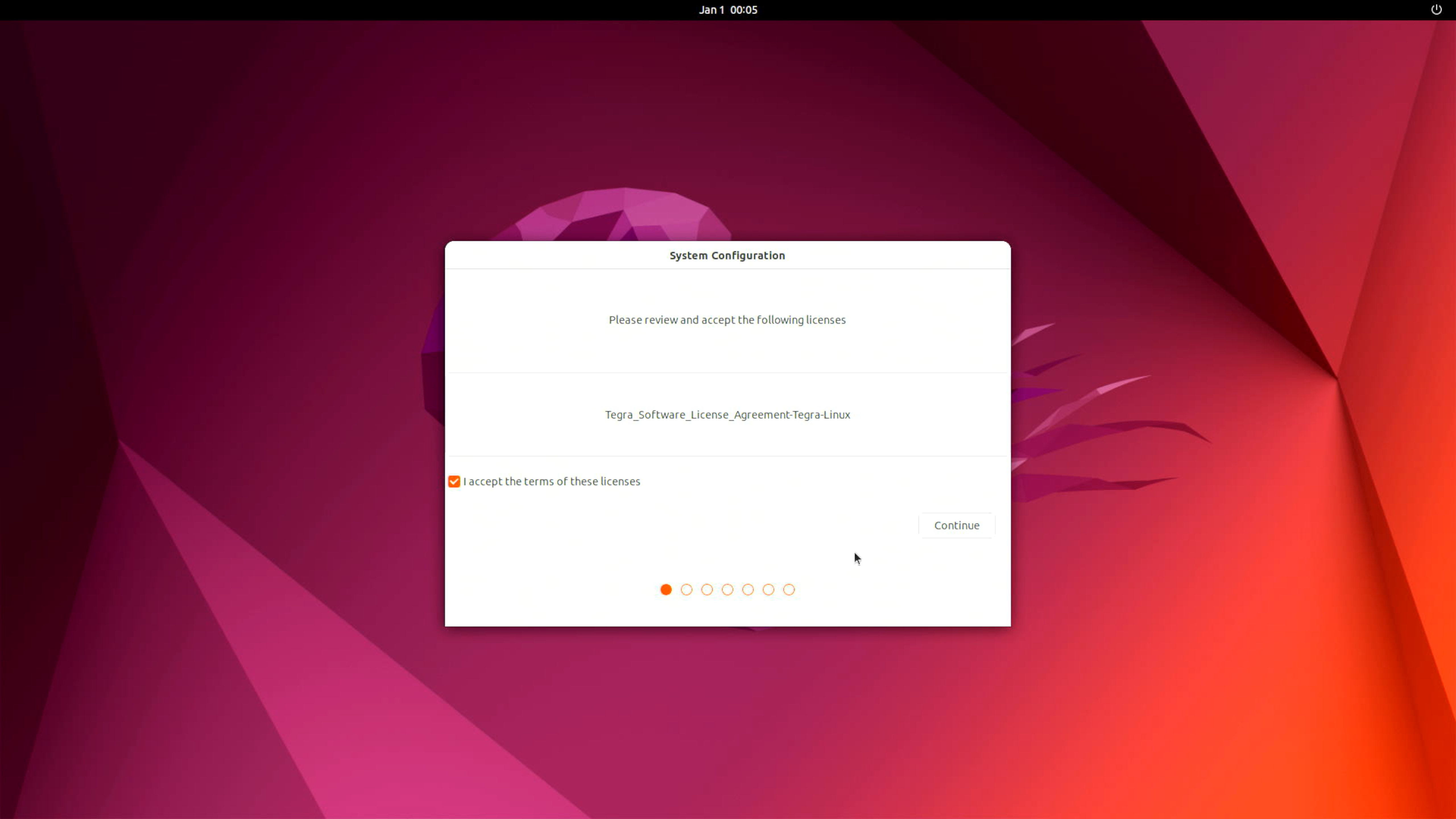
Connect the HDMI display, keyboard, and mouse, and complete Ubuntu's initial system configuration. If the setup screen does not appear after flashing, power-cycle the board after the flashing tool reports success.
Continue with Hardware & I/O to verify your peripherals, or explore the perception demo. Seeed's carrier-board device-tree and BSP sources are available in Linux_for_Tegra.
Applications
Start with a camera-and-LiDAR perception example for reComputer Robotics J601.
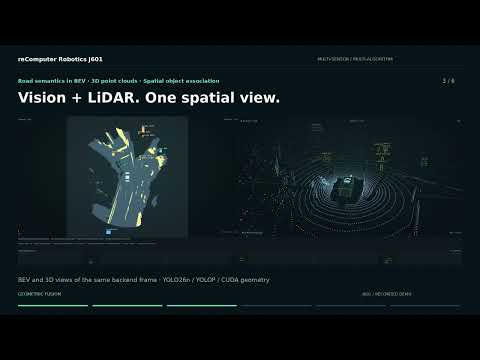
Multi-Camera & LiDAR Perception
Replay six camera streams and LiDAR data while Jetson runs TensorRT detection, road segmentation, geometric bird's-eye-view fusion, and pose-aligned local mapping, with synchronized browser views.
Watch the Perception Demo
The repository documents validation on JetPack 7.2 / L4T R39.2, CUDA 13.2, and TensorRT 10.16.2. Follow its environment and deployment instructions; this page's JetPack 7.1 flash package is a separate software baseline. Build TensorRT engines on the target device for the installed software versions.
The demo uses recorded nuScenes data and geometric camera/LiDAR fusion. Its local map uses dataset-provided poses; segmentation accuracy on nuScenes has not been evaluated. See the repository for validation conditions and dataset/model licenses.
Resources
Use these resources for board integration, mechanical design, and BSP development.
Tech Support & Product Discussion
Thank you for choosing our products! We are here to provide you with different support to ensure that your experience with our products is as smooth as possible.