Getting Started with reComputer Rugged J40
Deploy AI where dust, water, and vibration are part of the job
The reComputer Rugged J40 combines NVIDIA Jetson Orin performance with an IP66-rated, fanless enclosure and locking M12 connectivity. It is designed for reliable edge AI deployment on vehicles, in ports, on farms, at sea, and across industrial sites.

Choose Your Jetson Configuration
Both configurations use the same rugged enclosure and industrial interface set. Choose the Jetson module according to the AI workload, memory requirement, and power budget of your deployment.
reComputer Rugged J4012
For multi-camera vision, larger AI models, and workloads that benefit from higher GPU and memory bandwidth.
reComputer Rugged J3011
For efficient perception, monitoring, telemetry, and industrial control workloads with a lower power profile.
Why reComputer Rugged J40
Specifications
| Product Name | reComputer Rugged J4012 | reComputer Rugged J3011 | |
|---|---|---|---|
| SKU | 100046979 | 100002634 | |
| NVIDIA Jetson Module | Orin NX 16GB | Orin Nano 8GB | |
| Processor System | AI Performance | 100 TOPS | 40 TOPS |
| GPU | 1024-core NVIDIA Ampere, 32 Tensor Cores | 1024-core NVIDIA Ampere, 32 Tensor Cores | |
| CPU | 8-core Arm Cortex-A78AE v8.2 64-bit, 2MB L2 + 4MB L3 | 6-core Arm Cortex-A78AE v8.2 64-bit, 1.5MB L2 + 4MB L3 | |
| Memory | 16GB 128-bit LPDDR5 @ 102.4 GB/s | 8GB 128-bit LPDDR5 @ 68 GB/s | |
| Storage | eMMC | — | |
| Expansion | M.2 Key M (2280) NVMe SSD — 128 GB included | ||
| I/O | Ethernet | 4× GbE PoE PSE (802.3af, M12 waterproof) + 1× GbE (M12 waterproof) | |
| USB | 4× USB 3.2 Type-A (M12 waterproof) + 1× USB 2.0/3.0 Type-C (flashing, waterproof cap) + 1× USB Type-C (debug) | ||
| Display | 1× HDMI (waterproof cap) | ||
| CAN | 2× CAN-FD (isolated, 120 Ω) via M12 A-code 8-pin | ||
| Serial | 1× RS-232/422/485 via M12 A-code 8-pin | ||
| DI/DO | 2× DI + 2× DO via M12 12-pin / 8-pin | ||
| SIM | 1× Nano SIM card slot | ||
| Antenna | 4× SMA waterproof antenna connectors | ||
| Expansion | M.2 Key E | Wi-Fi / Bluetooth module (optional) | |
| M.2 Key B | 5G / GPS module (optional) | ||
| Power | Input | 19–48 V DC via M12 B/A-code connector | |
| Consumption | Typical 25 W, fuse 10 A | ||
| Environment | Ingress Protection | IP66 | |
| Operating Temperature | −20°C to +60°C (with 0.7 m/s airflow) | ||
| Humidity | 10–95% RH (non-condensing) | ||
| Vibration | 3 Grms @ 5–500 Hz, random, 1 hr/axis | ||
| Dimensions | 210 mm × 190 mm × 93 mm | ||
| Color | Silver-grey (mid-frame silver, heatsink black) | ||
| Certification | CE, FCC, RoHS, REACH | ||
| Warranty | 2 Years | ||
Hardware Overview
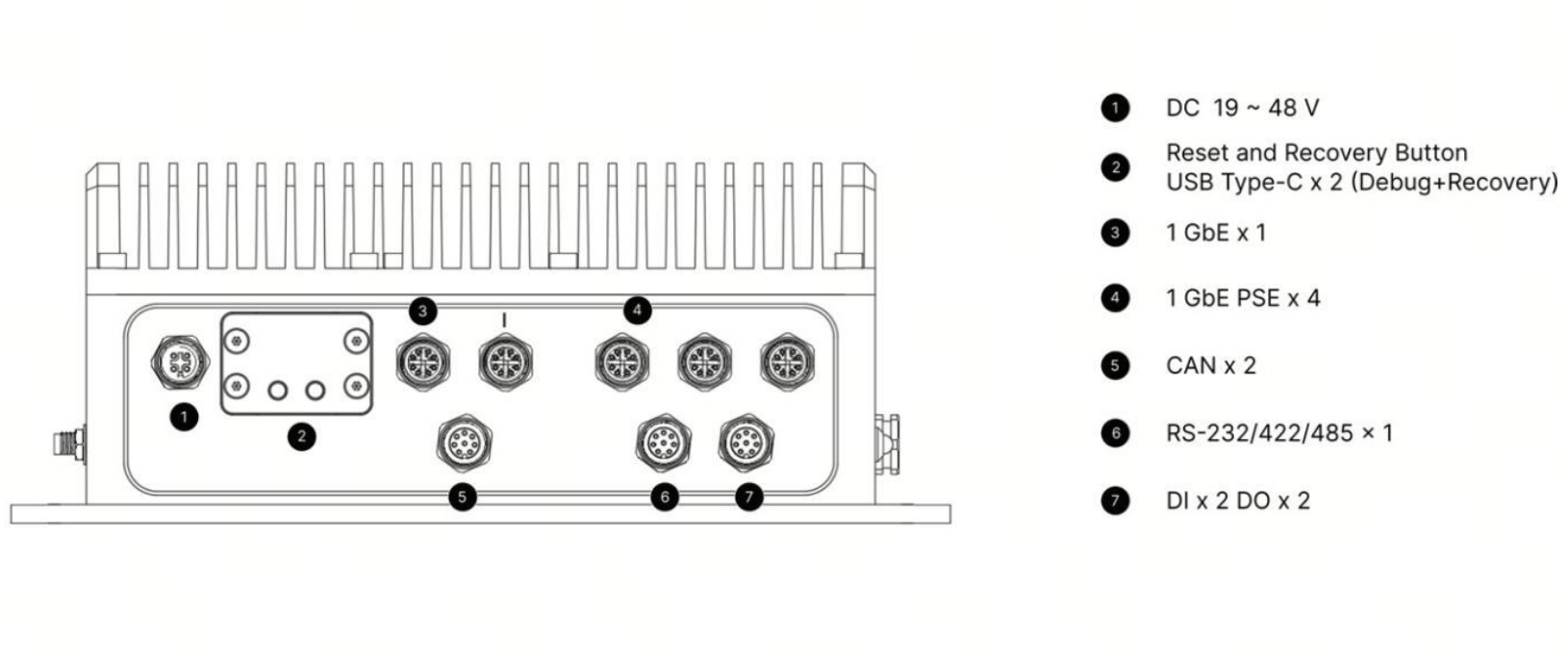
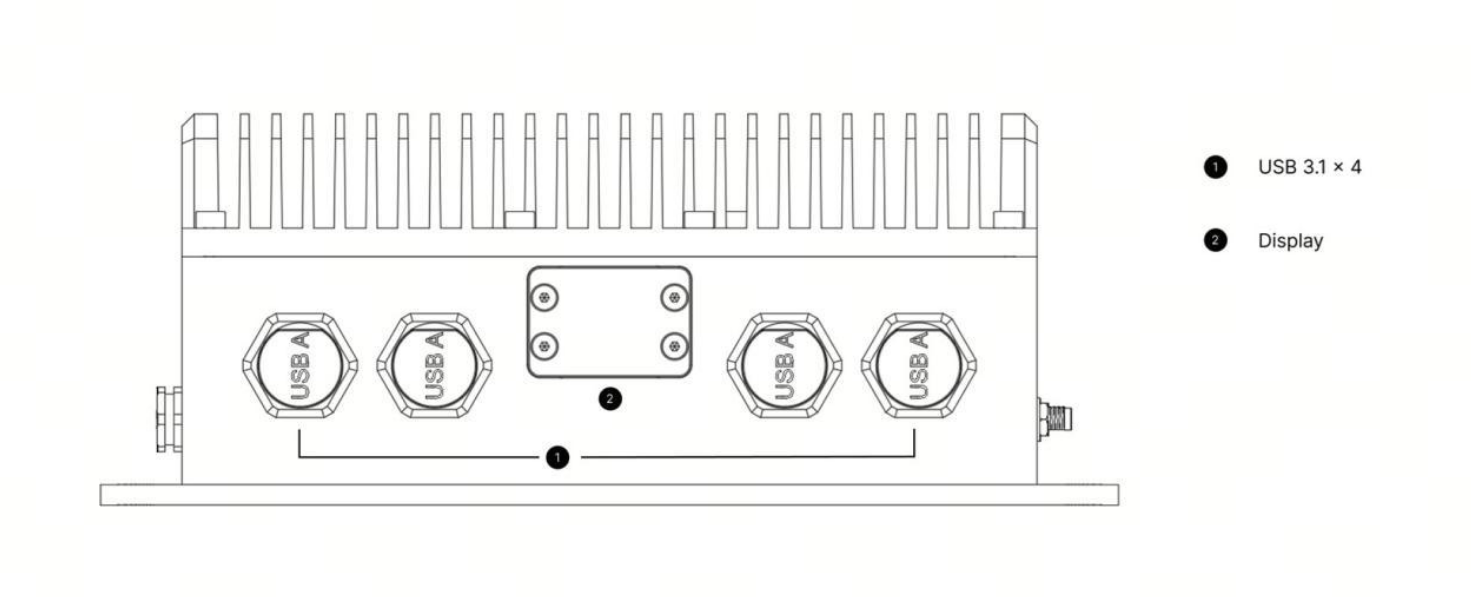
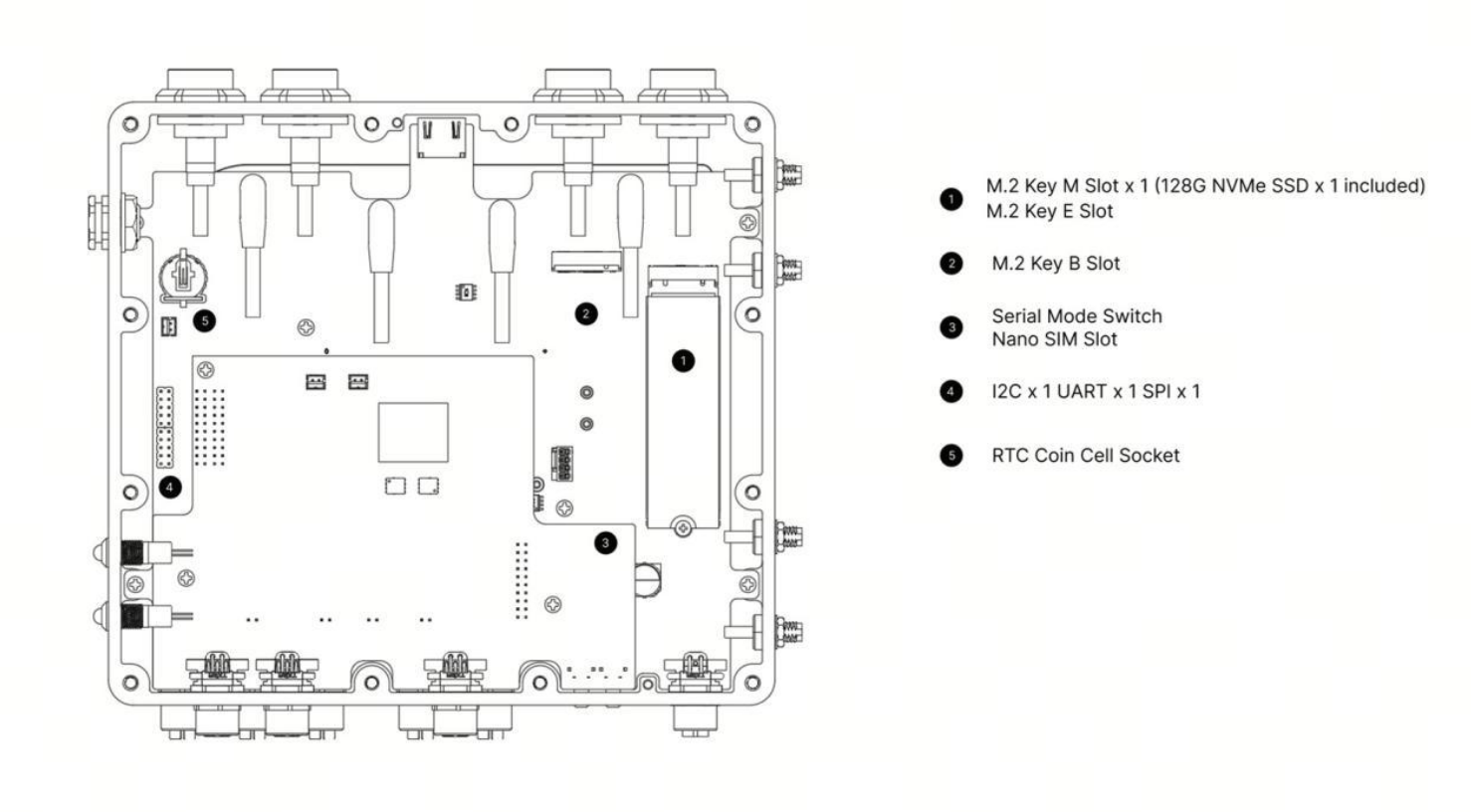
LED Indicators
| LED | Color | Status | Description |
|---|---|---|---|
| PWR | Green | On | Device is powered |
| PWR | Green | Off | Device is not powered |
| ACT | Green | Flashing | SSD access activity |
For connector pinouts, interface configuration, and expansion instructions, continue to the Hardware & I/O guide.
Flash JetPack
Follow the workflow in order. The numbered layout keeps the host preparation, recovery-mode operation, and terminal commands together in one place.
Choose and Download the BSP
Step 1 · Match the image to the exact Jetson configuration
Download the JetPack 5.1.3 (L4T 35.5.0) BSP for your installed Jetson module. The archive filenames retain the release label 5.1.
| Product / Jetson Module | JetPack / L4T | Download / Archive | SHA-256 |
|---|---|---|---|
| reComputer Rugged J4012 Orin NX 16GB | 5.1.3 / 35.5.0 | Download NX 16GB BSP ↗ mfi_recomputer-rugged-orin-nx-16g-j401-5.1-35.5.0-2026-04-01.tar.gz | 78c6ad751ce9bd838fbb69d06e46f3c06f27c5d7ccde0530e0a186291880150a |
| reComputer Rugged J3011 Orin Nano 8GB | 5.1.3 / 35.5.0 | Download Nano 8GB BSP ↗ mfi_recomputer-rugged-orin-nano-8g-j401-5.1-35.5.0-2026-04-01.tar.gz | ca65466ccaf38e205fdf931a98ce7bb97b1b65a91f38cc69b284beafce099f33 |
On the Ubuntu host, verify the downloaded file with sha256sum and compare the complete output with the matching value above:
# Orin NX 16GB (J4012)
sha256sum mfi_recomputer-rugged-orin-nx-16g-j401-5.1-35.5.0-2026-04-01.tar.gz

# Orin Nano 8GB (J3011)
sha256sum mfi_recomputer-rugged-orin-nano-8g-j401-5.1-35.5.0-2026-04-01.tar.gz
Use the image that matches both the Rugged carrier board and the installed Jetson module. Wait for the download to finish and confirm its SHA-256 before extracting the archive.
Prepare the Equipment
Step 2 · Set up the Ubuntu host and cables
Prepare the following items before disconnecting or powering the device:
- reComputer Rugged J4012 or J3011
- 19–48 V DC power supply
- Physical Ubuntu 20.04 host PC for these JetPack 5.1.3 packages
- USB Type-C data cable for flashing
- External monitor and HDMI cable
- Keyboard and mouse
Use a physical Ubuntu host where possible. USB passthrough in a virtual machine can interrupt the flashing process.
Enter Force Recovery Mode
Step 3 · Connect the DEVICE port and verify the USB ID
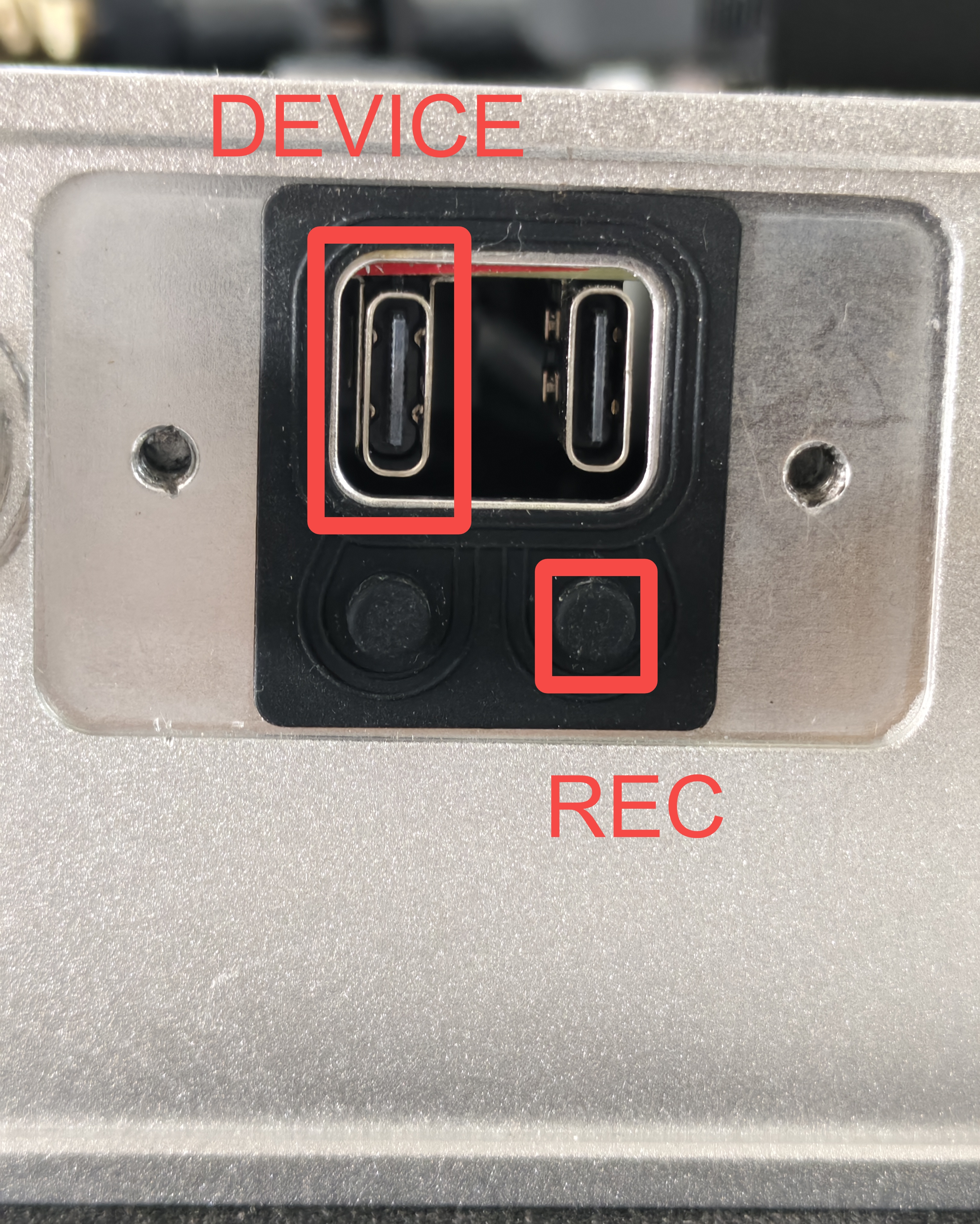
- Connect a USB Type-C data cable between the DEVICE port and the Ubuntu host.
- Press and hold the REC button.
- While holding REC, connect the power supply to turn on the device.
- Release the REC button.
- On the Ubuntu host, verify that the Jetson is detected:
lsusb
Expected output by configuration:
| Product | Jetson module | Expected USB ID |
|---|---|---|
| reComputer Rugged J4012 | Orin NX 16GB | 0955:7323 NVidia Corp |
| reComputer Rugged J3011 | Orin Nano 8GB | 0955:7523 NVidia Corp |
If the expected ID is missing, reconnect the USB cable, try another host USB port, and repeat the recovery sequence before continuing.
Extract and Flash the Image
Step 4 · Run the mass-flash package from the Ubuntu host
Change to the directory containing the downloaded image and extract the archive for your module:
cd <path-to-image>
# Orin NX 16GB (J4012)
sudo tar xpf mfi_recomputer-rugged-orin-nx-16g-j401-5.1-35.5.0-2026-04-01.tar.gz

# Orin Nano 8GB (J3011): use this archive instead
# sudo tar xpf mfi_recomputer-rugged-orin-nano-8g-j401-5.1-35.5.0-2026-04-01.tar.gz
Enter the extracted BSP directory that contains tools/kernel_flash/l4t_initrd_flash.sh and start flashing. Replace <extracted-bsp-directory> with that directory's actual name:
cd <extracted-bsp-directory>
sudo ./tools/kernel_flash/l4t_initrd_flash.sh \
  --flash-only --massflash 1 --network usb0 --showlogs
Wait until the terminal reports that flashing completed successfully. Then disconnect the USB cable, power-cycle the reComputer, connect the monitor and input devices, and complete the Ubuntu first-boot setup.
After completing setup, you can explore firmware downloads and flashing instructions for other Seeed Jetson carrier boards.
Applications
Explore application examples that combine reComputer Rugged J40 hardware with deployable edge AI workflows. New examples can be added to this collection as they become available.

Industrial Forklift Vision
Deploy multi-camera detection, depth warning, driver monitoring, target tracking, and measured Jetson inference workloads on reComputer Rugged J401.
Resources
Use these files for mechanical integration, carrier-board design review, BSP development, and Jetson platform selection.
Tech Support & Product Discussion
Thank you for choosing our products! We are here to provide you with different support to ensure that your experience with our products is as smooth as possible.