Seeed Jetson Cross-Platform Debugging Guide
🔧Jetson Cross-Platform Debugging Guide
Designed for Seeed Studio full series Jetson carrier boards, covering Windows / Linux / macOS platforms,
From serial debugging to system monitoring, one-stop solution for boot failures, kernel crashes, and flashing issues.
🎯 Document Overview
This guide is specifically designed for Seeed Jetson full series carrier boards, integrating NVIDIA official debugging specifications with Seeed hardware features to provide a unified cross-platform debugging solution.
Coverage: Serial Debugging · Boot Log Analysis · System Monitoring · Hardware-level Tracing · Flashing & Recovery
reComputer Super / Classic / Mini / Robotics · reComputer Industrial · reServer Industrial · J501 Series
📚 Official Core Reference Resources
| No. | Resource Name | Link | Core Value |
|---|---|---|---|
| 1 | Jetson Linux Developer Guide | NVIDIA Official | System architecture, boot process, UART configuration |
| 2 | Jetson Hardware Specs / Schematics | NVIDIA Download Center | Debug interface pin definitions, voltage standards |
| 3 | Seeed Studio Wiki | Seeed Official | Seeed carrier board debug port locations, interface descriptions |
| 4 | NVIDIA SDK Manager | NVIDIA Official | Graphical flashing, environment deployment |
| 5 | CoreSight Hardware Debug Documentation | Jetson Linux Debug Chapter | Arm hardware tracing, crash analysis |
🛠️ Debugging Prerequisites
Hardware Preparation
- Seeed Jetson development board (powered normally)
- USB data cable (choose USB-C or Micro-B based on carrier board model) / 3.3V USB to UART module
- Host computer (Windows / Linux / macOS any)
Software Tools (Cross-Platform)
| System | Recommended Tools |
|---|---|
| Windows | PuTTY / MobaXterm / Device Manager |
| Linux | screen / minicom / picocom |
| macOS | screen / minicom |
🔌 UART Serial Debugging (Core)
UART serial port is the low-level entry point for Jetson debugging, allowing you to view complete Bootloader and kernel boot logs, solving core issues like black screen, failure to boot, and serial port occupation.
All Seeed Jetson debug ports are 3.3V level, strictly prohibit using 5V modules, otherwise the device will be permanently damaged!
Debug Port Connection Methods for Each Series
Select your device series to view the corresponding debug port location and connection method:
- 🟢 reComputer Super
- 🔵 reComputer Classic
- 🟡 reComputer Mini
- 🤖 reComputer Robotics
- 🏭 reComputer Industrial
- 🖥️ reServer Industrial
- ⚡ J501 Series
Supported Models: reComputer Super J4012 / J4011 / J3011 / J3010
Debug Port Type: Onboard USB-C Debug Port
Connection Method:
- Use a USB Type-C data cable to directly connect the carrier board debug port to the host USB port
- No additional UART module required, plug and play

Super series debug port is located on the side of the chassis at the USB-C connector, labeled DEBUG or UART. After connection, the host will recognize it as a serial device.
Supported Models: reComputer J4012 / J4011 / J3011 / J3010 (including B versions)
Debug Port Type: J14 Header UART Debug Header
Connection Method:
- Prepare a 3.3V USB to UART module
- Refer to the header pin definitions and connect the pins:
- TX (Pin 9) → Host RX
- RX (Pin 10) → Host TX
- GND (Pin 6) → Common ground

J401 Carrier Board Pin Definitions:
| Pin | Function | Pin | Function |
|---|---|---|---|
| 1 | PWR BTN | 7 | AUTO ON |
| 2 | GND | 8 | DIS |
| 3 | FC REC | 9 | UART TXD |
| 4 | GND | 10 | UART RXD |
| 5 | SYS RET | 11 | LED + |
| 6 | GND | 12 | LED - |
Classic series also features a USB Type-C DEVICE port. Some firmware versions support debugging through direct USB-C connection. Please choose based on actual situation.
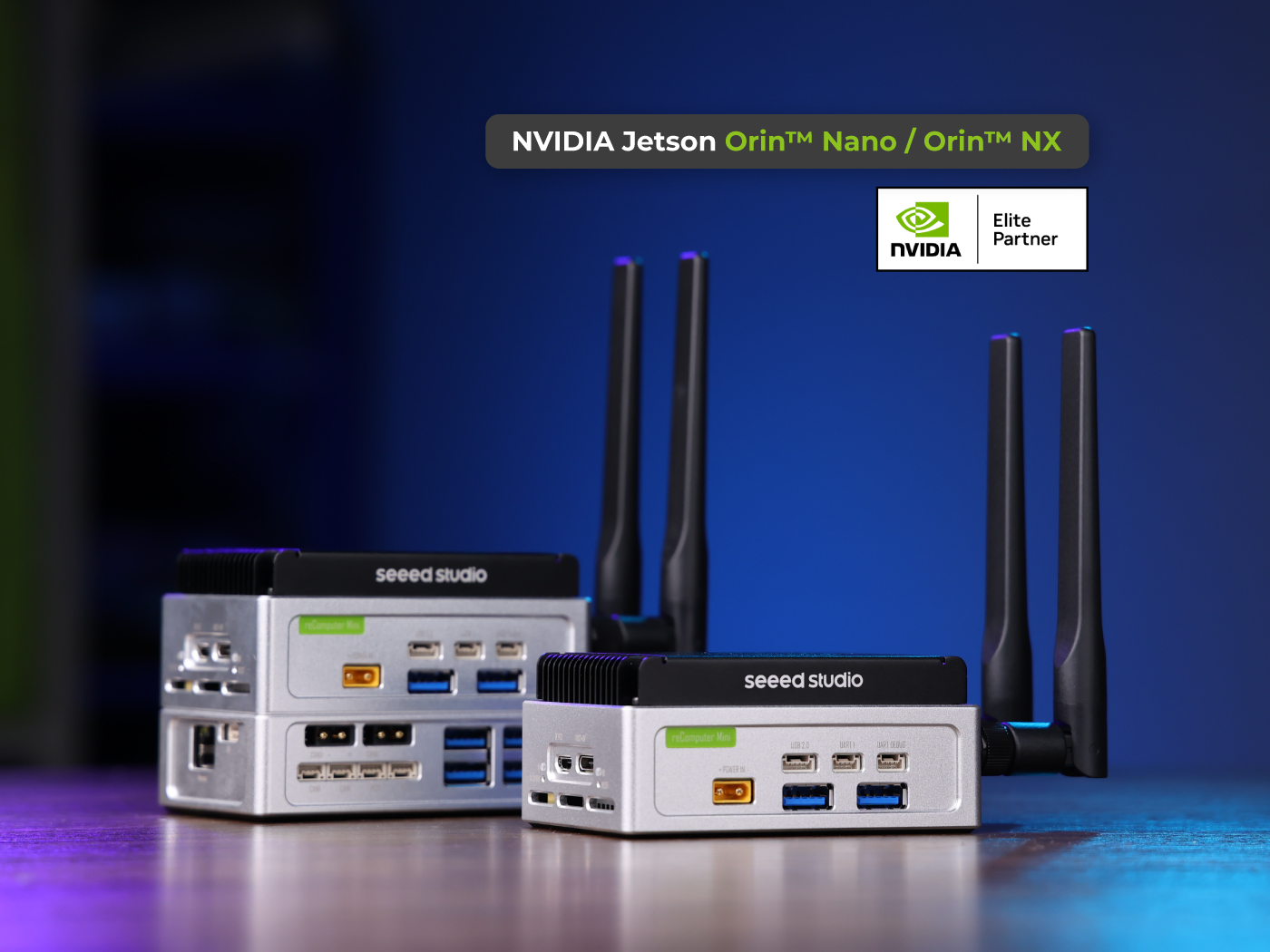
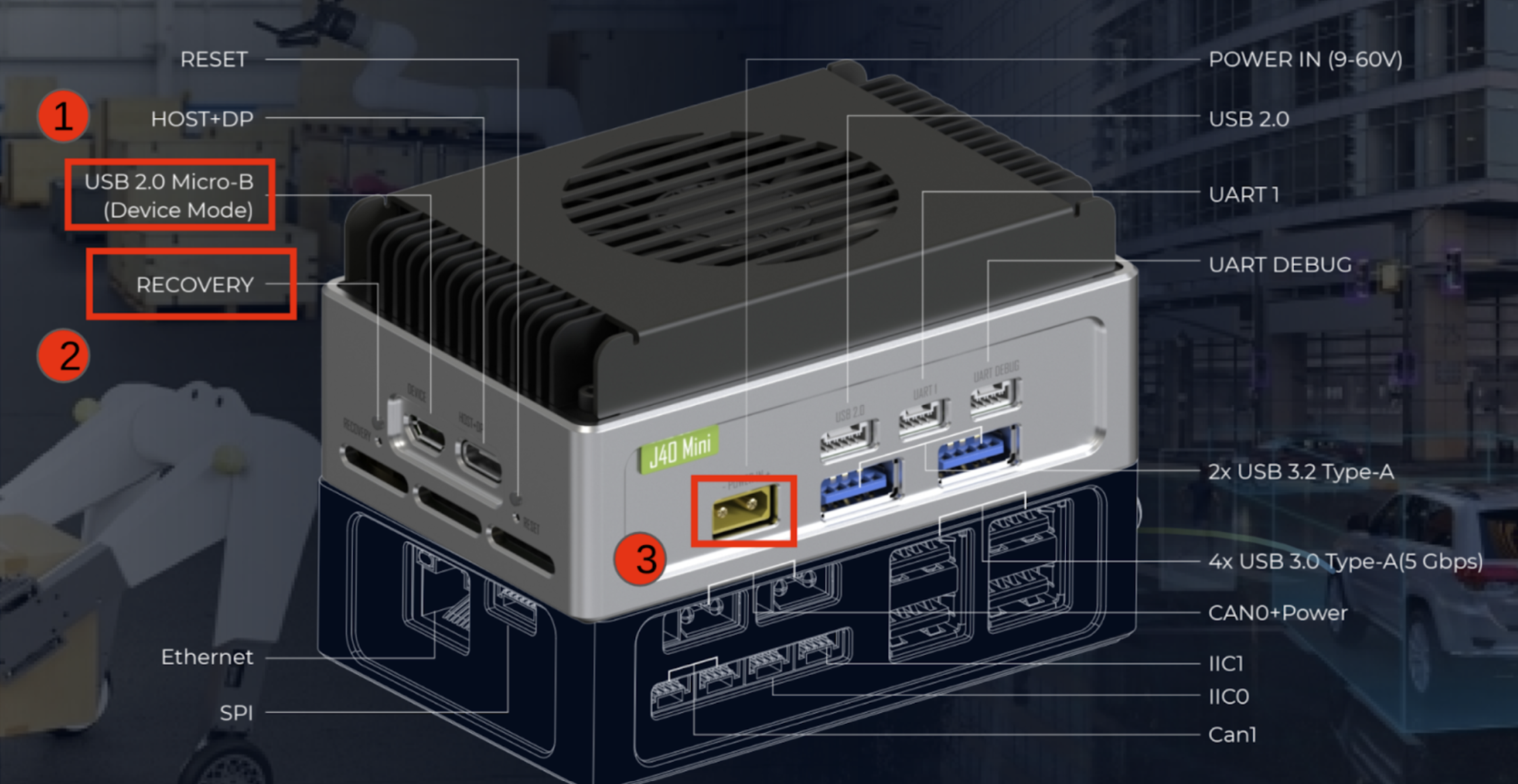
Supported Models: reComputer Mini J4012 / J4011 / J3011 / J3010
Debug Port Type: Onboard USB Micro-B Debug Port
Connection Method:
- Use a USB Micro-B data cable to connect the carrier board USB2.0 DEVICE port to the host
- No additional UART module required
Supported Models: reComputer Robotics J4012 / J4011 / J3011 / J3010
Debug Port Type: Onboard USB Type-C Debug Port
Connection Method:
- Use a USB Type-C data cable to connect the carrier board to the host
- No additional UART module required

Supported Models: reComputer Industrial J4012 / J4011 / J3011 / J3010 / J2012 / J2011
Debug Port Type: Onboard USB Type-C Debug Port
Connection Method:
- Use a USB Type-C data cable to connect the carrier board USB2.0 DEVICE port to the host
- No additional UART module required

Supported Models: reServer Industrial J4012 / J4011 / J3011 / J3010
Debug Port Type: Onboard USB Type-C Debug Port (DEVICE port)
Connection Method:
- Use a USB Type-C data cable to connect the DEVICE port to the host
- No additional UART module required

Supported Models: reServer Industrial J501 / reComputer Robotics J501 Mini / reComputer Robotics J501 (AGX Orin 32GB/64GB)
Debug Port Type: Onboard USB Type-C Debug Port
Connection Method:
- Use a USB Type-C data cable to connect the carrier board to the host
- No additional UART module required

Cross-Platform Port Identification
After connecting the debug cable, identify the serial device on the host:
- Windows
- Linux
- macOS
Open Device Manager → Expand Ports (COM & LPT) → Look for USB Serial Port corresponding COM number (e.g., COM3).
ls /dev/ttyACM* /dev/ttyUSB*
Usually displayed as /dev/ttyACM0 or /dev/ttyUSB0.
ls /dev/cu.usbmodem* /dev/tty.usbserial*
ModemManager Serial Port Occupation Fix (Linux)
The ModemManager service on Linux hosts will mistakenly occupy the Jetson debug serial port, causing connection failures.
# Troubleshoot port occupation
sudo lsof /dev/ttyACM0

# Temporarily stop service (recommended)
sudo systemctl stop ModemManager

# Permanently disable (when 4G/5G module is not needed)
sudo systemctl disable ModemManager
Configure udev rules (for sudo-free serial port access):
sudo vim /etc/udev/rules.d/99-tegra-serial.rules
Add the following content:
SUBSYSTEM=="tty", ATTRS{idVendor}=="0955", MODE="0660", GROUP="plugdev", TAG+="uaccess"
sudo udevadm control --reload-rules && sudo udevadm trigger
Serial Connection (Baud Rate: 115200)
- Windows
- Linux
- macOS
Using PuTTY:
- Select
Serialconnection type - Enter COM number (e.g.,
COM3) - Set baud rate to
115200 - Click
Open
Or using MobaXterm: New Serial Session → Select COM port → Baud rate 115200
screen /dev/ttyACM0 115200
Exit screen shortcut: Ctrl+A then press K, confirm y.
screen /dev/cu.usbmodemXXX 115200
Replace XXX with the actual device number.
🚀 System Boot and Kernel Debugging
Through the UART serial port, you can fully capture Jetson boot logs to locate boot hangs, kernel crashes, and other issues.
Boot Three Stages
┌─────────────────┐    ┌──────────────────┐    ┌─────────────────┐
│  Bootloader     │ →  │  Kernel Boot     │ →  │  System Init     │
│  CBoot/U-Boot   │    │  Linux Load Drivers│   │  systemd Service│
│  Serial Only    │    │  Core Debug Info  │    │  User Mode      │
└─────────────────┘    └──────────────────┘    └─────────────────┘
Enable Complete Boot Logs
By default, the quiet parameter hides a large amount of logs. You can enable them through the following steps:
- Edit the boot configuration file:
sudo vim /boot/extlinux/extlinux.conf
- Find the
APPENDline, removequiet, addignore_loglevel - After reboot, you can view full kernel logs via serial port
If you can connect via SSH, you can also view kernel logs directly:
dmesg --follow
journalctl -k -f
📊 System Monitoring and Advanced Hardware Debugging
tegrastats — Real-time System Monitoring
tegrastats is the official NVIDIA-provided Jetson system monitoring tool for viewing CPU/GPU usage, temperature, frequency, etc.:
# Real-time monitoring
tegrastats

# Customized output (1 second refresh, total 10 times)
tegrastats --interval 1000 --stop 10
jtop — Enhanced Visual Monitoring
jtop provides an interactive TUI interface. Installation method:
sudo pip3 install -U jetson-stats
sudo systemctl restart jtop.service
jtop
CoreSight Hardware-Level Debugging (Advanced)
Used for analyzing hard-to-reproduce crashes, performance bottlenecks, based on OpenCSD + perf tools:
# Record instruction execution flow
perf record -e cs_etm/@<trace-id>/u ls

# Analyze logs
perf report --stdio --dump
CoreSight supports STM (System Trace Macrocell), which can efficiently replace printk software debugging. For detailed configuration, please refer to NVIDIA Official Debug Documentation.
🔄 Flashing & Recovery
When the system crashes or fails to boot, you can reflash using official tools.
For detailed flashing steps, please refer to the Flashing Jetson Linux page, which provides complete device-specific flashing guides, including:
- BSP download and verification
- Environment preparation
- Device-specific flashing steps
- Common issue troubleshooting
Recovery Mode Verification
Before flashing, ensure the device has entered recovery mode. Execute on Ubuntu host:
lsusb
If the output contains any of the following IDs, the device has entered recovery mode:
| Module | USB ID |
|---|---|
| Orin NX 16GB | 0955:7323 |
| Orin NX 8GB | 0955:7423 |
| Orin Nano 8GB | 0955:7523 |
| Orin Nano 4GB | 0955:7623 |
| AGX Orin 32GB | 0955:7223 |
| AGX Orin 64GB | 0955:7023 |
| Xavier NX | 0955:7e19 |
Different devices have different methods to enter recovery mode. Please refer to the detailed steps for the corresponding device in the Flashing Jetson Linux page.
Flashing Debug Logs
When flashing fails, be sure to collect two types of logs for troubleshooting:
- Host side: Complete output log from the flashing terminal
- Target side: Jetson boot log captured by UART serial port (core troubleshooting basis)
- When flashing fails, prioritize checking the UART serial port log, which usually reveals the root cause
- Common issues include: BSP version mismatch, USB connection problems, host environment configuration, etc.
- If you need help, please collect complete logs and contact technical support
❓ Common Issue Troubleshooting
| Issue | Troubleshooting Direction |
|---|---|
| Serial connection failed | Check ModemManager service, USB cable, port number, voltage standard (3.3V) |
| No boot logs | Confirm debug port is connected correctly; remove kernel quiet boot parameter |
| Flashing failed | Prioritize checking UART serial port logs; verify carrier board model matches JetPack version |
| Insufficient serial port permissions | Configure udev rules; sudo usermod -aG plugdev $USER |
| Device cannot enter recovery mode | Check if jumpers/buttons are correct; try changing USB cable or port |
📎 Appendix: Official Resources
📖 Developer Guide
NVIDIA Jetson Linux official developer guide, system architecture, boot process, debug configuration.
🌱 Seeed Wiki
Seeed Studio official Wiki, containing hardware interface descriptions and usage tutorials for the full series of carrier boards.
🔧 SDK Manager
NVIDIA official graphical flashing and SDK environment deployment tool.
🤝 Technical Support and Product Discussion
Thank you for choosing our products! We will provide you with various support to ensure a smooth experience during your use.