Connect Device
Seeed Jetson DevelopTool connects to your Jetson device in two ways depending on the task:
| Connection Type | Used For |
|---|---|
| USB (Recovery Mode) | Firmware flashing via Flash Center |
| Ethernet / SSH | Device Management, Remote Dev, App Market, Skills, PC Network Sharing |
USB Connection (Recovery Mode)
Recovery mode is required for flashing firmware. To enter Recovery mode:
- Power off the Jetson device.
- Hold the Recovery button on the device.
- While holding Recovery, connect the USB-C cable between the device and your host PC (or power on the device).
- Release the Recovery button after 2 seconds.
In the DevelopTool, open Flash Center and click Detect Device to confirm the USB connection is recognized.
On Linux, you can verify the device appears with:
lsusb | grep NVIDIA
You should see an entry like NVIDIA Corp. APX.
On Windows, USB passthrough via WSL2 requires the usbipd tool. Native Linux is recommended for reliable flashing.
Ethernet / SSH Connection
For all non-flashing features, the DevelopTool connects to Jetson over SSH via Ethernet (or Wi-Fi if configured).
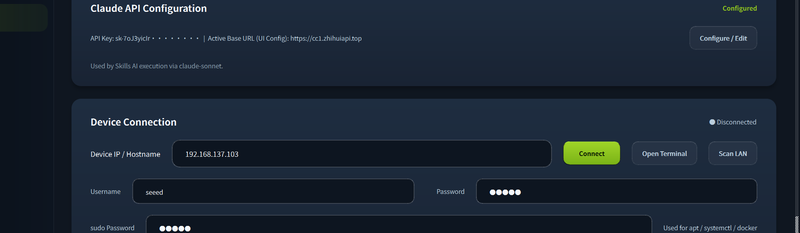
Steps:
- Connect Jetson and the host PC to the same network, or use a direct Ethernet cable with PC Network Sharing enabled.
- In the DevelopTool, open the Remote Dev tab.
- Enter the Jetson's IP address, SSH username, and password in the Device Connection panel.
- Click Connect.
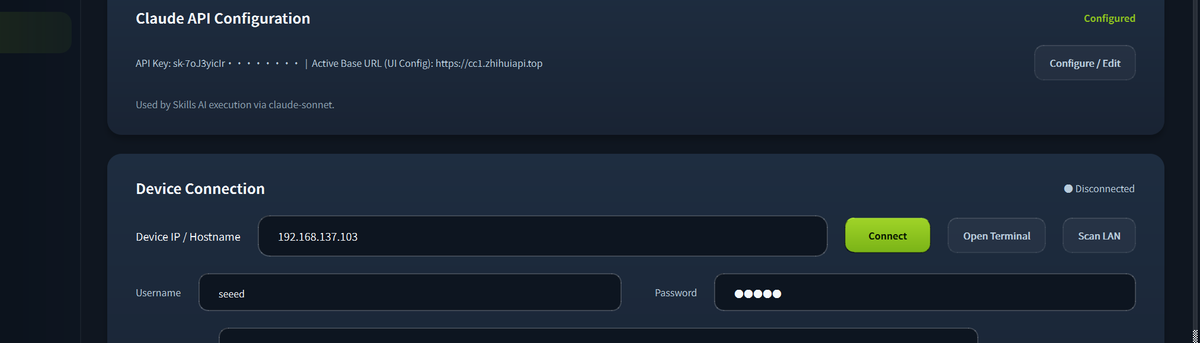
Once connected, the device status panel shows real-time CPU, GPU, memory, and temperature information.
If you don't know your Jetson's IP address, use the Jetson Init serial wizard on first boot to configure the network and display the assigned IP.
Tech Support & Product Discussion
Thank you for choosing our products! We are here to provide you with different support to ensure that your experience with our products is as smooth as possible. We offer several communication channels to cater to different preferences and needs.