Flash Firmware
The Flash Center module lets you download and flash official JetPack firmware to any supported Seeed Studio Jetson device with a single workflow — no command-line BSP scripts required.
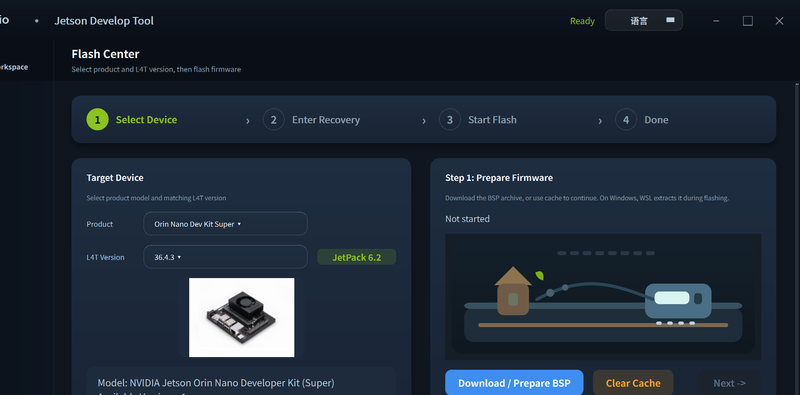
Demo: Full Flash Tutorial
Before You Start
- A native Linux host (Ubuntu 20.04/22.04/24.04) is strongly recommended. See Connect Device for USB Recovery mode setup.
- Ensure you have at least 20 GB of free disk space for the firmware download and extraction.
Flash Workflow
Step 1. Select your device and L4T version.
In the Flash Center tab, choose your device model (e.g. J4012s) and the target L4T version from the dropdown. See Supported Devices for the full compatibility list.
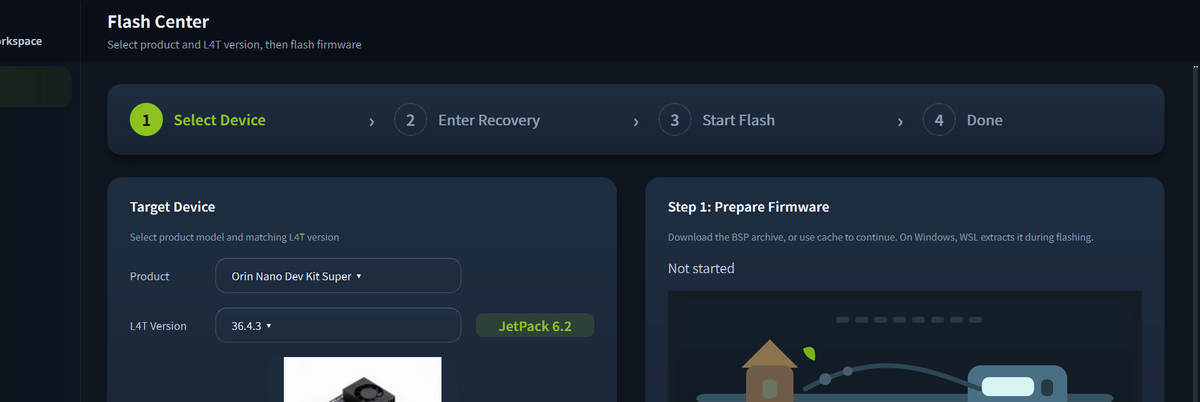
Step 2. Download and verify firmware.
Click Download / Extract BSP. The tool will:
- Download the firmware package with resume support (safe to interrupt and continue)
- Verify the download integrity via SHA256 checksum
- Extract the BSP automatically
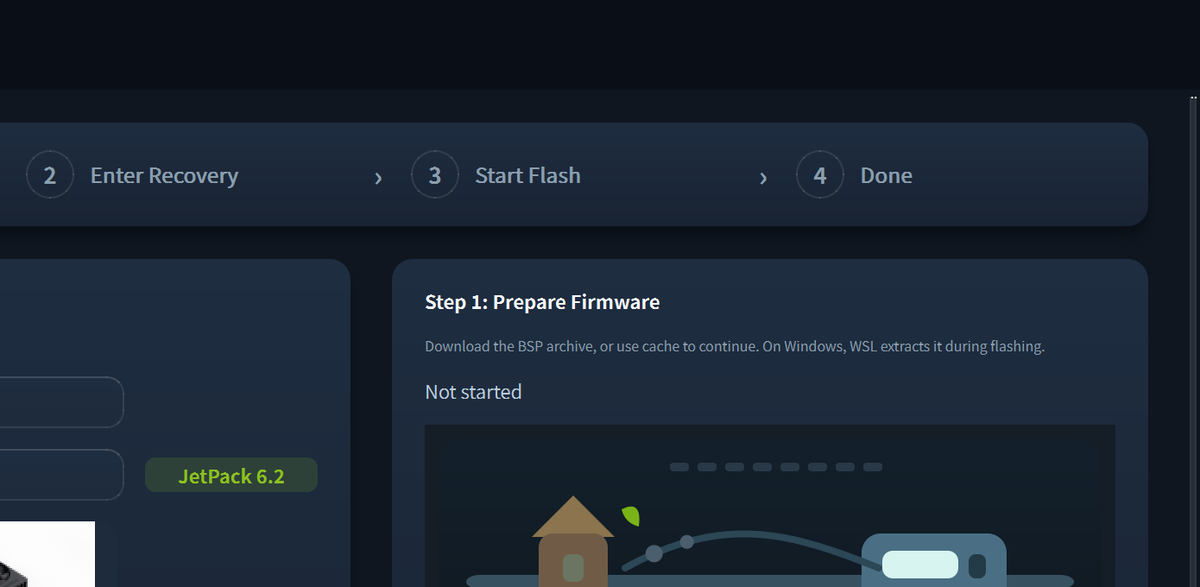
Step 3. Put the device into Recovery mode.
Hold the Recovery button on the device while connecting the USB-C cable to your host PC (or while powering on). Release after 2 seconds.
Step 4. Detect the device.
Click Detect Device in the tool. You should see the device detected over USB. If it is not found, re-check the USB cable and Recovery mode steps.
Step 5. Start flashing.
Click Start Flash. The process takes 2–10 minutes depending on the firmware size and USB speed. Do not disconnect power or USB during flashing.
Once complete, the device will reboot automatically into the new firmware.
If you are on Windows and USB detection fails, try the WSL2 + usbipd workflow. The tool will guide you through attaching the USB device to WSL2.
Flashing will erase all data on the Jetson's eMMC/NVMe. Back up important data before proceeding.
Tech Support & Product Discussion
Thank you for choosing our products! We are here to provide you with different support to ensure that your experience with our products is as smooth as possible. We offer several communication channels to cater to different preferences and needs.