SD Card Usage
Offline maps allow Wio Tracker L2 to display map tiles locally without an Internet connection. It is useful when operating in remote areas or locations with limited network coverage.
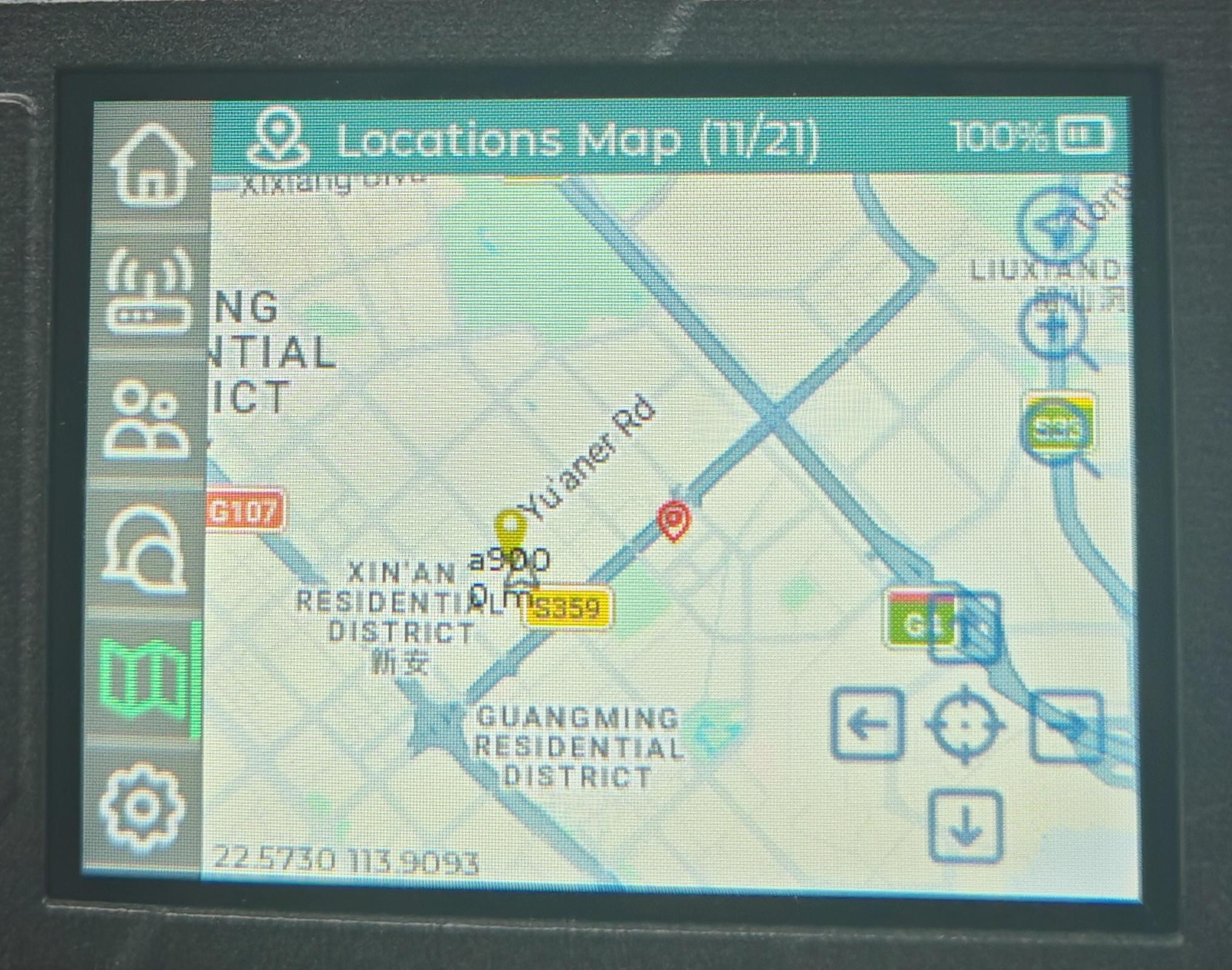
Prerequisites
Prepare the following items before getting started.
Hardware
- Wio Tracker L2
- microSD card (Capacity: 8 GB–32 GB, File system: FAT32)
- Computer
- microSD card reader
Software
- Meshtastic firmware
- Offline map package
If MUI has not been installed on your device, please complete the firmware installation first.
Prepare the microSD Card
Step 1. Format the microSD Card
Click here to download the formatter:
After installing the software:
- Insert the microSD card into your card reader.
- Launch SD Memory Card Formatter.
- Select your microSD card.
- Choose
Quick format - Click Format.
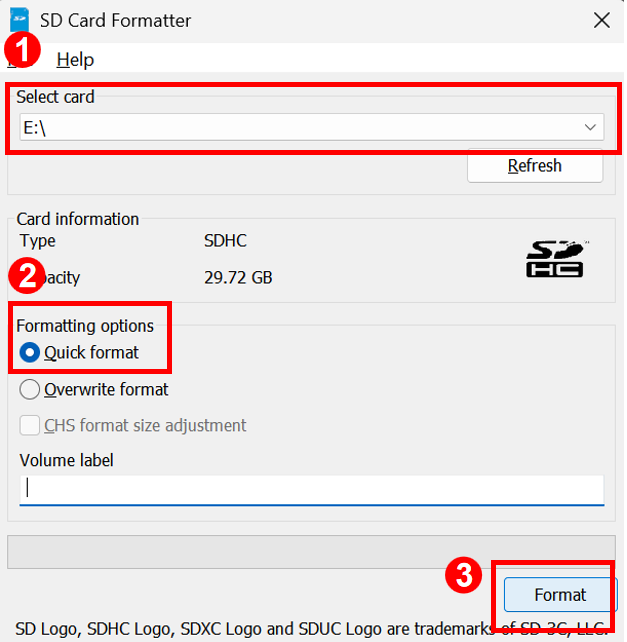
The card is now ready for storing offline maps.
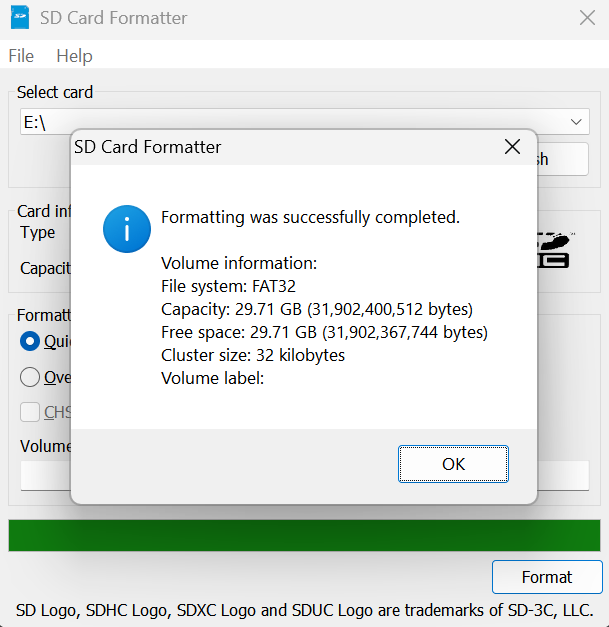
Formatting permanently deletes all data on the microSD card. Back up any important files before proceeding.
Step2. Create the Directory Structure
For MUI to recognize your maps, they must be placed in a specific folder hierarchy on the root of your SD card:
- Create a folder named maps (lowercase).
- Inside maps, create a subfolder for the style, such as CartoDark.
- The final path should look like: SD_ROOT/maps/CartoDark/
Step3. Download the Offline Map
Click here to download the offline map package from the official download page.
The downloaded package contains all required map data for MUI. atlas.zip, dark-matter-brown.zip, osm.zip, positron.zipare four different types of map file packages. You can choose one or more of your favorites to download.
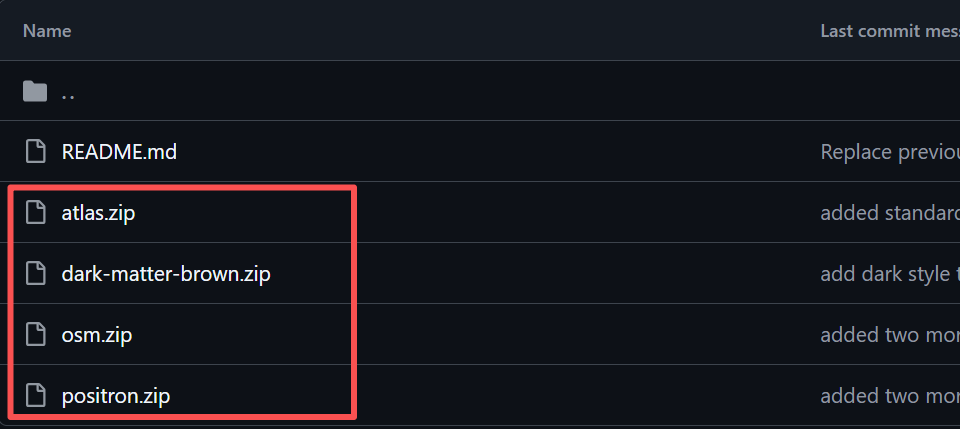
Step 4. Copy the Map Files
- Open the microSD card.
- Extract the downloaded ZIP package into the
mapsfolder
The directory should look like this:
microSD
└── maps
    ├── atlas
        └── 0
        └── ...
        └── 8
    ├── dark-matter-brown
    └── osm
Do not rename the maps folder unless otherwise instructed.
Safely eject the microSD card after the copy process is complete. Then you can insert the card to L2 and check the map.