Train and deploy the YOLO26 object detection model
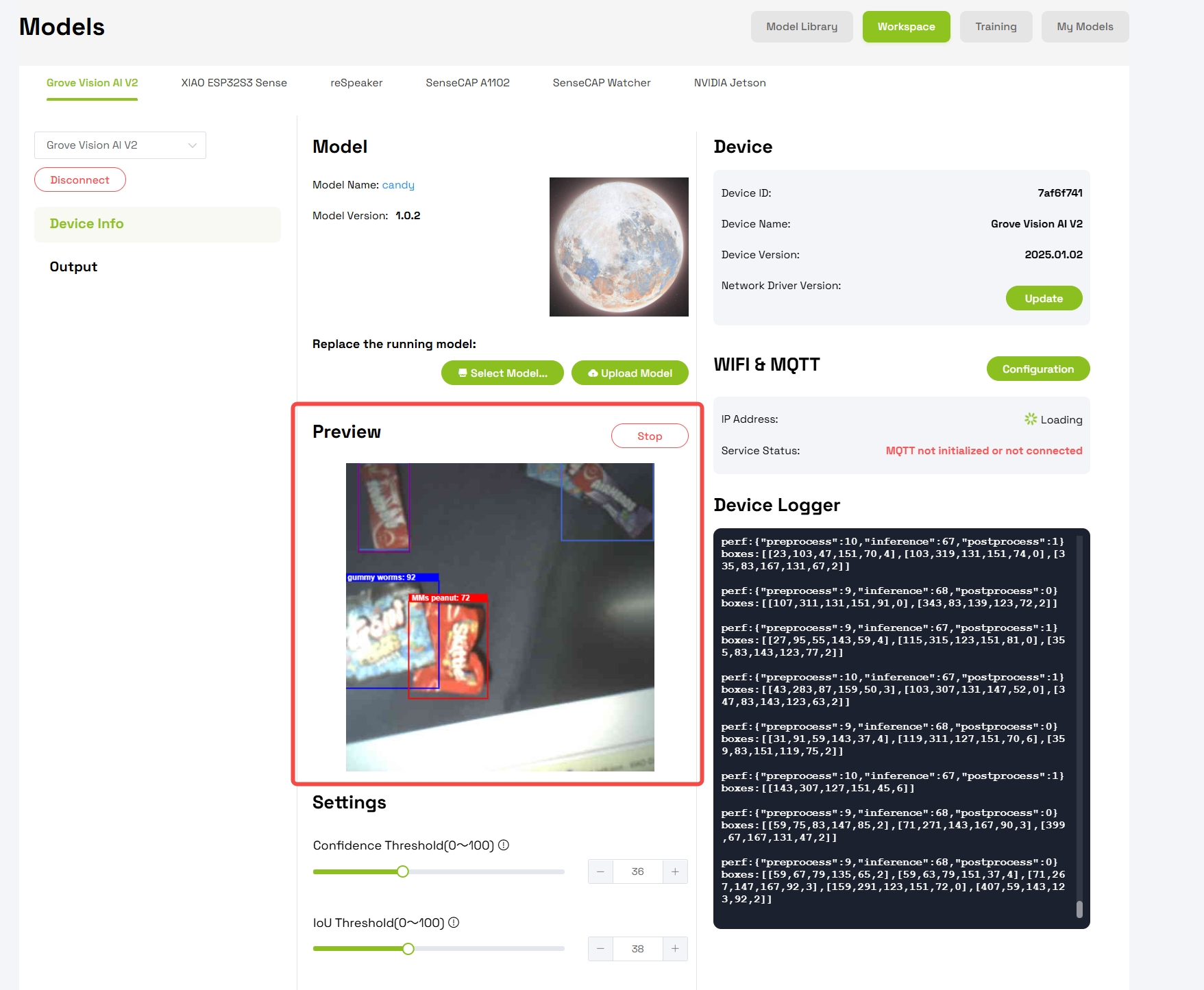
This wiki introduces a recommended workflow for deploying a custom YOLO26 object detection model to Grove Vision AI V2.
To keep the output stable and reproducible, we recommend preparing the dataset package in advance, running the provided Google Colab notebook, and then deploying the generated best_full_integer_quant_vela.tflite model to Grove Vision AI V2.
Dataset preparation
Before running the notebook, prepare a dataset package named custom_data.zip.
If you are new to object detection dataset preparation, you can refer to Edje Electronics' YouTube tutorial: How to Train YOLO Object Detection Models in Google Colab (YOLO26, YOLO11, YOLOv8).
Download the YOLO26 nano pretrained weight file and place it in the root of custom_data/:
Package your files with the following structure:
custom_data/
|-- data/
|   |-- train/
|   |   |-- images/
|   |   `-- labels/
|   `-- validation/
|       |-- images/
|       `-- labels/
|-- data.yaml
`-- yolo26n.pt
After packaging, upload custom_data.zip to your Google Drive.
Run the Colab notebook
Download yolo26_GV2.ipynb and open it in Google Colab.
In Colab, run all cells in order. The notebook will use the custom_data.zip package from your Google Drive, train the YOLO26 model, export the TFLite model, and apply Vela optimization for Grove Vision AI V2.
After the notebook finishes, download the generated model file:
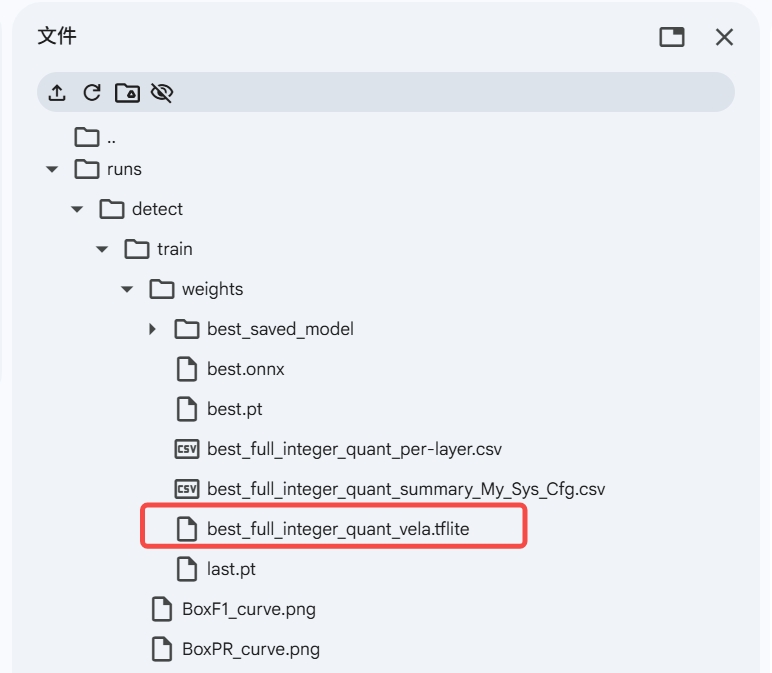
best_full_integer_quant_vela.tflite
The generated model can be found in the Colab file browser under runs/detect/train/weights/.
Deploy to Grove Vision AI V2
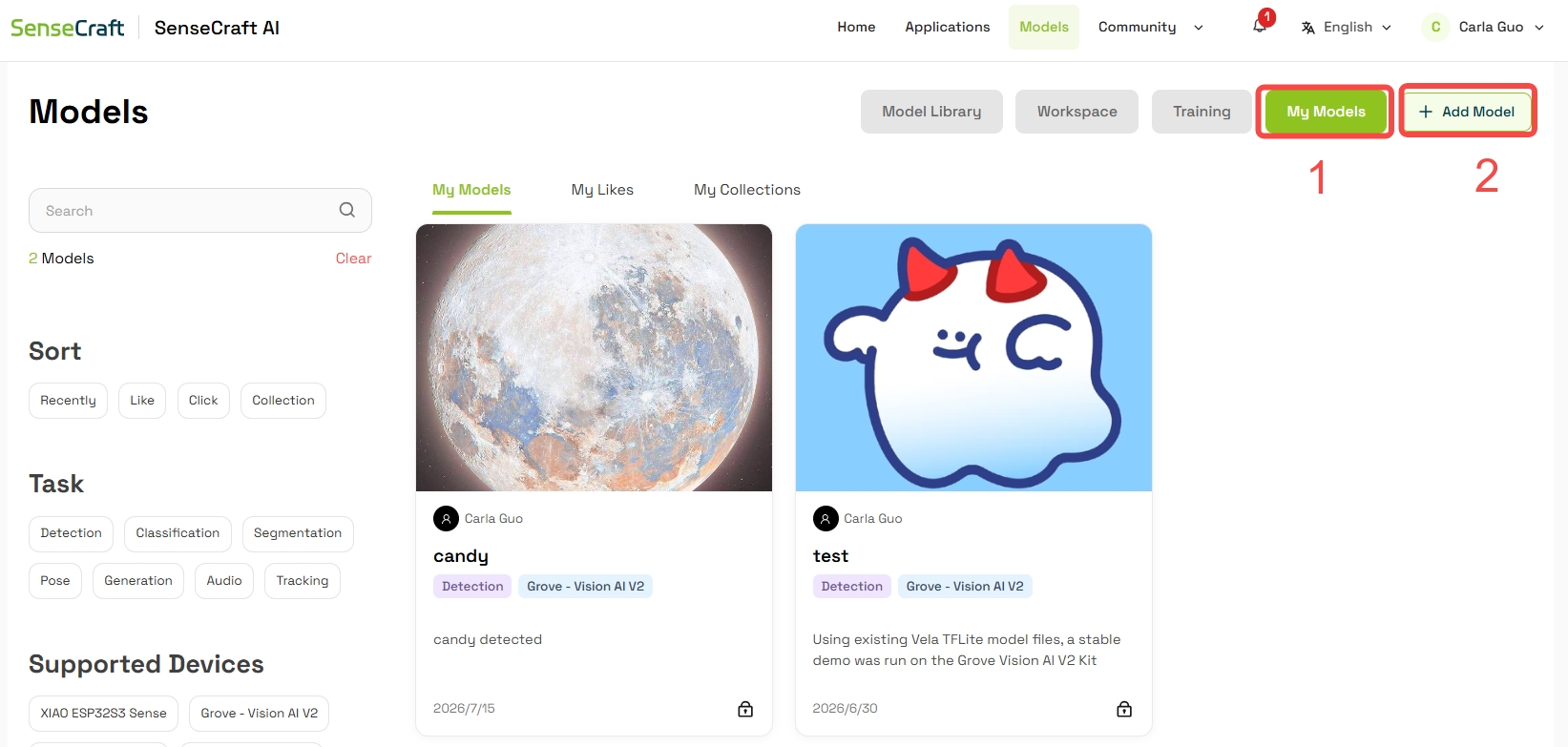
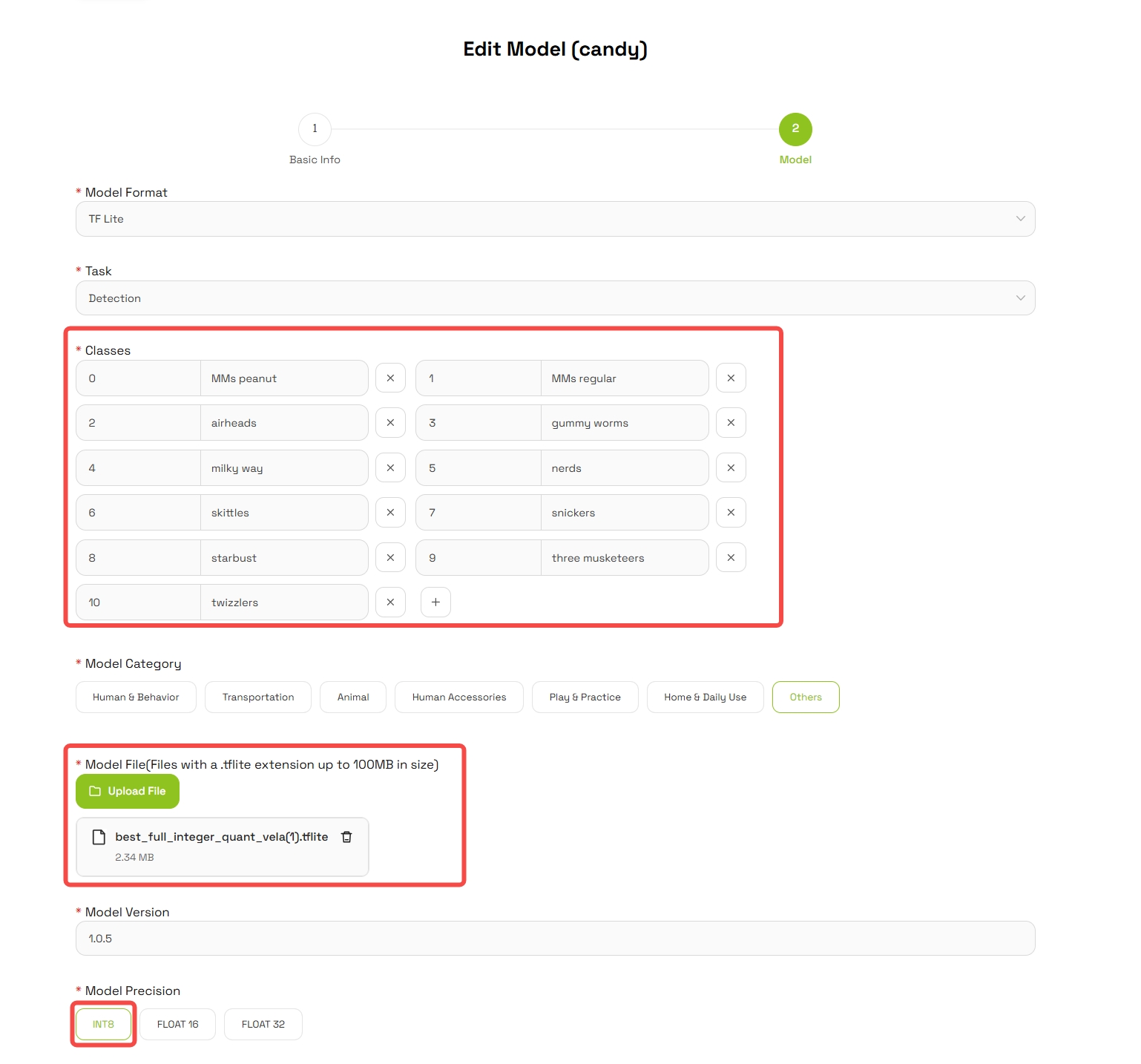
Before deploying the model to Grove Vision AI V2, upload your custom model to SenseCraft AI. Go to Models, open My Models, click Add Model, then fill in the model information, add the detection classes, and upload best_full_integer_quant_vela.tflite as the model file.
After the custom model is uploaded, deploy best_full_integer_quant_vela.tflite to Grove Vision AI V2 by following the Model Assistant deployment tutorial:
After deployment, you can use the preview window in Model Assistant to check the detection result.
This recommended workflow is the most stable path for generating a deployable YOLO26 model for Grove Vision AI V2. Advanced users may adapt the process for other training environments, but deployment results may vary depending on the environment, package versions, export settings, and quantization behavior.
Tip: If model invoke fails, check whether the connection between Grove Vision AI V2 and the camera module is secure.
Tech Support & Product Discussion
Thank you for choosing our products! We are here to provide you with different support to ensure that your experience with our products is as smooth as possible. We offer several communication channels to cater to different preferences and needs.