Creating a Custom BSP Package from Jetson Development Environment
This wiki guide demonstrates how to clone a complete development environment from an existing Jetson device and create a flashable BSP (Board Support Package) that can be used to replicate the same environment on other Jetson devices. The BSP created using this method enables complete environment cloning when flashed to other Jetson devices.
This guide uses JetPack 6.2 as an example.
Prerequisites
- Source Jetson device (with configured development environment)
- Ubuntu 22.04 Host Computer
- USB Type-C data transmission cable
The reComputer Classic series has insufficient cooling to support MAXN super mode. If you have flashed JetPack 6.2 on a reComputer Classic series device, do not enable MAXN mode.
1. Prepare Working Directory on PC
Download the required working directory package from the table below:
Install the required dependencies on your PC:
sudo apt-get update -y
sudo apt-get install -y \
  build-essential flex bison libssl-dev \
  sshpass abootimg nfs-kernel-server \
  libxml2-utils qemu-user-static
Extract the downloaded package and generate the necessary content using the following commands in your PC terminal:
sudo tar xpf xxx.tar.gz
# For example: sudo tar xpf L4T36-4-3_plus.tar

cd Linux_for_Tegra/
sudo ./apply_binaries.sh
cd ..
Set up environment variables in the extracted directory (where the tar.gz package is located):
export ARCH=arm64
export CROSS_COMPILE="$PWD/aarch64--glibc--stable-2022.08-1/bin/aarch64-buildroot-linux-gnu-"
export PATH="$PWD/aarch64--glibc--stable-2022.08-1/bin:$PATH"
export INSTALL_MOD_PATH="$PWD/Linux_for_Tegra/rootfs/"
Navigate to the source directory and compile the source code (this process will take some time):
cd Linux_for_Tegra/source
./nvbuild.sh
After compilation is complete, copy and install the compiled components:
./do_copy.sh
./nvbuild.sh -i
The working directory is now prepared. The subsequent steps will be performed in the Linux_for_Tegra/ directory to clone the complete development environment from the Jetson device and create the BSP.
2. Generate Custom BSP
Connect your source Jetson device to your PC using a USB Type-C data cable through the flashing port, and ensure your source Jetson is in Recovery mode.
For instructions on entering Recovery mode, refer to: https://wiki.seeedstudio.com/flash/jetpack_to_selected_product/
Select your device and expand the 3. Enter Recovery mode section. You can also find information about your device's flashing port at the same link.
Ensure your PC has sufficient disk space. The BSP size typically requires approximately twice the storage space used by your Jetson development environment.
Navigate back to the Linux_for_Tegra/ directory on your PC and execute the following command to copy the complete development environment from the Jetson device:
sudo ./tools/backup_restore/l4t_backup_restore.sh -e nvme0n1 -b -c <board-name>

# For example:
sudo ./tools/backup_restore/l4t_backup_restore.sh -e nvme0n1 -b -c recomputer-orin-j401
Replace <board-name> with the name of your device. You need to provide a valid device name as a parameter, which can be found by checking the .conf filenames in the root directory of Linux_for_Tegra. The prefix of these filenames corresponds to the valid device name parameters.
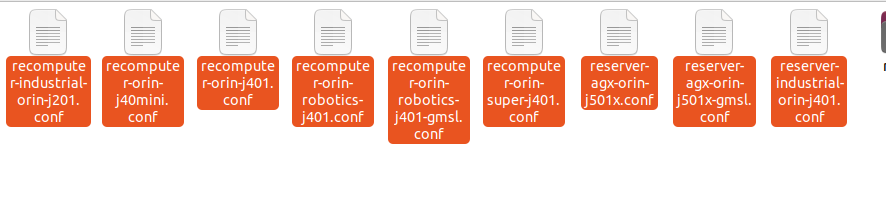
The available device name parameters for L4T 36.4.3 are as follows. Note that the j40 and j30 series use the same configuration file:
- recomputer-industrial-orin-j201 (recomputer-industrial-orin-j40/j30 also uses this
device nameas the parameter) - recomputer-orin-j401
- reserver-agx-orin-j501x
- reserver-agx-orin-j501x-gmsl
- reserver-industrial-orin-j401
- recomputer-orin-j40mini
- recomputer-orin-robotics-j401
- recomputer-orin-super-j401
Package the cloned content into a flashable BSP (the backup device must remain in Recovery mode during this process):
sudo ./tools/kernel_flash/l4t_initrd_flash.sh --use-backup-image --no-flash --network usb0 --massflash 5 <board-name> internal

# For example:
sudo ./tools/kernel_flash/l4t_initrd_flash.sh --use-backup-image --no-flash --network usb0 --massflash 5 recomputer-orin-j401 internal
Replace <board-name> with your device name, similar to the previous step.
This process takes considerable time. After completion, files with the mfi_ prefix and a tar.gz compressed package will be generated in the Linux_for_Tegra/ directory.
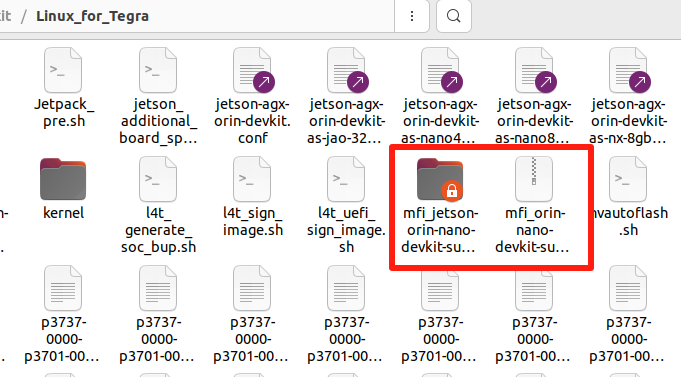
The mfi_xxxxx.tar.gz file is the flashable BSP. When extracted, it creates the mfi_xxxxx directory.
(Optional) If you need to generate a QSPI flash format BSP suitable for factory production, modify the BSP creation parameters as follows (the backup device must remain in Recovery mode during this process):
sudo BOARDID=$BOARDID BOARDSKU=$BOARDSKU FAB=$FAB BOARDREV=$BOARDREV CHIP_SKU=$CHIP_SKU ./tools/kernel_flash/l4t_initrd_flash.sh \
--external-device nvme0n1p1 -c tools/kernel_flash/flash_l4t_t234_nvme.xml \
-p "-c bootloader/generic/cfg/flash_t234_qspi.xml --no-systemimg" --no-flash --massflash 5 --showlogs \
--network usb0 <board-name> internal

# For example:
sudo BOARDID=$BOARDID BOARDSKU=$BOARDSKU FAB=$FAB BOARDREV=$BOARDREV CHIP_SKU=$CHIP_SKU ./tools/kernel_flash/l4t_initrd_flash.sh \
--external-device nvme0n1p1 -c tools/kernel_flash/flash_l4t_t234_nvme.xml \
-p "-c bootloader/generic/cfg/flash_t234_qspi.xml --no-systemimg" --no-flash --massflash 5 --showlogs \
--network usb0 recomputer-orin-super-j401 internal
3. Flash and Verify
After obtaining the tar.gz BSP package from the previous steps, you can extract and flash it to other target Jetson devices with a single command, achieving complete development environment cloning. This BSP is environment-independent and can be copied to other PCs for use.
Extract the package using the following command format strictly:
sudo tar xpf mfi_xxxx.tar.gz
Navigate to the extracted directory and execute the flashing process:
cd mfi_xxxx
sudo ./tools/kernel_flash/l4t_initrd_flash.sh --flash-only --massflash 1 --network usb0 --showlogs
Flashing also requires the target Jetson to be in Recovery mode. For detailed flashing steps, refer to the same link (no need to download a new BSP): https://wiki.seeedstudio.com/flash/jetpack_to_selected_product/
Tech Support & Product Discussion
Thank you for choosing our products! We are here to provide you with different support to ensure that your experience with our products is as smooth as possible. We offer several communication channels to cater to different preferences and needs.