Audio Development
Understand the Audio Development Boundary
A microphone and speaker enable a device to capture and play sound. Sending voice messages to another device also requires enough radio airtime.
| Use case | Principle | Development Boundary |
|---|---|---|
| Play music or recorded files | Local audio Does not require LoRa | ✅ |
| Record voice notes | Local audio Does not require LoRa | ✅ |
| Develop local voice controls | On-device recognition and local actions Requires custom firmware implementation | ✅ |
| Send a short voice clip over MeshCore | Audio traffic can saturate the shared channel and block urgent messages | ❌ |
| Continuous voice calls or walkie-talkie streaming | Audio traffic can saturate the shared channel and block urgent messages | ❌ |
Audio Development Supported Scope
Audio development on L2 Pro is currently limited to local processing, storage, and playback. Supported development directions include:
- Local voice control: Recognize a command on the device and use it to trigger a local action
- Audio recording and storage: Capture microphone input and save recordings to microSD.
- Audio playback: Play music, recorded voice notes.
- Local notification sounds: Play a locally stored sound when a text message or another event arrives, without transmitting the sound file over LoRa.
**Voice-message transmission over the MeshCore network is not supported in this L2 Pro audio-development workflow.
LoRa mesh nodes share limited radio airtime. Audio transfers can occupy the channel for extended periods; relaying and retransmissions add further load. This can cause severe congestion and bring mesh communication to a standstill, leaving urgent messages unable to access the channel or arrive in time.
Keep audio capture, voice processing, storage, and playback on the device. Do not send audio payloads over the mesh network.
Local Audio Development Tips
For a custom local audio application, plan for:
- Input and output: Validate the microphone and speaker paths separately, including microphone gain and playback volume.
- Local voice recognition: Choose an on-device recognition engine that fits the ESP32-S3's processing and memory budget.
- Storage: Select a sample format and recording duration that fit the available microSD space, and handle full-card or write-failure conditions.
- Task scheduling: Keep audio processing and file access from blocking mesh packet handling or the touchscreen interface.
Hardware Foundation on L2 Pro
Audio signal paths
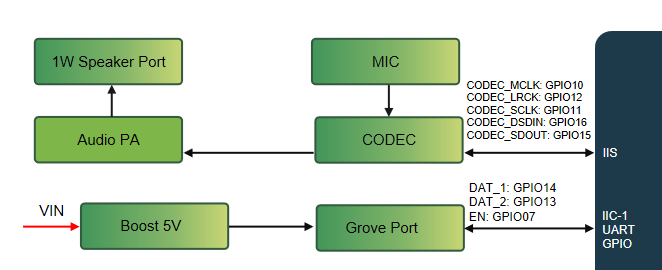
The L2 Pro audio subsystem uses an I2S interface, codec circuitry, a microphone path.
Audio pin mapping
| Interface | Board signal | ESP32-S3 GPIO | Purpose |
|---|---|---|---|
| I2S | CODEC_I2S0_MCLK | GPIO10 | Master clock |
| I2S | CODEC_I2S0_SCLK | GPIO11 | Bit clock, also called BCLK |
| I2S | CODEC_I2S0_LRCK | GPIO12 | Word-select/frame clock, also called WS |
| I2S | CODEC_I2S0_DSDIN | GPIO16 | ESP32-S3 TX → codec data input; playback |
| I2S | CODEC_I2S0_SDOUT | GPIO15 | Audio data output → ESP32-S3 RX; recording |
| I²C | IIC0_SDA | GPIO47 | Peripheral configuration data |
| I²C | IIC0_SCL | GPIO48 | Peripheral configuration clock |
Install Cairn on L2 Pro
About Cairn
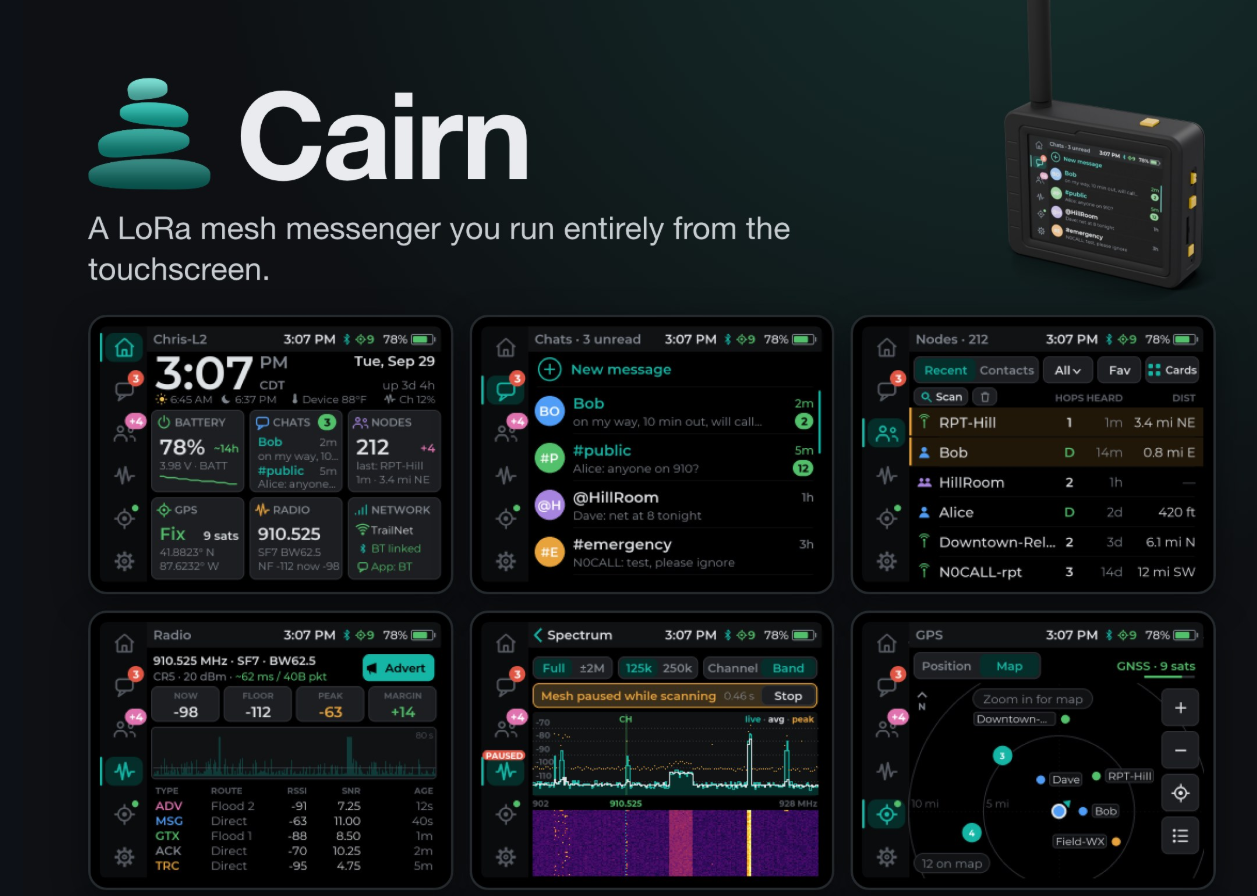
Cairn is a community-developed fork of the MeshCore companion firmware with its own on-device interface. Its L2 Pro build combines touchscreen messaging with local audio tools and works with the official MeshCore clients. Check the release notes when using another build.
Preparation
Prepare:
-
A Wio Tracker L2 Pro with its LoRa antenna connected.
-
A USB-C data cable and a computer running Chrome or Edge.
-
A microSD card for music and recordings. Cairn recommends 8–32 GB SDHC formatted as FAT32; exFAT is not supported by its documented L2 Pro card workflow.
-
A short MP3 or WAV file for a playback test.
Firmware Flashing
Step 1: Download the L2 Pro firmware
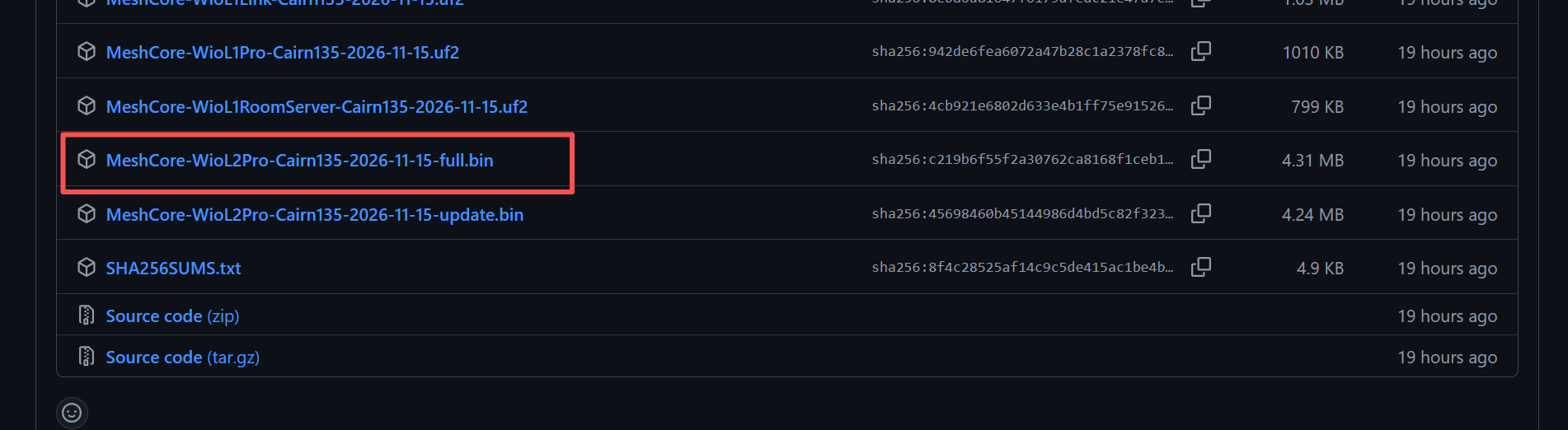
Open Cairn Releases and expand Assets. Select the file containing WioL2Pro.
For this first-install tutorial, download -full.bin. It already includes the application; do not also write -update.bin.
Step 2: Enter download mode
-
Connect L2 Pro to the computer and turn on its power switch.
-
Hold User/Boot.
-
While holding it, press and release RST.
-
Release User/Boot.
Step 3: Flash through the browser
-
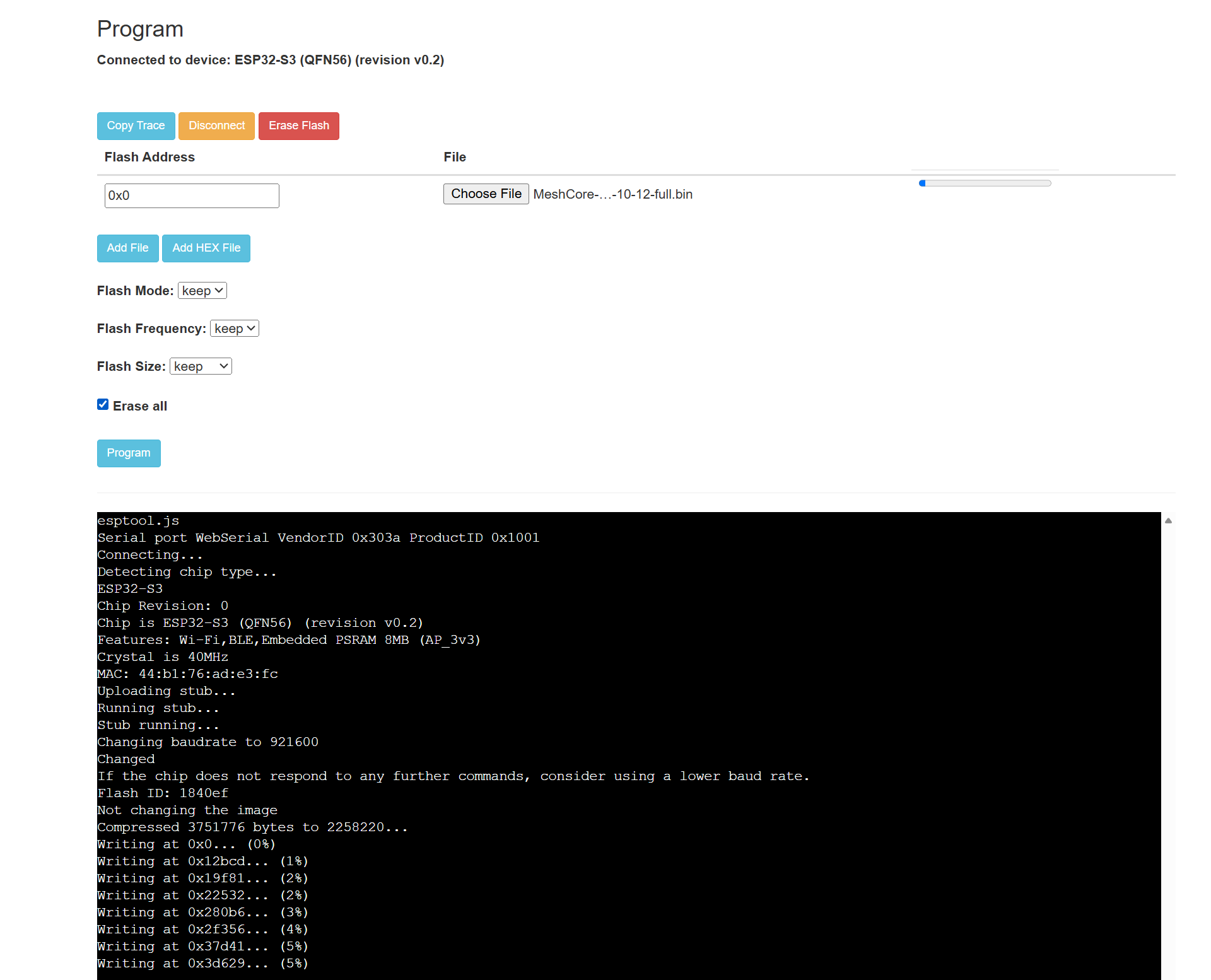
Open Espressif's Web Flasher.
-
Click Connect and select the device's serial port.
-
Select Erase Flash and wait for completion.
-
Set the firmware address to
0x0and select the downloaded L2 Pro-full.bin. -
Click Program and wait for the write to finish.
-
Disconnect the flasher and press RST to start Cairn.
Explore Cairn's Audio Interface
Open the Audio hub
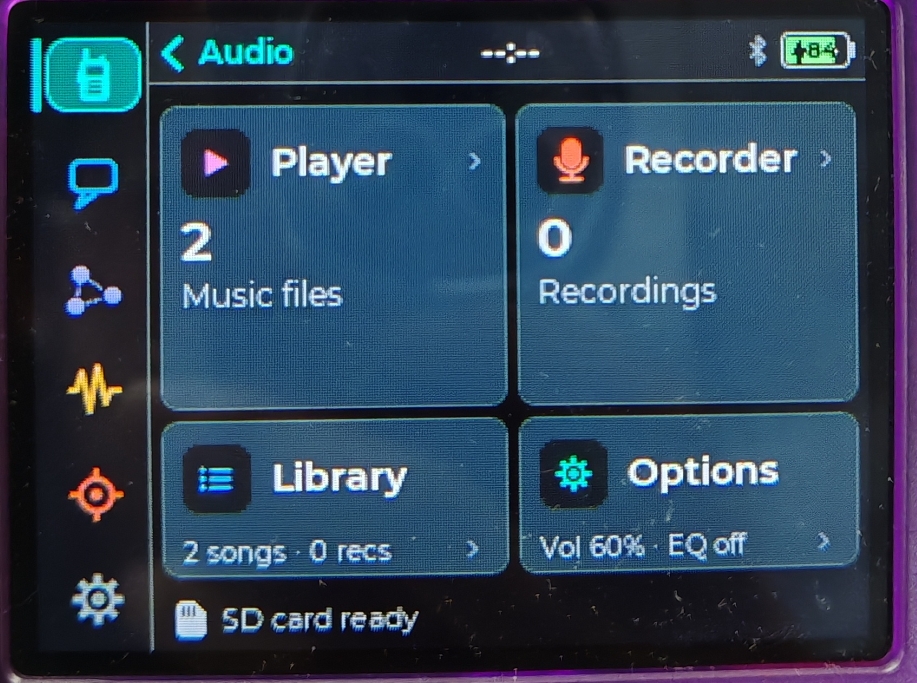
Insert the prepared microSD card. From Home, swipe down to find the Audio card, or open Audio from the quick panel. The hub provides access to the player and recorder.
Play music from microSD
-
Create a folder named
musicat the root of the card. -
Copy a short MP3 or WAV file into it and safely eject the card from the computer.
-
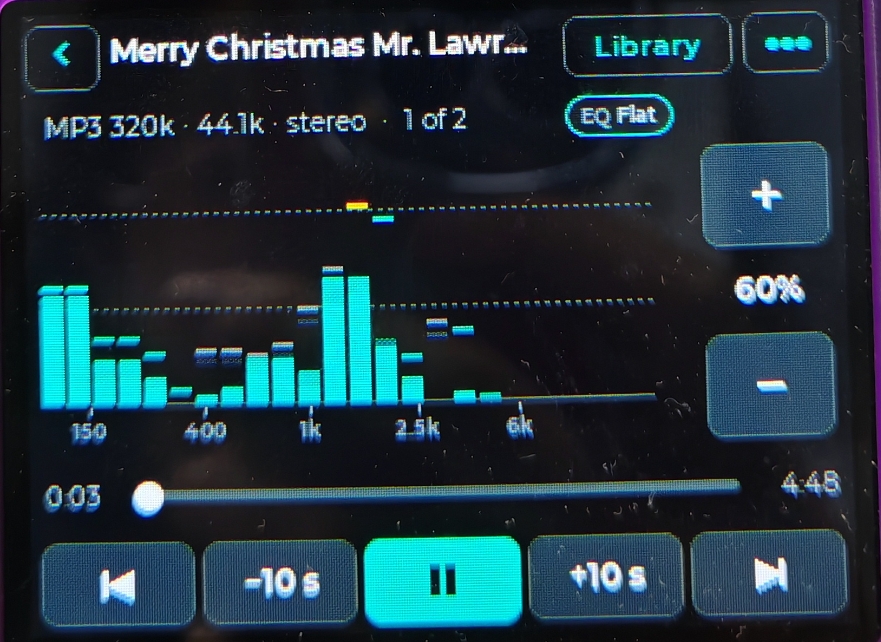
Insert the card into L2 Pro, open the player, and select the file from Library → Music.
-
Begin at a low volume and check playback.
Record a voice note
-
Open Recorder from the Audio hub.
-
Open its settings to choose recording quality, microphone gain, and a time limit.
-
Start a short recording, speak near the microphone, then stop it.
-
Open Library → Recordings to listen back.
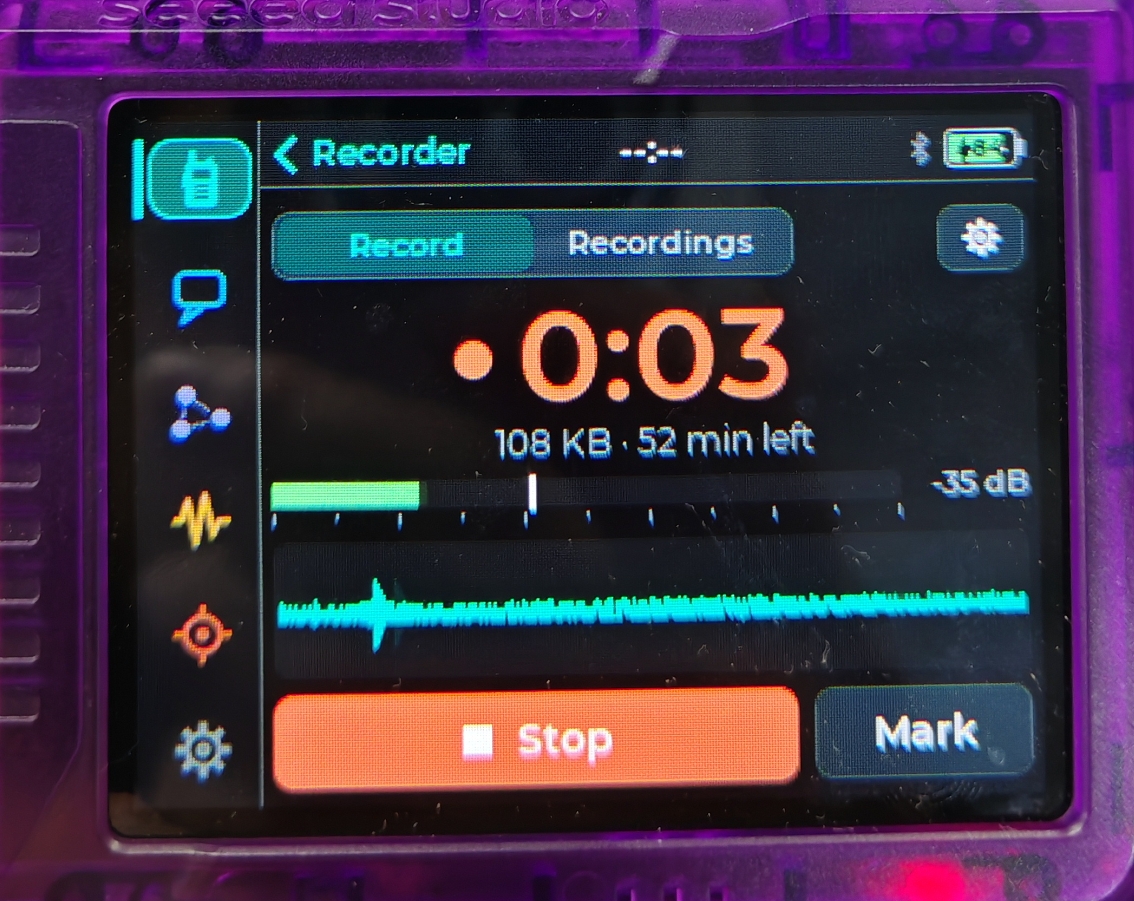
The recorder saves WAV files in Recordings, using dates and times when the clock is set. It offers 8 or 16 kHz recording, Voice start to begin on detected sound, and markers. The status bar displays MIC or REC while the microphone is active.
Try custom notification sounds
Copy a short MP3 or WAV into a root-level Sounds folder. Open Settings → Hardware → Sound, select an event, and choose a file from the card's sounds list.
Other Cairn Features Worth Trying
-
Standalone messaging: Use the touchscreen keyboard, quick replies, and emoji for channel and direct conversations.
-
Maps and positioning: Explore on-device maps, GPS information, and nearby node positions; prepare offline coverage before heading out.
-
Radio inspection: Inspect packet traffic, signal information, and spectrum/band scans to understand local radio activity.
-
File access: Try Wi-Fi transfer or USB drive mode to manage microSD content without removing the card.
-
Device personalization: Explore themes, button actions, and the battery history display.
Troubleshooting
-
The browser cannot find the device: Check the USB data cable, close other serial applications, and repeat the User/Boot + RST sequence.
-
Music files do not appear: Check FAT32 formatting, the root-level
Musicfolder, and the MP3/WAV format. Use the storage page to inspect or rescan the card. -
A recording is silent: Check gain and the recording settings. For custom firmware, verify the microphone initialization and GPIO15 RX path separately from playback.
Tech Support & Product Discussion