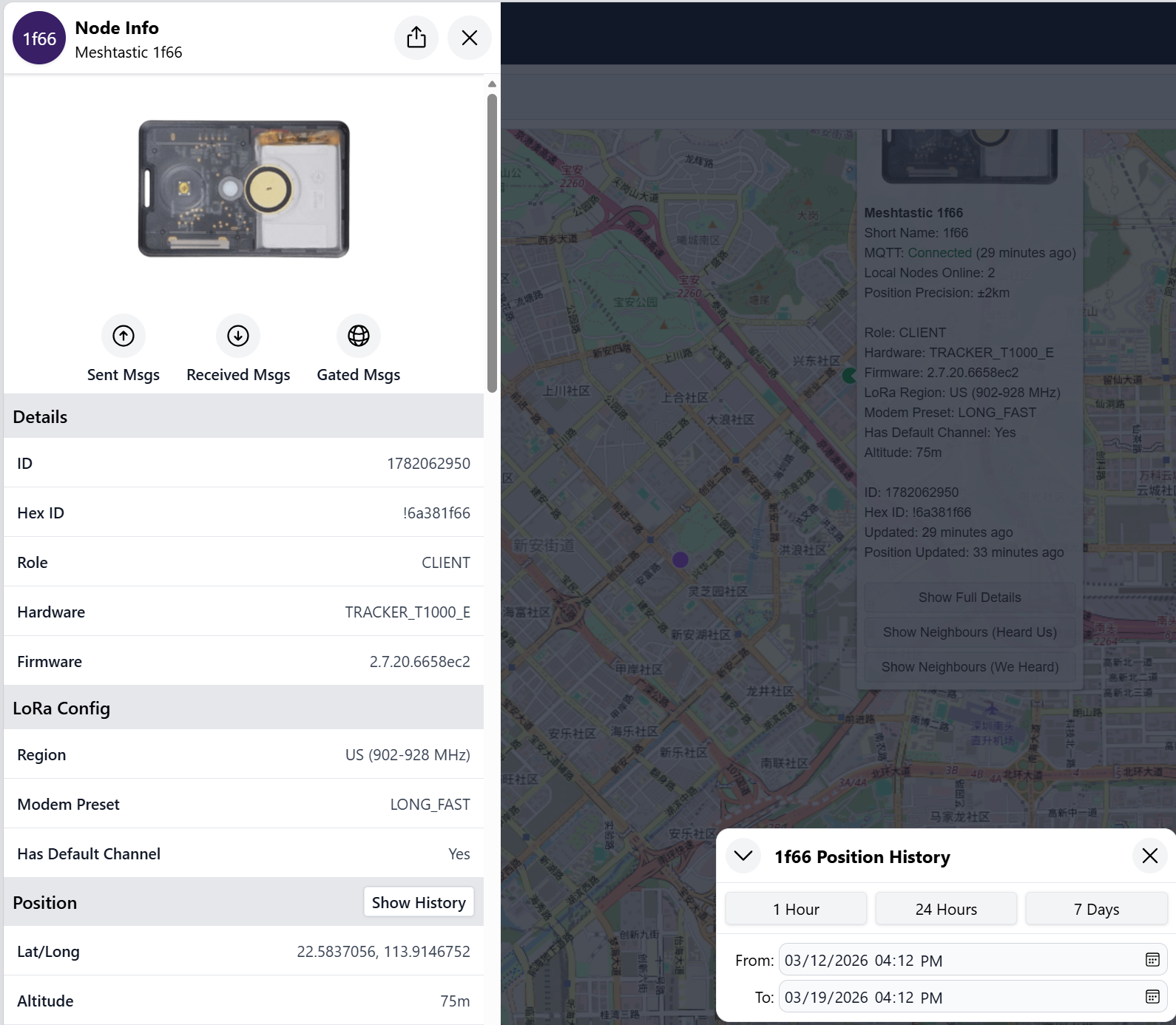
Meshtastic Node Map
This guide explains how to display the locations of Meshtastic devices on Meshtastic Node Maps using Wio Tracker L1 Pro and T1000-E devices, assuming the devices have already been flashed with the Meshtastic firmware.
Introduction to Meshtastic Network Monitors
The Meshtastic Node Map is an online interface that visualizes the locations of Meshtastic devices on a map. It helps users monitor the real-time positions of devices in a mesh network, providing insight into network coverage and connectivity.
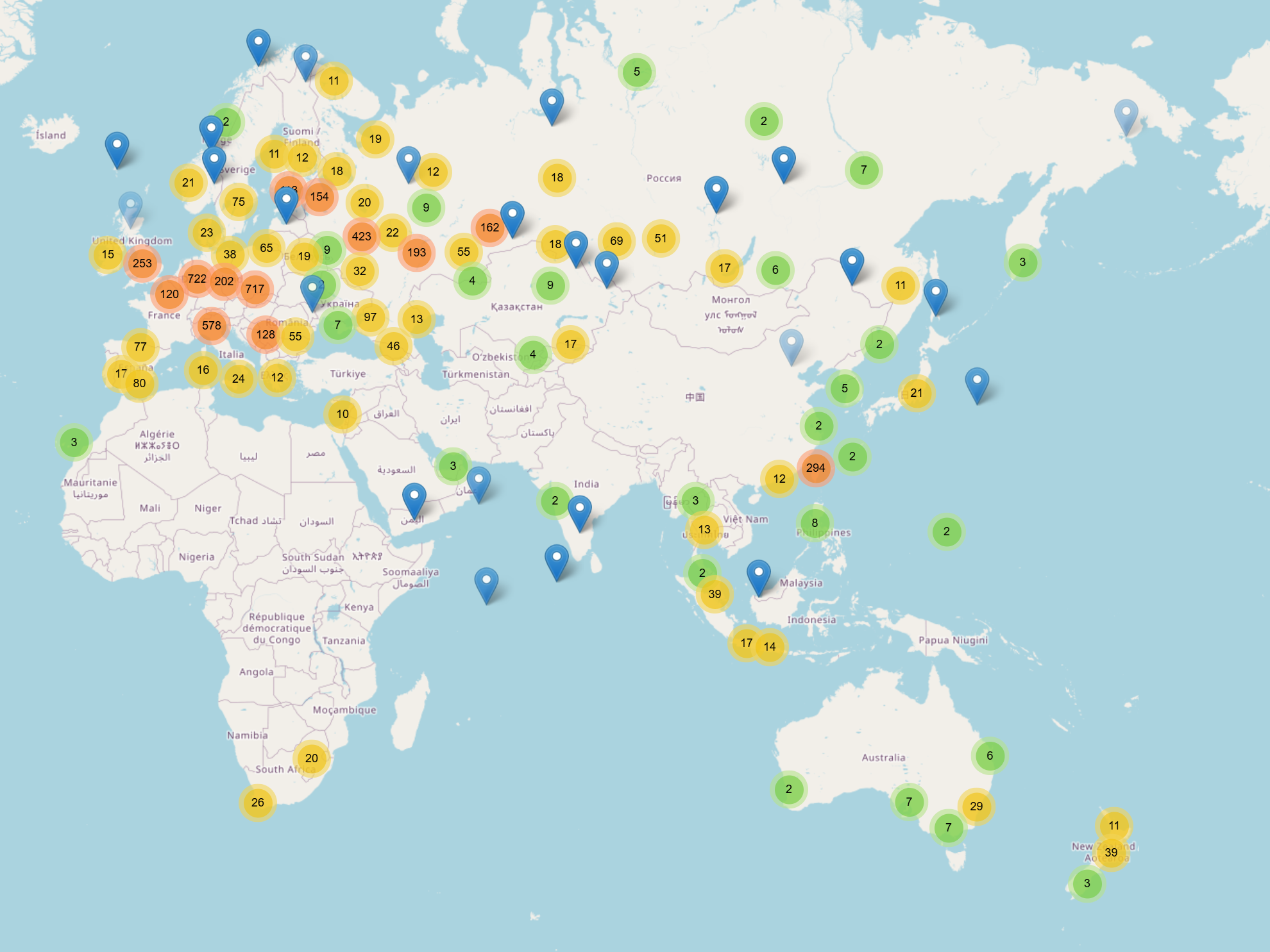
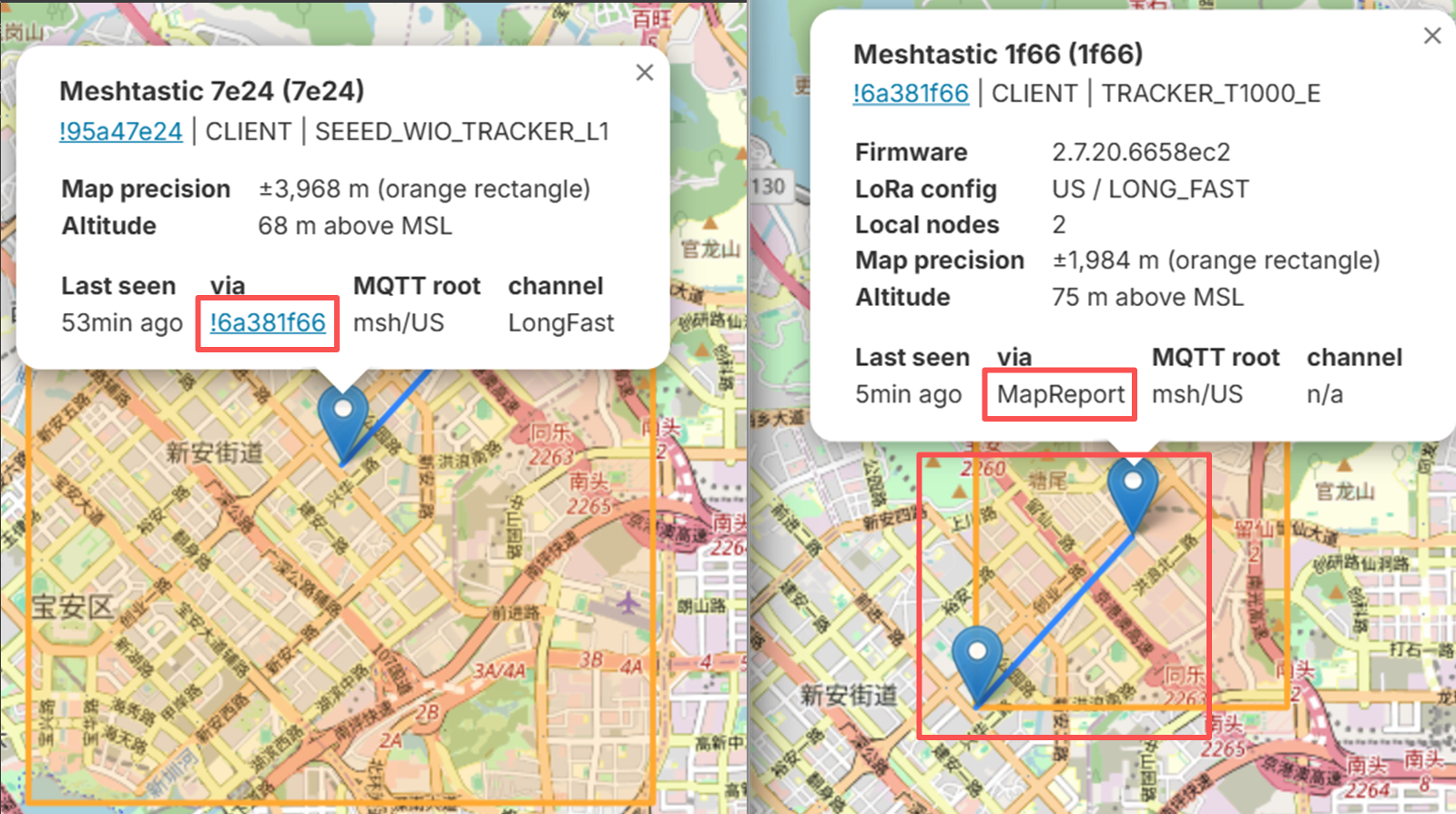
Meshtastic devices periodically report their location to a Meshtastic server via MQTT. The Node Map retrieves these reports and displays each node's position, route, and signal range. Devices can report their location:
- Directly via MapReport: The device sends location data to the server directly.
- Indirectly via other nodes: The location is relayed through neighboring nodes.
Suitable Use Cases
Meshtastic Node Maps are ideal for:
- Outdoor adventures such as hiking, biking, or expeditions.
- Remote monitoring of distributed IoT devices.
- Tracking assets or team members without relying on cellular networks.
Common Meshtastic Node Maps
| Node Map | Features | Ideal For | Notes |
|---|---|---|---|
| MeshMap | Real-time node tracking, Mesh route display, signal range display | Casual users, beginners | Simple interface, default Meshtastic server |
| Liam Cottle's Meshtastic Map | Real-time tracking, historical route view, signal range display | Advanced users, data analysis | Uses custom MQTT server |
Get Started with MeshMap
Configuration
LoRa Settings
- Configure your device to the correct LoRa frequency band for your region.
- Enable OK to MQTT to allow reporting.
MQTT Settings
- Enable MQTT on your device.
- Use the default Meshtastic server, username and password.
- Enable MapReport and check I agree. Select the reporting interval according to your needs.
Viewing Device Locations
Open MeshMap in your web browser: MeshMap Link.
You will see all nodes on the map. Nodes reported via MapReport are direct updates from the device. Nodes reported via other nodes are relayed updates.
Click on any node to view detailed information (device ID, battery level, etc.), mesh route and signal coverage
Get Started with Liam Cottle's Meshtastic Map
Configuration
LoRa Settings
- Configure your device to the correct LoRa frequency band.
- Enable OK to MQTT.
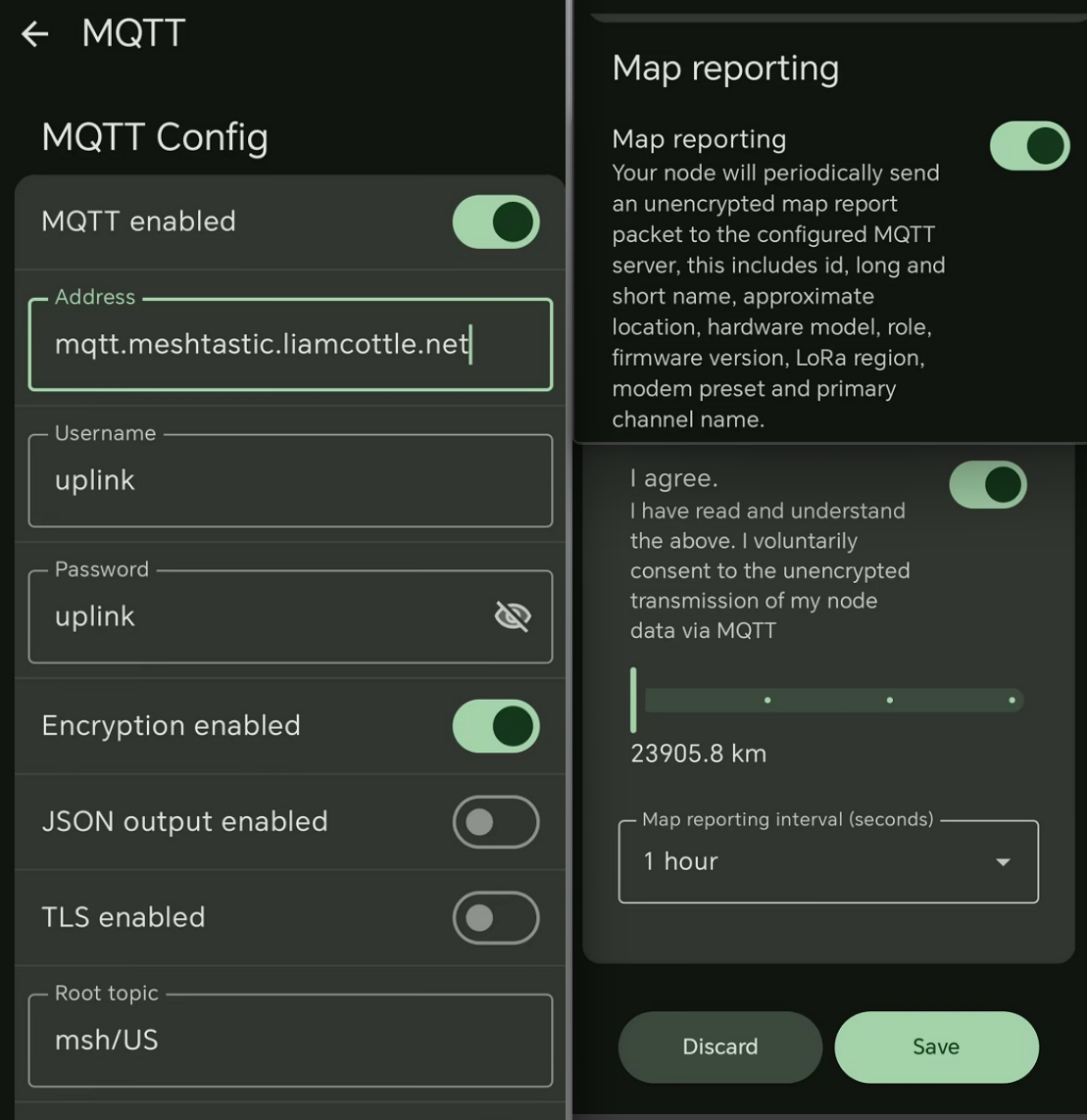
MQTT Settings
- Enable MQTT
- Configure the following parameters:
- Address:
mqtt.meshtastic.liamcottle.net - Username:
uplink - Password:
uplink - Encryption Enabled: Yes
- JSON Output: No
- TLS Enabled: No
- Address:
- Enable
MapReportand checkI agree. Select your preferred reporting interval.
Viewing Device Locations
Open Liam Cottle's Meshtastic Map in your web browser: Liam Cottle's Map Link. You will see all nodes displayed on the map.
Click on any node to view: detailed information about the device, signal range, historical routes and previous location updates