Meshtastic Network Monitor
Introduction to Meshtastic Network Monitor
Meshtastic Network Monitor is a tool that allows you to visualize, manage, and monitor nodes in a Meshtastic mesh network. It provides real-time information about the status, routing, and communication between devices. The monitor is the Meshtastic analyzer that collects data either through a connected gateway or MQTT server, visualizes the network topology, and displays node information such as battery status, signal strength, and GPS location. It can function as a Meshtastic node map too.
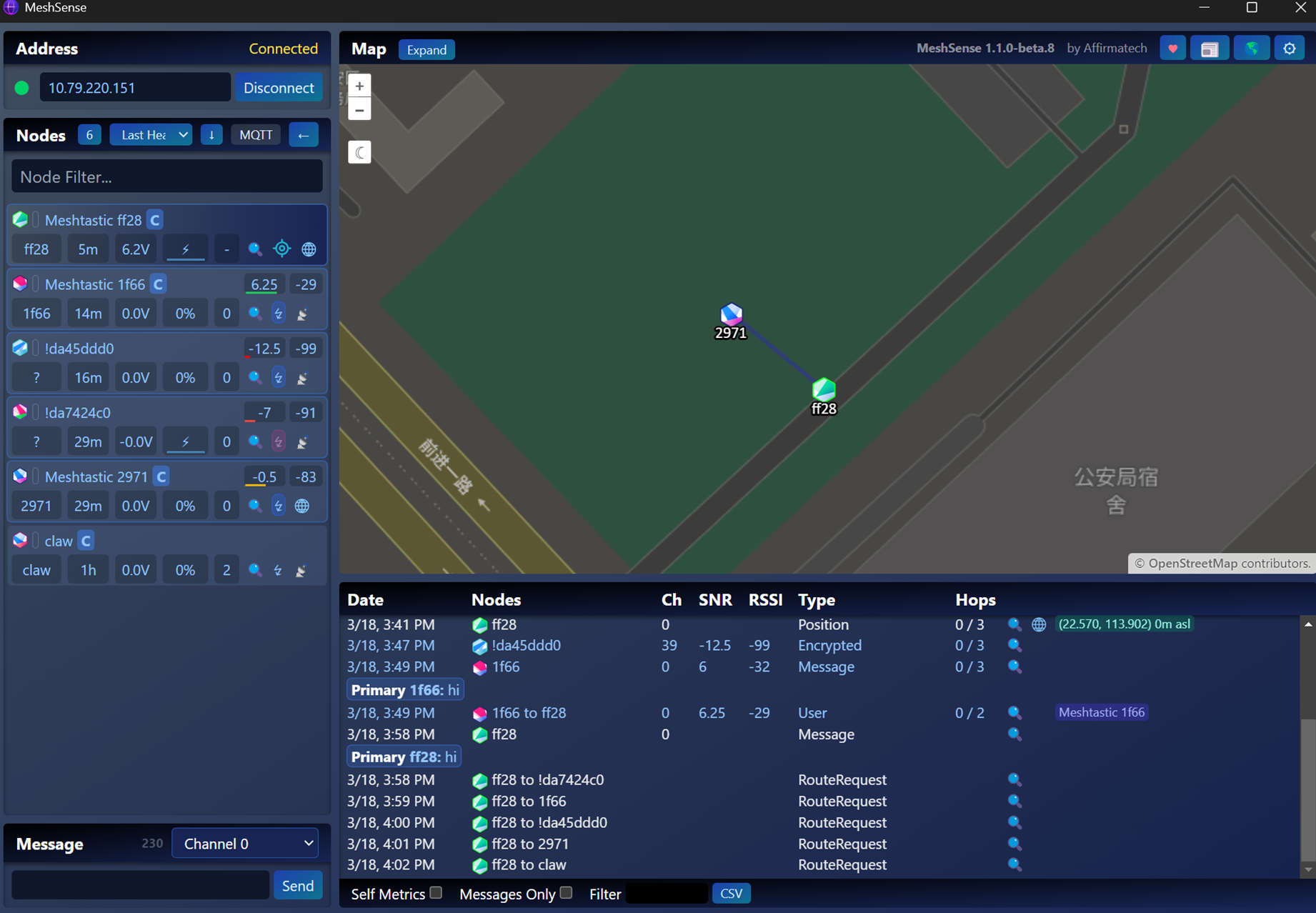
Use Cases
- Meshtastic node map. Tracking and visualizing outdoor nodes in remote areas.
- Meshtastic analyzer. Monitoring communication performance and routing in mesh networks.
- Meshtatsic monitor. Debugging and testing network connectivity for Meshtastic devices.
Common Meshtastic Monitors
- Meshsense: click here to learn more
- Meshmonitor: click here to learn more
How to Connect to a Meshtastic Monitor
- Set up your Meshtastic nodes and ensure they form a functioning mesh.
- Configure at least one node as a gateway (e.g., MQTT Gateway).
- Connect the monitor app to the gateway or MQTT server.
- Verify that nodes are visible and reporting status in the monitor interface.
Get Started with Meshsense
Configuration
App Preparation
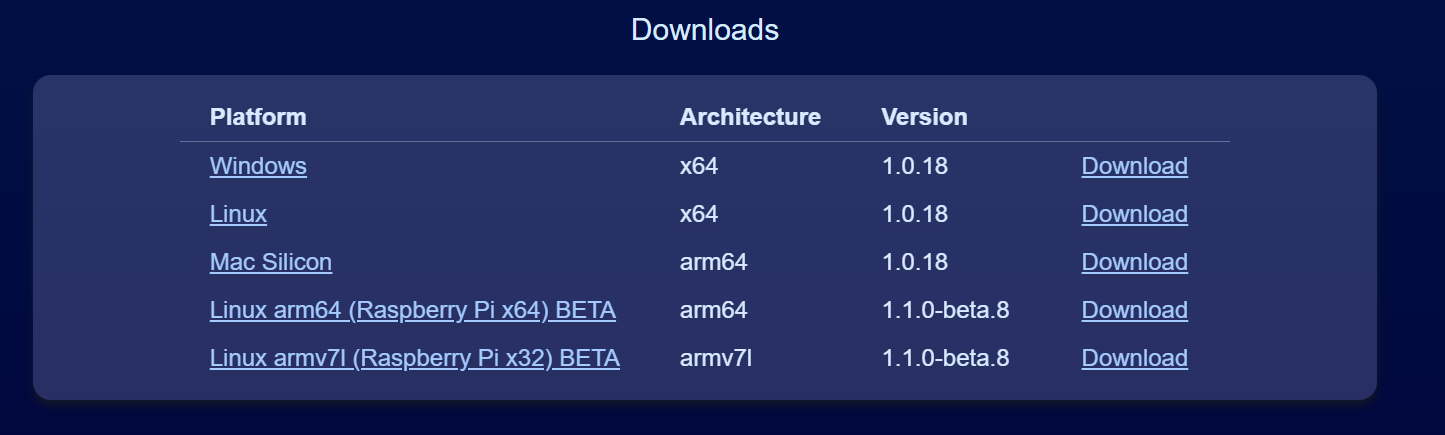
Download and install the Meshsense app for your platform: Meshsense App Download
Device Preparation
MQTT Gateway Configuration
Follow the official configuration tutorial to set up mqtt: Wio Trcker L2 MQTT Gateway Setup
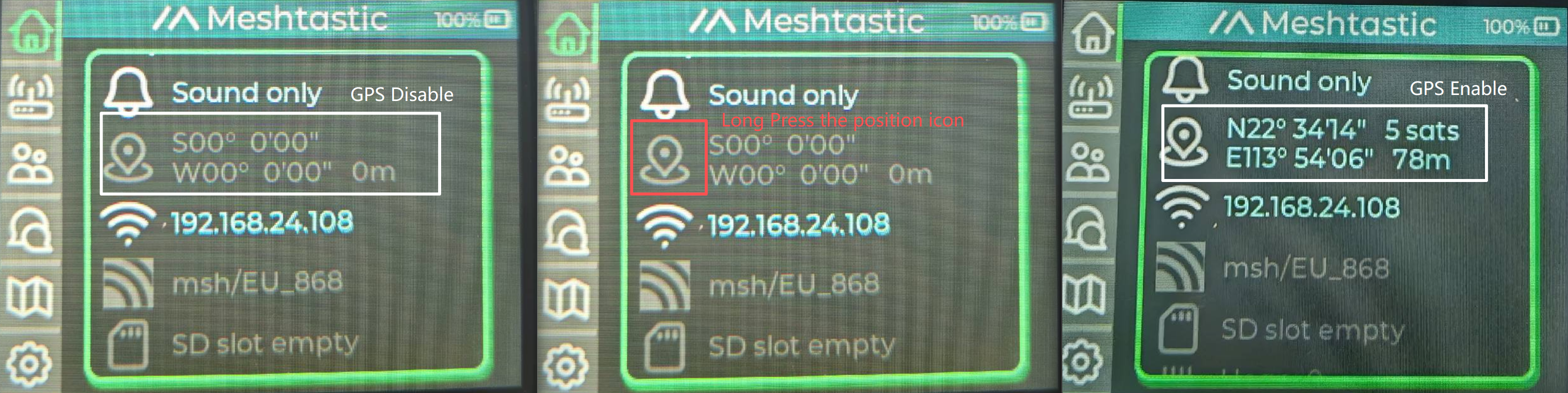
To display real-time GPS location, make sure the GPS is enabled on your node. And while configuring MQTT, ensure location reporting is allowed.
Network Connection
Connect your computer to the same Wi-Fi network as the Xiao ESP32S3 kit. Please make sure it is a 2.4G wifi.
Open a serial terminal (e.g., Arduino Serial Monitor or PuTTY) to find the IP address of your Xiao device. You can use the Meshtastic web serial monitor.

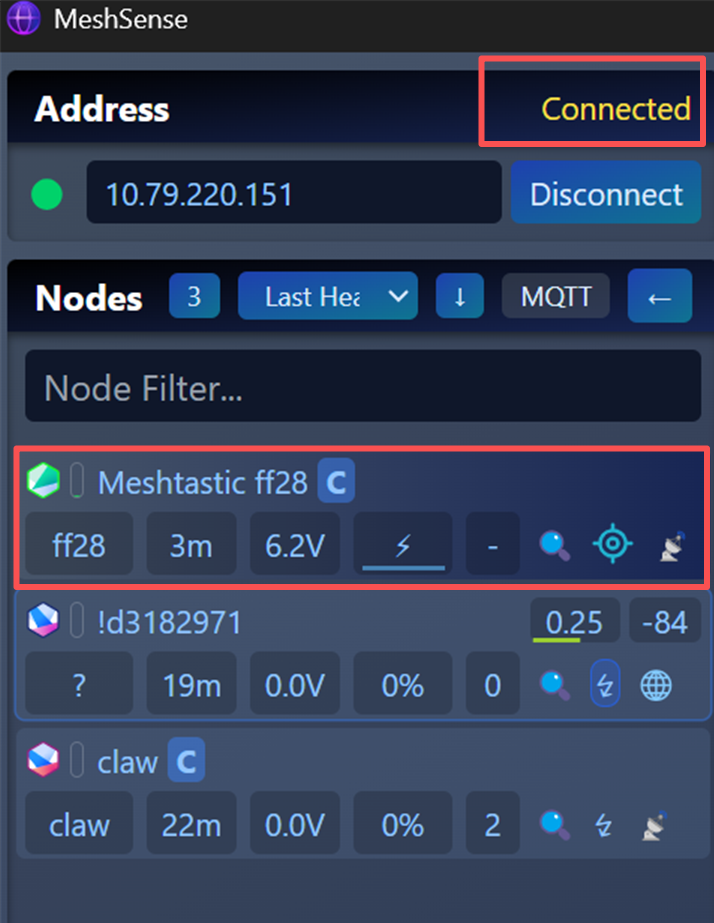
Enter this IP address in the Meshsense device connection field.
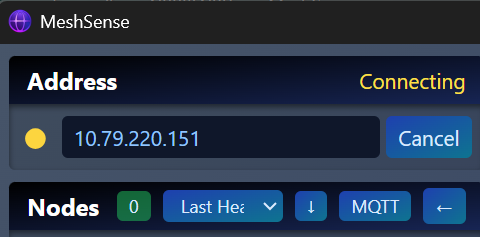
Once connected, your Meshtastic node should appear in Meshsense.
Position Display
You need to enable GPS to get position. This can be configured directly on device by long pressing the position icon.
Also, you can configure it on your phone APP.
- In the Meshsense app, ensure GPS reporting is enabled.
- Once connected, the app will display the real-time location of each node on the map. You can see your node position directly on the APP.
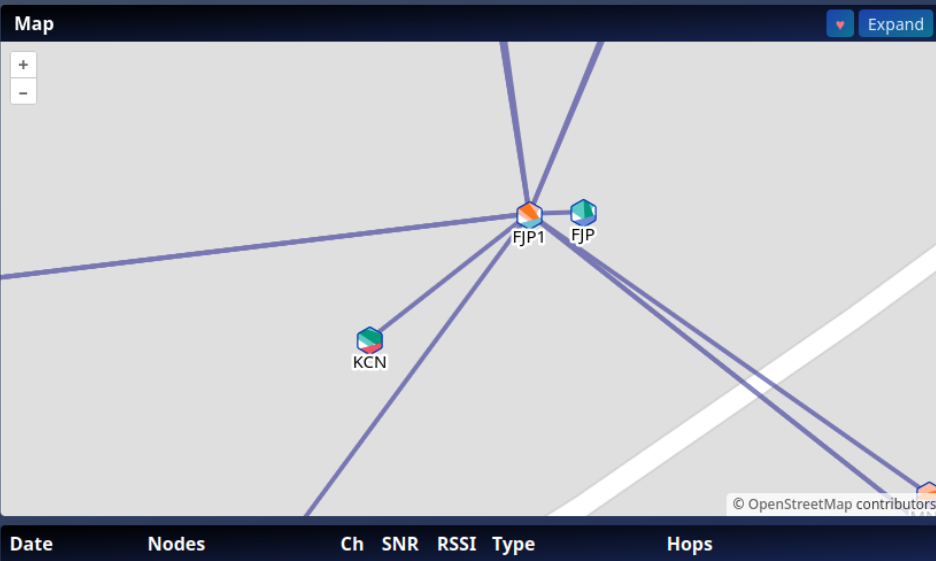
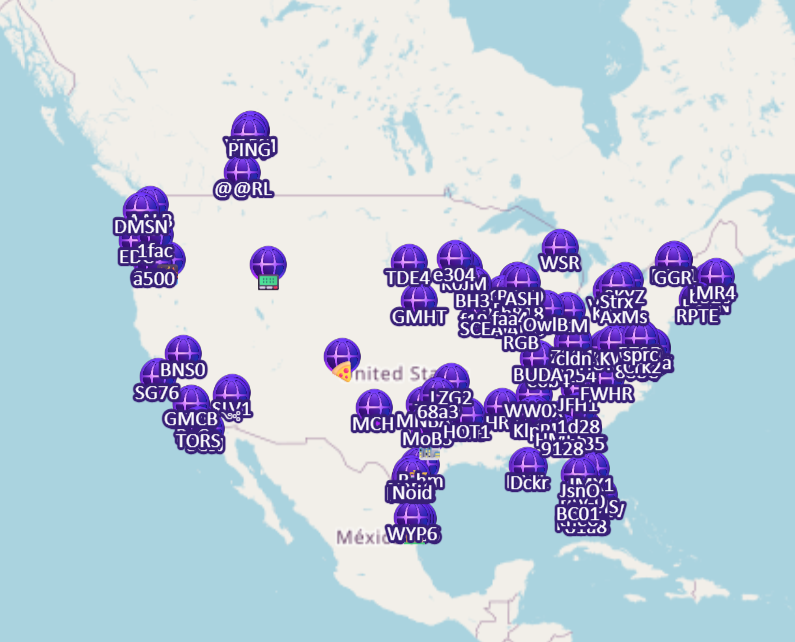
Also on Meshsense website map, you can see your real-time position.
With this setup, you can manage your private Meshtastic network efficiently and visualize node behavior directly in Meshsense.