Migrate /home Data from Jetson Orin Nano Developer Kit to reComputer
Introduction
When moving from an NVIDIA Jetson Orin Nano Developer Kit to a Seeed Studio reComputer, you may want to keep your user workspace, project files, Conda environments, scripts, and application data. However, restoring a full developer kit system image directly onto a reComputer is not recommended because the carrier board, device tree, bootloader, and BSP configuration are different.
This wiki shows how to use the reComputer Classic backup to Super migration project to migrate only /home from the source Jetson Orin Nano Developer Kit to a target reComputer. In this guide, reComputer J4012 and reComputer Super J4012 are used as target examples. Flash the target reComputer with its matching Seeed JetPack 6 BSP first, then restore the /home package on top of that clean reComputer system.

Hardware Reference
This guide uses the Jetson Orin Nano Developer Kit as the source device and reComputer J4012 / reComputer Super J4012 as target examples. The same /home-only migration idea can also be used for other Jetson-to-reComputer combinations when both systems are running JetPack 6 / L4T R36 and the target has been flashed with its matching Seeed BSP.
| Source Device | Target Example 1 | Target Example 2 |
|---|---|---|
 Jetson Orin Nano Developer Kit | 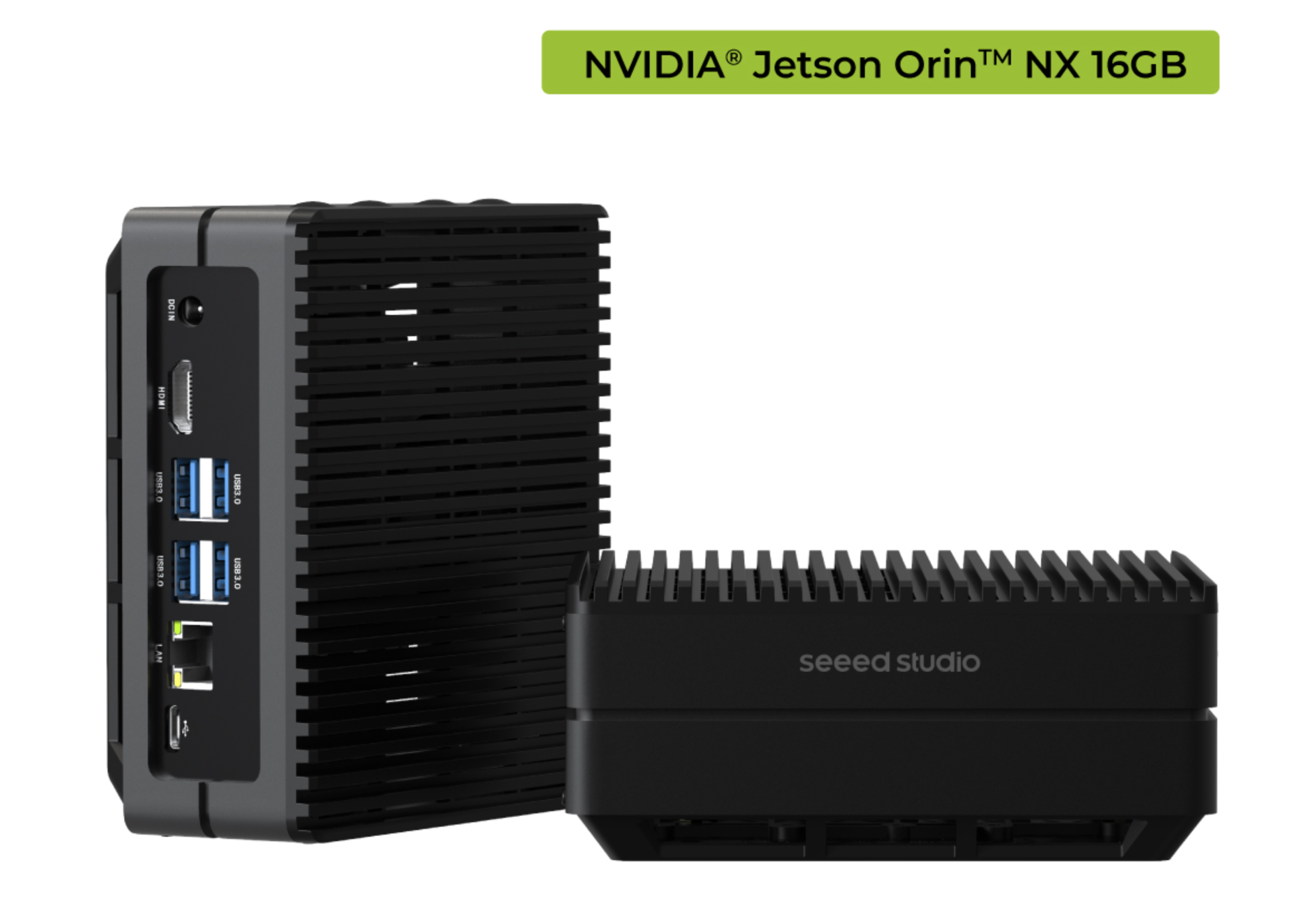 reComputer J4012 | 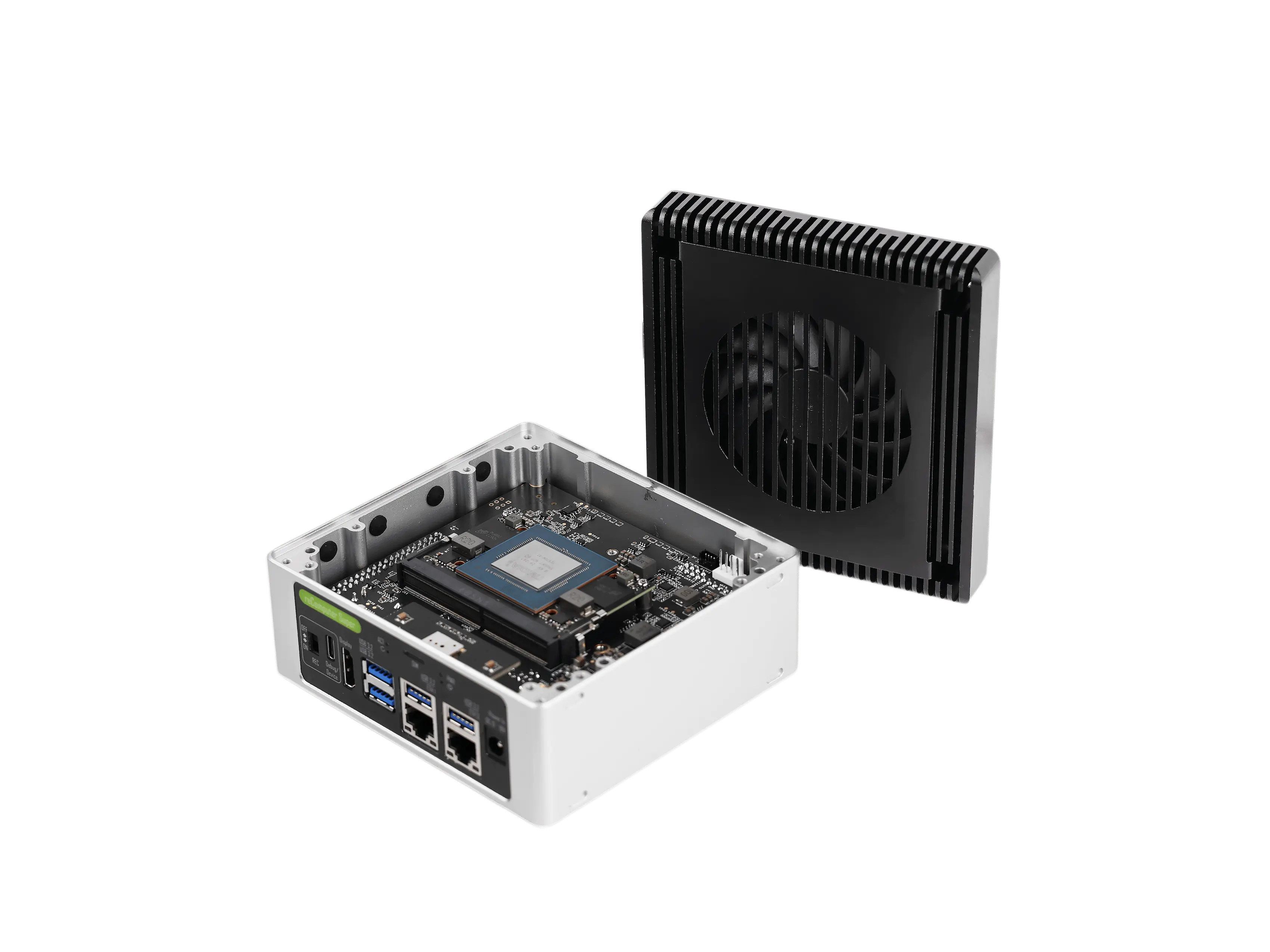 reComputer Super J4012 |
What This Migration Does
The migration package contains:
/home- source system metadata
/homeuser and group metadata- manually installed APT package list, if available
- installed dpkg package list, if available
- package checksums
It intentionally does not restore:
/boot/boot/dtb/lib/modules/usr/lib/modules/etc/nv_boot_control.conf/etc/fstab- bootloader partitions
- board-specific BSP files
This workflow is for user data migration, not full system cloning. Applications installed under /usr, services configured under /etc, Docker images under /var/lib/docker, and system-level BSP changes are not migrated. Reinstall or reconfigure those components on the target reComputer after the /home restore.
Prerequisites
- Source NVIDIA Jetson Orin Nano Developer Kit running JetPack 6 / L4T R36
- Target reComputer J4012 or reComputer Super J4012 running its matching Seeed JetPack 6 BSP
- Network access or removable storage to transfer the package
- Enough free space for a compressed
/homebackup package git,tar,sha256sum,awk, andfind
Before restoring the package, flash the target reComputer with the correct Seeed firmware. For reComputer J4012, refer to Flash JetPack OS to J401 Carrier Board. For reComputer Super J4012, refer to Getting Started with reComputer Super.
Workflow Overview
- Flash the target reComputer with the matching Seeed JetPack 6 BSP.
- Clone the migration project on the source Jetson Orin Nano Developer Kit.
- Create a
/homemigration package on the source device. - Copy the package to the target reComputer.
- Inspect or dry-run the restore on the target.
- Restore
/homeon the target and reboot. - Reinstall any required system packages or services that are outside
/home.
Backup on the Source Jetson Orin Nano Developer Kit
Step 1. Install git if it is not already installed.
sudo apt update
sudo apt install -y git
Step 2. Clone the migration project.
git clone https://github.com/jjjadand/reComputer_classic-backup-to-super.git
cd reComputer_classic-backup-to-super
chmod +x *.sh
Step 3. Create a backup package.
Replace /path/to/output with a directory that has enough free space, such as a USB drive, external SSD, or a shared network folder.
sudo ./backup_home_jp6.sh -o /path/to/output
After the backup finishes, you will see two files:
jetson-home-jp6-<hostname>-<timestamp>.tar.gz
jetson-home-jp6-<hostname>-<timestamp>.tar.gz.sha256
By default, the script excludes common cache directories to reduce package size:
/home/*/.cache
/home/*/.ccache
/home/*/.nv/ComputeCache
/home/*/.npm/_cacache
/home/*/.local/share/Trash
/home/*/.local/share/gvfs-metadata
If you need a closer copy of the user cache data, add --include-caches:
sudo ./backup_home_jp6.sh -o /path/to/output --include-caches
If you need to exclude additional data, create an exclude file with tar exclude patterns and pass it to the script:
sudo ./backup_home_jp6.sh -o /path/to/output --exclude-file /path/to/exclude-patterns.txt
The backup script uses --one-file-system for /home. If you mount external storage inside /home, back up that mounted data separately.
Inspect the Backup Package
Before restoring, you can inspect the package on either the source device or the target device.
./inspect_home_package.sh /path/to/jetson-home-jp6-xxx.tar.gz
The inspect command verifies the package checksum and prints the package format, source system metadata, source /home users, and the first entries in the /home archive.
Copy the Package to the Target reComputer
Copy the .tar.gz package to the target reComputer. For example, using scp:
scp /path/to/jetson-home-jp6-xxx.tar.gz seeed@<recomputer-ip>:/home/seeed/
You can also copy the package using a USB drive or external SSD.
Keep the .sha256 file as an external checksum record. The restore script also verifies the checksums embedded inside the migration package.
Restore on the Target reComputer
Step 1. Make sure the target reComputer has already been flashed with the correct Seeed JetPack 6 BSP and completed the first boot setup.
Step 2. Clone the migration project on the target.
git clone https://github.com/jjjadand/reComputer_classic-backup-to-super.git
cd reComputer_classic-backup-to-super
chmod +x *.sh
The restore script name contains super because the original project was created for a reComputer Super migration scenario. In this guide, it is still used only to verify and overlay the /home package on the selected reComputer target.
Step 3. Run a dry run first.
./restore_home_on_super_jp6.sh --dry-run /home/seeed/jetson-home-jp6-xxx.tar.gz
The dry run verifies the package and prints a summary without restoring files.
Step 4. Restore the package.
sudo ./restore_home_on_super_jp6.sh --create-users /home/seeed/jetson-home-jp6-xxx.tar.gz
The --create-users option creates missing source users and groups by UID/GID before extracting the package. This helps preserve file ownership when the source user does not yet exist on the target reComputer system.
By default, the restore script creates a rollback archive of the current target /home before overlaying the source package:
/var/backups/jetson_home_migration/super-home-before-restore-<timestamp>.tar.gz
If /var/backups does not have enough space, use another backup directory:
sudo ./restore_home_on_super_jp6.sh --create-users --backup-dir /path/to/backup-dir /home/seeed/jetson-home-jp6-xxx.tar.gz
Only use --no-backup if you already have a separate backup of the target /home:
sudo ./restore_home_on_super_jp6.sh --create-users --no-backup /home/seeed/jetson-home-jp6-xxx.tar.gz
The restore operation overlays files onto /home. It overwrites matching files from the package, but it does not delete files that exist only on the target.
Step 5. Reboot the target.
sudo sync
sudo reboot
Validate the Migration
After the target reComputer reboots, check the restored users and files:
ls -lah /home
id <source-user>
du -sh /home/<source-user>
Then validate your application data and user environments:
ls -lah /home/<source-user>/projects
conda env list
python3 --version
If you use Jetson tools such as jtop, run them again on the target reComputer:
jtop
If an application command is missing after migration, it was probably installed outside /home. Use the metadata in the package to check the source package list, then reinstall the required software on the target reComputer system.
Roll Back the Target /home
If you need to restore the target /home state that existed before migration, use the rollback archive created by the restore script.
sudo tar --extract \
  --gzip \
  --file /var/backups/jetson_home_migration/super-home-before-restore-xxx.tar.gz \
  --directory / \
  --preserve-permissions \
  --same-owner \
  --acls \
  --xattrs \
  --xattrs-include='*' \
  --numeric-owner \
  --overwrite

sudo sync
sudo reboot
Troubleshooting
The Script Warns That the System Does Not Look Like JetPack 6
The scripts check /etc/nv_tegra_release and expect L4T R36. Confirm that both the source and target are running JetPack 6.
cat /etc/nv_tegra_release
File Ownership Looks Numeric After Restore
This usually means the target does not have the same UID/GID users as the source. Run the restore command with --create-users, or manually create users with matching UID/GID before restoring.
The Package Is Too Large
Use the default cache exclusions, remove unnecessary files from /home, or provide an additional exclude pattern file with --exclude-file.
Some Files Changed During Backup
The backup script accepts tar status 1, which usually means live files changed during the backup. Close running applications and repeat the backup if the changed files are important.
Docker Images or System Services Are Missing
This migration only restores /home. Docker images, system services, APT-installed applications, and files under /etc, /usr, and /var need to be reinstalled or reconfigured on the target reComputer system.
Resources
- reComputer Classic backup to Super migration project
- Create Backup and Restore on reComputer
- How to Update Jetson Orin Nano Developer Kit to Super Kit
- Flash JetPack OS to J401 Carrier Board
- Getting Started with reComputer Super
- reComputer J30/J40 Getting Started
- Seeed Jetson Devices One Page
Tech Support & Product Discussion
Thank you for choosing our products! We are here to provide you with different support to ensure that your experience with our products is as smooth as possible. We offer several communication channels to cater to different preferences and needs.