Grove - Anel de LED RGB (20 - WS2813 Mini)

O Grove - Anel de LED RGB (20 - WS2813 Mini) é uma versão mini do WS2813 Digital RGB LED Ring. O anel de LED RGB utiliza LEDs no tamanho 3535 com um microcontrolador embutido dentro do LED. Cada WS2813 é endereçável, pois o chip driver está localizado dentro do próprio LED. Cada LED possui acionamento por corrente constante, de modo que a cor será muito consistente mesmo com a variação da tensão.

Características
- O circuito de controle e o chip RGB são integrados em um componente 3535, formando um pixel de controle externo.
- Proteção inteligente contra conexão reversa.
- Circuito interno de remodelagem de sinal
- 256 níveis de cinza e exibição de cores completas de 16777216
- Interface de cascata serial, recebimento e decodificação de dados dependem de apenas uma linha de sinal.
- Transmissão de dados em velocidades de até 800Kbps.
- Versão com fios de sinal duplos, transmissão contínua em ponto de ruptura de sinal.
Transmissão contínua em ponto de ruptura de sinal

Enquanto não houver dois ou mais LEDs adjacentes danificados, os LEDs restantes conseguirão funcionar normalmente.
Especificações
| Item | Valor |
|---|---|
| Alimentação | 3.3V/5V |
| Corrente em repouso | 0.7mA/LED |
| Corrente constante do canal RGB | 16mA/LED |
| Frequência de atualização | 2KHz |
| Tempo de reset | >280μs |
| Temperatura de operação | -25~85℃ |
| Temperatura de armazenamento | -40~105℃ |
Aplicações típicas
- Aplicações em séries de tubos de guarda-corpo, séries de exibição de pontos de luz, séries de tiras flexíveis/rigidas e séries de módulos.
- Vestimentas de iluminação de palco, dispositivos inovadores ou quaisquer outros produtos eletrônicos.
Visão geral de hardware
Pinagem

Detalhes de hardware
WS2813B-Mini
WS2813-Mini é uma fonte de luz LED de controle inteligente em que o circuito de controle e o chip RGB são integrados em um encapsulamento de componente 3535. Seu interior inclui trava de dados de porta digital inteligente e circuito de acionamento de amplificação de remodelagem de sinal. Também inclui um oscilador interno de precisão e uma parte de controle de corrente constante programável de 12V, o que alcança um efeito de cor altamente consistente.
Plataformas compatíveis
| Arduino | Raspberry Pi |
|---|---|
|
|

As plataformas mencionadas acima como suportadas são uma indicação da compatibilidade teórica ou de software do módulo. Na maioria dos casos, fornecemos apenas biblioteca de software ou exemplos de código para a plataforma Arduino. Não é possível fornecer biblioteca de software/código de demonstração para todas as possíveis plataformas de MCU. Portanto, os usuários precisam escrever sua própria biblioteca de software.
Primeiros passos
Brincar com Arduino
Hardware
| Seeeduino V4.2 | Base Shield | Grove - RGB LED Ring | Grove - Button |
|---|---|---|---|
|
|
|
|
| Adquira agora | Adquira agora | Adquira agora | Adquira agora |
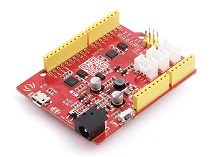
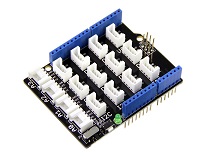


1. Conecte o cabo USB com cuidado, caso contrário você pode danificar a porta. Use o cabo USB com 4 fios internos; cabos com 2 fios não conseguem transferir dados. Se você não tiver certeza sobre o cabo que possui, pode clicar here para comprar
2. Cada módulo Grove vem com um cabo Grove quando você o compra. Caso você perca o cabo Grove, pode clicar here para comprar.
-
Passo 1. Conecte o Grove - Button à porta D2 do Grove - Base Shield.
-
Passo 2. Conecte o Grove - RGB LED Ring à porta D6 do Grove-Base Shield.
-
Passo 3. Conecte o Grove - Base Shield ao Seeeduino.
1. Se você estiver usando um Arduino UNO, recomenda-se conectar à fonte de alimentação DC para evitar que a ondulação máxima de Vcc exceda 100mV.
2. Se você estiver usando o Seeeduino V4.2, não é necessário conectar à fonte de alimentação DC. Porém, se você alterar para alimentar o Grove com 3V3, a placa-mãe será reiniciada quando a alimentação for ligada. Observe que isso não afetará o uso.
- Passo 4. Conecte o Seeeduino ao PC por meio de um cabo USB.

Hot swap não é suportado; você deve desconectar o Arduino da fonte de alimentação antes de qualquer substituição ou alteração.
Agora, vamos mostrar como executar o código 'buttoncycler'. Esta é uma demonstração de como usar um dispositivo de entrada adicional (botão) para acionar mudanças no seu anel de LED. O procedimento é semelhante se você quiser executar outros programas; a única alteração é que você precisa desconectar o botão da porta D2 do base shield, já que não irá utilizá-lo.
Software
Se esta é a primeira vez que você trabalha com Arduino, recomendamos fortemente que veja Getting Started with Arduino antes de começar.
-
Passo 1. Baixe a biblioteca Grove-RGB_LED_Ring-20-WS2813Mini no Github.
-
Passo 2. Consulte How to install library para instalar a biblioteca para Arduino.
-
Passo 3. Reinicie a Arduino IDE. Abra o exemplo; você pode abri-lo das seguintes três maneiras:
- Abra-o diretamente na Arduino IDE pelo caminho: File --> Examples -->Adafruit NeoPixel-->buttoncycler.

- Abra-o no seu computador clicando em basic_demo.ino, que você pode encontrar na pasta XXXX\Arduino\libraries\Seeed_LED_Ring\examples\buttoncycler\buttoncycler.ino, em que XXXX é o local onde você instalou a Arduino IDE.

- Ou, você pode simplesmente clicar no ícone

no canto superior direito do bloco de código para copiar o seguinte código para um novo sketch na Arduino IDE.
Devido à limitação atual, o brilho do LED é limitado no programa. Se você insistir em ajustar o limite de brilho, pode modificar a função setBrightness(). Mas isso pode fazer com que a luz não funcione corretamente.
buttoncycler
Depois de executar este código, quando você pressionar o botão ele mudará para uma nova animação de pixels. Observe que você precisa pressionar o botão uma vez para iniciar a primeira animação!
#include "Adafruit_NeoPixel.h"

#define BUTTON_PIN   2    // Digital IO pin connected to the button.  This will be
                          // driven with a pull-up resistor so the switch should
                          // pull the pin to ground momentarily.  On a high -> low
                          // transition the button press logic will execute.

#define PIXEL_PIN    6    // Digital IO pin connected to the NeoPixels.

#define PIXEL_COUNT 20

// Parameter 1 = number of pixels in strip,  neopixel stick has 8
// Parameter 2 = pin number (most are valid)
// Parameter 3 = pixel type flags, add together as needed:
//   NEO_RGB     Pixels are wired for RGB bitstream
//   NEO_GRB     Pixels are wired for GRB bitstream, correct for neopixel stick
//   NEO_KHZ400  400 KHz bitstream (e.g. FLORA pixels)
//   NEO_KHZ800  800 KHz bitstream (e.g. High Density LED strip), correct for neopixel stick
Adafruit_NeoPixel strip = Adafruit_NeoPixel(PIXEL_COUNT, PIXEL_PIN, NEO_GRB + NEO_KHZ800);

bool oldState = HIGH;
int showType = 0;

void setup() {
  pinMode(BUTTON_PIN, INPUT_PULLUP);
  strip.setBrightness(255);
  strip.begin();
  strip.show(); // Initialize all pixels to 'off'
}

void loop() {
  // Get current button state.
  bool newState = digitalRead(BUTTON_PIN);

  // Check if state changed from high to low (button press).
  if (newState == LOW && oldState == HIGH) {
    // Short delay to debounce button.
    delay(20);
    // Check if button is still low after debounce.
    newState = digitalRead(BUTTON_PIN);
    if (newState == LOW) {
      showType++;
      if (showType > 9)
        showType=0;
      startShow(showType);
    }
  }

  // Set the last button state to the old state.
  oldState = newState;
}

void startShow(int i) {
  switch(i){
    case 0: colorWipe(strip.Color(0, 0, 0), 50);    // Black/off
            break;
    case 1: colorWipe(strip.Color(255, 0, 0), 50);  // Red
            break;
    case 2: colorWipe(strip.Color(0, 255, 0), 50);  // Green
            break;
    case 3: colorWipe(strip.Color(0, 0, 255), 50);  // Blue
            break;
    case 4: theaterChase(strip.Color(127, 127, 127), 50); // White
            break;
    case 5: theaterChase(strip.Color(127,   0,   0), 50); // Red
            break;
    case 6: theaterChase(strip.Color(  0,   0, 127), 50); // Blue
            break;
    case 7: rainbow(20);
            break;
    case 8: rainbowCycle(20);
            break;
    case 9: theaterChaseRainbow(50);
            break;
  }
}

// Fill the dots one after the other with a color
void colorWipe(uint32_t c, uint8_t wait) {
  for(uint16_t i=0; i < strip.numPixels(); i++) {
    strip.setPixelColor(i, c);
    strip.show();
    delay(wait);
  }
}

void rainbow(uint8_t wait) {
  uint16_t i, j;

  for(j=0; j<256; j++) {
    for(i=0; i<strip.numPixels(); i++) {
      strip.setPixelColor(i, Wheel((i+j) & 255));
    }
    strip.show();
    delay(wait);
  }
}

// Slightly different, this makes the rainbow equally distributed throughout
void rainbowCycle(uint8_t wait) {
  uint16_t i, j;

  for(j=0; j<256*5; j++) { // 5 cycles of all colors on wheel
    for(i=0; i< strip.numPixels(); i++) {
      strip.setPixelColor(i, Wheel(((i * 256 / strip.numPixels()) + j) & 255));
    }
    strip.show();
    delay(wait);
  }
}

//Theatre-style crawling lights.
void theaterChase(uint32_t c, uint8_t wait) {
  for (int j=0; j<10; j++) {  //do 10 cycles of chasing
    for (int q=0; q < 3; q++) {
      for (int i=0; i < strip.numPixels(); i=i+3) {
        strip.setPixelColor(i+q, c);    //turn every third pixel on
      }
      strip.show();

      delay(wait);

      for (int i=0; i < strip.numPixels(); i=i+3) {
        strip.setPixelColor(i+q, 0);        //turn every third pixel off
      }
    }
  }
}

//Theatre-style crawling lights with rainbow effect
void theaterChaseRainbow(uint8_t wait) {
  for (int j=0; j < 256; j++) {     // cycle all 256 colors in the wheel
    for (int q=0; q < 3; q++) {
      for (int i=0; i < strip.numPixels(); i=i+3) {
        strip.setPixelColor(i+q, Wheel( (i+j) % 255));    //turn every third pixel on
      }
      strip.show();

      delay(wait);

      for (int i=0; i < strip.numPixels(); i=i+3) {
        strip.setPixelColor(i+q, 0);        //turn every third pixel off
      }
    }
  }
}

// Input a value 0 to 255 to get a color value.
// The colours are a transition r - g - b - back to r.
uint32_t Wheel(byte WheelPos) {
  WheelPos = 255 - WheelPos;
  if(WheelPos < 85) {
    return strip.Color(255 - WheelPos * 3, 0, WheelPos * 3);
  }
  if(WheelPos < 170) {
    WheelPos -= 85;
    return strip.Color(0, WheelPos * 3, 255 - WheelPos * 3);
  }
  WheelPos -= 170;
  return strip.Color(WheelPos * 3, 255 - WheelPos * 3, 0);
}
!!! Attention O arquivo de biblioteca pode ser atualizado. Este código pode não ser aplicável ao arquivo de biblioteca atualizado, portanto recomendamos que você use os dois primeiros métodos.
Se tudo correr bem, você conseguirá ver a primeira animação do anel de LED e poderá acionar a nova animação assim que pressionar o botão.
Outros Exemplos:
Teste de faixa RGBW
#include "Adafruit_NeoPixel.h"
#ifdef __AVR__
  #include <avr/power.h>
#endif

#define PIN 6

#define NUM_LEDS 20

#define BRIGHTNESS 255

Adafruit_NeoPixel strip = Adafruit_NeoPixel(NUM_LEDS, PIN, NEO_GRBW + NEO_KHZ800);

byte neopix_gamma[] = {
    0,  0,  0,  0,  0,  0,  0,  0,  0,  0,  0,  0,  0,  0,  0,  0,
    0,  0,  0,  0,  0,  0,  0,  0,  0,  0,  0,  0,  1,  1,  1,  1,
    1,  1,  1,  1,  1,  1,  1,  1,  1,  2,  2,  2,  2,  2,  2,  2,
    2,  3,  3,  3,  3,  3,  3,  3,  4,  4,  4,  4,  4,  5,  5,  5,
    5,  6,  6,  6,  6,  7,  7,  7,  7,  8,  8,  8,  9,  9,  9, 10,
   10, 10, 11, 11, 11, 12, 12, 13, 13, 13, 14, 14, 15, 15, 16, 16,
   17, 17, 18, 18, 19, 19, 20, 20, 21, 21, 22, 22, 23, 24, 24, 25,
   25, 26, 27, 27, 28, 29, 29, 30, 31, 32, 32, 33, 34, 35, 35, 36,
   37, 38, 39, 39, 40, 41, 42, 43, 44, 45, 46, 47, 48, 49, 50, 50,
   51, 52, 54, 55, 56, 57, 58, 59, 60, 61, 62, 63, 64, 66, 67, 68,
   69, 70, 72, 73, 74, 75, 77, 78, 79, 81, 82, 83, 85, 86, 87, 89,
   90, 92, 93, 95, 96, 98, 99,101,102,104,105,107,109,110,112,114,
  115,117,119,120,122,124,126,127,129,131,133,135,137,138,140,142,
  144,146,148,150,152,154,156,158,160,162,164,167,169,171,173,175,
  177,180,182,184,186,189,191,193,196,198,200,203,205,208,210,213,
  215,218,220,223,225,228,231,233,236,239,241,244,247,249,252,255 };


void setup() {
  // This is for Trinket 5V 16MHz, you can remove these three lines if you are not using a Trinket
  #if defined (__AVR_ATtiny85__)
    if (F_CPU == 16000000) clock_prescale_set(clock_div_1);
  #endif
  // End of trinket special code
  strip.setBrightness(BRIGHTNESS);
  strip.begin();
  strip.show(); // Initialize all pixels to 'off'
}

void loop() {
  // Some example procedures showing how to display to the pixels:
  colorWipe(strip.Color(255, 0, 0), 50); // Red
  colorWipe(strip.Color(0, 255, 0), 50); // Green
  colorWipe(strip.Color(0, 0, 255), 50); // Blue
  colorWipe(strip.Color(0, 0, 0, 255), 50); // White

  whiteOverRainbow(20,75,5);

  pulseWhite(5);

  // fullWhite();
  // delay(2000);

  rainbowFade2White(3,3,1);


}

// Fill the dots one after the other with a color
void colorWipe(uint32_t c, uint8_t wait) {
  for(uint16_t i=0; i < strip.numPixels(); i++) {
    strip.setPixelColor(i, c);
    strip.show();
    delay(wait);
  }
}

void pulseWhite(uint8_t wait) {
  for(int j = 0; j < 256 ; j++){
      for(uint16_t i=0; i < strip.numPixels(); i++) {
          strip.setPixelColor(i, strip.Color(0,0,0, neopix_gamma[j] ) );
        }
        delay(wait);
        strip.show();
      }

  for(int j = 255; j >= 0 ; j--){
      for(uint16_t i=0; i<strip.numPixels(); i++) {
          strip.setPixelColor(i, strip.Color(0,0,0, neopix_gamma[j] ) );
        }
        delay(wait);
        strip.show();
      }
}


void rainbowFade2White(uint8_t wait, int rainbowLoops, int whiteLoops) {
  float fadeMax = 100.0;
  int fadeVal = 0;
  uint32_t wheelVal;
  int redVal, greenVal, blueVal;

  for(int k = 0 ; k < rainbowLoops ; k ++){

    for(int j=0; j<256; j++) { // 5 cycles of all colors on wheel

      for(int i=0; i< strip.numPixels(); i++) {

        wheelVal = Wheel(((i * 256 / strip.numPixels()) + j) & 255);

        redVal = red(wheelVal) * float(fadeVal/fadeMax);
        greenVal = green(wheelVal) * float(fadeVal/fadeMax);
        blueVal = blue(wheelVal) * float(fadeVal/fadeMax);

        strip.setPixelColor( i, strip.Color( redVal, greenVal, blueVal ) );

      }

      //First loop, fade in!
      if(k == 0 && fadeVal < fadeMax-1) {
          fadeVal++;
      }

      //Last loop, fade out!
      else if(k == rainbowLoops - 1 && j > 255 - fadeMax ){
          fadeVal--;
      }

        strip.show();
        delay(wait);
    }

  }


  delay(500);


  for(int k = 0 ; k < whiteLoops ; k ++){

    for(int j = 0; j < 256 ; j++){

        for(uint16_t i=0; i < strip.numPixels(); i++) {
            strip.setPixelColor(i, strip.Color(0,0,0, neopix_gamma[j] ) );
          }
          strip.show();
        }

        delay(2000);
    for(int j = 255; j >= 0 ; j--){

        for(uint16_t i=0; i < strip.numPixels(); i++) {
            strip.setPixelColor(i, strip.Color(0,0,0, neopix_gamma[j] ) );
          }
          strip.show();
        }
  }

  delay(500);


}

void whiteOverRainbow(uint8_t wait, uint8_t whiteSpeed, uint8_t whiteLength ) {

  if(whiteLength >= strip.numPixels()) whiteLength = strip.numPixels() - 1;

  int head = whiteLength - 1;
  int tail = 0;

  int loops = 3;
  int loopNum = 0;

  static unsigned long lastTime = 0;


  while(true){
    for(int j=0; j<256; j++) {
      for(uint16_t i=0; i<strip.numPixels(); i++) {
        if((i >= tail && i <= head) || (tail > head && i >= tail) || (tail > head && i <= head) ){
          strip.setPixelColor(i, strip.Color(0,0,0, 255 ) );
        }
        else{
          strip.setPixelColor(i, Wheel(((i * 256 / strip.numPixels()) + j) & 255));
        }

      }

      if(millis() - lastTime > whiteSpeed) {
        head++;
        tail++;
        if(head == strip.numPixels()){
          loopNum++;
        }
        lastTime = millis();
      }

      if(loopNum == loops) return;

      head%=strip.numPixels();
      tail%=strip.numPixels();
        strip.show();
        delay(wait);
    }
  }

}
void fullWhite() {

    for(uint16_t i=0; i<strip.numPixels(); i++) {
        strip.setPixelColor(i, strip.Color(0,0,0, 255 ) );
    }
      strip.show();
}


// Slightly different, this makes the rainbow equally distributed throughout
void rainbowCycle(uint8_t wait) {
  uint16_t i, j;

  for(j=0; j<256 * 5; j++) { // 5 cycles of all colors on wheel
    for(i=0; i< strip.numPixels(); i++) {
      strip.setPixelColor(i, Wheel(((i * 256 / strip.numPixels()) + j) & 255));
    }
    strip.show();
    delay(wait);
  }
}

void rainbow(uint8_t wait) {
  uint16_t i, j;

  for(j=0; j<256; j++) {
    for(i=0; i<strip.numPixels(); i++) {
      strip.setPixelColor(i, Wheel((i+j) & 255));
    }
    strip.show();
    delay(wait);
  }
}

// Input a value 0 to 255 to get a color value.
// The colours are a transition r - g - b - back to r.
uint32_t Wheel(byte WheelPos) {
  WheelPos = 255 - WheelPos;
  if(WheelPos < 85) {
    return strip.Color(255 - WheelPos * 3, 0, WheelPos * 3,0);
  }
  if(WheelPos < 170) {
    WheelPos -= 85;
    return strip.Color(0, WheelPos * 3, 255 - WheelPos * 3,0);
  }
  WheelPos -= 170;
  return strip.Color(WheelPos * 3, 255 - WheelPos * 3, 0,0);
}

uint8_t red(uint32_t c) {
  return (c >> 16);
}
uint8_t green(uint32_t c) {
  return (c >> 8);
}
uint8_t blue(uint32_t c) {
  return (c);
}
Simples
#include "Adafruit_NeoPixel.h"
#ifdef __AVR__
  #include <avr/power.h>
#endif

// Which pin on the Arduino is connected to the NeoPixels?
// On a Trinket or Gemma we suggest changing this to 1
#define PIN            6

// How many NeoPixels are attached to the Arduino?
#define NUMPIXELS      20

// When we setup the NeoPixel library, we tell it how many pixels, and which pin to use to send signals.
// Note that for older NeoPixel strips you might need to change the third parameter--see the strandtest
// example for more information on possible values.
Adafruit_NeoPixel pixels = Adafruit_NeoPixel(NUMPIXELS, PIN, NEO_GRB + NEO_KHZ800);

int delayval = 500; // delay for half a second

void setup() {
  // This is for Trinket 5V 16MHz, you can remove these three lines if you are not using a Trinket
#if defined (__AVR_ATtiny85__)
  if (F_CPU == 16000000) clock_prescale_set(clock_div_1);
#endif
  // End of trinket special code
  pixels.setBrightness(255);
  pixels.begin(); // This initializes the NeoPixel library.
}

void loop() {

  // For a set of NeoPixels the first NeoPixel is 0, second is 1, all the way up to the count of pixels minus one.

  for(int i=0;i<NUMPIXELS;i++){

    // pixels.Color takes RGB values, from 0,0,0 up to 255,255,255
    pixels.setPixelColor(i, pixels.Color(0,150,0)); // Moderately bright green color.

    pixels.show(); // This sends the updated pixel color to the hardware.

    delay(delayval); // Delay for a period of time (in milliseconds).

  }
}
Operador New Simples
#include "Adafruit_NeoPixel.h"
#ifdef __AVR__
  #include <avr/power.h>
#endif

// Which pin on the Arduino is connected to the NeoPixels?
// On a Trinket or Gemma we suggest changing this to 1
#define PIN            6

// How many NeoPixels are attached to the Arduino?
int numPixel = 20;

// Color order, for more information see https://github.com/adafruit/Adafruit_NeoPixel/blob/master/Adafruit_NeoPixel.h
uint8_t colorOrder = 0x52; //or just use NEO_GBR

// Define new pointer for NeoPixel
Adafruit_NeoPixel *pixels;


int delayval = 500; // delay for half a second

void setup() {
  // This is for Trinket 5V 16MHz, you can remove these three lines if you are not using a Trinket
#if defined (__AVR_ATtiny85__)
  if (F_CPU == 16000000) clock_prescale_set(clock_div_1);
#endif
  // End of trinket special code

  // Here is a good place to read numPixel & colorOrder from EEPROM or what ever.
  // create a new NeoPixel instance with new values
  pixels = new Adafruit_NeoPixel(numPixel, PIN, colorOrder);
  pixels->setBrightness(255);
  pixels->begin(); // This initializes the NeoPixel library.
}

void loop() {

  // For a set of NeoPixels the first NeoPixel is 0, second is 1, all the way up to the count of pixels minus one.

  for(int i=0;i<numPixel;i++){

    // pixels.Color takes RGB values, from 0,0,0 up to 255,255,255
    pixels->setPixelColor(i, pixels->Color(0,150,0)); // Moderately bright green color.

    pixels->show(); // This sends the updated pixel color to the hardware.

    delay(delayval); // Delay for a period of time (in milliseconds).

  }
}
Teste de Fio
#include "Adafruit_NeoPixel.h"
#ifdef __AVR__
  #include <avr/power.h>
#endif

#define PIN 6

// Parameter 1 = number of pixels in strip
// Parameter 2 = Arduino pin number (most are valid)
// Parameter 3 = pixel type flags, add together as needed:
//   NEO_KHZ800  800 KHz bitstream (most NeoPixel products w/WS2812 LEDs)
//   NEO_KHZ400  400 KHz (classic 'v1' (not v2) FLORA pixels, WS2811 drivers)
//   NEO_GRB     Pixels are wired for GRB bitstream (most NeoPixel products)
//   NEO_RGB     Pixels are wired for RGB bitstream (v1 FLORA pixels, not v2)
//   NEO_RGBW    Pixels are wired for RGBW bitstream (NeoPixel RGBW products)
Adafruit_NeoPixel strip = Adafruit_NeoPixel(20, PIN, NEO_GRB + NEO_KHZ800);

// IMPORTANT: To reduce NeoPixel burnout risk, add 1000 uF capacitor across
// pixel power leads, add 300 - 500 Ohm resistor on first pixel's data input
// and minimize distance between Arduino and first pixel.  Avoid connecting
// on a live circuit...if you must, connect GND first.

void setup() {
  // This is for Trinket 5V 16MHz, you can remove these three lines if you are not using a Trinket
  #if defined (__AVR_ATtiny85__)
    if (F_CPU == 16000000) clock_prescale_set(clock_div_1);
  #endif
  // End of trinket special code

  strip.begin();
  strip.setBrightness(255);
  strip.show(); // Initialize all pixels to 'off'
}

void loop() {
  // Some example procedures showing how to display to the pixels:
  colorWipe(strip.Color(255, 0, 0), 50); // Red
  colorWipe(strip.Color(0, 255, 0), 50); // Green
  colorWipe(strip.Color(0, 0, 255), 50); // Blue
//colorWipe(strip.Color(0, 0, 0, 255), 50); // White RGBW
  // Send a theater pixel chase in...
  theaterChase(strip.Color(127, 127, 127), 50); // White
  theaterChase(strip.Color(127, 0, 0), 50); // Red
  theaterChase(strip.Color(0, 0, 127), 50); // Blue

  rainbow(20);
  rainbowCycle(20);
  theaterChaseRainbow(50);
}

// Fill the dots one after the other with a color
void colorWipe(uint32_t c, uint8_t wait) {
  for(uint16_t i=0; i < strip.numPixels(); i++) {
    strip.setPixelColor(i, c);
    strip.show();
    delay(wait);
  }
}

void rainbow(uint8_t wait) {
  uint16_t i, j;

  for(j=0; j<256; j++) {
    for(i=0; i<strip.numPixels(); i++) {
      strip.setPixelColor(i, Wheel((i+j) & 255));
    }
    strip.show();
    delay(wait);
  }
}

// Slightly different, this makes the rainbow equally distributed throughout
void rainbowCycle(uint8_t wait) {
  uint16_t i, j;

  for(j=0; j<256*5; j++) { // 5 cycles of all colors on wheel
    for(i=0; i< strip.numPixels(); i++) {
      strip.setPixelColor(i, Wheel(((i * 256 / strip.numPixels()) + j) & 255));
    }
    strip.show();
    delay(wait);
  }
}

//Theatre-style crawling lights.
void theaterChase(uint32_t c, uint8_t wait) {
  for (int j=0; j<10; j++) {  //do 10 cycles of chasing
    for (int q=0; q < 3; q++) {
      for (uint16_t i=0; i < strip.numPixels(); i=i+3) {
        strip.setPixelColor(i+q, c);    //turn every third pixel on
      }
      strip.show();

      delay(wait);

      for (uint16_t i=0; i < strip.numPixels(); i=i+3) {
        strip.setPixelColor(i+q, 0);        //turn every third pixel off
      }
    }
  }
}

//Theatre-style crawling lights with rainbow effect
void theaterChaseRainbow(uint8_t wait) {
  for (int j=0; j < 256; j++) {     // cycle all 256 colors in the wheel
    for (int q=0; q < 3; q++) {
      for (uint16_t i=0; i < strip.numPixels(); i=i+3) {
        strip.setPixelColor(i+q, Wheel( (i+j) % 255));    //turn every third pixel on
      }
      strip.show();

      delay(wait);

      for (uint16_t i=0; i < strip.numPixels(); i=i+3) {
        strip.setPixelColor(i+q, 0);        //turn every third pixel off
      }
    }
  }
}

// Input a value 0 to 255 to get a color value.
// The colours are a transition r - g - b - back to r.
uint32_t Wheel(byte WheelPos) {
  WheelPos = 255 - WheelPos;
  if(WheelPos < 85) {
    return strip.Color(255 - WheelPos * 3, 0, WheelPos * 3);
  }
  if(WheelPos < 170) {
    WheelPos -= 85;
    return strip.Color(0, WheelPos * 3, 255 - WheelPos * 3);
  }
  WheelPos -= 170;
  return strip.Color(WheelPos * 3, 255 - WheelPos * 3, 0);
}
Visualizador de Esquemático Online
Recursos
Suporte Técnico e Discussão de Produto
Obrigado por escolher nossos produtos! Estamos aqui para oferecer diferentes tipos de suporte para garantir que sua experiência com nossos produtos seja a mais tranquila possível. Oferecemos vários canais de comunicação para atender a diferentes preferências e necessidades.