Grove - Display OLED 0,96 polegada

Módulo Grove - Display OLED 0,96" é um módulo de display OLED monocromático com matriz de 128×64 pontos e interface I2C Grove de 4 pinos. Comparado ao LCD, telas OLED são mais competitivas, pois possuem várias vantagens como alto brilho, autoemissão, alta taxa de contraste, corpo fino/leve, amplo ângulo de visão, ampla faixa de temperatura e baixo consumo de energia. Ele possui uma tela maior, de modo que pode exibir mais conteúdo do que o OLED 96×96.

Versão
| Versão do Produto | Alterações | Data de Lançamento |
|---|---|---|
| Grove - OLED Display 0.96 inch V1.1 | Inicial | Out 2015 |
Recursos
- Interface compatível com Grove
- Modo de comunicação: I2C
- Baixo consumo de energia
- Cor de exibição: branca
- Ampla faixa de temperatura de operação: -20℃~70℃
- Endereço I2C 0x3C
Se você quiser usar vários dispositivos I2C, consulte Software I2C.
Por favor, observe: impacto forte ou pressão sobre o OLED causará a quebra da tela.
Para mais detalhes sobre módulos Grove, consulte o Grove System
Especificações
| Itens | Mín | Norm | Máx | Unidade |
|---|---|---|---|---|
| Tensão de alimentação (VCC) | 3.3 | 5.0 | 5.5 | V |
| CI Driver | - | SSD1308Z | - | - |
| Cor de exibição | - | Branca | - | - |
| Matriz de pontos | - | 128×64 | - | - |
| Tamanho do painel | - | 26.7(L)×19.26(A) | - | mm |
| Área ativa | - | 21.74(L)×11.175 (A) | - | mm |
| Pitch do ponto | - | 0.17(L)×0.175 (A) | - | mm |
| Tamanho do ponto | - | 0.15(L)×0.15 (A) | - | mm |
| Ampla faixa de temperatura de operação | - | -20~70 | - | ℃ |
Para mais detalhes sobre módulos Grove, consulte o Grove System
Plataformas Suportadas
| Arduino | Raspberry Pi |
|---|---|
|
|


As plataformas mencionadas acima como suportadas são uma indicação da compatibilidade teórica ou de software do módulo. Na maioria dos casos, fornecemos apenas biblioteca de software ou exemplos de código para a plataforma Arduino. Não é possível fornecer biblioteca de software / código de demonstração para todas as possíveis plataformas de MCU. Portanto, os usuários têm que escrever sua própria biblioteca de software.
Primeiros Passos
Se esta é a primeira vez que você trabalha com Arduino, recomendamos fortemente que veja Getting Started with Arduino antes de começar.
Brincar com Arduino
Demonstração
O OLED128*64 usa todos os pinos do chip SSD1308, o ponto de origem padrão é no canto superior esquerdo. Você também pode alterar o ponto de origem ajustando o programa para exibir os padrões desejados. Para mais detalhes, consulte SSD1308_1.0.pdf e LY190-128064.pdf.
Hardware
- Passo 1. Prepare os itens abaixo:
| Seeeduino V4 | Base Shield | Grove - OLED Display 0.96inch |
|---|---|---|
|
|
|
| Compre AGORA | Compre AGORA | Compre AGORA |
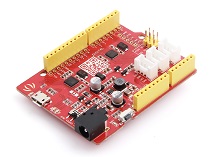
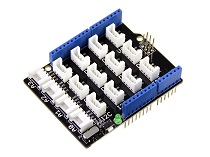

- Passo 2. Conecte o Grove OLED Display 128*64 à porta I2C no Grove Base Shield.
- Passo 3. Conecte o Grove - Base Shield ao Seeeduino.
- Passo 4. Conecte o Seeeduino ao PC via cabo USB.

Se não tivermos o Grove Base Shield, também podemos conectar diretamente o Grove - OLED Display 0.96 inch ao Seeeduino, como abaixo.
| Seeeduino | Grove - OLED Display 0.96 inch |
|---|---|
| 5V | Vermelho |
| GND | Preto |
| SDA | Branco |
| SCL | Amarelo |
Software
- Passo 1. Baixe a biblioteca U8G2 128*64 no Github.
- Passo 2. Consulte How to install library para instalar a biblioteca para Arduino.
- Passo 3. Copie o código para o Arduino IDE e faça o upload. Se você não souber como fazer o upload do código, verifique how to upload code.
#include <Arduino.h>
#include <U8g2lib.h>

#ifdef U8X8_HAVE_HW_SPI
#include <SPI.h>
#endif
#ifdef U8X8_HAVE_HW_I2C
#include <Wire.h>
#endif

U8G2_SSD1306_128X64_ALT0_F_HW_I2C u8g2(U8G2_R0, /* reset=*/ U8X8_PIN_NONE); // SSD1306 and SSD1308Z are compatible

// U8G2_SSD1306_128X64_NONAME_F_SW_I2C u8g2(U8G2_R0, /* clock=*/ SCL, /* data=*/ SDA, /* reset=*/ U8X8_PIN_NONE);    //Low spped I2C

void setup(void) {
  u8g2.begin();
}

void loop(void) {
  u8g2.clearBuffer();                   // clear the internal memory
  u8g2.setFont(u8g2_font_ncenB08_tr);   // choose a suitable font
  u8g2.drawStr(0,10,"Hello World!");    // write something to the internal memory
  u8g2.sendBuffer();                    // transfer internal memory to the display
  delay(1000);
}
- Passo 3. Podemos ver "Hello World!" na tela.
Brincar com Raspberry Pi (Com Grove Base Hat para Raspberry Pi)
Hardware
- Passo 1. Itens usados neste projeto:
| Raspberry pi | Grove Base Hat for RasPi | Grove - OLED Display 0.96 inch |
|---|---|---|
|
|
|
| Compre AGORA | Compre AGORA | Compre AGORA |
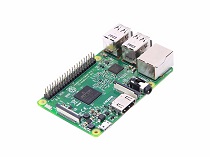
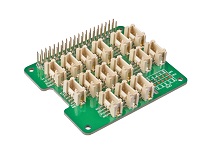
- Passo 2. Conecte o Grove Base Hat ao Raspberry.
- Passo 3. Conecte o display OLED à porta I2C do Base Hat.
- Passo 4. Conecte o Raspberry Pi ao PC por meio de um cabo USB.

Software
Se você estiver usando Raspberry Pi com Raspberrypi OS >= Bullseye, terá que usar esta linha de comando apenas com Python3.
- Passo 1. Siga Setting Software para configurar o ambiente de desenvolvimento.
- Passo 2. Entre no ambiente virtual correspondente.
source ~/grove_env/env/bin/activate
cd ~/grove_env/grove.py/grove
-
Passo 3. Execute o comando abaixo para rodar o código.
-
A seguir está a verificação do código grove_oled_display_128x64.py.
less grove_oled_display_128x64.py
import time

from grove.i2c import Bus

_COMMAND_MODE = 0x80
_DATA_MODE = 0x40
_NORMAL_DISPLAY = 0xA6

_DISPLAY_OFF = 0xAE
_DISPLAY_ON = 0xAF
_INVERSE_DISPLAY = 0xA7
_SET_BRIGHTNESS = 0x81


BasicFont = [[0x00, 0x00, 0x00, 0x00, 0x00, 0x00, 0x00, 0x00],
             [0x00, 0x00, 0x5F, 0x00, 0x00, 0x00, 0x00, 0x00],
             [0x00, 0x00, 0x07, 0x00, 0x07, 0x00, 0x00, 0x00],
             [0x00, 0x14, 0x7F, 0x14, 0x7F, 0x14, 0x00, 0x00],
             [0x00, 0x24, 0x2A, 0x7F, 0x2A, 0x12, 0x00, 0x00],
             [0x00, 0x23, 0x13, 0x08, 0x64, 0x62, 0x00, 0x00],
             [0x00, 0x36, 0x49, 0x55, 0x22, 0x50, 0x00, 0x00],
             [0x00, 0x00, 0x05, 0x03, 0x00, 0x00, 0x00, 0x00],
             [0x00, 0x1C, 0x22, 0x41, 0x00, 0x00, 0x00, 0x00],
             [0x00, 0x41, 0x22, 0x1C, 0x00, 0x00, 0x00, 0x00],
             [0x00, 0x08, 0x2A, 0x1C, 0x2A, 0x08, 0x00, 0x00],
             [0x00, 0x08, 0x08, 0x3E, 0x08, 0x08, 0x00, 0x00],
             [0x00, 0xA0, 0x60, 0x00, 0x00, 0x00, 0x00, 0x00],
             [0x00, 0x08, 0x08, 0x08, 0x08, 0x08, 0x00, 0x00],
             [0x00, 0x60, 0x60, 0x00, 0x00, 0x00, 0x00, 0x00],
             [0x00, 0x20, 0x10, 0x08, 0x04, 0x02, 0x00, 0x00],
             [0x00, 0x3E, 0x51, 0x49, 0x45, 0x3E, 0x00, 0x00],
             [0x00, 0x00, 0x42, 0x7F, 0x40, 0x00, 0x00, 0x00],
             [0x00, 0x62, 0x51, 0x49, 0x49, 0x46, 0x00, 0x00],
             [0x00, 0x22, 0x41, 0x49, 0x49, 0x36, 0x00, 0x00],
             [0x00, 0x18, 0x14, 0x12, 0x7F, 0x10, 0x00, 0x00],
             [0x00, 0x27, 0x45, 0x45, 0x45, 0x39, 0x00, 0x00],
             [0x00, 0x3C, 0x4A, 0x49, 0x49, 0x30, 0x00, 0x00],
             [0x00, 0x01, 0x71, 0x09, 0x05, 0x03, 0x00, 0x00],
             [0x00, 0x36, 0x49, 0x49, 0x49, 0x36, 0x00, 0x00],
             [0x00, 0x06, 0x49, 0x49, 0x29, 0x1E, 0x00, 0x00],
             [0x00, 0x00, 0x36, 0x36, 0x00, 0x00, 0x00, 0x00],
             [0x00, 0x00, 0xAC, 0x6C, 0x00, 0x00, 0x00, 0x00],
             [0x00, 0x08, 0x14, 0x22, 0x41, 0x00, 0x00, 0x00],
             [0x00, 0x14, 0x14, 0x14, 0x14, 0x14, 0x00, 0x00],
             [0x00, 0x41, 0x22, 0x14, 0x08, 0x00, 0x00, 0x00],
             [0x00, 0x02, 0x01, 0x51, 0x09, 0x06, 0x00, 0x00],
             [0x00, 0x32, 0x49, 0x79, 0x41, 0x3E, 0x00, 0x00],
             [0x00, 0x7E, 0x09, 0x09, 0x09, 0x7E, 0x00, 0x00],
             [0x00, 0x7F, 0x49, 0x49, 0x49, 0x36, 0x00, 0x00],
             [0x00, 0x3E, 0x41, 0x41, 0x41, 0x22, 0x00, 0x00],
             [0x00, 0x7F, 0x41, 0x41, 0x22, 0x1C, 0x00, 0x00],
             [0x00, 0x7F, 0x49, 0x49, 0x49, 0x41, 0x00, 0x00],
             [0x00, 0x7F, 0x09, 0x09, 0x09, 0x01, 0x00, 0x00],
             [0x00, 0x3E, 0x41, 0x41, 0x51, 0x72, 0x00, 0x00],
             [0x00, 0x7F, 0x08, 0x08, 0x08, 0x7F, 0x00, 0x00],
             [0x00, 0x41, 0x7F, 0x41, 0x00, 0x00, 0x00, 0x00],
             [0x00, 0x20, 0x40, 0x41, 0x3F, 0x01, 0x00, 0x00],
             [0x00, 0x7F, 0x08, 0x14, 0x22, 0x41, 0x00, 0x00],
             [0x00, 0x7F, 0x40, 0x40, 0x40, 0x40, 0x00, 0x00],
             [0x00, 0x7F, 0x02, 0x0C, 0x02, 0x7F, 0x00, 0x00],
             [0x00, 0x7F, 0x04, 0x08, 0x10, 0x7F, 0x00, 0x00],
             [0x00, 0x3E, 0x41, 0x41, 0x41, 0x3E, 0x00, 0x00],
             [0x00, 0x7F, 0x09, 0x09, 0x09, 0x06, 0x00, 0x00],
             [0x00, 0x3E, 0x41, 0x51, 0x21, 0x5E, 0x00, 0x00],
             [0x00, 0x7F, 0x09, 0x19, 0x29, 0x46, 0x00, 0x00],
             [0x00, 0x26, 0x49, 0x49, 0x49, 0x32, 0x00, 0x00],
             [0x00, 0x01, 0x01, 0x7F, 0x01, 0x01, 0x00, 0x00],
             [0x00, 0x3F, 0x40, 0x40, 0x40, 0x3F, 0x00, 0x00],
             [0x00, 0x1F, 0x20, 0x40, 0x20, 0x1F, 0x00, 0x00],
             [0x00, 0x3F, 0x40, 0x38, 0x40, 0x3F, 0x00, 0x00],
             [0x00, 0x63, 0x14, 0x08, 0x14, 0x63, 0x00, 0x00],
             [0x00, 0x03, 0x04, 0x78, 0x04, 0x03, 0x00, 0x00],
             [0x00, 0x61, 0x51, 0x49, 0x45, 0x43, 0x00, 0x00],
             [0x00, 0x7F, 0x41, 0x41, 0x00, 0x00, 0x00, 0x00],
             [0x00, 0x02, 0x04, 0x08, 0x10, 0x20, 0x00, 0x00],
             [0x00, 0x41, 0x41, 0x7F, 0x00, 0x00, 0x00, 0x00],
             [0x00, 0x04, 0x02, 0x01, 0x02, 0x04, 0x00, 0x00],
             [0x00, 0x80, 0x80, 0x80, 0x80, 0x80, 0x00, 0x00],
             [0x00, 0x01, 0x02, 0x04, 0x00, 0x00, 0x00, 0x00],
             [0x00, 0x20, 0x54, 0x54, 0x54, 0x78, 0x00, 0x00],
             [0x00, 0x7F, 0x48, 0x44, 0x44, 0x38, 0x00, 0x00],
             [0x00, 0x38, 0x44, 0x44, 0x28, 0x00, 0x00, 0x00],
             [0x00, 0x38, 0x44, 0x44, 0x48, 0x7F, 0x00, 0x00],
             [0x00, 0x38, 0x54, 0x54, 0x54, 0x18, 0x00, 0x00],
             [0x00, 0x08, 0x7E, 0x09, 0x02, 0x00, 0x00, 0x00],
             [0x00, 0x18, 0xA4, 0xA4, 0xA4, 0x7C, 0x00, 0x00],
             [0x00, 0x7F, 0x08, 0x04, 0x04, 0x78, 0x00, 0x00],
             [0x00, 0x00, 0x7D, 0x00, 0x00, 0x00, 0x00, 0x00],
             [0x00, 0x80, 0x84, 0x7D, 0x00, 0x00, 0x00, 0x00],
             [0x00, 0x7F, 0x10, 0x28, 0x44, 0x00, 0x00, 0x00],
             [0x00, 0x41, 0x7F, 0x40, 0x00, 0x00, 0x00, 0x00],
             [0x00, 0x7C, 0x04, 0x18, 0x04, 0x78, 0x00, 0x00],
             [0x00, 0x7C, 0x08, 0x04, 0x7C, 0x00, 0x00, 0x00],
             [0x00, 0x38, 0x44, 0x44, 0x38, 0x00, 0x00, 0x00],
             [0x00, 0xFC, 0x24, 0x24, 0x18, 0x00, 0x00, 0x00],
             [0x00, 0x18, 0x24, 0x24, 0xFC, 0x00, 0x00, 0x00],
             [0x00, 0x00, 0x7C, 0x08, 0x04, 0x00, 0x00, 0x00],
             [0x00, 0x48, 0x54, 0x54, 0x24, 0x00, 0x00, 0x00],
             [0x00, 0x04, 0x7F, 0x44, 0x00, 0x00, 0x00, 0x00],
             [0x00, 0x3C, 0x40, 0x40, 0x7C, 0x00, 0x00, 0x00],
             [0x00, 0x1C, 0x20, 0x40, 0x20, 0x1C, 0x00, 0x00],
             [0x00, 0x3C, 0x40, 0x30, 0x40, 0x3C, 0x00, 0x00],
             [0x00, 0x44, 0x28, 0x10, 0x28, 0x44, 0x00, 0x00],
             [0x00, 0x1C, 0xA0, 0xA0, 0x7C, 0x00, 0x00, 0x00],
             [0x00, 0x44, 0x64, 0x54, 0x4C, 0x44, 0x00, 0x00],
             [0x00, 0x08, 0x36, 0x41, 0x00, 0x00, 0x00, 0x00],
             [0x00, 0x00, 0x7F, 0x00, 0x00, 0x00, 0x00, 0x00],
             [0x00, 0x41, 0x36, 0x08, 0x00, 0x00, 0x00, 0x00],
             [0x00, 0x02, 0x01, 0x01, 0x02, 0x01, 0x00, 0x00],
             [0x00, 0x02, 0x05, 0x05, 0x02, 0x00, 0x00, 0x00]]


class GroveOledDisplay128x64(object):
    HORIZONTAL = 0x00
    VERTICAL = 0x01
    PAGE = 0x02

    def __init__(self, bus=1, address=0x3C):
        self.bus = Bus(bus)
        self.address = address

        self.off()
        self.inverse = False
        self.mode = self.HORIZONTAL

        self.clear()
        self.on()

    def on(self):
        self.send_command(_DISPLAY_ON)

    def off(self):
        self.send_command(_DISPLAY_OFF)

    def send_command(self, command):
        self.bus.write_byte_data(self.address, _COMMAND_MODE, command)

    def send_data(self, data):
        self.bus.write_byte_data(self.address, _DATA_MODE, data)

    def send_commands(self, commands):
        for c in commands:
            self.send_command(c)

    def clear(self):
        self.off()
        for i in range(8):
            self.set_cursor(i, 0)
            self.puts(' ' * 16)

        self.on()
        self.set_cursor(0, 0)

    @property
    def inverse(self):
        return self._inverse

    @inverse.setter
    def inverse(self, enable):
        self.send_command(_INVERSE_DISPLAY if enable else _NORMAL_DISPLAY)
        self._inverse = enable

    @property
    def mode(self):
        return self._mode

    @mode.setter
    def mode(self, mode):
        self.send_command(0x20)
        self.send_command(mode)
        self._mode = mode

    def set_cursor(self, row, column):
        self.send_command(0xB0 + row)
        self.send_command(0x00 + (8*column & 0x0F))
        self.send_command(0x10 + ((8*column>>4)&0x0F))

    def putc(self, c):
        C_add = ord(c)
        if C_add < 32 or C_add > 127:     # Ignore non-printable ASCII characters
            c = ' '
            C_add = ord(c)

        for i in range(0, 8):
            self.send_data(BasicFont[C_add-32][i])

    def puts(self, text):
        for c in text:
            self.putc(c)

    def show_image(self, image):
        from PIL import Image
        import numpy as np

        im = Image.open(image)

        bw = im.convert('1')
        pixels = np.array(bw.getdata())
        page_size = 128 * 8

        self.set_cursor(0, 0)
        for page in range(8):
            start = page_size * page
            end = start + page_size

            for i in range(start, start + 128):
                data = np.packbits(pixels[i:end:128][::-1])[0]
                self.send_data(data)


def main():
    display = GroveOledDisplay128x64()

    display.set_cursor(0, 0)
    display.puts('hello')
    display.set_cursor(1, 4)
    display.puts('world')

if __name__ == "__main__":
    main()
- Execute este código
python grove_oled_display_128x64.py
Parece que nada aconteceu no terminal, porém você pode encontrar a frase mais famosa do mundo cibernético se verificar o seu OLED.😄
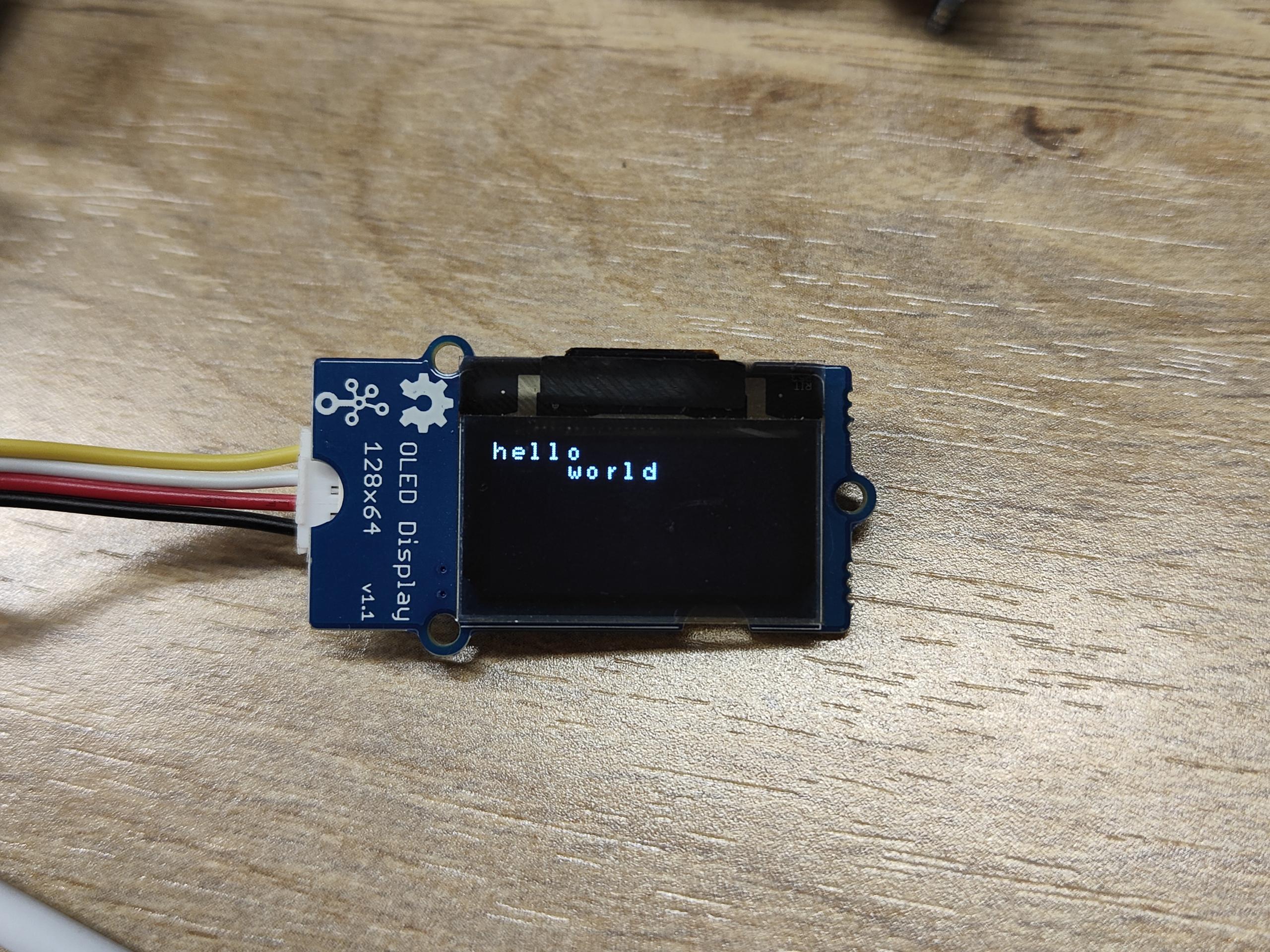
Se você usar a ferramenta I2C para escanear o endereço I2C do módulo Grove, poderá encontrar dois ou mais endereços. 0x04 é o endereço do Grove Base Hat for Raspberry Pi.
Brincar com Raspberry Pi (com GrovePi_Plus)
O script Python para BeagleBone Green abaixo também funciona para Raspberry Pi, mas o barramento I2C é diferente. No Raspberry Pi 2/3, o barramento I2C é 1. O script, alterando bus=2 para bus=1, funcionará no Pi.
Hardware
- Passo 1. Prepare os itens abaixo:
| Raspberry pi | GrovePi_Plus | Grove - OLED Display 0.96 inch |
|---|---|---|
|
|
|
| Adquira agora | Adquira agora | Adquira agora |
- Passo 2. Conecte o GrovePi_Plus ao Raspberry.
- Passo 3. Conecte o Grove - OLED Display 0.96 inch à porta I2C-2 do GrovePi_Plus.
- Passo 4. Conecte o Raspberry ao PC através de um cabo USB.

Software
-
Passo 1. Siga Setting Software para configurar o ambiente de desenvolvimento.
-
Passo 2. Navegue até o diretório de demos:
cd yourpath/GrovePi/Software/Python/
- Passo 3. Para ver o código
nano Grove-OLED_Display_0.96inch.py # "Ctrl+x" to exit #
import time
import smbus2 as smbus

_COMMAND_MODE = 0x80
_DATA_MODE = 0x40
_NORMAL_DISPLAY = 0xA6

_DISPLAY_OFF = 0xAE
_DISPLAY_ON = 0xAF
_INVERSE_DISPLAY = 0xA7
_SET_BRIGHTNESS = 0x81


BasicFont = [[0x00, 0x00, 0x00, 0x00, 0x00, 0x00, 0x00, 0x00],
             [0x00, 0x00, 0x5F, 0x00, 0x00, 0x00, 0x00, 0x00],
             [0x00, 0x00, 0x07, 0x00, 0x07, 0x00, 0x00, 0x00],
             [0x00, 0x14, 0x7F, 0x14, 0x7F, 0x14, 0x00, 0x00],
             [0x00, 0x24, 0x2A, 0x7F, 0x2A, 0x12, 0x00, 0x00],
             [0x00, 0x23, 0x13, 0x08, 0x64, 0x62, 0x00, 0x00],
             [0x00, 0x36, 0x49, 0x55, 0x22, 0x50, 0x00, 0x00],
             [0x00, 0x00, 0x05, 0x03, 0x00, 0x00, 0x00, 0x00],
             [0x00, 0x1C, 0x22, 0x41, 0x00, 0x00, 0x00, 0x00],
             [0x00, 0x41, 0x22, 0x1C, 0x00, 0x00, 0x00, 0x00],
             [0x00, 0x08, 0x2A, 0x1C, 0x2A, 0x08, 0x00, 0x00],
             [0x00, 0x08, 0x08, 0x3E, 0x08, 0x08, 0x00, 0x00],
             [0x00, 0xA0, 0x60, 0x00, 0x00, 0x00, 0x00, 0x00],
             [0x00, 0x08, 0x08, 0x08, 0x08, 0x08, 0x00, 0x00],
             [0x00, 0x60, 0x60, 0x00, 0x00, 0x00, 0x00, 0x00],
             [0x00, 0x20, 0x10, 0x08, 0x04, 0x02, 0x00, 0x00],
             [0x00, 0x3E, 0x51, 0x49, 0x45, 0x3E, 0x00, 0x00],
             [0x00, 0x00, 0x42, 0x7F, 0x40, 0x00, 0x00, 0x00],
             [0x00, 0x62, 0x51, 0x49, 0x49, 0x46, 0x00, 0x00],
             [0x00, 0x22, 0x41, 0x49, 0x49, 0x36, 0x00, 0x00],
             [0x00, 0x18, 0x14, 0x12, 0x7F, 0x10, 0x00, 0x00],
             [0x00, 0x27, 0x45, 0x45, 0x45, 0x39, 0x00, 0x00],
             [0x00, 0x3C, 0x4A, 0x49, 0x49, 0x30, 0x00, 0x00],
             [0x00, 0x01, 0x71, 0x09, 0x05, 0x03, 0x00, 0x00],
             [0x00, 0x36, 0x49, 0x49, 0x49, 0x36, 0x00, 0x00],
             [0x00, 0x06, 0x49, 0x49, 0x29, 0x1E, 0x00, 0x00],
             [0x00, 0x00, 0x36, 0x36, 0x00, 0x00, 0x00, 0x00],
             [0x00, 0x00, 0xAC, 0x6C, 0x00, 0x00, 0x00, 0x00],
             [0x00, 0x08, 0x14, 0x22, 0x41, 0x00, 0x00, 0x00],
             [0x00, 0x14, 0x14, 0x14, 0x14, 0x14, 0x00, 0x00],
             [0x00, 0x41, 0x22, 0x14, 0x08, 0x00, 0x00, 0x00],
             [0x00, 0x02, 0x01, 0x51, 0x09, 0x06, 0x00, 0x00],
             [0x00, 0x32, 0x49, 0x79, 0x41, 0x3E, 0x00, 0x00],
             [0x00, 0x7E, 0x09, 0x09, 0x09, 0x7E, 0x00, 0x00],
             [0x00, 0x7F, 0x49, 0x49, 0x49, 0x36, 0x00, 0x00],
             [0x00, 0x3E, 0x41, 0x41, 0x41, 0x22, 0x00, 0x00],
             [0x00, 0x7F, 0x41, 0x41, 0x22, 0x1C, 0x00, 0x00],
             [0x00, 0x7F, 0x49, 0x49, 0x49, 0x41, 0x00, 0x00],
             [0x00, 0x7F, 0x09, 0x09, 0x09, 0x01, 0x00, 0x00],
             [0x00, 0x3E, 0x41, 0x41, 0x51, 0x72, 0x00, 0x00],
             [0x00, 0x7F, 0x08, 0x08, 0x08, 0x7F, 0x00, 0x00],
             [0x00, 0x41, 0x7F, 0x41, 0x00, 0x00, 0x00, 0x00],
             [0x00, 0x20, 0x40, 0x41, 0x3F, 0x01, 0x00, 0x00],
             [0x00, 0x7F, 0x08, 0x14, 0x22, 0x41, 0x00, 0x00],
             [0x00, 0x7F, 0x40, 0x40, 0x40, 0x40, 0x00, 0x00],
             [0x00, 0x7F, 0x02, 0x0C, 0x02, 0x7F, 0x00, 0x00],
             [0x00, 0x7F, 0x04, 0x08, 0x10, 0x7F, 0x00, 0x00],
             [0x00, 0x3E, 0x41, 0x41, 0x41, 0x3E, 0x00, 0x00],
             [0x00, 0x7F, 0x09, 0x09, 0x09, 0x06, 0x00, 0x00],
             [0x00, 0x3E, 0x41, 0x51, 0x21, 0x5E, 0x00, 0x00],
             [0x00, 0x7F, 0x09, 0x19, 0x29, 0x46, 0x00, 0x00],
             [0x00, 0x26, 0x49, 0x49, 0x49, 0x32, 0x00, 0x00],
             [0x00, 0x01, 0x01, 0x7F, 0x01, 0x01, 0x00, 0x00],
             [0x00, 0x3F, 0x40, 0x40, 0x40, 0x3F, 0x00, 0x00],
             [0x00, 0x1F, 0x20, 0x40, 0x20, 0x1F, 0x00, 0x00],
             [0x00, 0x3F, 0x40, 0x38, 0x40, 0x3F, 0x00, 0x00],
             [0x00, 0x63, 0x14, 0x08, 0x14, 0x63, 0x00, 0x00],
             [0x00, 0x03, 0x04, 0x78, 0x04, 0x03, 0x00, 0x00],
             [0x00, 0x61, 0x51, 0x49, 0x45, 0x43, 0x00, 0x00],
             [0x00, 0x7F, 0x41, 0x41, 0x00, 0x00, 0x00, 0x00],
             [0x00, 0x02, 0x04, 0x08, 0x10, 0x20, 0x00, 0x00],
             [0x00, 0x41, 0x41, 0x7F, 0x00, 0x00, 0x00, 0x00],
             [0x00, 0x04, 0x02, 0x01, 0x02, 0x04, 0x00, 0x00],
             [0x00, 0x80, 0x80, 0x80, 0x80, 0x80, 0x00, 0x00],
             [0x00, 0x01, 0x02, 0x04, 0x00, 0x00, 0x00, 0x00],
             [0x00, 0x20, 0x54, 0x54, 0x54, 0x78, 0x00, 0x00],
             [0x00, 0x7F, 0x48, 0x44, 0x44, 0x38, 0x00, 0x00],
             [0x00, 0x38, 0x44, 0x44, 0x28, 0x00, 0x00, 0x00],
             [0x00, 0x38, 0x44, 0x44, 0x48, 0x7F, 0x00, 0x00],
             [0x00, 0x38, 0x54, 0x54, 0x54, 0x18, 0x00, 0x00],
             [0x00, 0x08, 0x7E, 0x09, 0x02, 0x00, 0x00, 0x00],
             [0x00, 0x18, 0xA4, 0xA4, 0xA4, 0x7C, 0x00, 0x00],
             [0x00, 0x7F, 0x08, 0x04, 0x04, 0x78, 0x00, 0x00],
             [0x00, 0x00, 0x7D, 0x00, 0x00, 0x00, 0x00, 0x00],
             [0x00, 0x80, 0x84, 0x7D, 0x00, 0x00, 0x00, 0x00],
             [0x00, 0x7F, 0x10, 0x28, 0x44, 0x00, 0x00, 0x00],
             [0x00, 0x41, 0x7F, 0x40, 0x00, 0x00, 0x00, 0x00],
             [0x00, 0x7C, 0x04, 0x18, 0x04, 0x78, 0x00, 0x00],
             [0x00, 0x7C, 0x08, 0x04, 0x7C, 0x00, 0x00, 0x00],
             [0x00, 0x38, 0x44, 0x44, 0x38, 0x00, 0x00, 0x00],
             [0x00, 0xFC, 0x24, 0x24, 0x18, 0x00, 0x00, 0x00],
             [0x00, 0x18, 0x24, 0x24, 0xFC, 0x00, 0x00, 0x00],
             [0x00, 0x00, 0x7C, 0x08, 0x04, 0x00, 0x00, 0x00],
             [0x00, 0x48, 0x54, 0x54, 0x24, 0x00, 0x00, 0x00],
             [0x00, 0x04, 0x7F, 0x44, 0x00, 0x00, 0x00, 0x00],
             [0x00, 0x3C, 0x40, 0x40, 0x7C, 0x00, 0x00, 0x00],
             [0x00, 0x1C, 0x20, 0x40, 0x20, 0x1C, 0x00, 0x00],
             [0x00, 0x3C, 0x40, 0x30, 0x40, 0x3C, 0x00, 0x00],
             [0x00, 0x44, 0x28, 0x10, 0x28, 0x44, 0x00, 0x00],
             [0x00, 0x1C, 0xA0, 0xA0, 0x7C, 0x00, 0x00, 0x00],
             [0x00, 0x44, 0x64, 0x54, 0x4C, 0x44, 0x00, 0x00],
             [0x00, 0x08, 0x36, 0x41, 0x00, 0x00, 0x00, 0x00],
             [0x00, 0x00, 0x7F, 0x00, 0x00, 0x00, 0x00, 0x00],
             [0x00, 0x41, 0x36, 0x08, 0x00, 0x00, 0x00, 0x00],
             [0x00, 0x02, 0x01, 0x01, 0x02, 0x01, 0x00, 0x00],
             [0x00, 0x02, 0x05, 0x05, 0x02, 0x00, 0x00, 0x00]]


class GroveOledDisplay128x64(object):
    HORIZONTAL = 0x00
    VERTICAL = 0x01
    PAGE = 0x02

    def __init__(self, bus=2, address=0x3C):
        self.bus = smbus.SMBus(bus)
        self.address = address

        self.off()
        self.inverse = False
        self.mode = self.HORIZONTAL

        self.clear()
        self.on()

    def on(self):
        self.send_command(_DISPLAY_ON)

    def off(self):
        self.send_command(_DISPLAY_OFF)

    def send_command(self, command):
        self.bus.write_byte_data(self.address, _COMMAND_MODE, command)

    def send_data(self, data):
        self.bus.write_byte_data(self.address, _DATA_MODE, data)

    def send_commands(self, commands):
        for c in commands:
            self.send_command(c)

    def clear(self):
        self.off()
        for i in range(8):
            self.set_cursor(i, 0)
            self.puts(' ' * 16)

        self.on()
        self.set_cursor(0, 0)

    @property
    def inverse(self):
        return self._inverse

    @inverse.setter
    def inverse(self, enable):
        self.send_command(_INVERSE_DISPLAY if enable else _NORMAL_DISPLAY)
        self._inverse = enable

    @property
    def mode(self):
        return self._mode

    @mode.setter
    def mode(self, mode):
        self.send_command(0x20)
        self.send_command(mode)
        self._mode = mode

    def set_cursor(self, row, column):
        self.send_command(0xB0 + row)
        self.send_command(0x00 + (8*column & 0x0F))
        self.send_command(0x10 + ((8*column>>4)&0x0F))

    def putc(self, c):
        C_add = ord(c)
        if C_add < 32 or C_add > 127:     # Ignore non-printable ASCII characters
            c = ' '
            C_add = ord(c)

        for i in range(0, 8):
            self.send_data(BasicFont[C_add-32][i])

    def puts(self, text):
        for c in text:
            self.putc(c)

    def show_image(self, image):
        from PIL import Image
        import numpy as np

        im = Image.open(image)

        bw = im.convert('1')
        pixels = np.array(bw.getdata())
        page_size = 128 * 8

        self.set_cursor(0, 0)
        for page in range(8):
            start = page_size * page
            end = start + page_size

            for i in range(start, start + 128):
                data = np.packbits(pixels[i:end:128][::-1])[0]
                self.send_data(data)


if __name__ == "__main__":
    display = GroveOledDisplay128x64(bus=1)

    display.set_cursor(0, 0)
    display.puts('hello')
    display.set_cursor(1, 4)
    display.puts('world')
-
Passo 4: Instale a biblioteca smbus2
sudo pip install smbus2 -
Passo 5: Execute o código. Veremos que o Grove - OLED exibe "Hello World".
sudo python Grove-OLED_Display_0.96inch.py
Brinque com o Beaglebone Green
Para começar a editar programas que estão no BBG, você pode usar o Cloud9 IDE e consultar o Beaglebone Green Wiki.
Aqui estão os passos para exibir "Hello World" no OLED.
Hardware
- Passo 1. Conecte o Grove - OLED ao soquete Grove I2C no BBG.
- Passo 2. Conecte o Seeeduino ao PC via um cabo USB.
Software
- Passo 1: Clique no "+" no canto superior direito para criar um novo arquivo.


- Passo 2: Copie e cole o código a seguir na nova aba
import time
import smbus2 as smbus

_COMMAND_MODE = 0x80
_DATA_MODE = 0x40
_NORMAL_DISPLAY = 0xA6

_DISPLAY_OFF = 0xAE
_DISPLAY_ON = 0xAF
_INVERSE_DISPLAY = 0xA7
_SET_BRIGHTNESS = 0x81


BasicFont = [[0x00, 0x00, 0x00, 0x00, 0x00, 0x00, 0x00, 0x00],
             [0x00, 0x00, 0x5F, 0x00, 0x00, 0x00, 0x00, 0x00],
             [0x00, 0x00, 0x07, 0x00, 0x07, 0x00, 0x00, 0x00],
             [0x00, 0x14, 0x7F, 0x14, 0x7F, 0x14, 0x00, 0x00],
             [0x00, 0x24, 0x2A, 0x7F, 0x2A, 0x12, 0x00, 0x00],
             [0x00, 0x23, 0x13, 0x08, 0x64, 0x62, 0x00, 0x00],
             [0x00, 0x36, 0x49, 0x55, 0x22, 0x50, 0x00, 0x00],
             [0x00, 0x00, 0x05, 0x03, 0x00, 0x00, 0x00, 0x00],
             [0x00, 0x1C, 0x22, 0x41, 0x00, 0x00, 0x00, 0x00],
             [0x00, 0x41, 0x22, 0x1C, 0x00, 0x00, 0x00, 0x00],
             [0x00, 0x08, 0x2A, 0x1C, 0x2A, 0x08, 0x00, 0x00],
             [0x00, 0x08, 0x08, 0x3E, 0x08, 0x08, 0x00, 0x00],
             [0x00, 0xA0, 0x60, 0x00, 0x00, 0x00, 0x00, 0x00],
             [0x00, 0x08, 0x08, 0x08, 0x08, 0x08, 0x00, 0x00],
             [0x00, 0x60, 0x60, 0x00, 0x00, 0x00, 0x00, 0x00],
             [0x00, 0x20, 0x10, 0x08, 0x04, 0x02, 0x00, 0x00],
             [0x00, 0x3E, 0x51, 0x49, 0x45, 0x3E, 0x00, 0x00],
             [0x00, 0x00, 0x42, 0x7F, 0x40, 0x00, 0x00, 0x00],
             [0x00, 0x62, 0x51, 0x49, 0x49, 0x46, 0x00, 0x00],
             [0x00, 0x22, 0x41, 0x49, 0x49, 0x36, 0x00, 0x00],
             [0x00, 0x18, 0x14, 0x12, 0x7F, 0x10, 0x00, 0x00],
             [0x00, 0x27, 0x45, 0x45, 0x45, 0x39, 0x00, 0x00],
             [0x00, 0x3C, 0x4A, 0x49, 0x49, 0x30, 0x00, 0x00],
             [0x00, 0x01, 0x71, 0x09, 0x05, 0x03, 0x00, 0x00],
             [0x00, 0x36, 0x49, 0x49, 0x49, 0x36, 0x00, 0x00],
             [0x00, 0x06, 0x49, 0x49, 0x29, 0x1E, 0x00, 0x00],
             [0x00, 0x00, 0x36, 0x36, 0x00, 0x00, 0x00, 0x00],
             [0x00, 0x00, 0xAC, 0x6C, 0x00, 0x00, 0x00, 0x00],
             [0x00, 0x08, 0x14, 0x22, 0x41, 0x00, 0x00, 0x00],
             [0x00, 0x14, 0x14, 0x14, 0x14, 0x14, 0x00, 0x00],
             [0x00, 0x41, 0x22, 0x14, 0x08, 0x00, 0x00, 0x00],
             [0x00, 0x02, 0x01, 0x51, 0x09, 0x06, 0x00, 0x00],
             [0x00, 0x32, 0x49, 0x79, 0x41, 0x3E, 0x00, 0x00],
             [0x00, 0x7E, 0x09, 0x09, 0x09, 0x7E, 0x00, 0x00],
             [0x00, 0x7F, 0x49, 0x49, 0x49, 0x36, 0x00, 0x00],
             [0x00, 0x3E, 0x41, 0x41, 0x41, 0x22, 0x00, 0x00],
             [0x00, 0x7F, 0x41, 0x41, 0x22, 0x1C, 0x00, 0x00],
             [0x00, 0x7F, 0x49, 0x49, 0x49, 0x41, 0x00, 0x00],
             [0x00, 0x7F, 0x09, 0x09, 0x09, 0x01, 0x00, 0x00],
             [0x00, 0x3E, 0x41, 0x41, 0x51, 0x72, 0x00, 0x00],
             [0x00, 0x7F, 0x08, 0x08, 0x08, 0x7F, 0x00, 0x00],
             [0x00, 0x41, 0x7F, 0x41, 0x00, 0x00, 0x00, 0x00],
             [0x00, 0x20, 0x40, 0x41, 0x3F, 0x01, 0x00, 0x00],
             [0x00, 0x7F, 0x08, 0x14, 0x22, 0x41, 0x00, 0x00],
             [0x00, 0x7F, 0x40, 0x40, 0x40, 0x40, 0x00, 0x00],
             [0x00, 0x7F, 0x02, 0x0C, 0x02, 0x7F, 0x00, 0x00],
             [0x00, 0x7F, 0x04, 0x08, 0x10, 0x7F, 0x00, 0x00],
             [0x00, 0x3E, 0x41, 0x41, 0x41, 0x3E, 0x00, 0x00],
             [0x00, 0x7F, 0x09, 0x09, 0x09, 0x06, 0x00, 0x00],
             [0x00, 0x3E, 0x41, 0x51, 0x21, 0x5E, 0x00, 0x00],
             [0x00, 0x7F, 0x09, 0x19, 0x29, 0x46, 0x00, 0x00],
             [0x00, 0x26, 0x49, 0x49, 0x49, 0x32, 0x00, 0x00],
             [0x00, 0x01, 0x01, 0x7F, 0x01, 0x01, 0x00, 0x00],
             [0x00, 0x3F, 0x40, 0x40, 0x40, 0x3F, 0x00, 0x00],
             [0x00, 0x1F, 0x20, 0x40, 0x20, 0x1F, 0x00, 0x00],
             [0x00, 0x3F, 0x40, 0x38, 0x40, 0x3F, 0x00, 0x00],
             [0x00, 0x63, 0x14, 0x08, 0x14, 0x63, 0x00, 0x00],
             [0x00, 0x03, 0x04, 0x78, 0x04, 0x03, 0x00, 0x00],
             [0x00, 0x61, 0x51, 0x49, 0x45, 0x43, 0x00, 0x00],
             [0x00, 0x7F, 0x41, 0x41, 0x00, 0x00, 0x00, 0x00],
             [0x00, 0x02, 0x04, 0x08, 0x10, 0x20, 0x00, 0x00],
             [0x00, 0x41, 0x41, 0x7F, 0x00, 0x00, 0x00, 0x00],
             [0x00, 0x04, 0x02, 0x01, 0x02, 0x04, 0x00, 0x00],
             [0x00, 0x80, 0x80, 0x80, 0x80, 0x80, 0x00, 0x00],
             [0x00, 0x01, 0x02, 0x04, 0x00, 0x00, 0x00, 0x00],
             [0x00, 0x20, 0x54, 0x54, 0x54, 0x78, 0x00, 0x00],
             [0x00, 0x7F, 0x48, 0x44, 0x44, 0x38, 0x00, 0x00],
             [0x00, 0x38, 0x44, 0x44, 0x28, 0x00, 0x00, 0x00],
             [0x00, 0x38, 0x44, 0x44, 0x48, 0x7F, 0x00, 0x00],
             [0x00, 0x38, 0x54, 0x54, 0x54, 0x18, 0x00, 0x00],
             [0x00, 0x08, 0x7E, 0x09, 0x02, 0x00, 0x00, 0x00],
             [0x00, 0x18, 0xA4, 0xA4, 0xA4, 0x7C, 0x00, 0x00],
             [0x00, 0x7F, 0x08, 0x04, 0x04, 0x78, 0x00, 0x00],
             [0x00, 0x00, 0x7D, 0x00, 0x00, 0x00, 0x00, 0x00],
             [0x00, 0x80, 0x84, 0x7D, 0x00, 0x00, 0x00, 0x00],
             [0x00, 0x7F, 0x10, 0x28, 0x44, 0x00, 0x00, 0x00],
             [0x00, 0x41, 0x7F, 0x40, 0x00, 0x00, 0x00, 0x00],
             [0x00, 0x7C, 0x04, 0x18, 0x04, 0x78, 0x00, 0x00],
             [0x00, 0x7C, 0x08, 0x04, 0x7C, 0x00, 0x00, 0x00],
             [0x00, 0x38, 0x44, 0x44, 0x38, 0x00, 0x00, 0x00],
             [0x00, 0xFC, 0x24, 0x24, 0x18, 0x00, 0x00, 0x00],
             [0x00, 0x18, 0x24, 0x24, 0xFC, 0x00, 0x00, 0x00],
             [0x00, 0x00, 0x7C, 0x08, 0x04, 0x00, 0x00, 0x00],
             [0x00, 0x48, 0x54, 0x54, 0x24, 0x00, 0x00, 0x00],
             [0x00, 0x04, 0x7F, 0x44, 0x00, 0x00, 0x00, 0x00],
             [0x00, 0x3C, 0x40, 0x40, 0x7C, 0x00, 0x00, 0x00],
             [0x00, 0x1C, 0x20, 0x40, 0x20, 0x1C, 0x00, 0x00],
             [0x00, 0x3C, 0x40, 0x30, 0x40, 0x3C, 0x00, 0x00],
             [0x00, 0x44, 0x28, 0x10, 0x28, 0x44, 0x00, 0x00],
             [0x00, 0x1C, 0xA0, 0xA0, 0x7C, 0x00, 0x00, 0x00],
             [0x00, 0x44, 0x64, 0x54, 0x4C, 0x44, 0x00, 0x00],
             [0x00, 0x08, 0x36, 0x41, 0x00, 0x00, 0x00, 0x00],
             [0x00, 0x00, 0x7F, 0x00, 0x00, 0x00, 0x00, 0x00],
             [0x00, 0x41, 0x36, 0x08, 0x00, 0x00, 0x00, 0x00],
             [0x00, 0x02, 0x01, 0x01, 0x02, 0x01, 0x00, 0x00],
             [0x00, 0x02, 0x05, 0x05, 0x02, 0x00, 0x00, 0x00]]


class GroveOledDisplay128x64(object):
    HORIZONTAL = 0x00
    VERTICAL = 0x01
    PAGE = 0x02

    def __init__(self, bus=2, address=0x3C):
        self.bus = smbus.SMBus(bus)
        self.address = address

        self.off()
        self.inverse = False
        self.mode = self.HORIZONTAL

        self.clear()
        self.on()

    def on(self):
        self.send_command(_DISPLAY_ON)

    def off(self):
        self.send_command(_DISPLAY_OFF)

    def send_command(self, command):
        self.bus.write_byte_data(self.address, _COMMAND_MODE, command)

    def send_data(self, data):
        self.bus.write_byte_data(self.address, _DATA_MODE, data)

    def send_commands(self, commands):
        for c in commands:
            self.send_command(c)

    def clear(self):
        self.off()
        for i in range(8):
            self.set_cursor(i, 0)
            self.puts(' ' * 16)

        self.on()
        self.set_cursor(0, 0)

    @property
    def inverse(self):
        return self._inverse

    @inverse.setter
    def inverse(self, enable):
        self.send_command(_INVERSE_DISPLAY if enable else _NORMAL_DISPLAY)
        self._inverse = enable

    @property
    def mode(self):
        return self._mode

    @mode.setter
    def mode(self, mode):
        self.send_command(0x20)
        self.send_command(mode)
        self._mode = mode

    def set_cursor(self, row, column):
        self.send_command(0xB0 + row)
        self.send_command(0x00 + (8*column & 0x0F))
        self.send_command(0x10 + ((8*column>>4)&0x0F))

    def putc(self, c):
        C_add = ord(c)
        if C_add < 32 or C_add > 127:     # Ignore non-printable ASCII characters
            c = ' '
            C_add = ord(c)

        for i in range(0, 8):
            self.send_data(BasicFont[C_add-32][i])

    def puts(self, text):
        for c in text:
            self.putc(c)

    def show_image(self, image):
        from PIL import Image
        import numpy as np

        im = Image.open(image)

        bw = im.convert('1')
        pixels = np.array(bw.getdata())
        page_size = 128 * 8

        self.set_cursor(0, 0)
        for page in range(8):
            start = page_size * page
            end = start + page_size

            for i in range(start, start + 128):
                data = np.packbits(pixels[i:end:128][::-1])[0]
                self.send_data(data)


if __name__ == "__main__":
    display = GroveOledDisplay128x64(bus=2)

    display.set_cursor(0, 0)
    display.puts('hello')
    display.set_cursor(1, 4)
    display.puts('world')
-
Passo 3: Salve o arquivo clicando no ícone de disco com a extensão .py.
-
Passo 4: Instale a biblioteca smbus2
sudo pip3 install smbus2 -
Passo 5: Execute o código. Veremos que o Grove - OLED exibe "Hello World".
sudo python3 Grove-OLED_Display_0.96inch.py
Visualizador de Esquemático Online
Recursos
-
[PDF] PCB Grove-OLED128x64
-
[Wiki] Wiki do Beaglebone Green
-
[Eagle] Grove-OLED128x64
-
[Library] Biblioteca GitHub para OLED
-
[Datasheet] Recursos de SSD1308_1.0.pdf
-
[Datasheet] Recursos de LY190-128064.pdf
Suporte Técnico e Discussão de Produto
Obrigado por escolher nossos produtos! Estamos aqui para oferecer diferentes tipos de suporte para garantir que sua experiência com nossos produtos seja o mais tranquila possível. Oferecemos vários canais de comunicação para atender a diferentes preferências e necessidades.