Aprendizado de Máquina com Wio Terminal - Reconhecimento de Gestos
Este tutorial demonstrará como usar o Wio Terminal para configurar uma demonstração simples de reconhecimento de gestos com aprendizado de máquina com a ajuda do TensorFlow Lite.
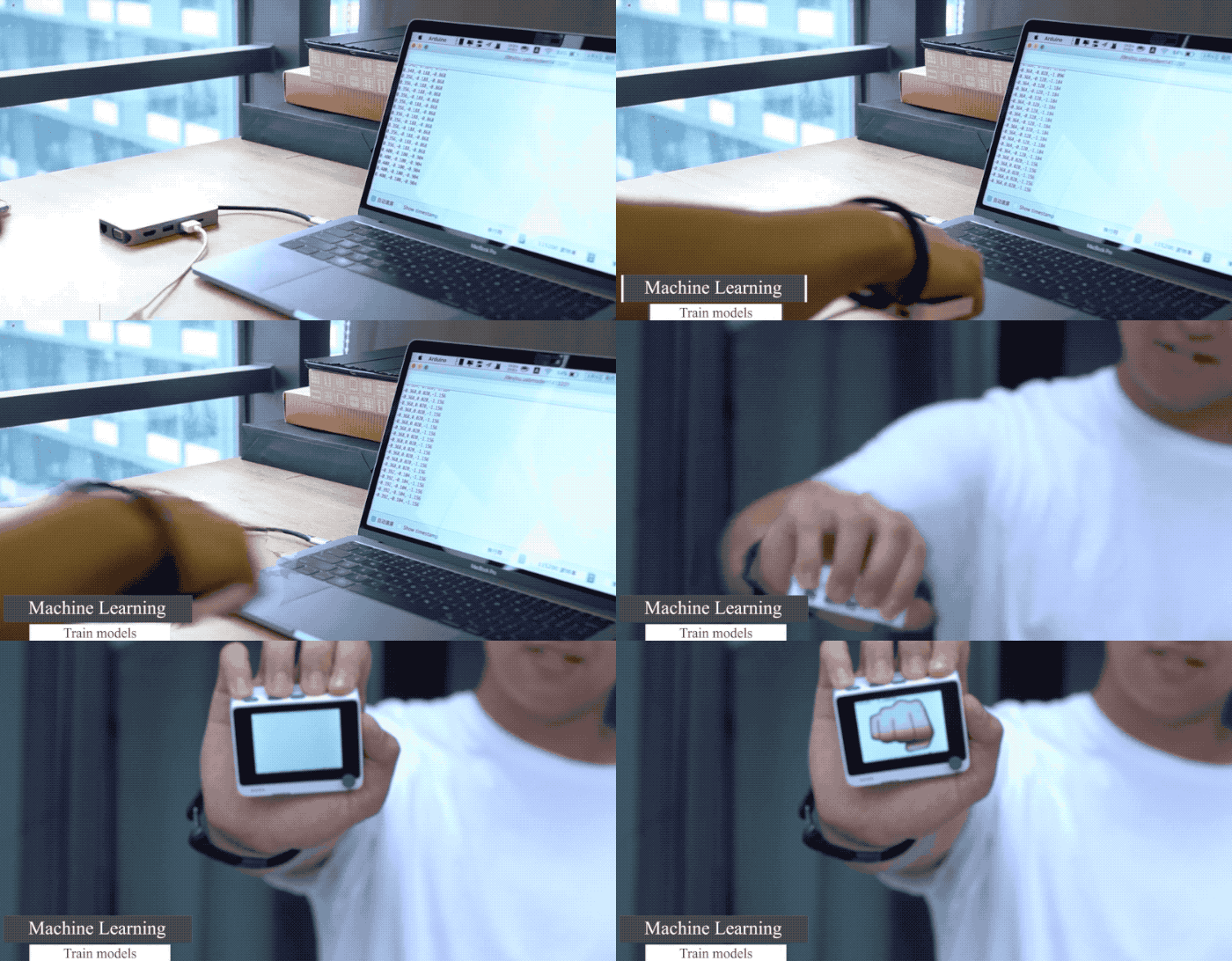
Este exemplo é modificado a partir da demonstração oficial da equipe Arduino junto com a equipe TensorFlow Lite. Para mais informações e referência, visite Get started with machine learning on Arduino. Algumas modificações foram feitas para tornar a demonstração compatível com o Wio Terminal.
Referência: How-to Get Started with Machine Learning on Arduino
Lista de componentes
Recursos
-
Aprendizado de Máquina no Wio Terminal
-
Reconhecimento de Gestos
-
TensorFlow Lite
Bibliotecas Arduino Necessárias
-
Instale a biblioteca do acelerômetro onboard
Seeed_Arduino_LIS3DHTR. Visite Wio Terminal IMU para mais informações. -
Instale a biblioteca Arduino TensorFlow Lite, visite Wio Terminal TensorFlow Lite para mais informações.
Treinando dados de IMU a partir do Wio Terminal
Assim como em outros projetos de aprendizado de máquina, obteremos alguns dados de sensores para serem usados posteriormente no treinamento do modelo. Primeiro, executaremos um programa Arduino simples para transmitir dados de sensores do Wio Terminal.
Copie o código a seguir e faça o upload do código para o Wio Terminal:
#include"LIS3DHTR.h"
LIS3DHTR<TwoWire> lis;

const float accelerationThreshold = 2; // threshold of significant in G's
const int numSamples = 119;

int samplesRead = numSamples;

void setup() {
  Serial.begin(9600);
  lis.begin(Wire1);

  if (!lis) {
    Serial.println("ERROR");
    while(1);
  }

  lis.setOutputDataRate(LIS3DHTR_DATARATE_25HZ); //Data output rate
  lis.setFullScaleRange(LIS3DHTR_RANGE_2G); //Scale range set to 2g

  Serial.println("Acceleration in G's");
  Serial.println("X\tY\tZ");
}

void loop() {
  float x, y, z;

  while (samplesRead == numSamples) {
    x=lis.getAccelerationX();
    y=lis.getAccelerationY();
    z=lis.getAccelerationZ();


     float aSum = fabs(x) + fabs(y) + fabs(z);

      // check if it's above the threshold
      if (aSum >= accelerationThreshold) {
        // reset the sample read count
        samplesRead = 0;
        break;
      }
  }

  while (samplesRead < numSamples) {
    x=lis.getAccelerationX();
    y=lis.getAccelerationY();
    z=lis.getAccelerationZ();

    samplesRead++;

    Serial.print(x, 3);
    Serial.print(',');
    Serial.print(y, 3);
    Serial.print(',');
    Serial.print(z, 3);
    Serial.println();

    if (samplesRead == numSamples) {
      Serial.println();
    }
  }
}
Ou baixe o código aqui e faça o upload do código para o Wio Terminal. Se você abrir o Serial Monitor, deverá conseguir ver os dados da IMU.
Capturando Dados de Treinamento de Gestos
Capture dados de IMU como CSV e use-os para o TensorFlow:
-
Abra o Serial Monitor e pegue o Wio Terminal.
-
Faça um gesto de soco, certificando-se de que você acionou a captura.
-
Repita o mesmo movimento pelo menos 10 vezes, quanto mais dados de treinamento, melhor.
-
Copie e cole os dados do Serial Monitor em um novo arquivo de texto chamado
punch.csv. -
Limpe e reinicie o Wio Terminal e, desta vez, repita todas as etapas acima com um gesto de flexão e salve como
flex.csv.
Nota: Se você estiver usando Linux ou Mac, poderá enviar diretamente a saída dos dados do sensor do Wio Terminal para um arquivo .csv usando:
cat /dev/cu.usbmodem[nnnnn] > punch.csv
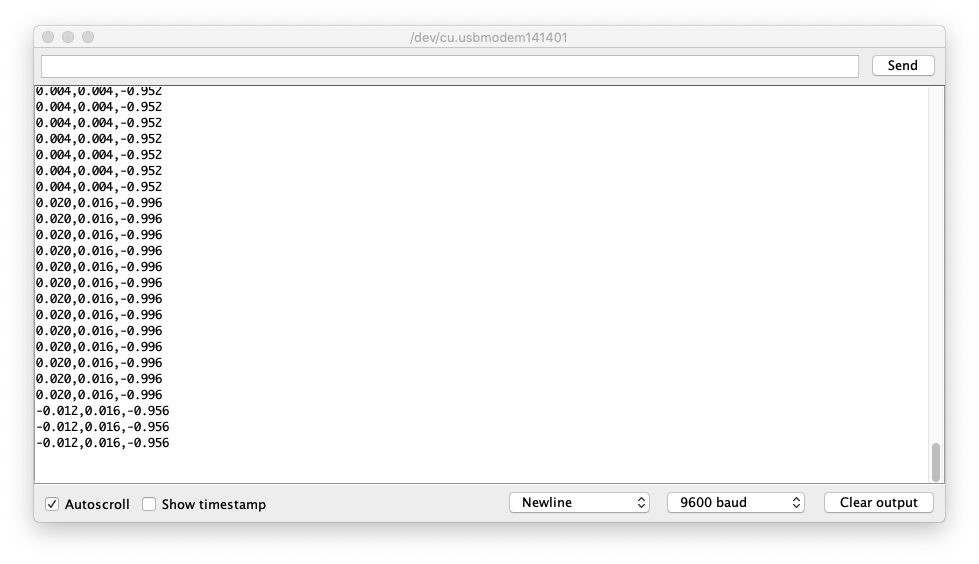
Verificando os arquivos .csv
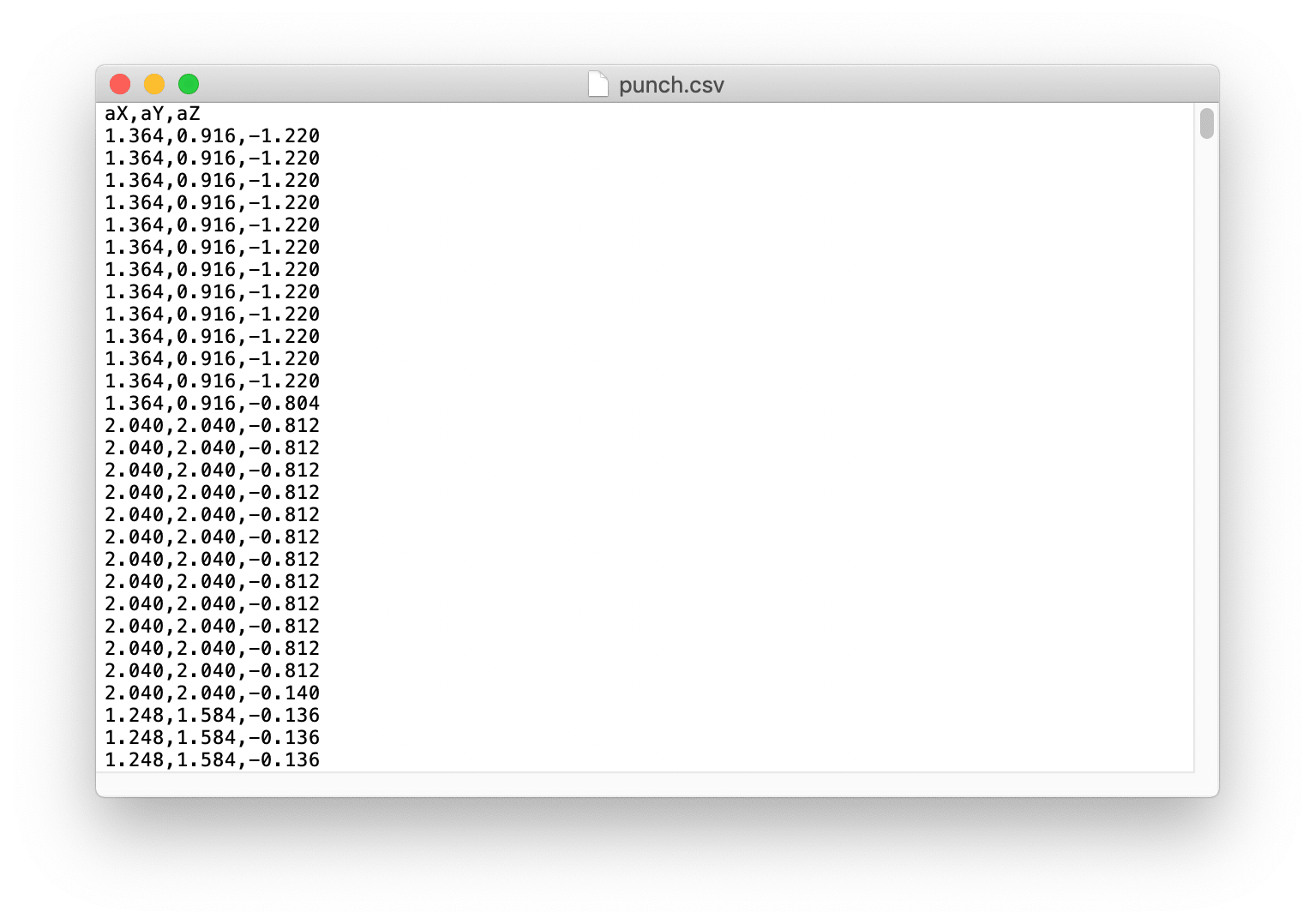
Abra punch.csv e flex.csv e certifique-se de que a primeira linha dos arquivos csv seja aX,aY,aZ conforme mostrado abaixo para referência:
Treinando Dados no TensorFlow
Aqui usaremos o projeto Google Colab que foi criado pela equipe Arduino. O Colab fornece um notebook Jupyter que nos permite executar nosso treinamento TensorFlow em um navegador web. O Colab irá configurar o ambiente, treinar o modelo, converter o modelo para um modo TensorFlow Lite e codificar o modelo em um arquivo de cabeçalho Arduino.
Clique aqui para acessar o projeto Google Colab.
Modificações no Projeto Google Colab
Algumas modificações são necessárias no Projeto Google Colab para adaptá-lo ao Wio Terminal:
-
Nenhuma mudança é necessária em Setup the Python Environment.
-
Nenhuma mudança é necessária em Upload Data.
-
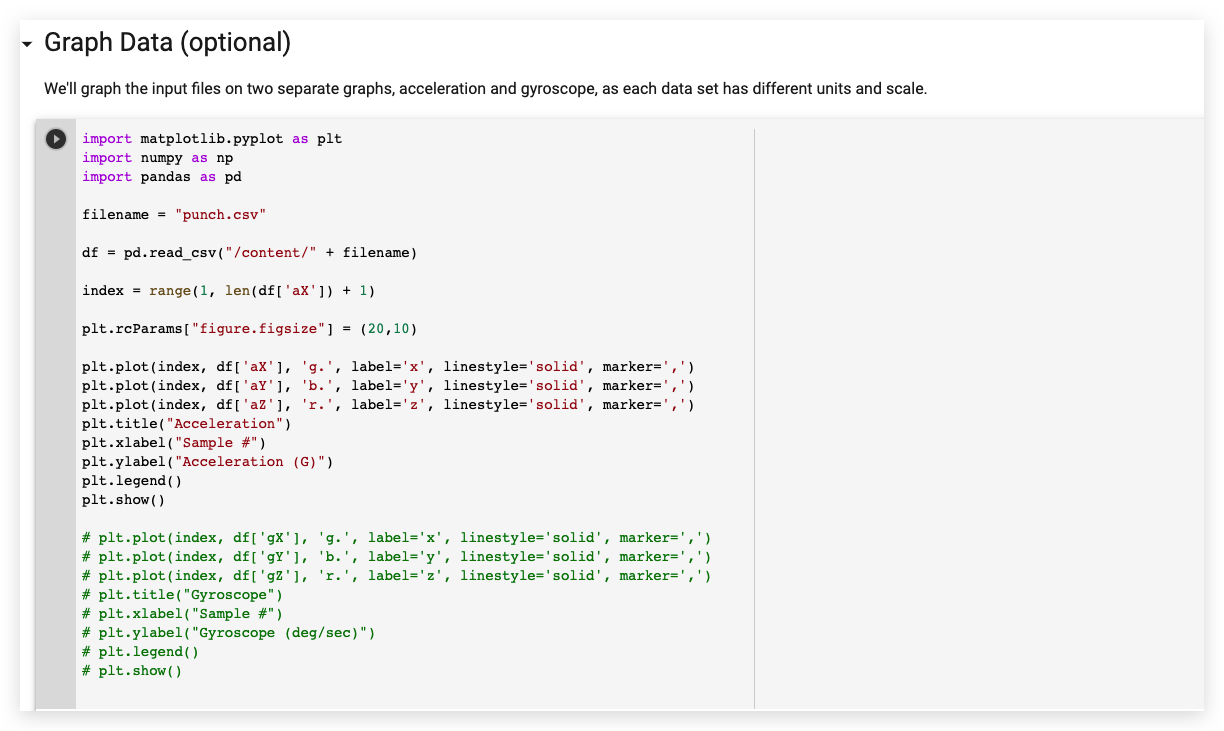
Em Graph Data, comente todas as seções de dados do giroscópio, conforme mostrado:
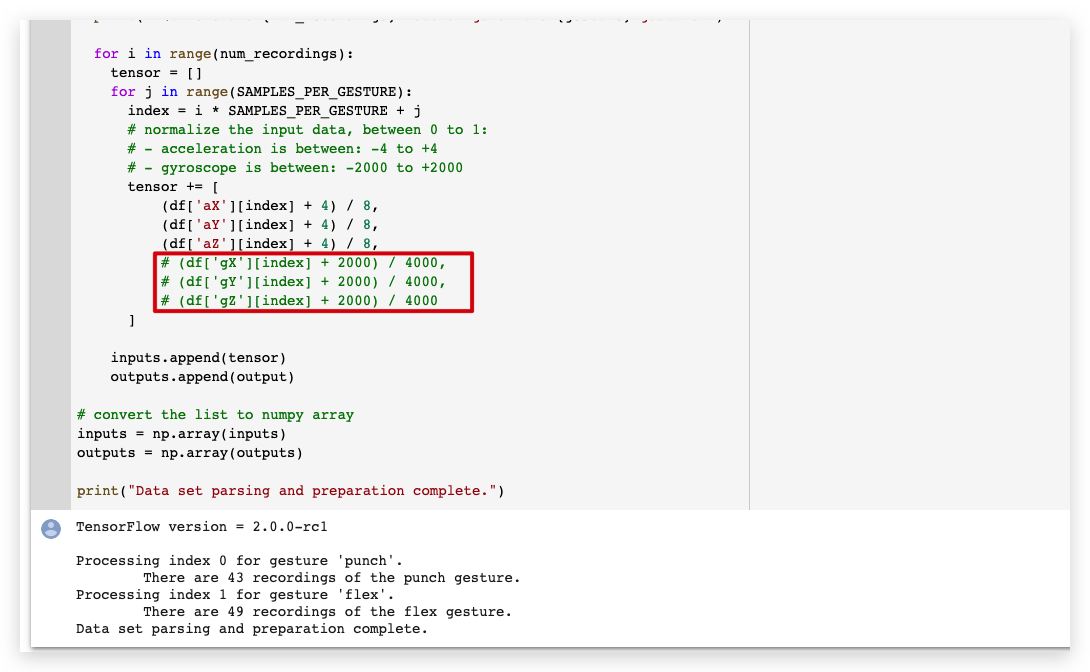
- Em Parse and prepare the data, comente todas as seções de dados do giroscópio, conforme mostrado:
-
Nenhuma mudança é necessária em Randomize and split the input and output pairs for training.
-
Nenhuma mudança é necessária em Build & Train the Model.
-
Nenhuma mudança é necessária em Graph the loss.
-
Nenhuma mudança é necessária em Graph the loss again, skipping a bit of the start.
-
Nenhuma mudança é necessária em Graph the mean absolute error.
-
Nenhuma mudança é necessária em Run with Test Data.
-
Nenhuma mudança é necessária em Convert the Trained Model to Tensor Flow Lite.
-
Nenhuma mudança é necessária em Encode the Model in an Arduino Header File.
Baixe o arquivo model.h no painel esquerdo.
Enviando o Código para o Wio Terminal
- Depois de baixar os arquivos de cabeçalho do modelo, abra IMU_Classifier.ino ou copie o seguinte código na Arduino IDE:
/*
  IMU Classifier
  This example uses the on-board IMU to start reading acceleration and gyroscope
  data from on-board IMU, once enough samples are read, it then uses a
  TensorFlow Lite (Micro) model to try to classify the movement as a known gesture.
  Note: The direct use of C/C++ pointers, namespaces, and dynamic memory is generally
        discouraged in Arduino examples, and in the future the TensorFlowLite library
        might change to make the sketch simpler.
  The circuit:
  - Arduino Nano 33 BLE or Arduino Nano 33 BLE Sense board.
  Created by Don Coleman, Sandeep Mistry
  Modified by Dominic Pajak, Sandeep Mistry
  This example code is in the public domain.

  Modified to adapt for Wio Terminal - Anson (Seeed Studio)
*/

#undef min
#undef max
#include <TensorFlowLite.h>
#include <tensorflow/lite/experimental/micro/kernels/all_ops_resolver.h>
#include <tensorflow/lite/experimental/micro/micro_error_reporter.h>
#include <tensorflow/lite/experimental/micro/micro_interpreter.h>
#include <tensorflow/lite/schema/schema_generated.h>
#include <tensorflow/lite/version.h>

#include "model.h"
#include"LIS3DHTR.h"
LIS3DHTR<TwoWire> lis;


const float accelerationThreshold = 2; // threshold of significant in G's
const int numSamples = 119;

int samplesRead = numSamples;

// global variables used for TensorFlow Lite (Micro)
tflite::MicroErrorReporter tflErrorReporter;

// pull in all the TFLM ops, you can remove this line and
// only pull in the TFLM ops you need, if would like to reduce
// the compiled size of the sketch.
tflite::ops::micro::AllOpsResolver tflOpsResolver;

const tflite::Model* tflModel = nullptr;
tflite::MicroInterpreter* tflInterpreter = nullptr;
TfLiteTensor* tflInputTensor = nullptr;
TfLiteTensor* tflOutputTensor = nullptr;

// Create a static memory buffer for TFLM, the size may need to
// be adjusted based on the model you are using
constexpr int tensorArenaSize = 8 * 1024;
byte tensorArena[tensorArenaSize];

// array to map gesture index to a name
const char* GESTURES[] = {
  "punch",
  "flex"
};


#define NUM_GESTURES (sizeof(GESTURES) / sizeof(GESTURES[0]))

void setup() {
  Serial.begin(9600);
//  while (!Serial);

  lis.begin(Wire1);

  // initialize the IMU
  if (!lis) {
    Serial.println("Failed to initialize IMU!");
    while (1);
  }


  // get the TFL representation of the model byte array
  tflModel = tflite::GetModel(model);
  if (tflModel->version() != TFLITE_SCHEMA_VERSION) {
    Serial.println("Model schema mismatch!");
    while (1);
  }

  // Create an interpreter to run the model
  tflInterpreter = new tflite::MicroInterpreter(tflModel, tflOpsResolver, tensorArena, tensorArenaSize, &tflErrorReporter);

  // Allocate memory for the model's input and output tensors
  tflInterpreter->AllocateTensors();

  // Get pointers for the model's input and output tensors
  tflInputTensor = tflInterpreter->input(0);
  tflOutputTensor = tflInterpreter->output(0);
}

void loop() {
  float x, y, z;

  // wait for significant motion
  while (samplesRead == numSamples) {
    x=lis.getAccelerationX();
    y=lis.getAccelerationY();
    z=lis.getAccelerationZ();

    float aSum = fabs(x) + fabs(y) + fabs(z);

      // check if it's above the threshold
      if (aSum >= accelerationThreshold) {
        // reset the sample read count
        samplesRead = 0;
        break;
      }
  }

  // check if the all the required samples have been read since
  // the last time the significant motion was detected
  while (samplesRead < numSamples) {
    // check if new acceleration AND gyroscope data is available
      // read the acceleration and gyroscope data
      x=lis.getAccelerationX();
      y=lis.getAccelerationY();
      z=lis.getAccelerationZ();


      // normalize the IMU data between 0 to 1 and store in the model's
      // input tensor
      tflInputTensor->data.f[samplesRead * 6 + 0] = (x + 4.0) / 8.0;
      tflInputTensor->data.f[samplesRead * 6 + 1] = (y + 4.0) / 8.0;
      tflInputTensor->data.f[samplesRead * 6 + 2] = (z + 4.0) / 8.0;

      samplesRead++;

      if (samplesRead == numSamples) {
        // Run inferencing
        TfLiteStatus invokeStatus = tflInterpreter->Invoke();
        if (invokeStatus != kTfLiteOk) {
          Serial.println("Invoke failed!");
          while (1);
          return;
        }

        // Loop through the output tensor values from the model
        for (int i = 0; i < NUM_GESTURES; i++) {
          Serial.print(GESTURES[i]);
          Serial.print(": ");
          Serial.println(tflOutputTensor->data.f[i], 6);
        }
        Serial.println();
      }
  }
}
-
Coloque o arquivo de cabeçalho
model.htreinado na mesma pasta que o arquivo IMU_Classifier.ino e carregue o código para o Wio Terminal. -
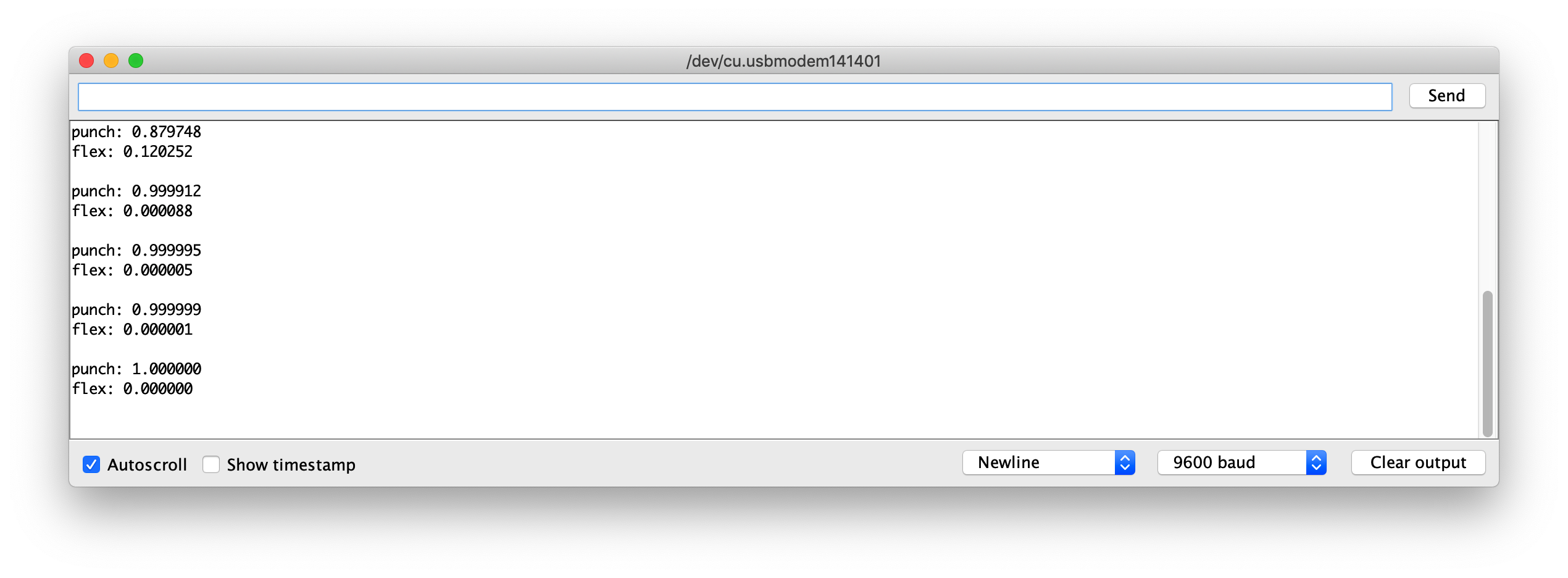
Agora, abra o monitor serial e faça seus gestos! Você deverá ver a confiança de cada gesto sendo exibida (0 = baixa confiança, 1 = alta confiança).
Arquivos de Modelo de Exemplo
Para referência, anexei os arquivos do modelo treinado de model.h para download. Você pode usá-los com IMU_Classifier.ino para testar.
Desenvolvimento Futuro
Para desenvolvimento futuro, mais gestos podem ser treinados no Wio Terminal via IMU, e para acionar diferentes saídas! Explore Aprendizado de Máquina em Microcontroladores com TensorFlow Lite!