Usando o Wio Terminal como um Dispositivo USB MIDI
Este repositório apresenta como usar o Wio Terminal como um dispositivo USB MIDI (Musical Instrument Digital Interface), onde ele pode ser usado para controlar instrumentos musicais!
Instalando Bibliotecas
Este exemplo também requer bibliotecas Arduino MIDI adicionais:
-
Visite os repositórios da Arduino MIDI Library e baixe todo o repositório para o seu disco local.
-
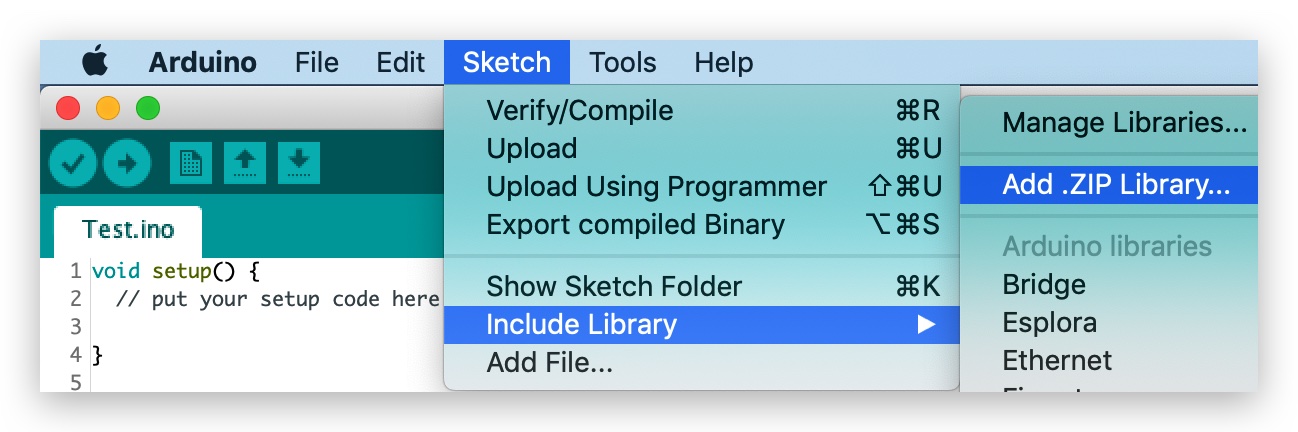
Agora, a biblioteca pode ser instalada no Arduino IDE. Abra o Arduino IDE e clique em
sketch->Include Library->Add .ZIP Library, e escolha o arquivoSeeed_Arduino_LCDque você acabou de baixar.
Obtendo Resultados
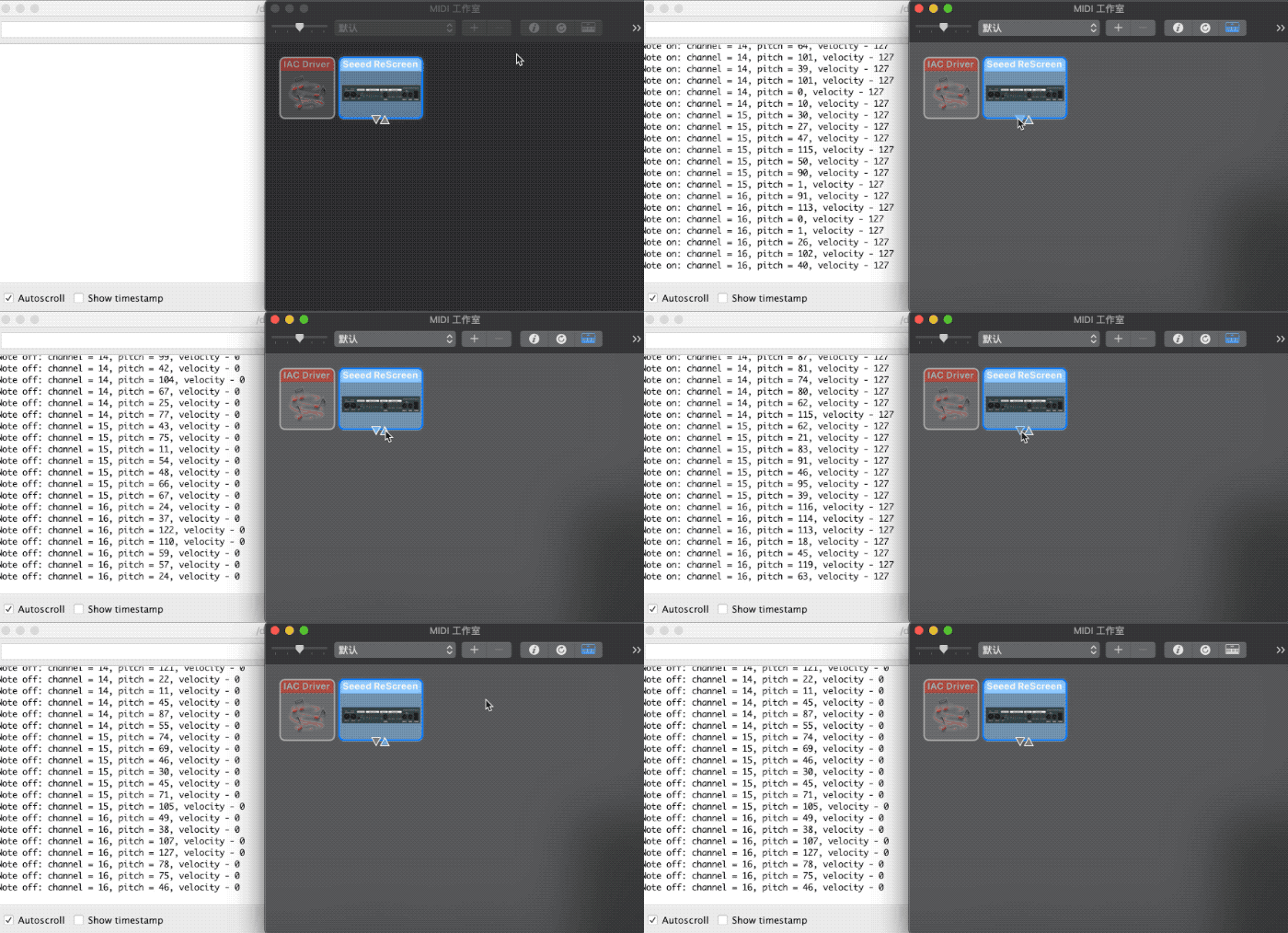
Neste caso, o Wio Terminal está conectado ao meu MacBook e usa o aplicativo Audio MIDI Setup que vem junto com o macOS para testar. Você também pode ver os dados seriais pelo monitor serial no Arduino IDE. Se você tiver um dispositivo MIDI disponível, use-o em vez disso para um cenário mais realista!
Código Completo
Para mais funcionalidades, consulte as bibliotecas TinyUSB.
#include <Arduino.h>
#include <Adafruit_TinyUSB.h>
#include <MIDI.h>

// USB MIDI object
Adafruit_USBD_MIDI usb_midi;

// Create a new instance of the Arduino MIDI Library,
// and attach usb_midi as the transport.
MIDI_CREATE_INSTANCE(Adafruit_USBD_MIDI, usb_midi, MIDI);

// Variable that holds the current position in the sequence.
uint32_t position = 0;

// Store example melody as an array of note values
byte note_sequence[] = {
  74,78,81,86,90,93,98,102,57,61,66,69,73,78,81,85,88,92,97,100,97,92,88,85,81,78,
  74,69,66,62,57,62,66,69,74,78,81,86,90,93,97,102,97,93,90,85,81,78,73,68,64,61,
  56,61,64,68,74,78,81,86,90,93,98,102
};

void setup()
{
  pinMode(LED_BUILTIN, OUTPUT);

  // Initialize MIDI, and listen to all MIDI channels
  // This will also call usb_midi's begin()
  MIDI.begin(MIDI_CHANNEL_OMNI);

  // Attach the handleNoteOn function to the MIDI Library. It will
  // be called whenever the Bluefruit receives MIDI Note On messages.
  MIDI.setHandleNoteOn(handleNoteOn);

  // Do the same for MIDI Note Off messages.
  MIDI.setHandleNoteOff(handleNoteOff);

  Serial.begin(115200);

  // wait until device mounted
  while( !USBDevice.mounted() ) delay(1);
}

void loop()
{
  static uint32_t start_ms = 0;
  if ( millis() - start_ms > 266 )
  {
    start_ms += 266;

    // Setup variables for the current and previous
    // positions in the note sequence.
    int previous = position - 1;

    // If we currently are at position 0, set the
    // previous position to the last note in the sequence.
    if (previous < 0) {
      previous = sizeof(note_sequence) - 1;
    }

    // Send Note On for current position at full velocity (127) on channel 1.
    MIDI.sendNoteOn(note_sequence[position], 127, 1);

    // Send Note Off for previous note.
    MIDI.sendNoteOff(note_sequence[previous], 0, 1);

    // Increment position
    position++;

    // If we are at the end of the sequence, start over.
    if (position >= sizeof(note_sequence)) {
      position = 0;
    }
  }

  // read any new MIDI messages
  MIDI.read();
}

void handleNoteOn(byte channel, byte pitch, byte velocity)
{
  // Log when a note is pressed.
  Serial.printf("Note on: channel = %d, pitch = %d, velocity - %d", channel, pitch, velocity);
  Serial.println();
}

void handleNoteOff(byte channel, byte pitch, byte velocity)
{
  // Log when a note is released.
  Serial.printf("Note off: channel = %d, pitch = %d, velocity - %d", channel, pitch, velocity);
  Serial.println();
}